Lookup Behavior – Minimum character to trigger search and delay between trigger – Dynamics 365


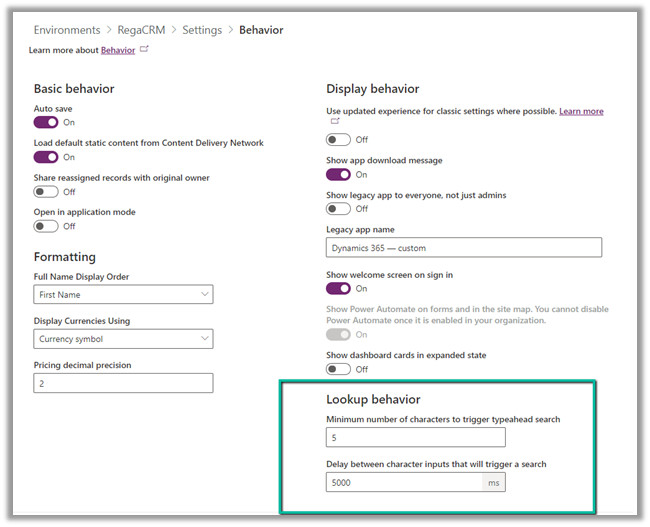
Within Power Platform Admin Center – (https://admin.powerplatform.microsoft.com/)  through Environments >> [Name] >> Settings >> Behavior >> Lookup Behavior settings we can control the minimum number of characters entered before triggering the search in the and delay before the search is triggered for the lookups.

  • Minimum number of characters to trigger typeahead search – Default (2)
  • Delay between character inputs that will trigger a search – Default (250ms)

Here we have updated the value to 5 and 5000 respectively for our testing.

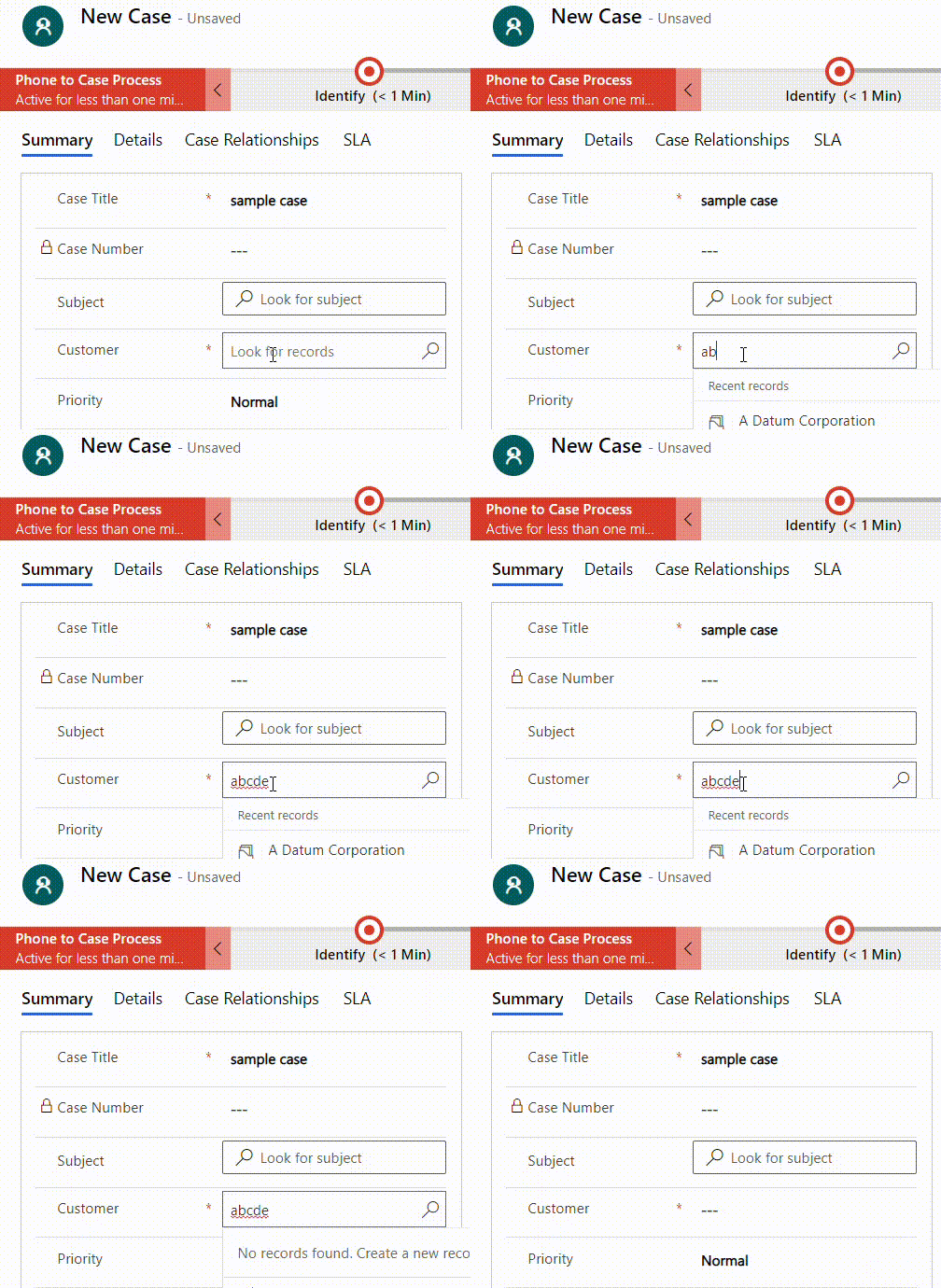
The result –

Lookup Behaviour

After 5 characters are entered, it waits for 5 seconds before searching (loading..)

Also check –

https://nishantrana.me/2021/06/22/advanced-lookup-in-model-driven-power-apps-dynamics-365/

https://docs.microsoft.com/en-us/power-platform/admin/settings-behavior

Hope it helps ..

Advertisements

Assign approvals to any user in the Tenant – Power Automate


We recently implemented Approvals, and we required that any user in the tenant should be able to provide approval.

For one of the users, we got the below error while testing the flow.

UserNotMemberOfCdsSecurityGroup

This was because we were using the Security Group to control access to Dataverse Environment.

So adding the user to the Security Group fixed the issue for us.

The user had the required CRM /Dataverse license.

More on that – 

https://nishantrana.me/2021/11/01/fixed-error-code-usernotmemberofcdssecuritygroup-error-message-the-user-xyz-cannot-be-created-in-microsoft-dataverse-because-the-account-is-not-a-member-of-group-abc/

Next, we ran into an another issue with one more user’s account and got the below error.

InvalidApprovalCreateRequestAssignedToNoValidUsers

The user was unlicensed so we thought that could be the issue. However, for other unlicensed users it was working fine, on running the flow, the user was getting added to CRM with Approvals User security role.

https://docs.microsoft.com/en-us/power-automate/get-started-approvals#assign-approvals-to-any-user-in-your-tenant

Next, we checked the AllowAdHocSubcriptions setting in Azure AD.

We tried both enabling and disabling this setting, but it still worked for other unlicensed users except the particular user.

We had added the user’s account to the Security Group also.

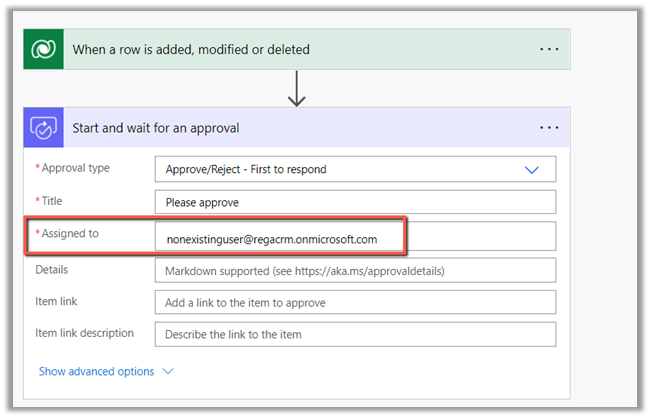
After spending some more time, when we tried to search for that user’s account in Outlook Address Book, it didn’t give us any result, then we realized that the account doesn’t exist anymore in the Tenant.

https://nishantrana.me/2021/11/03/fixed-invalidapprovalcreaterequestassignedtonovalidusers-error-message-required-field-assignedto-contained-no-valid-users-in-the-organization/

Hope this helps..

Advertisements

Fixed – ‘InvalidApprovalCreateRequestAssignedToNoValidUsers’. Error Message: ‘Required field ‘assignedTo’ contained no valid users in the organization’.


We would get the below error while using Approvals in Power Automate

“BadRequest. The request failed. Error code: ‘InvalidApprovalCreateRequestAssignedToNoValidUsers’. Error Message: ‘Required field ‘assignedTo’ contained no valid users in the organization'”

This error occurs if we are trying to send the approval to the user which doesn’t exist in the organization or to the external users.

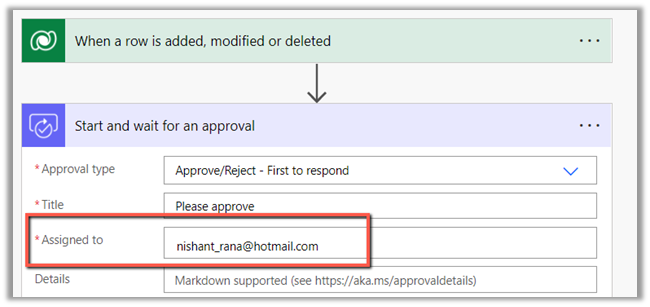
We recently got this error, and interestingly in our case, the user was showing up in the members in the Security Group inside Azure Admin Portal and was also giving us the option to add the user in Assigned To in the Flow.

However the user was not there in the Address Book of the Outlook, that is when we realized that user does not exist in the tenant anymore.

The flow can also fail if Assigned to a user’s personal account.

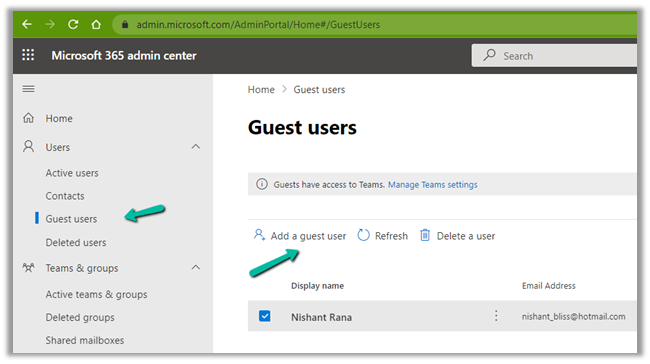
Here we have an option, to add the user as the Guest User.

Within Admin portal, navigate to Users >> Guest Users 

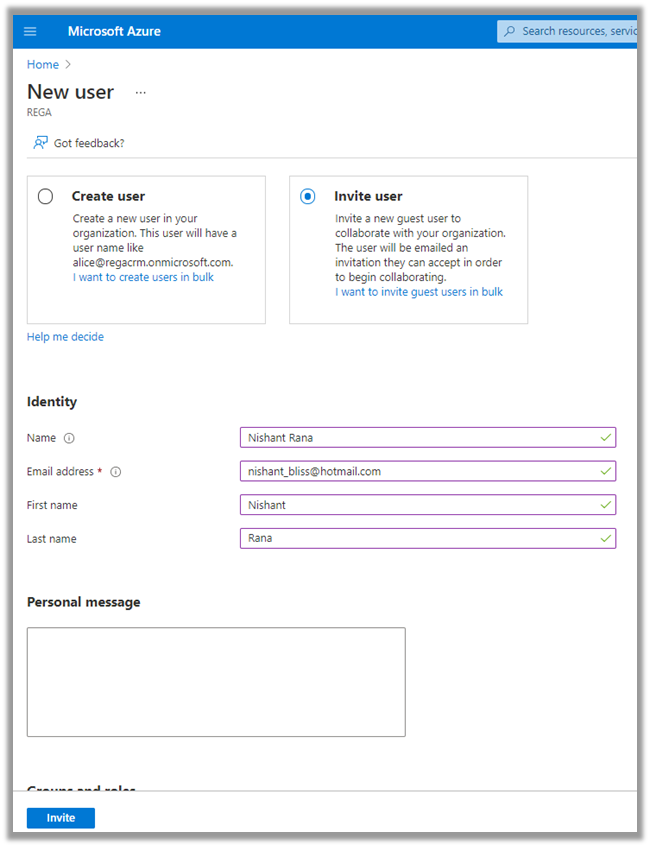
Invite the user 

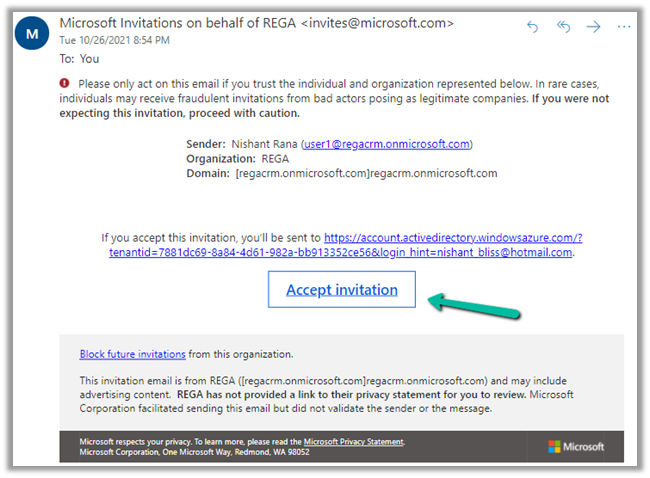
The guest user needs to accept the invitation.

Back in our approval flow, we can now select the guest user added.

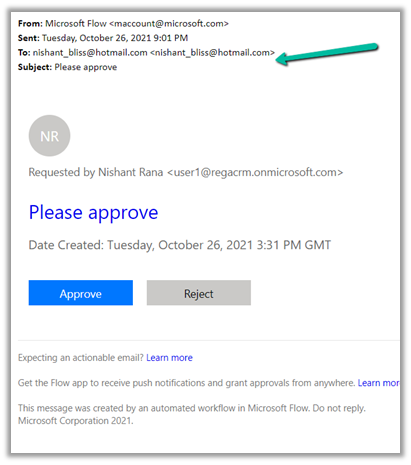
We can see the guest user getting the approval request

If we are using Security Group for the CRM Environment, than the user needs to be added to the Security Group also, else we will get the below exception – UserNotMemberofCdsSecurityGroup – The user cannot be created in Microsoft Dataverse because the account is not the member of the security group.

Fixed – Error code: ‘UserNotMemberOfCdsSecurityGroup’. Error Message: ‘The user ‘xyz’ cannot be created in Microsoft Dataverse because the account is not a member of group ‘abc’

In case we want to use approval with an external user(s) – without adding them as a guest user, we can use Send Email with Options Action instead of Power Automate Approvals.

https://debajmecrm.com/approvals-with-external-users-in-power-automate-without-consuming-power-automate-flow-license/

Hope it helps..

Advertisements

Route Case (routecase) attribute and msdyn_ApplyRoutingRuleEntityRecord Action in Dynamics 365 Customer Service


The case entity/table in Dynamics 365 CE has a Boolean type field named Route Case.

It has a default value as Yes.

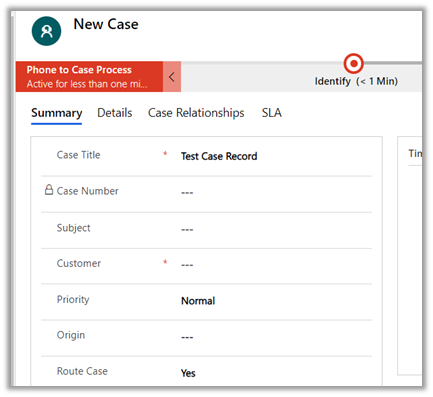
On manually creating the record from the user interface, although Route Case shows the default value as Yes

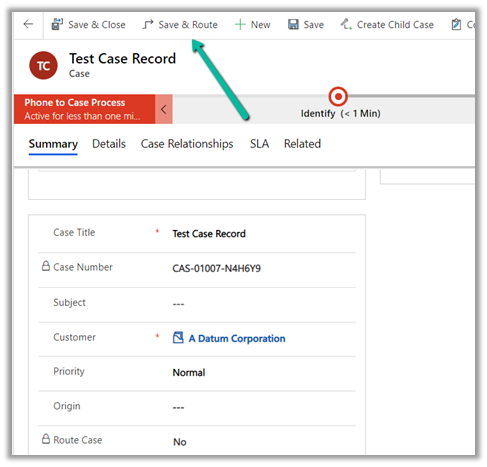
On saving the record, the value changes to No, the field is also locked.

So basically no routing rules are applied when a case record is created from the user interface.

To apply routing rules, we need to use the “Save and Route” option

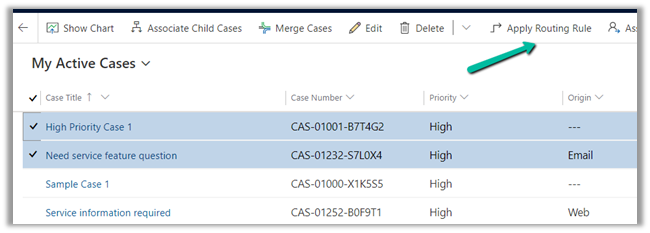
Or “Apply Routing Rule” command from the Grid

This also however will not update or set the Route Case field to Yes on the case record.

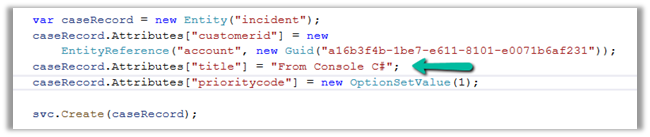
Now if we create the case record programmatically, the field would be set and saved with its default values as Yes.

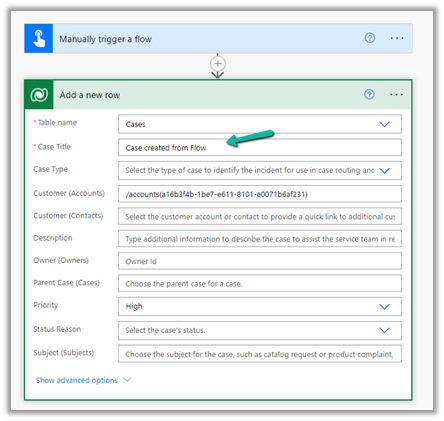
The same goes for cases created from Flow.

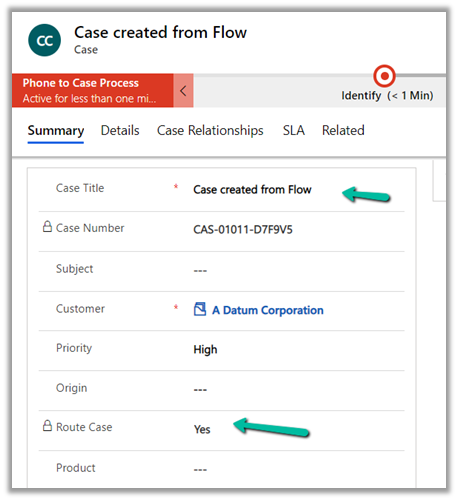
Route Case is set to Yes.

So basically routing rules will be triggered on the records created from outside the User Interface as Route Case will be set Yes for those records.

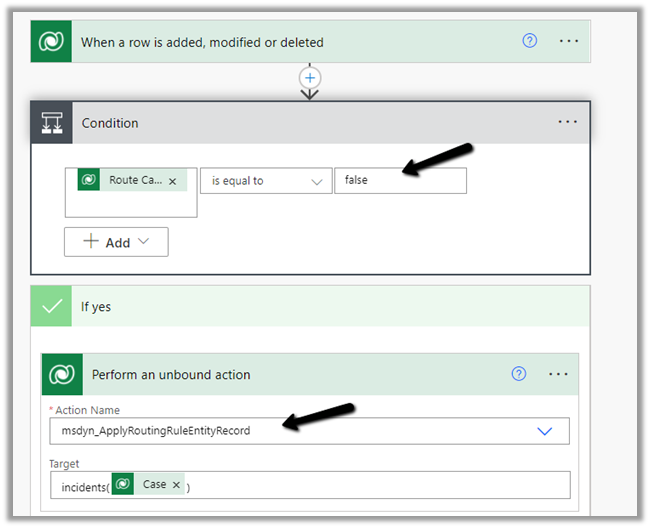
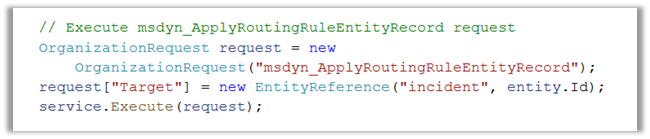
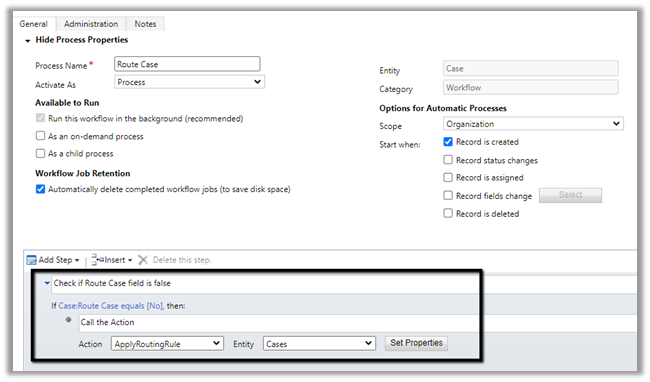
Now if we want to run the routing rules against the case record created from the user interface, we can make use of the following action –

msdyn_ApplyRoutingRuleEntityRecord

Within Flow –

Within Plugin or any custom code–

msdyn_ApplyRoutingRuleEntityRecord can be used for other entities apart from the case.

In the case of Case entity, we can also make use ApplyRoutingRule action also.


Hope it helps..


Advertisements

Fixed – Error code: ‘UserNotMemberOfCdsSecurityGroup’. Error Message: ‘The user ‘xyz’ cannot be created in Microsoft Dataverse because the account is not a member of group ‘abc’


We would get this error within Power Automate Approval Flow if we are using Security Group to control access to Dynamics 365 Environment and are sending Approval to a user who is not a member of that security group.

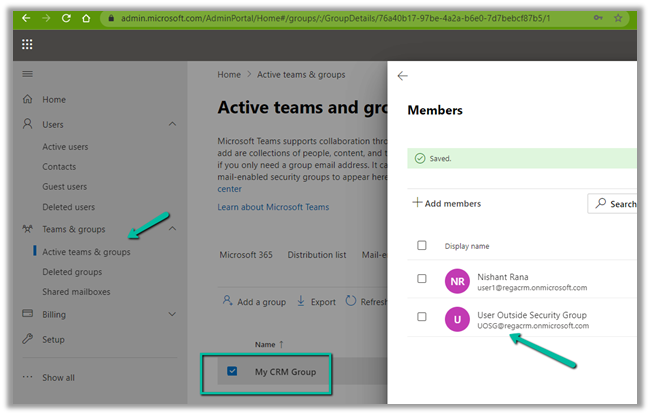
Below is the User within the Tenant but is not member of the My CRM Group Security Group associated with that Environment.

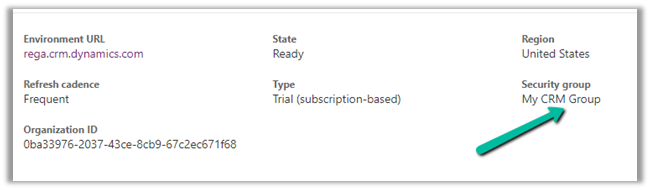
The Security Group – My CRM Group – assigned to Environment against which flow  is created.

So to fix the issue, as the error message indicates, we need to add the user to the Security group.

After adding the user to the Security Group, the flow runs successfully

Also, the User (unlicensed in our case) gets added to CRM with Approvals
User security role as shown below.

Check other posts on Approvals – 

Approvals – Power Automate & Dynamics 365

Hope it helps..


Advertisements

Using DataSourceInfo and RecordInfo function for checking permissions for a Dataverse table or record in Canvas App


DataSourceInfo function can be used to check the Table / Entity level permission.

We can check for Create, Read, Edit, and Delete Permission and can disable, hide and show the corresponding create, edit and delete buttons for the users.

  • DataSourceInfo.CreatePermission
  • DataSourceInfo. DeletePermission
  • DataSourceInfo. EditPermission
  • DataSourceInfo. ReadPermission

DataSourceInfo function can also be used to obtain information about a particular column of the data source like Display Name, Max Length, Max Value, Min Length, Required.

https://www.inogic.com/blog/2020/11/how-to-use-datasourceinfo-in-canvas-app/

  • DataSourceInfo.DisplayName
  • DataSourceInfo.MaxLength
  • DataSourceInfo.MaxValue
  • DataSourceInfo.MinValue
  • DataSourceInfo.Required


Similarly, the RecordInfo function can be used to get the information about the record of a Dataverse data source.

We can check for the Read, Edit, and Delete Permission.

  • RecordInfo. ReadPermission
  • RecordInfo. EditPermission
  • RecordInfo.DeletePermission

Hide Show control based on Security Role in Canvas App

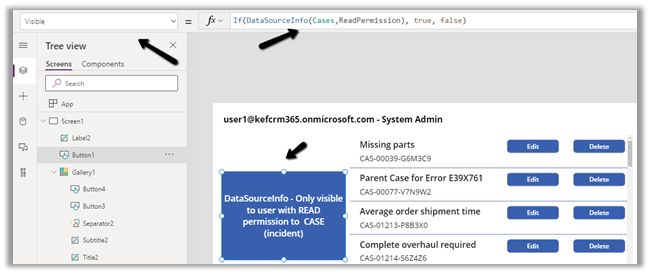
Here for our sample Canvas App we have a button and a Gallery  having Data source as Cases

1 

Visible    

Button

If(DataSourceInfo(Cases,DataSourceInfo.ReadPermission), true, false)

2 

Visible   

Edit

If(RecordInfo(Gallery1.Selected, RecordInfo.EditPermission),true, false)

3 

Visible    

Delete

If(RecordInfo(Gallery1.Selected, RecordInfo.DeletePermission),true, false)

Now to test it, we have assigned the below custom security role/rights to another user – Test User 1 (along with Basic User security role)

i.e. Read, Write and Delete permission at the User Level on Case.

We have also shared the Average order shipment time record with Test User 1 assigning him the Write Permission.
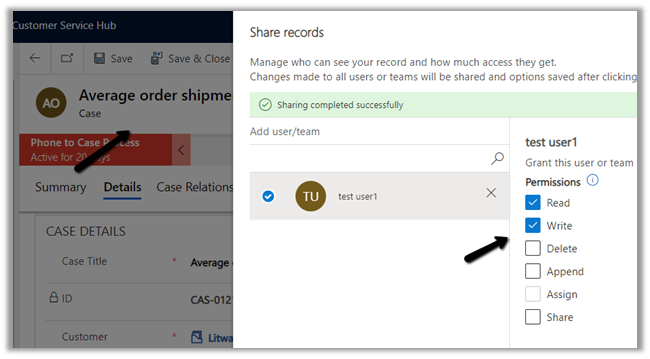
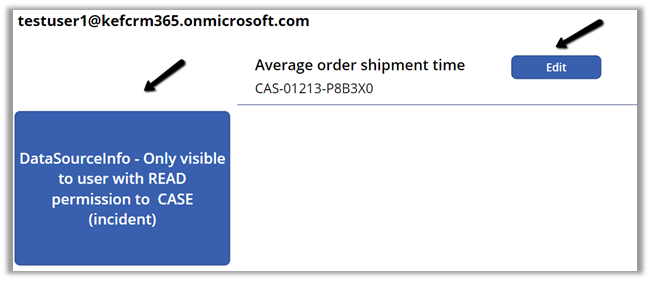
Now when Test User 1 will open the Canvas App, the first button will be visible as he has the Read permission on the Case table.

In the gallery only the one record shared will be visible along with the Edit button on the same.
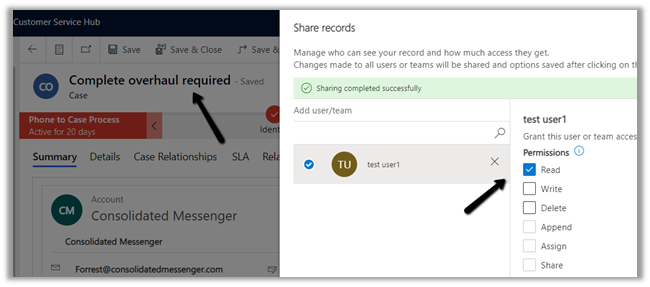
Let us just share one more case record with only Read permission to Test User 1.
We can see the record displayed for Test User 1.
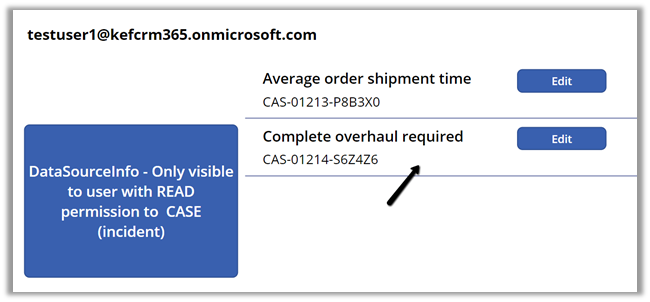
It shows the Edit button for the new record, although we shared the record with the Read permission.

We have the following formula for the Edit button’s OnSelect

Patch(Cases, LookUp(Cases,’Case Number’ = lblCaseNumber.Text), {‘Case Title’:”Sample Title”})

So clicking on Edit for the new record shared ‘Complete overhaul required‘ gives the below Permission error
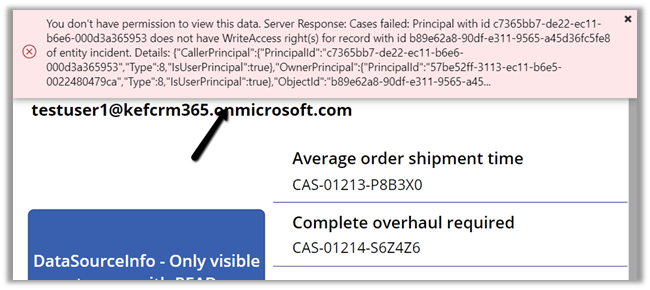
Now pressing the same edit button for the ‘Average order shipment time’ record will update the record (set title as Sample Title) as it was shared with Write permission with Test User 1.
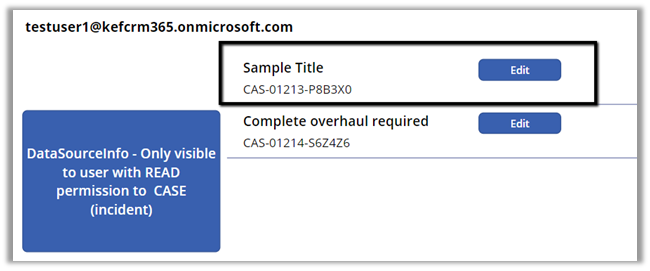
Get all the details here –

https://docs.microsoft.com/en-us/powerapps/maker/canvas-apps/functions/function-datasourceinfo

https://docs.microsoft.com/en-us/powerapps/maker/canvas-apps/functions/function-recordinfo

Hope it helps..

Advertisements