Dataverse provides a flexible way to manage data through choice (option set) fields. One of the newer enhancements is the Hidden property, which allows administrators to hide specific choice values from selection while retaining them in the system.
To see it in action,
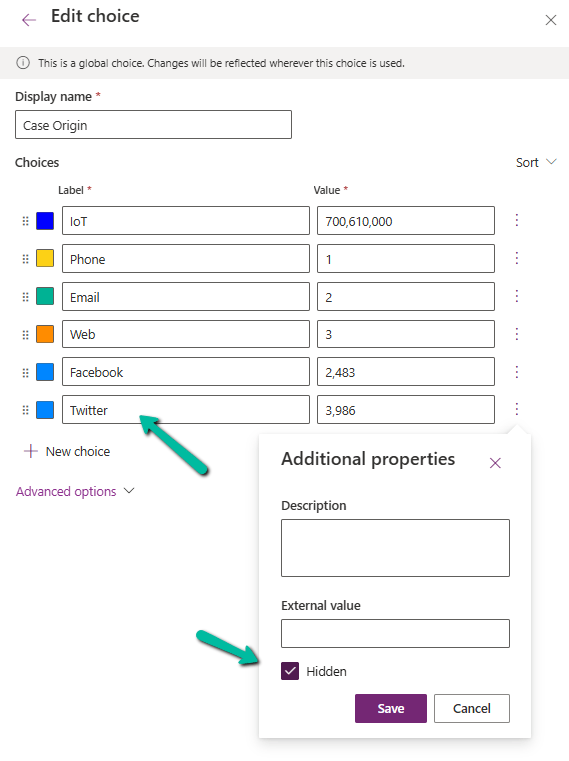
Navigate to Dataverse Table Designer in the Power Apps Maker Portal, and select the Choice (Option Set) field.
Here we have selected the Origin choice field of the Case table.
We have selected the Twitter choice value.
Click on a particular choice value and open Additional Properties, check the Hidden checkbox, and save and publish the changes.
After applying these settings,
Hidden choice values will not appear in dropdown lists when users create or update records.
Existing records with hidden values will still display them in forms and views.
We can see the option greyed out for the record having that existing hidden value.
Business rules and workflows can still reference hidden values.
The hidden choice remains in the metadata and can be retrieved using FetchXML, OData, or SDK queries.
Power Automate flows triggered on record updates will still recognize hidden values.
We can use this new feature for the deprecating values that should no longer be used but still need to exist in historical data. Also, we need to communicate changes to users to prevent confusion when certain values disappear from selection lists. And finally, we should consider data migration and cleanup if a value should never be used again.
Thus, the Hidden property for choice fields in Dataverse provides a powerful way for us to manage choice options dynamically without affecting existing records. By leveraging this feature, we can ensure a smoother transition when phasing out obsolete values while maintaining data integrity.
We can use the setIsValid method for validating field values in Model-driven apps. This method helps ensure that the data entered by users meets the required criteria before it’s processed or saved.
The setIsValid method is used to set the validity of a column’s value. It can mark a field as valid or invalid based on custom validation logic.
bool: A Boolean value. Set to false to mark the column value as invalid, and true to mark it as valid.
message: (Optional) A string containing the message to display when the value is invalid.
Below we are using the setIsValid method in the function that ensures that the “End Date” is earlier than or equal to the “Start Date”, else it will mark the “End Date” as invalid.
function validateDates(executionContext) {
    var formContext = executionContext.getFormContext();
    var startDate = formContext.getAttribute("custom_startdate");
    var endDate = formContext.getAttribute("custom_enddate");

    if (startDate && endDate && endDate.getValue() <= startDate.getValue()) {
        endDate.setIsValid(false, "End Date must be after Start Date.");
    } else {
        endDate.setIsValid(true);
    }
}
We have it registered in the On Change of the ‘Start Date’ and ‘End Date’ fields.
Here if we try saving the record, if the End Date is smaller than the Start Date, we will get the message specified.
In Dataverse, solution dependencies are a vital aspect of managing and deploying applications. Dependencies ensure that required components are present for a solution to work seamlessly across environments. However, with complex solutions, understanding and managing these dependencies can become overwhelming.
The updated dependencies page is designed to simplify dependency management by offering a more intuitive, action-driven experience.
Select a particular component in the solution, right-click>> Advanced >> Show dependencies.
We can see 3 different tabs.
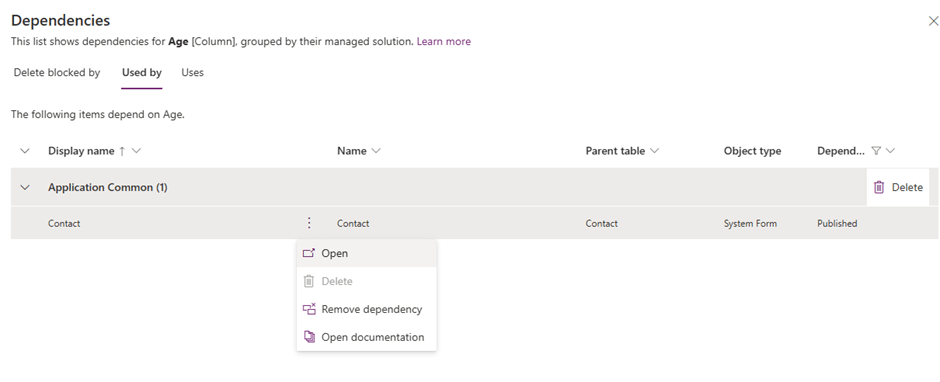
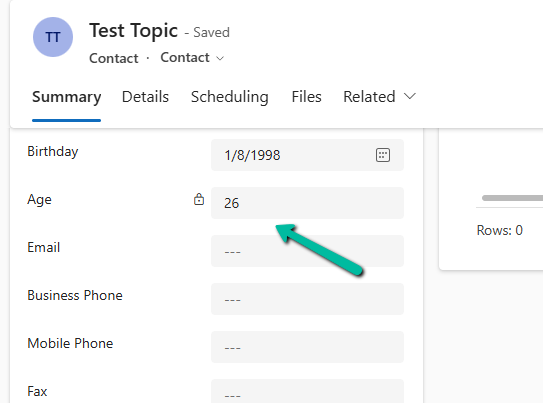
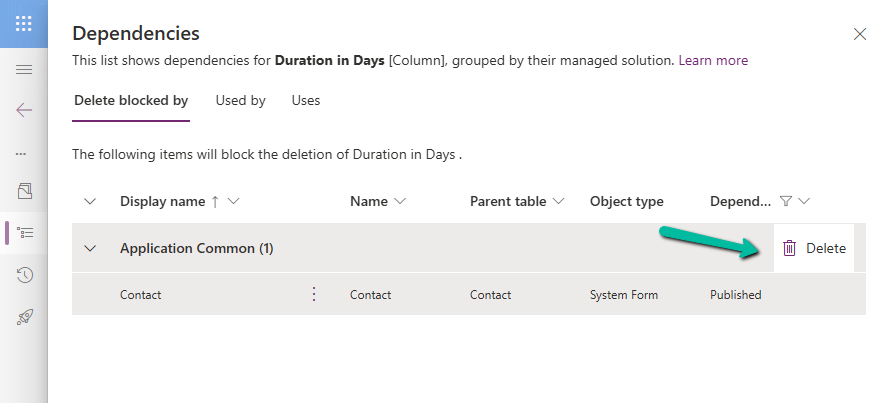
Delete Blocked By (tab): Displays any dependencies preventing deletion of a component. Below we can see that for the Age column, it shows Contact’s System Form as the dependency.
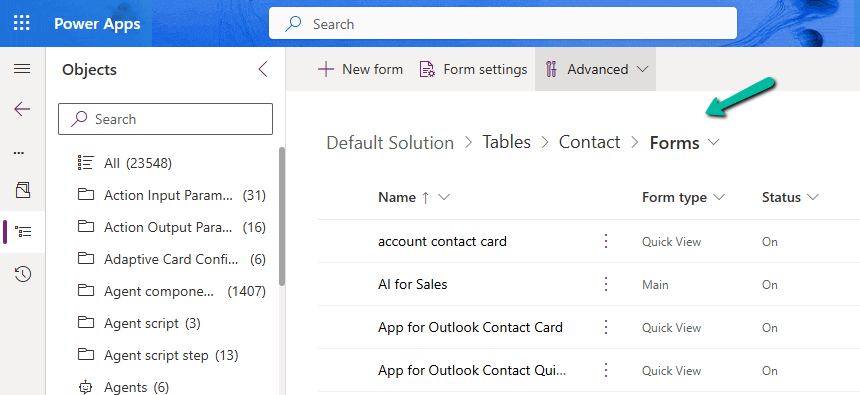
Clicking on the Open option takes us to the component page, where we can see all the forms for the contact table.
Used By (tab): Lists other components dependent on the selected component.
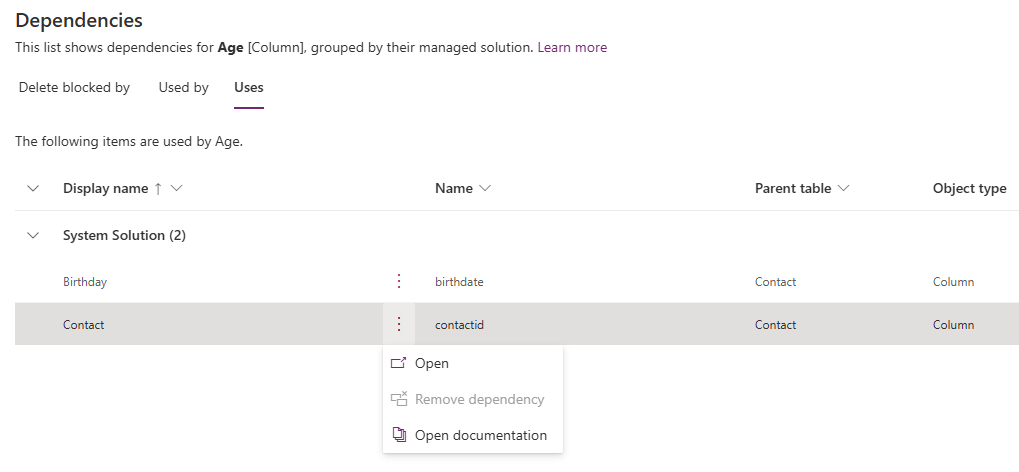
Uses (tab): Shows dependencies that the selected component relies upon.
On clicking Open, it opens the Columns page for that table.
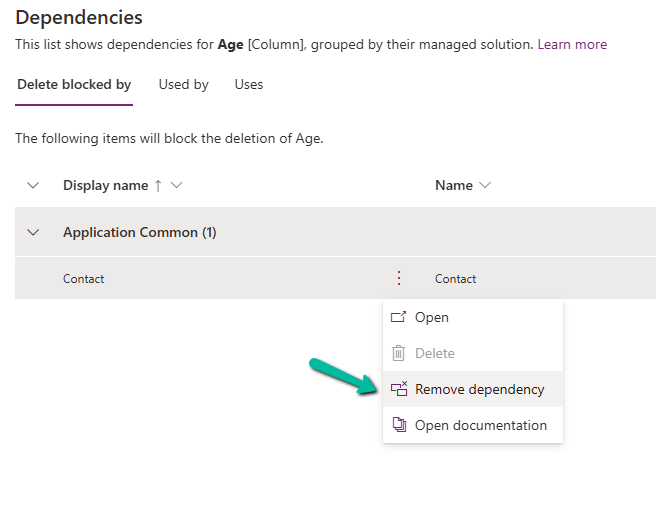
The different actions that we can take are Open and inspect the object, Delete the object, Remove dependency, and open the relevant documentation.
Below we have selected the option Remove dependency. As we saw the dependency here refers to the Contact System form in which we have the age field used.
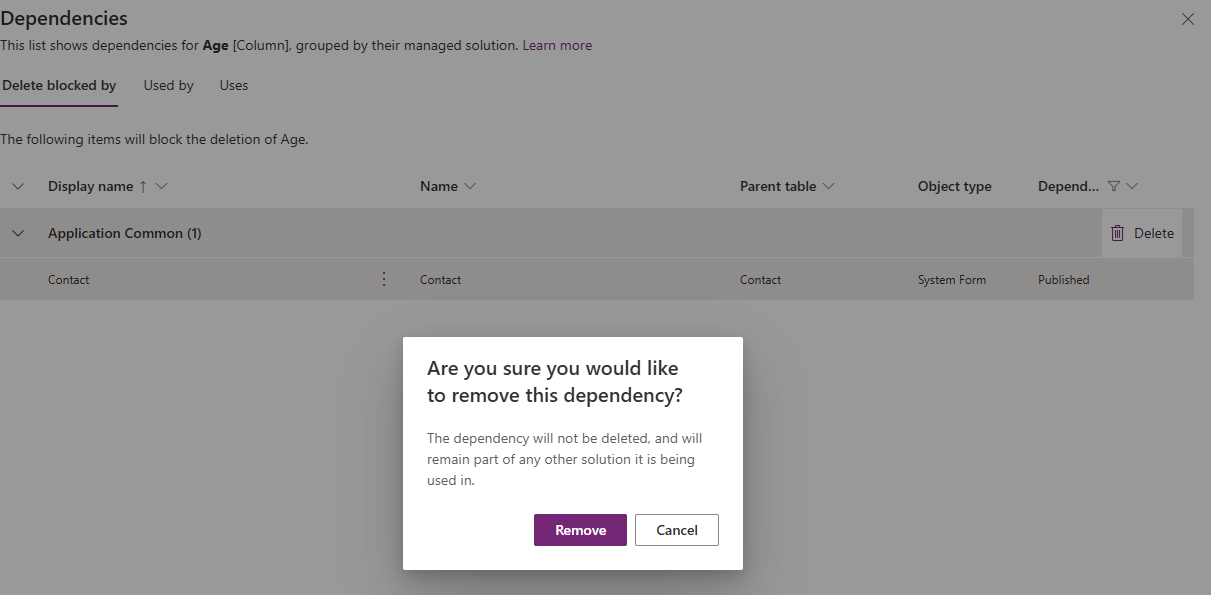
Select Remove.
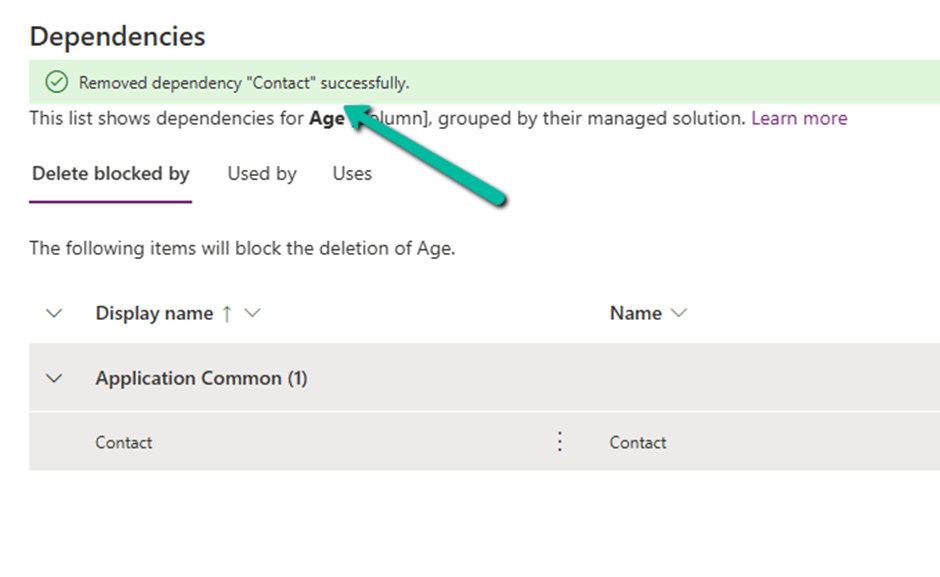
We get the success message after the successful removal of the dependency.
i.e. we can see the field removed from the blocking Contact’s System form.
Now if we want we can easily delete that particular field with no object blocking the delete.
Lastly, the Delete option for the solution allows the delete (uninstall) the solution that has dependencies on the solution component.
Using the new features – Create a formula (preview) and Explain this formula we can now easily write, edit, and understand formulas in Power Apps.
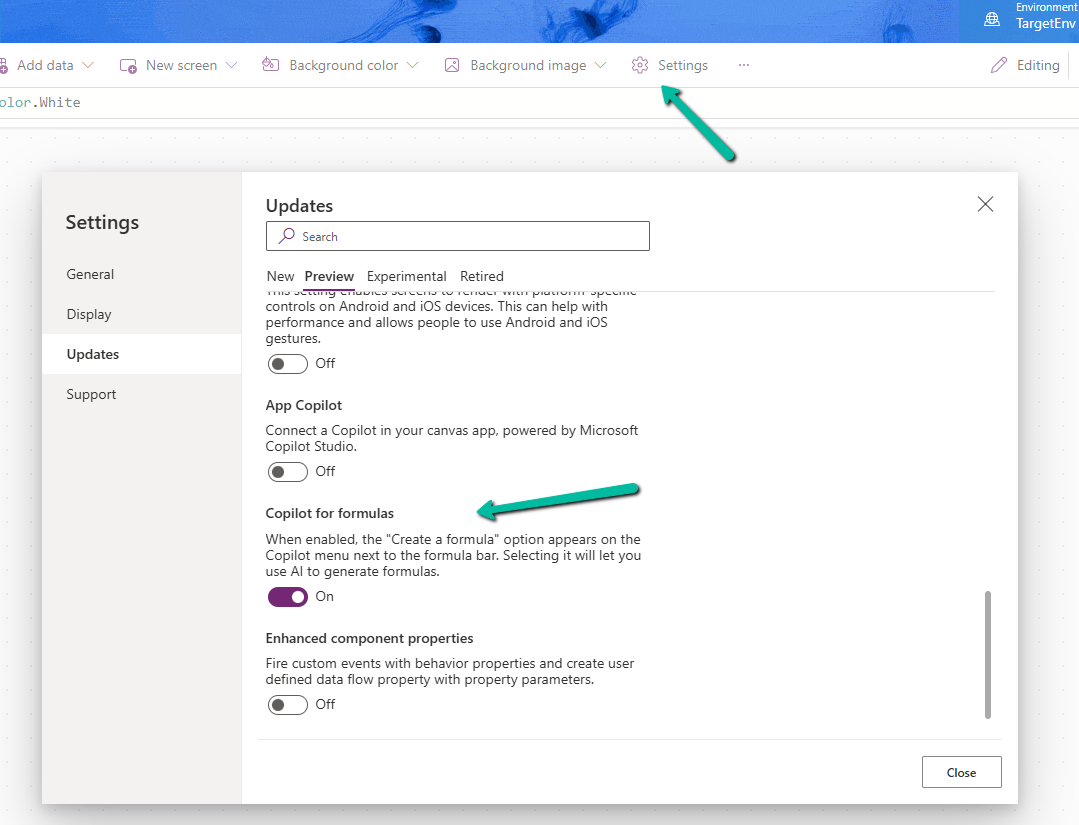
To enable it, navigate to switch on – Settings >> Updates >> Preview >> Copilot for formulas
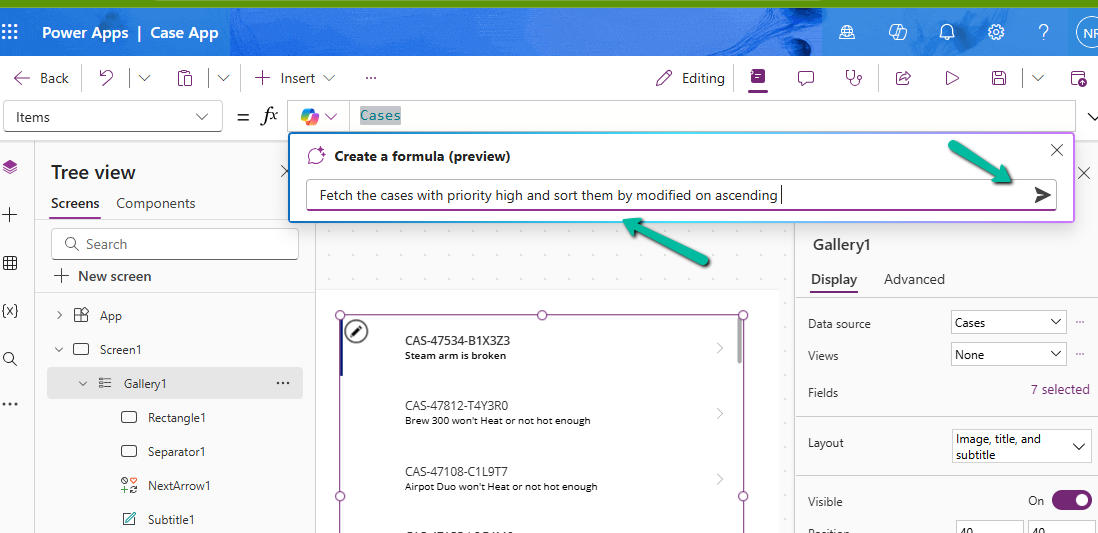
Here in the sample app below, we are trying to set the Items property of the Gallery using Create a formula. Here our gallery control is bound to Cases as the data source.
We can describe what formula we need in plain language.
We can see it generating the formula for us. We have the option to Apply, Discard, and Copy it.
Here we have applied the generated formula.
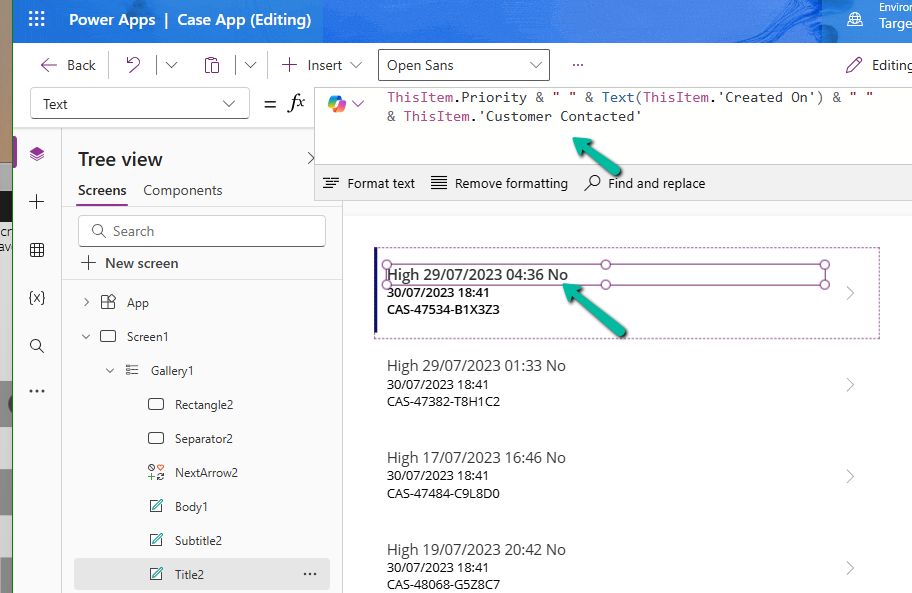
Another example is where we are setting the Text property.
Here instead of the customer name it considered the Customer Contacted field. So basically we need to review the formula generated.
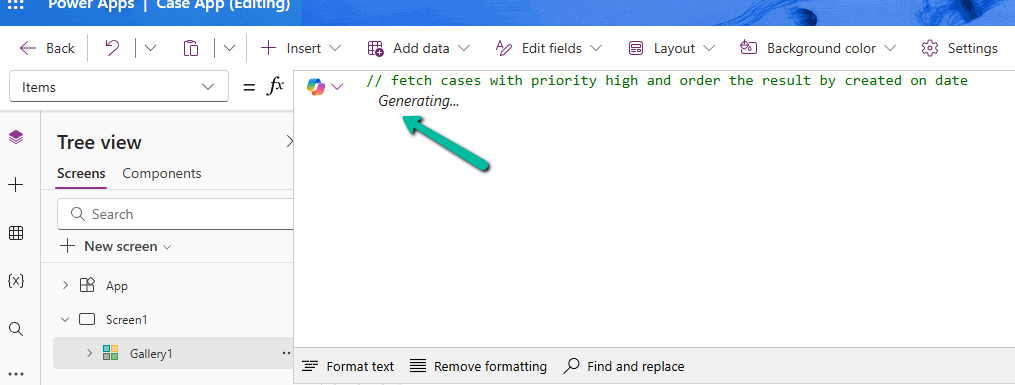
We can also generate formula from code comments as show below. Simply type the comment and wait for formula to be generated or otherwise press Enter.
The result
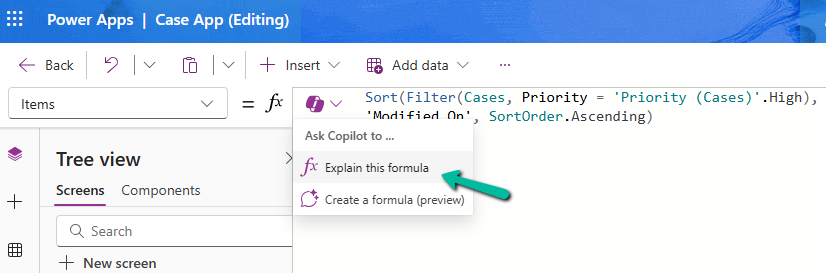
Next using Explain this formula we can use the copilot’s ability to explain the formula in plain language.
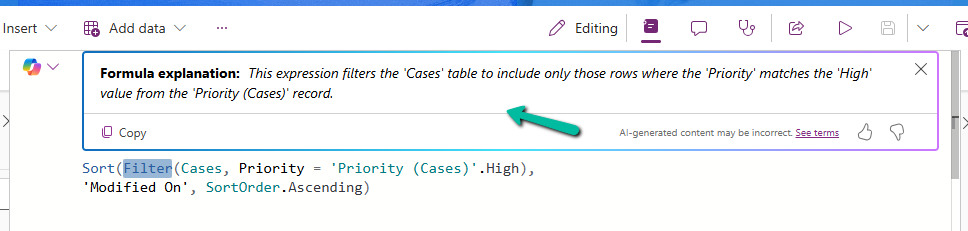
The result
We can also select specific parts of the formula for explanation.
Below we have selected the Filter keyword and Explain this selection option.
Field Suggestions by Copilot for Canvas Apps apply to Gallery, Form Table controls both classic and modern for Dataverse, SharePoint, or SQL Server data source. It analyzes the schema of the table selected and recommends up to 10 fields that also include a maximum of 10 required fields of that table.
Let us see it in action.
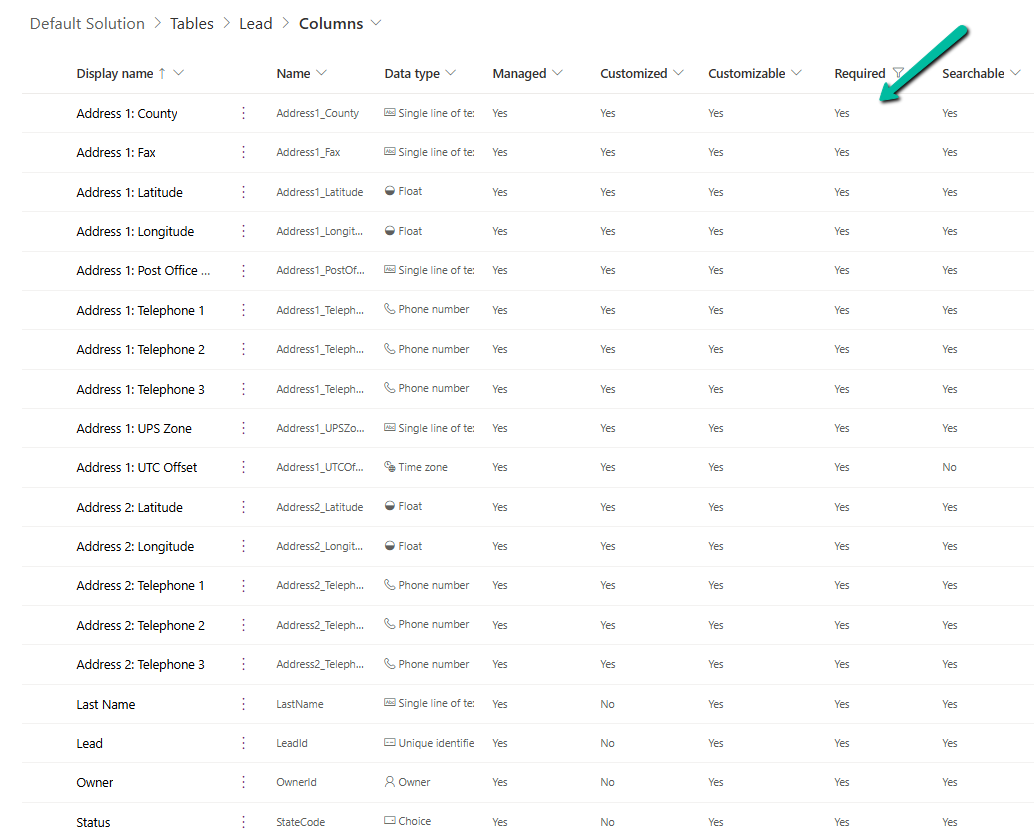
Below we have the following fields defined as required fields in the lead table.
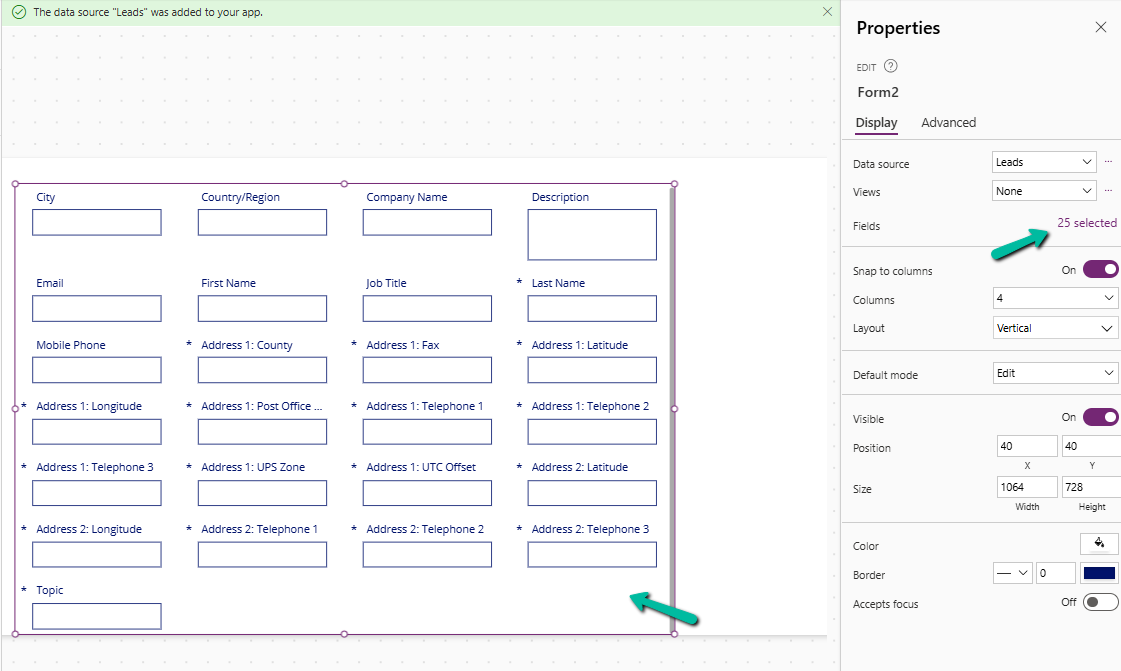
Now inside CanvasApp when we insert and bind the Modern Form / Table or the classic Edit Form / Display Form, Data Table to the lead table it automatically suggests the fields for binding.
Here we have selected Lead as the Data Source for the Edit form or Form (modern) control.
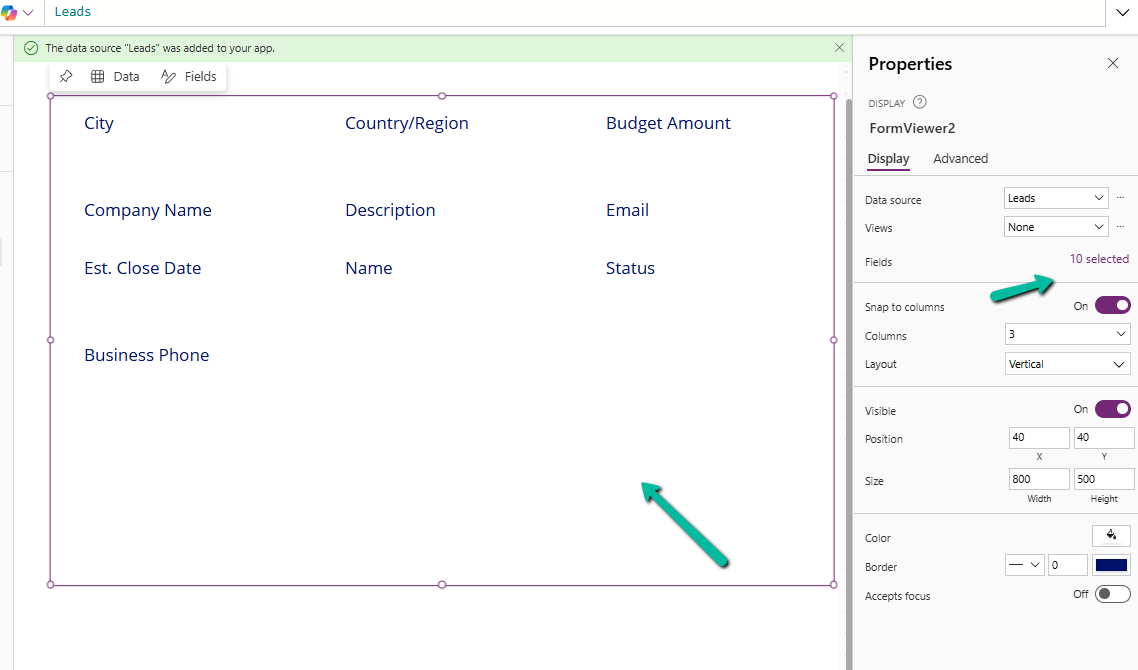
Here we can see it suggesting all the required fields of the lead along with other key fields of lead like City, Country, Email, First Name, etc.
In the case of Table, we can see it suggesting the following 10 fields.
In the case of a custom table with very few fields in it, it suggested the below fields for Form and Table control.
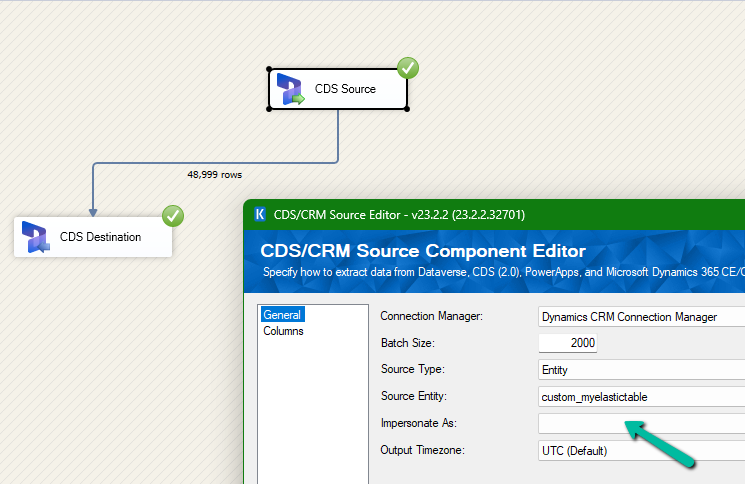
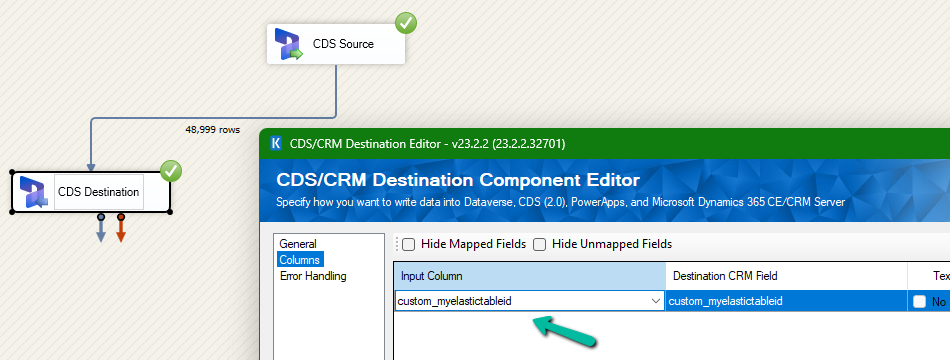
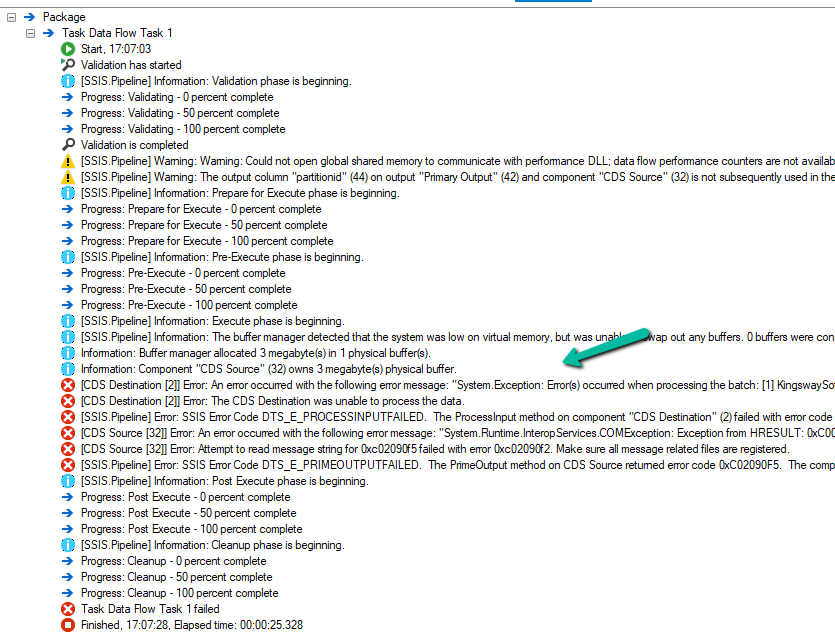
We had mapped the primary field for deletion and the package was also showing success.
However back in our CRM / Sales Hub app, we saw that none of the records were deleted (total – 48999)
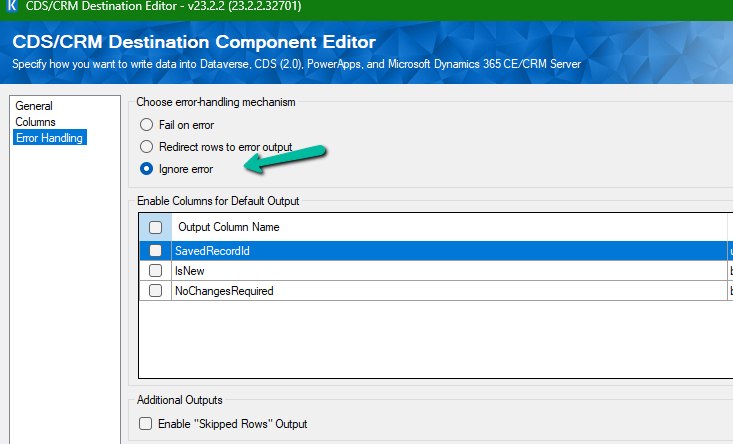
The reason it was showing success is that we had specified the Ignore Error option in our CDS Destination component.
Then we created 2 more records but didn’t specify the partition ID for them.
This time on the successful run of the package we can see those 2 new records getting deleted for which we didn’t specify any partition ID i.e. Test 1 and Test 2 records were deleted successfully.
If we check the Microsoft docs it mentions that we need to include the partition ID using the alternate key to delete those records using the DeleteMultiple request.
Could not find a way to specify an Alternate Key in the CDS Destination component for the Delete message and if we try deleting the records one by one instead of using the DeleteMultiple request we get the below error.
[CDS Destination [2]] Error: An error occurred with the following error message: “System.Exception: Error(s) occurred when processing the batch: [1] KingswaySoft.IntegrationToolkit.DynamicsCrm.WebAPI.WebApiServiceException: The remote server returned an error: (404) Not Found. (Error Type / Reason: NotFound, Detailed Message: {“error”:{“code”:”0x80040217″,”message”:”The HTTP status code of the response was not expected (404).\n\nStatus: 404\nResponse: \n{\”error\”:{\”message\”:\”Could not find item ‘b3a70971-9674-ef11-a671-6045bdfe58ee’.\”,\”details\”:[{\”message\”:\”\\r\\nErrors : [\\r\\n \\\”Resource Not Found. Learn more: https://aka.ms/cosmosdb-tsg-not-found\\\”\\r\\n]\\r\\n\”}]}}”}}) (SSIS Integration Toolkit for Microsoft Dynamics 365, v23.2.2.32701 – DtsDebugHost, v16.0.5270.0)System.Net.WebException
As expected, using CrmServiceClient also if we do not include partitionid we will get the below error for the records that have partition id specified.
The HTTP status code of the response was not expected (404).
Response:
{“error”:{“message”:”Could not find item ‘b3a70971-9674-ef11-a671-6045bdfe58ee’.”,”details”:[{“message”:”\r\nErrors : [\r\n \”Resource Not Found. Learn more: https://aka.ms/cosmosdb-tsg-not-found\”\r\n]\r\n”}]}}
Here we can specify the partitionId parameter to delete those records having the partitionId specified in the DeleteRequest
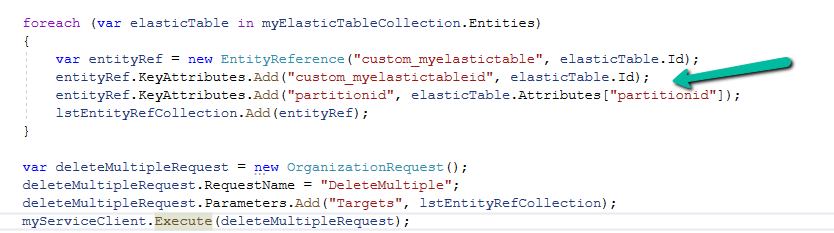
For DeleteMultiple Request we need to provide the alternate key as shown below.
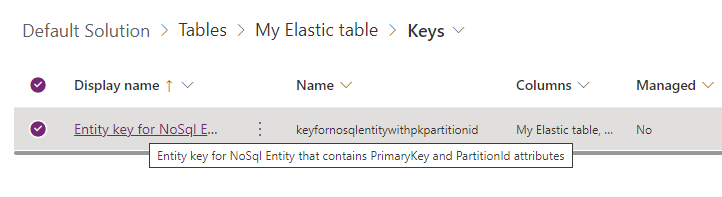
We will have the alternate key auto-created by the system when we create an elastic table.
Sample Code –
 var myServiceClient = new CrmServiceClient(connectionString);
        var query = new QueryExpression("custom_myelastictable");
        query.ColumnSet.AddColumns("custom_name", "partitionid");
        var myElasticTableCollection = myServiceClient.RetrieveMultiple(query);
        var lstEntityRefCollection = new EntityReferenceCollection();

        // Delete Request
        foreach (var elasticTable in myElasticTableCollection.Entities)
        {
            var deleteRequest = new DeleteRequest();
            deleteRequest.Target = new EntityReference("custom_myelastictable", elasticTable.Id);
            deleteRequest.Parameters["partitionId"] = elasticTable.Attributes["partitionid"];
            var response = myServiceClient.Execute(deleteRequest);
        }

        // DeleteMultiple Request

        foreach (var elasticTable in myElasticTableCollection.Entities)
        {
            var entityRef = new EntityReference("custom_myelastictable", elasticTable.Id);
            entityRef.KeyAttributes.Add("custom_myelastictableid", elasticTable.Id);
            entityRef.KeyAttributes.Add("partitionid", elasticTable.Attributes["partitionid"]);
            lstEntityRefCollection.Add(entityRef);
        }

        var deleteMultipleRequest = new OrganizationRequest();
        deleteMultipleRequest.RequestName = "DeleteMultiple";
        deleteMultipleRequest.Parameters.Add("Targets", lstEntityRefCollection);
        myServiceClient.Execute(deleteMultipleRequest);

























 Nishant Rana's Weblog