What will happen on changing the password of the user account used as the Owner of Cloud Flow and for Connection – Power Automate


Recently we had to change the password of the user account being used as an owner of the cloud flows as well as the used for connection/connection reference.

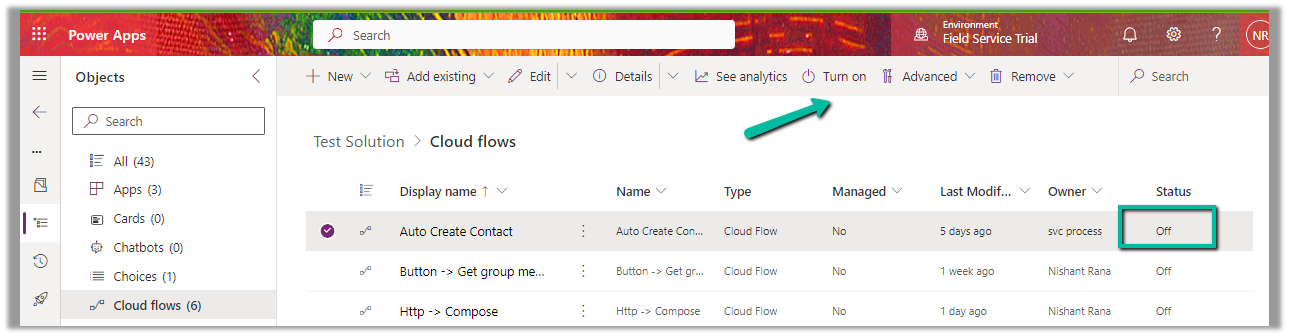
So we tried it on a trial environment first, below is our flow that runs every 5 minutes and creates a contact record (Dataverse), sends an email (Office 365 Outlook), and creates a file (SharePoint) owned by the same account along with the connection reference.

Below is our cloud flow

We can see the details around Connection References and Owner. We can also see it running successfully getting triggered after every 5 minutes.

A screenshot of a computer

Description automatically generated

Now let us update the password of the account that is being used in the flow.

Interestingly after password change our Flow kept running successfully without any errors.

A screenshot of a computer

Description automatically generated

Contact records are created in the Dataverse.

Mail sent using the Send an email action.

A screenshot of a computer

Description automatically generated

Files getting uploaded using the Create file action of SharePoint.

A screenshot of a computer

Description automatically generated

Also, we see the status of the connections showing as Connected.

It could be because Power Automate might be using cached credentials for a certain period after the password change, and/or the connections that use the refresh tokens to maintain authentication, have their tokens still valid.

https://www.itaintboring.com/powerapps/why-is-that-flow-still-working-after-i-have-changed-my-password/

Here what we can do immediately after changing the password is open the connections and click on Switch Account, sign in again using that account. That will referesh the connection.

That is exactly what we did for our Prod and other environments after we updated the password and we didn’t face connection failed issues or any other error for all our exiting flows.

A screenshot of a phone

Description automatically generated

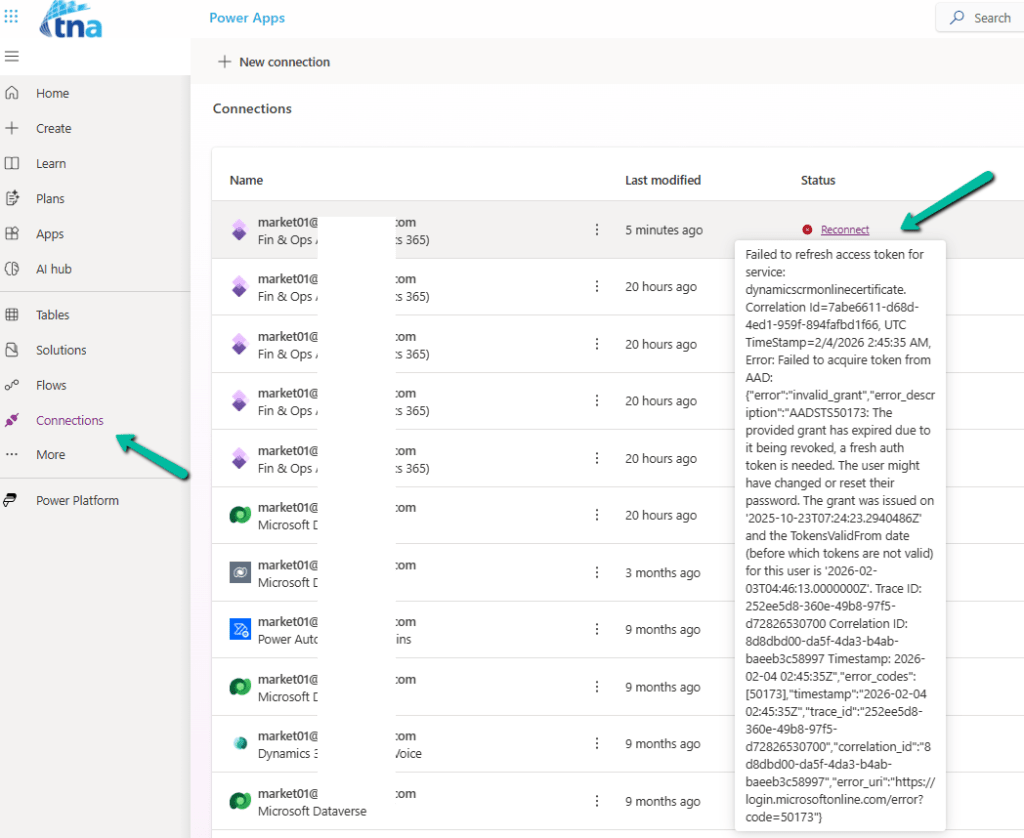
Below is an example where we didn’t refresh the connection and got the below reconnect / failure message after the password was changed.
Also, check – https://sharepoint.stackexchange.com/questions/290700/what-will-happen-to-the-ms-flow-connectors-if-their-usernames-password-got-reset

Using Service Principal in Power Automate – https://benediktbergmann.eu/2022/01/04/setup-a-service-principal-in-power-automate/

https://www.dynamicpeople.nl/en/news/service-principals-power-automate/

Hope it helps..

Advertisements

Using Union function to remove duplicates – Power Automate / Dataverse


We recently got the below error in one of our cloud flows, the requirement was to fetch the distinct work orders that have notes with attachments associated with them.

A resource of type ‘Microsoft.Dynamics.CRM.annotation’ was found in a resource set that otherwise has entries of type Microsoft.Dynamics.CRM.msdyn_workorder’. In OData, all entries in a resource set must have a common base type.

This occurs if we try using the aggeration in the Fetch XML queries in the List rows action.

The solution was to rewrite the fetch xml query without using aggregation.

And then next if we want to get the distinct values, we can use the Union function for that.

Here,

we are first adding the GUIDs to the varLstWorkOrderGUID array variable using Append to array variable action

And then applying the Union function – to remove the duplicate from the array.

union(variables(‘varLstWorkOrderGUID’), variables(‘varLstWorkOrderGUID’))

The result –

More on Fetch XML Query

Hope it helps..

Advertisements

Fixed- The XRM workflow table row could not be found error (Power Automate)


Recently while trying to open one of our cloud flows we got the below error.

Error: The XRM workflow table row could not be found.

Inside the Power Automate maker portal for the new designer, we got the below error

We could see our flows were in the OFF status.

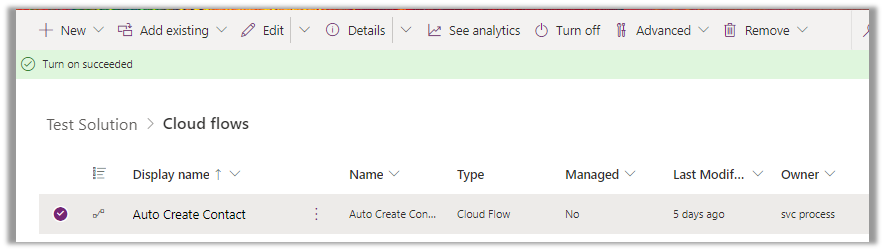
We switched ON the flows, and this fixed the issue for us.

We were able to edit our flow then.

As we recently restored the environment (was deleted), because of which the corresponding ‘Callback Registration’ records might be incorrect or missing. So enabling the flows would have created new entries in the Callback registration records for our flows, which fixed the error.

Please refer- https://rajeevpentyala.com/2021/01/30/callback-registration-expander-system-jobs-waiting-for-resources/

Hope it helps..

Advertisements

The ‘operationOptions’ property is not allowed on the trigger when the workflow contains actions of type ‘OpenApiConnection- Power Automate


Recently while trying to save one of our cloud flows having a “When a HTTP request is received” trigger, we got the below error message after adding the “List Rows” (Dataverse) action


Request to XRM API failed with error: ‘Message: Flow client error returned with status code “BadRequest” and details “{“error”:{“code”:”InvalidOpenApiFlow”,”message”:”Flow save failed with code ‘ValueNotSupported’ and message ‘The trigger ‘manual’ at line ‘1’ and column ‘835’ is not valid. The ‘operationOptions’ property is not allowed on the trigger when the workflow contains actions of type ‘OpenApiConnection’.’.”}}”. Code: 0x80060467 InnerError: ‘.

This error occurs when you try to enable the “Suppress Headers” or “Schema Validation” option for the “When a HTTP request is received” trigger while also using actions that connect to Open API (OpenApiConnection) services within the same flow. Seems like a current limitation in Power Automate. The workaround could be to create a separate child flow having the action associated with Open API Services and use these options in the Parent flow.

More details here – https://powerusers.microsoft.com/t5/Building-Flows/HTTP-trigger-suppress-headers-gives-error/td-p/1815900

Hope it helps..

Advertisements

Force Sync users from Azure AD Security Group / Microsoft 365 Group to Dataverse environment – Power Automate


For Microsoft 365 Group we can use – List Group members action of Office 365 Group connector.

Also check – https://nishantrana.me/2022/06/23/how-to-force-user-sync-power-platform-dynamics-365/

Hope it helps..

Fixed – Invalid type. Expected Integer but got Number (Power Automate)


In one of our Cloud Flows, for Parse JSON action, we got the below error –

ValidationFailed. The schema validation Failed.

“Invalid type. Expected Integer but got Number”

The generated schema had data type defined as integer instead of number type for certain properties, and the response was having decimal value to it.

So replacing the “integer” with “number” in the Schema of Parse JSON action fixed the issue.

Hope it helps..

Advertisements