Sometimes we need to find all the flows where a specific Dataverse field is used — maybe before renaming it, removing it, or just checking its usage. Manually opening each flow is slow, but we can do it in seconds with SQL 4 CDS.
For e.g. we want to search for flows that use the field: custom_mysamplefield
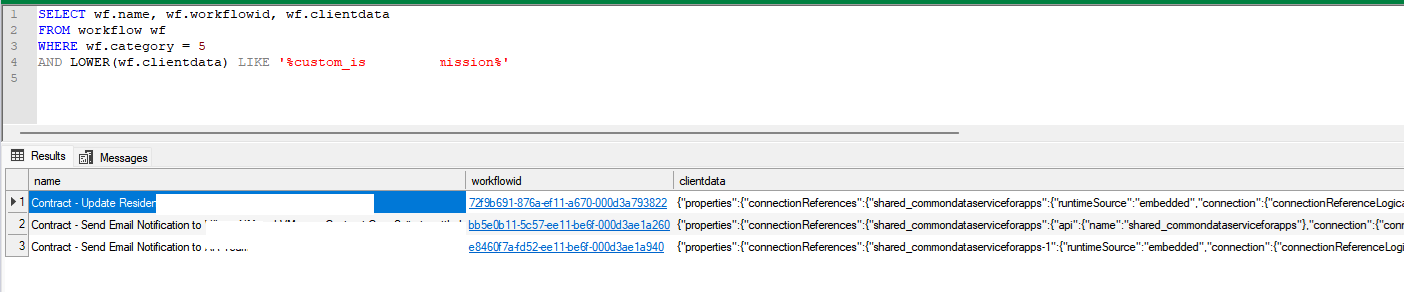
For this we can make use of the below query, run it in SQL 4 CDS (XrmToolBox).
SELECT wf.name, wf.workflowid, wf.clientdata
FROM workflow wf
WHERE wf.category = 5
AND LOWER(wf.clientdata) LIKE '%custom_mysamplefield%'
Here table workflow stores flows and workflows details, category = 5 refers to cloud flows, clientdata contains the flow’s JSON Definition.
With this new update in Power Automate, it’s now easier for us to find and use the actions and connectors we need. We can also quickly access tools and AI features while building flows. This helps save time and makes the flow-building experience smoother.
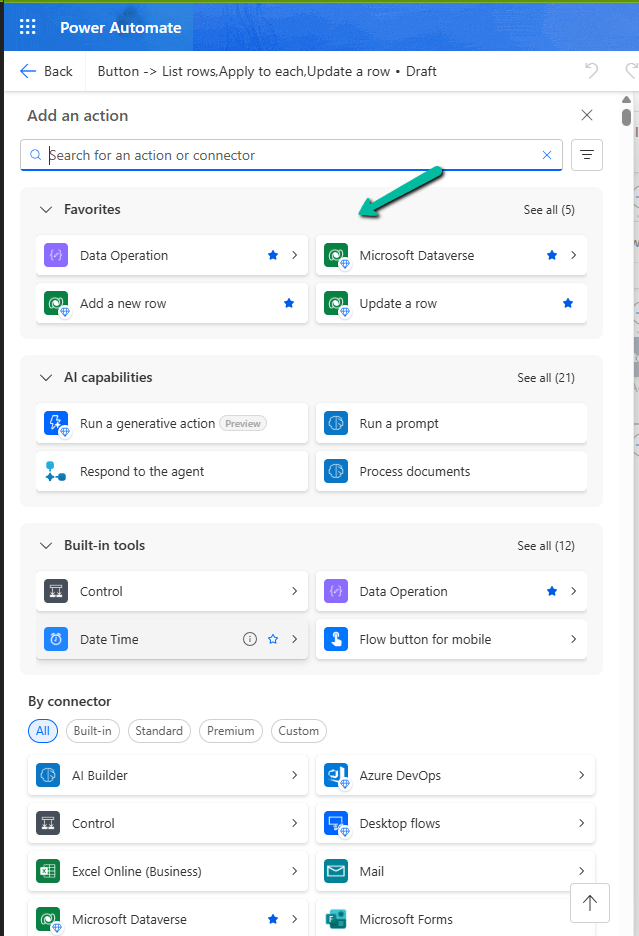
Here is a screenshot of the new connector and action pane in Power Automate, below we have added Dataverse connector and some of its action as favorites.
Earlier, when we clicked on the plus sign (+) to add a new action in our flow, it opened a big list of actions and connectors. It was hard to find the ones we used often, and we had to scroll a lot.
Now, with the new design, things are much easier. We can do the following:
– Mark any connector or action as a ‘Favorite’. These favorites will always show up at the top in a new Favorites section.
– Quickly see useful AI tools like ‘Run a prompt’ or ‘Process documents’ in a special AI section.
– Easily find basic tools like Control, Data Operation, and JSON under the Built-in tools section.
This change helps us find what we need faster. It’s especially useful if we often use the same connectors like Microsoft Dataverse or Excel.
In some business scenarios, we might need to update the Business Process Flow (BPF) stage of a record during an Excel import — especially during data migration or bulk record manipulation. In this blog post, we’ll walk through how to set a desired BPF stage (based on the stage name) and automatically move the record to that stage using Power Automate.
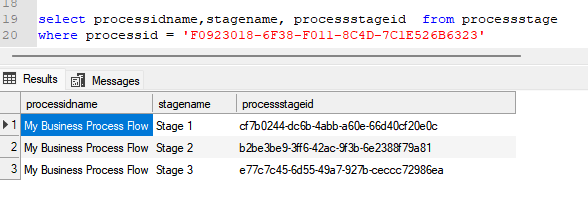
We’re working with a custom Dataverse table called Test(cr1a7_test) and a Business Process Flow named My Business Process Flow, which includes the following stages:
“select processidname,stagename, processstageid from processstage where processid = [processGUID]”
Our goal is to allow users to specify the stage name (e.g., “Stage 2”) through Excel import, and have a Power Automate flow update the record’s BPF instance to the corresponding stage automatically.
For this –
We’ll add a field called the Desired BPF Stage choice field on our table to store the desired stage name.
We’ll create a Power Automate flow that triggers on create or update.
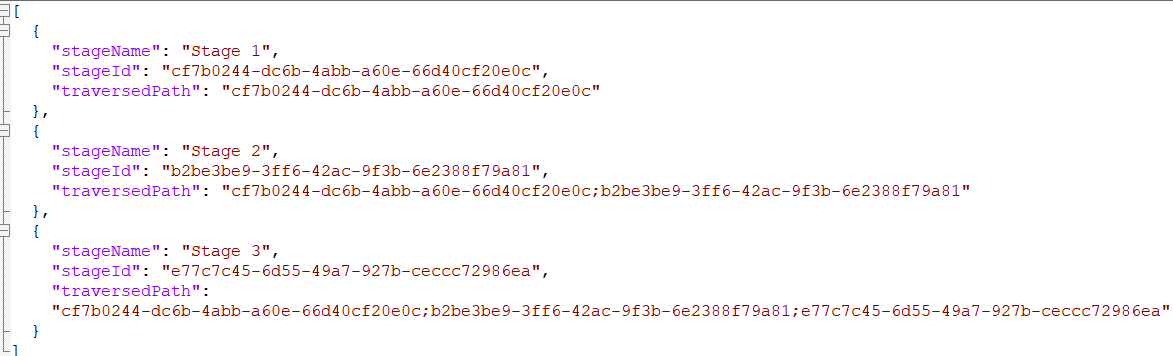
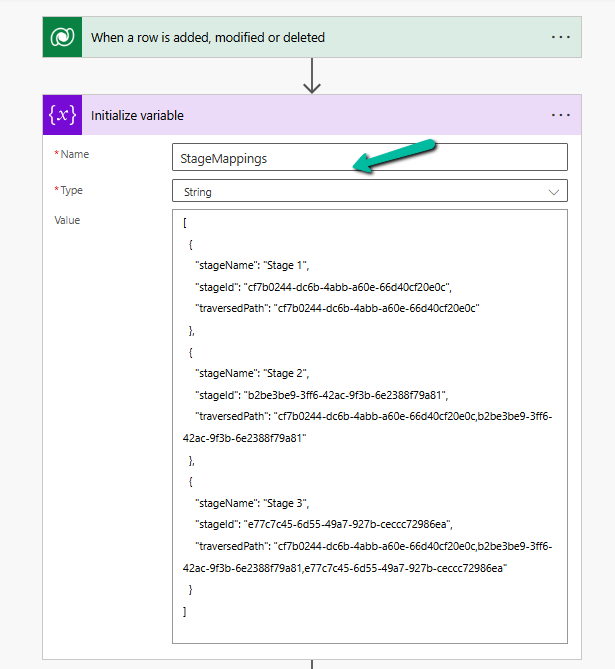
We’ll maintain a static JSON mapping of stage names to stage IDs and their traversed paths.
We’ll look up the corresponding stage ID and traversed path from the JSON.
We’ll fetch the BPF instance for the record.
We’ll update the BPF instance with the new active stage and traversed path.
Below is how we can define our JSON structure for mapping, which we will store either in a variable inside Power Automate or save as an environment variable.
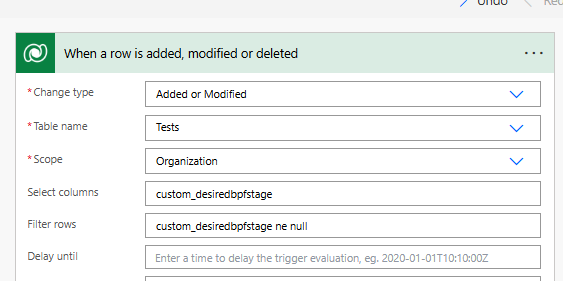
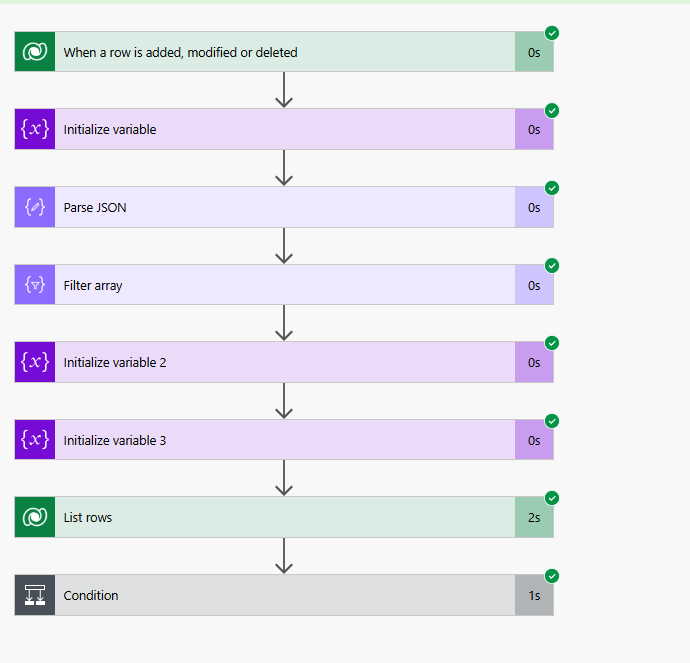
Trigger – When a row is added or modified.
Initialize Variable with JSON mapping
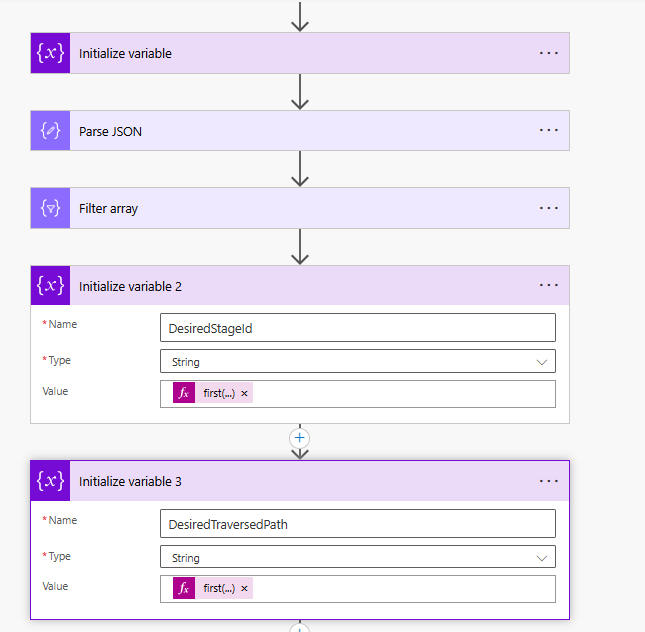
Parse JSON – using the sample data
Use a “Filter array” action to find the object where stageName matches custom_desiredbpfstage.
Initialize variables to store the Stage ID and traversed path.
first(body(‘Filter_array’))?[‘stageId’]
first(body(‘Filter_array’))?[‘traversedPath’]
Use List Rows to check if BPF Instance exists or not, if not we will create it or update it.
length(outputs(‘List_rows’)?[‘body/value’]) > 0
Update or Create a new BPF instance associated with the record.
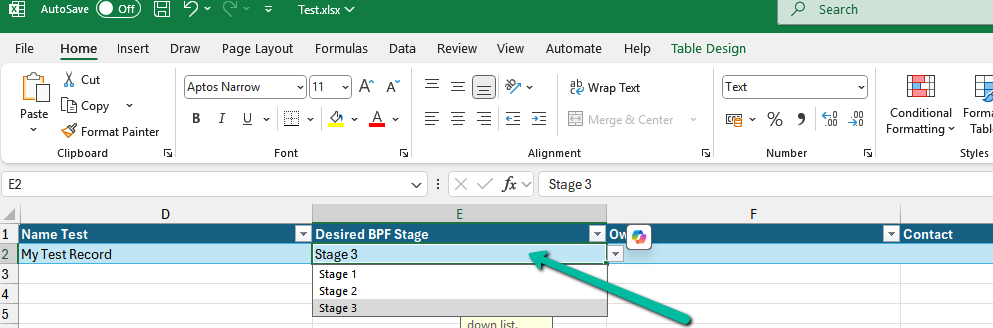
Below we can see the user specifying the Stage 3 value for the Desired BPF Stage column in the Excel to be imported.
When working with Power Automate (Cloud Flows) for Dataverse, a common scenario is handling multiple triggers efficiently. By default, we often create separate flows for different events, such as Create, Update, or Delete. However, using the SdkMessage field, we can identify the event that triggered the flow and handle different scenarios within a single flow. This approach reduces redundancy and simplifies flow management.
When a row change occurs in Dataverse, the SdkMessage value represents the operation that triggered the event e.g. Create, Update, and Delete.
Benefits of using SdkMessage –
Avoid multiple flows: Instead of separate flows for Create, Update, and Delete, use one flow and branch logic accordingly.
Improve maintainability: Less duplication means fewer flows to update when business logic changes.
Enhance performance: Fewer active flows reduce execution overhead and clutter.
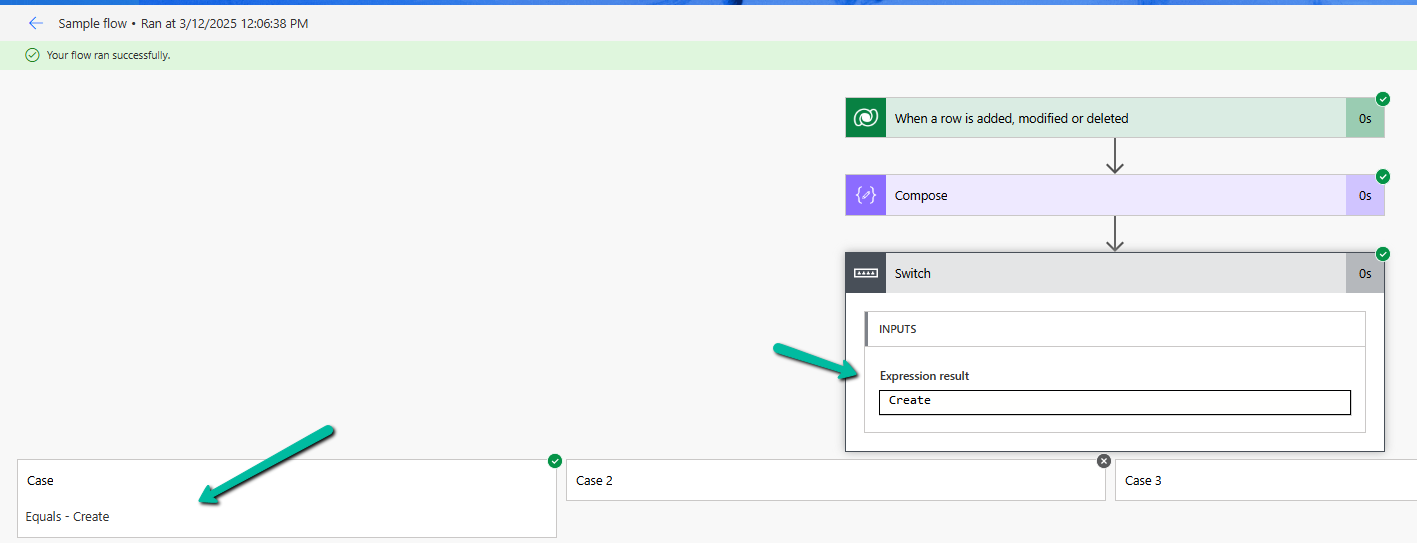
Let us see it in action, we have created a flow with the “When a row is added, modified, or deleted” Trigger.
And a switch action on SdkMessage with Case for Create, Update, and Delete.
triggerOutputs()?[‘body/SdkMessage’]
On creating the lead record we can see the corresponding action being triggered.
Same for the update.
Using SdkMessage in a single Dataverse flow allows you to consolidate multiple triggers into one, making your automation cleaner and more efficient.
Additionally, we should use the Select columns and the Filter rows properties to avoid unnecessary flow runs and improve efficiency.
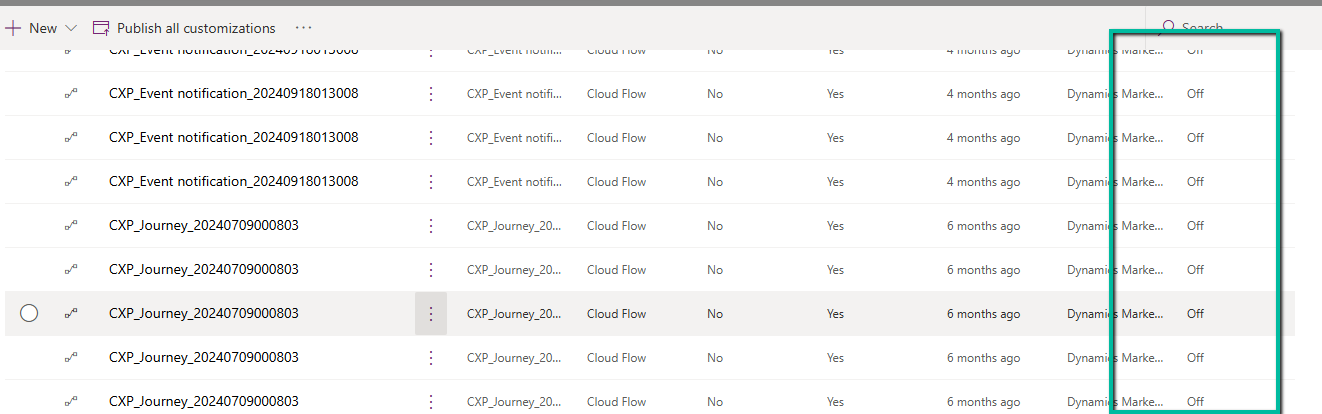
Recently we copied our UAT environment to one of the testing environments. After copying, we saw that all the cloud flows were in Off / Disabled state.
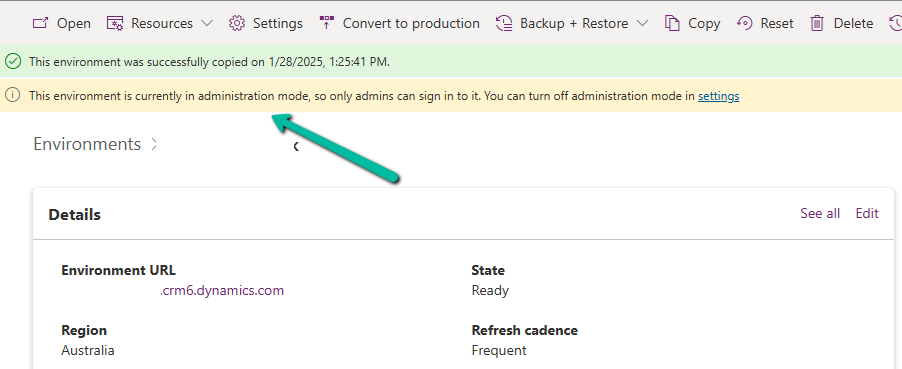
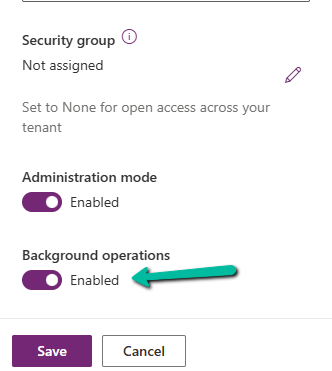
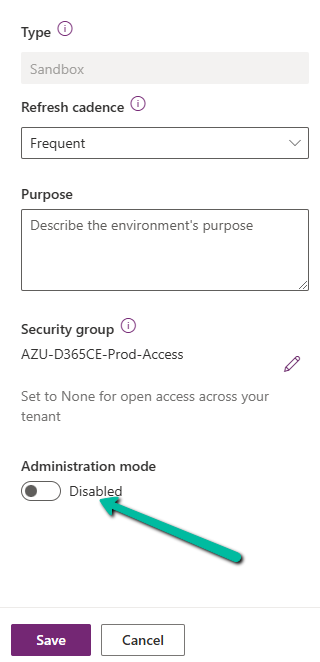
This was because during copy the environment is set in administration mode and background operations are also disabled.
Flows are automatically turned off to prevent –
Accidental execution of automation in a copied/test environment
Potential integration issues due to different connectors or authentication.
Unintended data modifications (e.g., flows interacting with external systems like SharePoint, SQL, or APIs).
If required, we can disable the administration mode or at least enable the background operations.
However, the flows will not automatically switch On even if we enable either the Administration Mode or Background operations.
Here we need to switch them On manually or use PowerShell scripts or API to do so.
Connection References: If the flows use connection references (like SharePoint, Dataverse, Outlook, etc.), we need to verify them in Solution > Connection References and update them if necessary.
Environment Variables: If the flows depend on environment variables (e.g., API URLs, credentials), we need to update them the new environment.
Reassign Flow Owners: If the original owner of a flow is missing from the copied environment, we need to assign a new owner.
Lastly, if flows are not behaving correctly, check the callback registration records
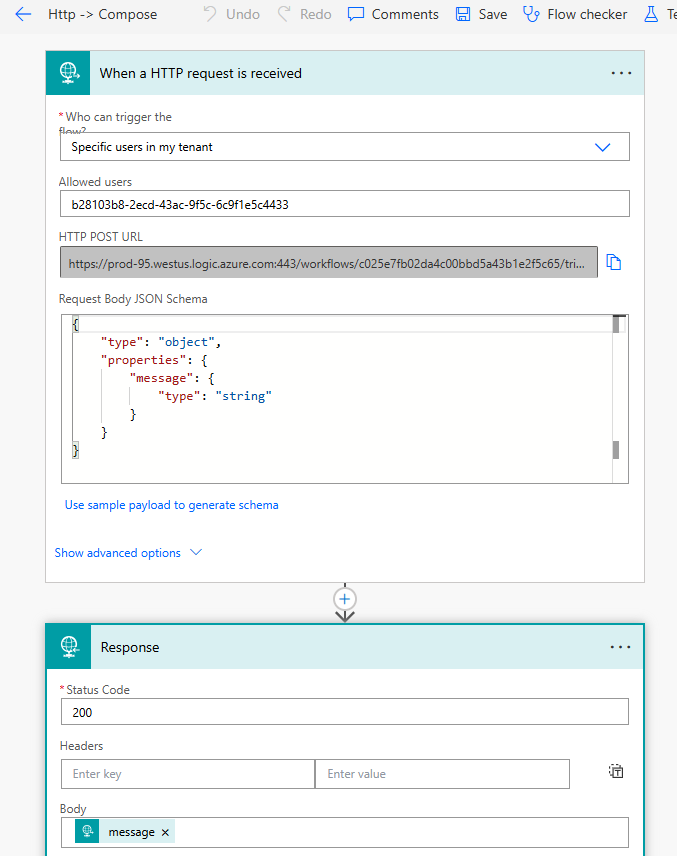
Recently while trying to invoke the HTTP Request trigger, on passing the token we got the below error from the Postman
{
    "error": {
        "code": "MisMatchingOAuthClaims",
        "message": "One or more claims either missing or does not match with the open authentication access control policy."
    }
}
Turned out that we missed the trailing slash for the resource’s value while generating the token.



















 Nishant Rana's Weblog