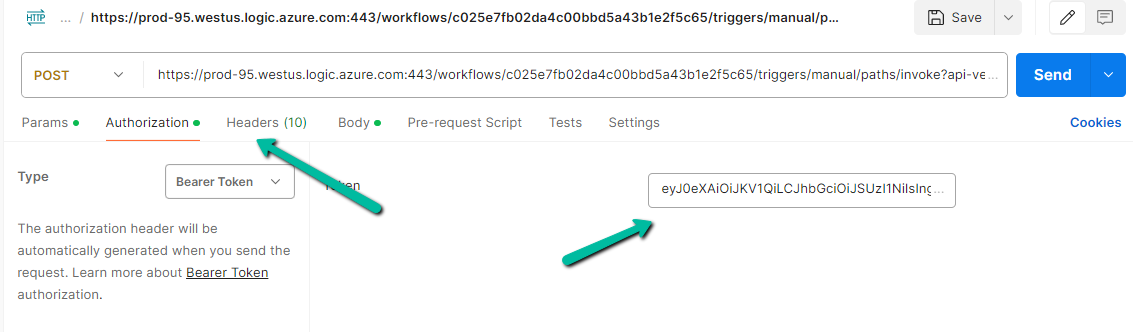
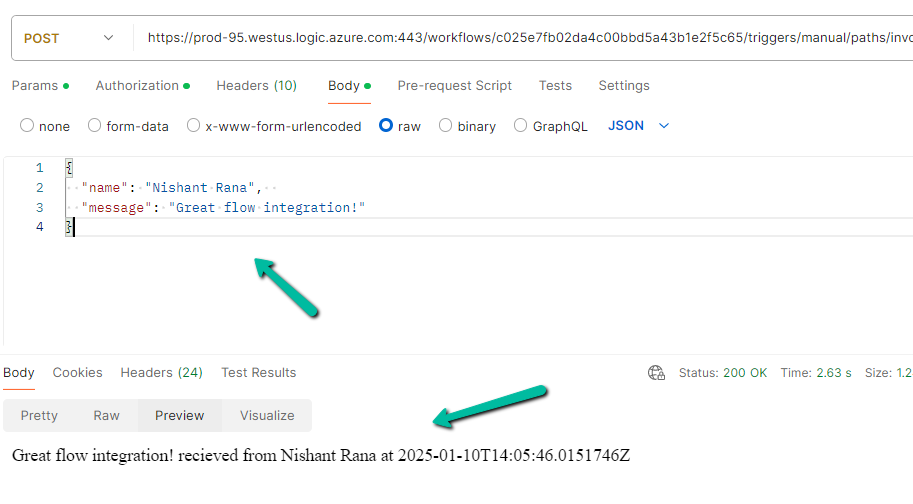
Recently while trying to invoke the HTTP Request trigger, on passing the token we got the below error from the Postman
{
    "error": {
        "code": "MisMatchingOAuthClaims",
        "message": "One or more claims either missing or does not match with the open authentication access control policy."
    }
}
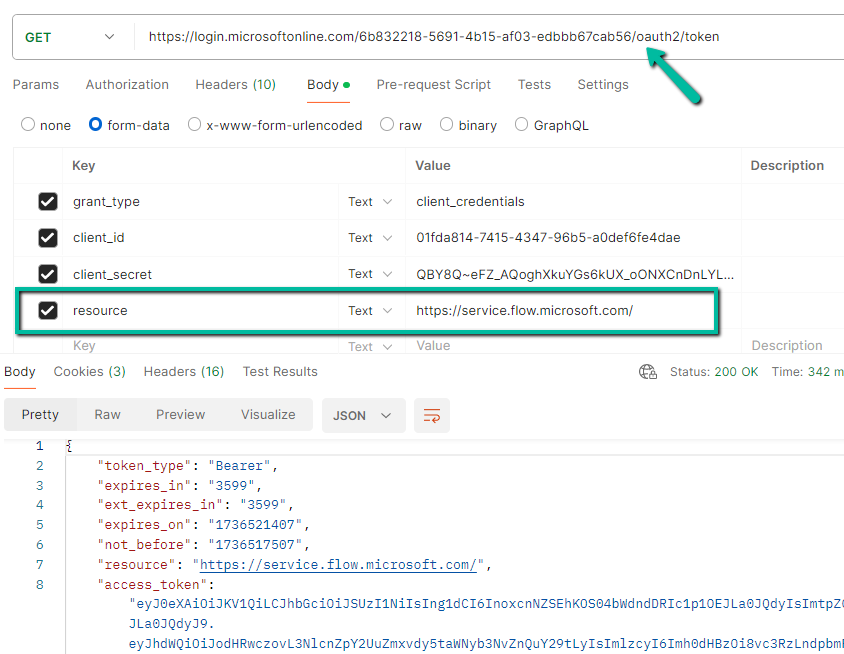
Turned out that we missed the trailing slash for the resource’s value while generating the token.
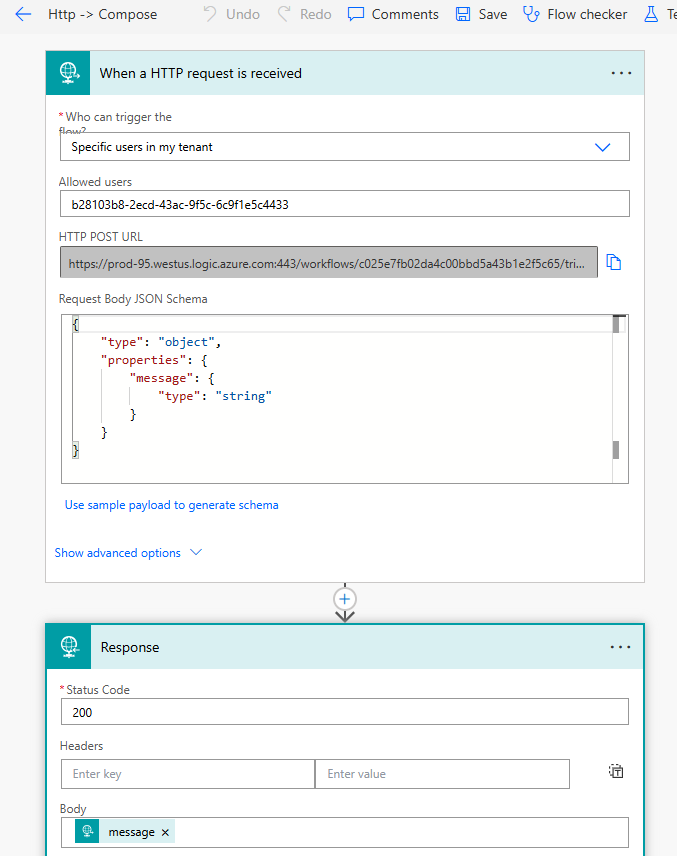
Below is our final Power Automate Cloud Flow which uses the HTTP request trigger followed by Response action.
The Allows Users = Specific users in my tenant option ensures that only authorized users in the tenant can trigger the flow while leveraging the security provided by Oauth authentication and Azure AD.
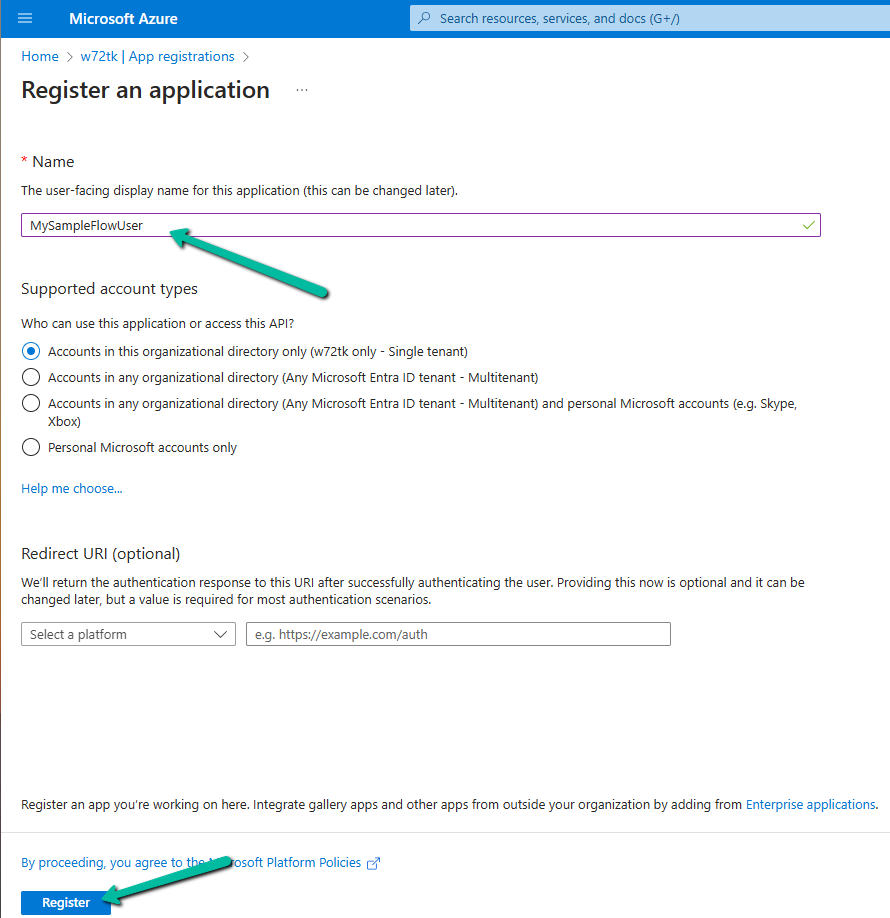
Let us first register an App in the Azure AD.
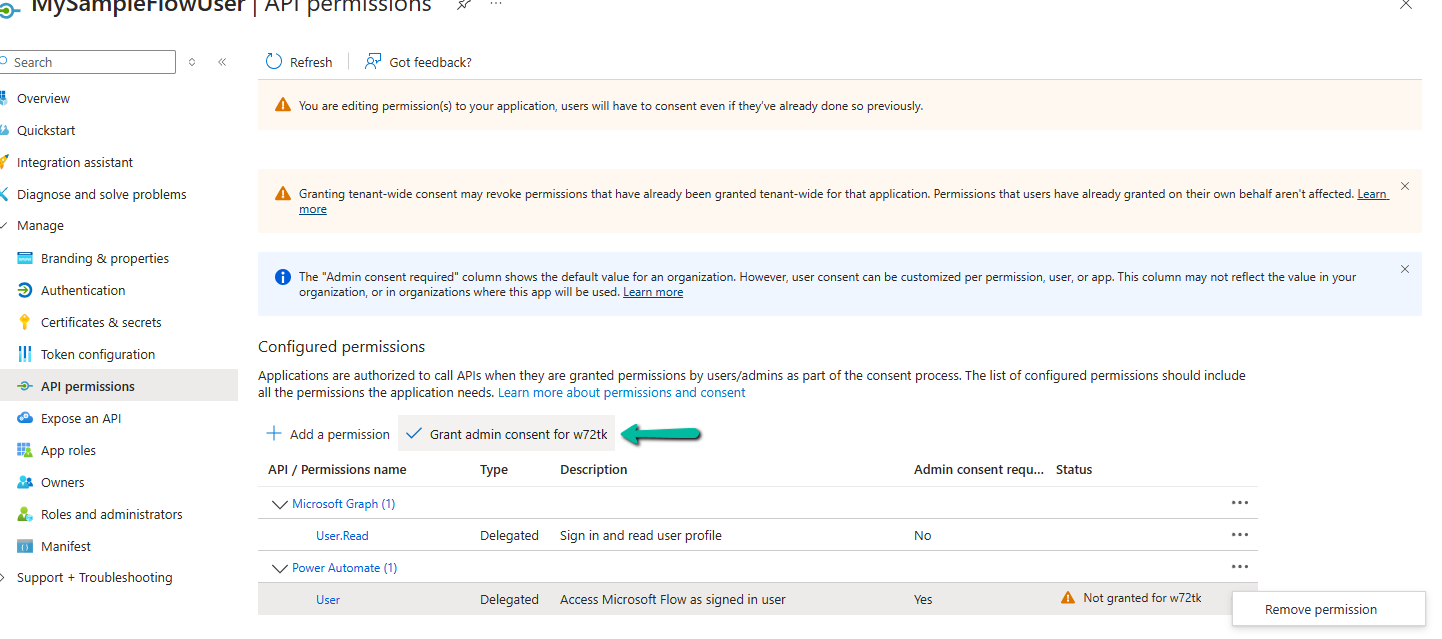
Go to API Permissions → Add a permission.
Select User permission.
Grant admin consent
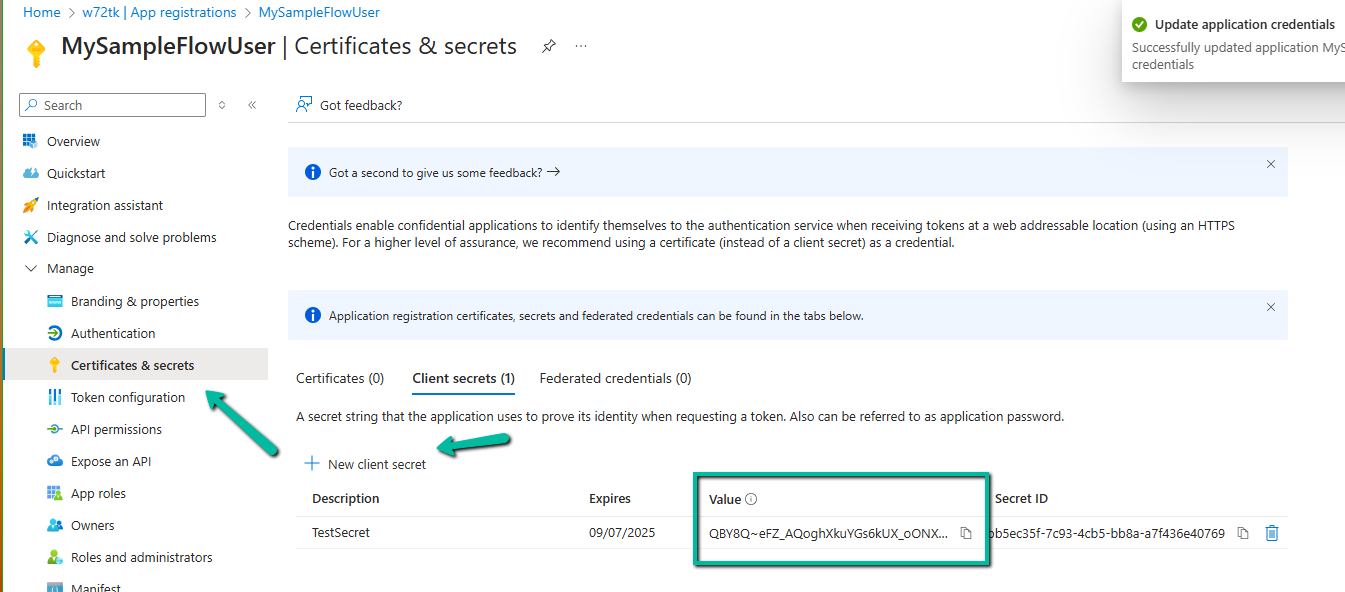
Generate and copy the client secret.
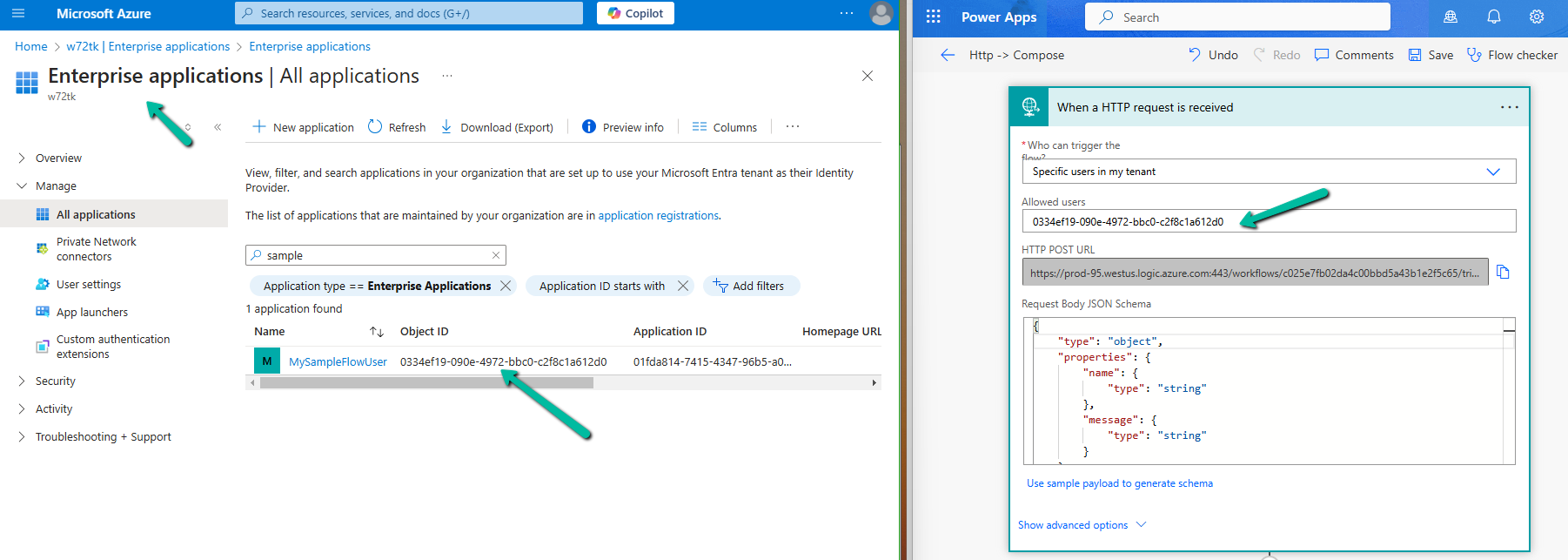
Navigate to Enterprise Applications, search for the app, copy the Object ID of the App, and specify the same for the Allowed users property in the HTTP request trigger.
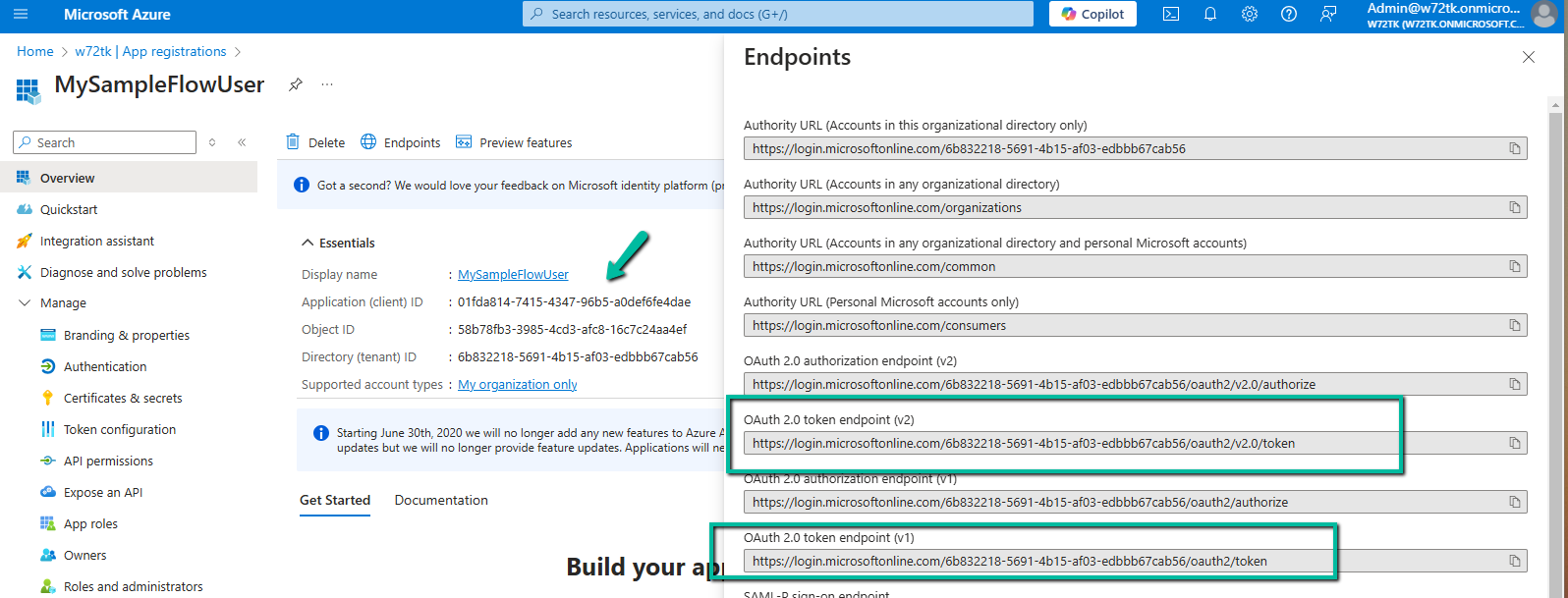
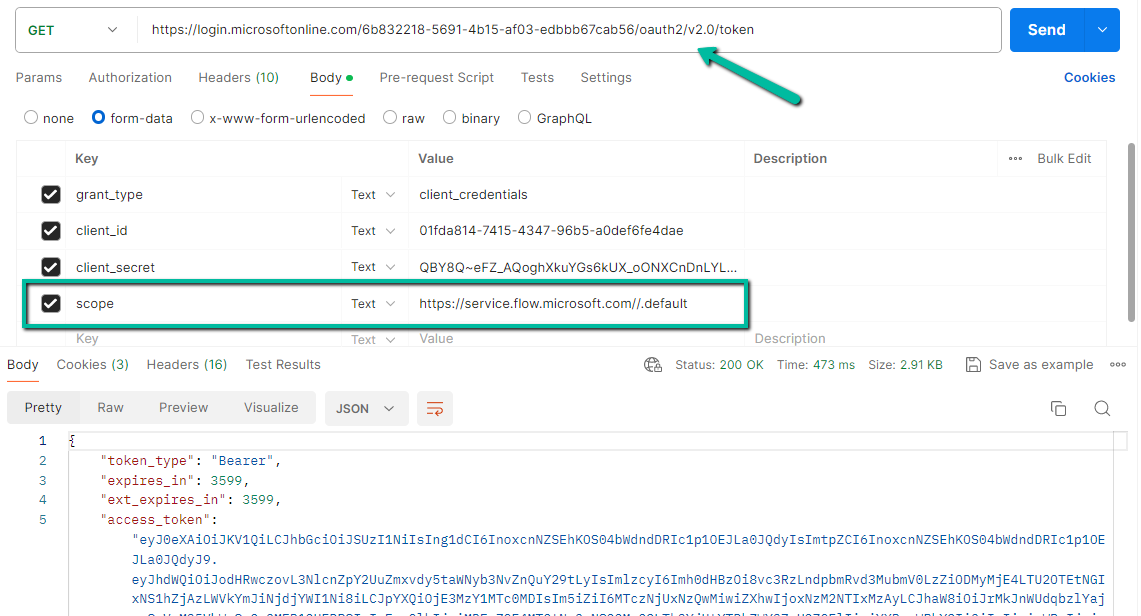
Now let us use the Postman to generate the token and call the flow. Note down the Application (client) ID and we can either use the v1 or v2 Oauth token endpoint.
Specify the following values if using the v2 endpoint to generate the token.
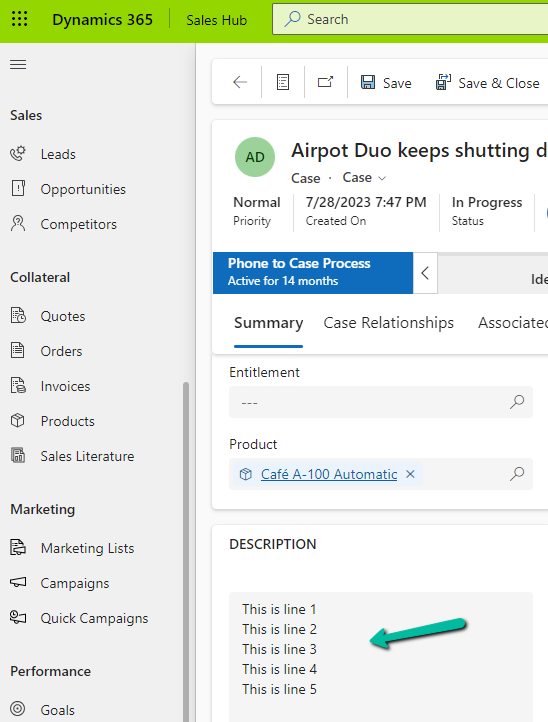
In one of our requirements, we wanted to create/send an email on the creation/update of the case with the description of the email same as the description of the case.
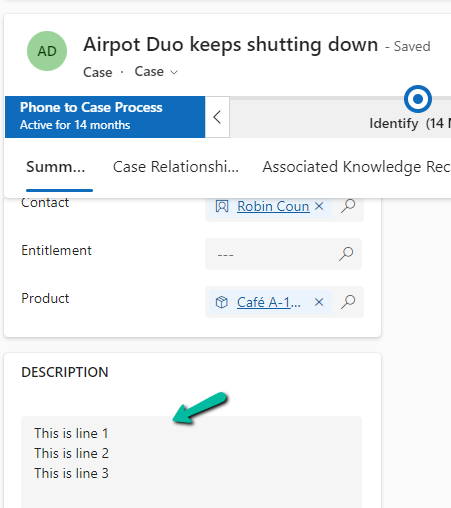
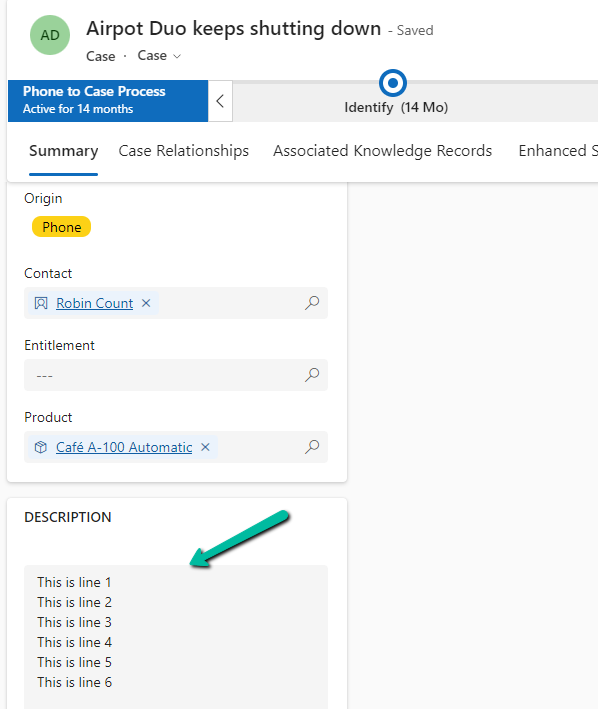
In our Case record, for the description, we have the line break (\n) specified.
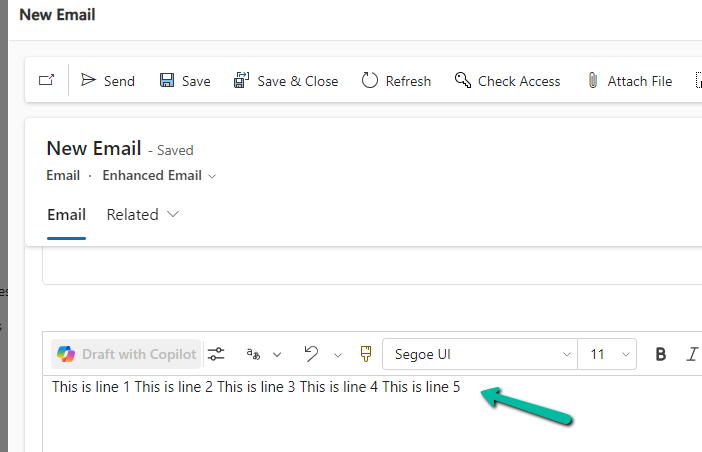
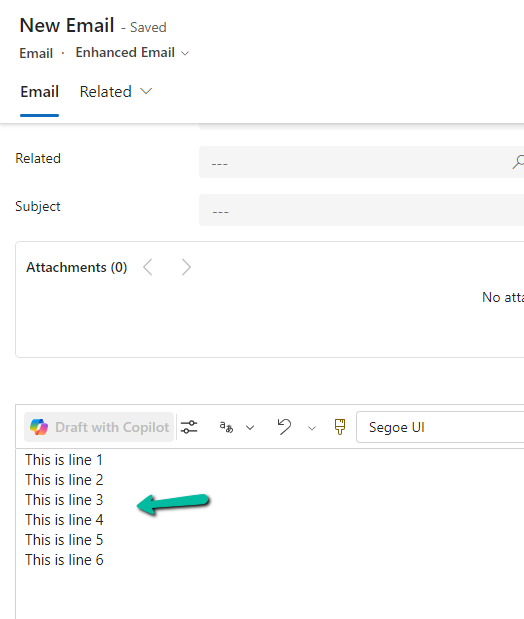
However, for the email created, we see the line break ignored.
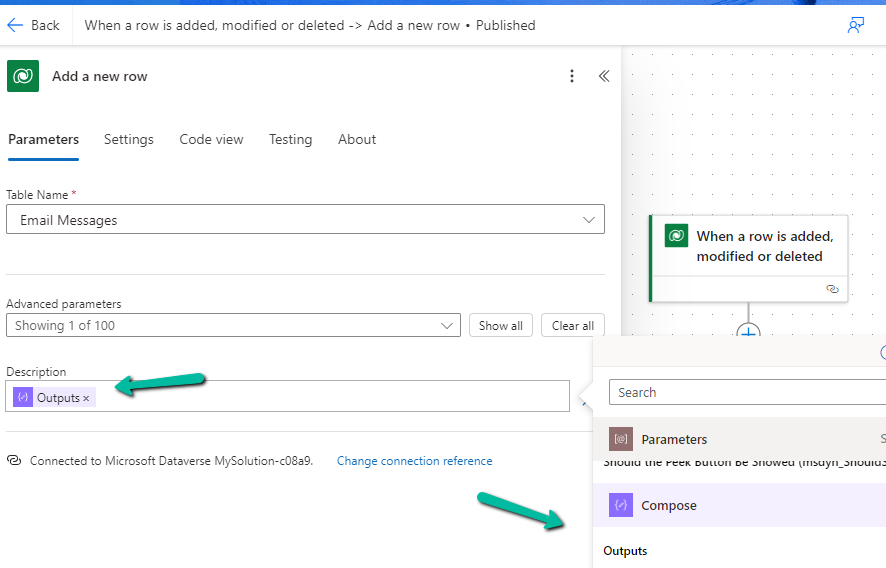
To fix this we might think of applying the below formula by replacing “\n” with “”.
Recently we wrote a flow that will run daily once and will pick all the tasks due in the last 24 hours i.e. schedule end date less than equal to utcNow() and greater than equal to addDays(UTCNow(),-1)
Interestingly we observed one of the task records not picked.
The scheduled end date on the task record was – 2024-07-22T20:00:00Z
And for the flow the filter condition was –
scheduledend le 2024-07-23T20:00:35.5173871Z and scheduledend ge 2024-07-22T20:00:35.5173943Z
If we look at the date for the greater than equal condition, we can see that the seconds part is 35, the exact time when the List rows step would have run, and in case of that particular task record is 00, so it was not picked.
Then we applied the below formatDateTime function, excluding the time part.
(scheduledend le ‘@{formatDateTime(utcNow(),’yyyy-MM-dd’)}’ and scheduledend ge ‘@{formatDateTime(addDays(utcNow(),-1),’yyyy-MM-dd’)}’ and _regardingobjectid_value ne null and statecode eq 0)
Again we saw few tasks not picked,
The records that were not picked had scheduledenddate as
2024-07-25 18:00:00.000
2024-07-25 19:00:00.000
And as per new condition
scheduledend = ‘2024-07-24’ which essentially was
scheduledend = ‘2024-07-24 00:00:00.0000’
Eventually we updated the flow’s Filter Rows condition to include only the hour and minutes, ignoring the seconds/milliseconds because of which we got the issue in the first place.
(scheduledend le ‘@{formatDateTime(utcNow(),’yyyy-MM-dd HH:mm’)}’ and scheduledend ge ‘@{formatDateTime(addDays(utcNow(),-1),’yyyy-MM-dd HH:mm’)}’ and _regardingobjectid_value ne null and statecode eq 0)
One more example for more clarity –
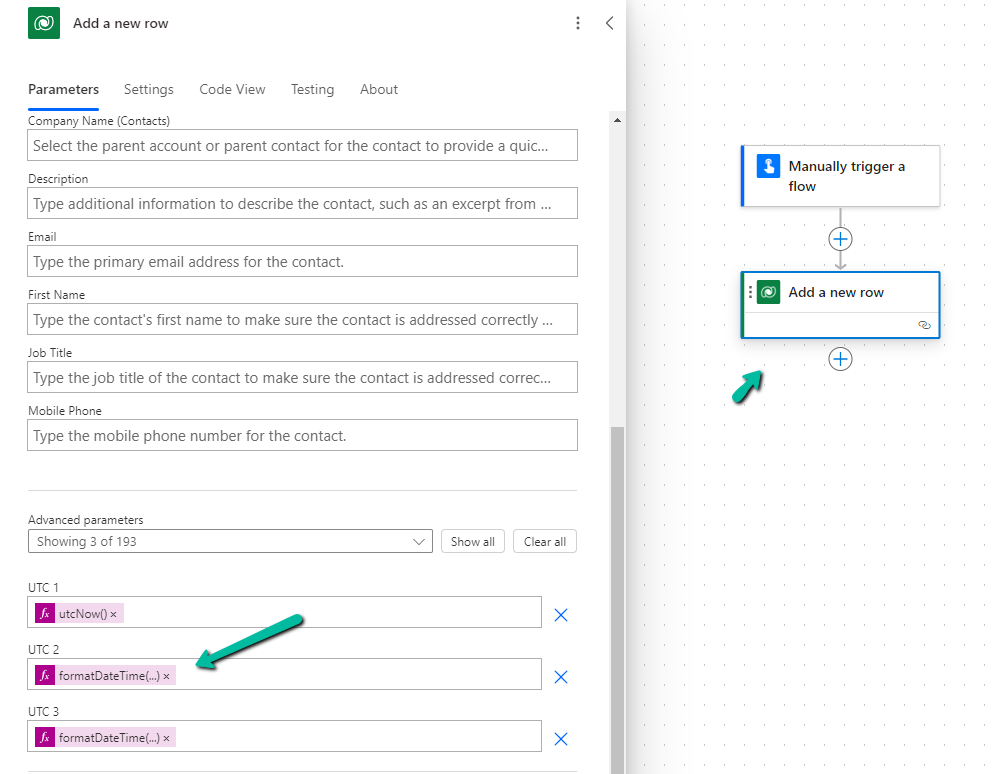
Below we are creating a contact record and setting values for 3 date time fields, UTC1, UTC2, UTC3.
“@Microsoft.PowerApps.CDS.ErrorDetails.SqlExceptionMessage”: “Violation of PRIMARY KEY constraint ‘PK_childBase’. Cannot insert duplicate key in object ‘dbo.bew_logBase’. The duplicate key value is .”,
Basically on Create or Update of the Parent Record it was creating a corresponding child log record, recording changes in the status field of the parent record.
The issue was in the Create Child Log record step, here it was setting the Primary Key Field / GUID field of the Child Log record being created with the GUID of the Parent record.
This worked for the 1st record, but when trying to create any new record with the same parent’s GUID, it was throwing the duplicate exception as it would be the same parent GUID getting specified.
On clearing that field, and letting the system generate the GUID, the flow ran successfully.
Sharing a sample code through which we can Enable / Disable (turn on / turn off) multiple cloud flows using code.
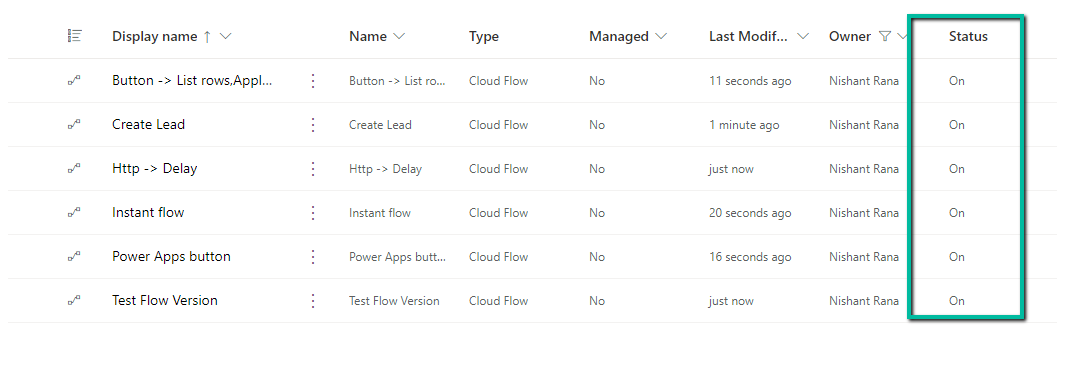
E.g. here we want to turn on the below Cloud Flows owned by a specific user.
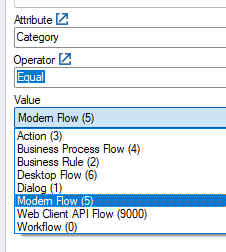
Table name – Workflow and Category – Modern Flow.
Below is the sample code, code is straightforward, we are updating the status of the record.
const string connectionString = "AuthType = ClientSecret; " +
                                         "Url = https://[org].crm.dynamics.com/;" +
                                         "ClientId=[GUID];" +
                                         "ClientSecret=[Secret]";

        var myServiceClient = new CrmServiceClient(connectionString);
        if (myServiceClient.IsReady)
        {
            var query = new QueryExpression("workflow");
            query.ColumnSet.AddColumns("workflowid", "name", "ownerid", "statecode", "category", "primaryentity", "solutionid");
            // Category = 5 (Modern Flow)
            query.Criteria.AddCondition("category", ConditionOperator.Equal, 5);
            // owned by a specific user
            query.Criteria.AddCondition("ownerid", ConditionOperator.Equal, "23d670c5-d02d-ee11-bdf4-0022482db7da");
            var cloudFlows = myServiceClient.RetrieveMultiple(query);
            foreach(var flow in cloudFlows.Entities)
            {
                var myFlow = new Entity("workflow", flow.Id);
                // statecode = 1 (Turn On) and  statecode = 0 (Turn Off)
                myFlow.Attributes["statecode"] = new OptionSetValue(1);
                myServiceClient.Update(myFlow);
            }
        }
The result :
Or we can use the SQL4CDS XrmToolBox tool for it –
SELECT
    workflowid,
    name,
    ownerid,
    statecode,
    category,
    primaryentity,
    solutionid
FROM workflow
WHERE category = 5
  AND ownerid = '2e134bf4-bfe7-ed11-8848-00224893d32a'
  AND statecode = 0


UPDATE workflow
SET statecode = 1
WHERE category = 5               -- Modern Flow
   AND ownerid = '2e134bf4-bfe7-ed11-8848-00224893d32a'
  AND statecode = 0              -- Only turn ON currently OFF flows