Set an app (Model-driven or Canvas App) as a startup app – Power Apps Mobile


Microsoft has introduced a new feature, through which we can now specify a particular app as a start-up app, that will open up when we launch the Power Apps mobile, instead of waiting for the home page / or selecting it from favorites.

Below we can select the option Open at Startup to specify the Customer Service Hub app as the startup app as an example.

A screenshot of a phone

Description automatically generated

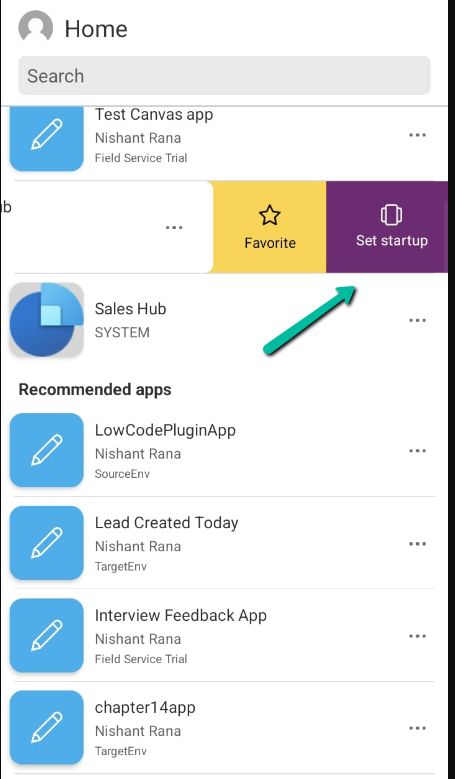
Or we can swipe left to mark an app as “Startup App

A screenshot of a phone

Description automatically generated

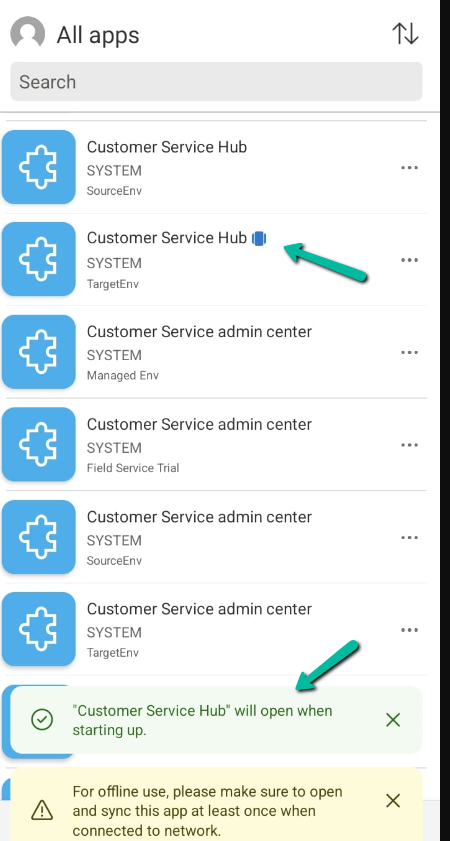
We can see an icon next to the app.

Now launching the Power Apps mobile app will directly open the Customer Service Hub app.

A screenshot of a phone

Description automatically generated

Using the Remove from startup option we can remove it as the startup app

A screenshot of a phone

Description automatically generated

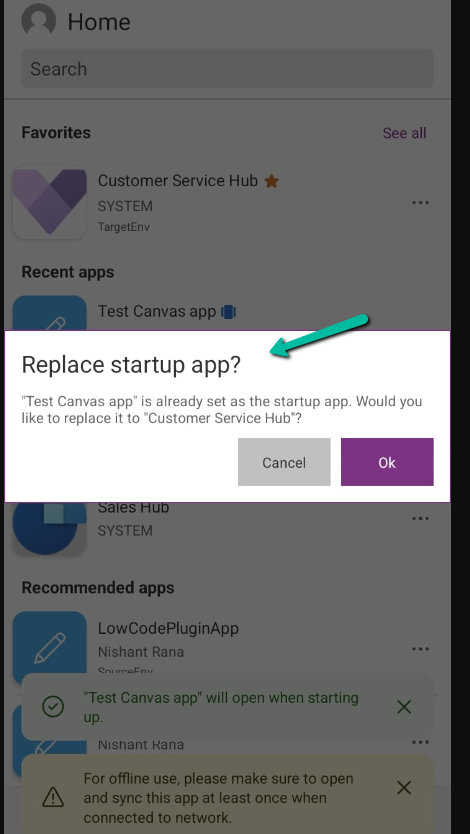
We can only have one app set as a startup app, if we try setting up another app as a startup we get the notification that it will replace the existing app.
A screenshot of a phone

Description automatically generated

Get all the details here

Hope it helps..

Advertisements

Mobile Offline Profile – Select columns to be downloaded (Dynamics 365 / Model-driven apps)


With this new feature (preview) now we can specify the columns to be downloaded on mobile devices for offline use.

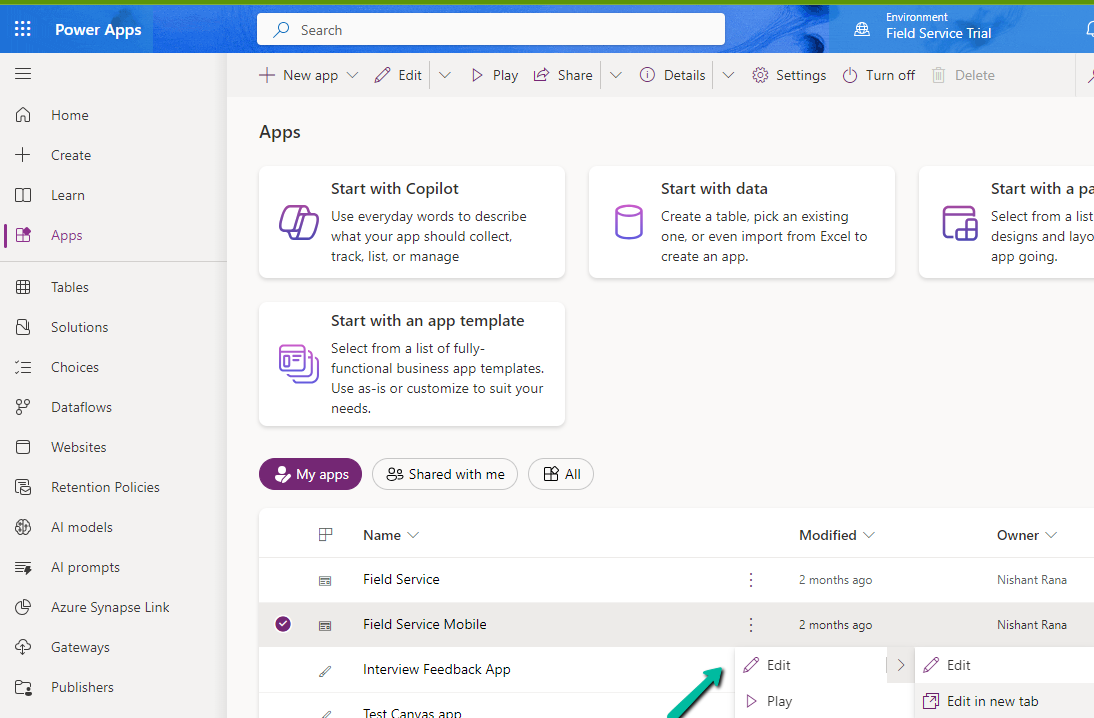
Select edit for the Model-driven app.

A screenshot of a computer

Description automatically generated

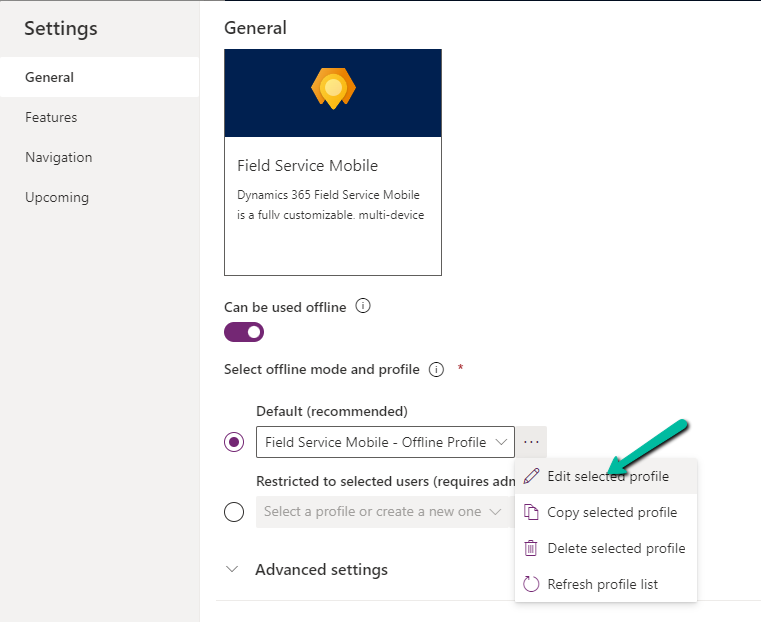
Select Settings and select an existing offline profile or create a new profile.

A screenshot of a computer

Description automatically generated

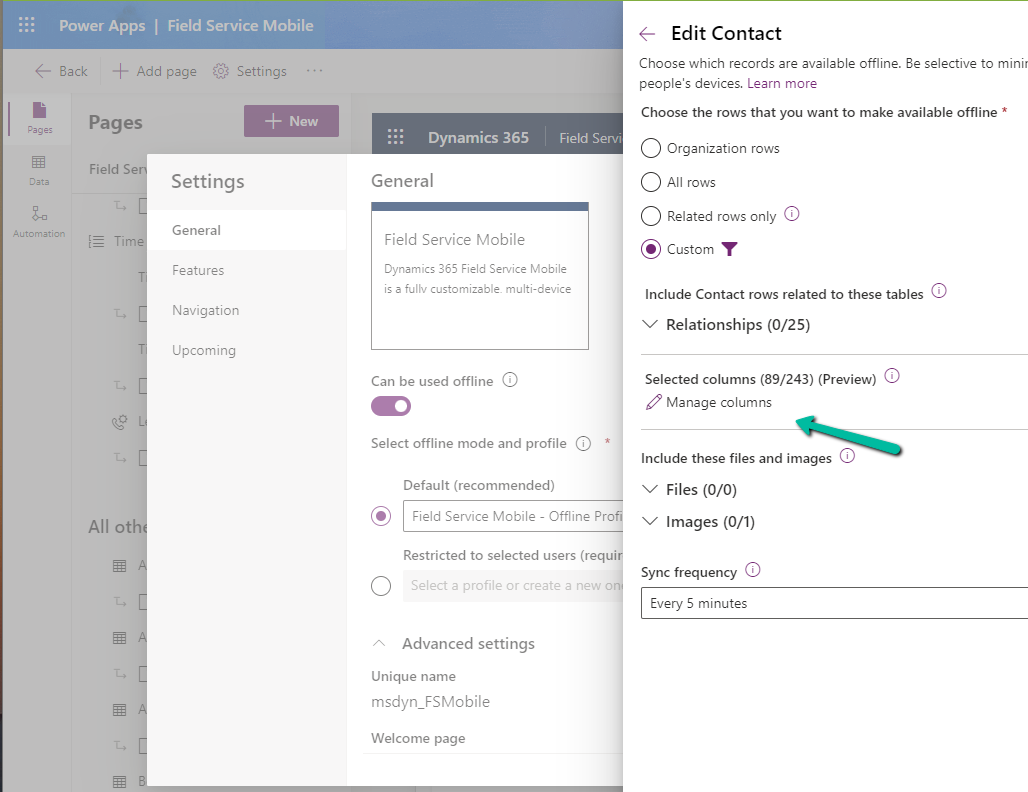
Select a new table or an existing table for the profile, we can see the Manage Columns option for it.

A screenshot of a computer

Description automatically generated

We can see key columns already selected as part of Required Columns.

We can select columns from the other columns section for our offline profile. The fewer the columns the faster the app will download the data for offline usage.

One point to note is that we get this option only from the Maker Portal not from the Power Platform Admin Center.

Hope it helps..

Using Customer Lookup in Canvas Apps (Dataverse)


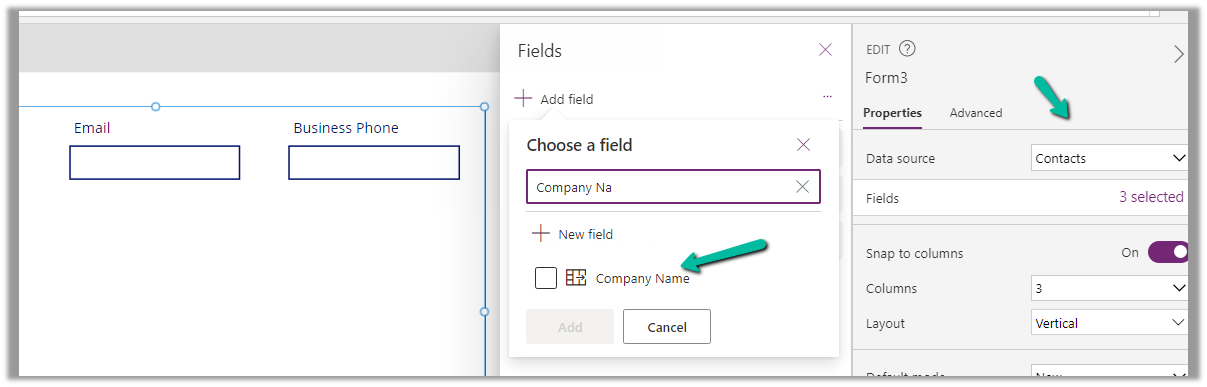
For this example, we are taking the Company Name customer lookup column of the contact table.

We start by adding the Customer Name field to the form.

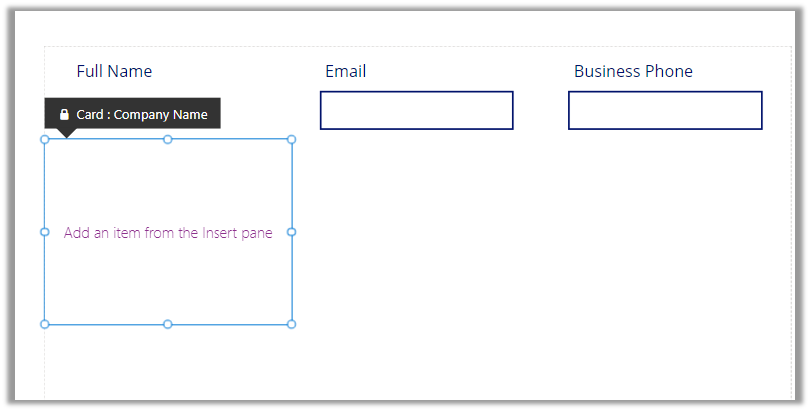
That adds a card to the form, let us add the required controls to get it working

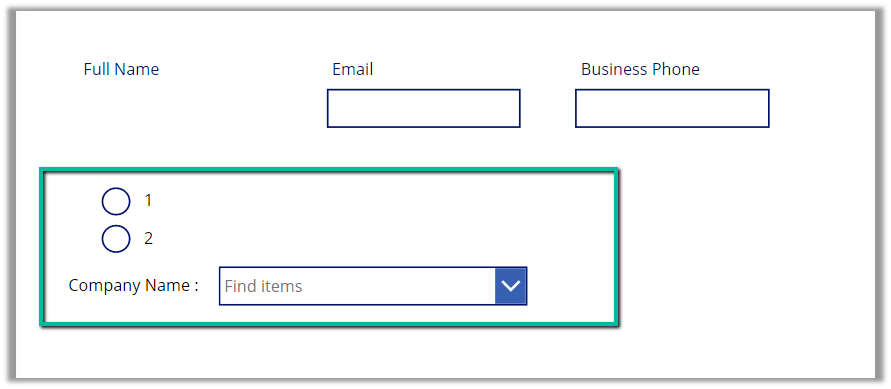
Radio Button, Combo box, and Text Label for the combo box.

Change the Items property of the radio button to show the contact and account option.

Also, change the Layout to Horizontal and Default as Contact.

And set the Items property of the Combo box as below –
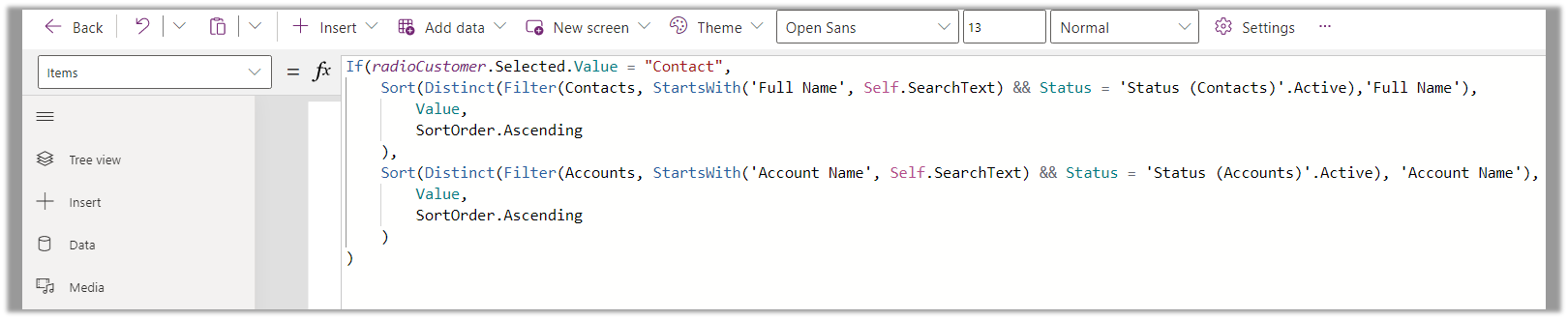
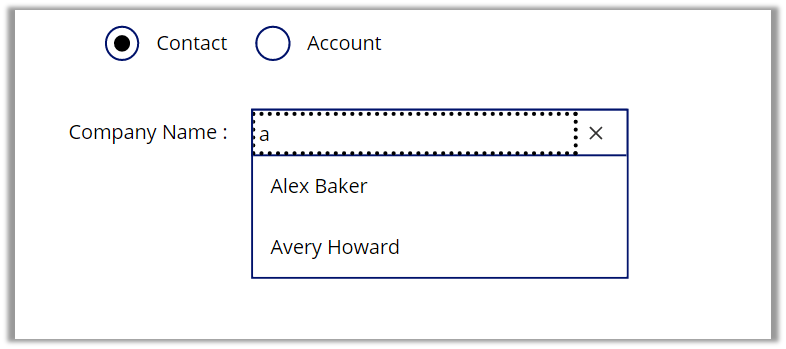
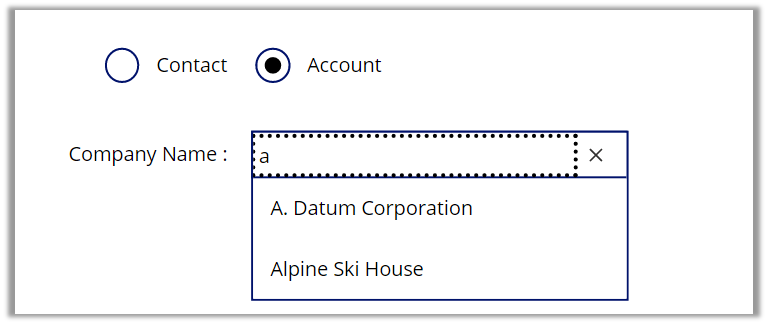
Based on the value selected in the radio button, we are setting the Data Source and also applying the Sort and Distinct function to it, along with StartsWith for delegation.

We have also set Allow searching as On for the combo box.

For the Contact option selected –

For the Account option selected –

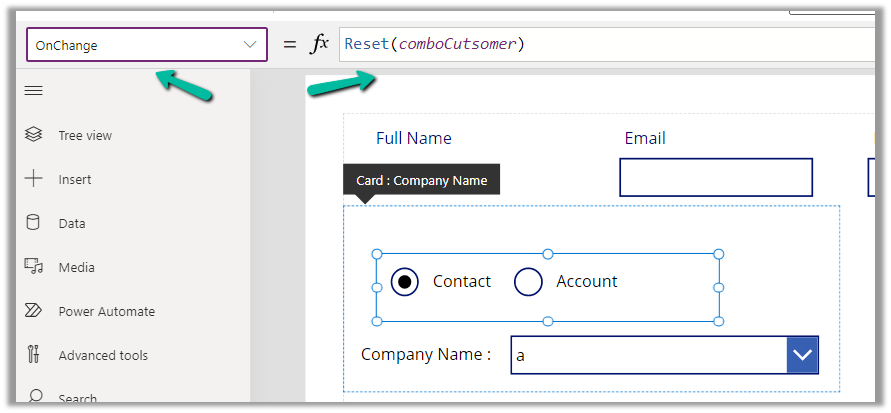
Also, we can set the OnChange property of the radio button to Reset(comboControl) to clear the selection when the user switches between Contact and Account options.

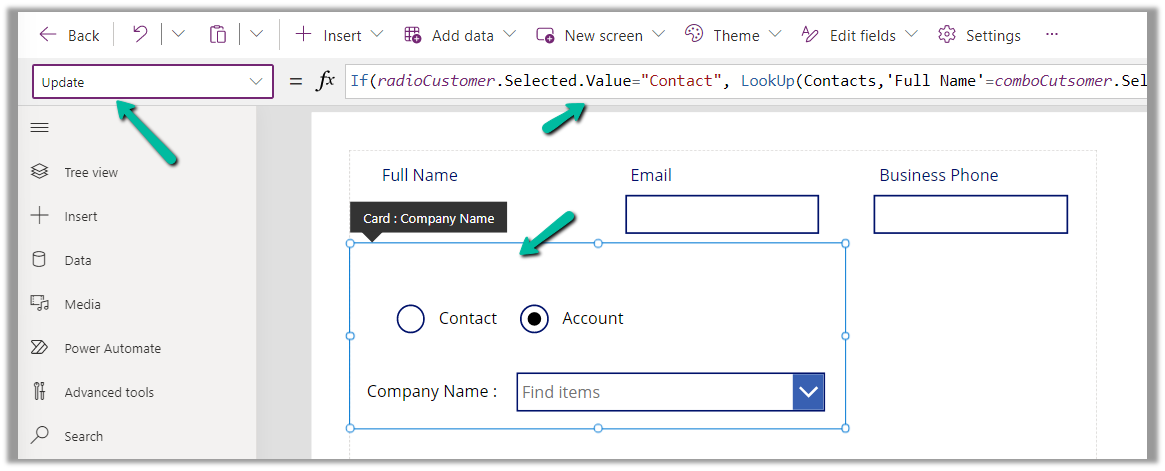
Now to have this value saved back we can specify the Update property of the custom data card in which we have placed these controls.

References –

https://www.youtube.com/watch?v=y-VvNDwy_Jw&t=1191s

https://debajmecrm.com/configure-customer-lookup-to-show-either-contacts-or-accounts-in-canvas-apps/

https://learn.microsoft.com/en-us/power-apps/maker/canvas-apps/working-with-references#show-the-columns-of-a-customer

Hope it helps..

Advertisements

Error with Global Choice / Optionset with the same display name and In operator – Power Apps / Dataverse


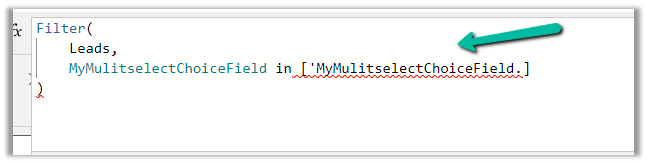
Recently while trying to filter the Combo box Items using the value of the Global Multi-choice field, we were getting issues in the formula.

It was because the optionset / choice field in the table and the global optionset / choice, it was referring to, both were having the same display name.

Issue –

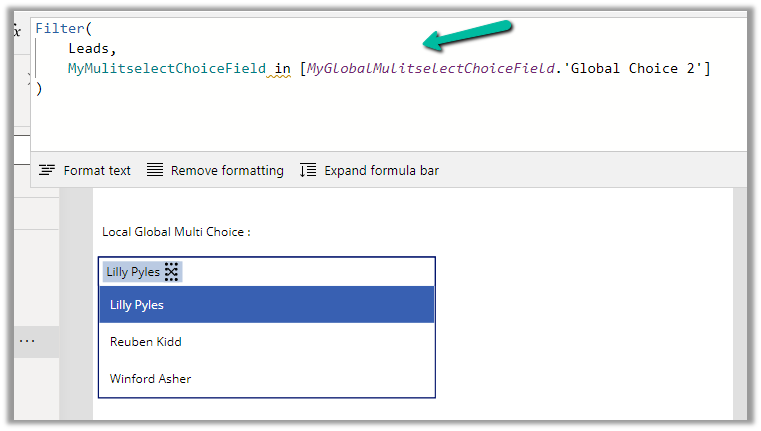
To get it working we renamed the display name of the Global Choice column.

After which we were able to get our formula working.

Same is the case for the single choice field which is referring to global choice.

Gender is the display name of the field in Lead and Global Gender is the display name of the global choice field.

LocalOptionset

Hope it helps..


Advertisements

Applying filter on Multi Choices / Multi-Select OptionSet – Power Apps / Dataverse


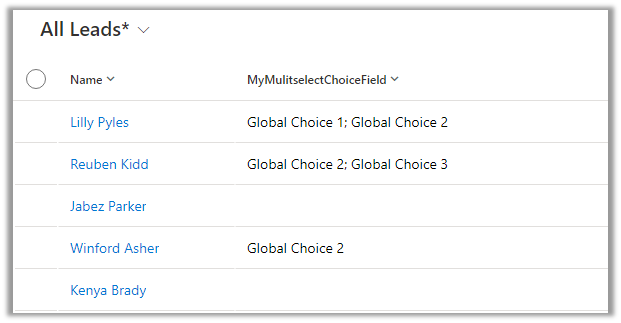
Say for e.g. we have 2 multi-select choice columns in our leads table, one is local (My Local Multi Choice Field) and the other field ((My Local Global Multi Choice Field) refers to the global option set field

In our Canvas App, to filter on ‘My Local Multi Choice Field’ by value Local Choice 2 and Local Choice 3, we can apply the below formula.

Similarly, for the Global option set to apply a filter on the Global Choice 2 value, we can compare the field in the lead with the values in the Global Option set.

As we are using “in” operator, we’d get the delegation warning. And for it to work in the case of combo box we would have to set “Allow Searching” to “Off

Hope it helps..

Advertisements

Fixed – Invalid template. Unable to process template language expressions in action. Template language expression cannot be evaluated: the template action is not defined in the current scope (Power Automate)


While testing a cloud flow in Power Automate, for one of the actions, we got the below error

Unable to process template language expressions in action ‘Update_a_row’ inputs at line ‘0’ and column ‘0’: ‘Template language expression cannot be evaluated: the template action ‘Do_until’ is not defined at current scope.’.


We were getting the error because we were referring Current Iteration Index of Do Until control, which was inside Scope 1, in the Update a Row action of Scope 2, i.e. outside the scope of Do Until control.

Scopes – https://nishantrana.me/2022/05/10/d365-implement-try-catch-finally-in-powerautomate/

The way we resolved it was to initialize a variable, setting it inside the Do Until action with the current iteration index and then referring it inside Scope 2.

Do Until – https://nishantrana.me/2022/01/19/how-to-use-do-until-and-delay-in-power-automate/

Hope it helps..

Advertisements