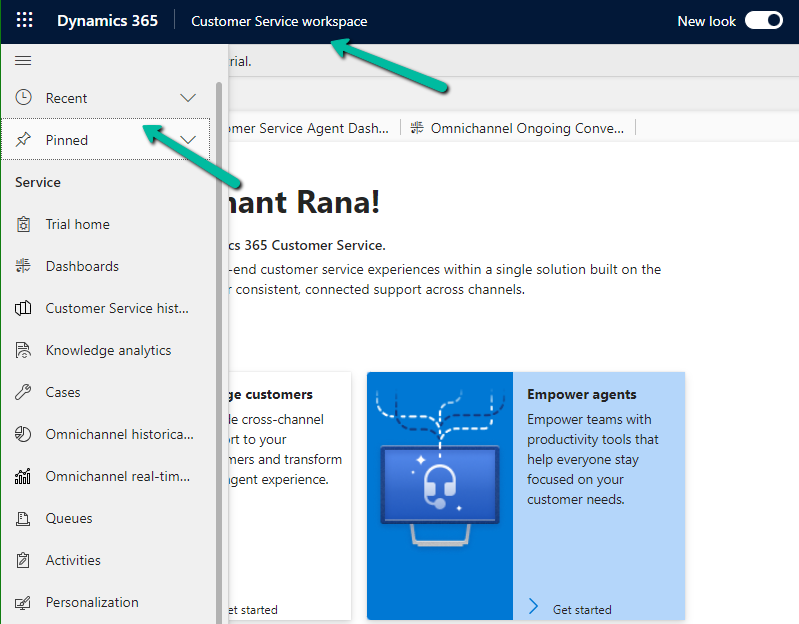
Recent and Pinned options are available now for multi-session app’s sitemap (e.g. Customer Service Workspace)


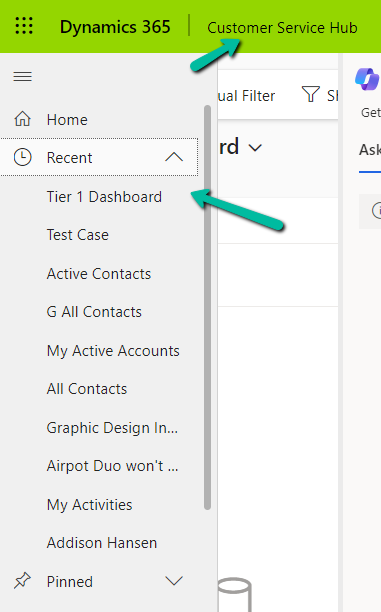
As we would have observed now we have the Recent and and Pinned records option available for the Customer Service workspace app.

A screenshot of a computer

Description automatically generated

The users can see the same Recent and Pinned records while moving between the Customer Service workspace and Customer Service Hub app, giving a consistent experience.

Recent :

Pinned :

Get all the details.

Hope it helps..

Advertisements

Select record quickly inside Lookup control – Model-driven app /Dynamics 365


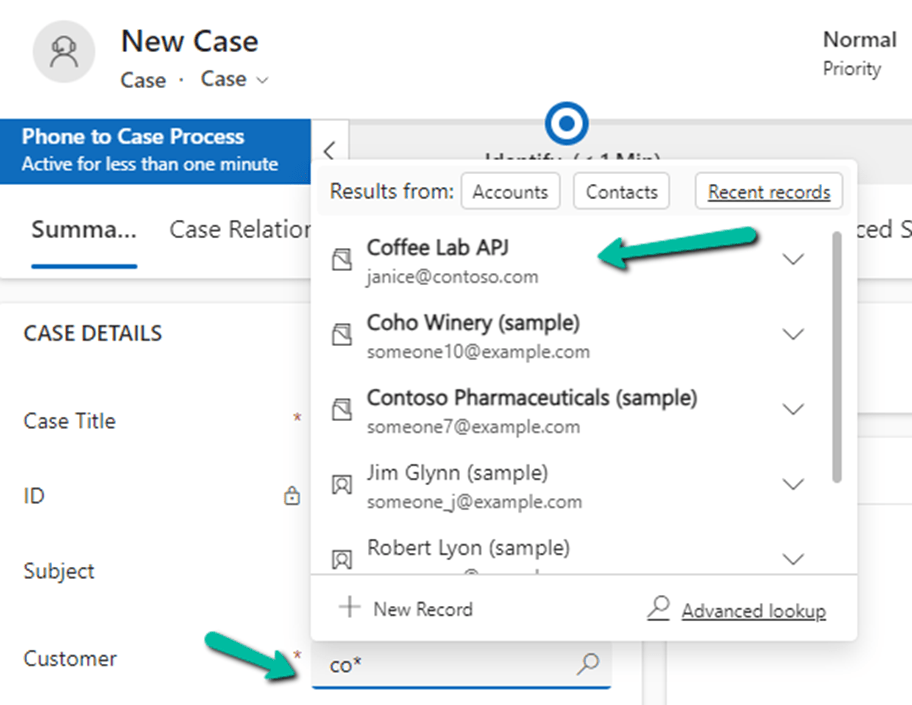
There is a small enhancement added to the Lookup Control as part of Release Wave 2.

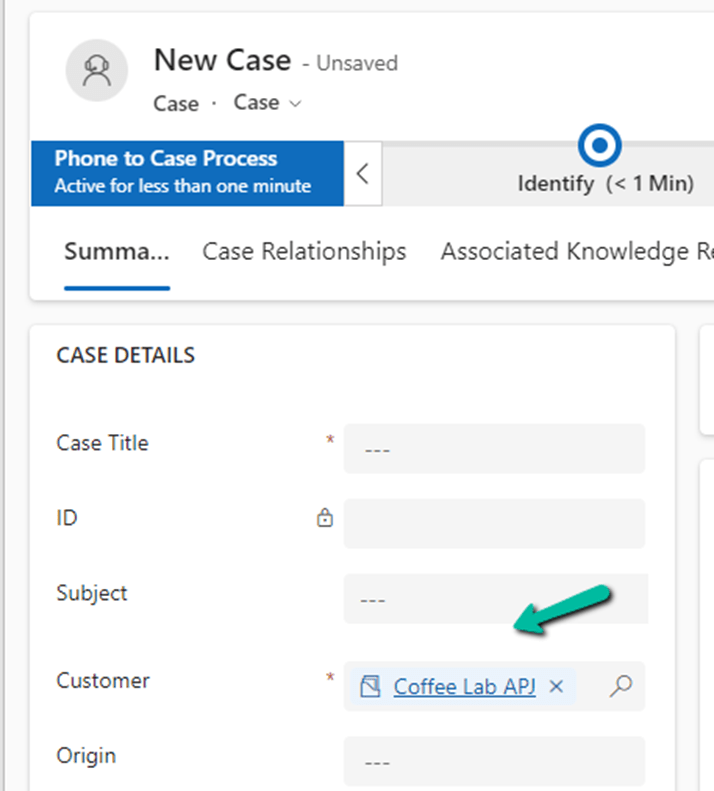
After performing a search for a specific record inside the Lookup Control dropdown menu, e.g. we have performed a search on “co*” on the Customer Lookup for Case.

We can press Enter to have the first item in the list selected.

Get more details

Hope it helps..

Advertisements
Resizing of side panes now possible – 2024 Release Wave 2 (Model-driven apps / Dynamics 365)


With 2024 Release Wave 2, now we can resize the side panes inside the Model-driven app.

Side panes are used for Teams chat, Copilot Chat, loading Web Resource, etc.

With Release Wave 2 enabled, we get the option to drag and adjust the size.

A screenshot of a computer

Description automatically generated

Below we have dragged it to maximum size.

A screenshot of a computer

Description automatically generated

Get all details

Hope it helps.. 

Advertisements
New features added in Grid– Dataverse / Dynamics 365


With Release Wave 2, we can see the below features added to Grid.

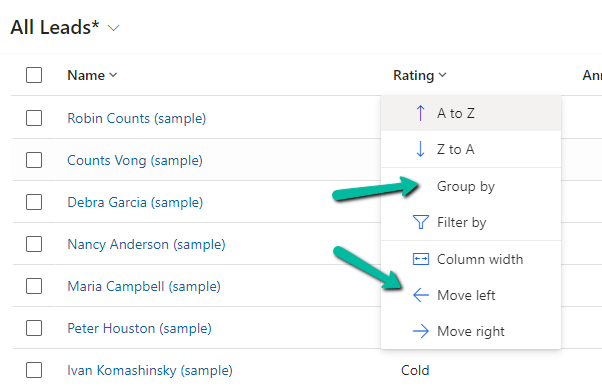
The option to Group By, Column Width, Move Left and Move Right.

A screenshot of a computer

Description automatically generated

Group By (Rating) –

A screenshot of a computer

Description automatically generated

Move Left and Move Right as expected will move the selected column accordingly. Not only that we can also Drag and Drop the columns, here we have dragged the Rating column as the 1st column.

A screenshot of a computer

Description automatically generated

Column Width – allows us to specify the preferred width of the column.

A screenshot of a computer

Description automatically generated

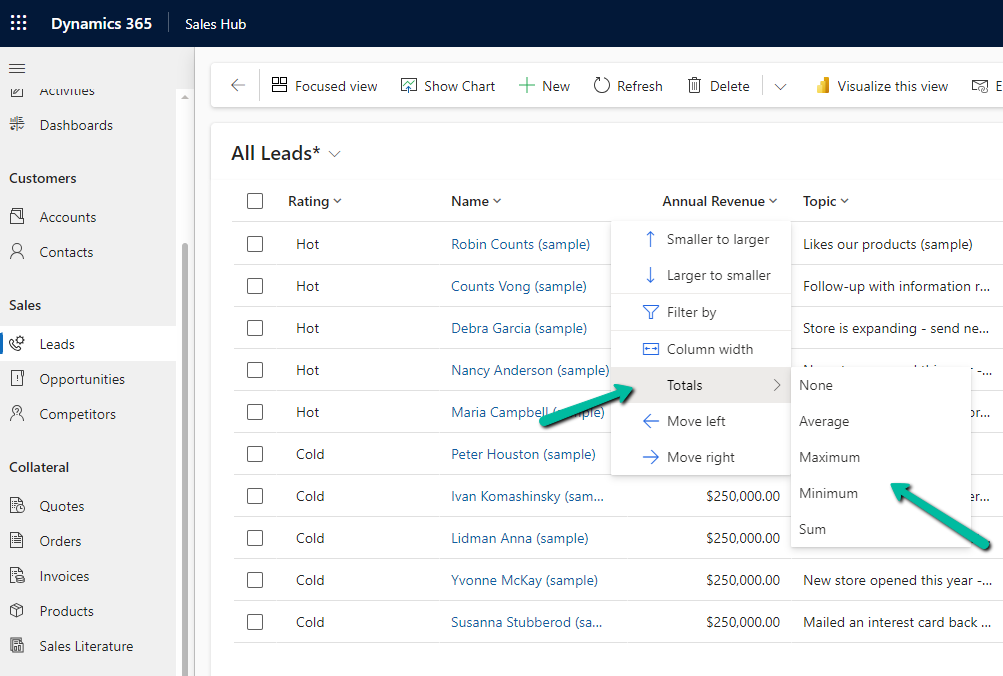
Totals > None, Average, Maximum, Minimum, Sum.

For the numerical column, Annual Revenue in this case we get the option to calculate the total

A screenshot of a computer

Description automatically generated

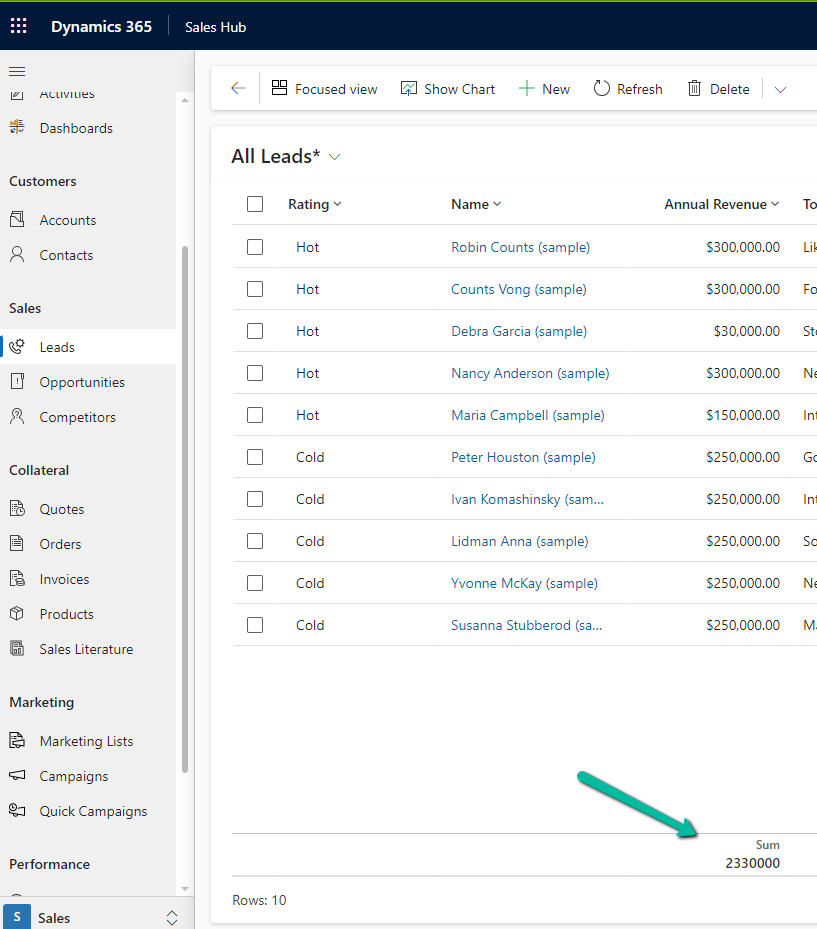
Selecting Total > Sum, adds a row at the bottom, showing the total sum

A screenshot of a computer

Description automatically generated

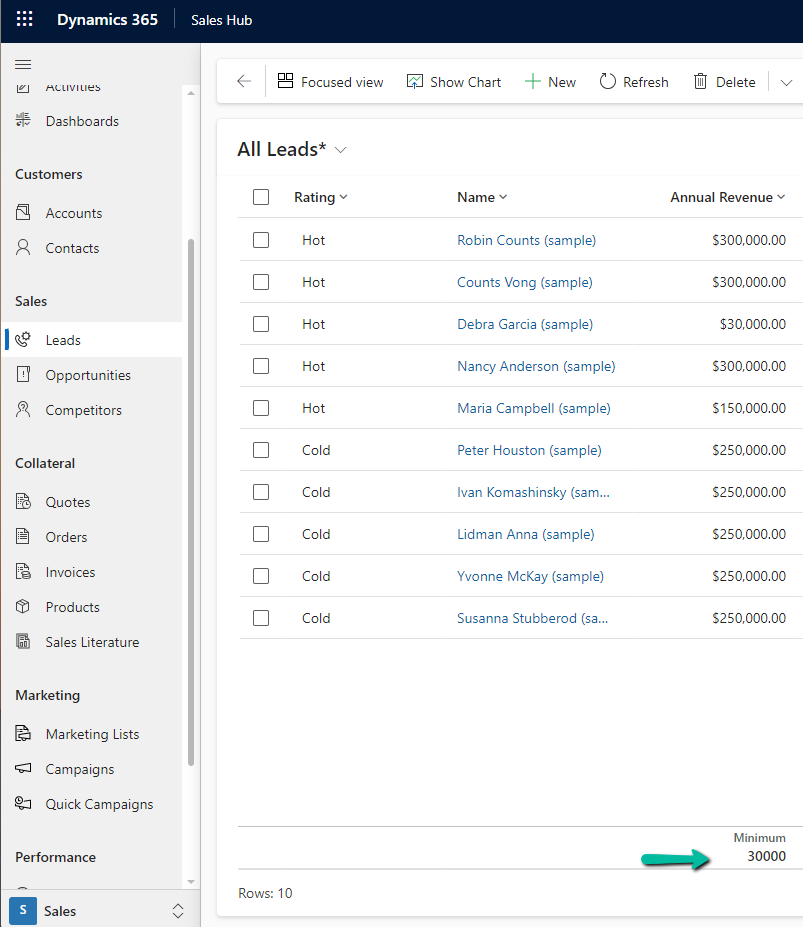
Similarly selecting minimum shows the minimum value.

A screenshot of a computer

Description automatically generated

Hope it helps..

Advertisements

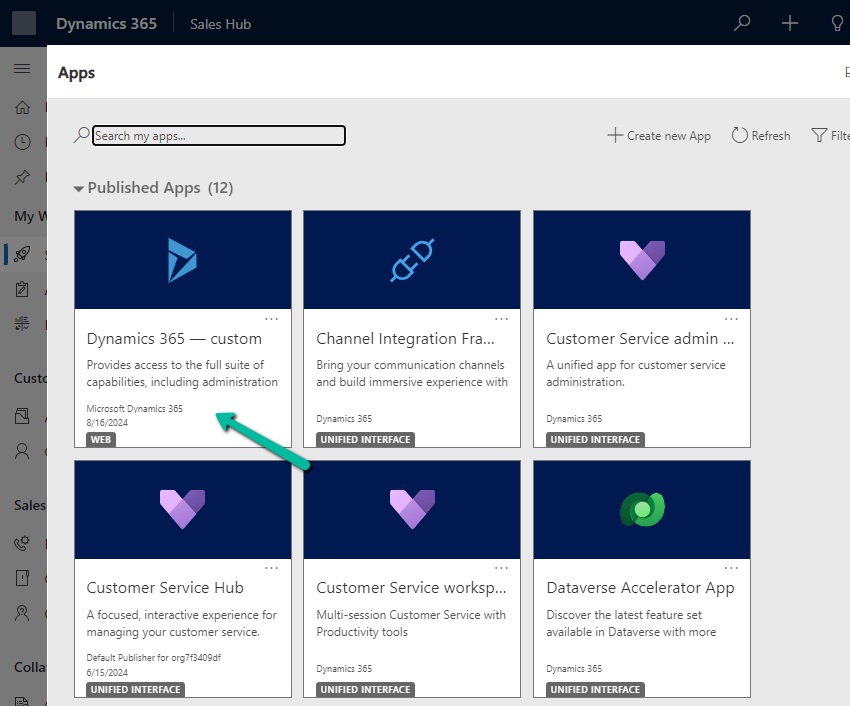
Hide / Show Legacy App (Dynamics 365 – Custom) from Everyone and / or Admin – Model-Driven App / Dynamics 365


From the Power Platform Admin Center for a particular Environment, through Settings >> Product >> Behaviour >> Show legacy app for admins option, we can control visibility of the Legacy App (Dynamics 365 – Custom) for admins.

If Show legacy app for admins = On –

A screenshot of a computer

Description automatically generated

An admin can see the app

A screenshot of a computer

Description automatically generated

By setting it to Off

A screenshot of a computer

Description automatically generated

We can see the app hidden for the admins also.

A screenshot of a computer

Description automatically generated

The aim is that all the users including admin must use only the modern, model-driven apps.

Get more details

Hope it helps..

Advertisements

Set an app (Model-driven or Canvas App) as a startup app – Power Apps Mobile


Microsoft has introduced a new feature, through which we can now specify a particular app as a start-up app, that will open up when we launch the Power Apps mobile, instead of waiting for the home page / or selecting it from favorites.

Below we can select the option Open at Startup to specify the Customer Service Hub app as the startup app as an example.

A screenshot of a phone

Description automatically generated

Or we can swipe left to mark an app as “Startup App

A screenshot of a phone

Description automatically generated

We can see an icon next to the app.

Now launching the Power Apps mobile app will directly open the Customer Service Hub app.

A screenshot of a phone

Description automatically generated

Using the Remove from startup option we can remove it as the startup app

A screenshot of a phone

Description automatically generated

We can only have one app set as a startup app, if we try setting up another app as a startup we get the notification that it will replace the existing app.

A screenshot of a phone

Description automatically generated

Get all the details here

Hope it helps..

Advertisements