Clearing Dirty Fields in Forms to Avoid Unnecessary Save Prompts (Dynamics 365 / Dataverse)


In Dynamics 365 forms, we often run into situations where a record looks unsaved even though the user hasn’t made any manual changes. This usually happens when fields are updated in the background by scripts. When that happens, those attributes are flagged as dirty and the form behaves as if the user made edits. The result is that whenever users try to navigate away, they are interrupted by the familiar “You have unsaved changes” popup.

Also Check – https://nishantrana.me/2025/09/09/finding-dirty-unsaved-fields-on-the-form-using-javascript-browser-console-dynamics-365-dataverse/

In our case, we were getting this issue for fields which were already hidden from the form. Also here as the record was on a particular stage, where we were setting all the fields in the form read-only, and also cancelling the save event. Because of which user was also not able to save the form.

A computer screen shot of a computer program

AI-generated content may be incorrect.

The way we fixed this issue was to scan all the attributes on the form in onload, detect which ones are dirty and reset their submit behaviours. By setting their submit mode to “never“, these fields were not included in the save operation, and the form was now showing the saved state, thus no unsaved changes prompts.

clearAllDirtyFields: function (executionContext) {
    var formContext = executionContext.getFormContext();

    // Delay to allow system updates (rollups/calculated fields) to complete
    setTimeout(function () {
        formContext.data.entity.attributes.forEach(function (attr) {
            if (attr.getIsDirty()) {
                attr.setSubmitMode("never");
                console.log("Dirty flag cleared for: " + attr.getName());
            }
        });
        console.log("All dirty fields cleared from the form.");
    }, 3000); // adjust delay as needed
}

This approach should still be used with some caution. The best practice is to first understand why certain fields are showing as dirty and, if possible, fix the underlying cause. The script should only be used in specific situations where we are confident that the dirty fields are not needed for saving the record. It’s also important to add the right checks or conditions so that it doesn’t run everywhere unnecessarily.

For example, in our case we only applied it when the form was in a particular status where it was expected to be read-only for the user. The fields were already hidden, so letting them stay dirty served no purpose.

Hope it helps..

Advertisements

Finding Dirty / Unsaved Fields on the Form Using JavaScript / Browser Console (Dynamics 365 / Dataverse)


Sometimes while debugging forms in Dynamics 365, we need to know which fields have been modified but not yet saved. These are called dirty fields, and they can be quickly identified by running a small JavaScript snippet directly from the browser console.

We can open the form, press F12 to bring up the developer tools, go to the Console tab, and paste the following code

(function () {
    var dirtyFields = [];
    var attributes = Xrm.Page.data.entity.attributes.get();

    attributes.forEach(function (attribute) {
        if (attribute.getIsDirty()) {
            dirtyFields.push(attribute.getName());
        }
    });

    if (dirtyFields.length) {
        alert("Dirty fields: " + dirtyFields.join(", "));
    } else {
        alert("No dirty fields found.");
    }
})();

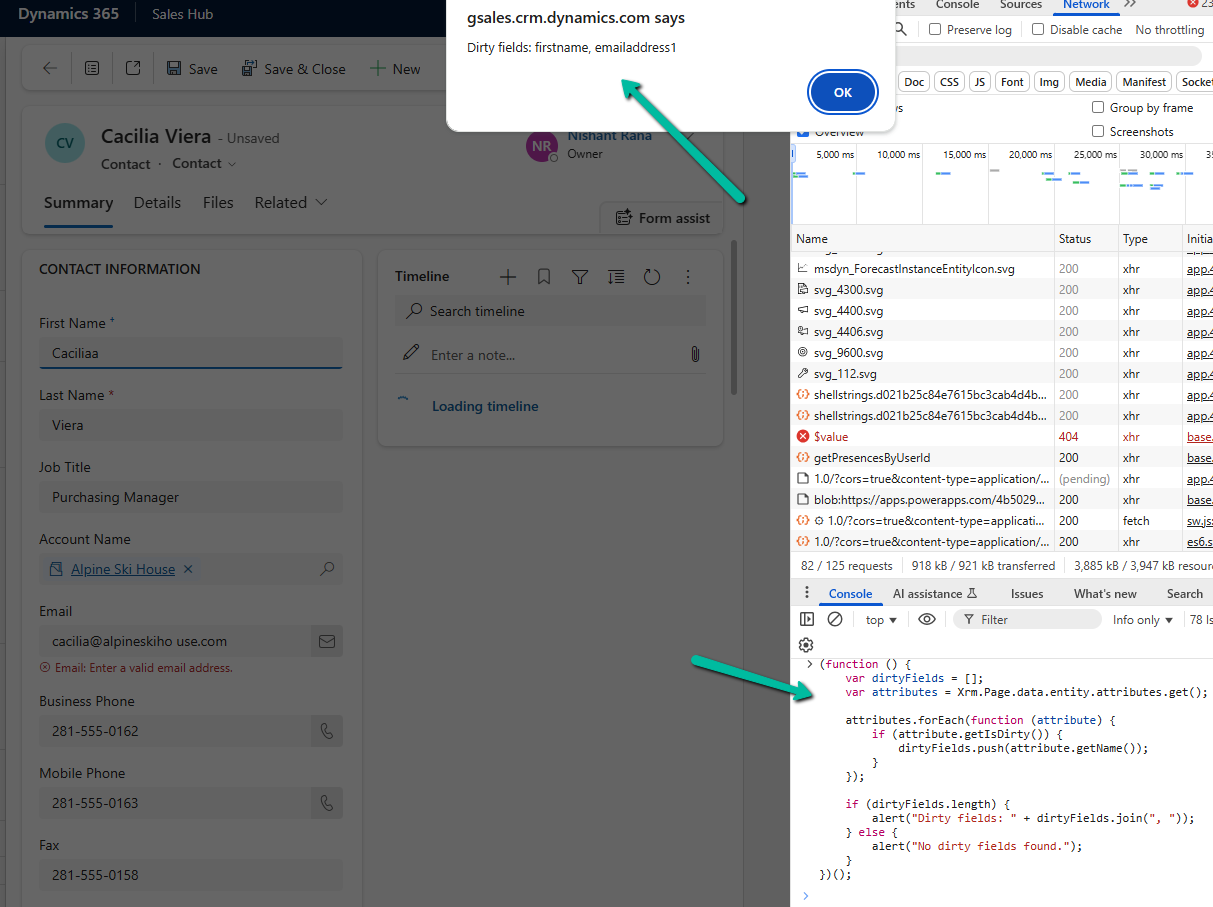
This script loops through all the attributes on the form and checks if they are dirty using getIsDirty(). If it finds any, it shows their names in an alert, otherwise it shows a message saying no dirty fields are found.

For example, if we modify First Name and Email on the Contact form without saving, it will pop up an alert showing:

A screenshot of a computer

AI-generated content may be incorrect.

Here we are using Xrm.Page even though it is deprecated, because it is still the quickest way to test such snippets directly from the console for debugging purposes. In actual form scripts, we should always use formContext.

Hope it helps..

Advertisements

Use Security Roles to manage access to views (preview)– Dataverse / Dynamics 365


Sometimes, we might create a new view for a table, and not everyone in our organization needs to see it — or maybe, only a specific team should have access to the existing views, now we can achieve it through security roles.

This feature is governed by the EnableRoleBasedSystemViews property, which we can manage through the OrganizationSettingsEditor tool.

Download and install the managed solution.

https://github.com/seanmcne/OrgDbOrgSettings/releases

A black background with white lines
AI-generated content may be incorrect.

Before we set the property as true, let us apply security roles to some of our views.

To apply it, select the view in the PowerApps Maker Portal and click on View Settings.

A screenshot of a computer

AI-generated content may be incorrect.

From the View Settings window, we can choose Specific security roles to apply to the views. Here we have selected the Vice President of Sales role for the All Leads Views. Save and publish the change.

A screenshot of a computer

AI-generated content may be incorrect.

Here we have repeated the same steps for the below remaining views.

A screenshot of a computer

AI-generated content may be incorrect.

Now if we open the leads view as System Admin, we can see all the views. This is because we have not yet set the EnableRoleBasedSystemViews to true.

Now let us set the property as true.

A screenshot of a computer

AI-generated content may be incorrect.

As soon as we set the property as true, we can see the views getting filtered for the System Admin user.

Only the below public view is visible. (along with the 2 private views at the top)

A screenshot of a computer

AI-generated content may be incorrect.

Now if we assign the “Vice President of Sales” role to the same user, he can then see the views on which security roles were applied.

A screenshot of a computer

AI-generated content may be incorrect.

The user can still see the remaining views through the “Manage and share views” option.

A screenshot of a computer

AI-generated content may be incorrect.
A screenshot of a computer

AI-generated content may be incorrect.

The records that the user can see in the views are still governed by security privileges.

Although the documentation mentions, that this feature only filters views in the table list view selector and not in associated grids or subgrids, we can see the same filtering applied.

Below is the Lead Associated view in the Competitor table.

When we enable the EnableRoleBasedSystemViews setting using the OrganizationSettingsEditor tool, it takes effect immediately. All table views, except the default one, start getting filtered based on assigned security roles right away. Assigning security roles to a view is also effective immediately after we save and publish the view. However, if we change a view’s access from ‘Specify security roles’ to ‘Everyone’, it might take up to 24 hours for the change to fully apply across the system.

Get all the details here – Manage access to public system views (preview)

Hope it helps..

Advertisements

How to use the setIsValid Method in Dataverse / Dynamics 365


We can use the setIsValid method for validating field values in Model-driven apps. This method helps ensure that the data entered by users meets the required criteria before it’s processed or saved.

The setIsValid method is used to set the validity of a column’s value. It can mark a field as valid or invalid based on custom validation logic.

formContext.getAttribute(arg).setIsValid(bool, message);

bool: A Boolean value. Set to false to mark the column value as invalid, and true to mark it as valid.

message: (Optional) A string containing the message to display when the value is invalid.

Below we are using the setIsValid method in the function that ensures that the “End Date” is earlier than or equal to the “Start Date”, else it will mark the “End Date” as invalid.

function validateDates(executionContext) {
    var formContext = executionContext.getFormContext();
    var startDate = formContext.getAttribute("custom_startdate");
    var endDate = formContext.getAttribute("custom_enddate");
  
    if (startDate && endDate && endDate.getValue() <= startDate.getValue()) {
        endDate.setIsValid(false, "End Date must be after Start Date.");
    } else {
        endDate.setIsValid(true);
    }
}

We have it registered in the On Change of the ‘Start Date’ and ‘End Date’ fields.

Here if we try saving the record, if the End Date is smaller than the Start Date, we will get the message specified.

Hope it helps..

Advertisements

How to deal with the Calculated columns having Null values (Dynamics 365 / Dataverse)


Suppose we have the following whole number fields, where Field C is the calculated column and is the sum of Field A and Field B

A screenshot of a contact form

Description automatically generated

Field C calculated column –

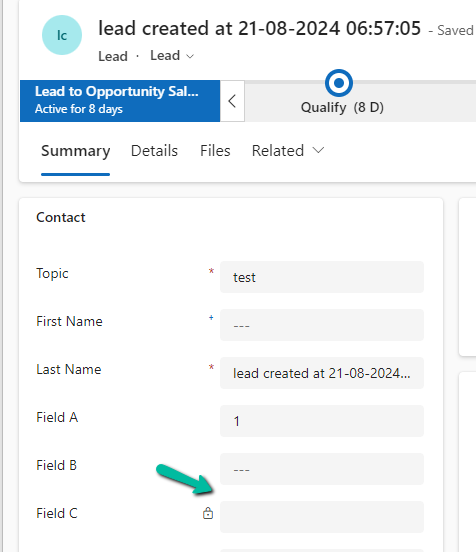
However, if any of the fields used for calculation is null, Field C will also show null.

A screenshot of a computer

Description automatically generated

The way we can resolve it is to put a null check in the formula.

We have created a new calculated column with the below definition.

A screenshot of a computer

Description automatically generated
A screenshot of a computer

Description automatically generated

The other option that we can consider is using JavaScript / Business Rules / Additional Calculated Columns to set the default value to 0 in case of null, for the fields being used for calculation.

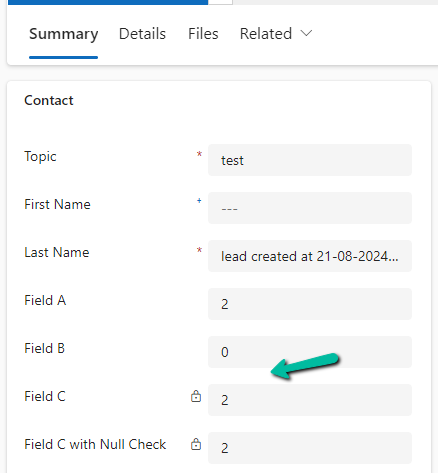
In the case of 0 also, the calculated columns will work properly.

A screenshot of a computer

Description automatically generated

Finally, now that we have Fx Formula Columns available we can make use of them instead of Calculated Columns.

The formula columns work properly and we do not have to put the null check.

A screenshot of a computer

Description automatically generated

Get more details on Fx Formula Columns

Hope it helps..

Advertisements

Use OptionSet Wrapper component to show color-coded options on the form – Model-driven apps/ Dynamics 365


We can make use of the OptionSet Wrapper component to show color-coded options on the form for the choices or option set fields.

Below we have added the Option Set wrapper component to the Rating field of the lead in the Lead (Main) form.

We can see the field added but do not see any colors for it.

A screenshot of a contact form

Description automatically generated

This is because it uses the color defined for that column, which wasn’t defined out of the box for that field.

We then defined the colors as shown below for different choices / options.

After saving and publishing our changes, we were able to see the corresponding color for the choices.

A screenshot of a computer

Description automatically generated

Also check –

Hope it helps..

Advertisements