The record could not be deleted because of an association exception in Dynamics 365


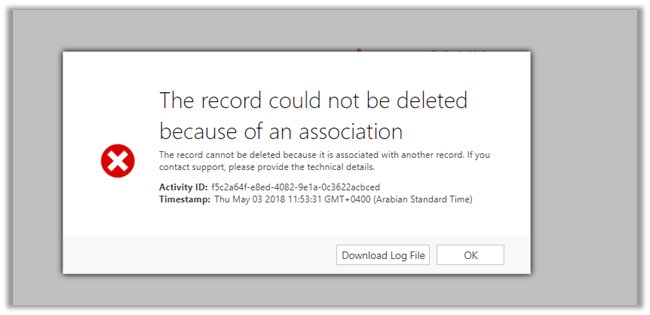
Recenlty while trying to delete product records, we got the below error.
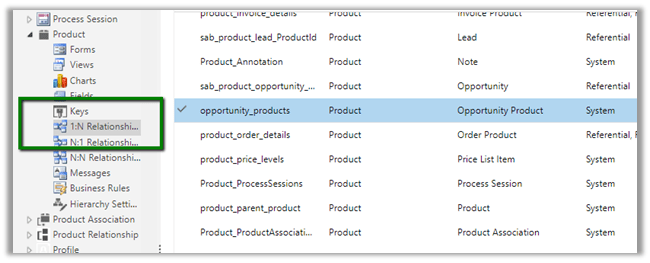
The quick way to figure out which associated entity’s record could have restricted the deletion of the record, open the 1:N relationship for the entity.

Search for any Parental, Referential Restrict Delete or any System relationship that has Restrict set for Delete action.

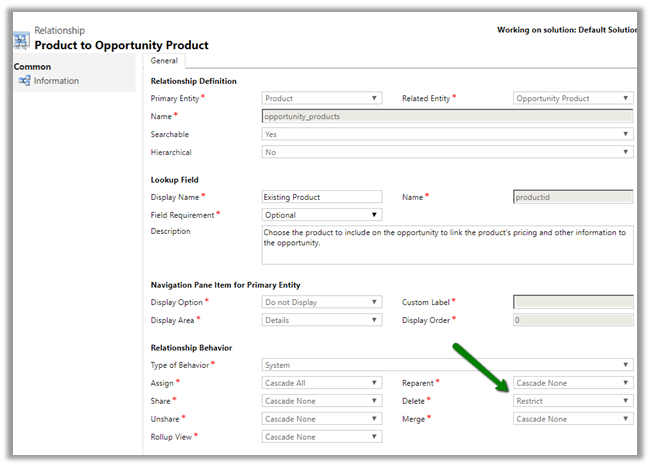
In our case it was the System relationship of Product with Opportunity Product
With Restrict Behavior set for Delete action.
Deleting all the opportunity product record allowed us to delete the Product records.

Hope it helps..

Limitations of Multi Select Option Sets in Dynamics 365 CE


[Edit – (3 May 2018) – Multi Select Option Sets cannot be used inside Portal]

Few months back I wrote the following post about Multi Select Option Sets.

https://nishantrana.me/2017/10/15/multiselect-option-set-in-dynamics-365/

Here, let us look at the limitations associated with them,

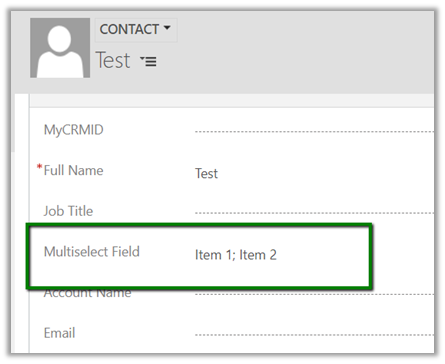
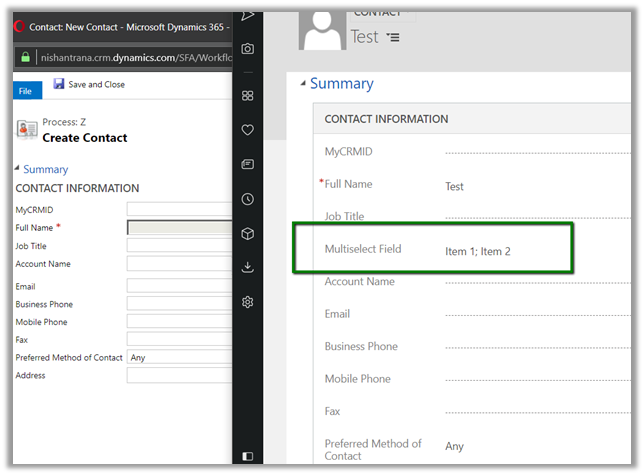
Suppose I have the following multi select option set field created for contact entity.

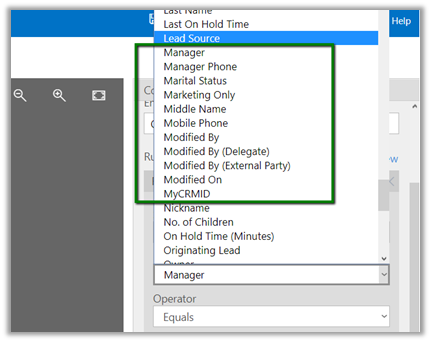
  • The field is not available for Business Rule.

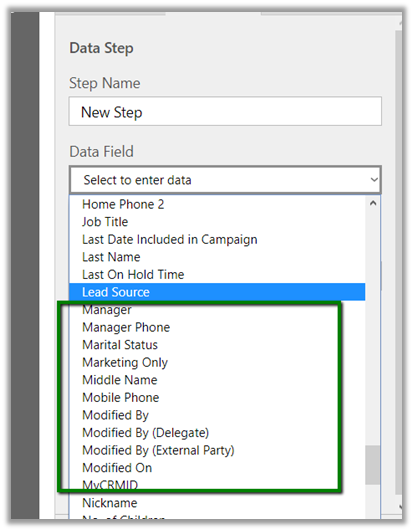
  • The field is not available inside BPF

  • The field is not available inside in Workflow – e.g. check condition and create step as shown below.

  • The field is not available as filtering attribute in Plugin (however the values are available as OptionSetValueCollection)

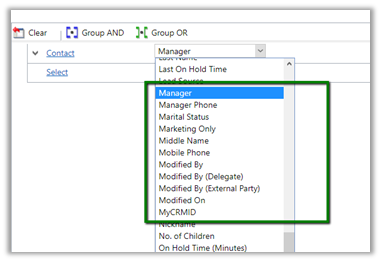
  • Inside Report Wizard it can be used as filter condition

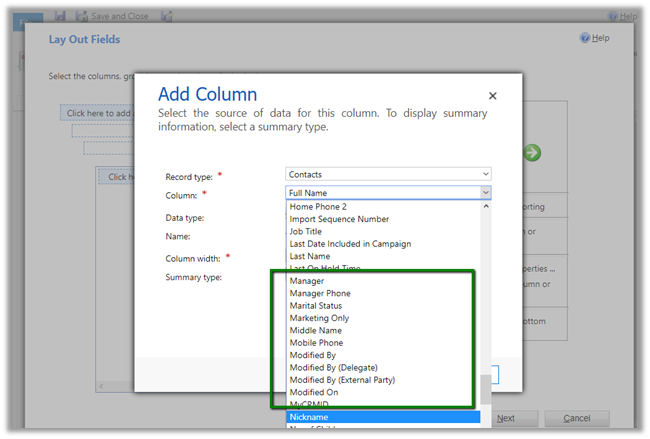
But cannot be used as View Column

So basically, we need to be cautious before we make use of the multi select option sets in our solution.

Hope it helps..
Advertisements

Fixed – Unable to Login to Dynamics CRMOrganizationServiceProxy is null error while using CrmServiceClient


While connecting to Dynamics 365 – Version 9.0.0.0 online through a console application using Visual Studio 2015

we were getting the below error

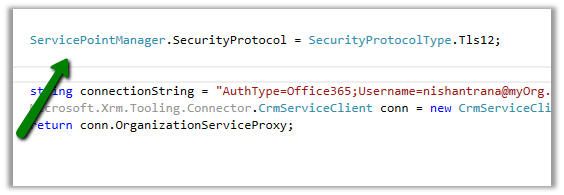
The fix was to specify the security protocol to be Tls12 for the connection for VS 2015 and for VS 2017 make sure the framework version is 4.6 or above.

More Details – https://support.microsoft.com/en-nz/help/4051700

Hope it helps..
Advertisements

Insufficient Permissions error while updating records using Excel Online in Dynamics 365


Recently one of our users reported the below while trying to bulk update the records using Excel Online feature.

The user had the Update rights for those records.

Basically, the Excel Online update features creates a data import job in the background.

https://debajmecrm.com/2015/11/14/dynamics-crm-excel-online-field-changes-save/

So the user had to be given the import data rights.

We resolved the issue by giving the following rights to the user at organization level.

  • Data Import
  • Data Map
  • Import Source File
  • Web Wizard
  • Web Wizard Access Privilege
  • Wizard Page

https://community.dynamics.com/crm/b/crmpowerobjects/archive/2015/08/18/data-import-privileges

Hope it helps..

Fixed – The unit schedule id is missing error while trying to migrating product in Dynamics 365


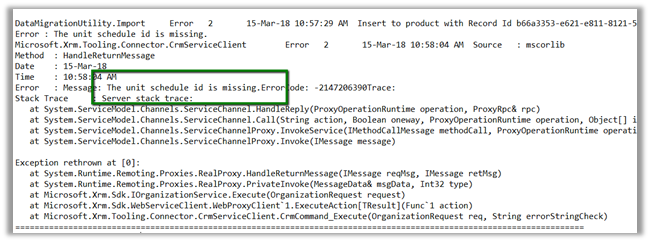
Recently while trying import products from our Dev to Test environment using the Configuration Migration tool we got the below error

The reason being we were using default unit as a unit group in out DEV and the same wasn’t there in the TEST environment. Interestingly if we set the correct GUID in the data.xml generated by Configuration Migration tool and try importing, still the products do not get imported.

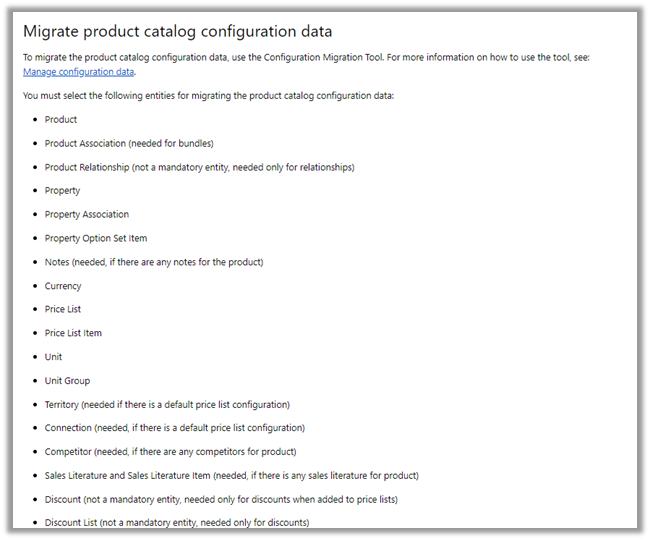
So basically, if we try importing the products entity alone we might run into issues. To migrate it properly we need to add the related entities along with it as mentioned in the Microsoft documentation.

https://docs.microsoft.com/en-us/dynamics365/customer-engagement/admin/manage-product-catalog-configuration

We created a new schema file with Product and its related entities, and this time migration worked properly.

Hope this helps.

Advertisements

Sample code to hide out of the box reports using ReportVisibility class in Dynamics 365


Recently we wanted to hide OOB reports for our users.

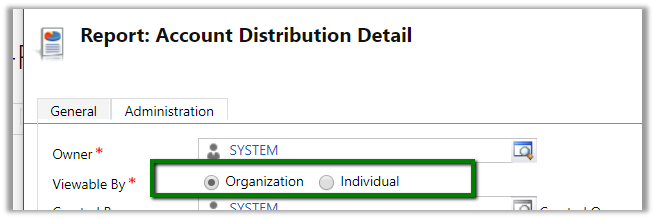
One way of doing it is either change those report from Organization owned to personal

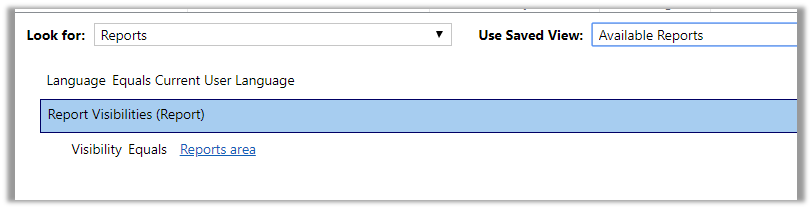
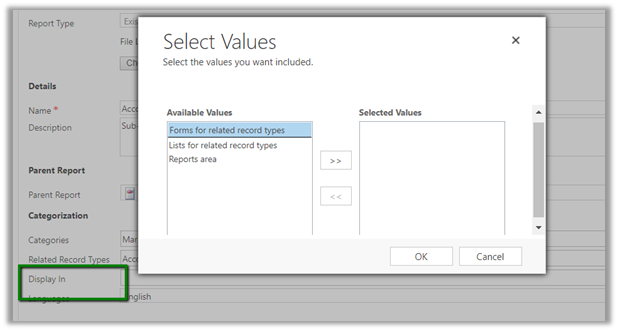
or change the Display in Area for those reports (this will hide those reports from all other views except the “All Reports, Including Sub Reports” view), as all other OOB Views for the reports uses the Reports Area filter. Another option of course is to update the filter criteria for those views or deactivate those views.

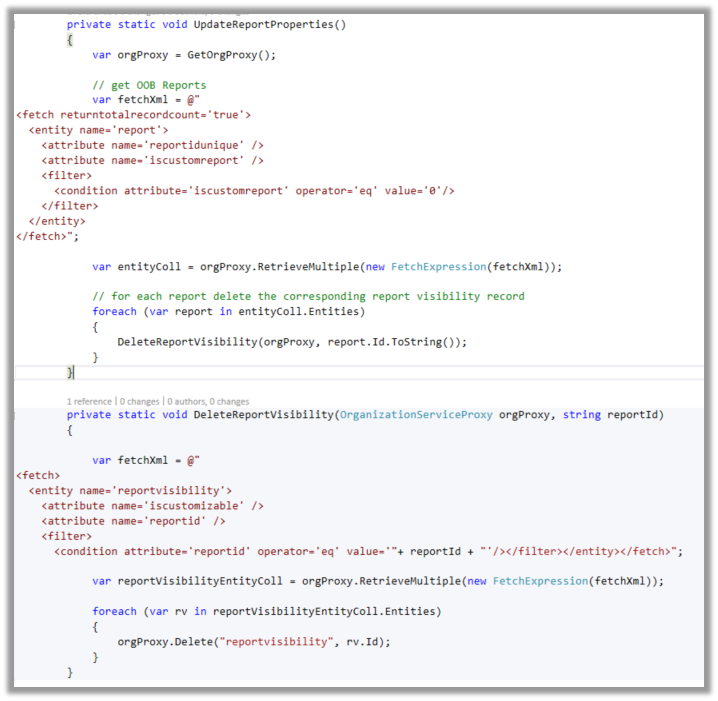
In our case, we simply updated the Display In property for all the OOB reports. Below is the sample code that we used. Basically, every report can have 0 or more (max 3) related Report Visibility records associated to it. (i.e. for forms, lists or reports area). In the below code we have looped through all the OOB reports and deleted all the associated ReportVisibility records for that report.

Hope it helps..