How to – Import Data from Dataverse / CRM to Dynamics 365 Customer Insights


In the last post, we had set up the trial version of Dynamics 365 Customer Insights.

https://nishantrana.me/2022/01/26/how-to-set-up-dynamics-365-customer-insights-trial/

Currently, our trial instance has no data.

We can ingest data into Dynamics 365 Customer Insights from Microsoft Dataverse either using Microsoft Power Query (Dataverse Connector)

or Microsoft Dataverse import method.

The Microsoft Dataverse import method doesn’t copy the data into the Customer Insights / Audience Insights Data Lake, however, it doesn’t allow for Extract, Transform, Load (ETL) as in the case of Microsoft Power Query data source.

Select Audience Insights >> Data >> Data Sources >> Choose your import method – Microsoft Dataverse

Provide a name to the data source and click on Next.

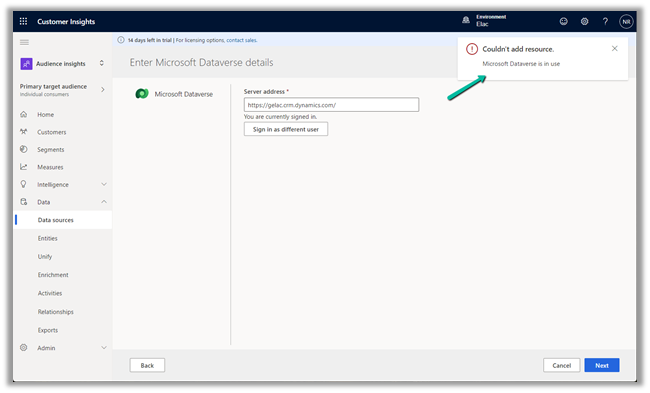
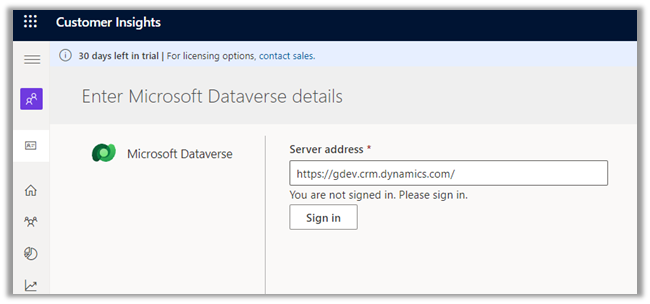
Enter the Server address, Sign in, and click on Next.

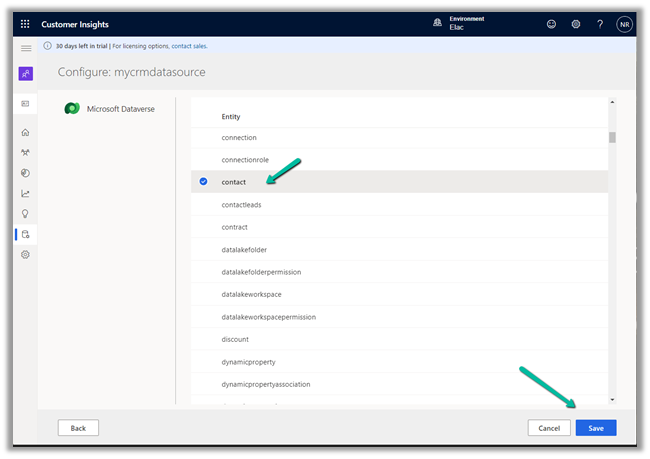
Select the Entity, here we have selected the contact entity for now.

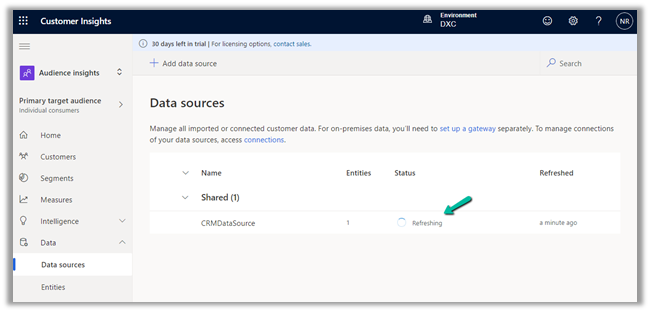
We can see the data source is being refreshed.

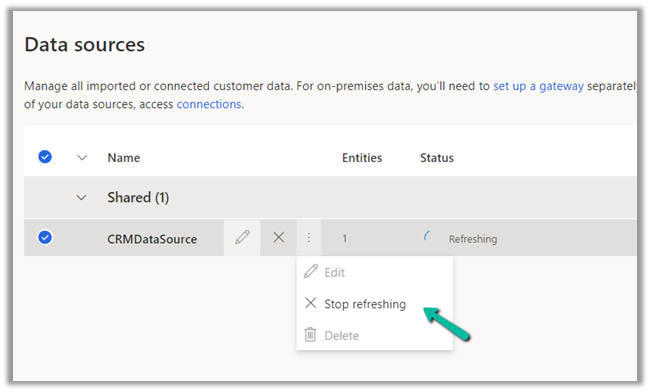
We have the option of stopping the refresh.

We are having 100 records in our contact entity inside CRM.

It took around 5 hours for the refresh to complete successfully.

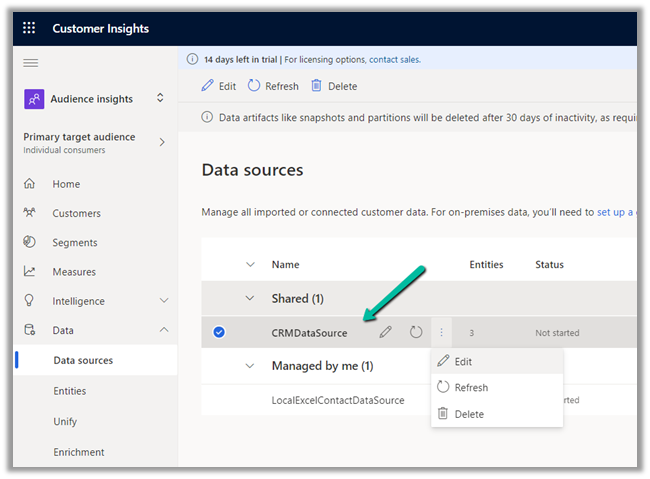
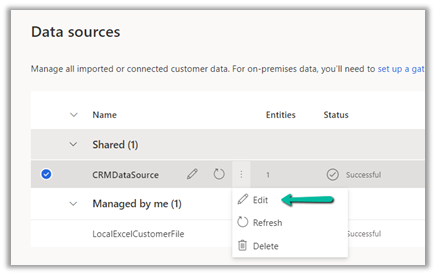
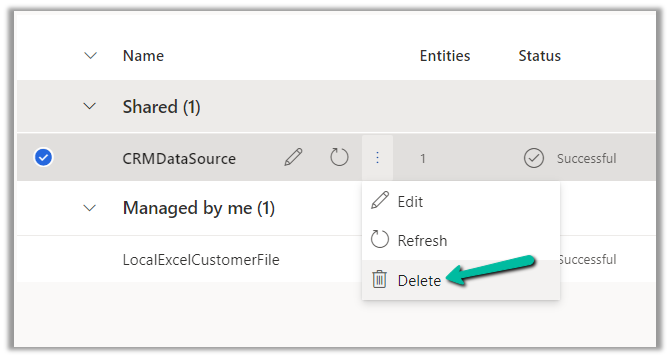
We have the option of Edit, Refresh and Delete on the Data Source after the successful refresh.

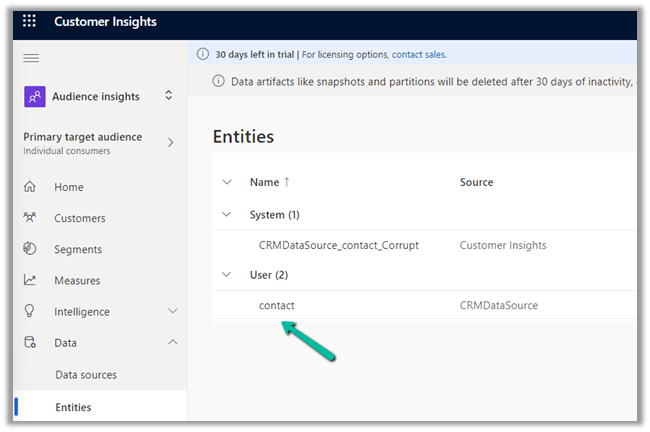
We can see the contact entity available within Data >> Entities section

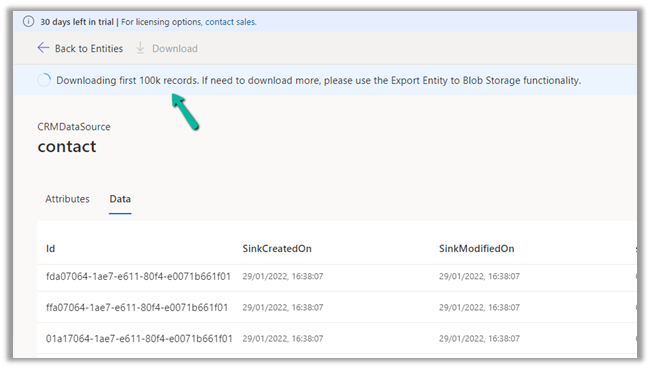
Clicking on contact, we can see the Attributes used and Data in it as well as the option to download the data.

The download will be downloading the first 100K records.

Now when it comes to creating a unified customer profile through (MMM) i.e. mapping, matching, and merging, it requires a minimum of 2 entities to be there, to generate the Customer Profile.

In the next post, we will import some sample contact data from a local excel file and use it for further configuring our customer profile.

How to – Import Data from local data files to Dynamics 365 Customer Insights

How to – Unify (Map, Match and Merge) Entities in Dynamics 365 Customer Insights

Hope it helps..

Advertisements

How to assign power automate per flow plan to your flow


Mohsin Khalid's avatarMohsin Khalid

Since Microsoft came out with their new licensing around the Power platform breaking the power apps licenses and power automate licenses apart there has been a lot of questions in the community forums and generally on how are power automates getting licensed. Short answer to that question is there are now two licensing options available if someone would like to enjoy the power of power automate and power automate is not included in the license options for power apps.

  1. Power automate per user plan
  2. Power automate per Flow plan

The per user plan is quite self explanatory and the license is assigned to the user like the previous power apps plan 1 and plan 2 licenses, this has a lower limit than the expensive per flow plan but does allow that particular user to create unlimited number of flows for themselves. The power automate per Flow plan has a different…

View original post 175 more words

D365 Quick Tip: Simple & Detailed Mode in Advanced Find


Change the advanced find mode as per your preference. Also we can hide a particular condition (row) through “Hide in Simple mode” option.

hidesm

priyeshwagh777's avatarD365 Demystified

If you ever wanted to refine your Personal Settings and ever came across this setting that asks your to set the default mode in Advanced Find
setting

But didn’t observe the Advanced Find well? Here’s what it does

Simple Mode

As per Advanced Find behavior, the view which you are on is pre-selected in the Advanced Find.

And observe that the query is locked and you actually need to click on Details to expand it or make it editable
simpleMode

And then it expands like this
expanded

Detailed Mode

In Detailed mode, if you click on Advanced Find button, the query will already be in detailed view ready for you to be edited directly without you needed to click on Details as in Simple mode
advancedMode

Hope this quick tip saves you that extra bit of second. 🙂

View original post

2022 Release Wave 1 – First impressions


carinamclaesson's avatarCarina M. Claesson

Today Release Notes for 2022 Release Wave 1 were made available. In this post I will summarize my first impressions and focus will be on Power Apps and Power Automate, but there are also new features from other areas that I will highlight. Here are links to the Power Platform 2022 Release Wave 1 Plan and Dynamics 365 2022 Release Wave 1 Plan.


View original post 1,343 more words

How to – Set up Dynamics 365 Customer Insights Trial


https://nishantrana.me/2022/02/09/how-to-import-data-from-local-data-files-to-dynamics-365-customer-insights/To set up the trial of Customer Insights, open the Dynamics 365 Free Trial Page and scroll down to Dynamics 365 Customer Data Platform section

https://dynamics.microsoft.com/en-gb/dynamics-365-free-trial/

Click on Try for free

Sign in with your work account or the Dynamics 365 trial account created and click on Get Started

As a first step, it asks for specifying the region for the communication preferences.

For the trial, let us choose the Audience Insights option.

It opens the Demo environment having the sample data. We can explore and understand the features with the sample data or we can start a trial.

Let us select the option Start trial in the tool bar to connect it to an existing CRM / Dataverse Environment.


Enter the basic information requested. Make sure you have selected the correct region else you might get unable to create an environment error later.

The data storage option comes as disabled.

Specify the Dataverse / CRM environment’s URL. (here I am logged in with System Administrator user who is also the Global Admin)

Finally, review the information and click on Create.

This will configure a 30 day trial against the CRM / Dataverse environment.

Now we are ready to explore it further.

How to – Import Data from Dataverse / CRM to Dynamics 365 Customer Insights

How to – Import Data from local data files to Dynamics 365 Customer Insights

How to – Unify (Map, Match and Merge) Entities in Dynamics 365 Customer Insights

Hope it helps..

Advertisements

How to – Use RetrieveAttributeChangeHistoryRequest to get audit data for an attribute (Dataverse/ Dynamics 365/ CRM)


We can use RetrieveAttributeChangeHistoryRequest to get the change history of a particular field / attribute of a record.

We need to set the Target and the AttributeLogicalName property of the request.

AuditDetails records of the RetrieveAttributeChangeHistoryResponse contains the detail of the audit records.

The Audit History records in CRM- 

AttributeAuditDetail contains the details of the changes made on the field’s value. It contains property like – objectid, userid, operation etc. as well as new value and the old value as shown below.

Sample Code (C#) 

 string ConnectionString = "AuthType = OAuth; " +
                  "AppId=51f81489-12ee-4a9e-aaae-a2591f45987d; " +
                  "Username=User1@xxxx.onmicrosoft.com; " +
                  "Password=*******; " +
                  "RedirectUri=app://58145B91-0C36-4500-8554-080854F2AC97;" +
                  "Url = https://xxx.crm.dynamics.com//;";


            CrmServiceClient svc = new CrmServiceClient(ConnectionString);

            if (svc.IsReady)
            {

                var attributeChangeHistoryReq = new RetrieveAttributeChangeHistoryRequest();

                attributeChangeHistoryReq.Target =
                    new EntityReference("incident", new Guid("0a9f62a8-90df-e311-9565-a45d36fc5fe8"));
                attributeChangeHistoryReq.AttributeLogicalName = "prioritycode";

                var attrChangeResponse = (RetrieveAttributeChangeHistoryResponse)svc.Execute(attributeChangeHistoryReq);
                var auditDetailCollection = attrChangeResponse.AuditDetailCollection;


                foreach (var auditDetails in auditDetailCollection.AuditDetails)
                {
                    // Type =  AttributeAuditDetail, AuditDetail, 
                    var type = auditDetails.GetType();

                    if (type == typeof(AttributeAuditDetail))
                    {
                        var attributeDetail = (AttributeAuditDetail)auditDetails;

                        var userName = attributeDetail.AuditRecord.GetAttributeValue<EntityReference>("userid").Name;
                        var operation = attributeDetail.AuditRecord.FormattedValues["operation"];
                        var action = attributeDetail.AuditRecord.FormattedValues["action"];
                        var createdOn = attributeDetail.AuditRecord.GetAttributeValue<DateTime>("createdon");
                        var newValue = attributeDetail.NewValue.FormattedValues["prioritycode"];
                        var oldValue = attributeDetail.OldValue?.FormattedValues["prioritycode"];

                    }
                }
            }

Check other posts on Audit

Hope it helps..

Advertisements