How to – use form capture to integrate with external form in Dynamics 365 Marketing


We’d use form capture option when we want to integrate with external form not not created in Dynamics 365 Marketing .

Let us take a simple example to understand how the form capture works.

Check the previous post on embedding the Dynamics 365 Marketing form on an external page – https://nishantrana.me/2022/11/10/how-to-embed-marketing-form-on-an-external-page/

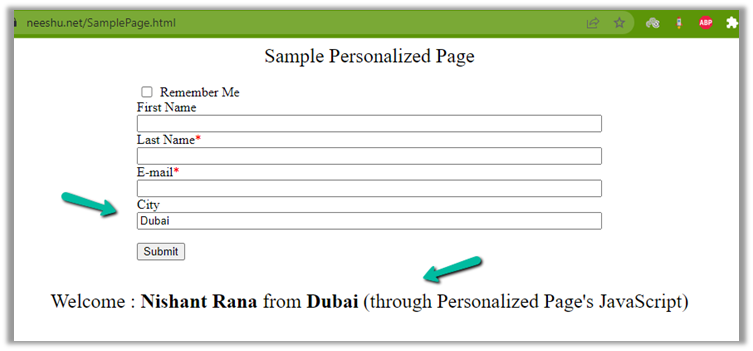
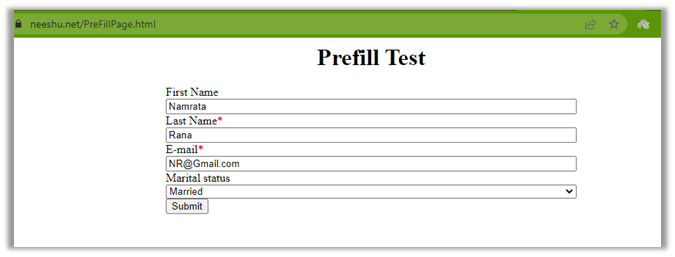
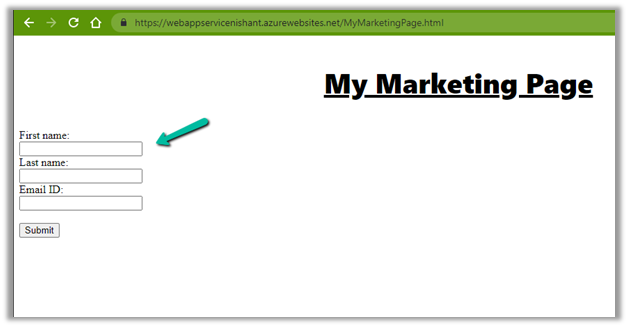
Here we have this simple HTML page having a form in it.

Navigate to Outbound marketing >> Internet Marketing >> Marketing forms

Select Capture Form in the command bar.

Enter the URL of the page which has the form in it.

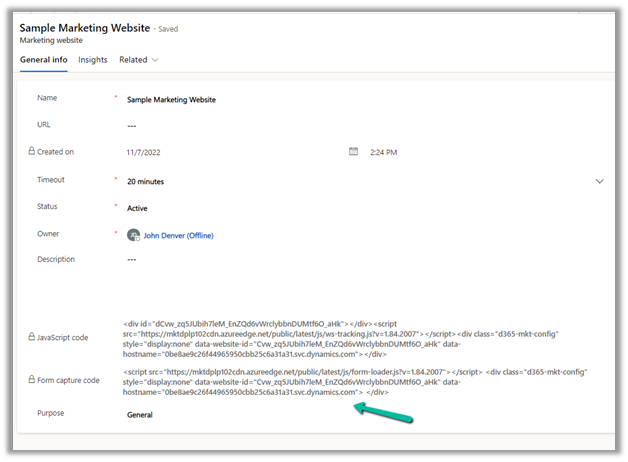
For the verification process to be successful, we need to copy the form capture code to the web page. We can find the form capture code in the Marketing website record.

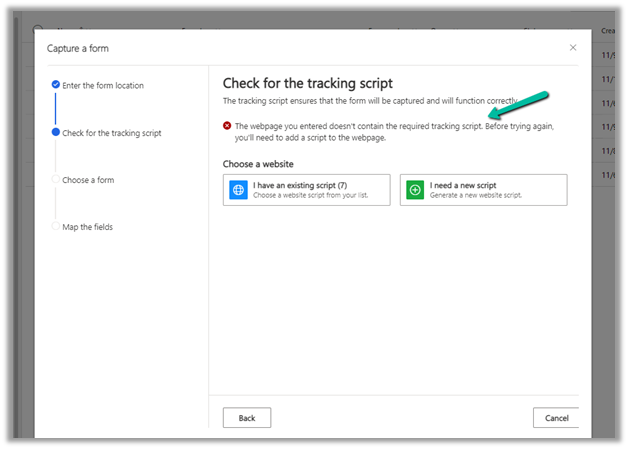
Else in the next step, it will check for the script and if not found will give the option to use an existing script or generate a new one to copy to that web page.

Once we have entered the script, we’d get the message that the tracking script is valid on re-running the verification.

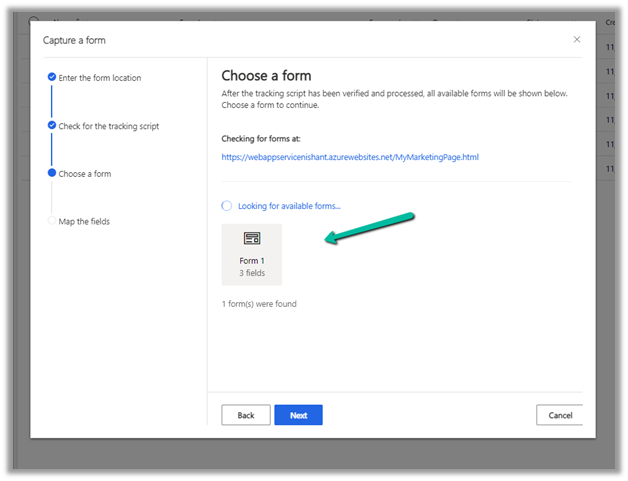
It will identify and load all the forms found on the page. Select the form.

Next map the fields in the form with Dynamics 365 Field, and click on Save and Close.

We can see the website and field mapping details in the marketing form record, with the option of Rescan form and Go live.

Let us Go live with the form.

Let us refresh our page which has the form, and submit the details.

Back in the Submissions tab of the marketing form, we can the submitted values as pending initially.

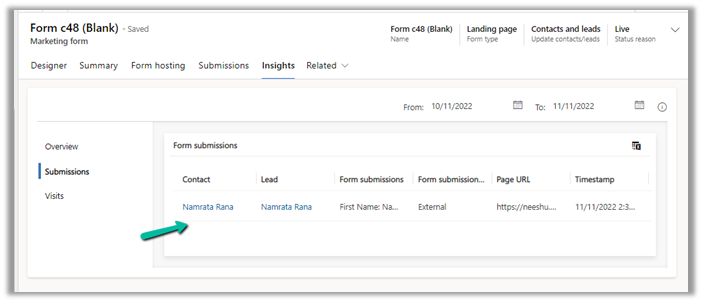
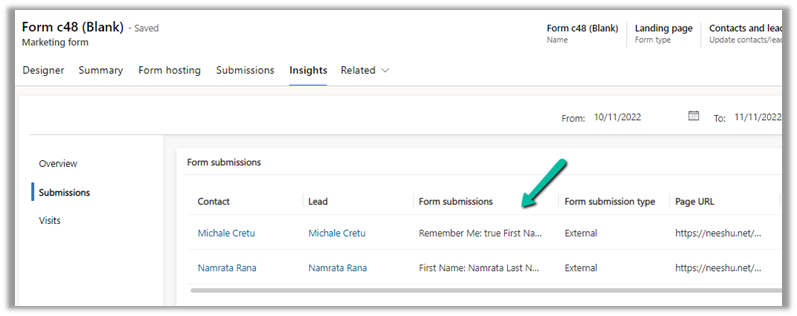
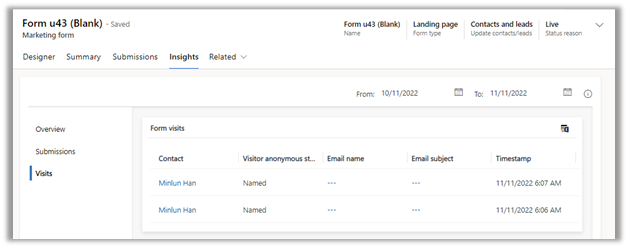
In the Insights, later we can see the form submissions

And Form Visits details

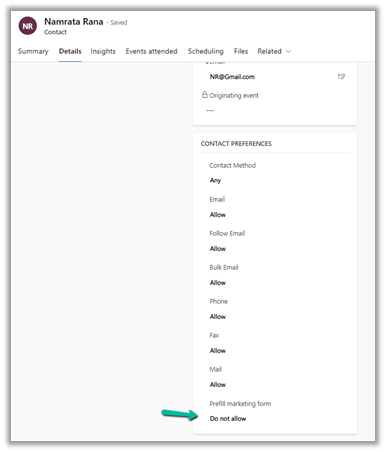
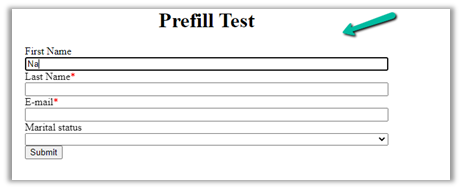
Note – Prefill isn’t supported for Form Capture

Check for more details –

https://vivian.tiiman.com/tip-9-form-capture-quirks-d365-marketing/

https://learn.microsoft.com/en-us/dynamics365/marketing/embed-forms#capture-a-new-external-form

Hope it helps..

Advertisements

Fixed – change the owner of the Flow or Flow client error returned with the status code “Forbidden” and ConnectionAuthorizationFailed in Power Automate


Recently while trying to change the owner of the workflow we were getting the below error 

Flow client error returned with status code “Forbidden” and details “(“error”:X [“code”: “ConnectionAuthorizationFailed”, “message”: “The caller object id is ‘ffcdd1fc-2858-4019-9a96-19d73ae124c8″. Connection ‘providers/Microsoft.PowerApps/APIs/shared_commondataserviceforapps/connections/shared-commondataser-87229e07-1003-4e05-8172-fdaf112ceb98’ to ‘shared_commondataserviceforapps cannot be used to activate this flow, either because this is not a valid connection or because it is not a connection you have access permission for. Either replace the connection with a valid connection you can access or have the connection owner activate the flow, so the connection is shared with you in the context of this flow.”}}”.

Below are the steps we were following to change the owner of the cloud flow –

https://learn.microsoft.com/en-us/power-automate/change-cloud-flow-owner

Select Edit for the flow, specify the owner and save.


In our case, the owner had left the organization and the user’s record was not available in the CRM. Finally, we managed to change the owner and fix the issue, by assigning the new owner to the corresponding modern flow record through the below steps – 

  • Open Advanced Find
  • Search for Process Type equals Modern Flow


  • Select the flow, click on the Assign Process button and specify the new owner.


This way we were able to change the owner without any error and got the flow working properly.

Hope it helps..

Advertisements

Enabling Teams Chat for your Dynamics 365 Marketing records


Jesper Osgaard's avatarMicrosoft Lystavlen

Enabling in-context real-time collaboration can help you speed up so many processes, e.g., approval of the images used on a marketing page in Dynamics 365.

Currently there is no configuration options for Embedded Team Chat in Dynamics 365 Marketing. The configuration of Teams Chat takes places in the Sales Hub’s App Settings.

Once your admin has enabled Teams Chat you will notice the icon for Teams chat in your command bar in all the Dynamics 365 apps in the organization.

The problem is, since the configuration takes place in Sales, only the Sales entities (record types) are configured for Teams Chat by default. So if you are working on a Marketing page in Dynamics 365 Marketing and need to get approval for one or more elements on the page, and you click the Teams Chat icon (1), you will be notified that you can’t create new linked chats on…

View original post 333 more words

How to – add Contact Insights / Account Insights to the form – Dynamics 365 Marketing


We can see the Account Insights / Contact Insights tab added along with LinkedIn Lead Info on the default lead form (as well as contact/account) after we install Dynamics 365 Marketing.

These tabs will be added if you try creating a new form (Main).

But if we have other existing forms (Main), these tabs won’t be added and won’t be available for us to add.

In that case, we need to edit the Form XML to add these sections.

Here we will be adding the Contact Insights tab to one of the existing forms to the Lead.

Using the Form XML Manager (XrmToolBox plugin – developed by my friend Rasheed), get the Form XML of the form where we have the contact insights tab added.

Copy the below details –

Tab – Contact Insights

And the below controlDescription

Going back to Form XML Manager, select the form where we want to add the contact insight tab, get its Form XML and add the above details and publish.

We can see the Contact Insights tab added

Similarly, we can Account Insights, and the LinkedIn Lead Info tab as well.

Hope it helps..

	<tab name="contactInsights" id="{AC28F8C9-4498-47C7-8D9B-2FE028CFBDAC}" IsUserDefined="0" locklevel="0" showlabel="true" expanded="true" labelid="{6905336d-985b-4137-a106-31b1dd4e1560}">
			<labels>
				<label description="Contact insights" languagecode="1033" />
			</labels>
			<columns>
				<column width="100%">
					<sections>
						<section name="insights_section" showlabel="false" showbar="false" locklevel="0" id="{2328D81F-CA70-4A20-8B62-DA36756DA7D8}" IsUserDefined="0" layout="varwidth" columns="1" labelwidth="115" celllabelalignment="Left" celllabelposition="Left" labelid="{29474d06-89ea-41ad-a999-9d96dd95c938}">
							<labels>
								<label description="Insights" languagecode="1033" />
							</labels>
							<rows>
								<row>
									<cell rowspan="1" id="{37367a00-f45e-4ae4-a4a4-5ba1023fdc11}" colspan="1" labelid="{e971ab6b-ea22-4543-bbd5-06e50f11f9f1}">
										<labels>
											<label description="" languagecode="1033" />
										</labels>
										<control id="msdynmkt-lead-insights-banner-control" classid="{F9A8A302-114E-466A-B582-6771B2AE0D92}" disabled="false" uniqueid="{B93040CC-F97E-48D8-8166-5179C8C942CE}" isunbound="true">
											<parameters />
										</control>
									</cell>
								</row>
								<row>
									<cell id="{58B703D6-BBA5-4078-9499-1D5A1FB35932}" showlabel="false" locklevel="0" labelid="{db0b8895-c098-45e5-b95f-f85df882f96d}">
										<labels>
											<label description="Insights" languagecode="1033" />
										</labels>
										<control id="LeadContactInsightsCtrl" classid="{F9A8A302-114E-466A-B582-6771B2AE0D92}" datafieldname="msdyncrm_insights_placeholder" disabled="false" uniqueid="{ADB58B3F-E8A8-432B-BF8C-08196D8F87ED}" />
									</cell>
								</row>
							</rows>
						</section>
					</sections>
				</column>
			</columns>
		</tab>
	<controlDescription forControl="{ADB58B3F-E8A8-432B-BF8C-08196D8F87ED}">
			<customControl formFactor="0" name="MscrmControls.InsightsControl.InsightsControl">
				<parameters>
					<configuration static="true" type="SingleLine.Text">LeadContactInsights</configuration>
				</parameters>
			</customControl>
			<customControl formFactor="1" name="MscrmControls.InsightsControl.InsightsControl">
				<parameters>
					<configuration static="true" type="SingleLine.Text">LeadContactInsights</configuration>
				</parameters>
			</customControl>
			<customControl formFactor="2" name="MscrmControls.InsightsControl.InsightsControl">
				<parameters>
					<configuration static="true" type="SingleLine.Text">LeadContactInsights</configuration>
				</parameters>
			</customControl>
		</controlDescription>
		<controlDescription forControl="{48D797ED-2F85-4D89-A329-69C2A1A0E1DD}">
			<customControl formFactor="0" name="MscrmControls.InsightsControl.InsightsControl">
				<parameters>
					<configuration static="true" type="SingleLine.Text">LeadAccountInsights</configuration>
				</parameters>
			</customControl>
			<customControl formFactor="1" name="MscrmControls.InsightsControl.InsightsControl">
				<parameters>
					<configuration static="true" type="SingleLine.Text">LeadAccountInsights</configuration>
				</parameters>
			</customControl>
			<customControl formFactor="2" name="MscrmControls.InsightsControl.InsightsControl">
				<parameters>
					<configuration static="true" type="SingleLine.Text">LeadAccountInsights</configuration>
				</parameters>
			</customControl>
		</controlDescription>
		<controlDescription forControl="{B93040CC-F97E-48D8-8166-5179C8C942CE}">
			<customControl formFactor="0" name="CxpOrchestrationAnalytics.InsightsBannerControl.InsightsBannerControl">
				<parameters />
			</customControl>
			<customControl formFactor="1" name="CxpOrchestrationAnalytics.InsightsBannerControl.InsightsBannerControl">
				<parameters />
			</customControl>
			<customControl formFactor="2" name="CxpOrchestrationAnalytics.InsightsBannerControl.InsightsBannerControl">
				<parameters />
			</customControl>
		</controlDescription>
	</controlDescriptions>
Advertisements

How to – embed marketing form on an external page


In the previous posts, we learned about website tracking and how to authenticate the domain for external hosting of the form as well as email marketing.

Here we will explore the option of hosting the form on an external page.

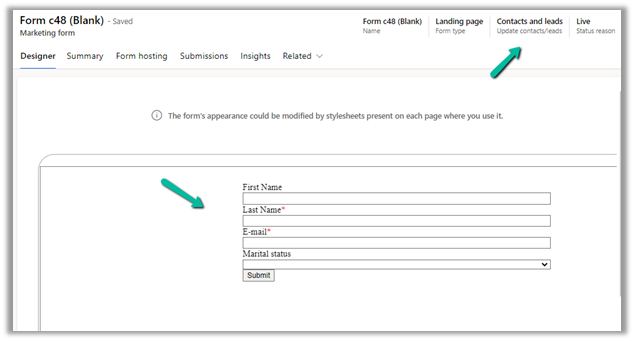
Let us start by creating a simple marketing form having a first name, last name, and email fields in it.

Click on Check for errors, if everything is fine then select Go Live.

This shows up in the form hosting tab in the Marketing form.

There we need to first create a new marketing form page record.

Here while creating a new form page, we have associated it with the marketing website we had created earlier.

Just refresh the marketing form page, and it will start showing the already authenticated domains.

Open the form page record created. There we can see a few other options to be configured along with an external hosting format.

If we choose the option of iframe, the style of the form will remain isolated from the rest of the page it cannot take the styling element of the page it is hosted on, and website tracking will not work.

Let us start by hosting it as an iframe option.

Let us run it locally first before deploying the page to our authenticated domain.

Submit the form

Open the Marketing Website record or the Form , we can see the details added to the Visits and  Submissions section of Insights.

Now let us submit it once more from the authenticated domain.

We can see the details in the Form submissions.

Now let us now check the option of hosting it as a script.

Copy and paste the code

If we embed it in the unauthenticated domain, we will get the below error.

Hosting it inside the authenticated domain we get the form loaded correctly.

Submit the details.

Let us again check the Insights tab in the marketing website record or the marketing form. We can see it being tracked in Visits, Form Visits as well as Form Submissions.

Insights tab in the Marketing form – 

Get all the details here – Embed forms on external websites

To learn more about Dynamics 365 marketing – https://meganvwalker.com/category/dynamics-marketing/

Hope it helps..

Advertisements

Marketing forms comparison – Marketo and Dynamics 365 Marketing


Marketo

Dynamics 365 Marketing

We can create forms in Marketo to be used on the landing pages.

There are 4 types of Marketing forms – Landing page, Subscription Center, Forward to a friend, and Event Registration.

Add fields to form

Fields are mapped to the contact and/or the lead table in Dynamics 365 and can be added to the form.


We can define input fields that can be used in the form.

The form must be approved before being used on the landing pages.

A form must me made go live before it can be used on the marketing page or embedded on the external site.

Fields labels can be edited, fields can be made required.

Fields labels can be defined, along with default value, field requirement, error message, etc.

Forms can be previewed

Forms can be previewed as shown below.

Select a form theme/edit CSS of the form theme

Inside HTML Designer we can specify the CSS and layout of the form.

Pre-fill – Marketo forms will pre-fill fields with the web visitor information using the cookie.

Form Pre-fill doesn’t work when embedding a form on your page. It only works on the Marketo landing page.


Enable pre-filling for forms. Prefilling works when the form is a subscription center form or when the landing page form has a remember me option available when filling in the form.

At form level –

At field level –

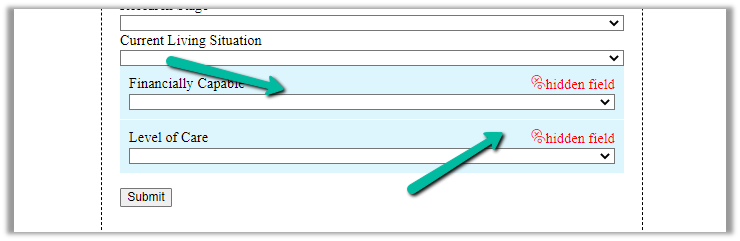
Hidden form fields and auto populating the hidden form field

Hidden fields can be auto-populated with different parameter types – Default value, URL, Cookie Value and Referrer parameter

Form fields can be hidden and can provide a default value

Pass hidden data or pre-populate marketing form fields

Setup lookup fields via API

Enable Captcha in Marketo forms.


Add a Captcha element to the form.

Embed form on an external website.

Embed code can be generated for the Approved form.


Form Prefill does not work when using the form embed code on your pages or a Marketo landing page. Form Prefill is only meant to work when the form is used in a Marketo landing page via the Insert Element option.

Once the code is embedded on your website, any changes to the form in Marketo will be pushed to your site upon the form approval. You do not need to make more changes to the code.

Embed the form on an external website.

We can

  • Embed a Dynamics 365 Marketing form on an external page.
  • Use form capture to integrate Dynamics 365 Marketing with a form created externally in your (CMS)

along with the option of publishing a native marketing form on a native marketing page on the Power Apps Portal configured.


After designing the marketing form, save it and go live. Open the form hosting tab, and create a new Form page, where we can define additional configuration settings for the forms that will be embedded externally. We will also have to authenticate the domain where the form will be used.

Copy the embed code and paste it on your website page.

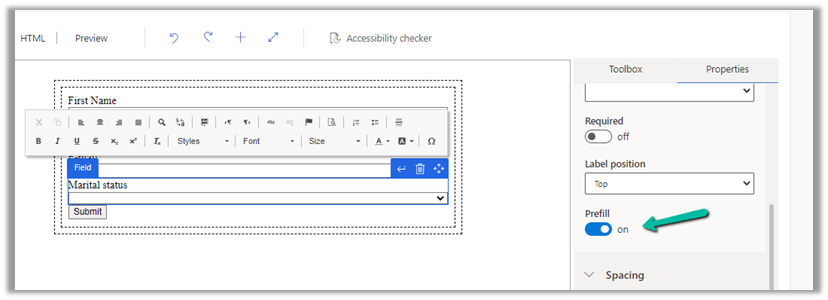
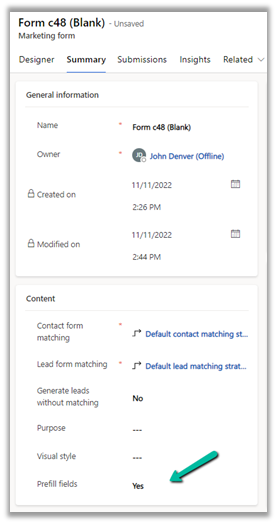
We can Enable prefilling on embedded marketing forms on an external website.

Prefilling allows fetching contact information from the dynamic’s database because of which additional security measures are in place for protecting user privacy.

For pre-filling to work below are the requirements –

  1. Domain authentication for the external domain of the website, where the form will be hosted.

  1. The contact record inside Dynamics should have an allow-prefill flag as allow.

The core functionality of the Marketo web form can be extended using Form 2.0 JavaScript API

We can extend marketing form capability using JavaScript API


We can also use Form capture to integrate a form created externally.

Select Capture form in Marketing forms, in the dialog specify the URL of the web page, where the tracking script is set up and the form is available for mapping.

Next, it will check for the script / or script can be generated and can be copied to the external webpage.

Followed by selecting the external form on the web page and providing mapping for each of the fields.

Select Go live for the marketing form and it can begin to accept data from the external form.

Prefilling doesn’t work in the case of the form capture option.


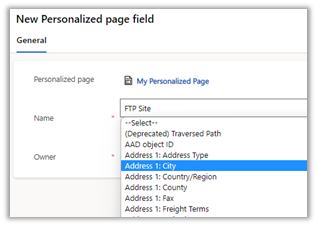
Additionally – Marketing provides Personalized Page Content

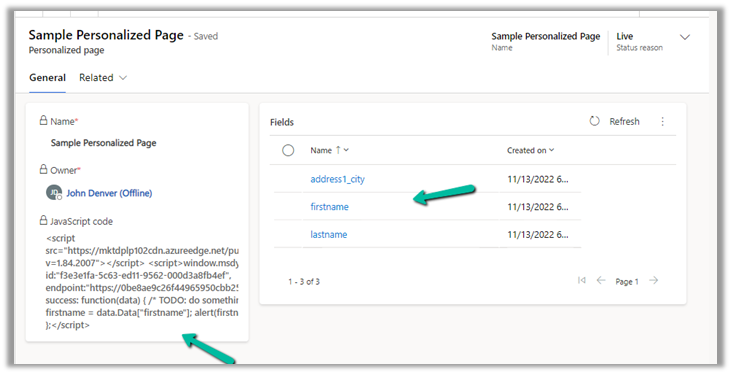
Specify the fields to be used for personalization and select Go Live to generate the JavaScript code.

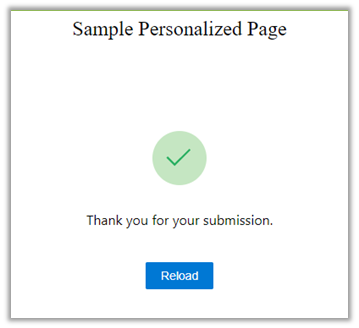
Copy/Use the JavaScript code in the external web page to access the fields specified.


Prerequisite –

  1. The external domain (website) needs to be authenticated.
  2. The page should have the marketing form with a remember-me design element in it. This element is mapped to prefill marketing form field on the contact table.

Hope it helps..

Advertisements