Step-by-Step: Configure Double Opt-In in Dynamics 365 Customer Insights – Journey (Real Time Marketing)


Double Opt-In is a two-step process for email subscription:

  • The contact fills out a subscription form (initial opt-in).
  • They receive an email with a confirmation link. Only after clicking that link is their subscription considered confirmed (final opt-in).

This process ensures that the person who signed up wants to hear from us—and that the email address is valid.

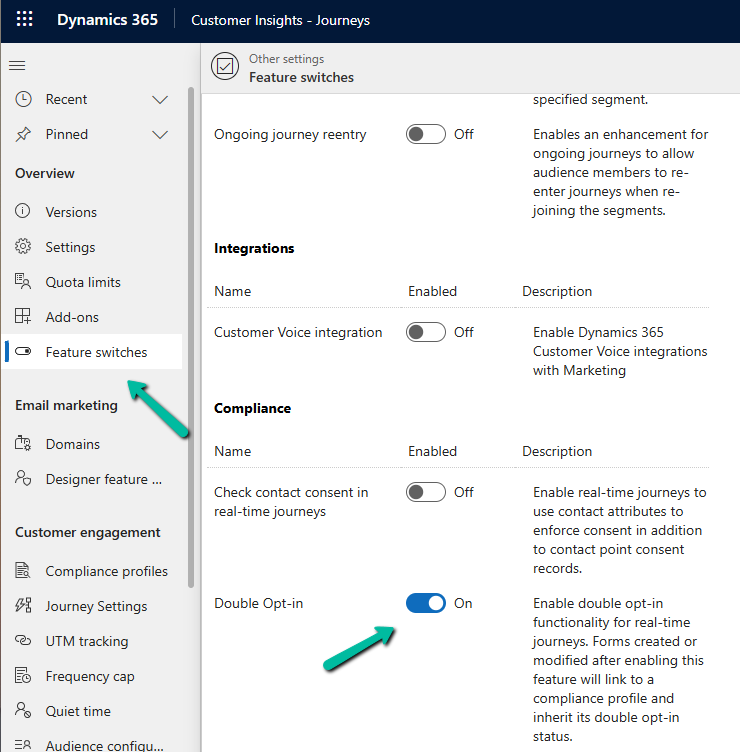
Enable the Double Opt-In Feature

Below is how we can enable it in Dynamics 365 Customer Insights – Journey

Go to Settings > Feature Switches > Compliance (Double Opt-In)
Create or Configure a Compliance Profile

The Compliance Profile is what governs how consent is collected and managed in real-time marketing.

Go to Settings > Customer engagement > Compliance profiles

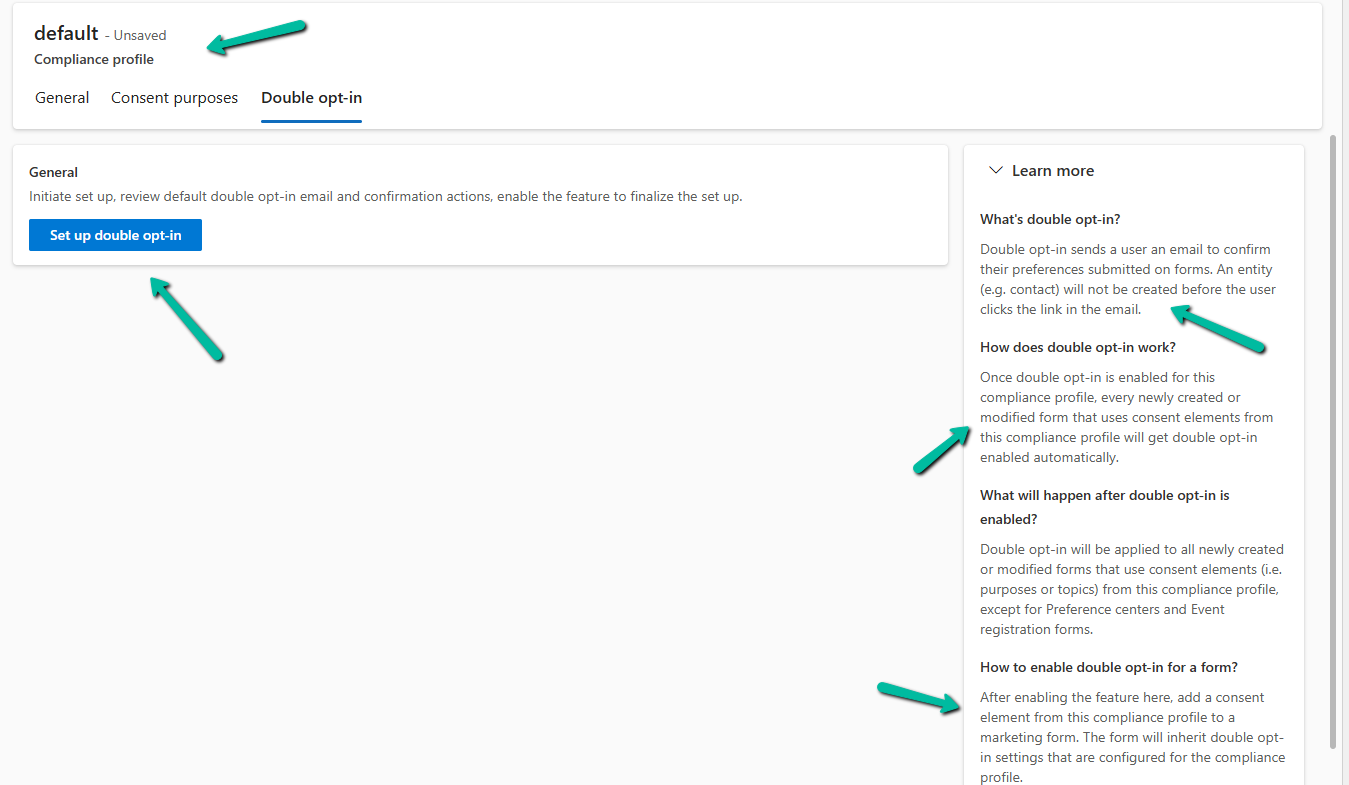
Here we will enable it in the existing default compliance profile. We can have different compliance profiles for different regions, languages, or purposes.

Navigate to the Double opt-in tab.
A screenshot of a computer

AI-generated content may be incorrect.

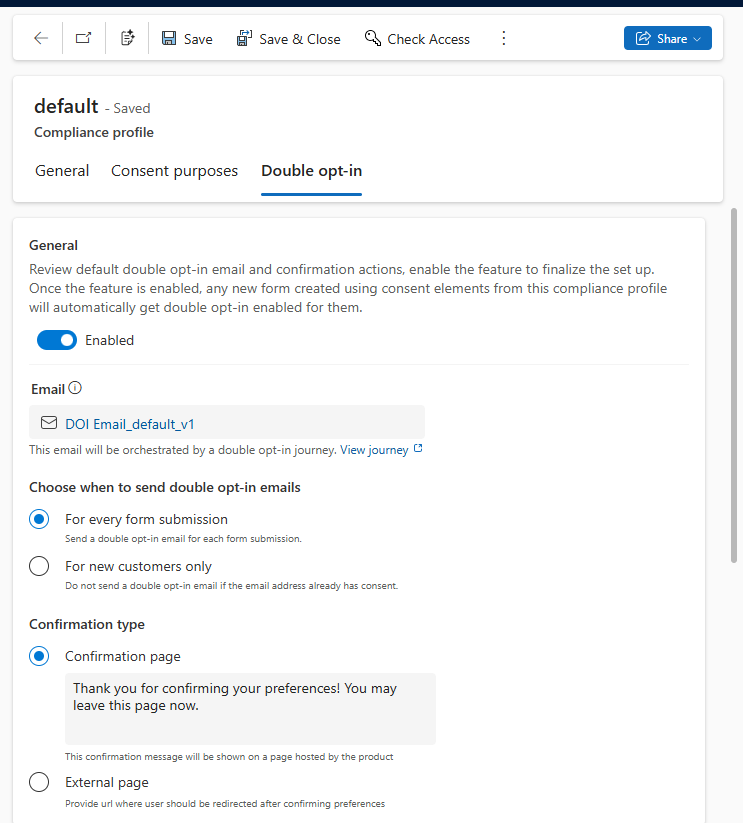
As part of the setup, the system creates the Double opt-in email and the journey required as part of the process for that particular compliance profile.

A screenshot of a computer

AI-generated content may be incorrect.

We can see it configured after a few minutes.
A screenshot of a computer

AI-generated content may be incorrect.

Below is the email created by the system that will be used for the journey generated. Notice its state will be Ready to Send.

A screenshot of a computer

AI-generated content may be incorrect.

Similarly, we will have the journey created, with Status = Live.

A screenshot of a computer

AI-generated content may be incorrect.

Link Compliance Profile to the Form

Open an existing marketing form or create a new one.

In the form editor, drag a Consent field.
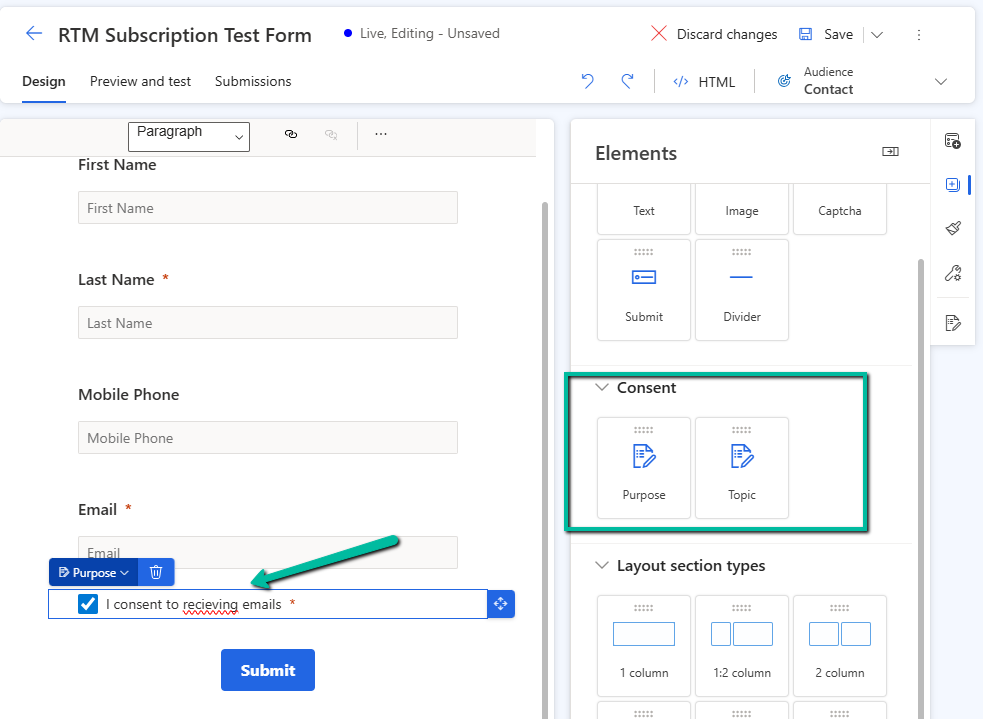
A screenshot of a computer

AI-generated content may be incorrect.

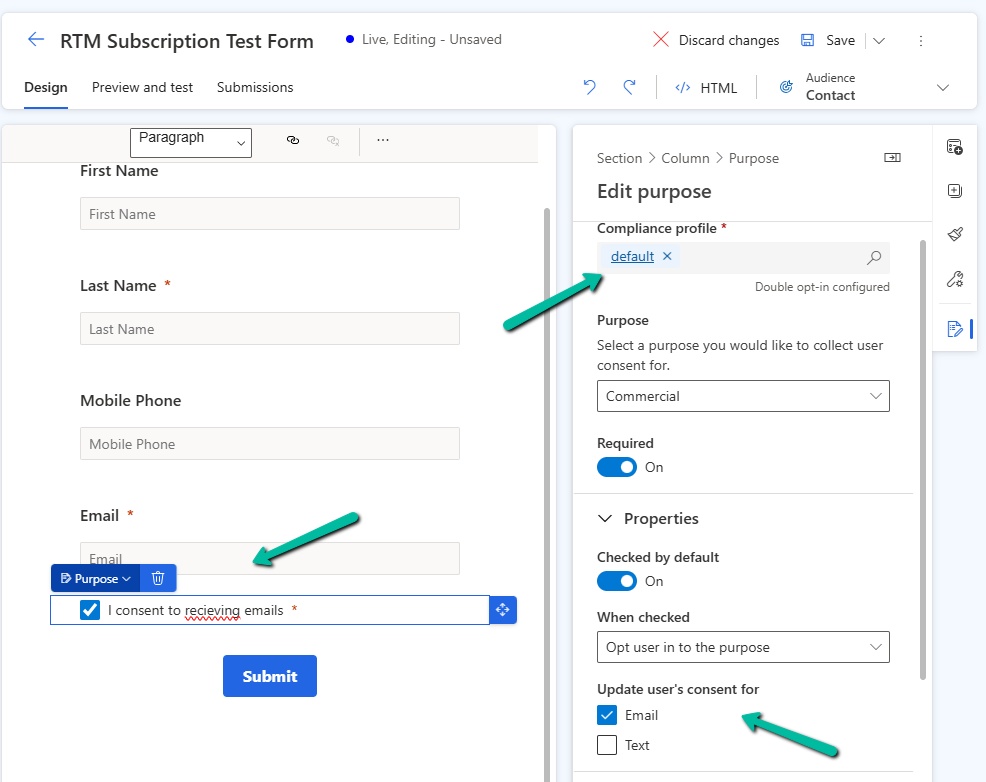
In the property pane for the Consent element, select the compliance profile (default one in our case), specify the purpose, and other required properties.
A screenshot of a computer

AI-generated content may be incorrect.

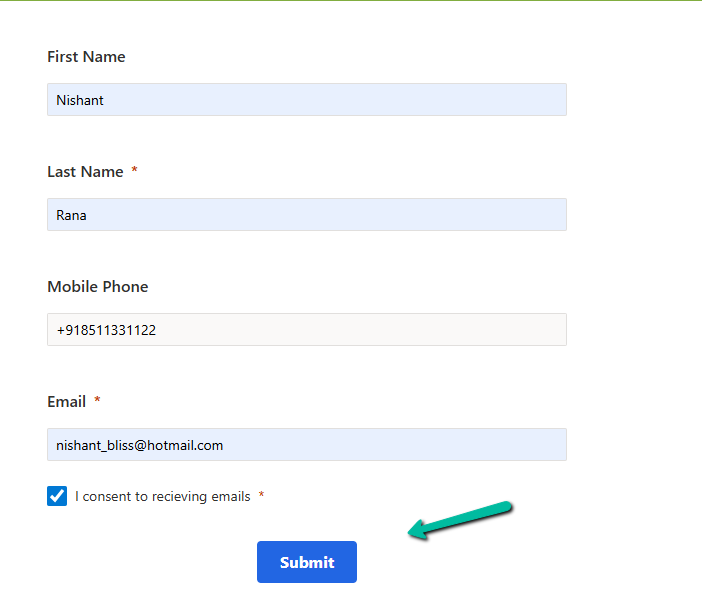
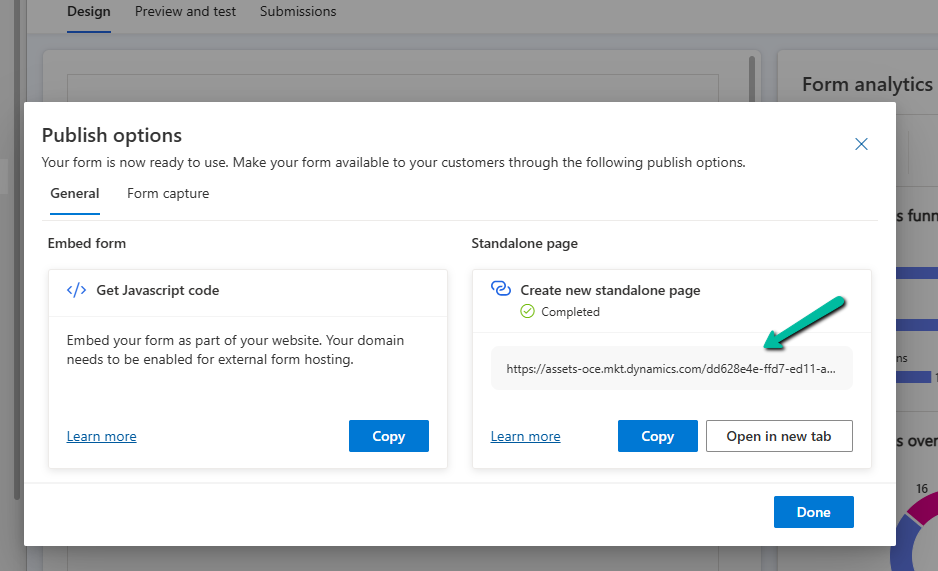
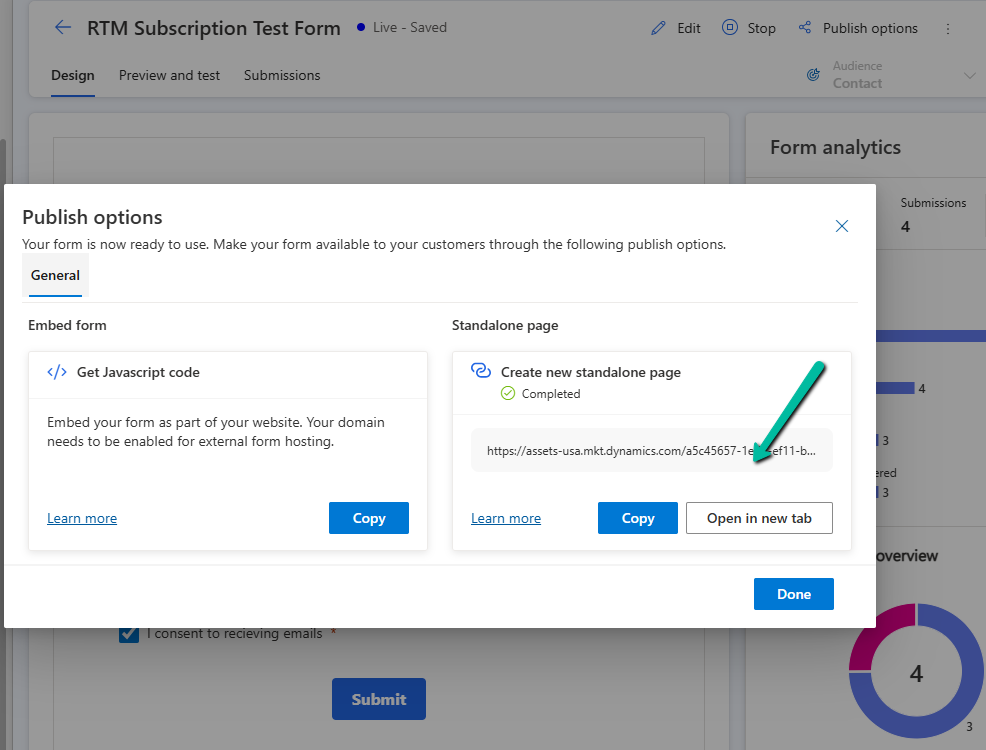
To see it in action let us submit the form using the standalone page.
A screenshot of a computer

AI-generated content may be incorrect.
A screenshot of a computer

AI-generated content may be incorrect.
A screenshot of a computer

AI-generated content may be incorrect.

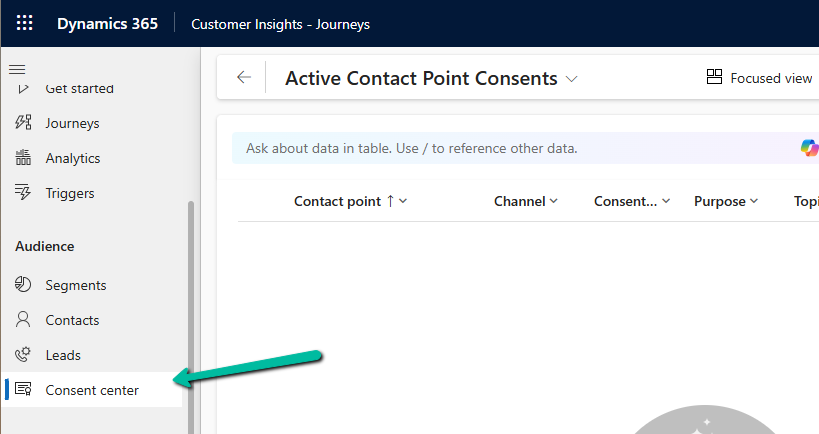
Till this point, we do not see any contact point consent record created.
A screen shot of a computer

AI-generated content may be incorrect.

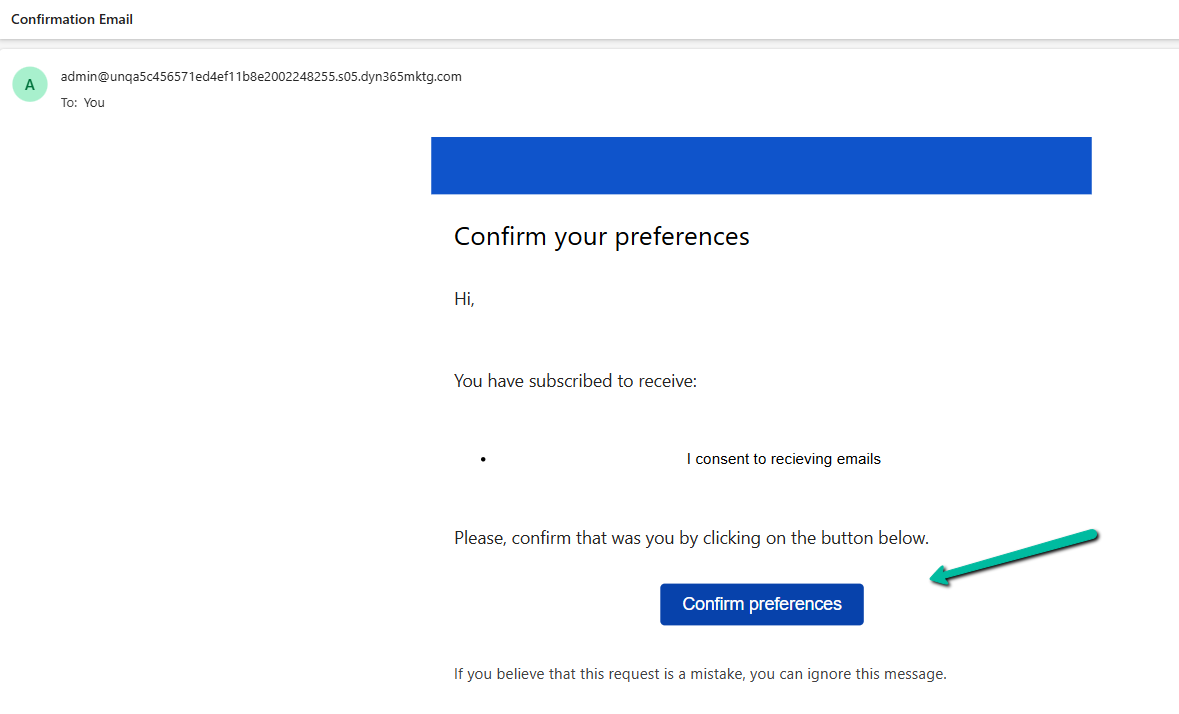
We can see the confirmation email received in our mailbox. From there we can confirm it.
A screenshot of a computer

AI-generated content may be incorrect.
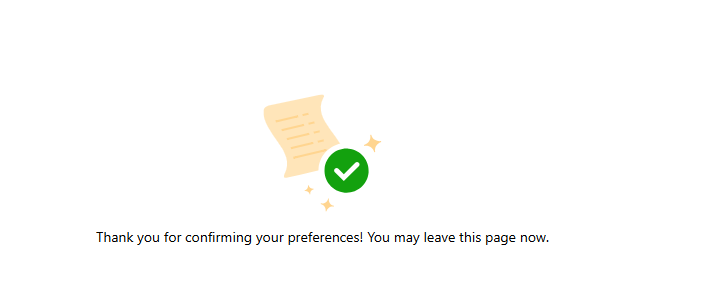
A paper with a check mark and a green circle

AI-generated content may be incorrect.

After confirmation, we can see our consent record created with the appropriate consent status.

A green pen pointing to a white box

AI-generated content may be incorrect.

Get all details

Also check out this wonderful tutorial – Dynamics 365 Customer Insights Journeys: How Consent Management Actually Works | Deep Dive Tutorial by Nathan Rose.

Hope it helps..

Fixed – Real-time marketing form’s Standalone page submitting to a different environment – (Dynamics 365 Customer Insights – Journeys)


Recently we migrated the Real-time marketing forms from our Dev environment to UAT environment using the Configuration Migration Tool. Here what we noticed was on submitting the form using the standalone page in UAT, the submissions were going back to the Dev environment instead of UAT.

A screenshot of a computer

Description automatically generated

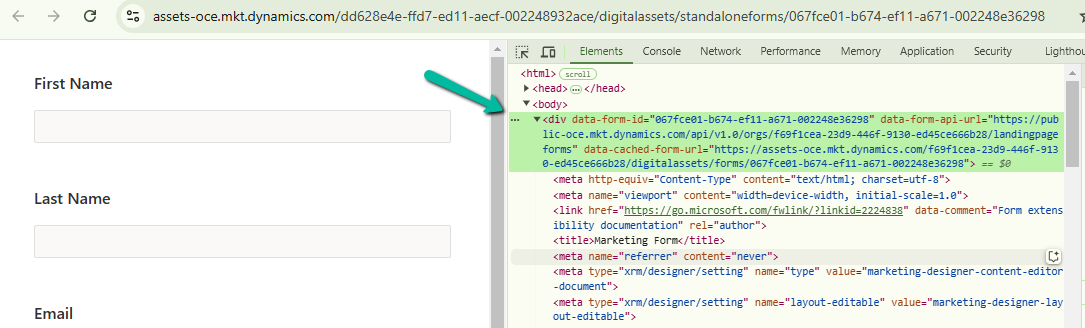
This was because the data-form-api-url and data-cached-form-url property of msdynmkt_standalonehtml field of msdynmkt_marketingform record was still referencing the organization id of the Dev environment instead of UAT.

A computer screen shot of a computer screen

Description automatically generated
<div data-form-id='167fce01-b674-ef11-a671-002248e36298'
data-form-api-url='https://public-oce.mkt.dynamics.com/api/v1.0/orgs/f69f1cea-23d9-446f-9130-ed45ce666b28/landingpageforms'
data-cached-form-url='https://assets-oce.mkt.dynamics.com/f69f1cea-23d9-446f-9130-ed45ce666b28/digitalassets/forms/xxxfce01-b674-ef11-a671-002248e36298' ></div>

The f69f1cea-23d9-446f-9130-ed45ce666b28 is the development environment’s organization ID.

This information is stored in the msdynmkt_standalonehtml field of msdynmkt_marketingform record.

select msdynmkt_marketingformid,msdynmkt_standalonehtml,* from msdynmkt_marketingform where msdynmkt_marketingformid = ‘formGUID’

A screen shot of a computer

Description automatically generated

A screenshot of a computer
Description automatically generated

To fix we replaced the Dev’s Organization ID = f69f1cea-23d9-446f-9130-ed45ce666b28 with UAT’s Organization ID = dd628e4e-ffd7-ed11-aecf-002248932ace

<div data-form-id='167fce01-b674-ef11-a671-002248e36298'
data-form-api-url='https://public-oce.mkt.dynamics.com/api/v1.0/orgs/dd628e4e-ffd7-ed11-aecf-002248932ace/landingpageforms'
data-cached-form-url='https://assets-oce.mkt.dynamics.com/dd628e4e-ffd7-ed11-aecf-002248932ace/digitalassets/forms/xxxfce01-b674-ef11-a671-002248e36298' >

And updated the marketing form record.

Red text on a white background

Description automatically generated
update msdynmkt_marketingform
set msdynmkt_standalonehtml = '<div data-form-id=''067fce01-b674-ef11-a671-002248e36298''
 data-form-api-url=''https://public-oce.mkt.dynamics.com/api/v1.0/orgs/dd628e4e-ffd7-ed11-aecf-002248932ace/landingpageforms'' 
 data-cached-form-url=''https://assets-oce.mkt.dynamics.com/dd628e4e-ffd7-ed11-aecf-002248932ace/digitalassets/forms/067fce01-b674-ef11-a671-002248e36298'' >
 </div><script src = ''https://cxppusa1formui01cdnsa01-endpoint.azureedge.net/oce/FormLoader/FormLoader.bundle.js''></script>'
where msdynmkt_marketingformid = '067fce01-b674-ef11-a671-002248e36298'

After the update we can see submission reflecting back to the correct UAT environment.

A screenshot of a computer

Description automatically generated

The query we used to update all the forms with UAT’s Id

-- replace Dev Org ID with UAT Org ID in all the marketing forms 
UPDATE msdynmkt_marketingform
SET msdynmkt_standalonehtml = REPLACE(msdynmkt_standalonehtml, 'f69f1cea-23d9-446f-9130-ed45ce666b28', 'dd628e4e-ffd7-ed11-aecf-002248932ace')
where msdynmkt_standalonehtml is not null 

Hope it helps..

Advertisements

Customize the Real-time Marketing Form form / Form Editor to add field (Dynamics 365 Customer Insights – Journey)


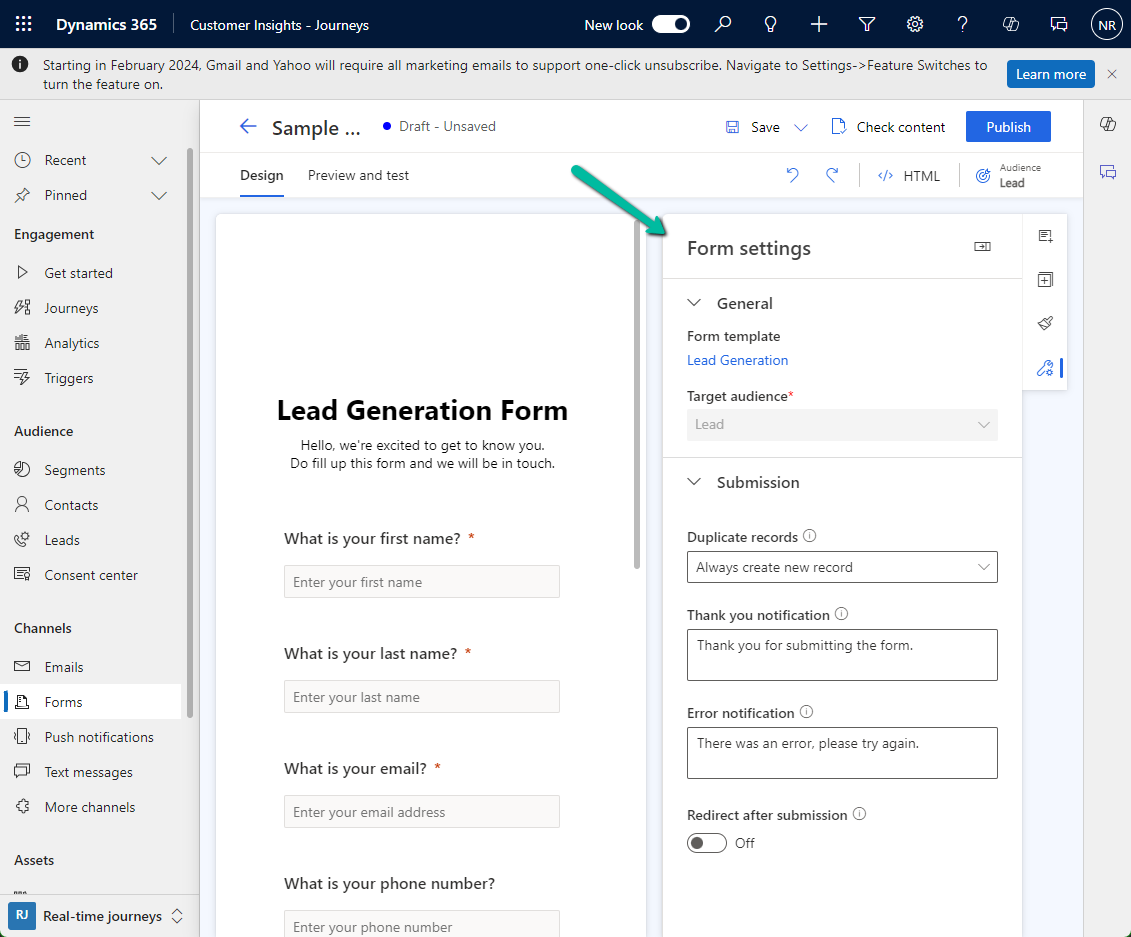
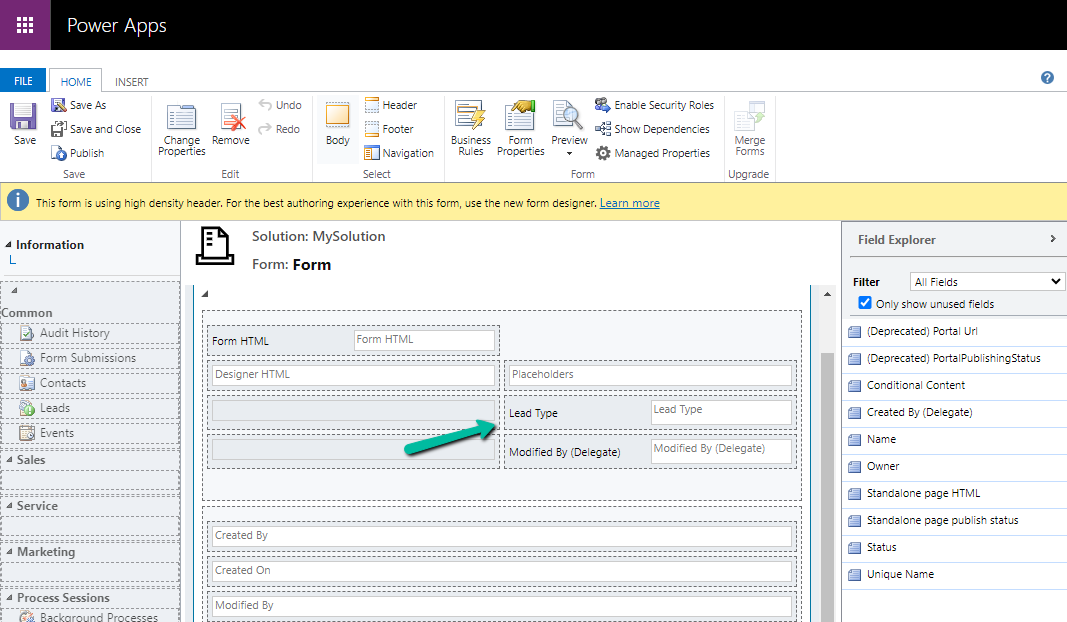
Suppose we want to add the Lead Type (a custom choice field) to the Marketing Form’s form / form settings (RTM).

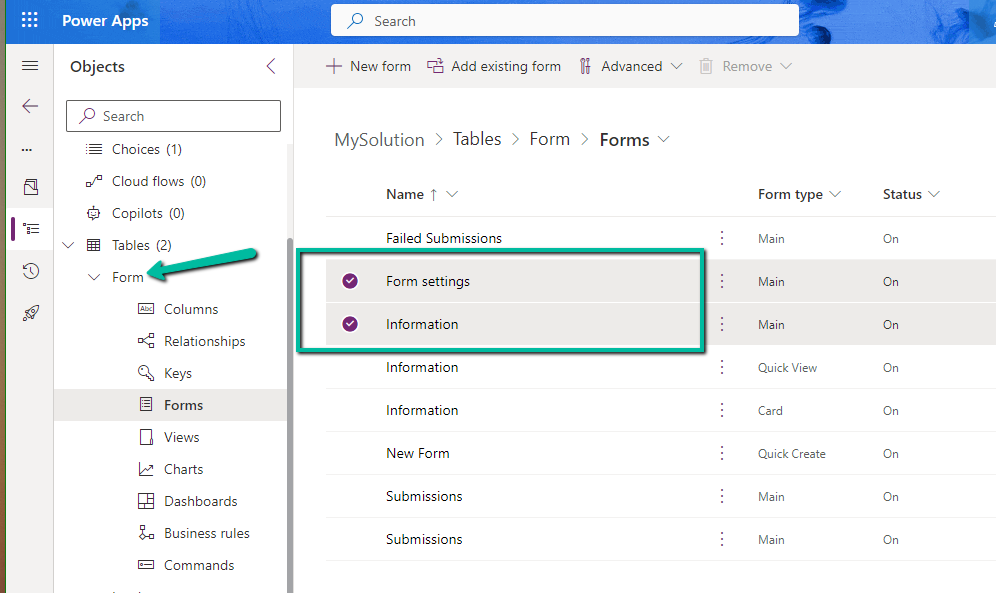
Open the Form table for customization, here we need to add the field to below 2 forms.

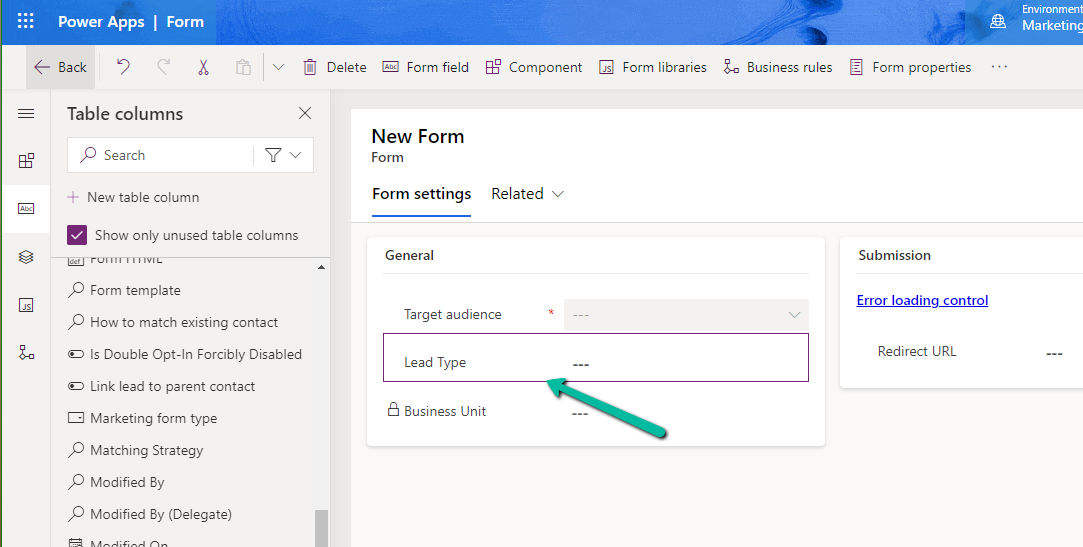
Starting with the Form Settings form, drag the field to the form.

A screenshot of a computer

Description automatically generated

If we check the form now, it will ask us to add it to the main form.

A screenshot of a computer

Description automatically generated

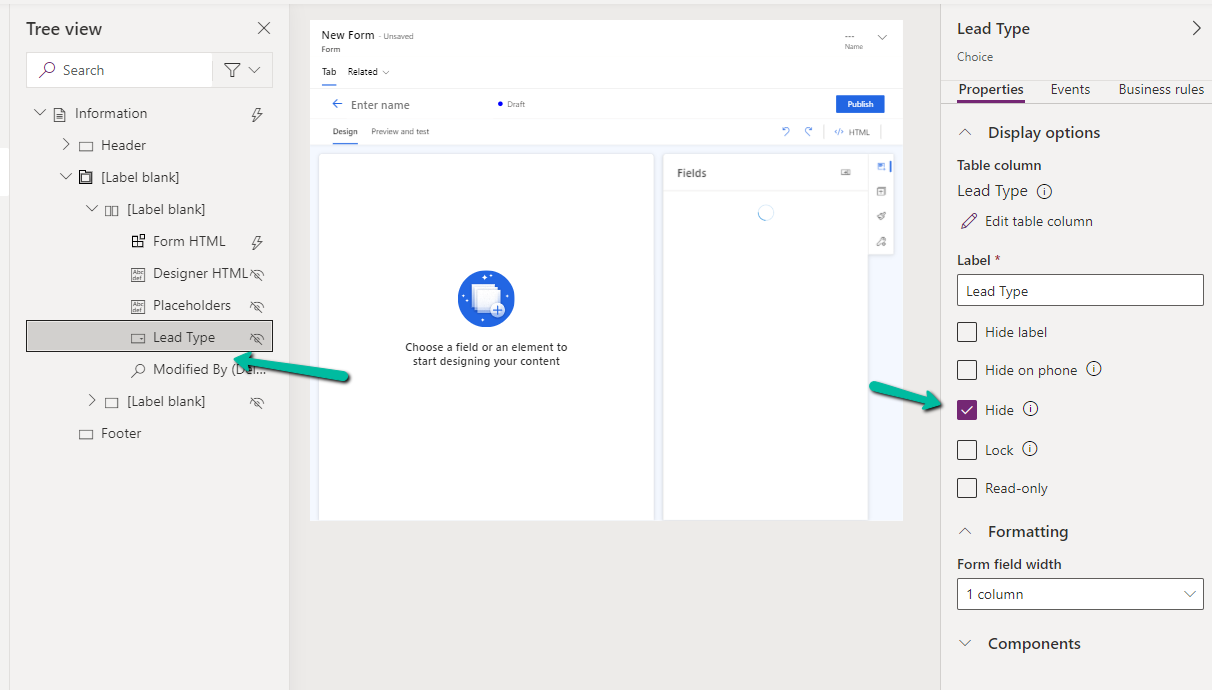
Open the Information (Main) form, double click the field to add it. As the field will not render in the form designer, select the field from the Tree View, and Hide it.

A screenshot of a computer

Description automatically generated

Or we can also open the form in the classic designer, there we will be able to see the field.

A screenshot of a computer

Description automatically generated

On saving and publishing the change, we can see our Lead Type field appearing on the Form Designer.

Please refer for more information –

Customize the form editor

Hope it helps..

Advertisements

Use the theme assistant Copilot to style emails (Dynamics 365 Customer Insights – Journey / Marketing)


Using Copilot’s theme assistant we can fetch the styles from a website and apply it to our email. Microsoft strongly recommends using Theme Assistant only on websites owned and not on 3rd party websites.

To use this feature, open an existing email record, enter the Website’s URL in the theme assistant section, and click on the Fetch Styles button.

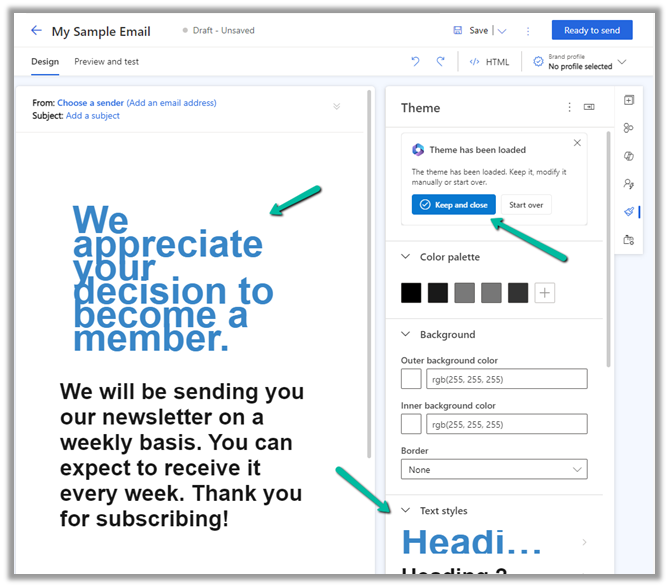
The theme assistant will fetch the styles from the website and apply them to the theme of the email. We can also see the changes in the email editor.

If we are happy with the theme applied we can select the Keep and
close option or we can select Start over to specify another website.

We can further edit the theme as required.

Get all the details

Hope it helps..

Advertisements

Use Solution Health Hub to troubleshoot issues in Dynamics 365 Apps (Sales, Marketing, Field Service, Customer Service..)


Using Solution Health Hub we can validate the environment’s configuration, which might get modified over time, to get an idea about the state of that environment and detect and resolve any issues. Solution Health Hub enables rules-based validations, which we can run periodically or manually if we encounter any issues. The rules also get triggered automatically when solutions are installed or updated by Microsoft. The rules check if some of the required processes are disabled or owned by a disabled user, if some of the required web resources are missing, if certain plugin steps are not active etc.

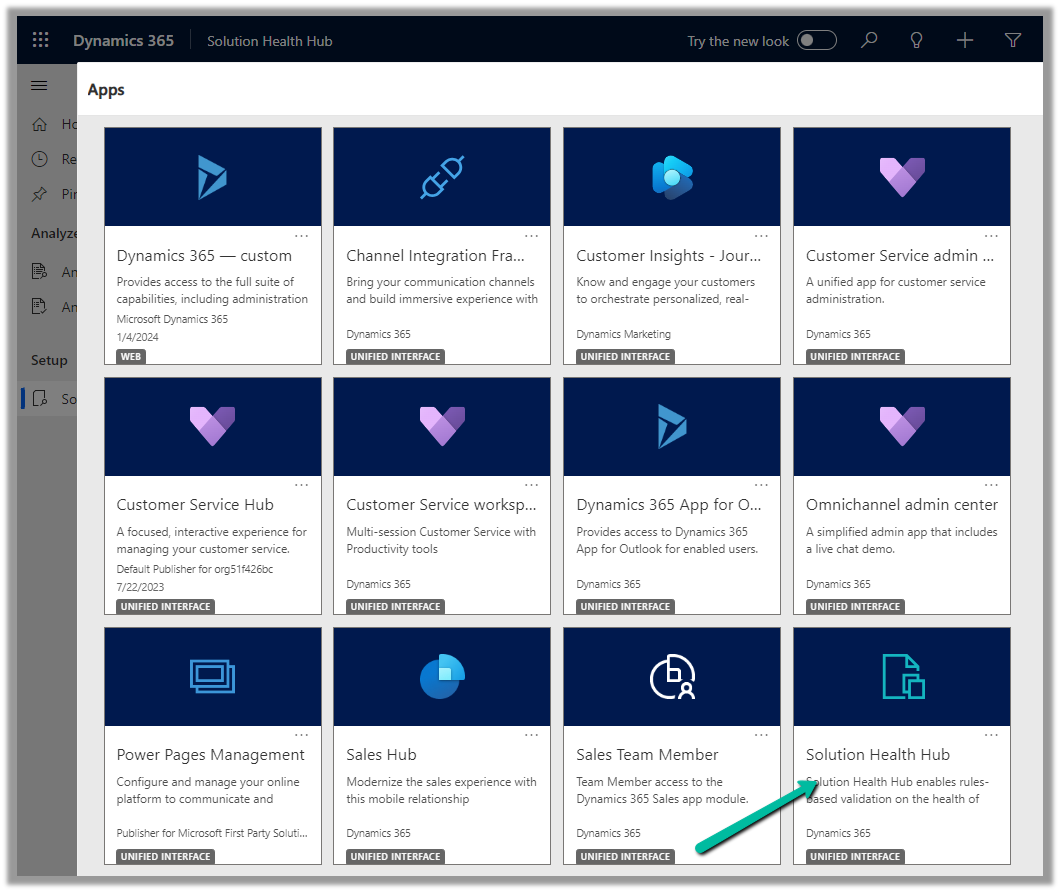
Let us open the Solution Health Hub app and see it in action.

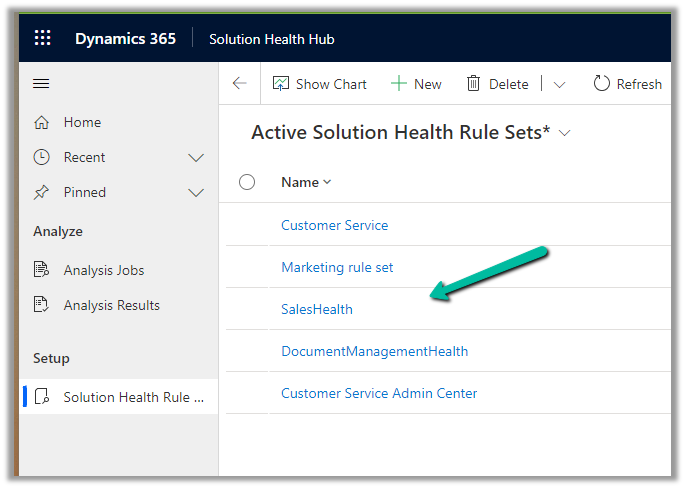
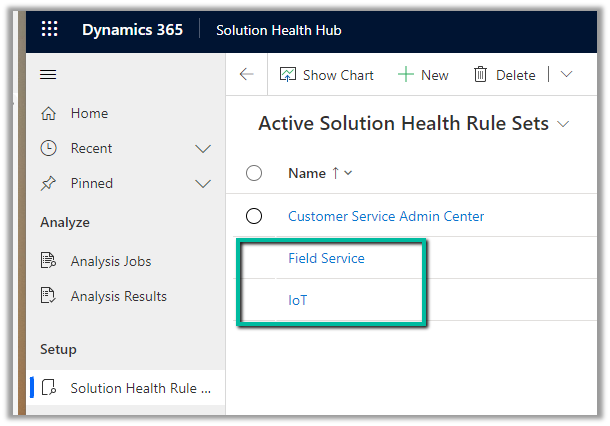
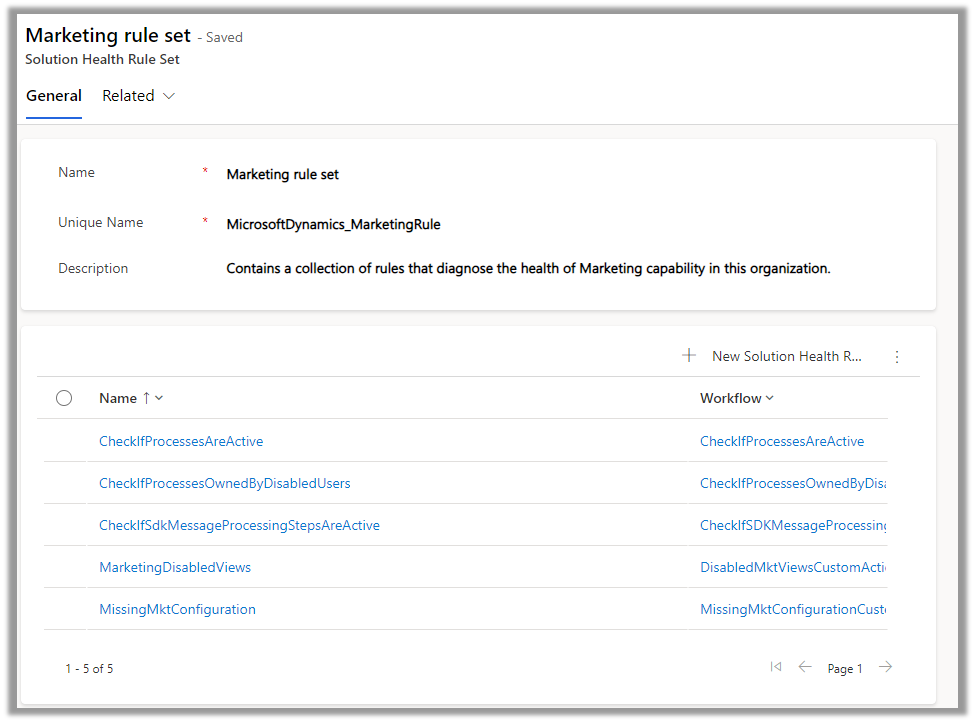
We can see the Rule Sets created specific to different areas (app) like Sales, Marketing, Customer Service, etc.

For an environment where Field Service is configured, we can see the following rule sets.

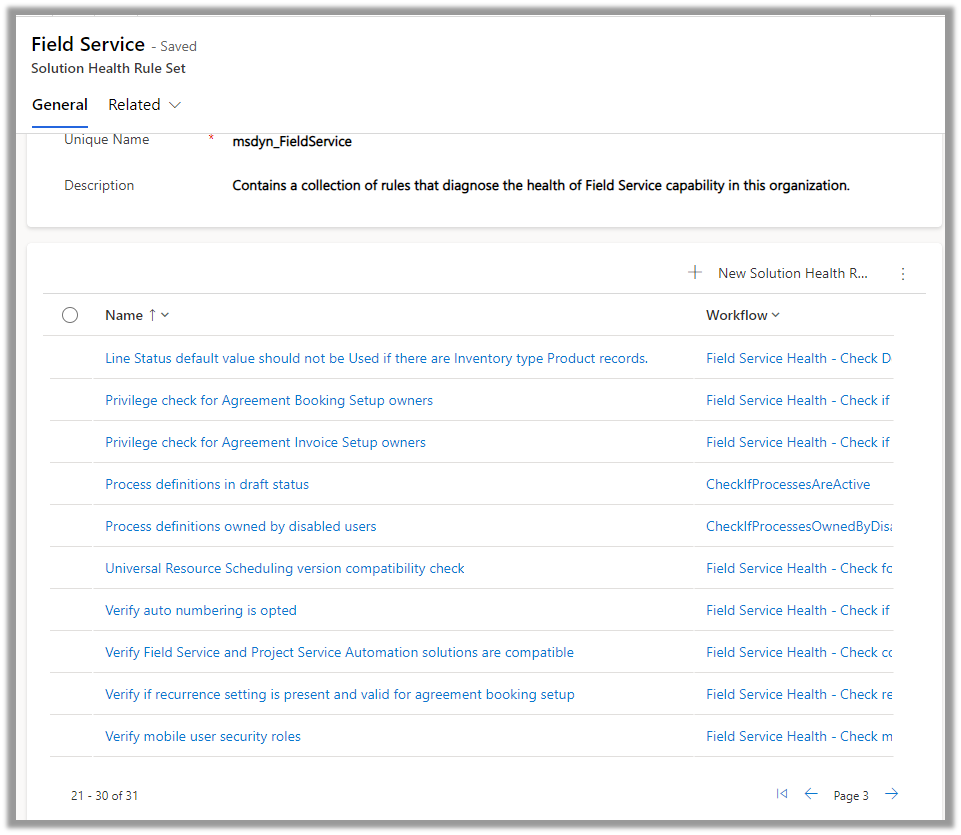
Let us open the Field Service Rule Set and see the rules defined for it.

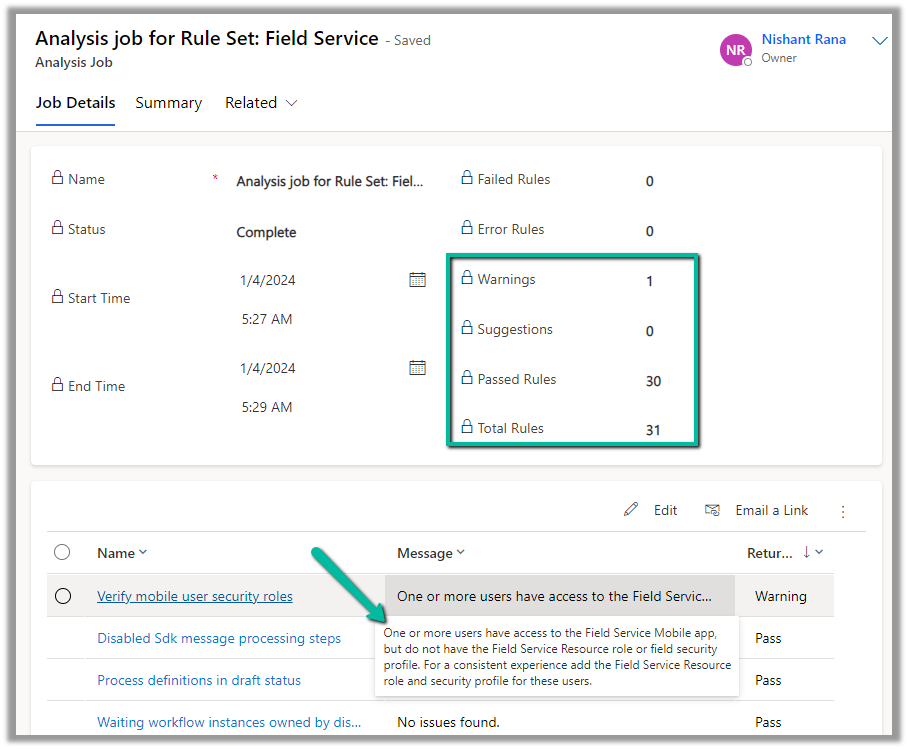
We can see around 31 rules defined for Field Service

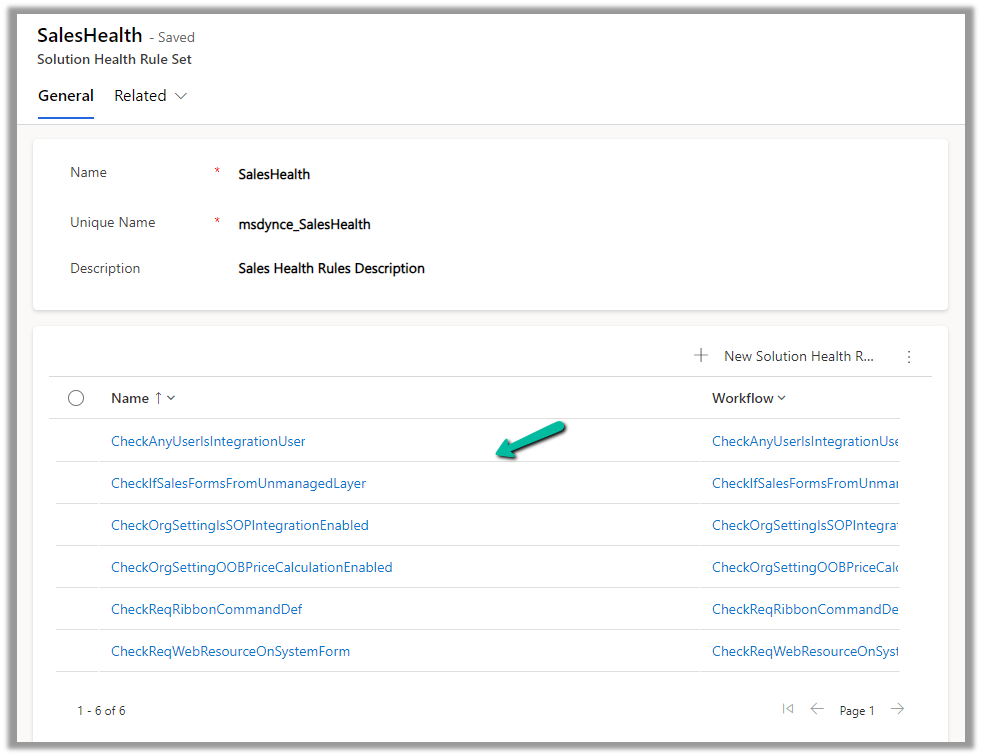
For Sales, we can see around 6 rules.

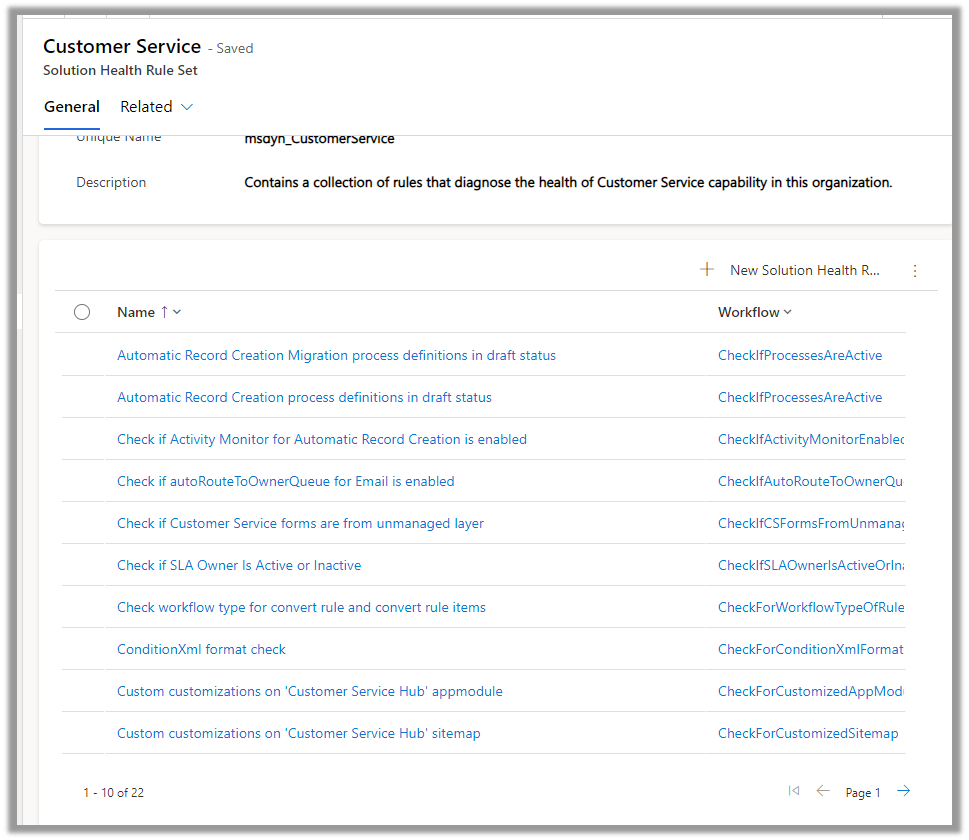
Around 22 rules for Customer Service.

And around 5 rules for Marketing

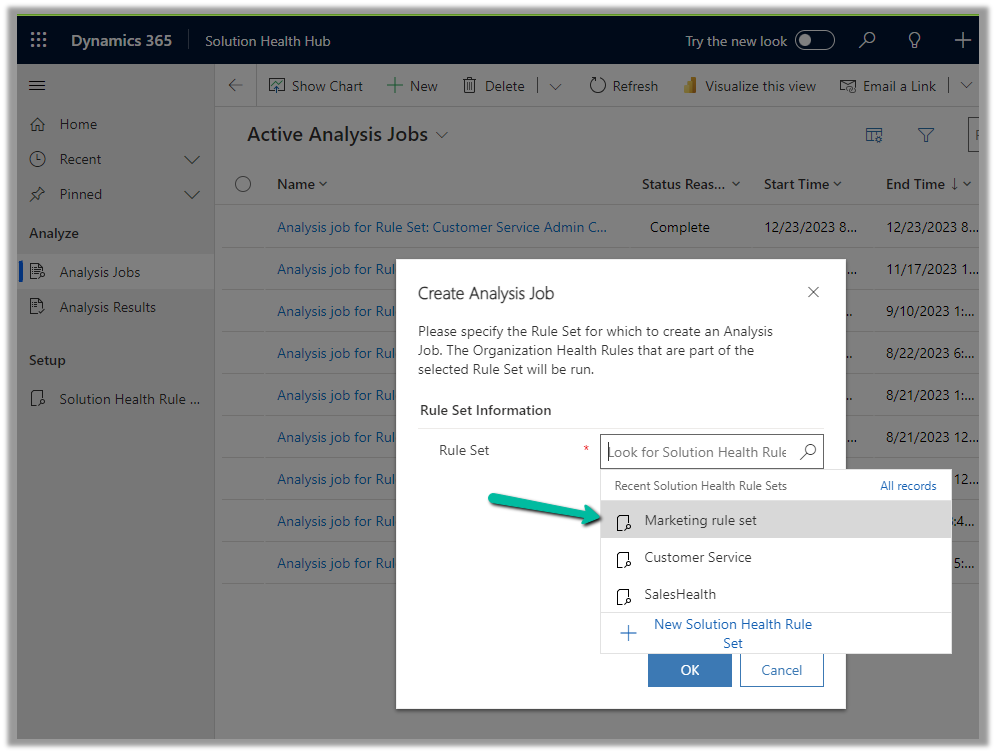
To run the Rules, we need to create a new Analysis Job record and select the corresponding Rule Set.

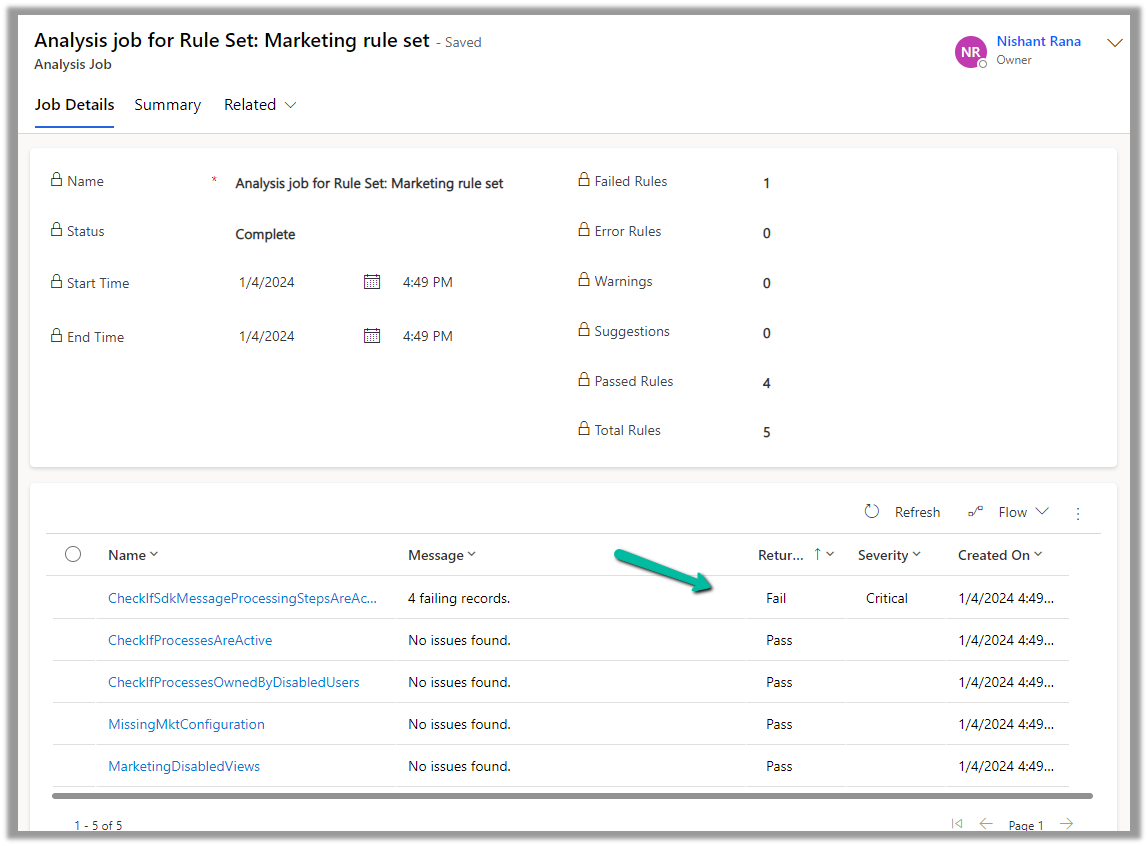
A summary of rule-set executions will be shown in a few seconds. (runs asynchronously)

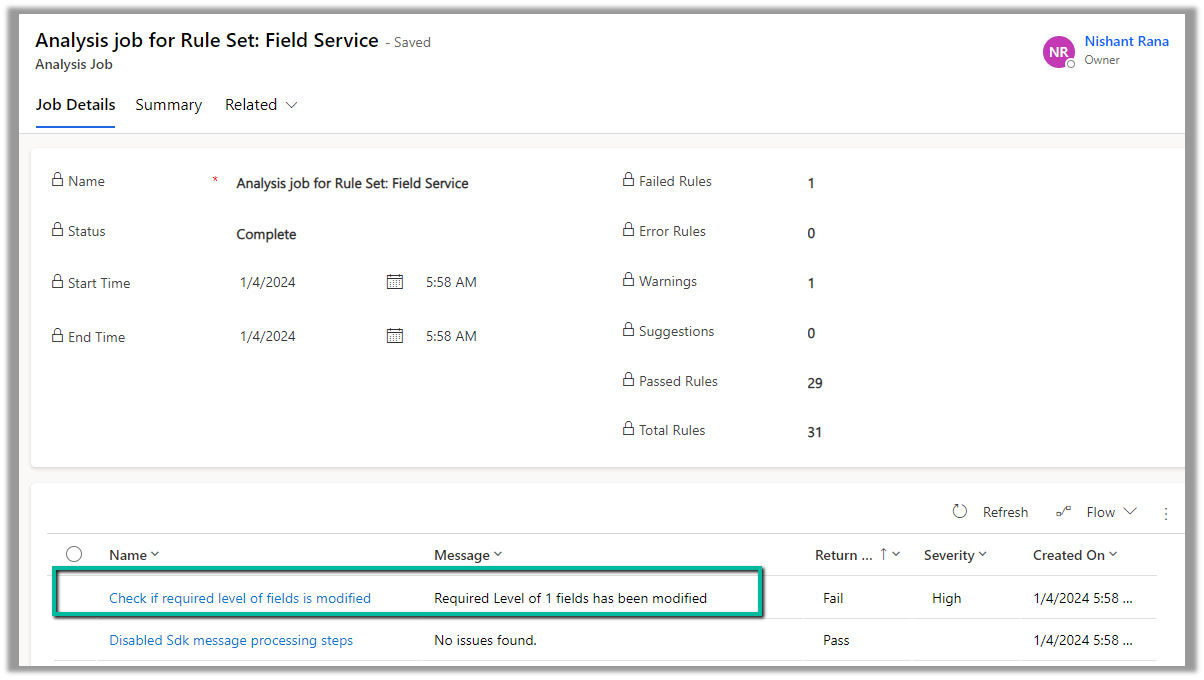
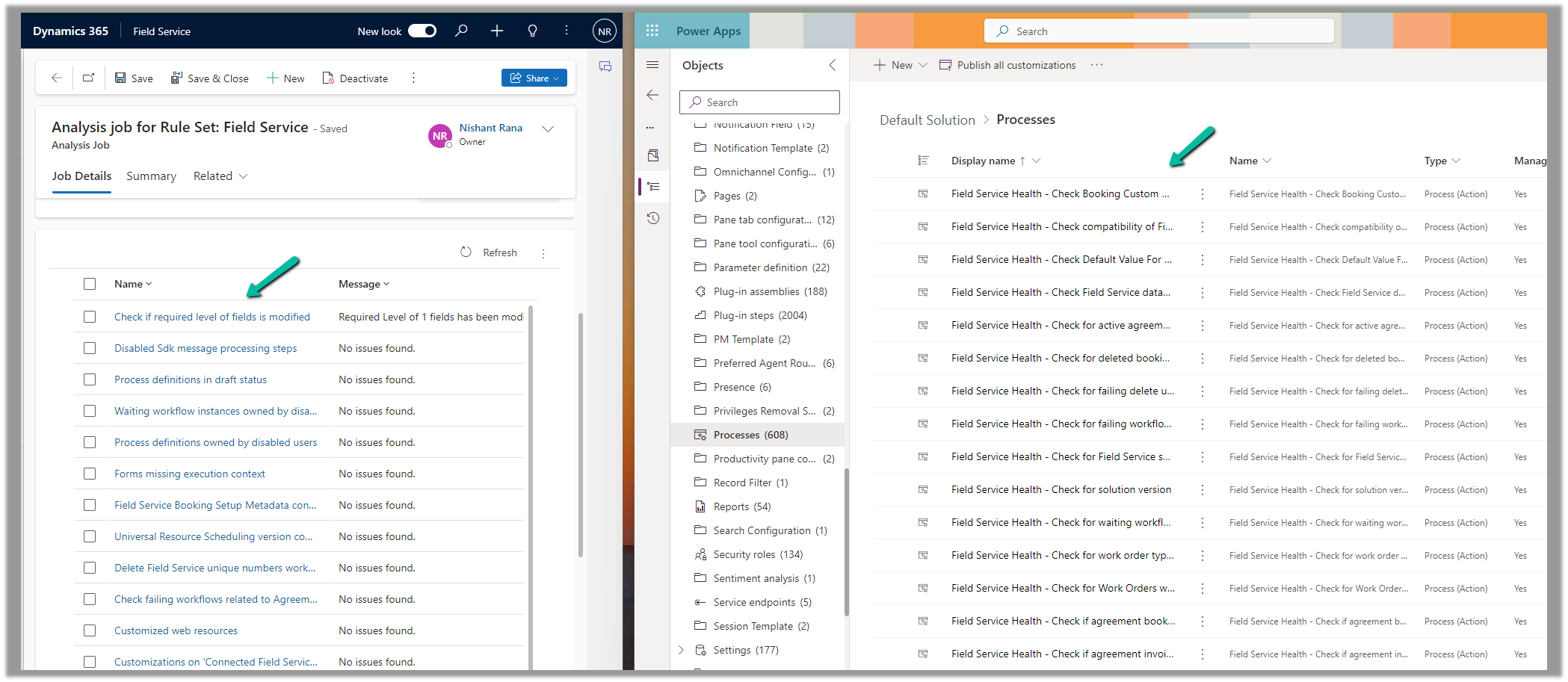
We can see one of the rules failed.

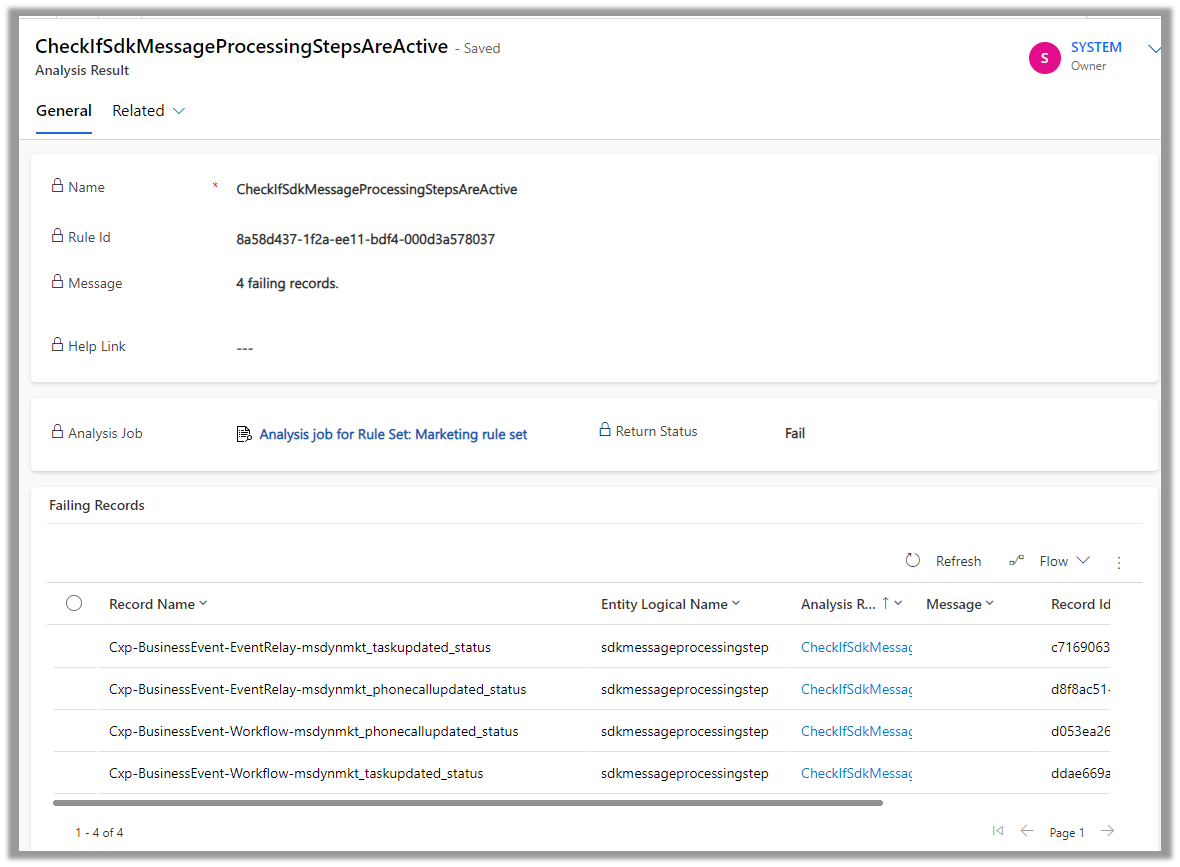
Opening the record, we can see the details.

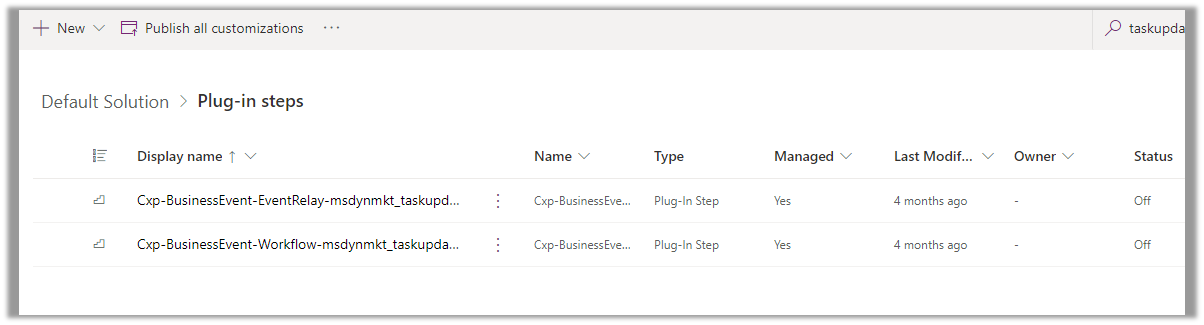
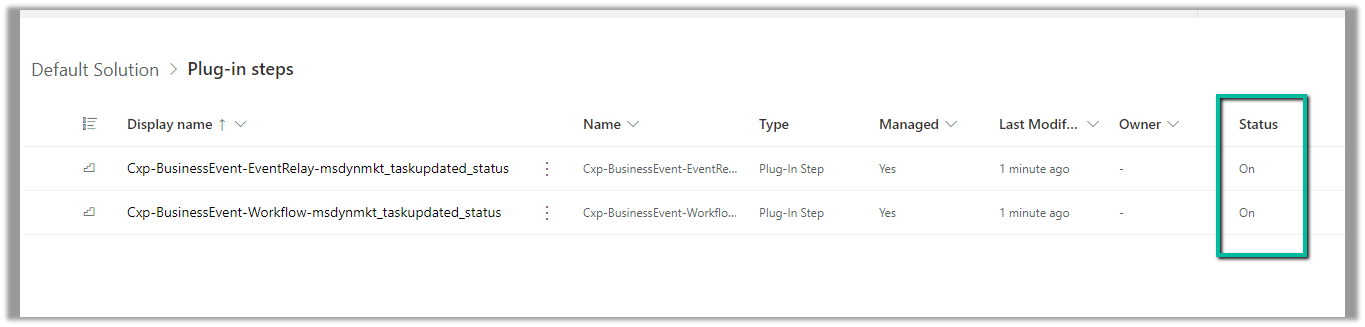
Back in our solution, we can see the steps in the disabled state.

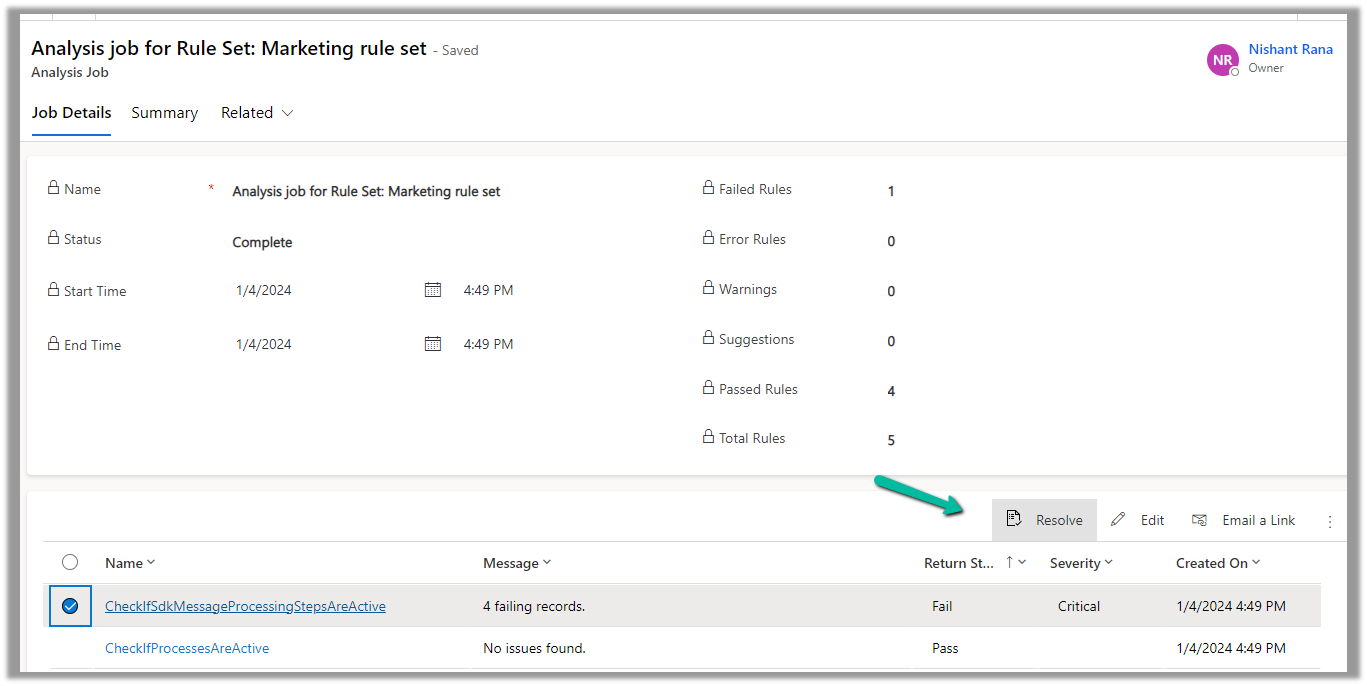
Back in our Analysis Job, let us select the failed rule and click on Resolve.

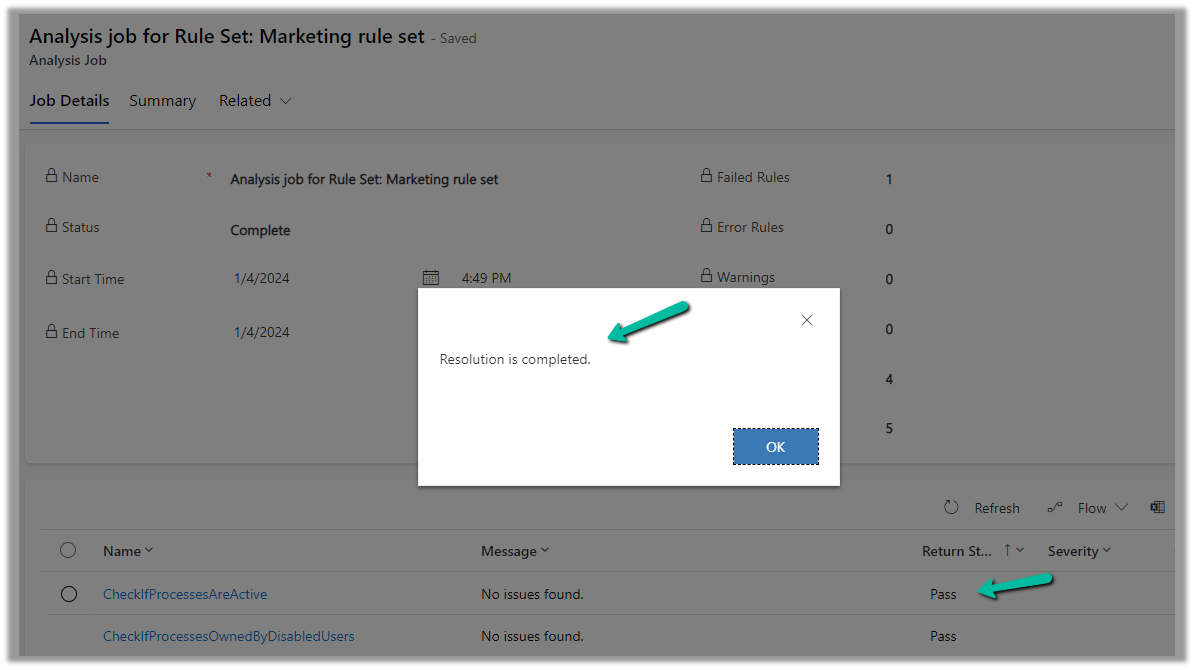
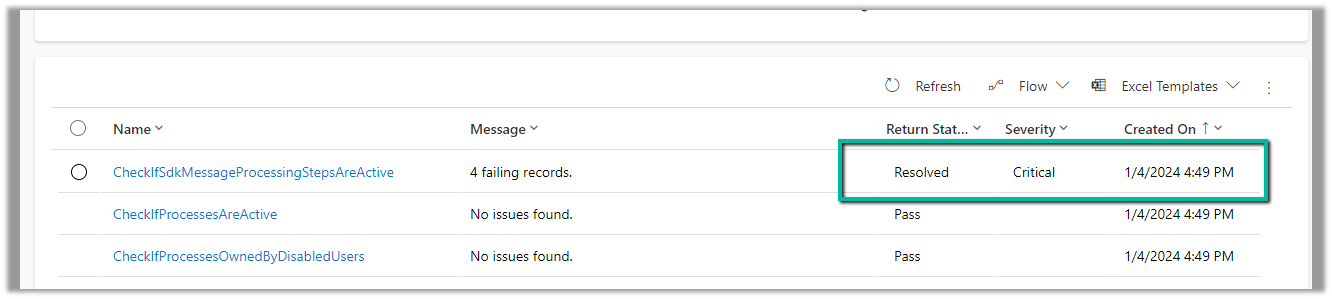
We can see the message “Resolution is completed.” and the rule passed.

Back inside our solution, we can also see the status as On for those steps.

Now let us run an analysis job for Field Service

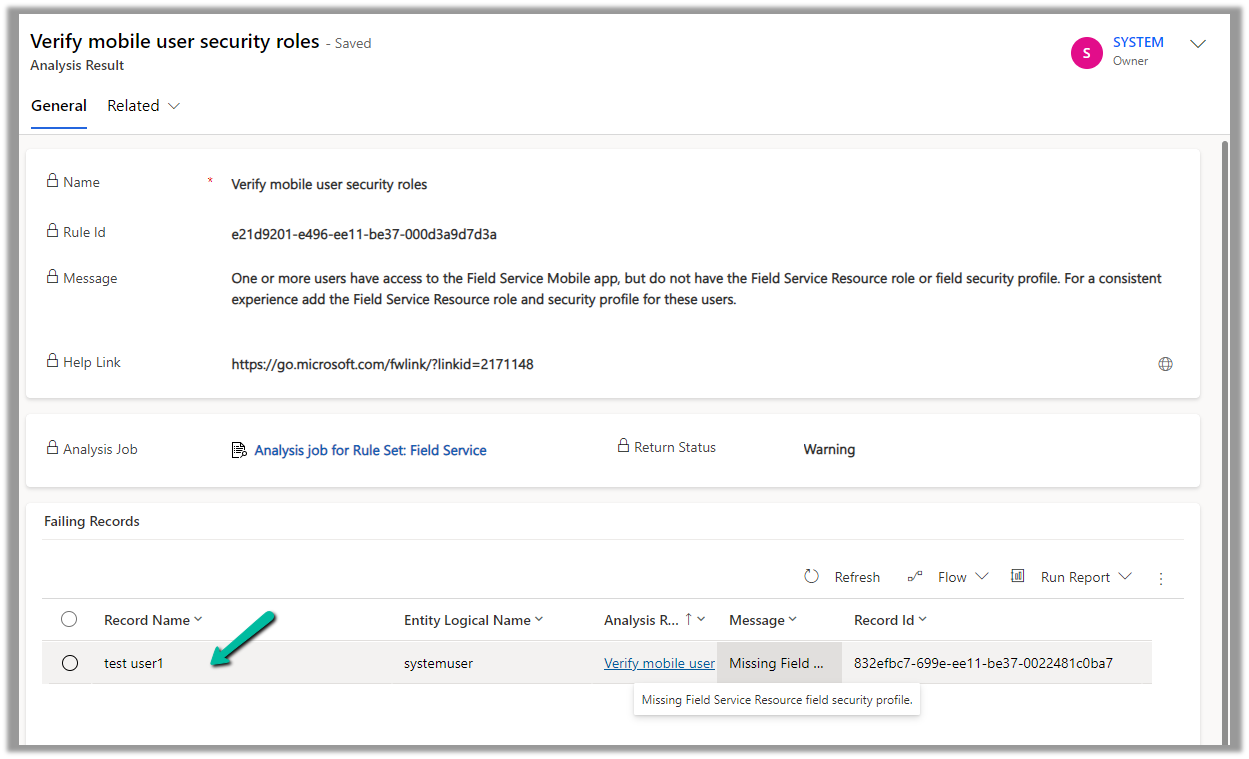
On opening the record, we can see the user for which the roles are missing.

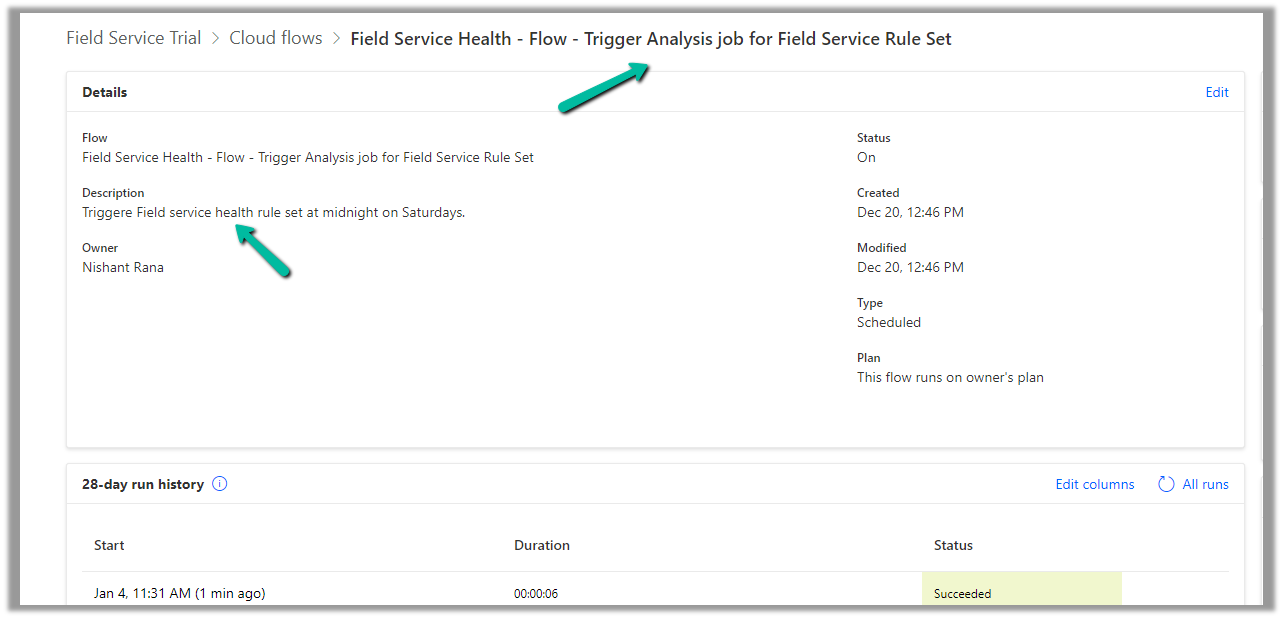
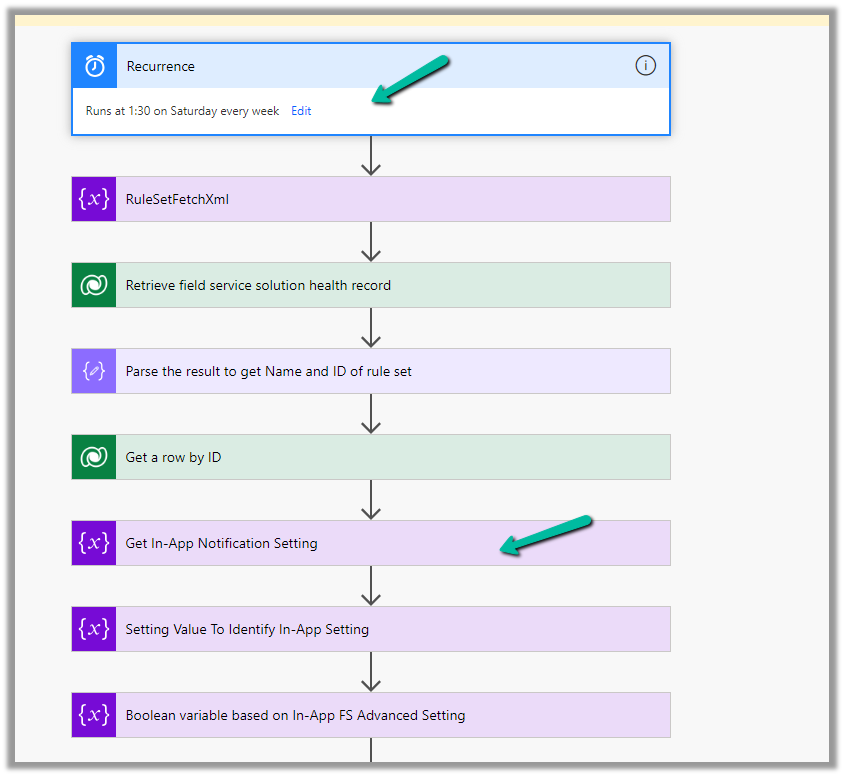
For Field Service, we can see an out-of-the-box cloud flow that runs at midnight on Saturdays to trigger the analysis job for the Field Service Rule Set.

And sends the In-app notifications.

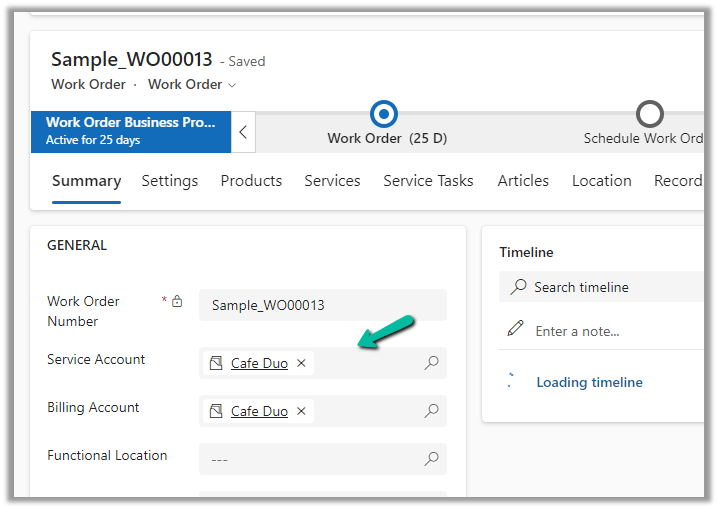
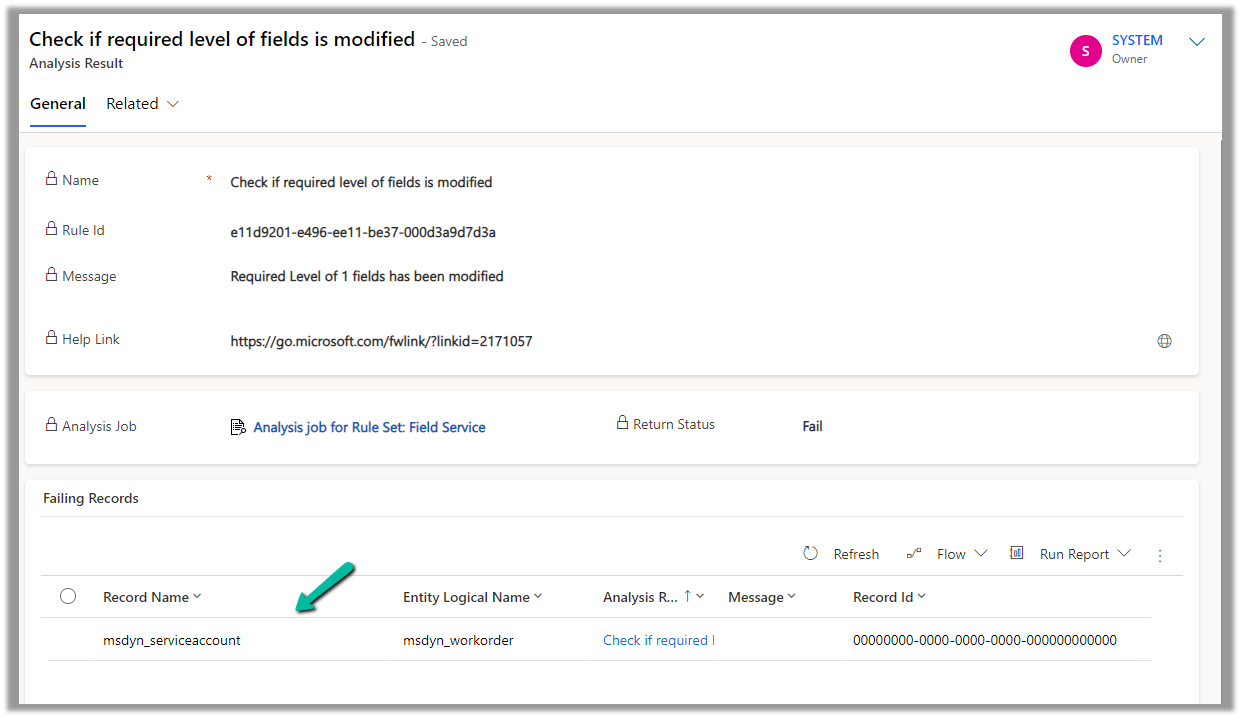
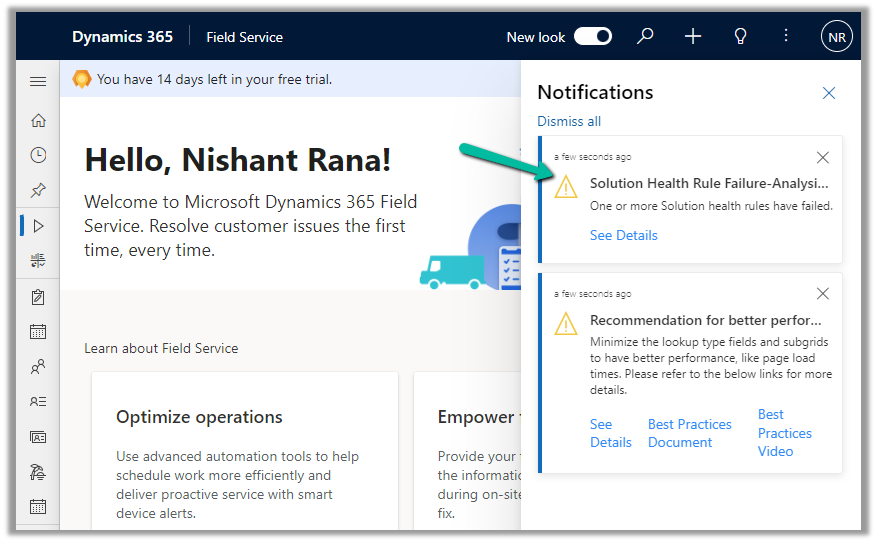
Now if a rule fails, we can get the in-app notifications, e.g. we had set the Service Account field as optional on the Work Order form.

That caused the below rule to fail.

This also sent the notification in the app.

More details on it – https://powerusers.microsoft.com/t5/Power-Apps-Community-Blog/In-App-Notifications-on-concerns-related-to-Solution-Health-and/ba-p/1287680

Also, for each of the rules, we can see a corresponding Action that holds the logic.

Hope it helps..

Advertisements

Use Copilot to create a journey – Dynamics 365 Marketing


We can make use of Copilot to create a journey for us, using everyday conversational language.

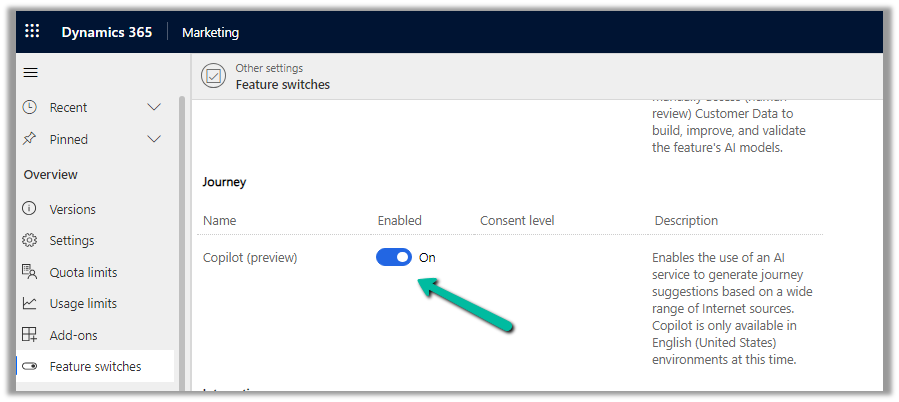
To enable it, navigate to

Settings >> Overview >> Feature Switches >> Journey (Copilot)

Let us see it in action, by creating a new journey record.

We get the option to select predefined
examples to start with.

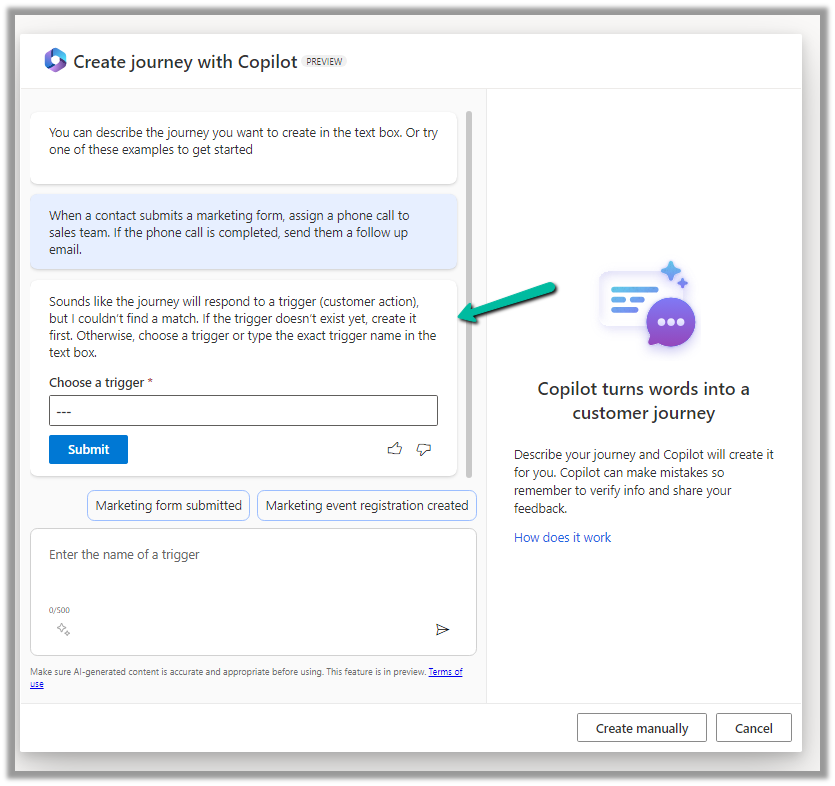
Here we have selected the last example “When a contact submits a marketing form, assign a phone call….”

On selecting it, we are presented with the option to specify the Trigger.


We have selected the existing Marketing Form Submitted trigger record here.

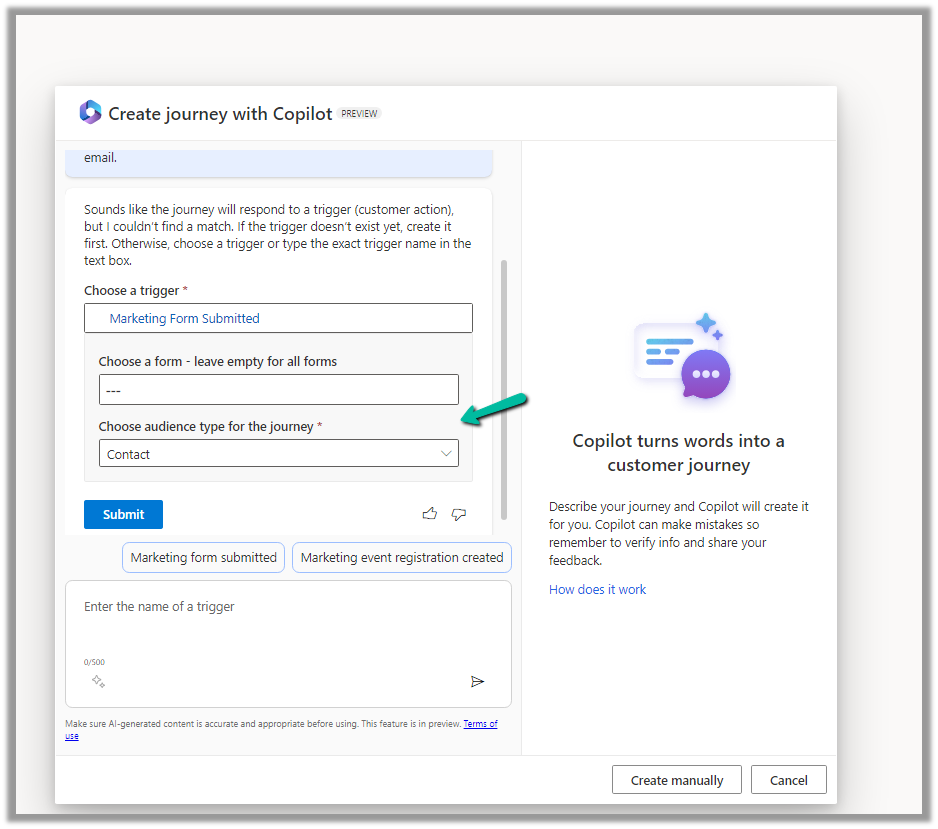
After specifying the trigger, we get the option to specify the marketing form or to leave it empty to run it for all the form submissions and also the audience type, which could be either Contact or Lead.

Clicking on Submit gives the option to review and then eventually Create Journey.

Clicking on Create Journey generates the journey for us.

We can review the journey, add any further content required, modify it, etc.

For example, we need to specify the follow-up email to be sent, before we can save and publish it.

Once we are done with defining the journey, we can publish it.

Get more details here.

Hope it helps..

Advertisements