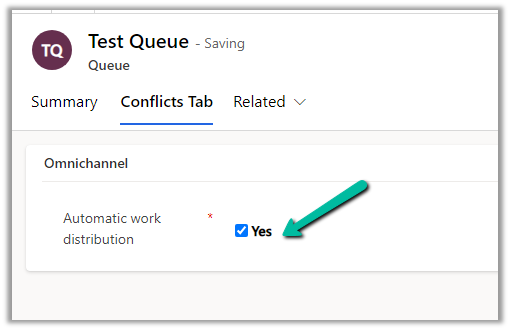
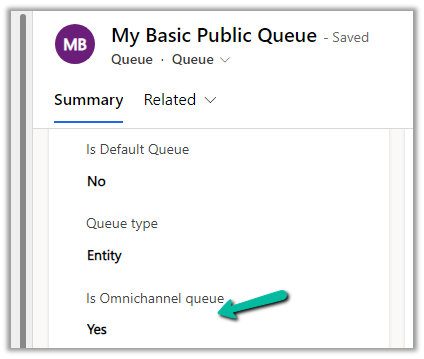
We can convert our basic queue to an advanced queue by setting the field “Is Omnichannel Queue” or “Automatic work distribution” schema name “msdyn_isomnichannelqueue“- to Yes.
We would usually do it to use the existing basic queue in the Unified Routing.
We can find that option in the Conflicts Tab of the Queue form
Or in case you cannot find the conflicts tab, you can add the field to the form
Here we need to be careful while converting the basic queue to an advanced queue, as we cannot revert this. If we try to do this we will get the below error –
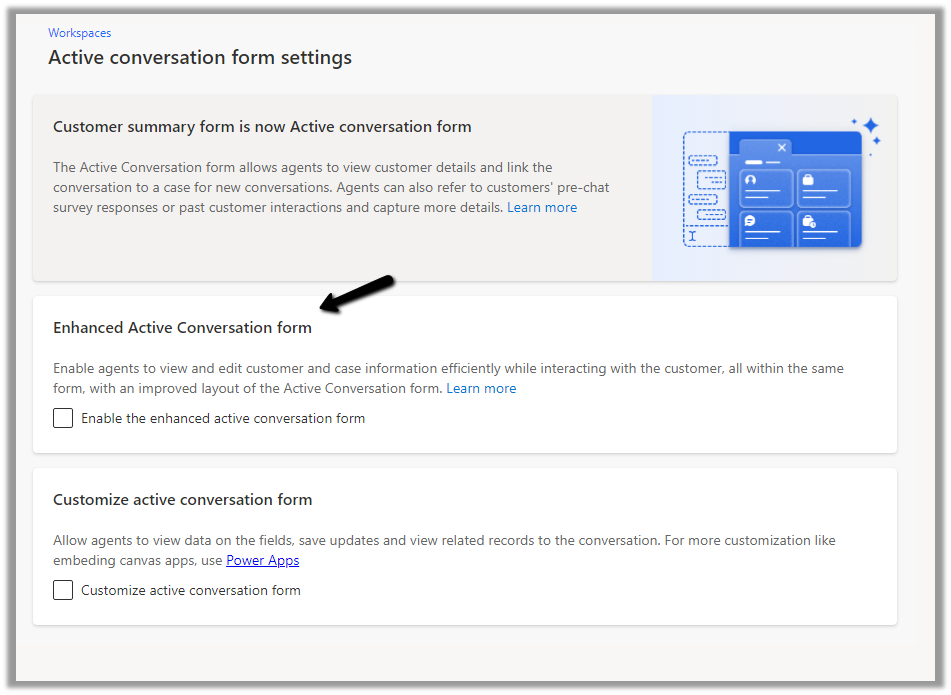
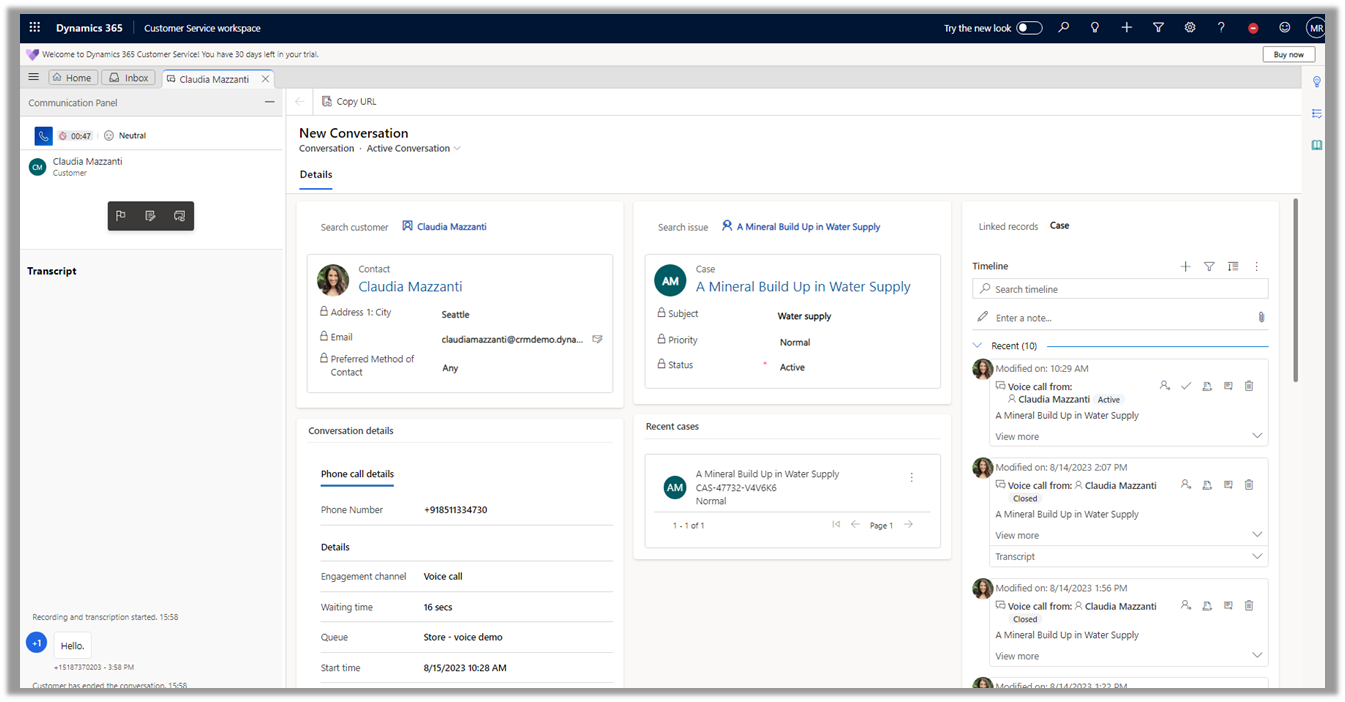
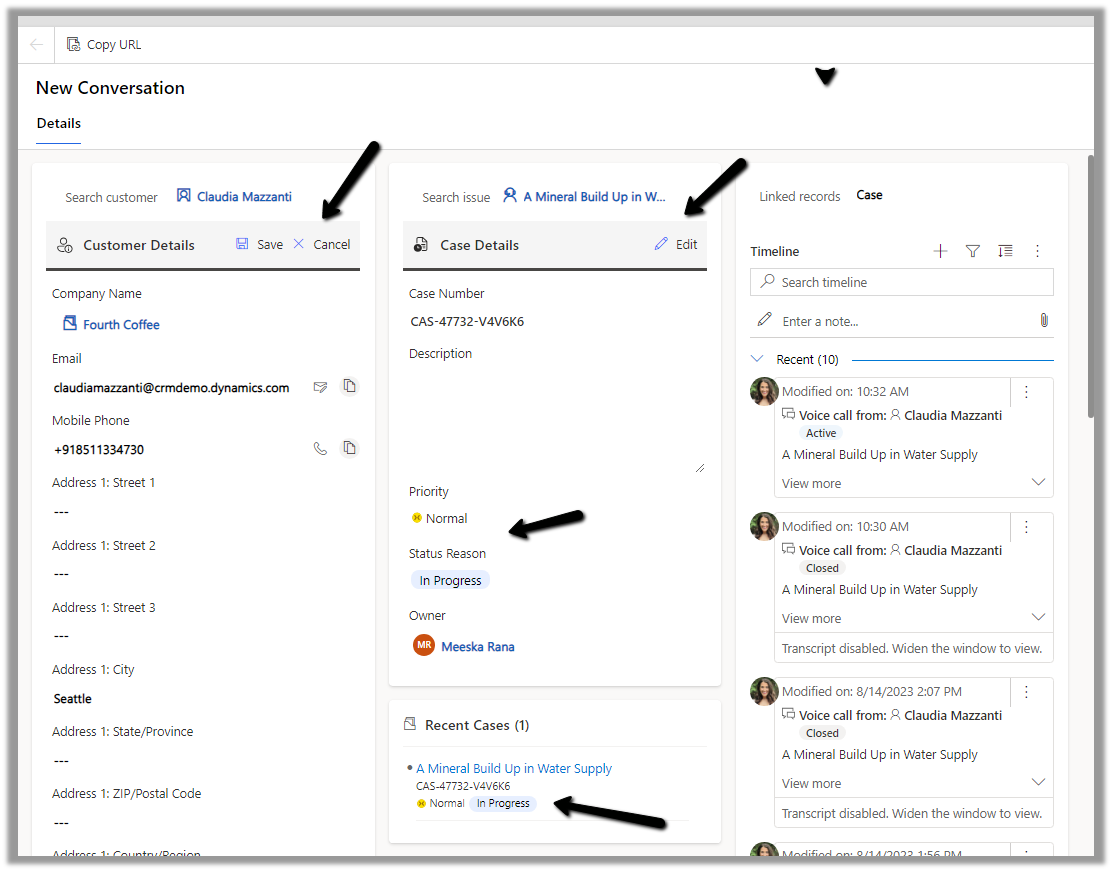
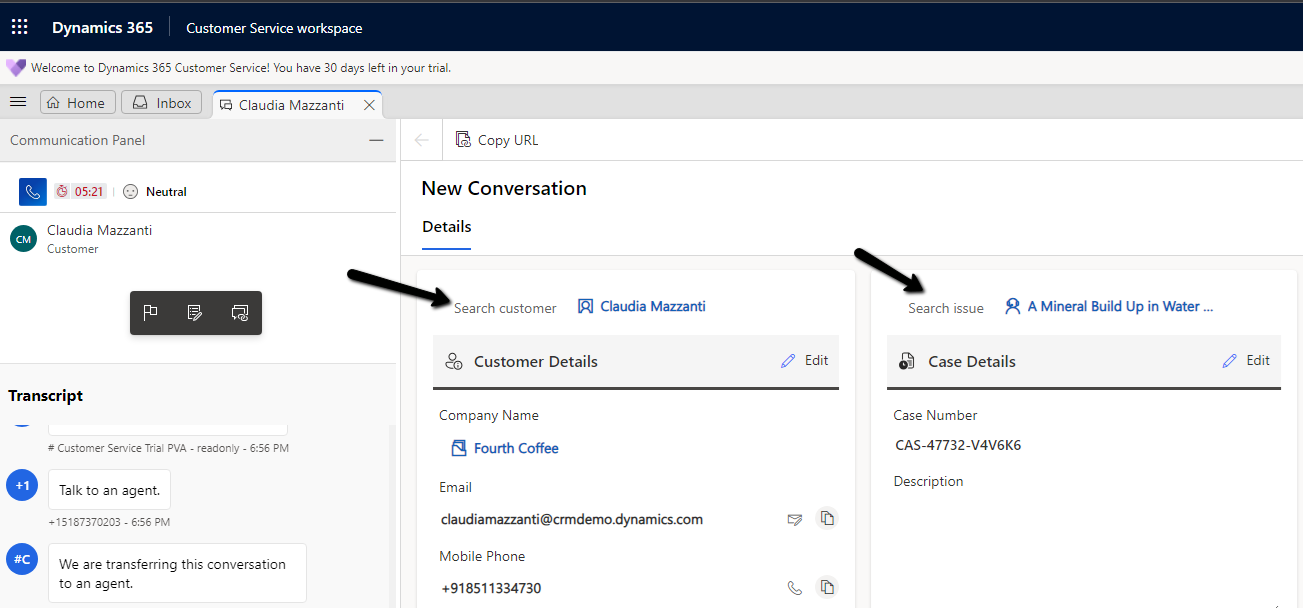
The conversation form in Omnichannel is now updated to allow agents to view and edit customer and case information more efficiently.
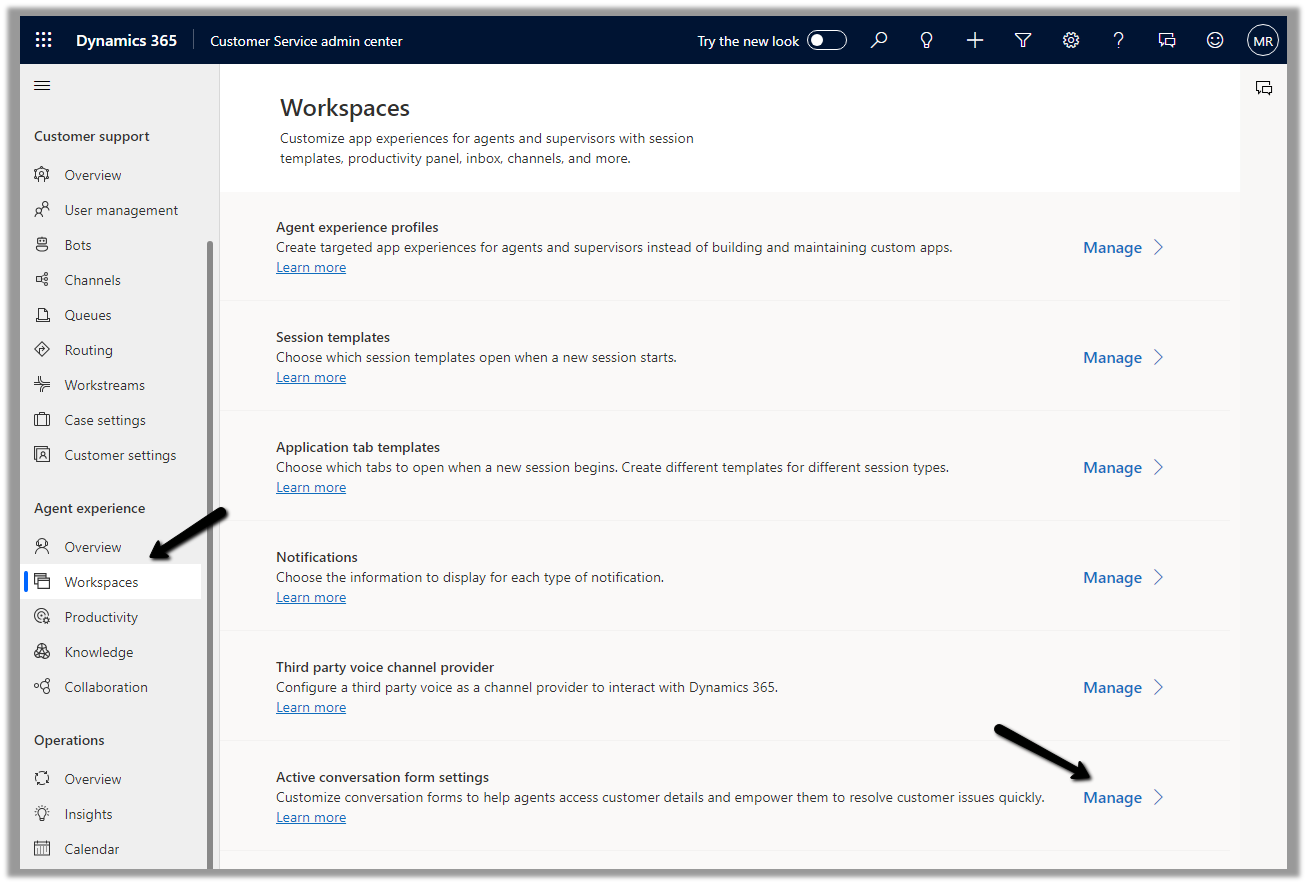
To enable it, Inside Customer Service Admin Center app – navigate to Workspaces >> Active Conversation form settings (Manage)
Before we enable it let us have a look at the exiting conversation form.
Now let us enable and compare it with the enhanced one.
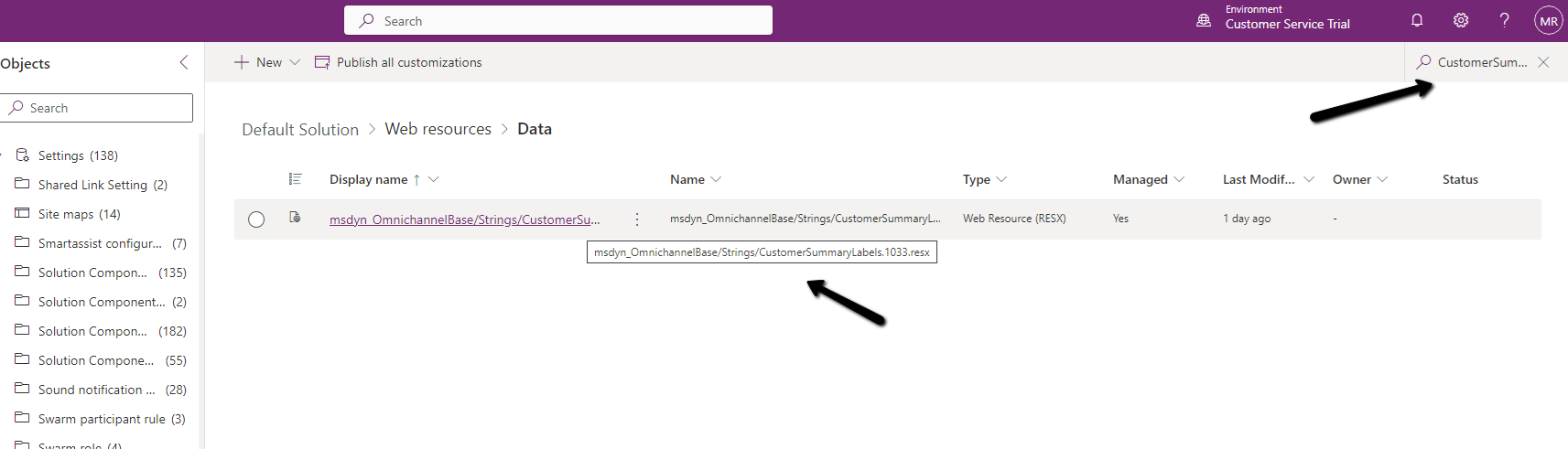
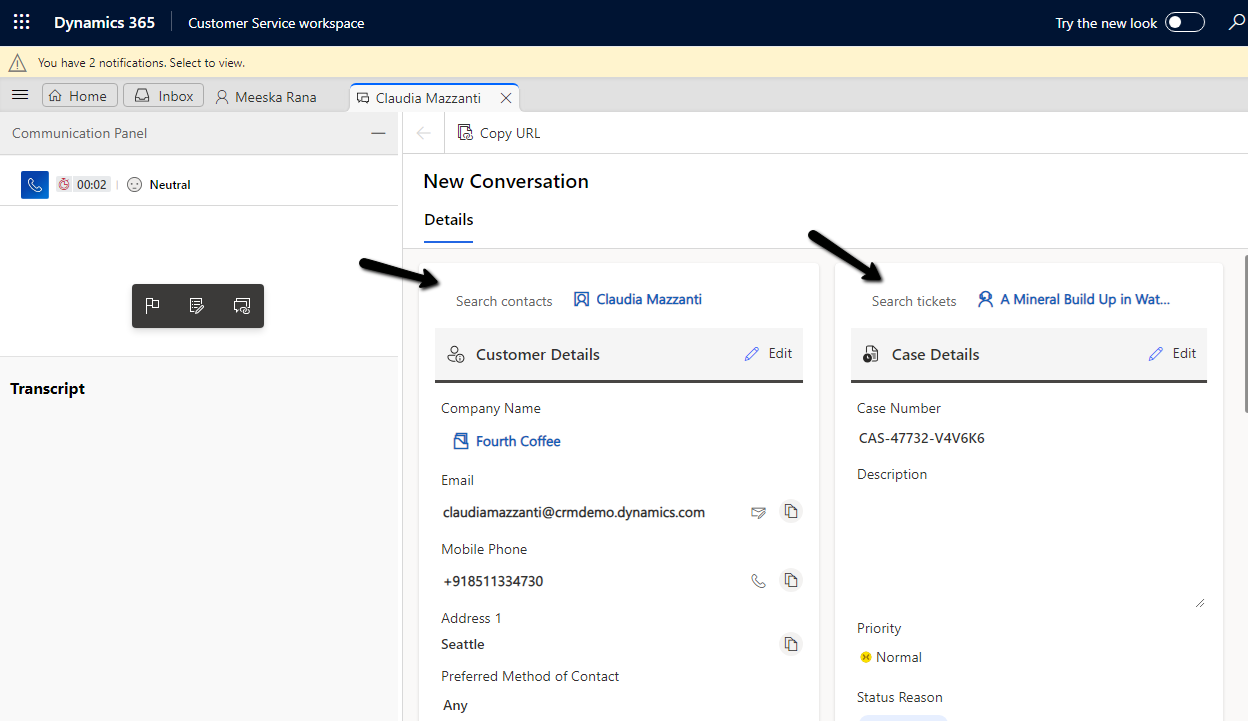
We can see the form displaying a Customer 360 Card for Customer (Contact or Account), which also allows for inline editing of details from within the Conversation form, and a similar card showing case details and allowing for inline editing. The fields that are displayed are configurable.
Another change is the color-coded priority and case status field for easy discoverability for the agents.
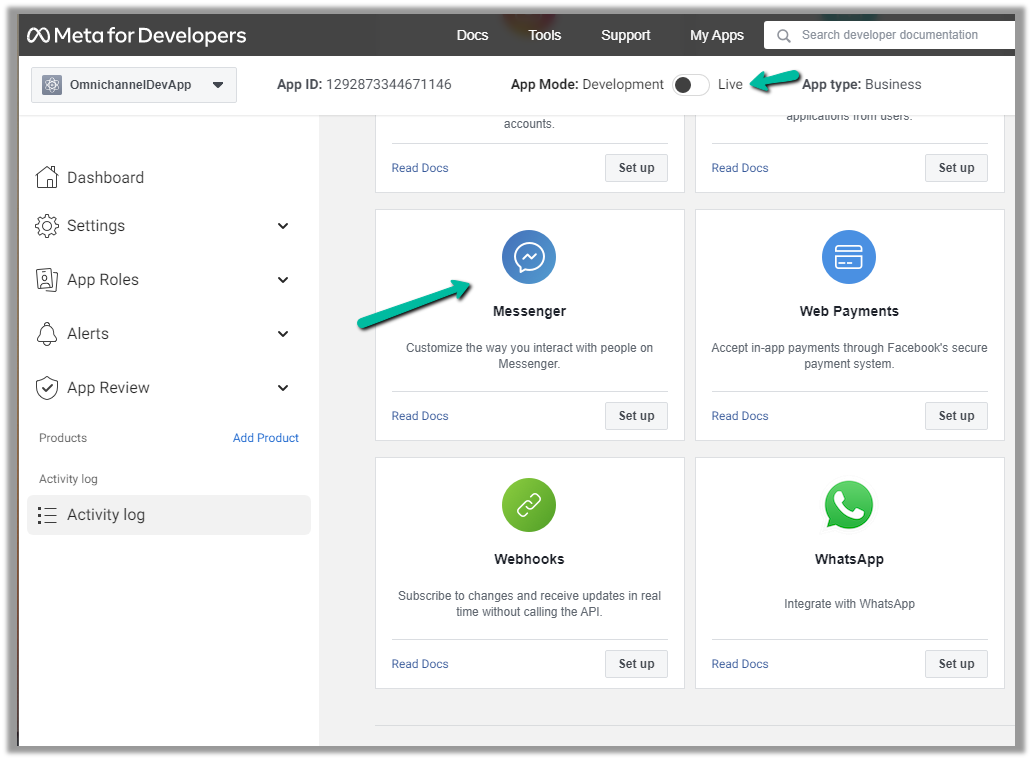
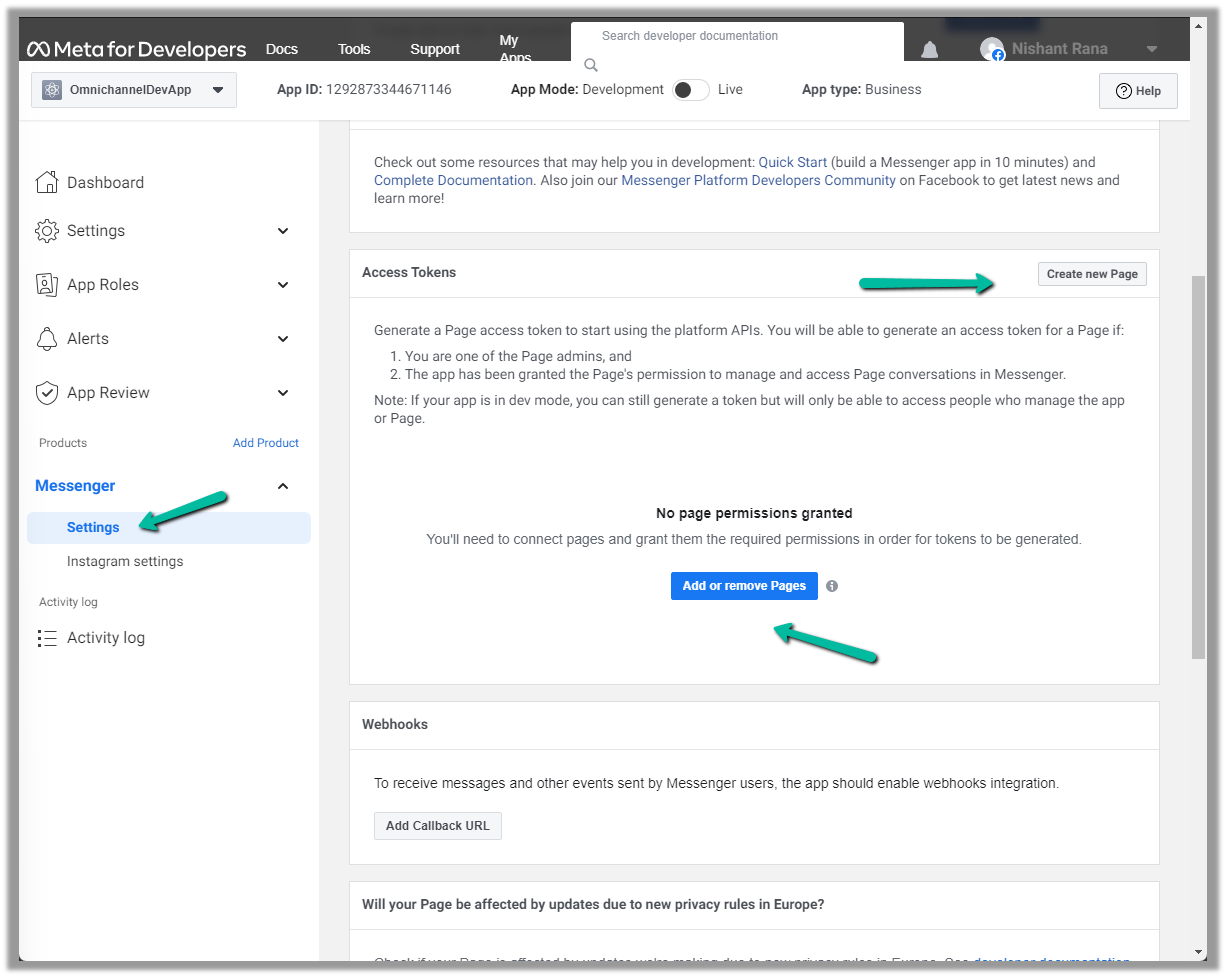
Next either add an existing page or create a new one and then add the newly created page in the Messenger >> Settings
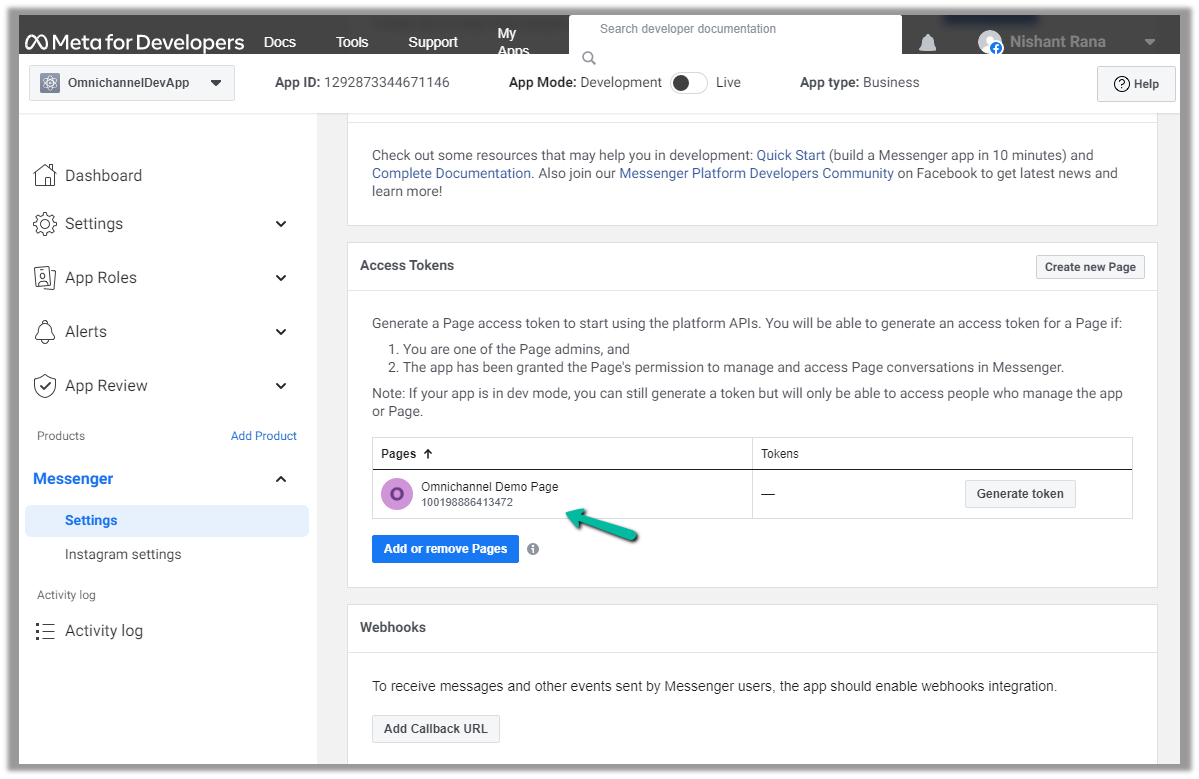
Here we created a new page and have added that page.
We can also Generate token for the page, which we will use while configuring Facebook Channel in Dynamics 365.
Click on Generate token and copy the token. Also, save the Page Id below the name of the page.
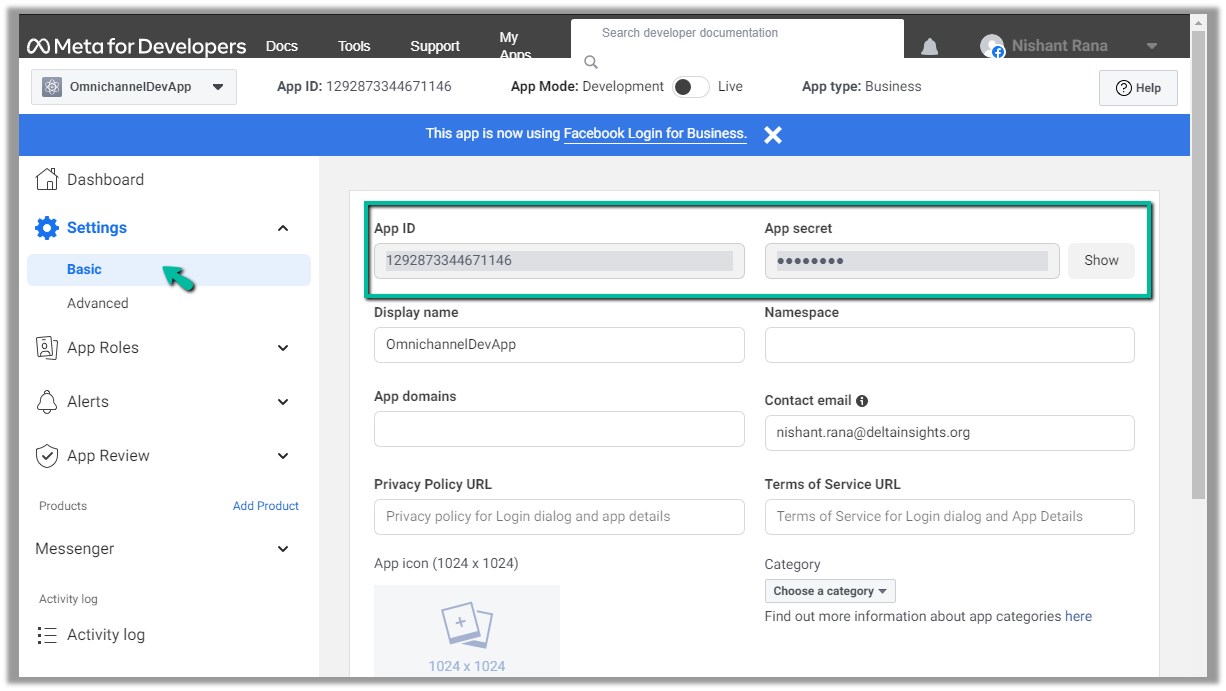
We will also need App ID and App Secret, which we can get from – Settings >> Basic
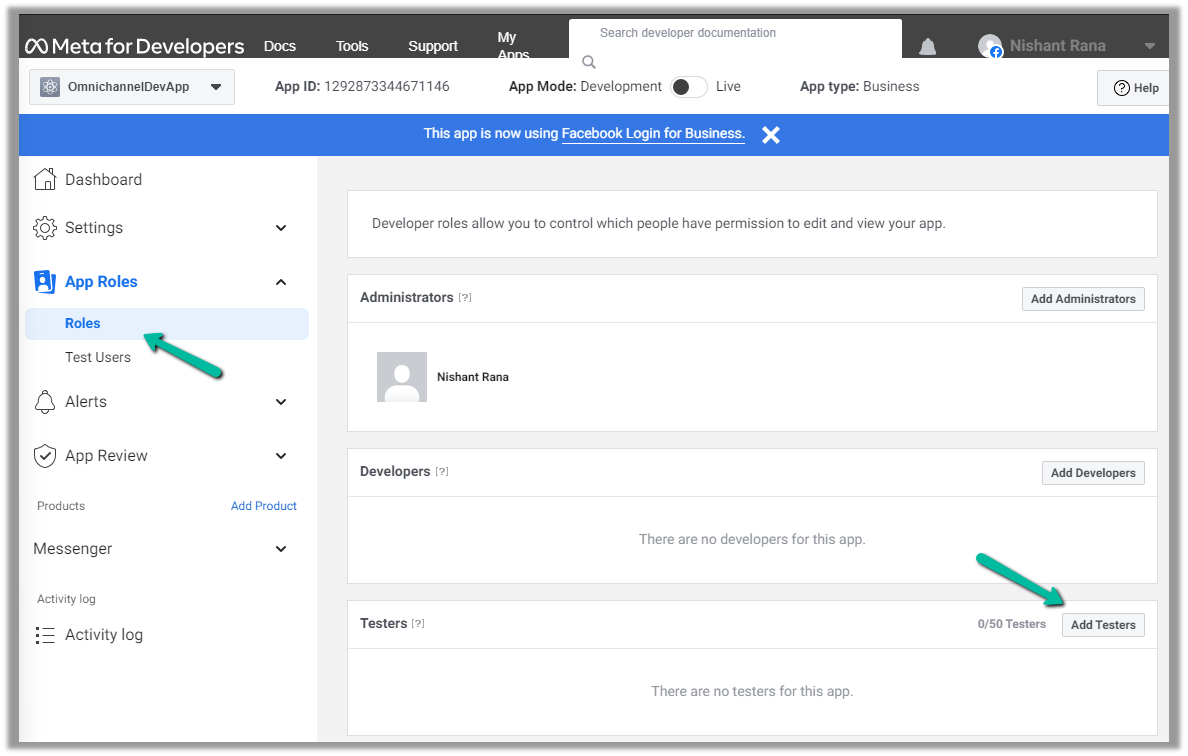
Next, we add a few test accounts to the app for testing/using the app. (we are not making the app publicly available or live, which would require and approval process)
Navigate to App Roles >> Roles >> Testers (Add Testers)
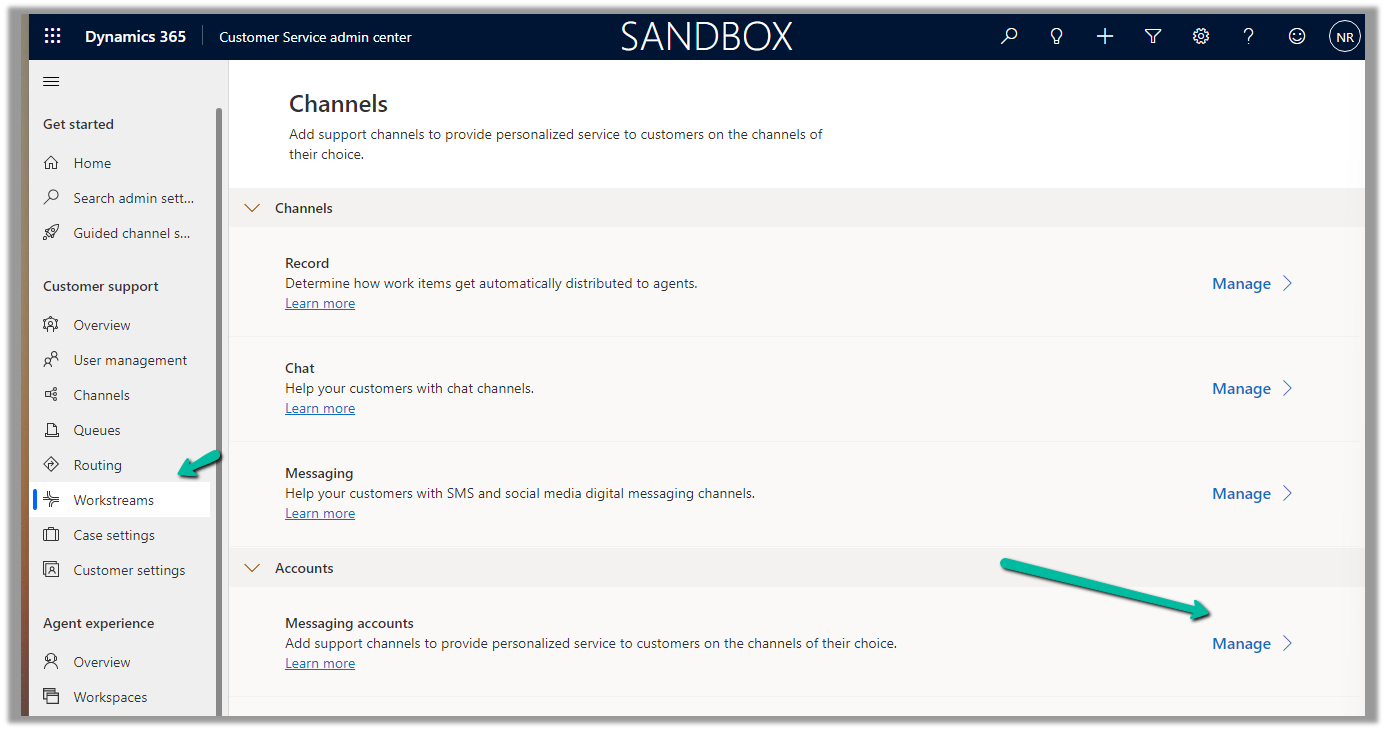
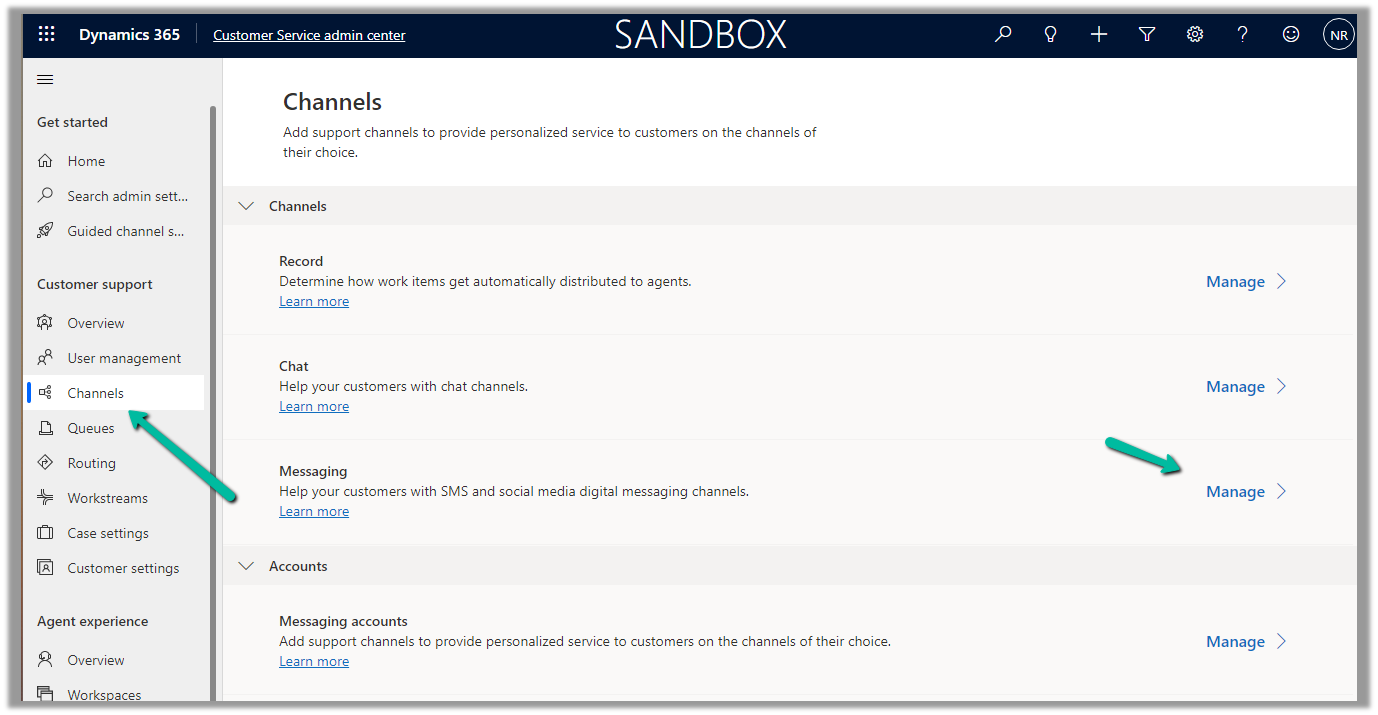
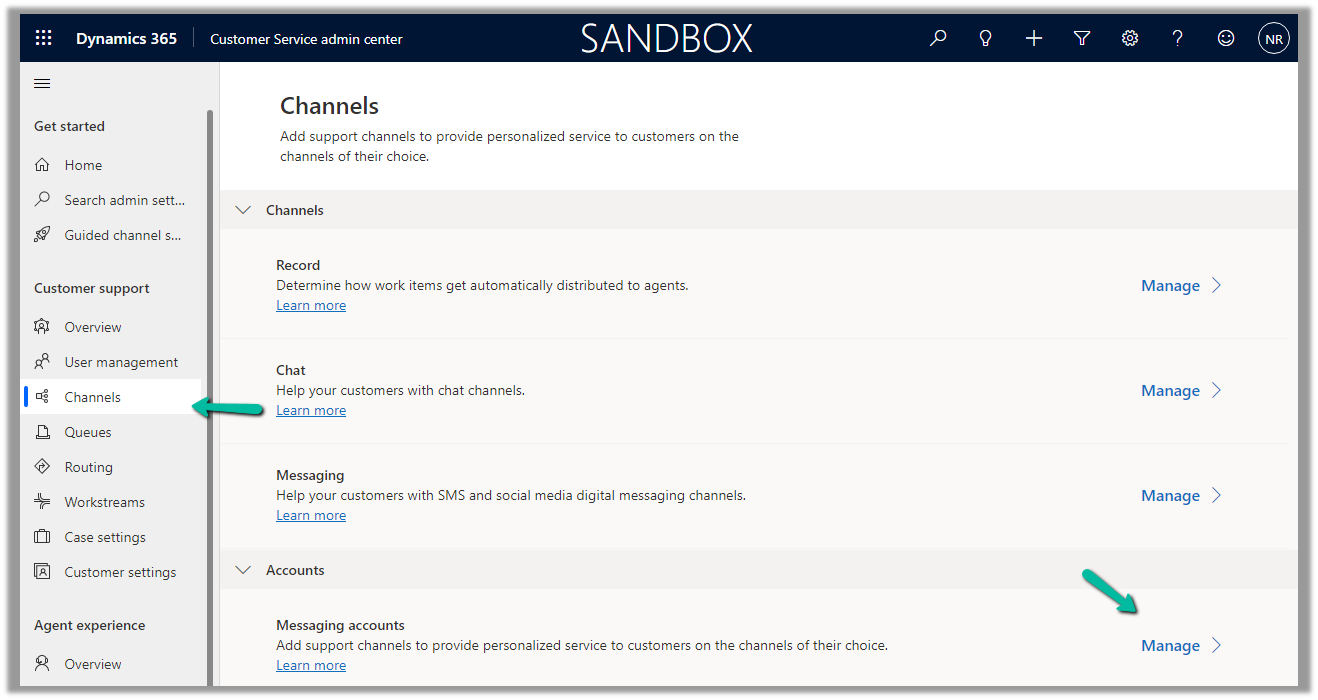
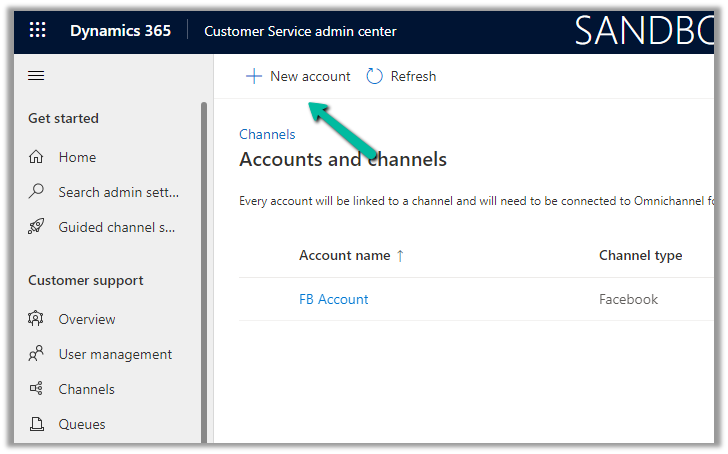
Back in Customer Service Admin Center, navigate to Customer Support >> Channels >> Messaging Accounts (Manage)
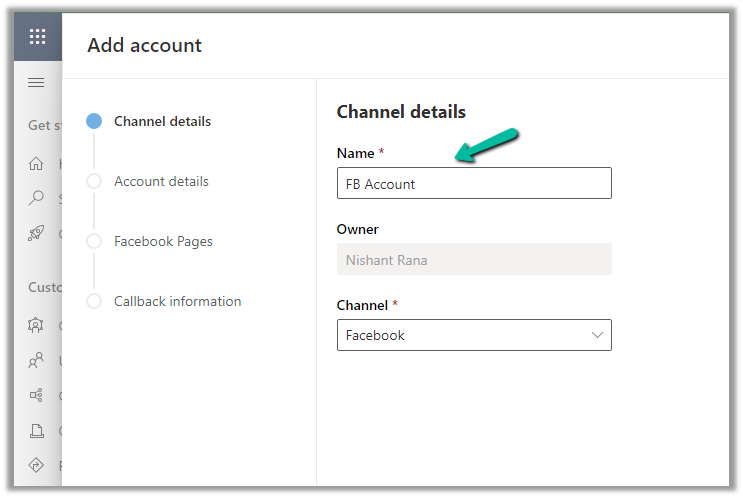
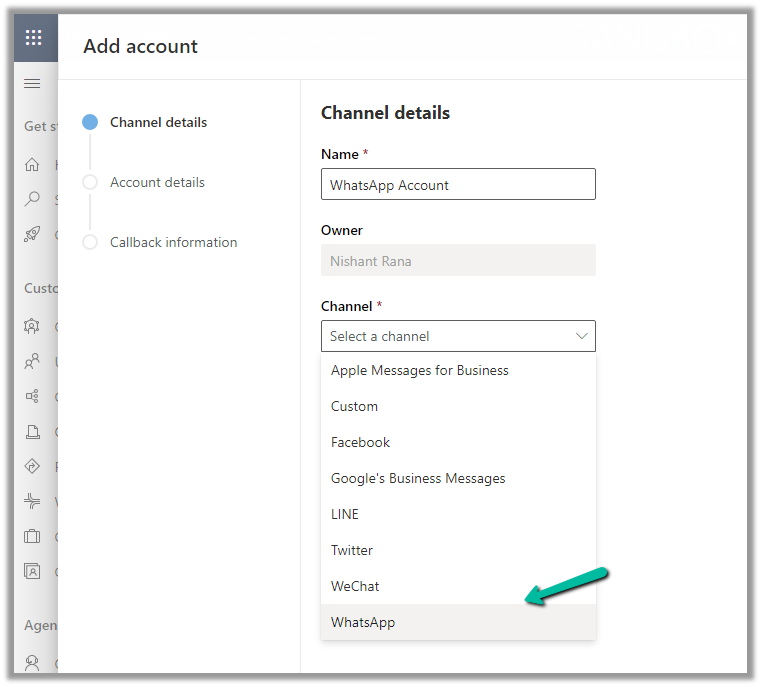
Add a New Account
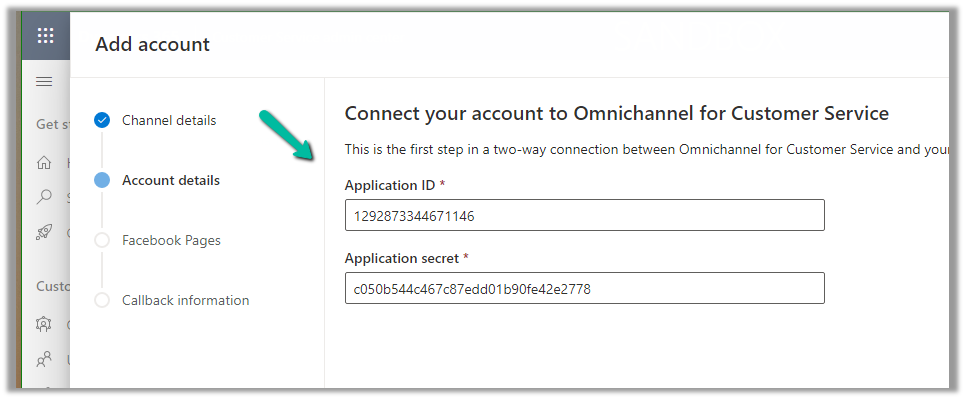
Click Next and provide the App ID and Application Secret
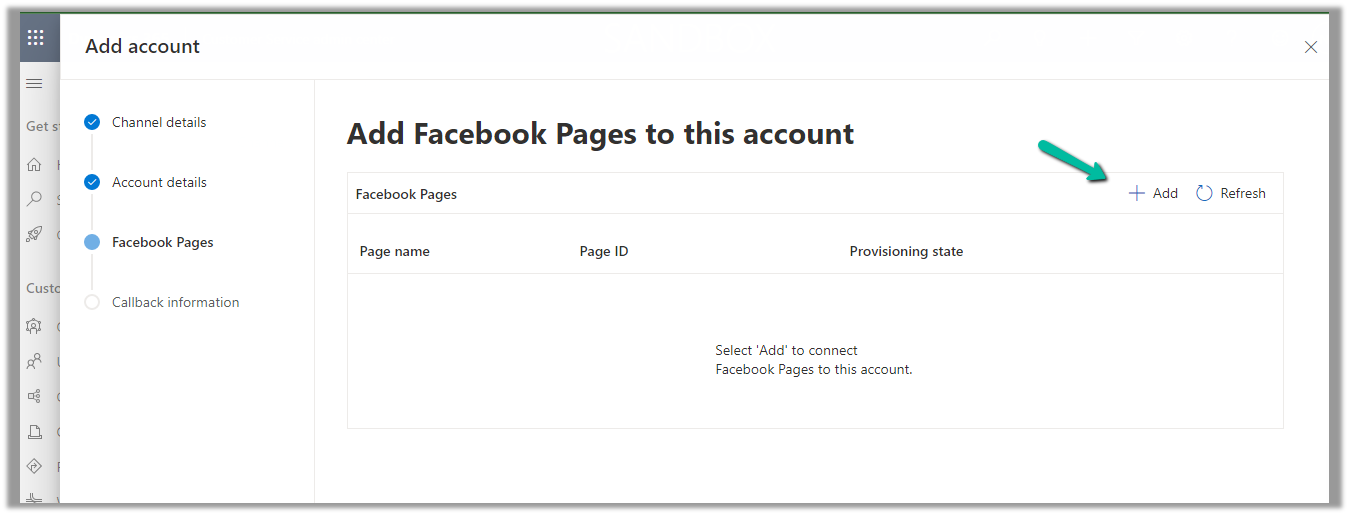
Add Facebook Page to the account
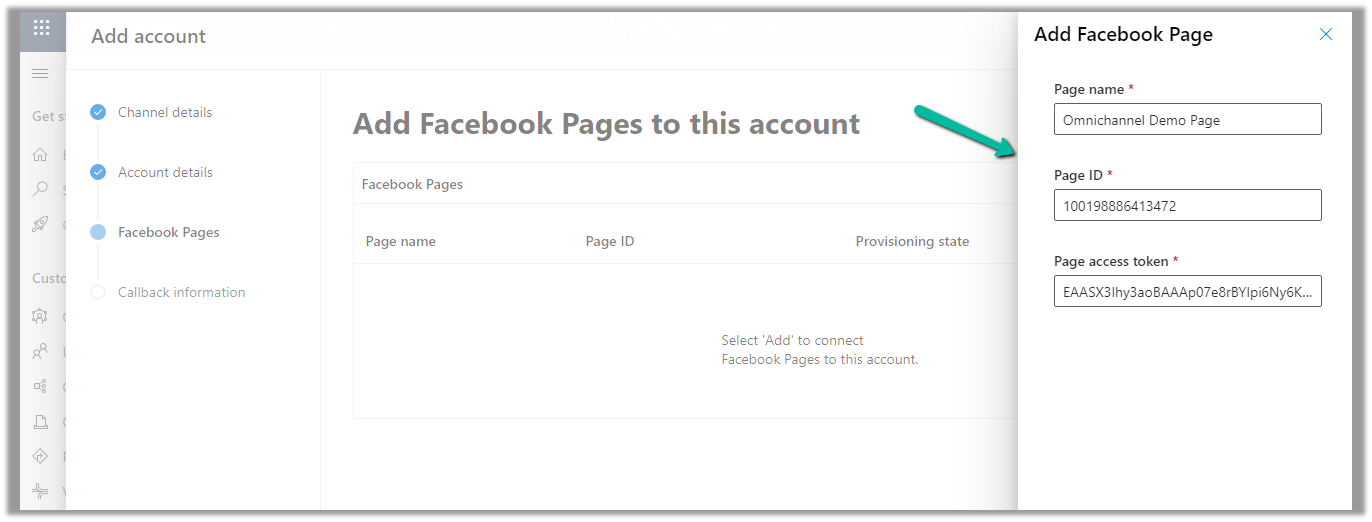
Provide the Page name, Page ID, and the Page access token.
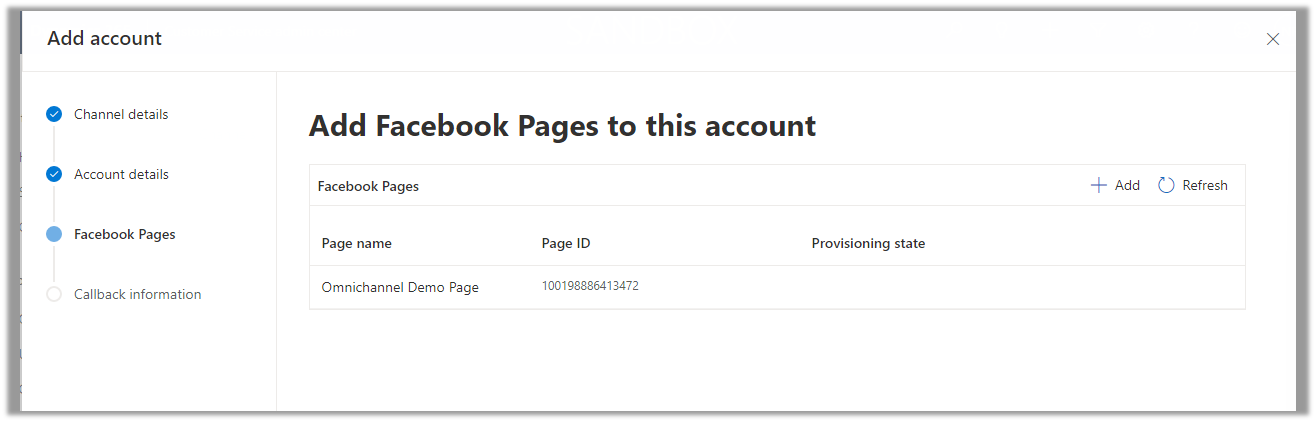
With the page successfully added, click on Next
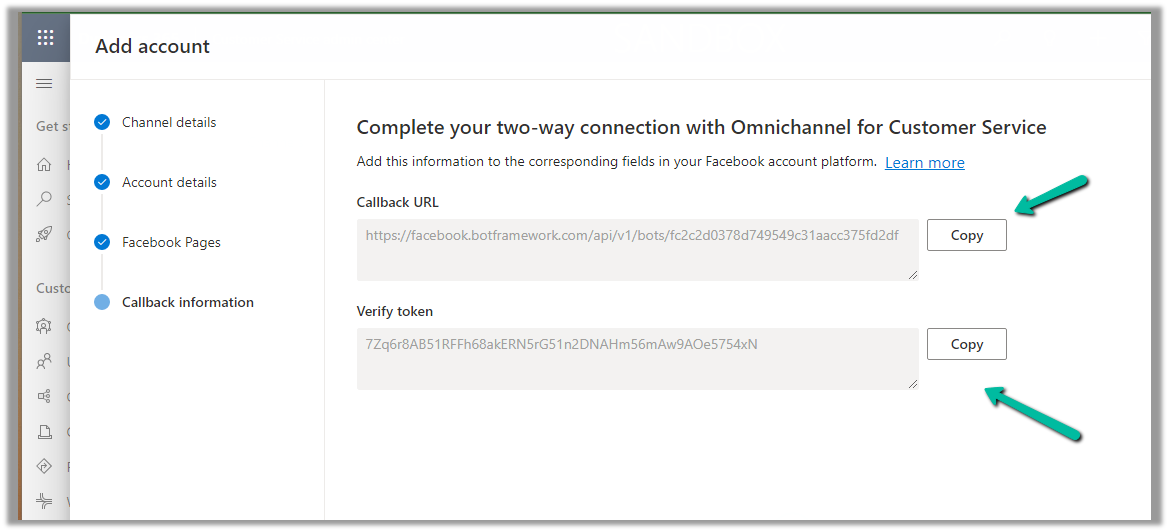
Copy the Callback URL and the Token.
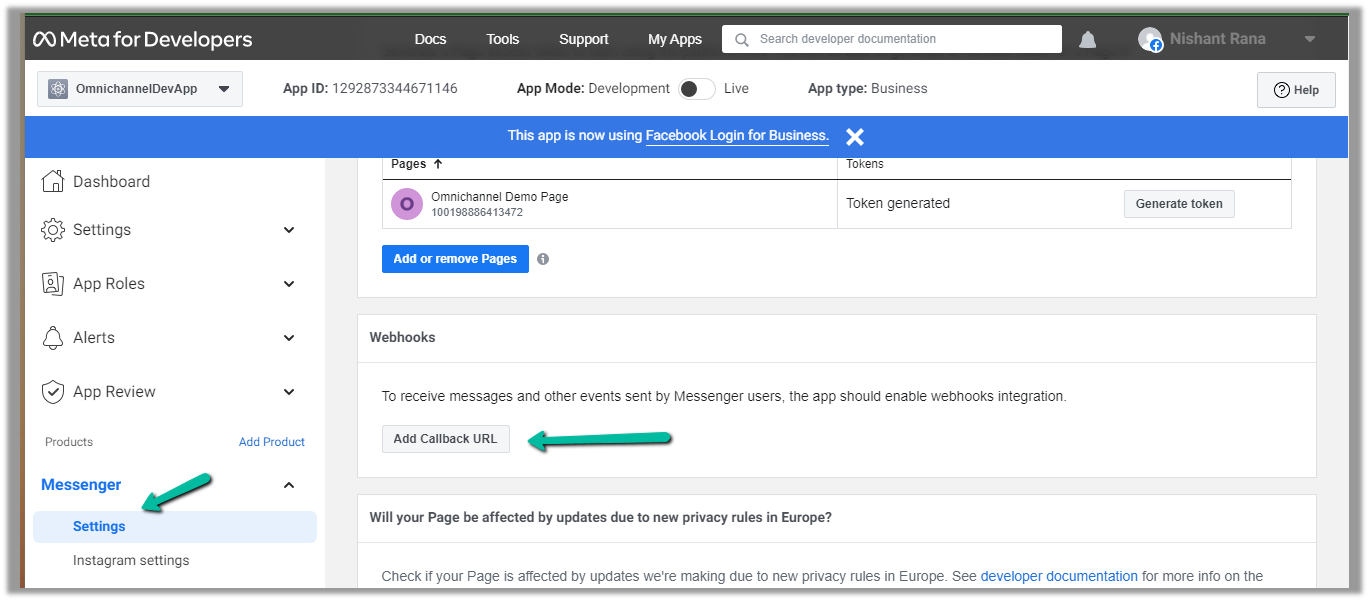
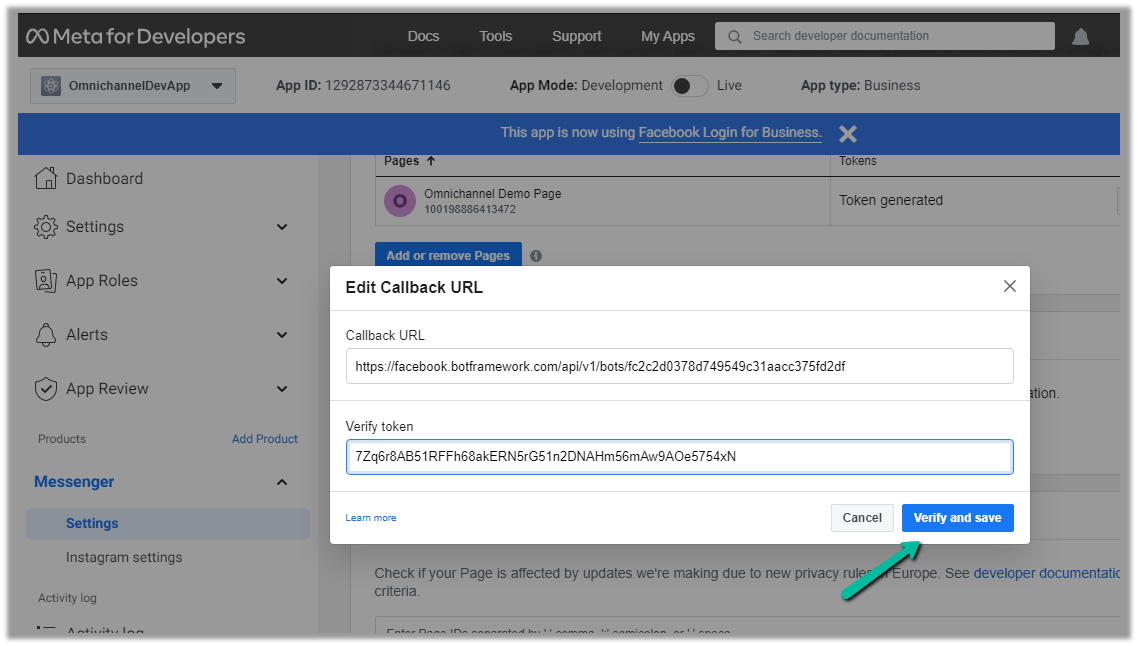
Paste this information in the Messenger product added.
Click on Add Callback URL.
Click on Verify and save
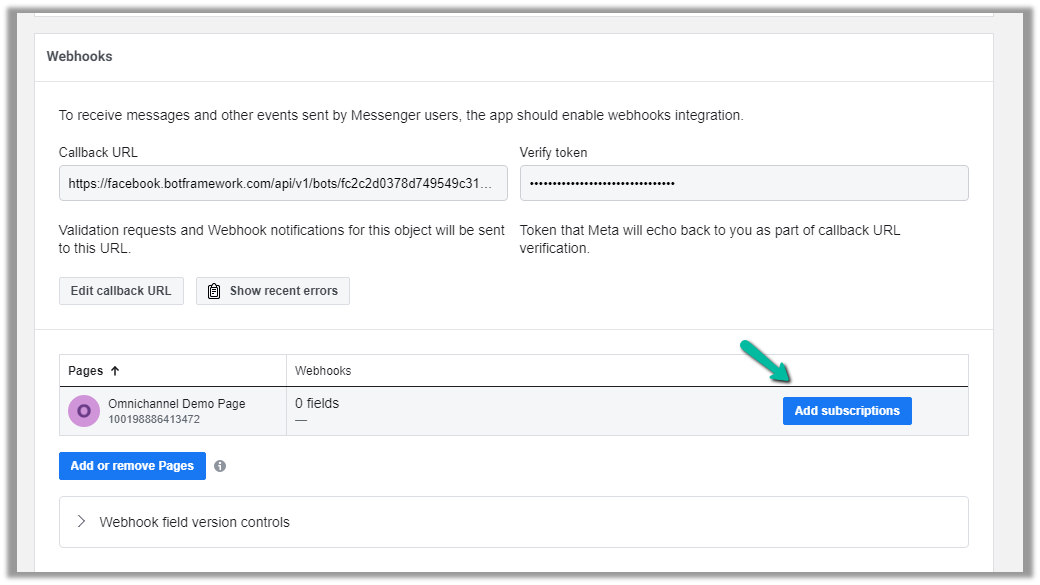
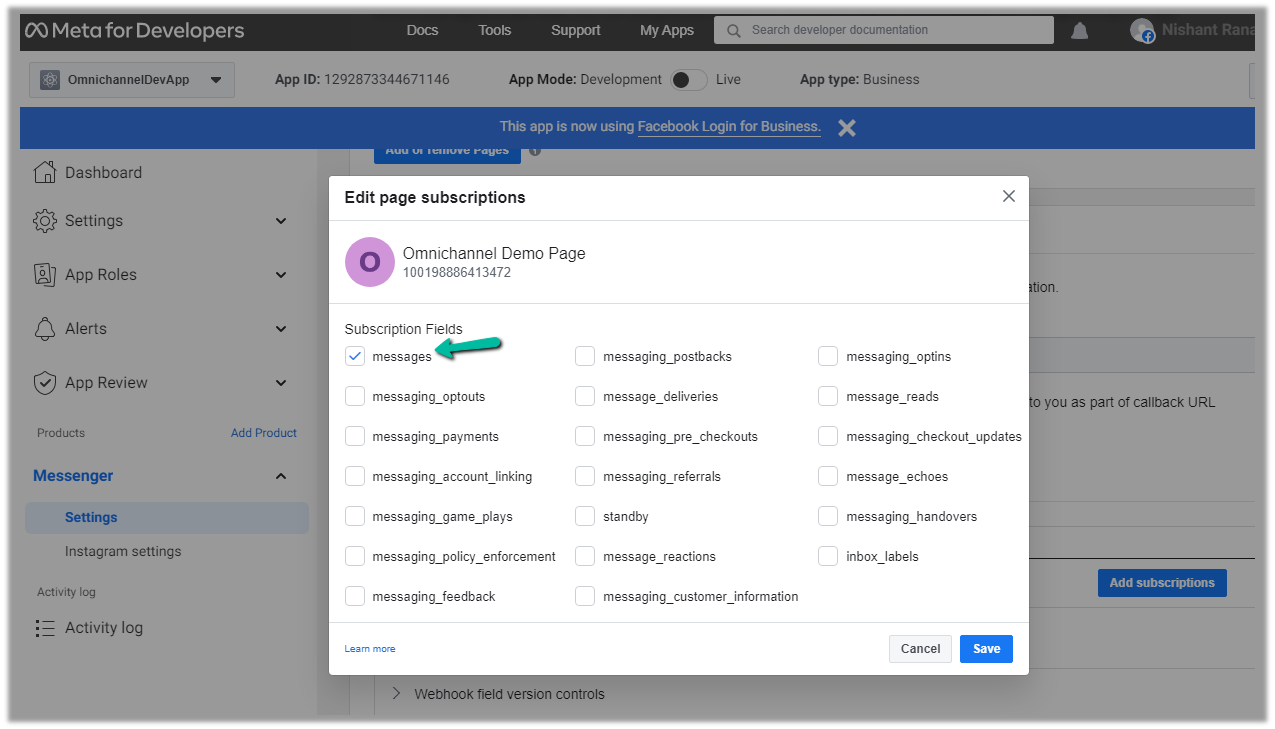
This adds the Webhooks details, click on Add Subscriptions for the Page added.
Select messages
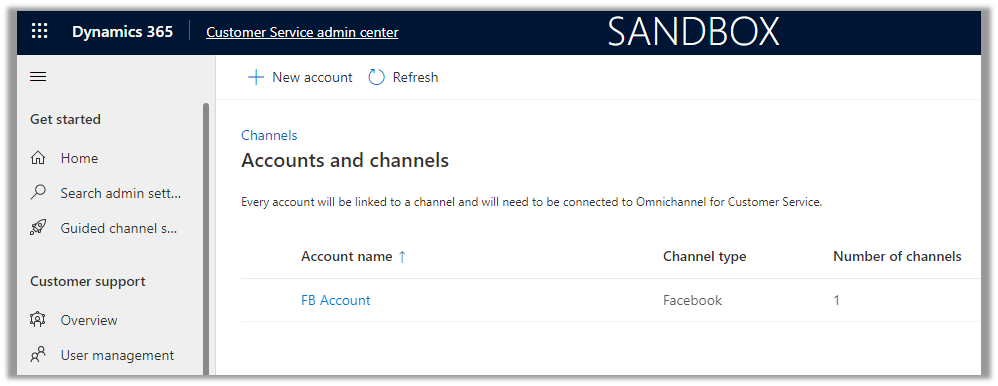
We can see the account added.
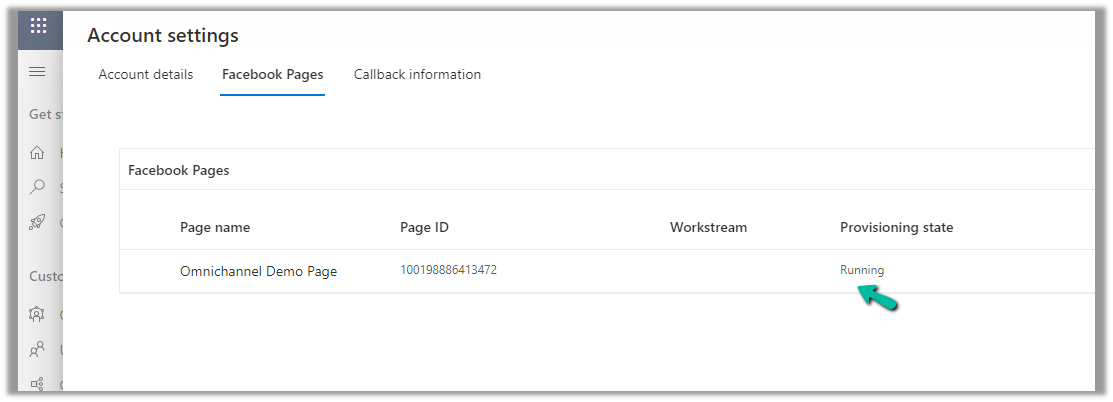
Open the record, and navigate to the Facebook Pages tab, there we can see the Provisioning state as Running.
Next, we will create a Channel for this Facebook Account.
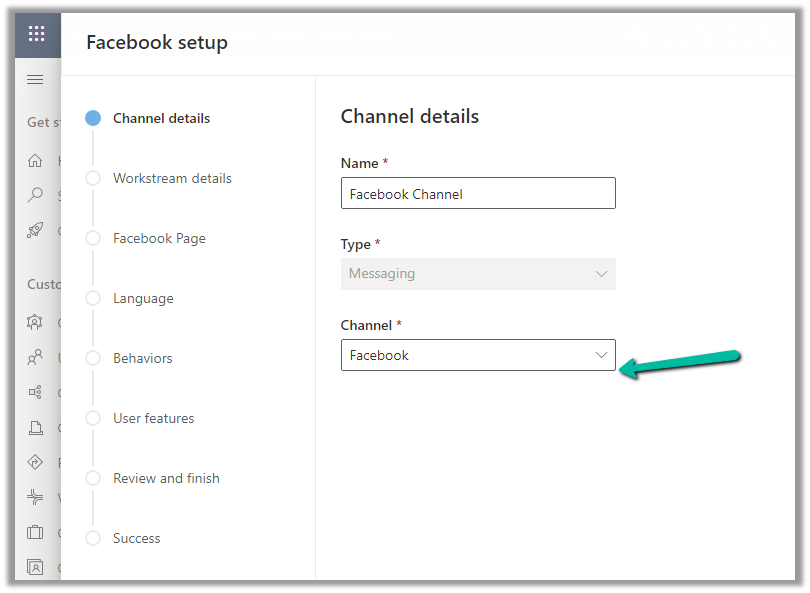
Navigate to Customer Support >> Channels >> Messaging (Manage) >> Add Channel
Select Channel as Facebook.
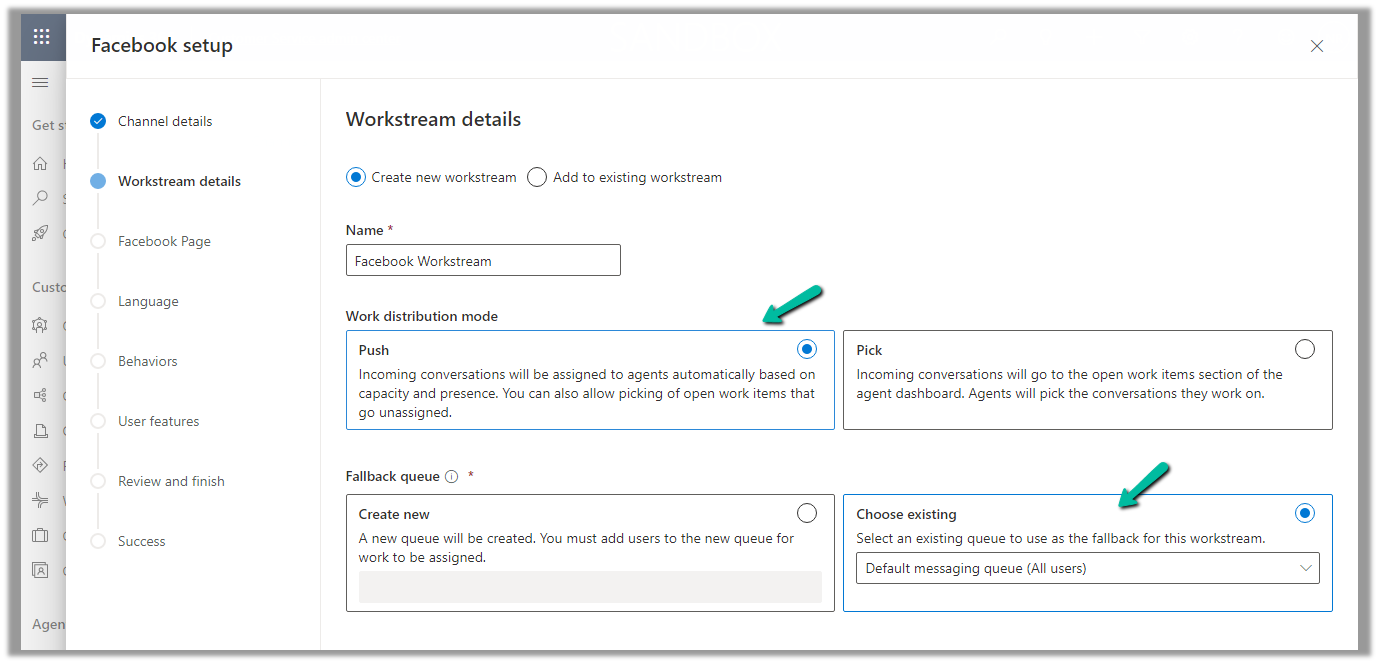
Add an existing workstream or create a new workstream.
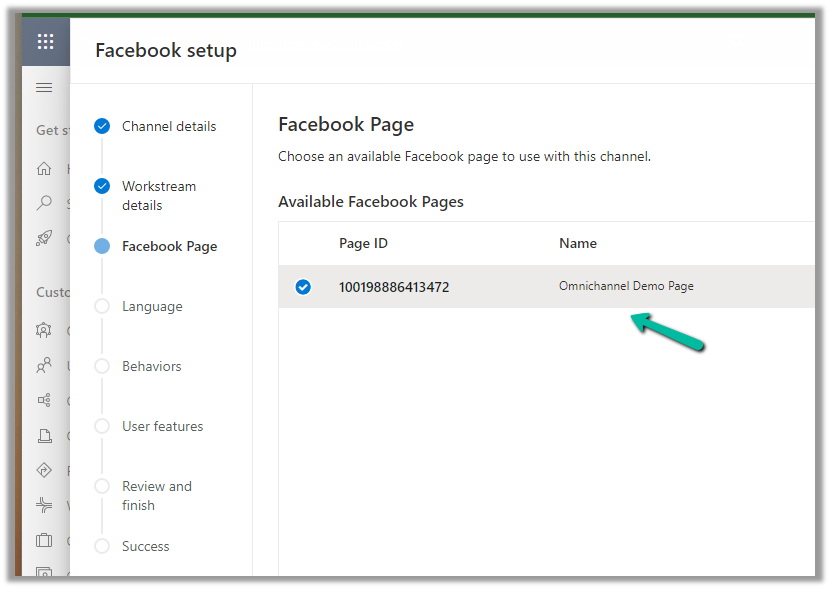
Next, select the Facebook Page configured in the previous steps.
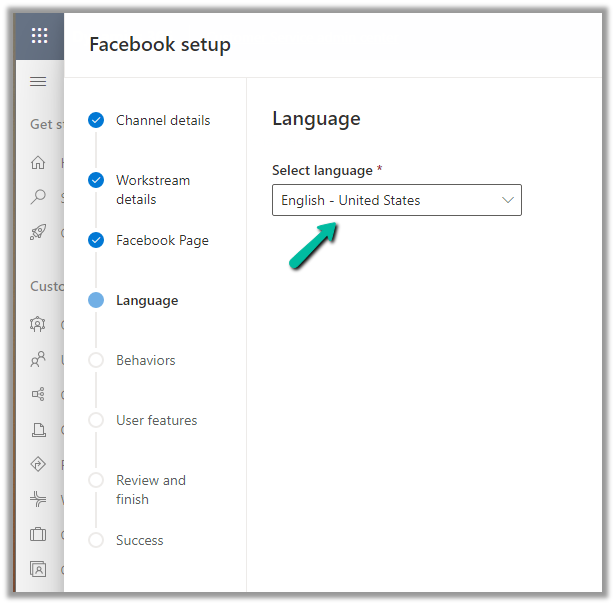
Language as English.
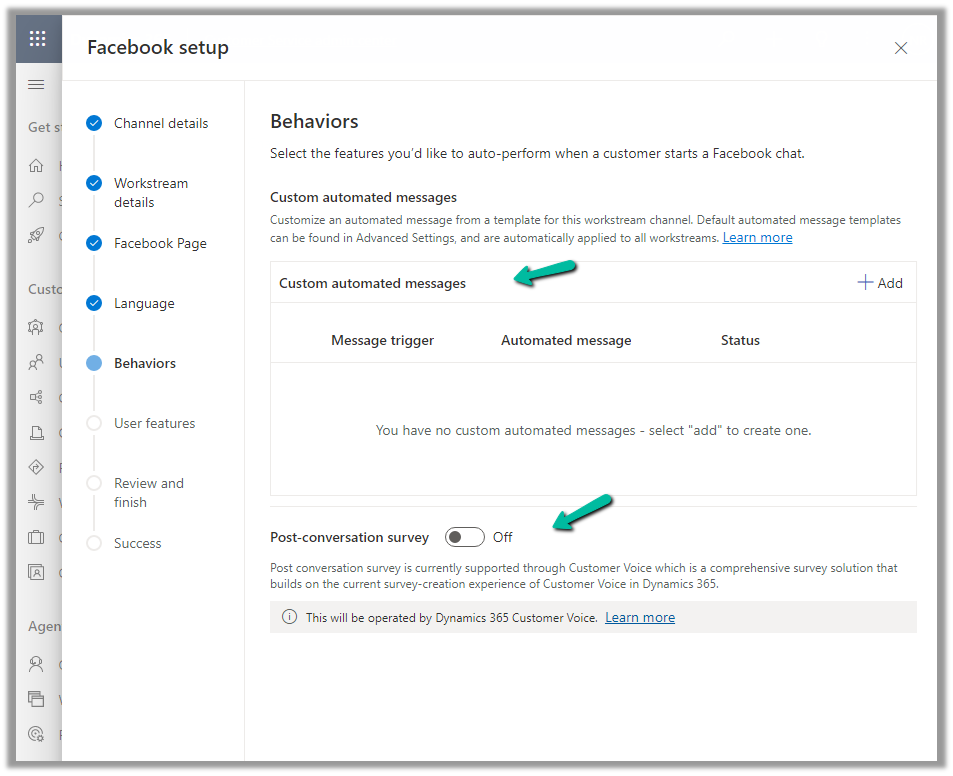
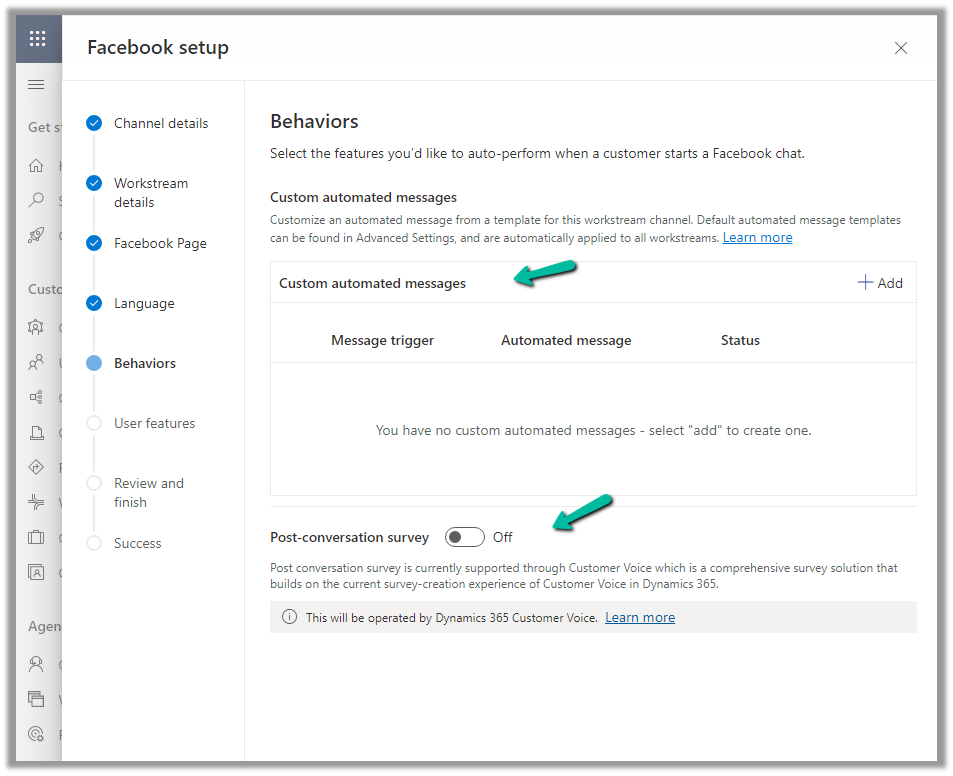
We can specify custom automated messages and Post Conversation survey settings here.
Specify the File attachments setting and message tag.
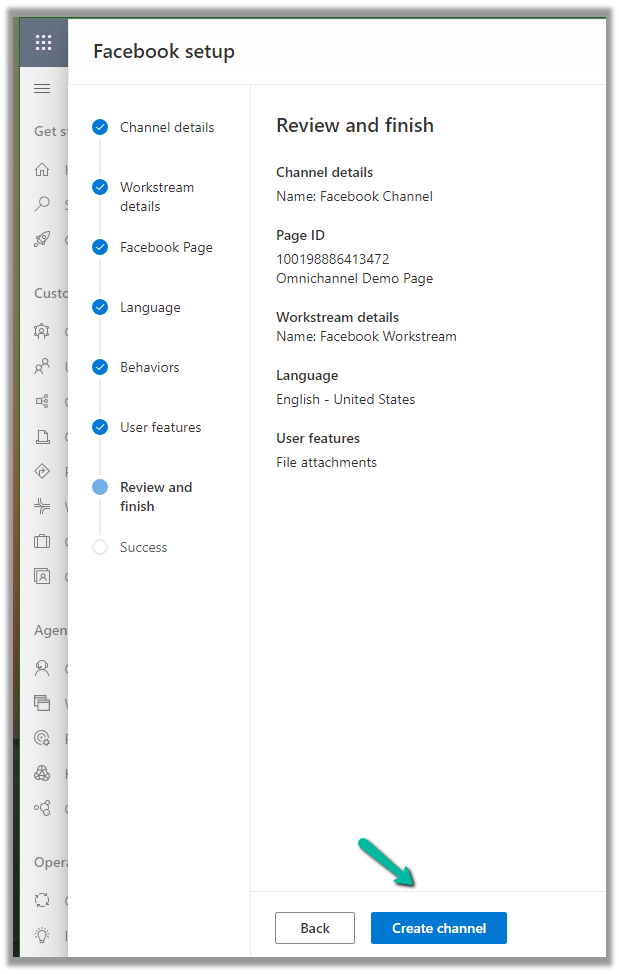
Review and if required edit the details and finally click on Create channel to create the Facebook channel
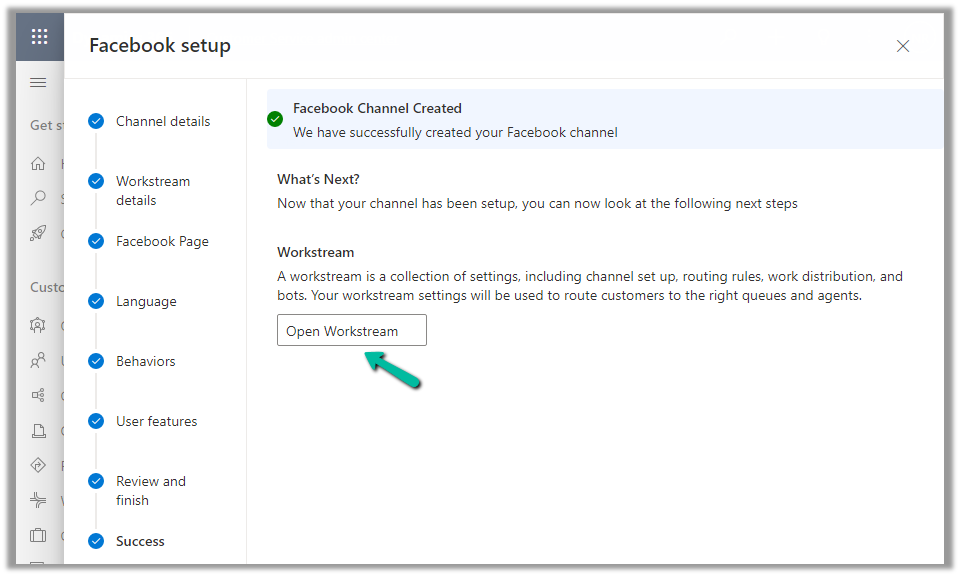
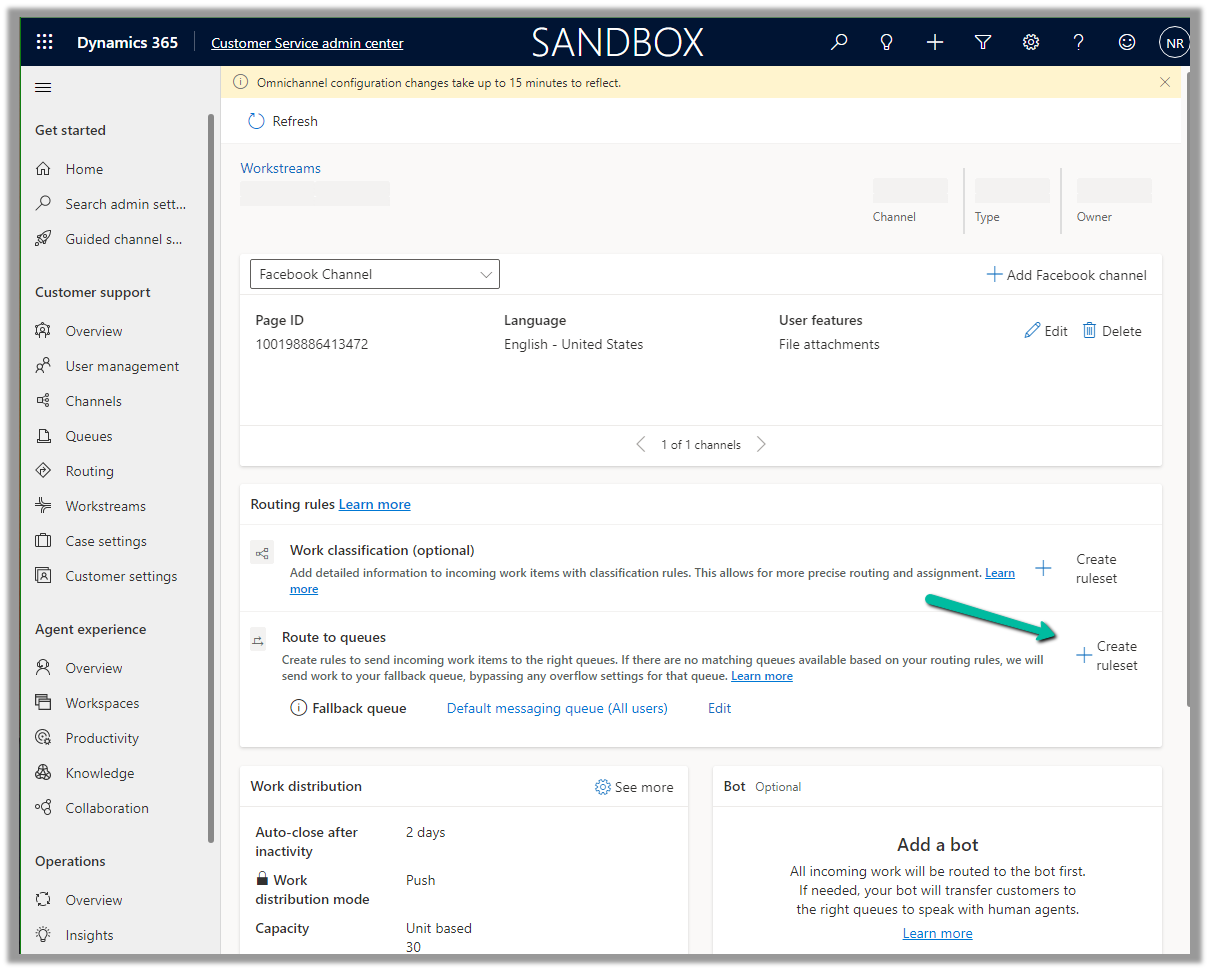
Next open the workstream created, to specify routing rules, work distribution, bot, etc. to route the customers to the queues/agents.
Here we can create a Route to Queue ruleset to route the messages on the Facebook page to a specific Queue.
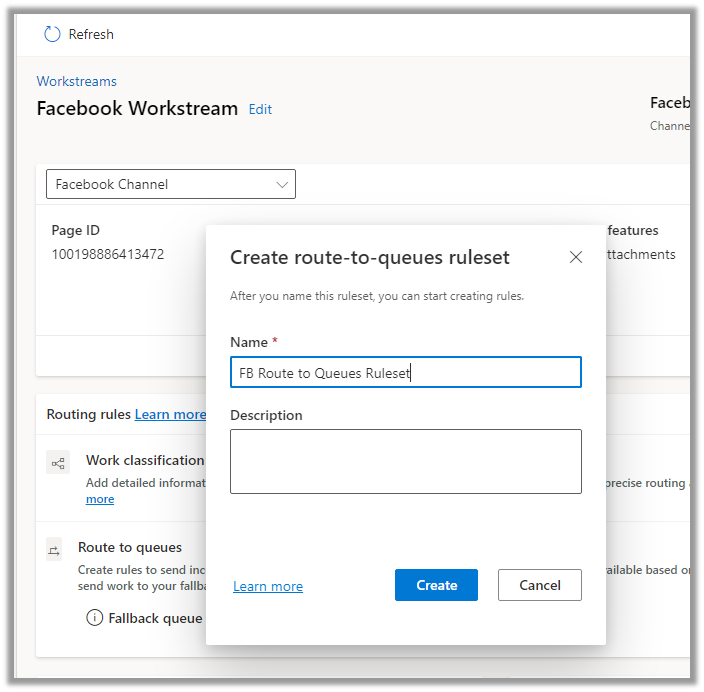
Create the ruleset record.
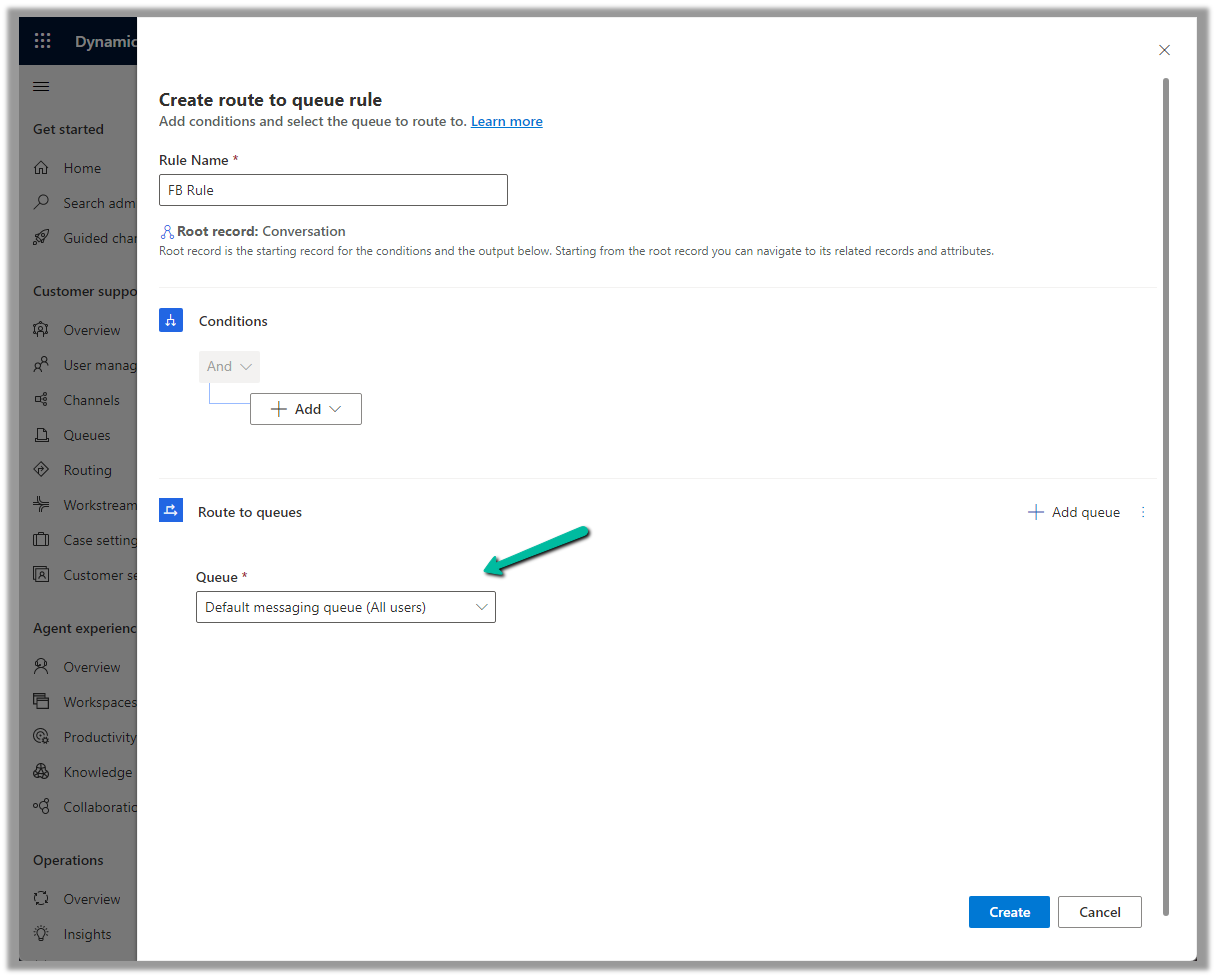
Next, Create a rule. We can define the conditions here (right now we are keeping it blank) and routing to the Default messaging Queue (we can create a specific queue and add only the required users).
Make sure you have added users to the Queue and assigned Omnichannel Agent security roles.
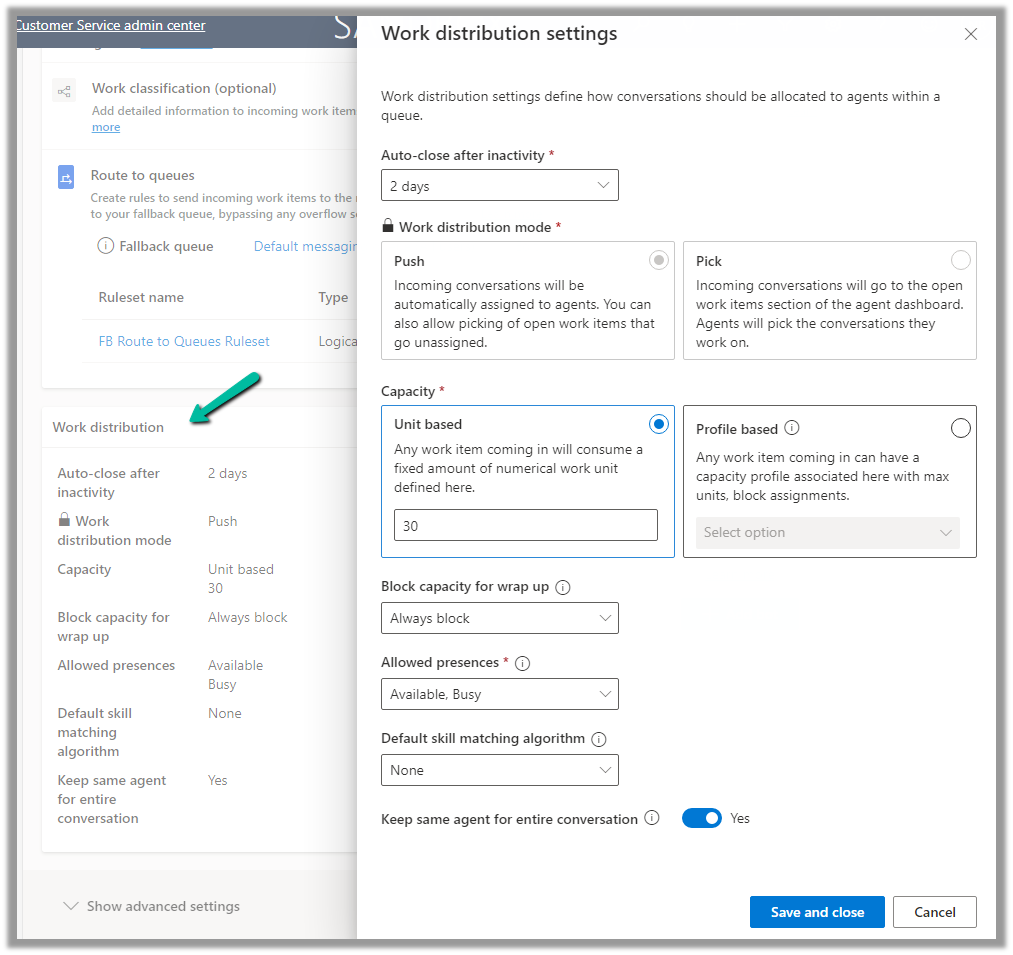
We can update the default Work distribution properties.
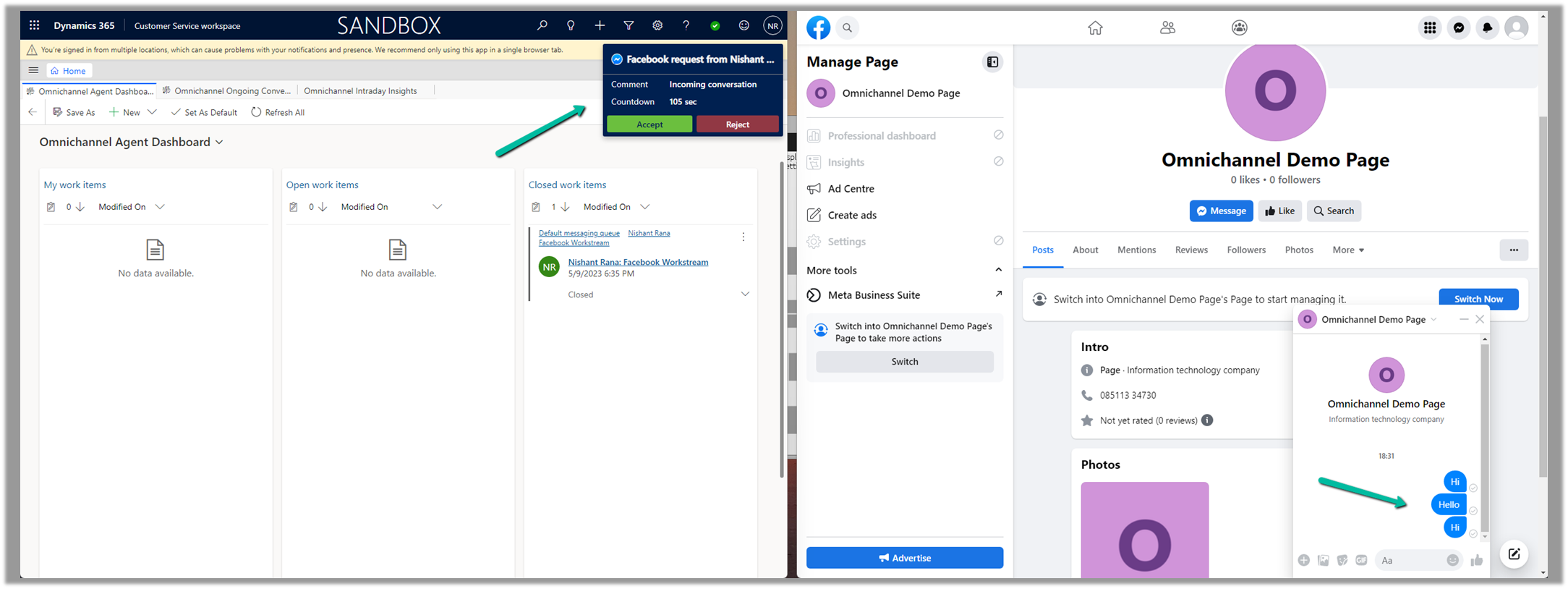
Now sending the message from the Facebook Messenger, will pop up the notification for the agent logged into Customer Service Workspace.
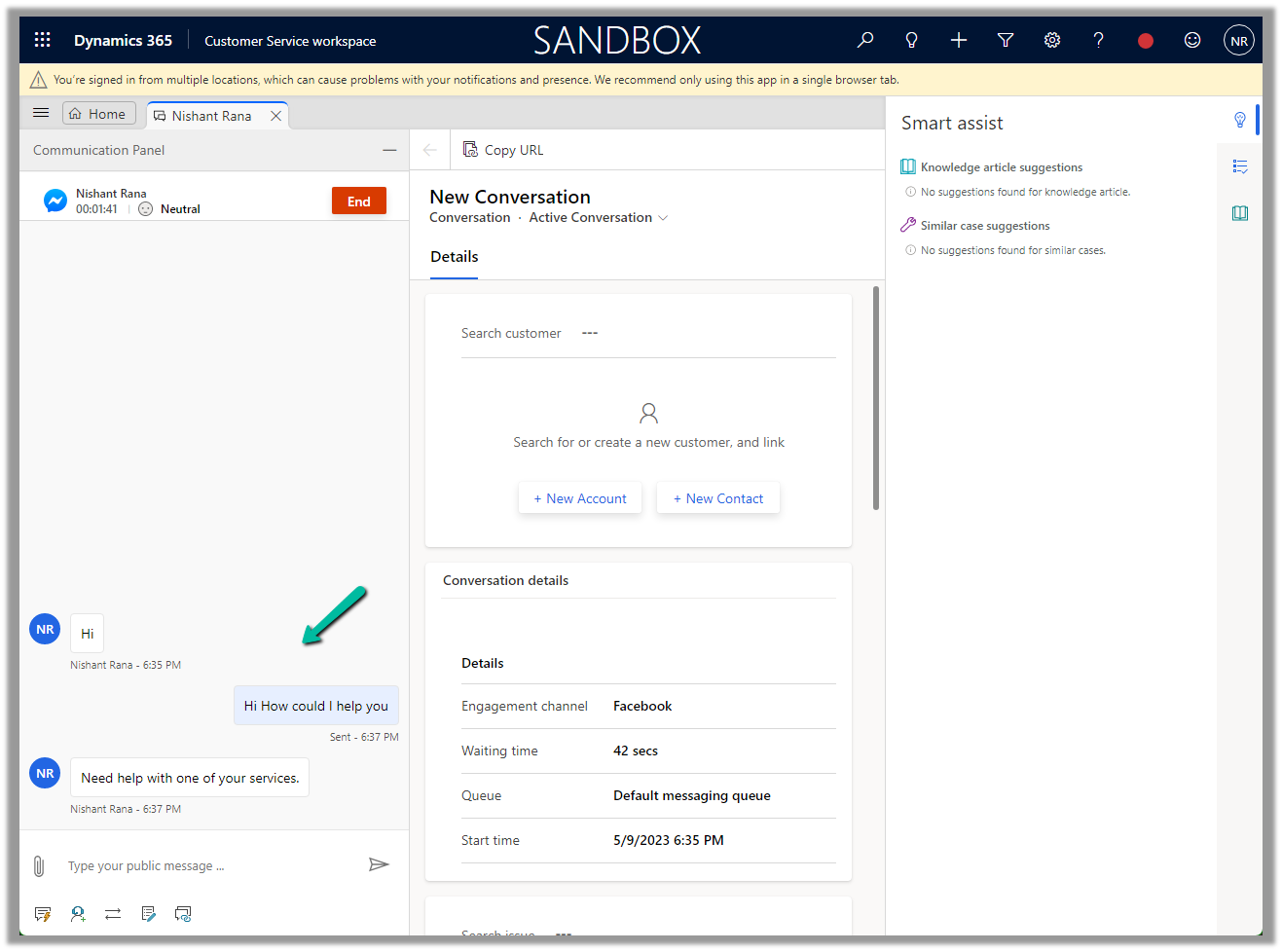
Accept the notification to start the conversation.
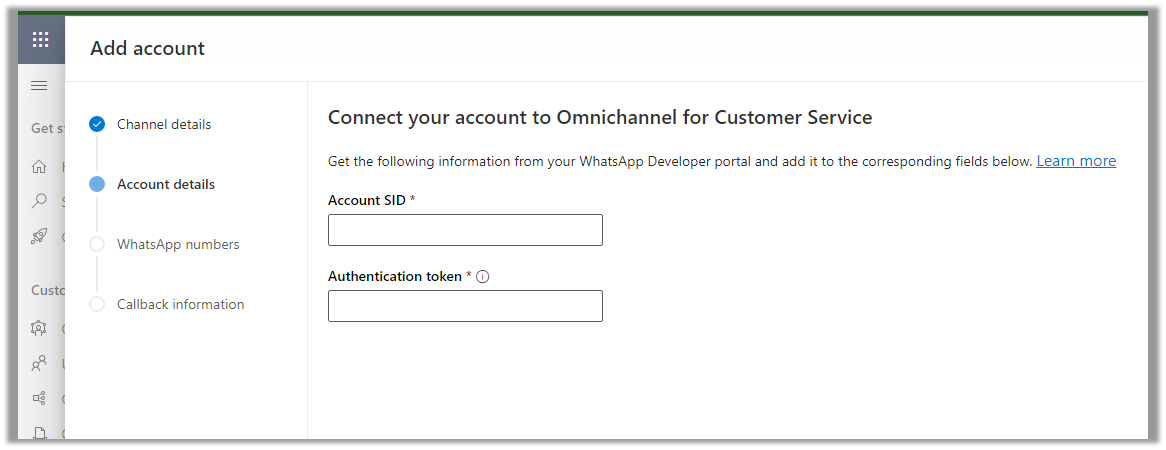
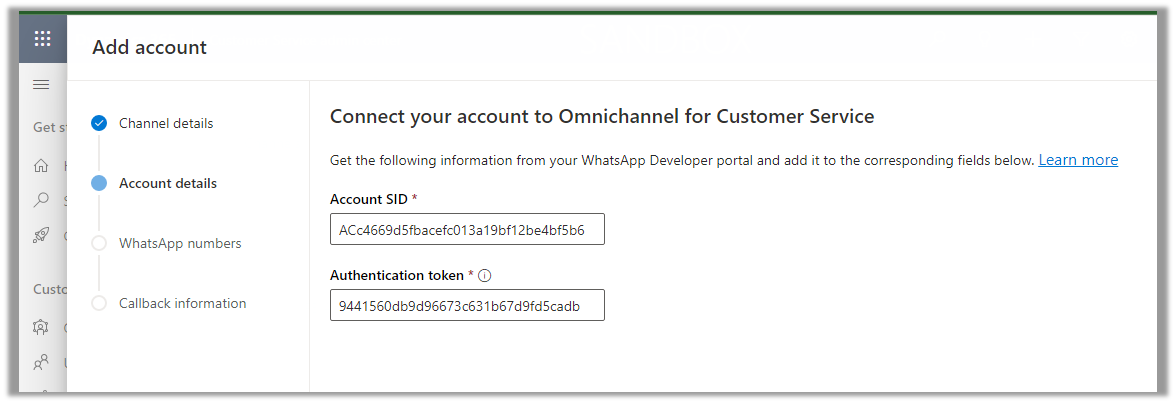
Enter Account SID and Authentication token click on Next
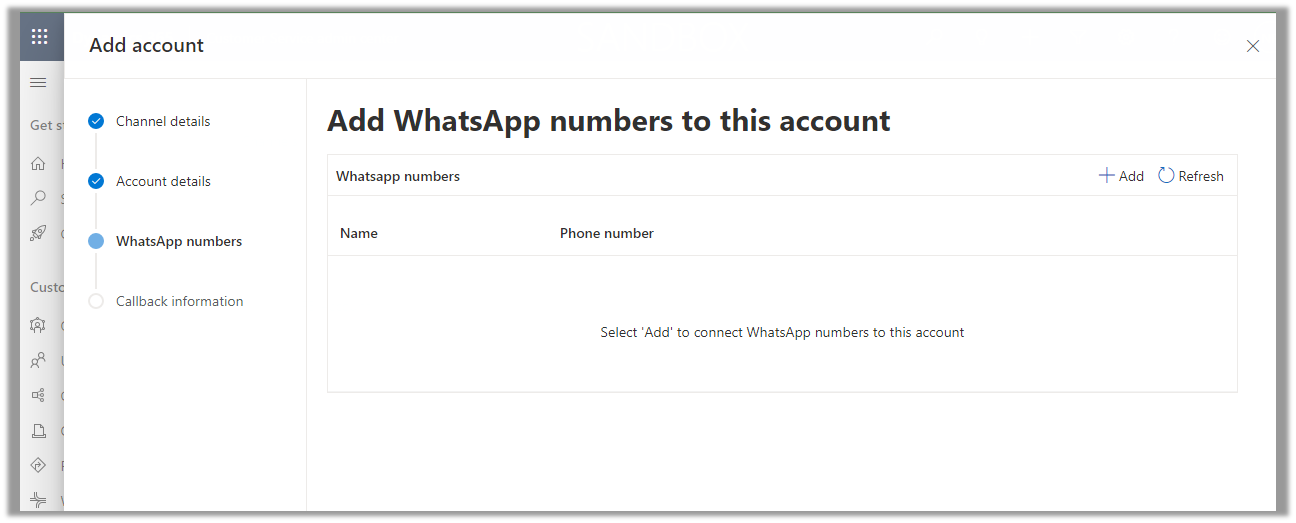
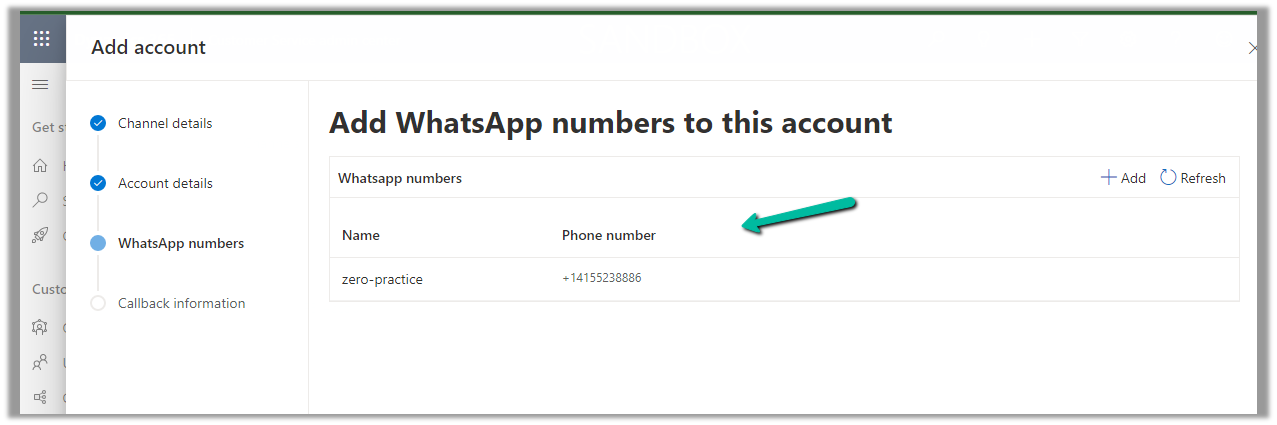
Next, we need to add the WhatsApp Name and Phone number
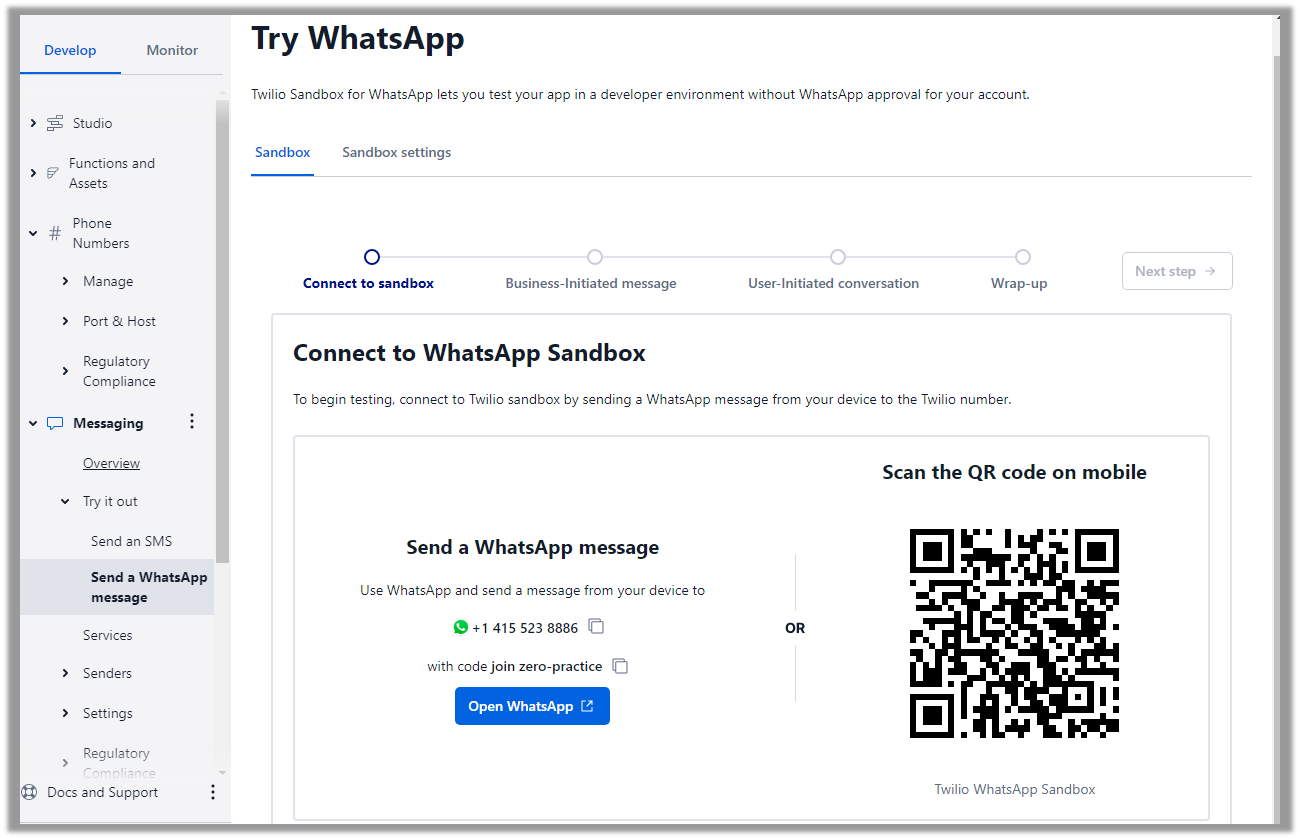
Navigate to Messaging >> Try it out >> Send a WhatsApp message to activate the WhatsApp Sandbox.
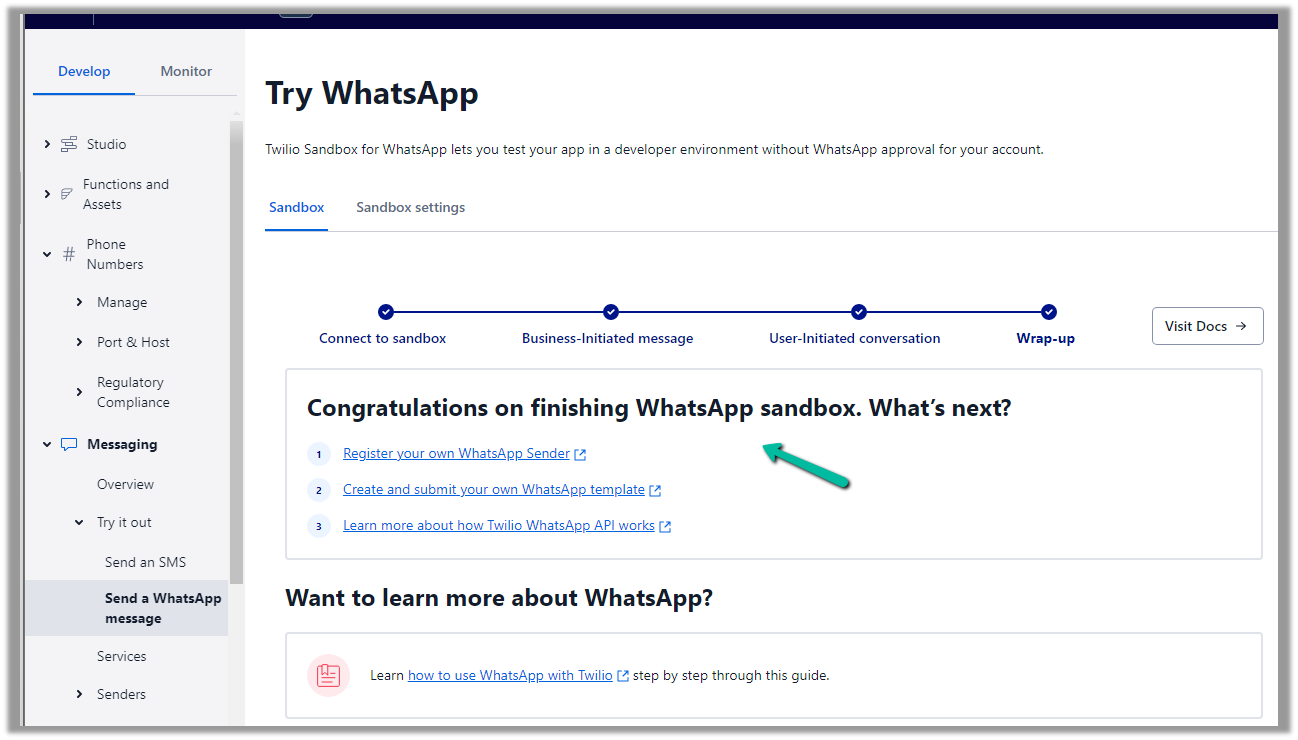
Follow the steps there to configure the Sandbox account. (scan the QR code send the Message, and test the Business and User-Initiated message/conversation).
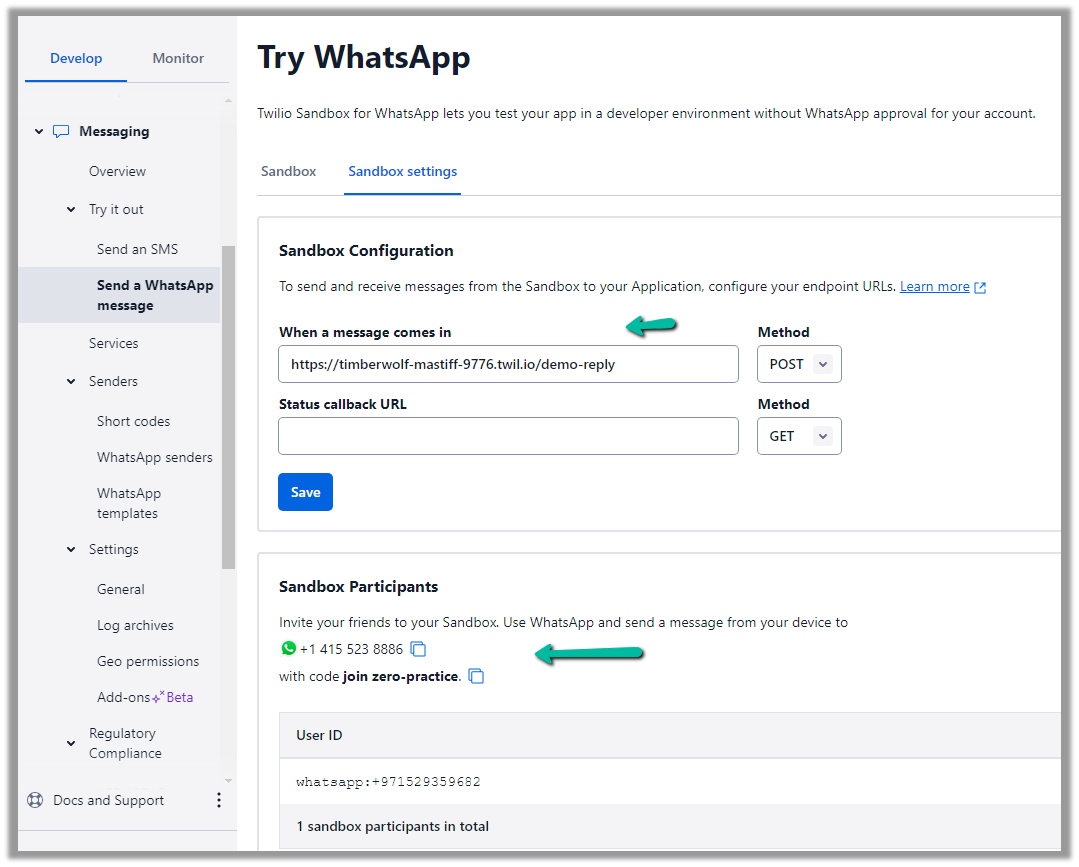
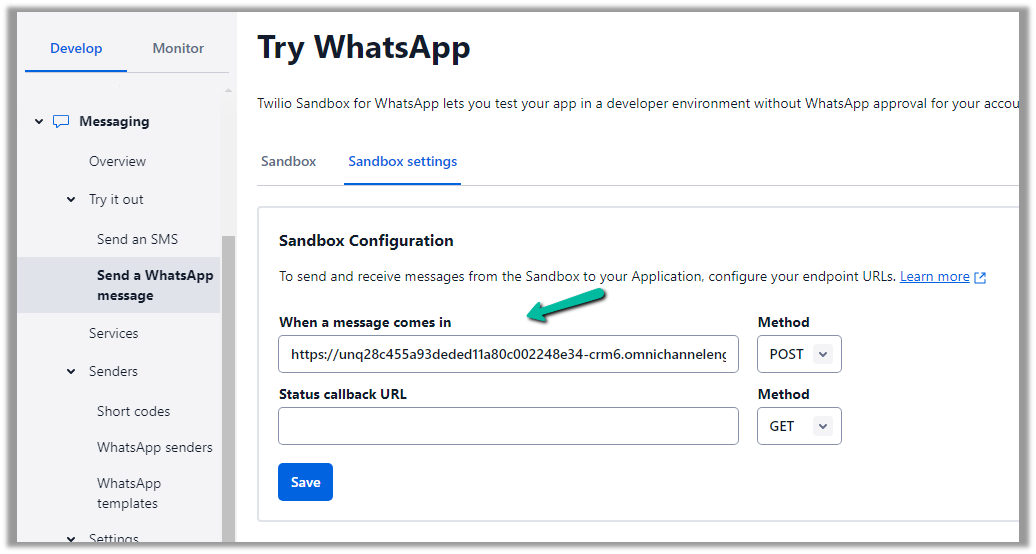
Click on Sandbox setting tab to get more information
Copy the number.
Add the number and click on Next
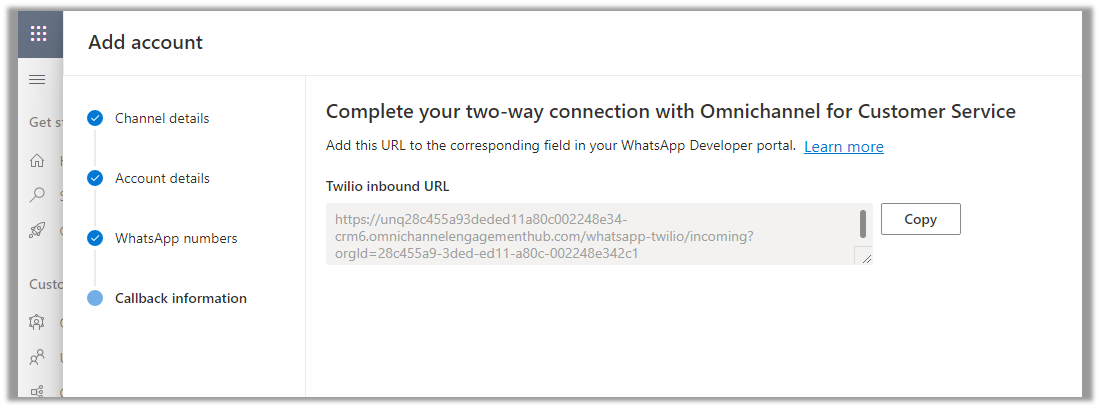
Copy the URL
Paste that URL in the When a message comes in and save.
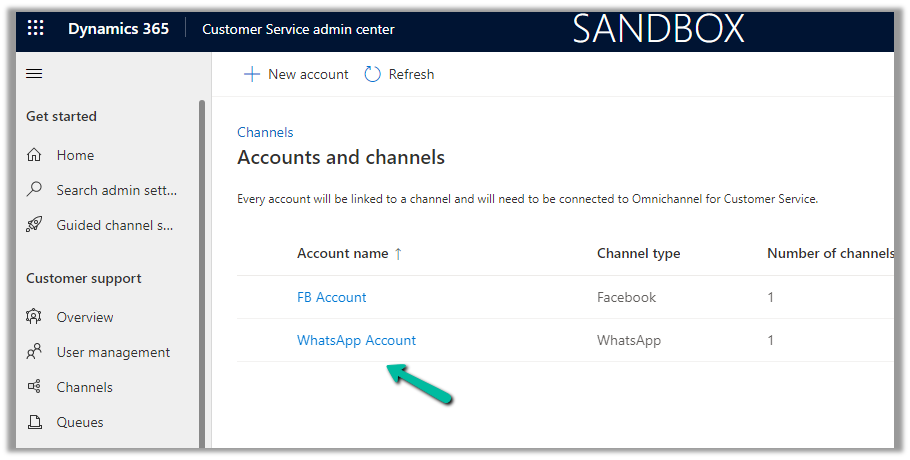
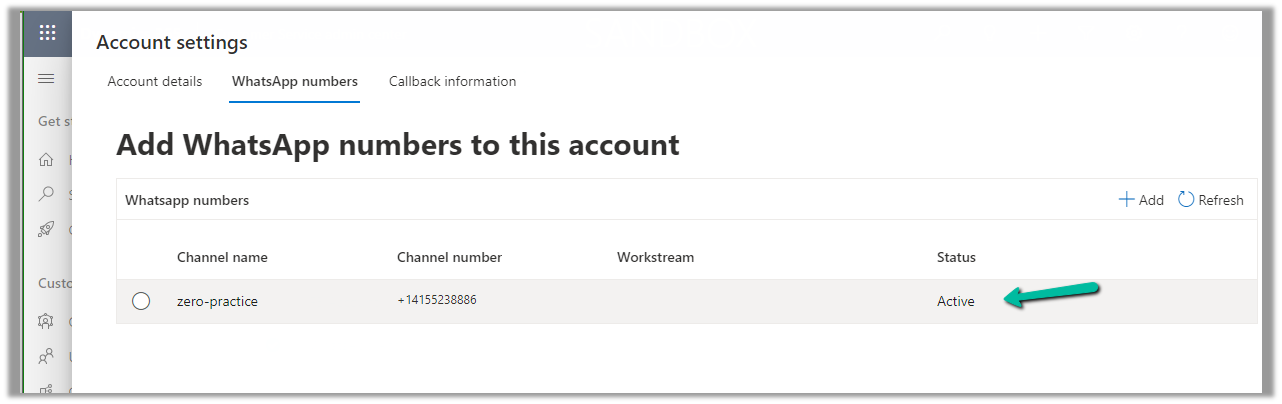
We can see our WhatsApp account created, open the record.
We can see our number being shown as Active
With the account active time to now it is time to set up the channel/workstream / queue.
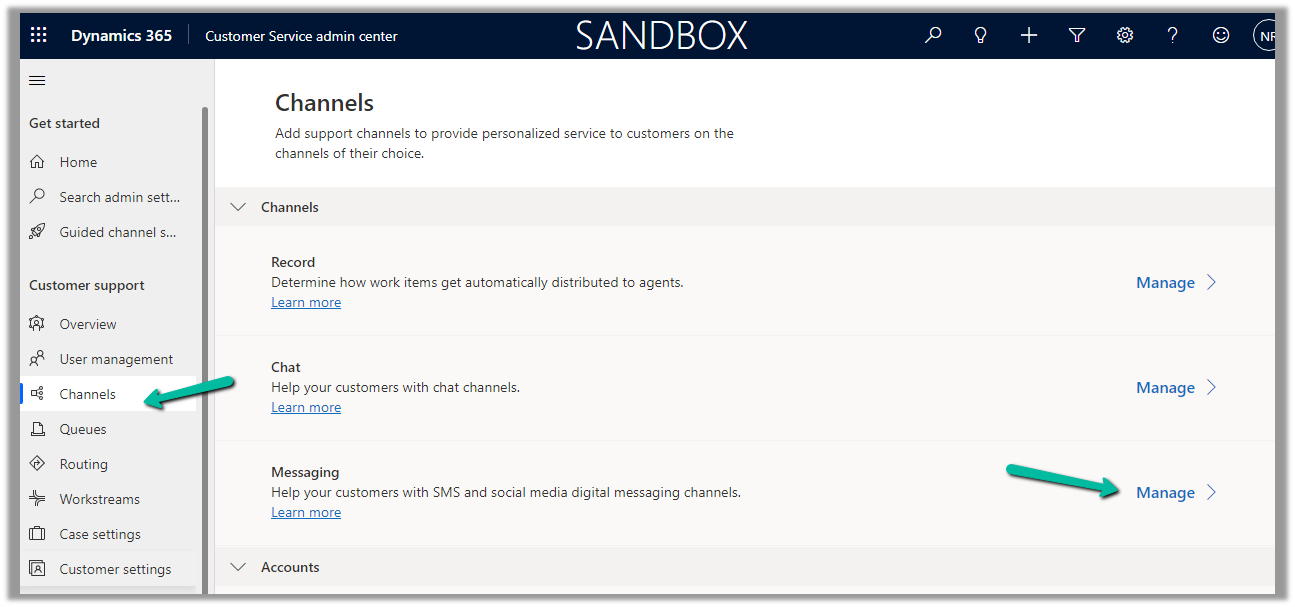
Navigate to Customer Support >> Channels >> Messaging (Manage)
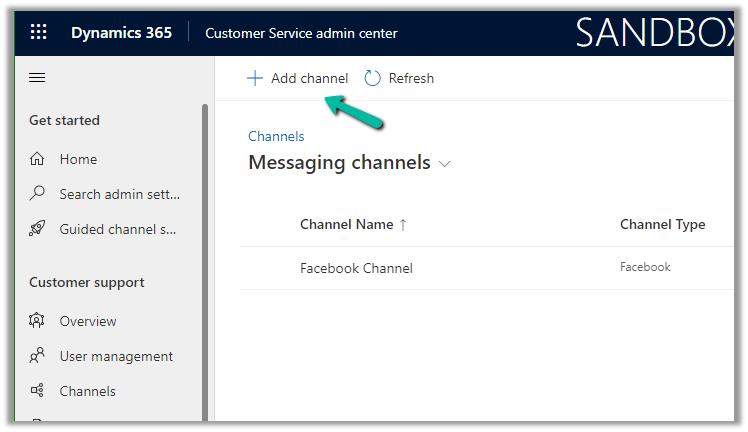
Click on Add Channel and add the details
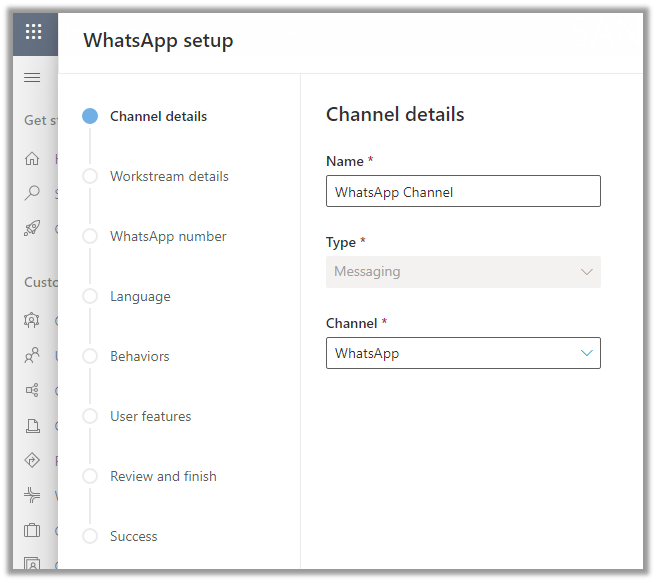
Enter channel details
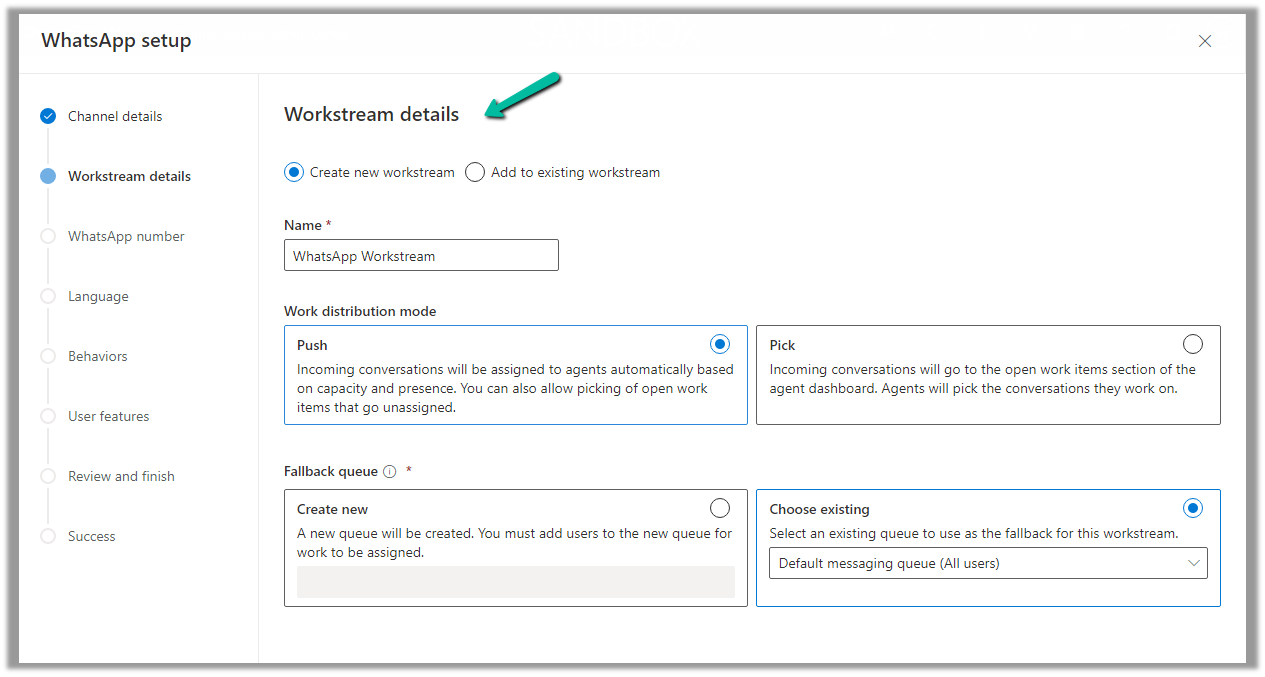
We are creating a new workstream
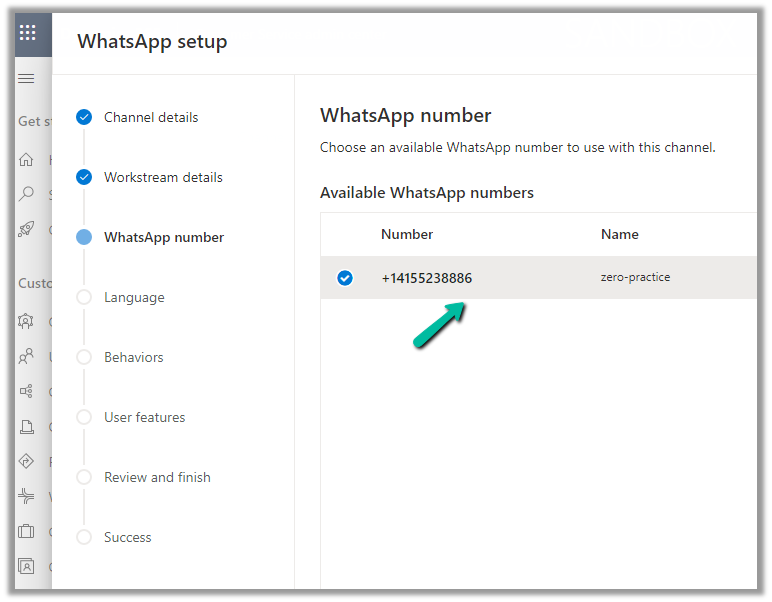
Add the WhatsApp number added
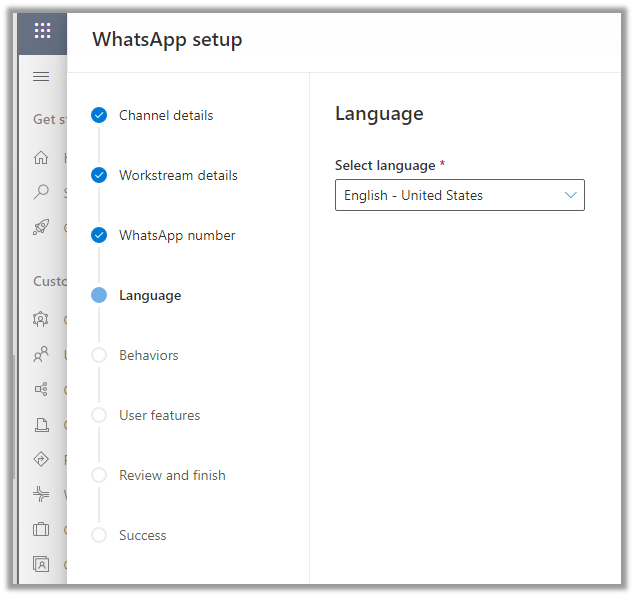
Select the language
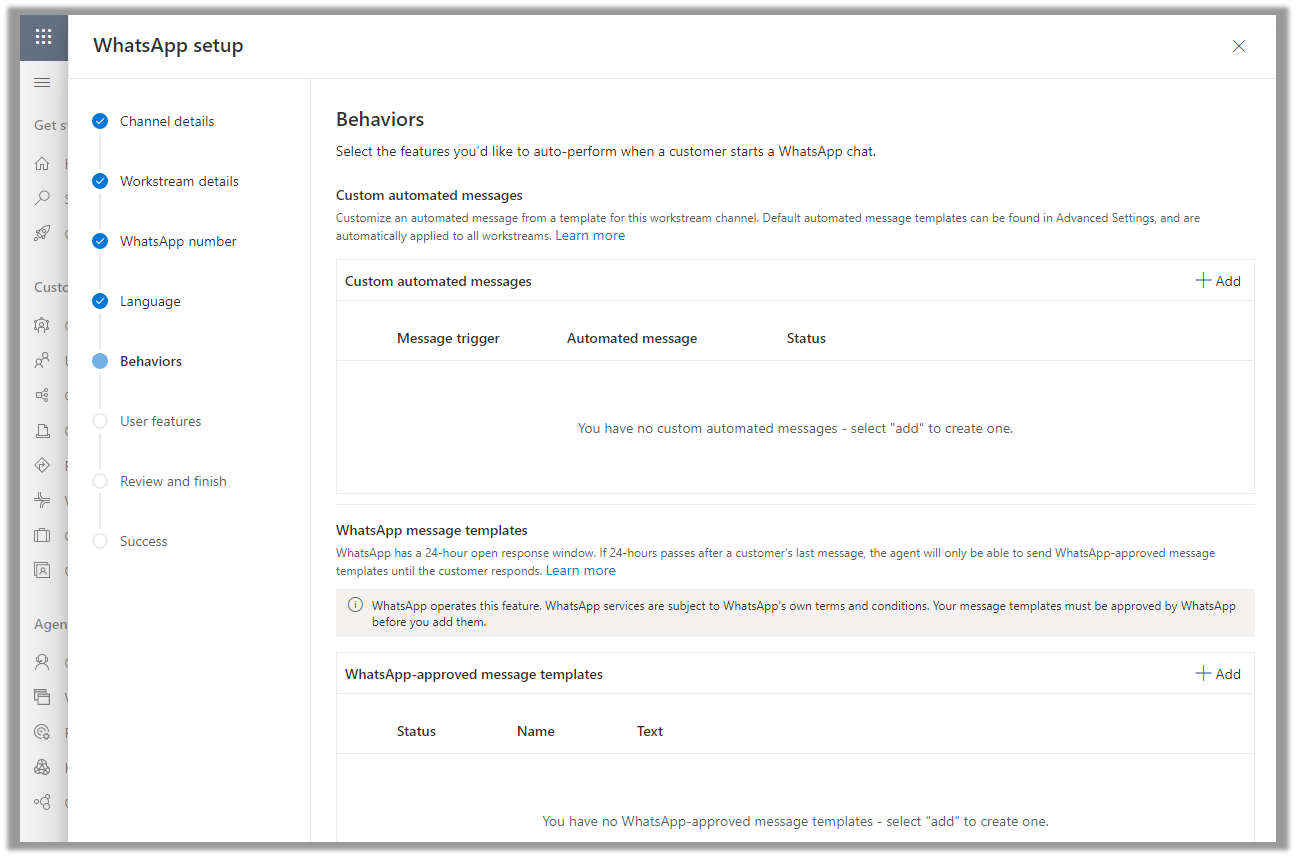
Specify the Behaviour (automated messages and approved templates)
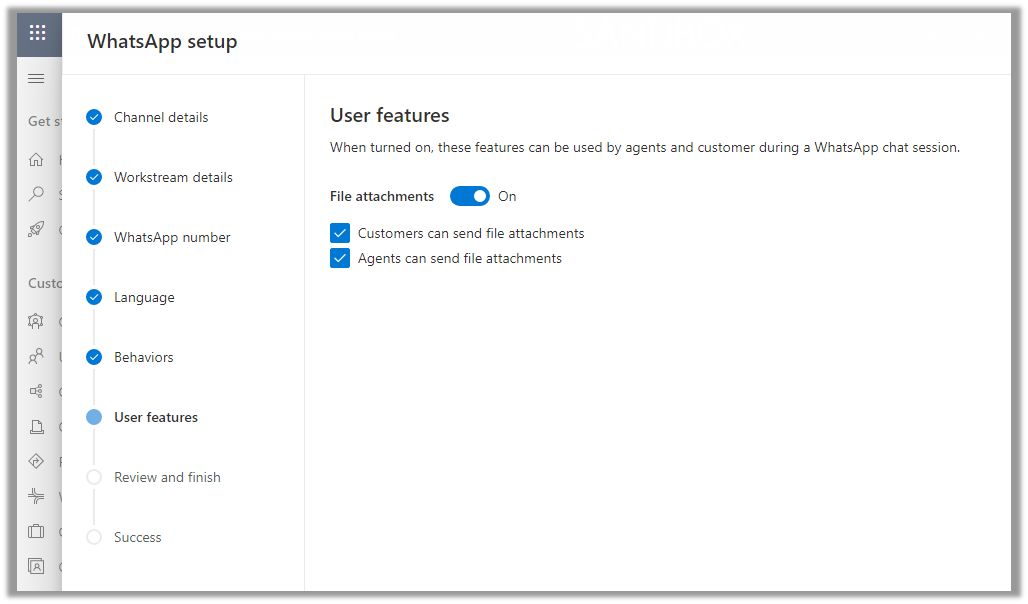
Specify the user features (attachments)
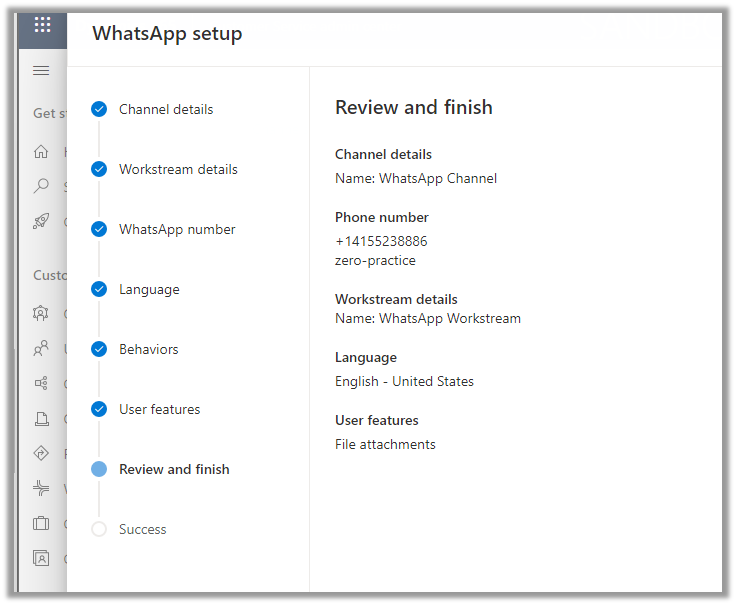
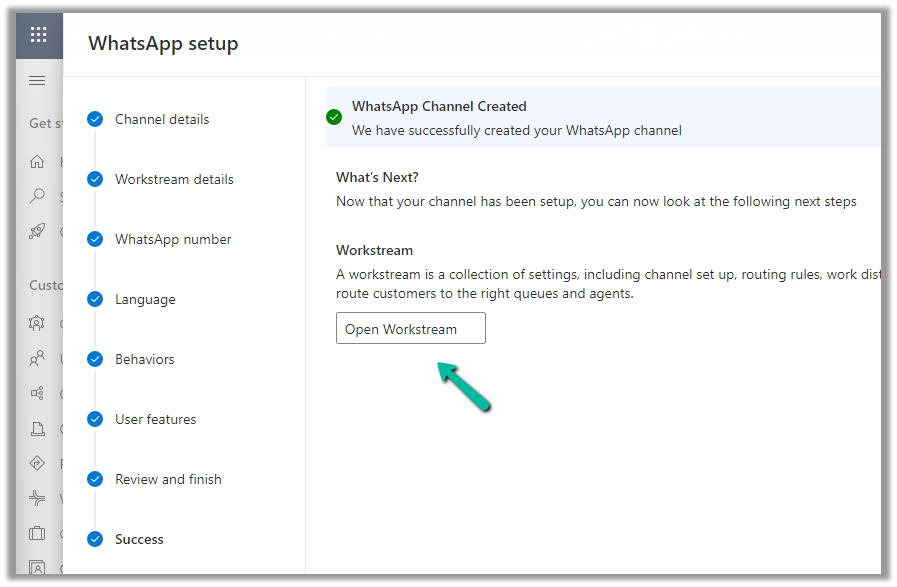
Review and Finish and Create the channel.
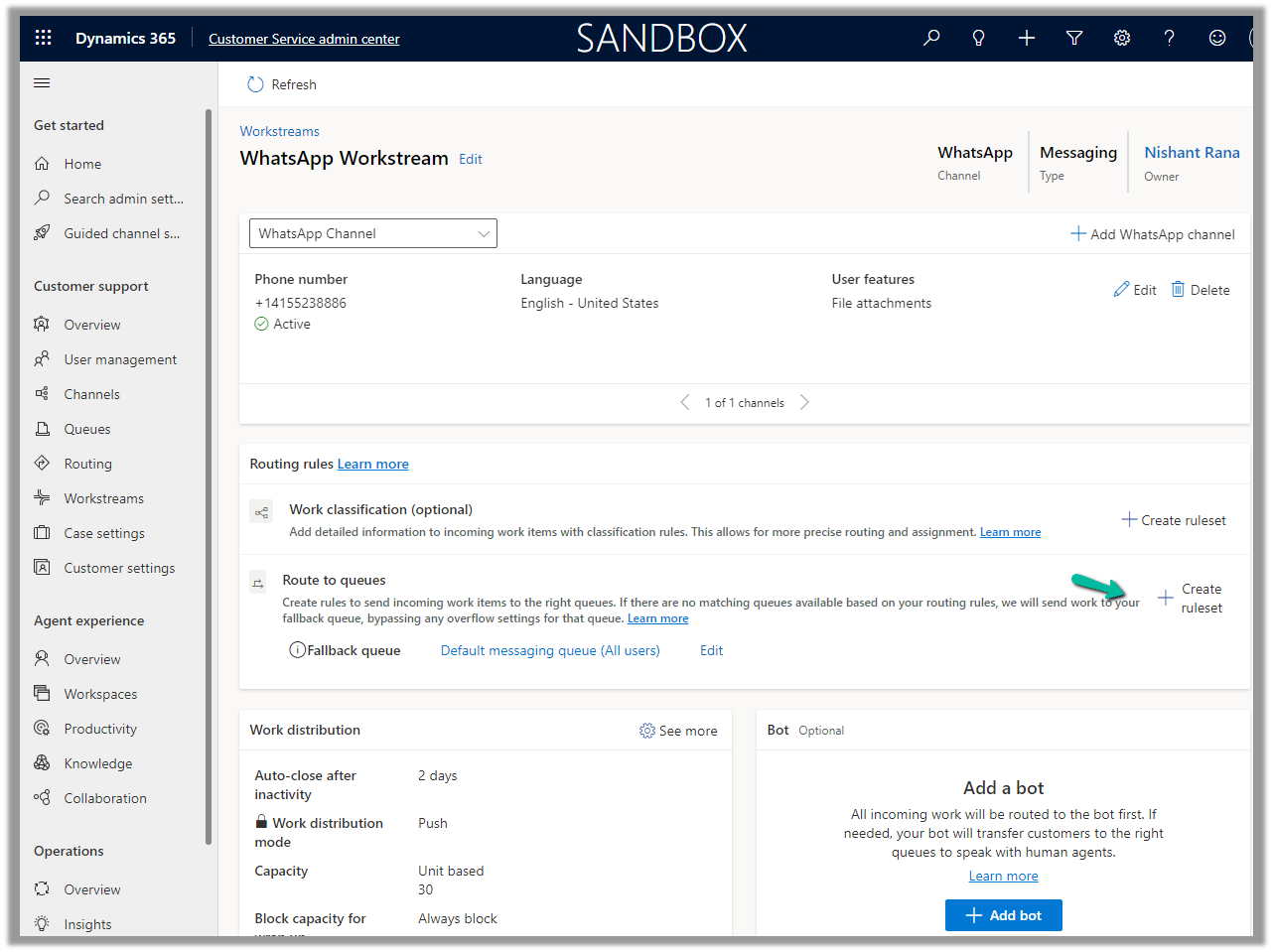
Open the workstream and specify routing rule/fallback queue/work distribution/associate bots etc details
We will create a ruleset to route the message to the queue
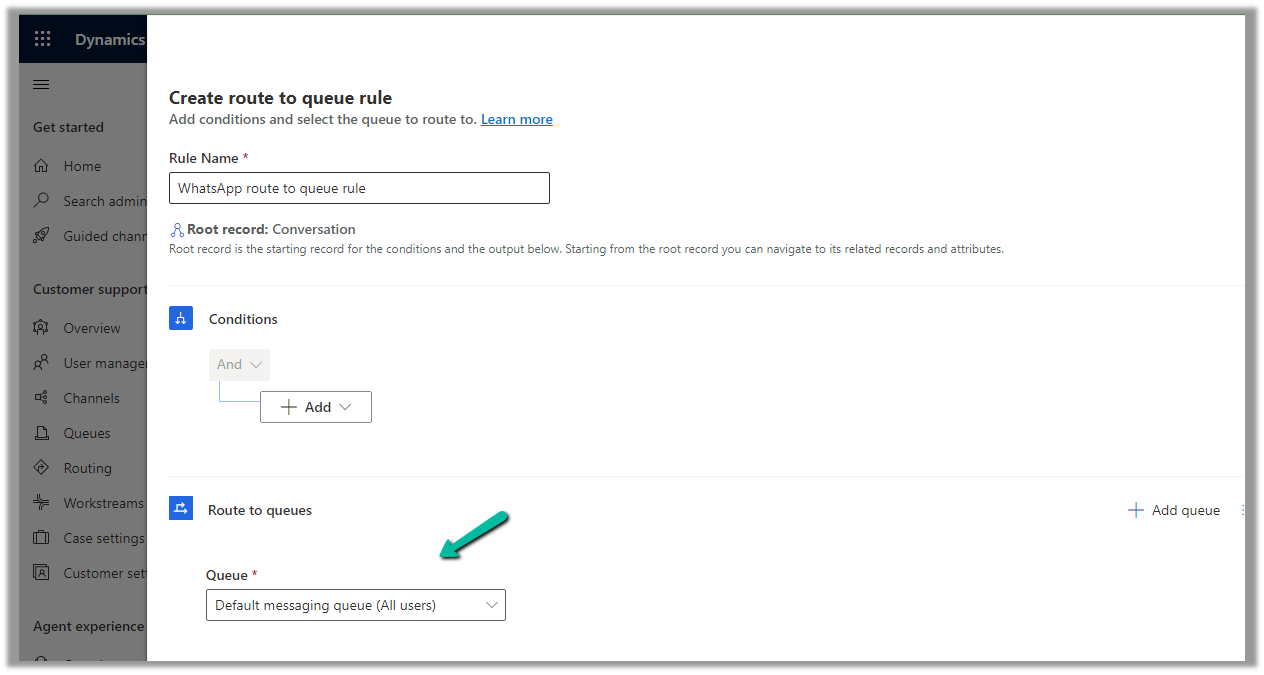
We have the below route-to-queue rule created to route to the default queue which has all the omnichannel agents added to it. (In an actual scenario, we would add the conditions and create a specific Advanced Queue).
We are leaving the rest of the settings/configuration as default.
Now is the time to test.
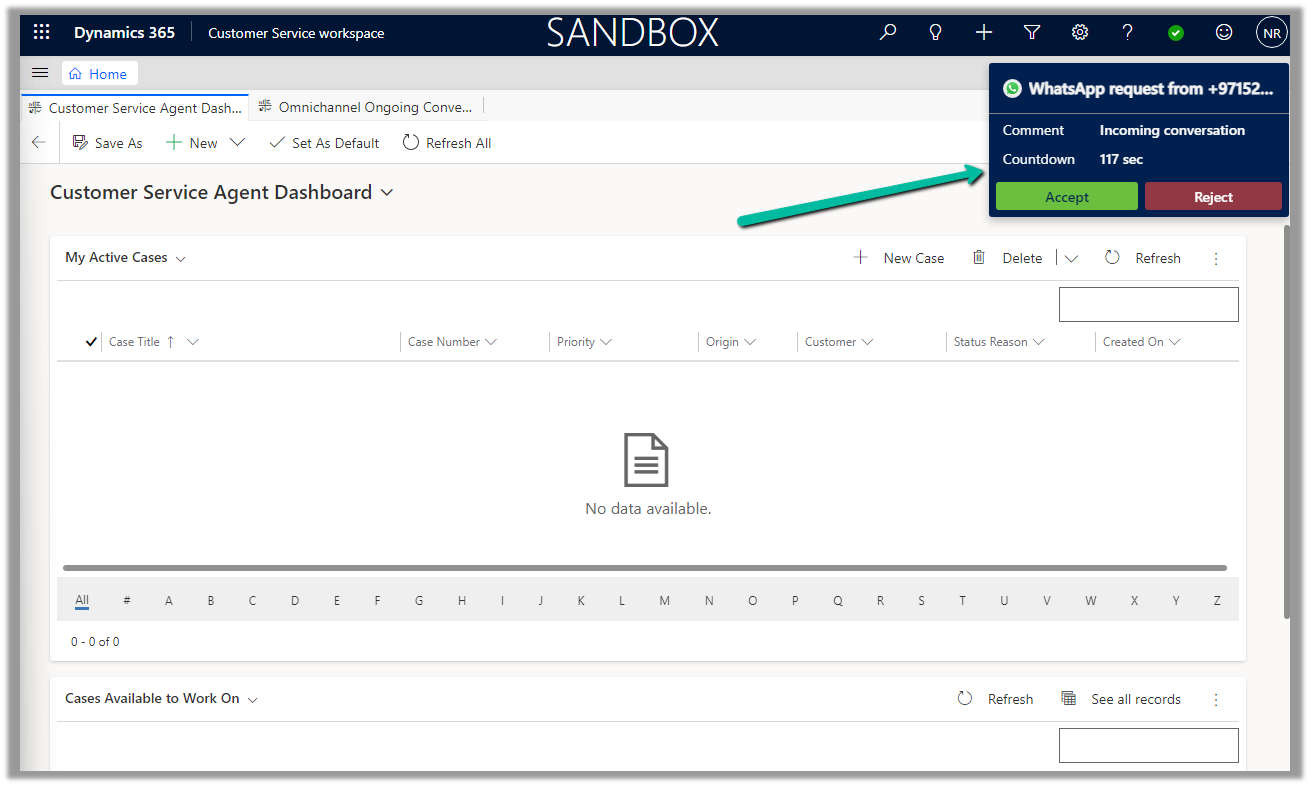
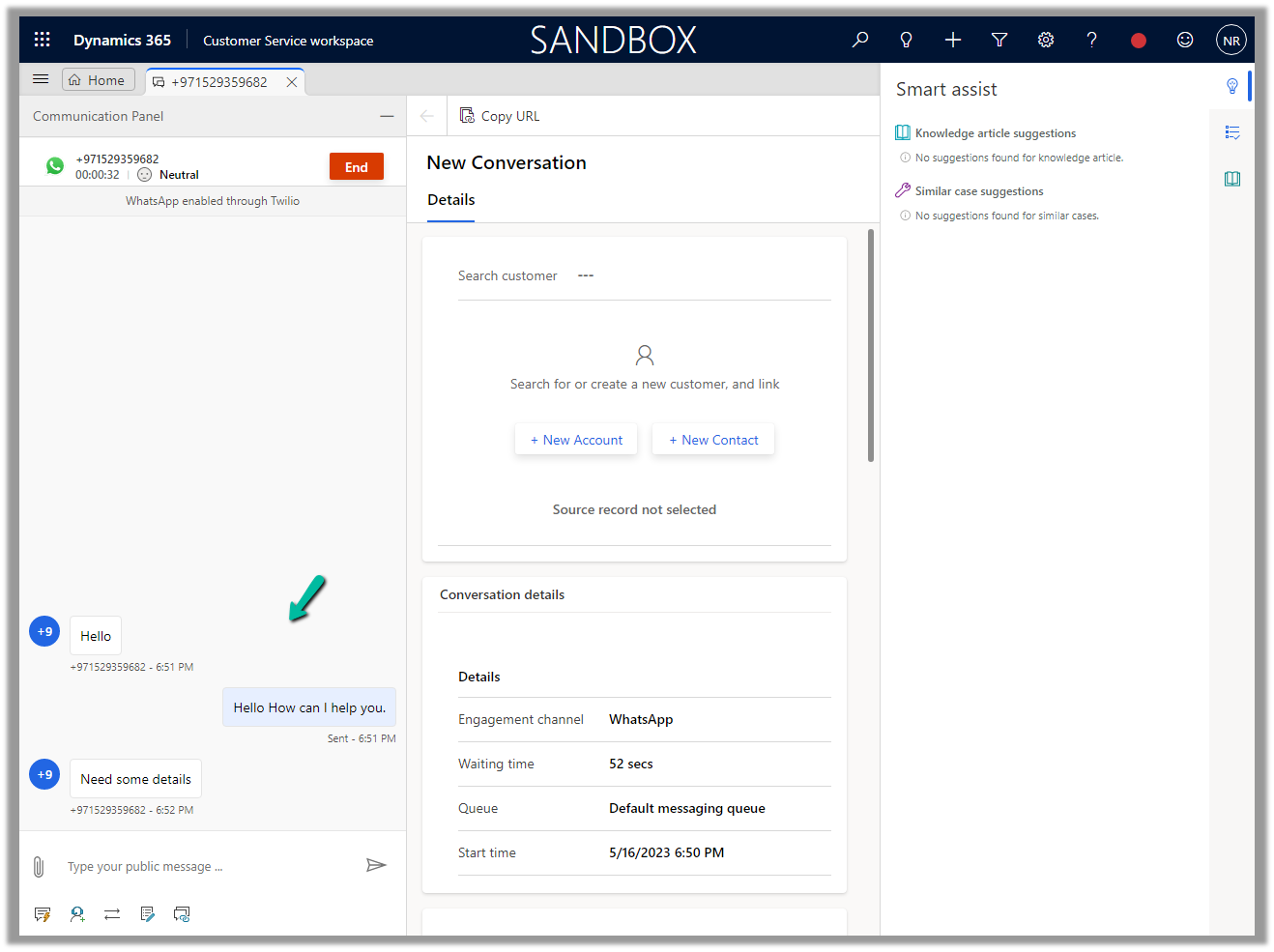
Let us log in to the Customer Service Workspace as an agent and from the registered sandbox participant number added send a message.










 We can also Generate token for the page, which we will use while configuring Facebook Channel in Dynamics 365.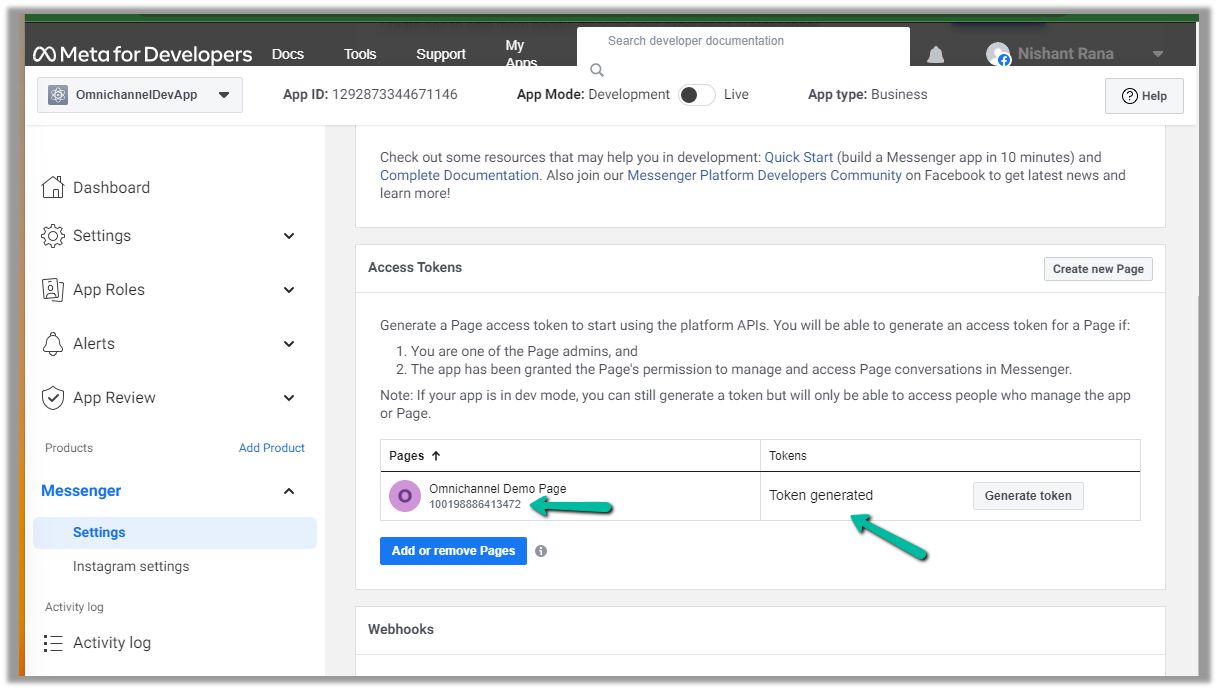


 Nishant Rana's Weblog