Configuring OData feed for Entity List in Portal in Dynamics 365


Suppose we have Entity List configured for a custom entity name Locations.

To configure OData feed go to OData feed tab and check the Enabled checkbox.

Specify the Entity Type Name and Set Name, if none is specified the entity’s schema name is used.

Select the View to be exposed for feed.

URL for the feed

<a href="http://<>/_odata”>http://<<domain>>/_odata
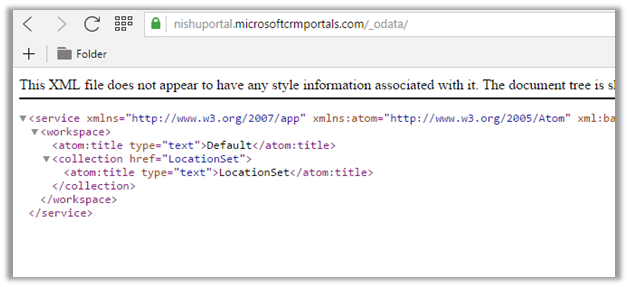
Get the data for the LocationSet à

Filter option à

OrderBy option à
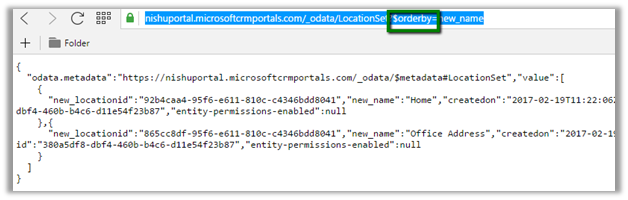
Supported options: –

Hope it helps..

Advertisements

Configuring Map View for Entity List in Portal in Dynamics 365


Let us create a custom entity having latitude and longitude fields (floating point data type) in it. These fields are required for configuring Map View for the entity list.

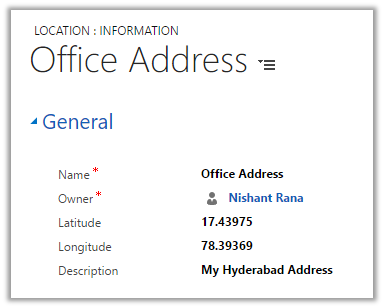
For e.g. Location is our custom entity.

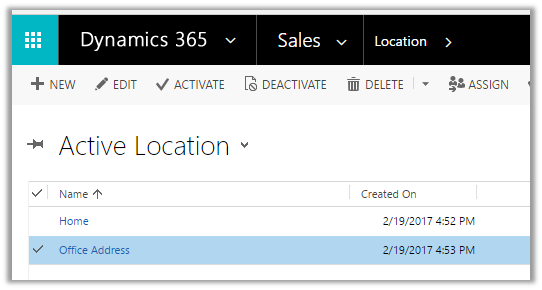
We have 2 record created and have the entity list configured for the Active Location view.

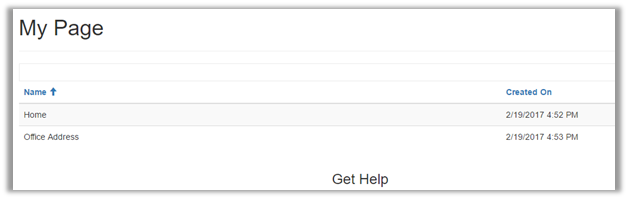
Entity List for the Location custom entity on the portal :-

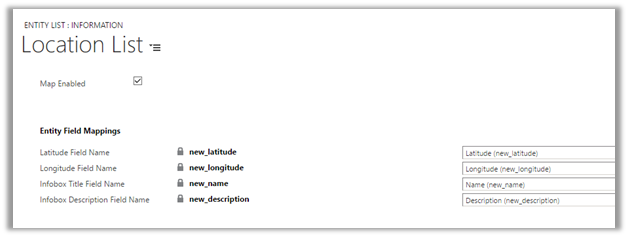
Open the Entity List record, go to Map View tab and check Map Enabled check box.

Configure Latitude, Longitude field.

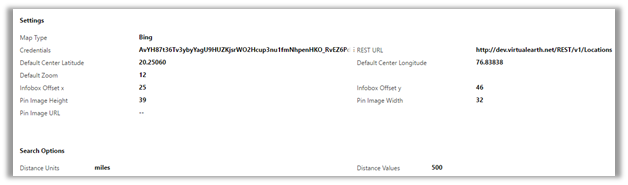
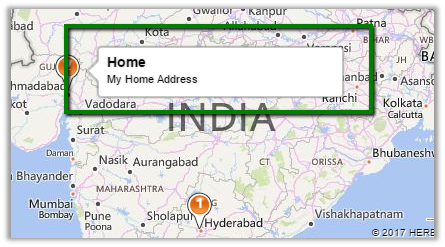
The InfoBox title and description field will be used for the info box that pops up when hovered over the pushpin.

For Credentials, get the Bing Map key

https://www.bingmapsportal.com/

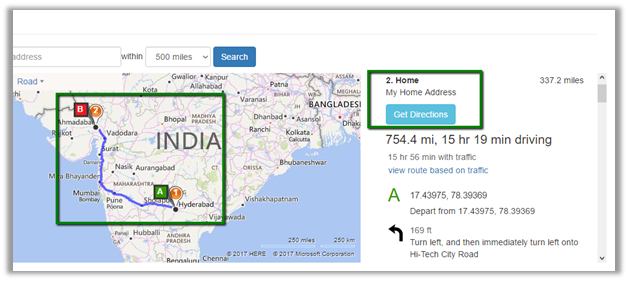
Default Center Latitude and Longitude would define the center point for the map.On refreshing the portal page, it shows the Map with the 2 records as push pin along with the records detail and Get Directions button

Info Box

Hope it helps..

Using Details View to update the Entity List records in Portal in Dynamics 365


Suppose we have configured the Entity List view for showing Contact records

https://nishantrana.me/2017/02/02/using-entity-list-to-show-crm-data-in-portal-in-dynamics-365/

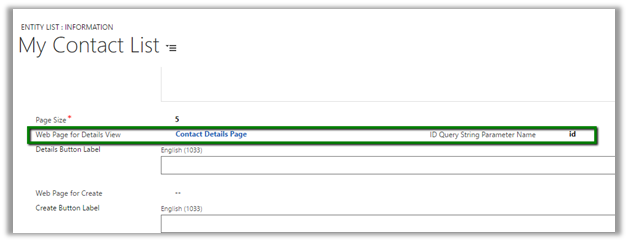
Next we want to update the record in the list, for this  we need to configure Web Page for Details View field of the Entity List record.

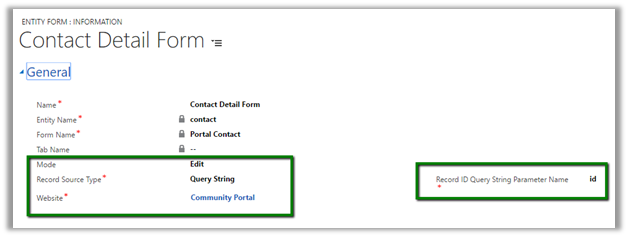
Here we have specified Contact Details Page web page, this web page has Update Entity Form for Contact in it.

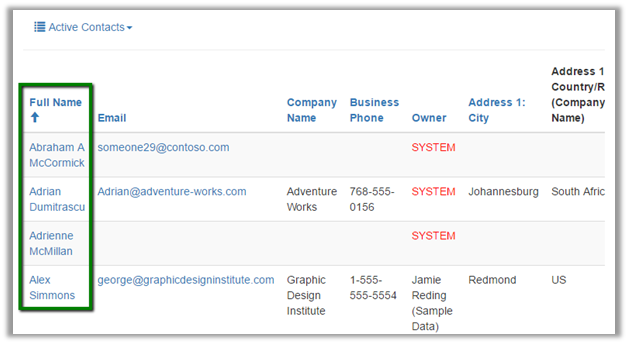
This adds the link for opening the edit page.

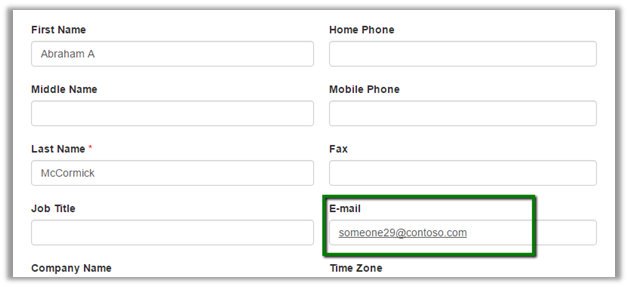
Edit Page: –

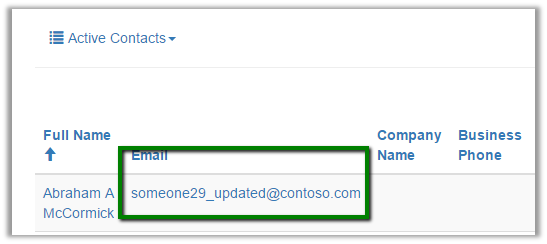
On Submitting the update, the record gets updated.

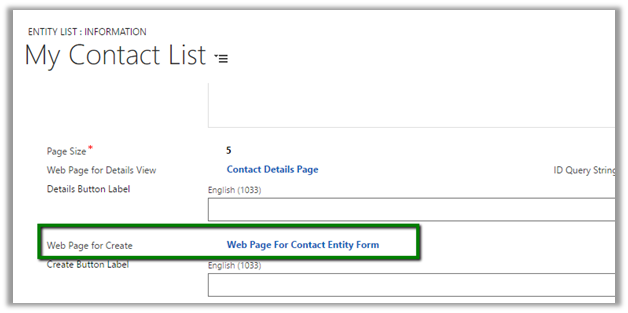
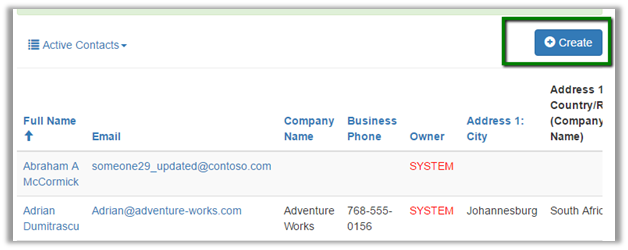
Similarly, we can associate a create page having Insert Entity Form in it.

Hope it helps..

Using Custom JavaScript field on Entity List to add JavaScript in Portal in Dynamics 365


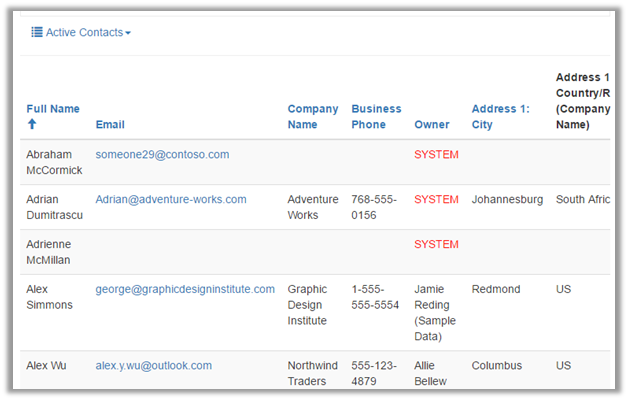
Suppose we have added an Entity List on Portal to display Contact information to the portal.

https://nishantrana.me/2017/02/02/using-entity-list-to-show-crm-data-in-portal-in-dynamics-365/

Now we want to add some JavaScript to it. For this we can use the Custom JavaScript field in Options tab of Entity List.


$(document).ready(function () {

$("#EntityListControl").on("loaded", function () {

$('#EntityListControl td').filter(function () {
return this.textContent === "SYSTEM"
}).css("color", "red");

});
});

We can make use of jQuery for this. The above code selects the TD with text System and highlights it with red font colour.

Hope it helps..

Add Attach File additional settings in Entity Form in Portal in Dynamics 365


For attaching files along with an entity form through the portal, we can make use of the Add Attach File section in the Additional Settings tab of Entity Form.

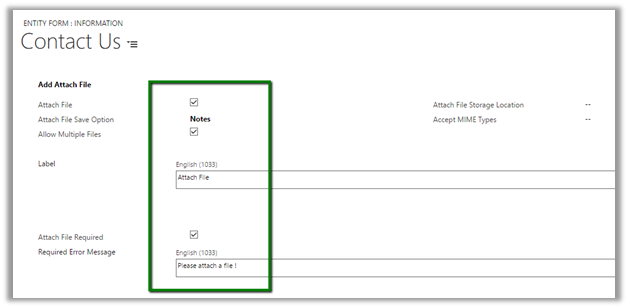
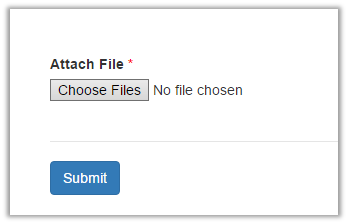
For e.g. in the below Contact Us form, we have checked Attach File check box which basically add the File Control to the web page in the portal.

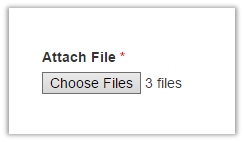
Allow Multiple Files lets the user attach multiple files. Label would be the label for the control.

Attach File Required option makes attaching a file mandatory and the Required Error message shows the associated error message.

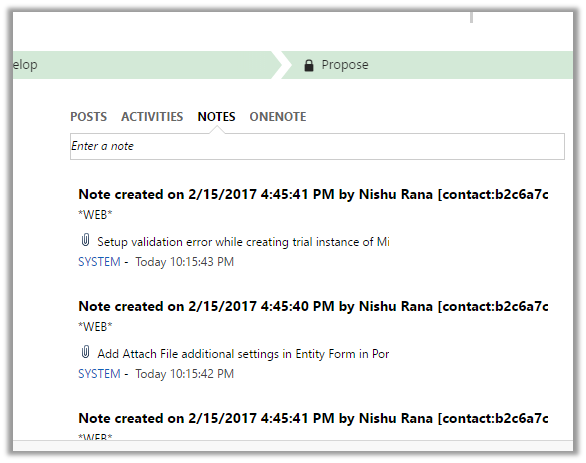
Attach File Save Option– Notes i.e. files are stored as attachment to notes.

Let us see how the settings effects the display and functionality in the Portal.

Attach File label with required symbol à

Clicking on Submit without attaching a file à

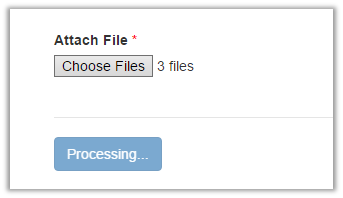
Attaching multiple filesà

Clicking on Submit after entering all the required fields à

Opening the lead record inside CRM shows the attachments added to the notes à

Hope it helps..

Using Custom JavaScript field on Entity Form to add JavaScript in Portal in Dynamics 365


Suppose we have added an Entity Form on Portal to display Lead information to the portal.

https://nishantrana.me/2017/02/03/using-entity-form-to-show-crm-form-inside-portal-in-dynamics-365/

Now we want to add some JavaScript to it. For this we can use the Custom JavaScript field in Additional Settings tab of Entity Form.

We can make use of jQuery for this. The above code shows alert and also accesses the Topic field of Lead record using the schema name subject.

Alert Message –

Setting field value –

More details below

https://www.microsoft.com/en-us/dynamics/crm-setup-and-administration/custom-javascript.aspx

https://rajeevpentyala.com/2016/09/12/useful-jscript-syntaxes-adx-portal/

Hope it helps..

Advertisements