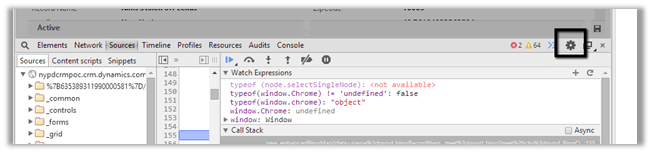
Following are the setting that we can use to disable caching in Chrome and IE.
Chrome:-

IE:-


Following are the setting that we can use to disable caching in Chrome and IE.
Chrome:-
IE:-

Recently was writing a jscript function to populate optionset value using SDK.MetaData.js helper class.
It was working fine in IE, however I was getting error in Chrome.

It turned out the following condition was always evaluating as true

And as selectSingleNode is not supported in Chrome we were getting error.
Added the following condition fixed the issue
if (typeof(window.chrome) != ‘undefined’) {
var xpe = new XPathEvaluator();
var xPathNode = xpe.evaluate(xpathExpr, node, _NSResolver, XPathResult.FIRST_ORDERED_NODE_TYPE, null);
return (xPathNode != null) ? xPathNode.singleNodeValue : null;
}
Hope it helps..

Hi,
In a Visual Web Part we were saving few values in a hidden input field and were retrieving it in the jScript. However the issue we were facing was the id of the control kept changing.
Here the clientidmode property came to rescue.
<input id=”hiddenobject” type=”hidden” clientidmode=”Static” runat=”server”/>
With the clientidmode set as static the id remains the same.
Hope it helps.

Got this error while adding web part to one of the pages in SharePoint. It was all working fine earlier.
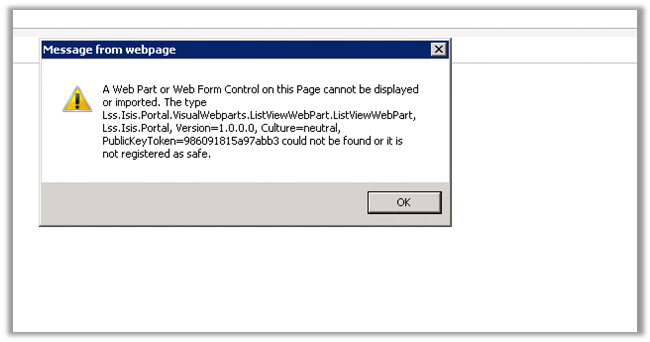
After much struggle, realized that the LiveVewWebPart.webpart had the incorrect namespace specified.
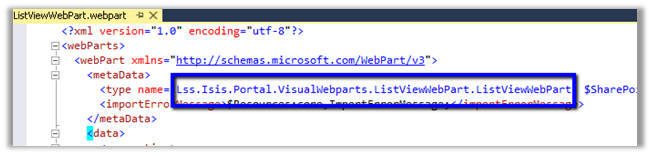
Correcting it resolved the issue.

At times we need to convert the XML string to Literal. And it is not fun. While searching for online tool that could help, I found this XML Formatter tool
http://xmltoolbox.appspot.com/

Hope it helps.

Get guid of the record quickly in CRM 2013
Update :- Works for CRM 2013 as well.
Hi,
Normally to get the guid we need to click on “Copy a link” button and then get id from the url, so just thought of creating a custom button that only copies the guid.
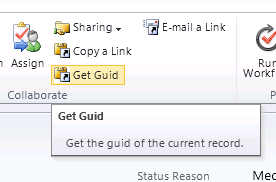
Clicking on Get Guid button will copy the id to the clipboard
RibbonDiffXml:-
Download the managed solution here ( Change the extension to zip from doc).
https://nishantrana.me/wp-content/uploads/2011/10/getguidapplicationribbon_1_0_0_0_managed.doc
Hope it helps.


