Using SQL Server Transactional Replication to move data from SQL Server (On-Prem) to Azure SQL


Hi,

Let us say we want to move data from Table named MyTable and view MyView from my SQL Server DB On-Prem to one of the Azure SQL Database.
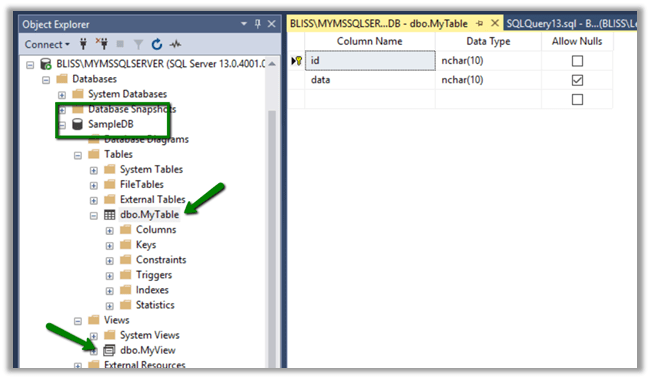
The components involved here would be Publisher that publishes this data, Distributor that holds the information about the data to be published and Subscriber who subscribes to the data.

For Transaction Replication to work, the Azure SQL DB or any subscriber needs to have the matching schema as the published table. This can be achieved through Snapshot Agent which applies the snapshot. Distribution Agent distributes this snapshot to the Subscribers.

Transaction Replication Log Reader Agent looks for any changes in the published data. This agent runs at the distributor for “Push” subscriptions. It can run continuously and or can be scheduled. It looks for Insert, Update, Delete operations or any schema changes and pushes this to the Subscriptions.

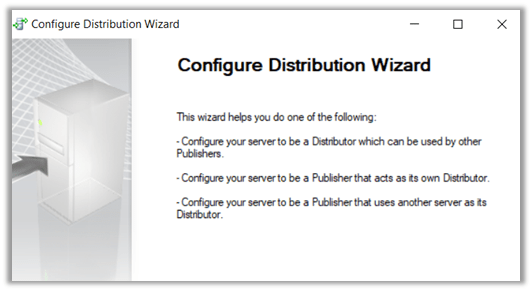
Let us start by configuring the Distributor first. The distributor can be at the local or remote server.

We’d be creating a local Distributor here.

Right-click the Replication and select Configure Distribution

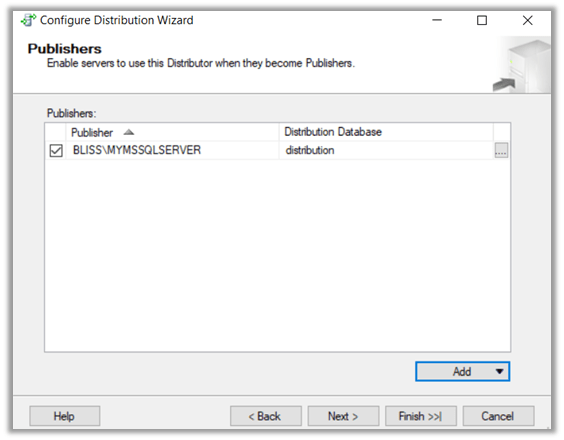
We are using the local server as Distributor.
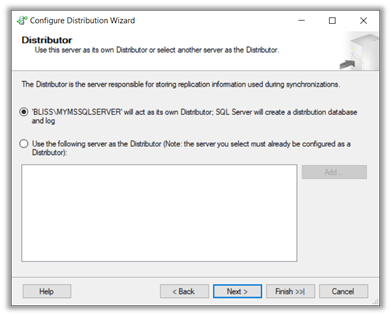
Click Next.
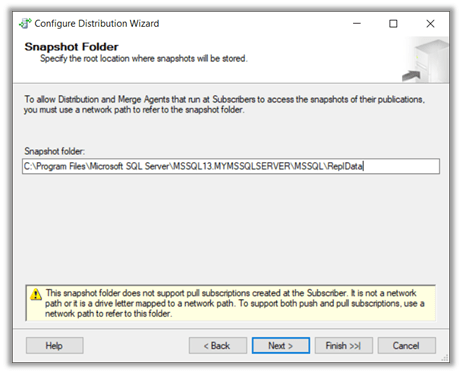
Click Finish to complete the wizard.

This creates the distribution database in our Local Server.
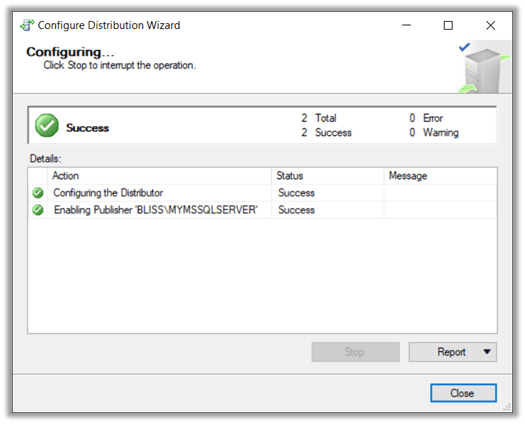
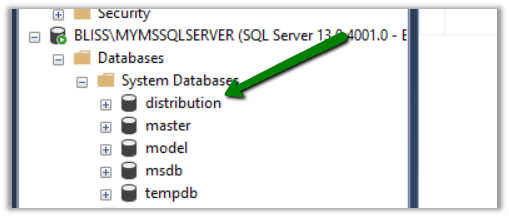
Now let us configure the Publication.

Right-click the publication and select new publication. SampleDB is the DB from whose table and view we want to publish.

Select SampleDb

Select Transactional Publication

Select the table and the view

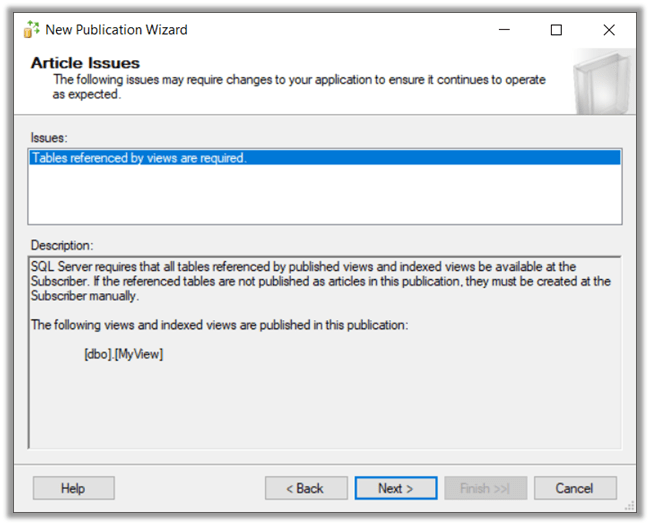
As we are publishing a view, we get the below message
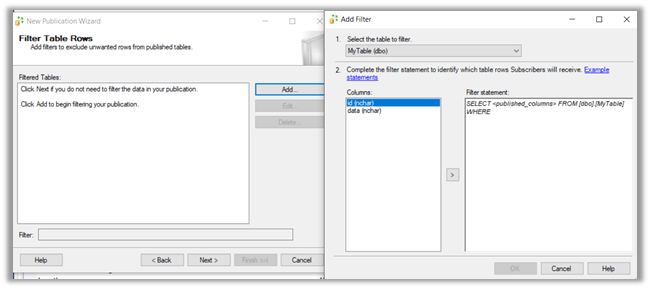
We can click on Add to specify any filtering on the data to be published.
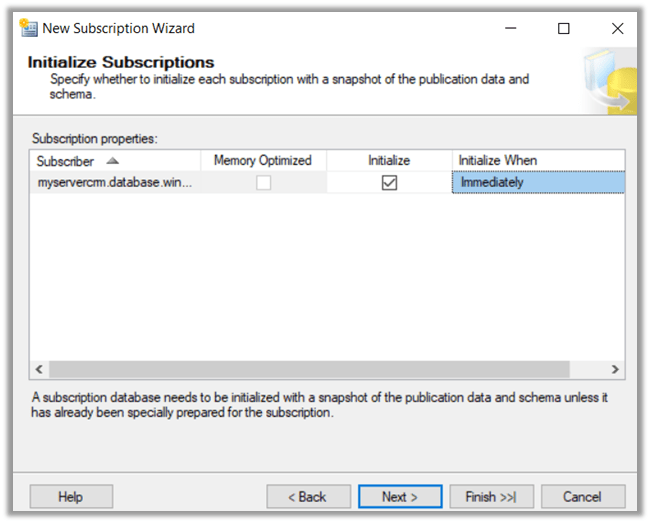
We can specify if we want to snapshot to be created immediately so that it is available while defining subscriptions. We can also schedule the Snapshot Agent or we can run it continuously.

Here we are specifying SQL Server Agent account.

Specify Publication Name and click on Finish to create the publication.

Now let us create the Subscription.

Right-click the publication created earlier, and select new Subscription

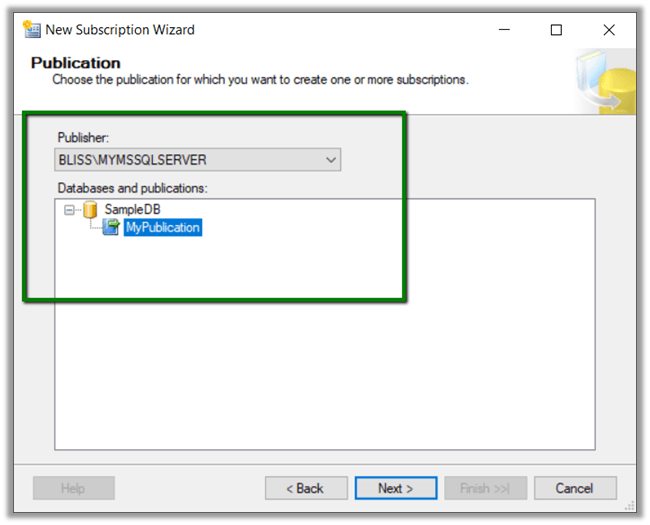
Select the publication
We can specify the type of subscriptions either Push or Pull. In our case, we are selecting Push.

Select Add SQL Server Subscriber to add our Azure SQL DB as the subscriber here.
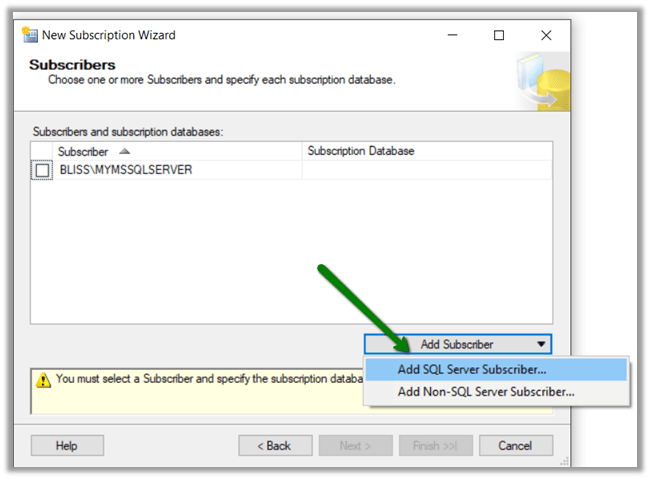
Connect to the Azure SQL DB.
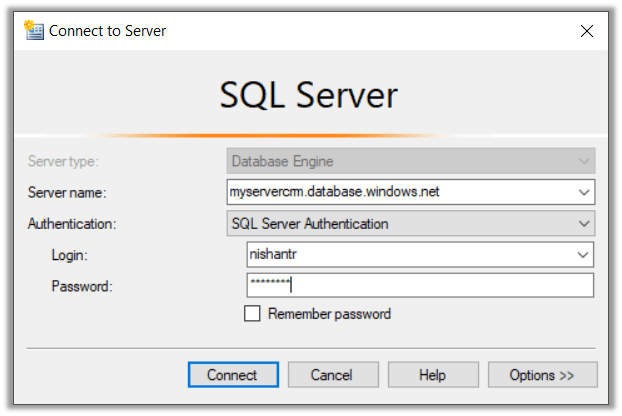
Here MyDB is the Azure DB to which we want to push the data.

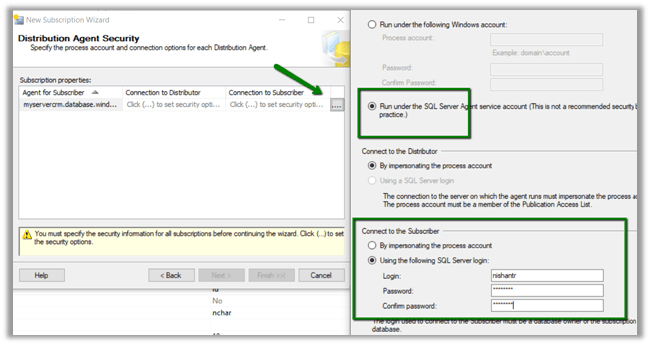
Now specify the account for the Distribution Agent and to connect the Azure SQL DB.

Select Agent schedule as Run Continuously.
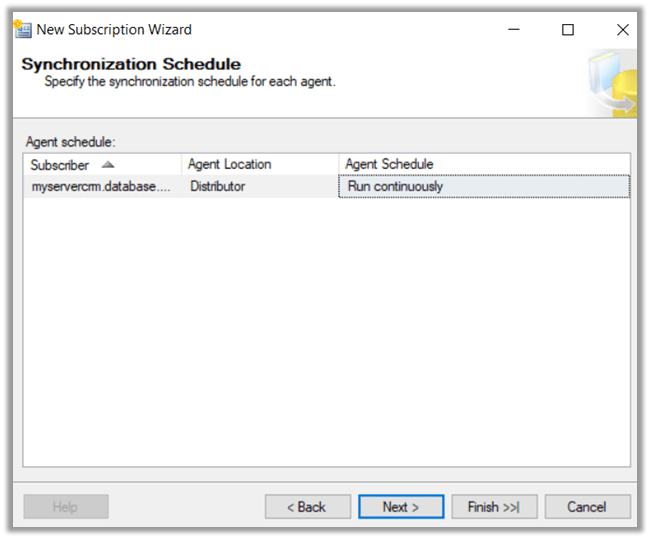
Click Finish to create the subscription.

Back in our Azure SQL DB, we can see the table and the view created with the data.

In Job Activity Monitor, we can see the details.

REPL-LogReader, REPL-Distribution and REBP-Snapshot.

Now just to test it, let us add 2 new rows in our Sample DB’s MyTable.

Back in our Azure DB, we can see the data being added to it.

More details below

https://www.pluralsight.com/courses/sqlserver-transactional-replication-fundamentals

https://docs.microsoft.com/en-us/sql/relational-databases/replication/publish/publish-data-and-database-objects

https://www.mssqltips.com/sqlservertip/5024/using-transactional-replication-with-an-azure-sql-database/

Hope it helps..

Insufficient Security – You do not have the security priviges necessary to perform this task error while using Merge in Dynamics 365


Hi,

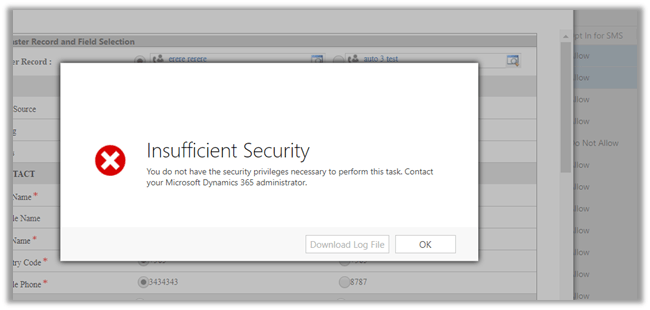
Recently one of our users got the below error while trying to merge Lead record.

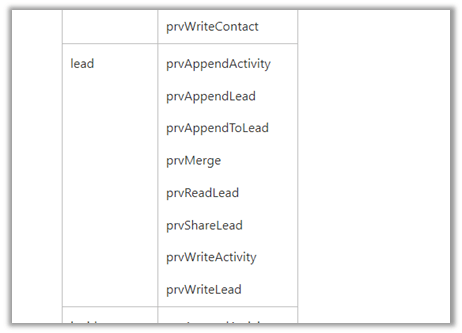
The user was having the Merge rights. However, the user was missing Share rights on the Lead entity. He already had create, write, delete, append and append to rights.

More details here

https://msdn.microsoft.com/en-us/library/gg334602.aspx?f=255&MSPPError=-2147217396

Giving Share rights fixed the issue.

Hope it helps..

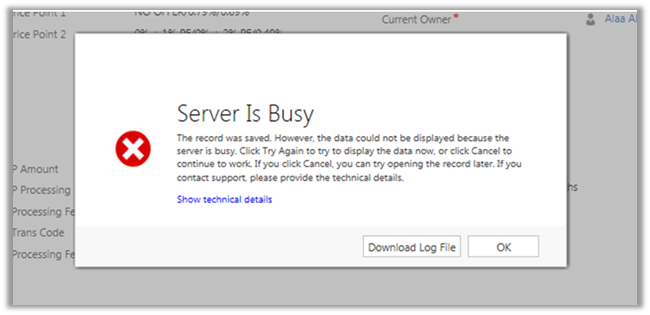
Server Is Busy. The record was saved. However, the data could not be displayed because the server is busy error in Dynamics 365.


Recently one of our users got the below error

The error message is bit incorrect here. The error was because the user had User Level Read Access to the record or (Entity to be specific) and on saving the record, we had one of our real-time workflow being triggered which was assigning this record to another user. And on assignment, the record being getting assigned to another user, the user who had created\saved the record was losing the access to it.

Hope it helps..

How to Create a, “No Code”, Lead Capture Solution


Donna Edwards's avatarDonna Edwards

Today I would like to share with you how easy it is to get started using PowerApps and the Common Data Service.  For this example, I created a “Lead Entry” PowerApp for use by Sales to quickly enter a new Lead from any supported device.  The lead will be entered into my company’s Dynamics 365 online application and then moved to the Common Data Service using Microsoft Flow.

This article assumes that you have given your user record the required licenses in your Office 365 account (PowerApps & Flow) and that you have logged into the PowerApps admin area and set the appropriate privileges on the environment.  Here are a couple of articles to help with those steps if you have not completed them.

PowerApp Q & A

CDS Environment Overview

Create CDS database 

This article will walk you through the creation of a Common Data Service database, a PowerApp…

View original post 1,053 more words

Entities not appearing while creating\ managing the Export Profile in Data Export Service in Dynamics 365


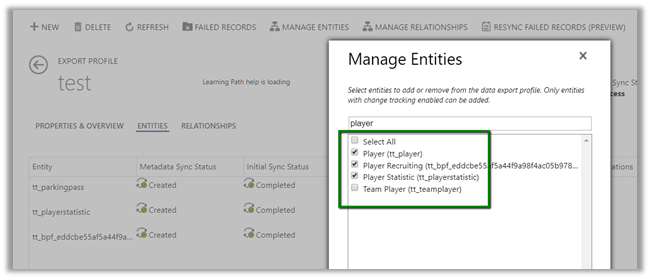
We recently configured the Data Export Service and while creating the export profile, some of the entities were not appearing there.

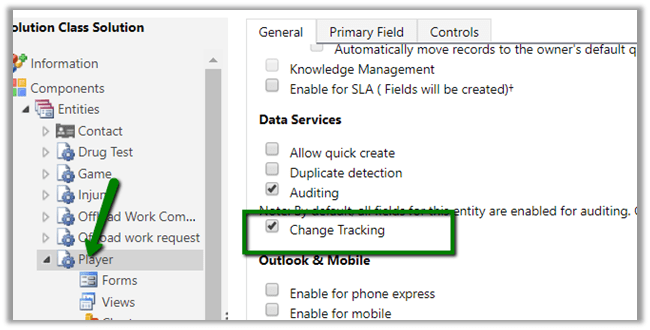
We had the Change Tracking Enabled for them.

This is what it was showing to us.

Trying after few hours we got all our entities there

I think it might be caching or there is some pull mechanism that took time to detect that change at the Data Export Service side. Not sure though.

Please drop your comments if you have also faced this and know the exact reason for that.

Hope it helps.

Metadata contains a reference that cannot be resolved: ‘https://orgname.crm8.dynamics.com/XRMServices/2011/Organization.svc?wsdl&sdkversion=9’ error in Dynamics 365


We would run into this issue while trying to connect to Dynamics 365 Version 9.0 from a client application.

It is because Customer Engagement Platform (version 9.0) only supports TLS 1.2.

More details here

https://blogs.msdn.microsoft.com/crm/2017/09/28/updates-coming-to-dynamics-365-customer-engagement-connection-security/

How we can fix it à

We need to add the following line of code to our existing code


public static OrganizationServiceProxy GetOrganizationServiceProxy()
{
ClientCredentials clientCredentials = new ClientCredentials();

clientCredentials.UserName.UserName = "username";
clientCredentials.UserName.Password = "password";

// Set security protocol to TLS 1.2 for version 9.0 of Customer Engagement Platform
ServicePointManager.SecurityProtocol = SecurityProtocolType.Tls12;

return new OrganizationServiceProxy(new Uri("https://orgname.crm.dynamics.com/XRMServices/2011/Organization.svc"),
null, clientCredentials, null);
}

Helpful post

https://debajmecrm.com/2018/01/08/fixed-error-while-connecting-to-dynamics-365-version-9-0-metadata-contains-a-reference-that-cannot-be-resolved/

https://waelhamze.wordpress.com/2018/01/11/dynamics-365-ce-tls-connectivity-issue-from-net-and-powershell/

http://abhinavranjan.xyz/2017/12/21/issue-authenticating-crm-organization-service-web-app-july-2017-update/

Hope it helps..