Write batch size, data integration unit, and degree of copy parallelism in Azure Data Factory for Dynamics CRM / 365 Dataset


Let us take a simple example where we are moving contact records (.CSV) stored in Azure File Share to Dataverse or Dynamics 365 (UPSERT).

CSV file has 50000 sample contact records (generated using https://extendsclass.com/csv-generator.html) stored in Azure File Storage.

Another option of generating sample data

https://nishantrana.me/2020/05/26/using-data-spawner-component-ssis-to-generate-sample-data-in-dynamics-365/

The Source in our Data Factory pipeline.

The Sink is our Dynamics 365 / Dataverse sandbox environment, here we are using the Upsert write behavior.

For the Sink, the default Write batch size is 10.

Max concurrent connections specify the upper limit of concurrent connections that can be specified.

Below is our Mapping configuration

The Settings tab for the pipeline, allows us to specify,

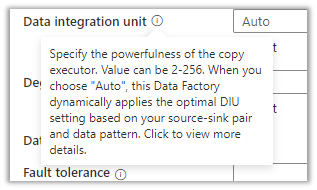
Data Integration Unit specifies is the powerfulness of the copy execution.

Degree of copy parallelism specifies the parallel thread to be used.

Let us run the pipeline with the default values.

  • Write Batch Size (Sink) – 10
  • Degree of copy parallelism – 10
  • Data integration unit – Auto (4)

The results à It took around 58 minutes to create 50K contact records.

We then ran the pipeline few more times by specifying the different batch sizes and degree of copy parallelism.

We kept Max concurrent connections as blank and Data Integration Unit as Auto. (during our testing even if we are setting it to higher values, the used DIUs value as always 4)

Below are the results we got à

Write Batch Size Degree of copy parallelism Data Integration Unit (Auto) Total Time (Minutes)
100 8 4 35
100 16 4 29
1000 32 4 35
       
250 8 4 35
250 16 4 25
250 32 4 55
       
500 8 4 38
500 16 4 29
500 32 4 28
       
750 8 4 37
750 16 4 25
750 32 4 17
       
999 8 4 36
999 16 4 30
999 32 4 20

The results show that increasing the batch size and degree of copy parallelism improves the performance in our scenario.

Ideally, we should run a few tests with different combinations before settling for a specific configuration as it could vary.

On trying to set the batch size to more than 1000,

We would get the below error à
ExecuteMultiple Request batch size exeeds the maximum batch size allowed.

Also refer –

Optimizing Data Migrationhttps://community.dynamics.com/crm/b/crminthefield/posts/optimizing-data-migration-integration-with-power-platform

Using Data Factory with Dynamics 365https://nishantrana.me/2020/10/21/posts-on-azure-data-factory/

Optimum batch size with SSIShttps://nishantrana.me/2018/06/04/optimum-batch-size-while-using-ssis-integration-toolkit-for-microsoft-dynamics-365/

Hope it helps..

Advertisements

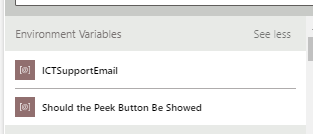
Environment Variables in Flows as Parameters


miraghaly's avatarMG

#powerautomate #environmentvariables

I have written a blog post earlier about the using of environment variables to store global environment settings and while I was looking to use it the same way I have described in my blog Post.

GUESS What I HAVE found! They are directly Exposed as Parameters in my flow and can be used directly in my Flow! No Additional calls or anything ..

https://docs.microsoft.com/en-us/powerapps/maker/data-platform/environmentvariables

View original post

Fixed – Initial sync status – Not Started – Azure Synapse Link / Export to Data Lake


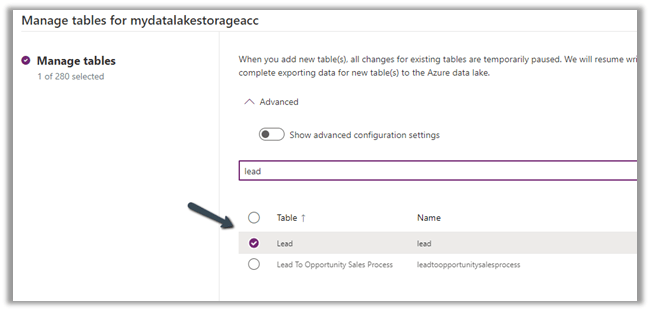
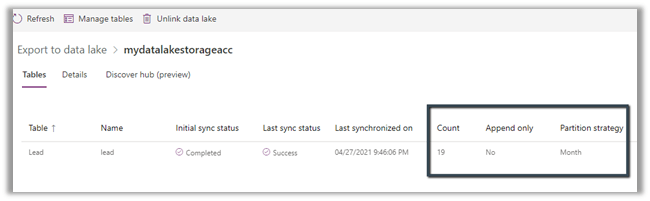
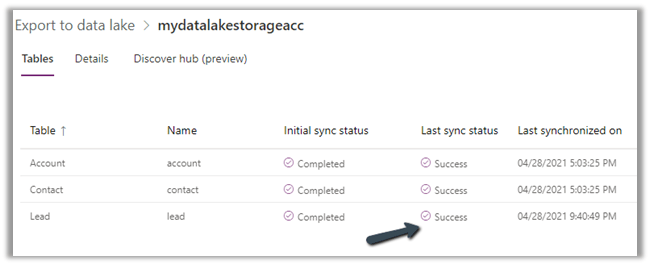
Recently while configuring the Export to Data Lake service, we observed the initial sync status being stuck for one of the tables at Not started.

Manage tables option also was not working

All changes for existing tables are temporarily paused when we are in the process of exporting data for new table(s). We will resume writing changes for existing table(s) after we complete exporting data for new table(s) to the Azure data lake.

As it was seemed to be stuck forever, we tried Unlinking the data lake and linking it back.

Select Yes

We left the Delete data lake file system unchecked.

Created a New link to data lake with the same storage account.

We would get the below error à

An error occurred: Container: dataverse-pmaurya105-unqdc8ed1c1df824188bbe2225de96f0 already existed with files for storage account: saazuredatalakecrm. Please clean dataverse-pmaurya105-unqdc8ed1c1df824188bbe2225de96f0

Basically, if we are using the same storage account for linking, we need to first delete or clean the container.

We cleaned the container.

And tried again.

This time it worked

Here we can check the Delete data lake file system option while Unlinking the data lake

This will perform the same step – deleting the files within the container.

If that doesn’t work or is not feasible, we should raise Microsoft Support Ticket.

https://powerusers.microsoft.com/t5/Microsoft-Dataverse/Added-new-Table-to-Export-to-Data-Lake-Now-Sync-is-blocked/m-p/924560#M11400

Check other posts on Azure Data Lake and Dynamics 365 – 

https://nishantrana.me/2020/12/10/posts-on-azure-data-lake/

Hope it helps..

Advertisements

Now Maximum of 10 alternate keys can be defined for an entity/table – 2021 Release Wave 1 – Dynamics 365


Previously, a maximum of 5 alternate keys could be defined for an entity.

https://docs.microsoft.com/en-us/dynamics365/customerengagement/on-premises/developer/define-alternate-keys-entity#create-alternate-keys

With 2021 Release Wave 1, the limit has been increased to 10.

https://docs.microsoft.com/en-us/power-platform-release-plan/2021wave1/data-platform/increased-alternate-key-limits

While trying to create the 11th key we will get the below error message as shown below

The table could not be updated: Maximum 10 EntityKeys are supported per Entity.

Check other posts on 2021 Release Wave 1  –

Blog posts on 2021 Release Wave 1 – Dynamics 365

Hope it helps..

Advertisements
Advertisements

How to – Customize Quick Actions in Dynamics 365 CE / Model-driven Power Apps


As part of the enhanced Search Experience, contextual quick actions were introduced in the platform :- https://nishantrana.me/2021/02/09/improved-search-experience-now-adds-quick-actions-2021-release-wave-1-dynamics-365/

E.g. we have Assign, Share, Email quick actions available for Contact, Account, and other entities for the relevance search results.

There can be a maximum of 5 quick actions per entity/table.

The quick actions are a subset of commands available for an entity/table at the Home grid level.

Below are the new rules (Enable Rule) introduced through which these contextual quick actions/commands can be shown or hidden.

  • ShowOnQuickAction – Command will only appear as a Quick Action within Search and will be hidden from the home grid.
  • ShowOnGridAndQuickAction – Command will appear for both Grid and as a quick action.
  • ShowOnGrid – command will only appear for the grid.

To apply these rules, we can use our favorite Ribbon Workbench tool.

Select Customize Command option for the respective command/button within the Home.

Add a new Enable Rule for the command.

Select IsCore as true.

Apply the Enable Rule for the other commands as shown below.

Here we have used the Contact entity/table.

Assign

ShowOnQuickAction

Share

ShowOnGridAndQuickAction

Email a link

ShowOnGrid

Follow

ShowOnGridAndQuickAction

On successful publishing of the above rules, as expected we can see – Assign command hidden and Share, Email a Link and Follow available in the Home grid

And with the quick actions, we can see Assign, Share and Follow available and Email a link command hidden.

Get the details – https://powerapps.microsoft.com/en-us/blog/search-quick-actions-are-now-customizable-in-model-driven-power-apps/

Other posts on 2021 Release Wave 1

https://nishantrana.me/2021/04/21/blog-posts-on-2021-release-wave-1-dynamics-365/

Hope it helps..


Advertisements

How to Export the Audit History Values from Dynamics 365


Requirements for Audit with Compliance Center

https://docs.microsoft.com/en-us/power-platform/admin/enable-use-comprehensive-auditing#requirements

Requirements

  • A Microsoft 365 Enterprise E3 or E5 subscription is required to do Activity Logging.
  • Available for production and not sandbox environments.

Also check

Use SQL 4 CDS XrmToolbox tool to run query again Audit table –

https://markcarrington.dev/sql-4-cds/

Frank Lee's avatarMicrosoft Dynamics 365 CRM Power Apps Blog

Microsoft Dynamics 365 supports Audit Logging of various events. Authorized users can view the Audit History on any Dynamics 365 tables enabled for Auditing.

However, there is NO Export audit data function available from the Dynamics 365 Audit History or Audit Summary View.

The good news is that there is an out of the box option via Microsoft 365 Compliance’s Audit to Export the Dynamics 365 audit data including the Changed Values.

Here is an example from the Microsoft Dynamics 365 Audit History showing a Create and two Updates for “Test Contact 210409” record: Notice that there is NO option to export this data from the Dynamics 365 Contact’s Audit History view.

Now let’s look at this result from the Microsoft 365 compliance Audit Search on Dynamics 365 activities. Notice that there is the option to Download all results!

The Download is a CSV file. Notice that column D “AuditData”…

View original post 135 more words