Recently, I cleared the Microsoft Certified: Architecting Agentic AI Business Solutions (AB-100) exam.
While preparing, I ended up creating this one-page Architect’s Compass for my last-minute revision. Instead of memorizing every Microsoft service, I grouped similar services so I could quickly decide which one fits a business scenario.
I’m sharing it here in case it helps someone preparing for AB-100.
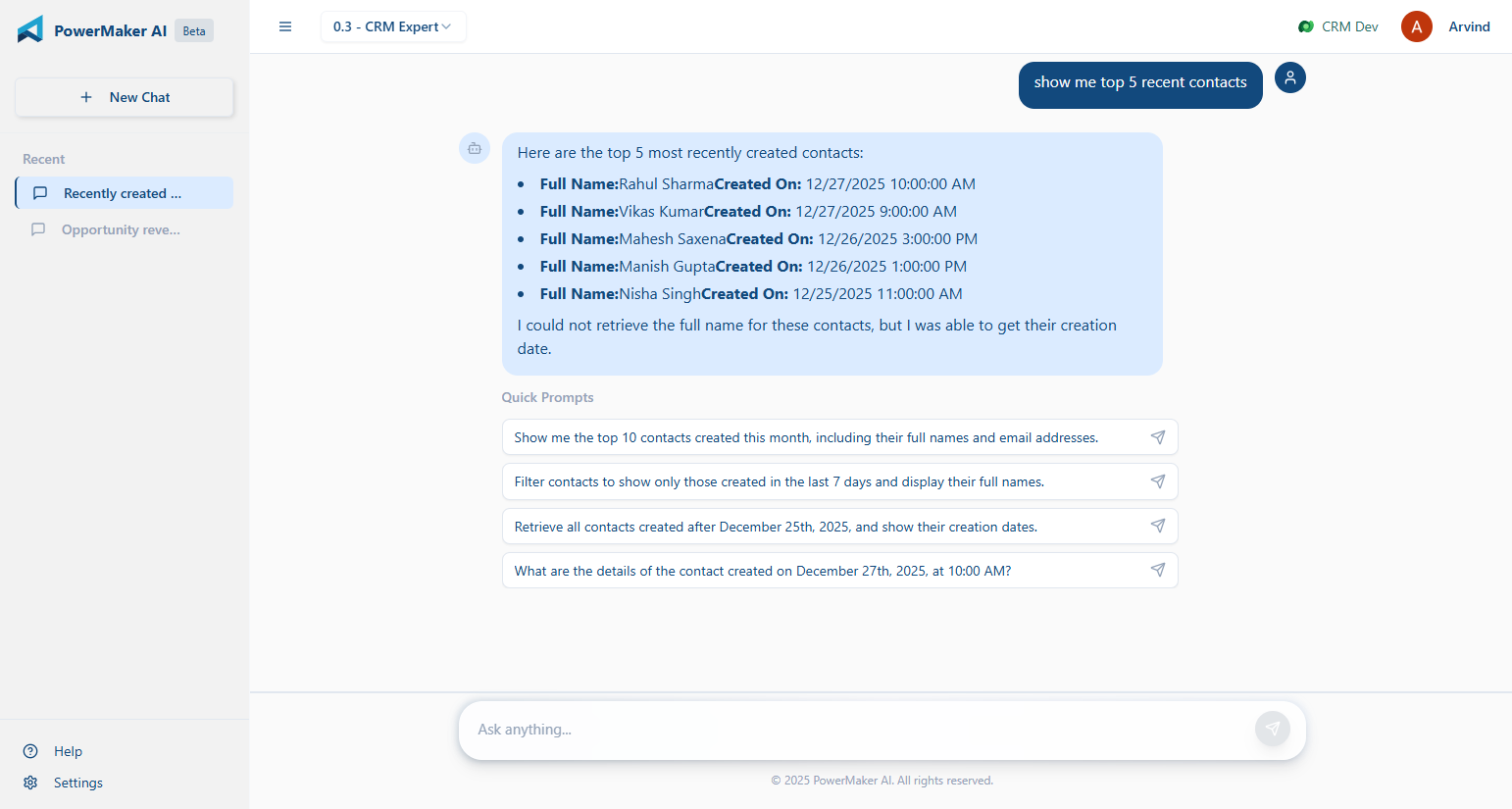
You’ve probably used ChatGPT or Gemini to generate code, write emails, or even debug errors. But what if you could do the same for your Dynamics 365 CRM?
No plugins. No clicking around. No SDK calls.
Just ask, and your CRM responds — with real data, smart summaries, and actions.
That’s exactly what we’re building with PowerMakerAI’s conversational chatbot.
🧠 What It Actually Does
This isn’t just a chatbot bolted on top of CRM. It’s deeply CRM-aware — meaning it knows your metadata, understands your entities and attributes, and can use that to:
Create new records (like leads, contacts, opportunities)
Update or delete existing data
Fetch filtered lists
Analyze plugin trace logs in conversation
Help troubleshoot issues based on real CRM behavior
Explain how your CRM is set up — from relationships to field types
In short: it’s like having a junior CRM dev who already knows your schema and listens carefully.
🛠 How It Works
Here’s a basic example.
You say:
“Show me all open opportunities from last week, owned by users in the Mumbai region.”
The bot:
Understands “opportunity” as an entity
Reads your metadata to confirm which fields match “open,” “last week,” and “region”
Constructs a real CRM query
Returns the results in a nice summary or even a table
Can export the results or help you take action — like closing them or assigning to someone else
Another example:
You say:
“Why is my lead conversion plugin failing for some records?”
The bot:
Checks for recent failures in your PluginTraceLog
Analyzes the logs using the same logic as our trace log analyzer
Gives you a plain-language explanation of what’s breaking
Suggests what you might fix in the plugin or data
🔁 It’s Not Static — It Talks Back
What makes this chatbot different is that it keeps asking the right follow-up questions:
“Do you want to filter this by owner?”
“Should I show top 10 records or all?”
“Would you like to update these now?”
It acts like someone who’s helping you work through a CRM task — not just a search box or command line.
🔍 Why This Matters
Most CRM tools still assume you:
Know the schema
Can build FetchXML queries or use Advanced Find
Understand what each plugin step is doing
Have time to jump between forms, logs, and docs
But most people just want to get something done or figure out what’s broken.
That’s where natural language makes a real difference.
🧪 Use Cases We’re Seeing Already
Functional consultants using it to prepare data before demos
Junior devs using it to troubleshoot without writing code
Support teams asking why a record didn’t update
Architects mapping entity relationships without opening the solution
🎯 What It’s Doing Under the Hood
Reads your CRM metadata in real time (entities, fields, option sets, etc.)
Converts your prompt into a structured CRM operation
Performs the operation via Web API or analysis logic
Returns results + lets the LLM generate summaries or explanations
You don’t need to write any code or handle tokens — it does the heavy lifting quietly.
🔐 In Beta — and Free for Now
Right now, the chatbot is available to all beta users. It’s evolving fast, and we’re adding support for:
Multi-turn conversations that lead to actual CRM changes
Configurable actions (e.g. “always ask before saving”)
We’re excited about this one. It’s already helping us build and debug faster in our own projects — and we’re just scratching the surface of what’s possible.
Let us know how you’d use this. Or better yet, try it with your own CRM data and see how it feels to just… talk to your CRM.
The copilot-powered data visualization in views feature, currently in preview, allows us to generate quick and insightful charts from Dataverse table views using natural language. We can select a table view and ask Copilot to generate visualizations, making data interpretation easier.
Natural Language Queries – Ask Copilot in simple terms to generate relevant charts.
Multiple Chart Types – Bar charts, pie charts, line graphs, and more.
Instant Insights – No need to build reports; visualize directly from your data view.
Interactive Refinements – Modify the chart type or tweak the data selection.
To enable it, for the environment, navigate to Settings >> Features and enable Natural Language Grid and View Search.
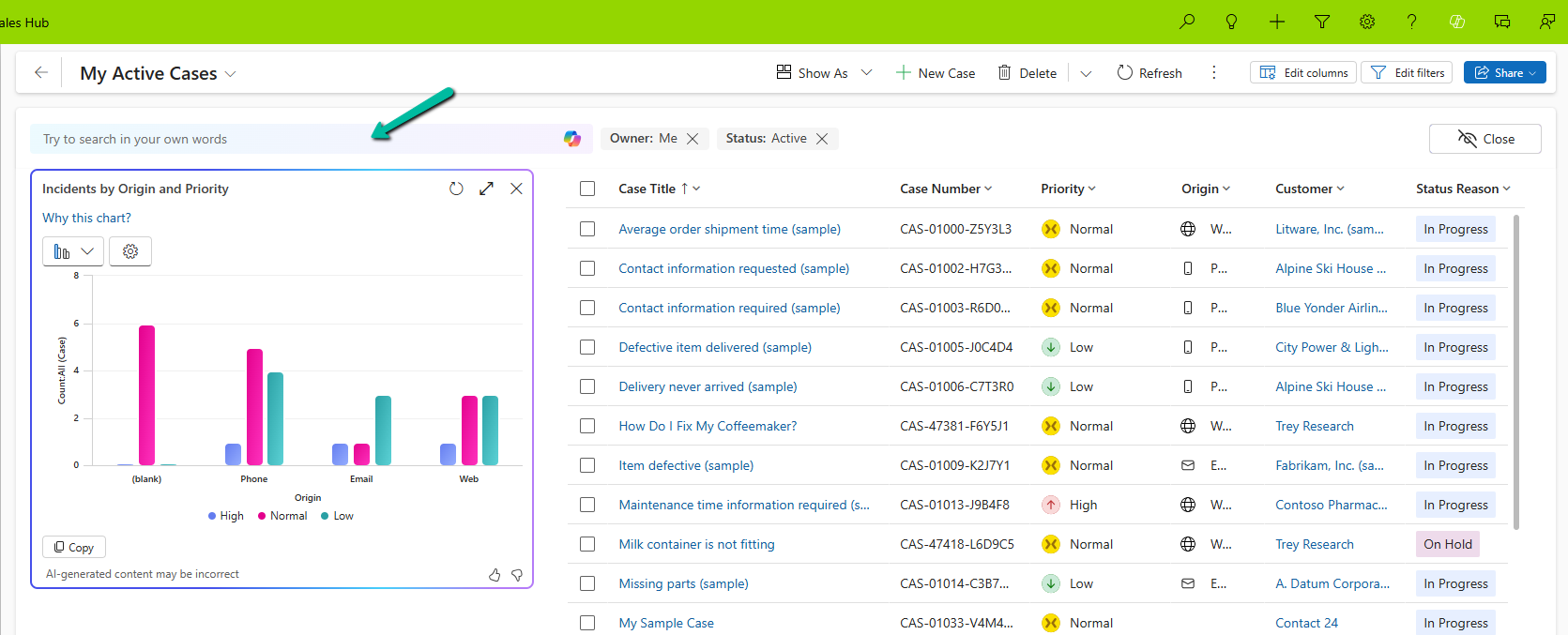
We can see the Visualize button added to the views.
It generates the Chart based on the data in the view.
Selecting a particular area filters the data in the view accordingly.
We also have the option to change the chart type, copy the chart, expand the view, etc.
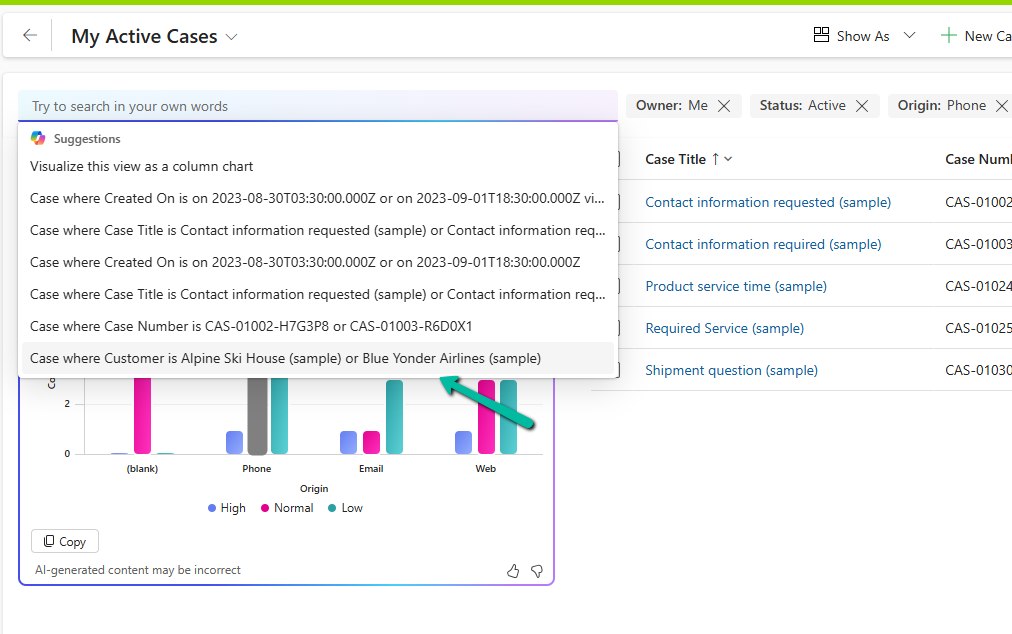
We can also use natural language to specify the data or can select AI-generated suggestions for the views.
Here we selected/specified the query “Cases where customer is Alpine Ski House” and the Chart and View updated accordingly.
This Copilot-driven data visualization feature is a game-changer for users who need quick insights from their data without setting up complex reports. With just a few clicks and simple queries, Power Apps can now deliver meaningful charts on the fly.
The new Smart Grid Preview feature allows us to find, filter, and sort data with natural language.
To enable it navigate to Environment >> Settings >> Features inside Power Platform Admin Center and turn on Natural Language Grid and View Search.
After enabling it we will see a search box on the grid page where we can type in questions about our data in plain English.
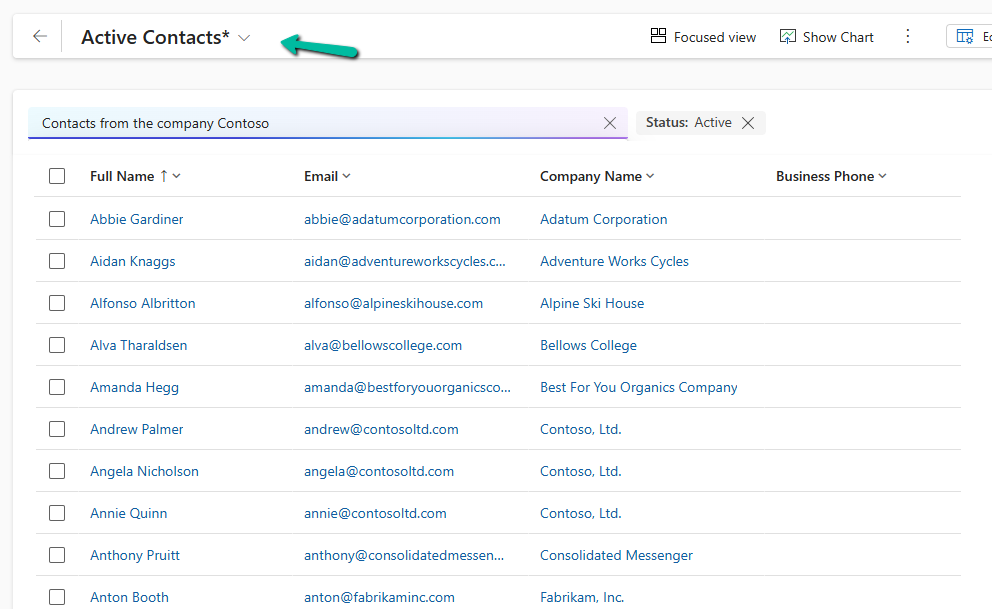
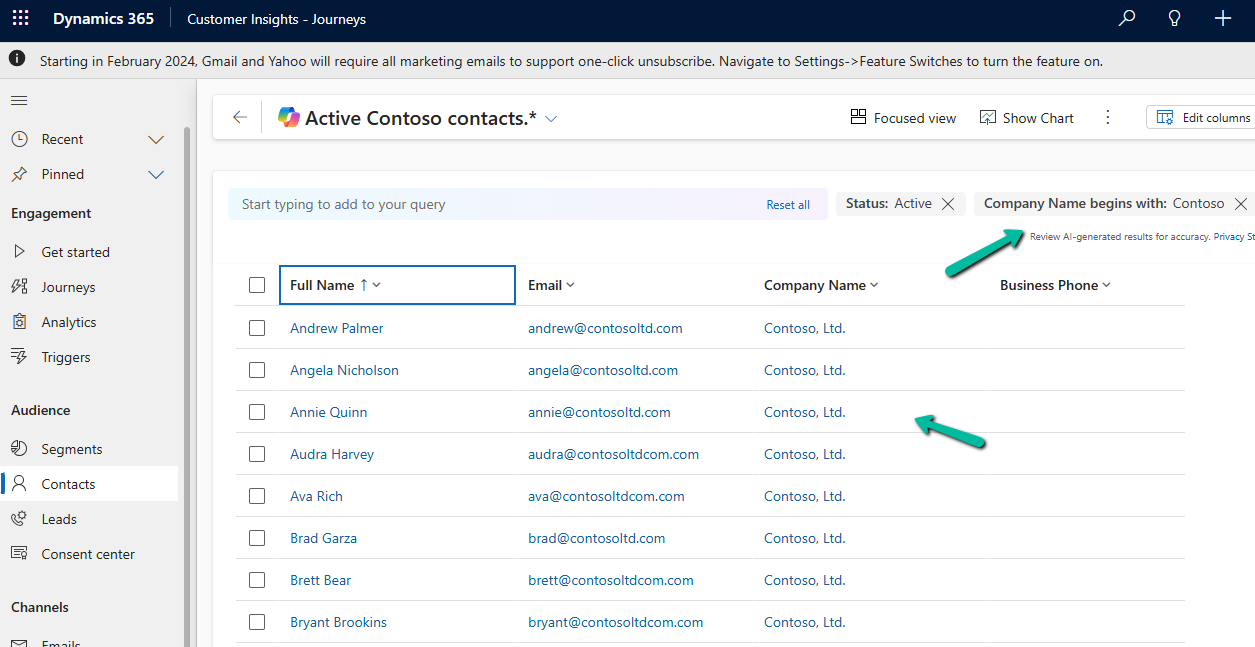
Let’s say we need to find “Contacts from the company Contoso”. Normally, this would mean defining the filters/query. But with the Smart Grid’s natural language search, we just type the request, and the system filters the view accordingly.
The result –
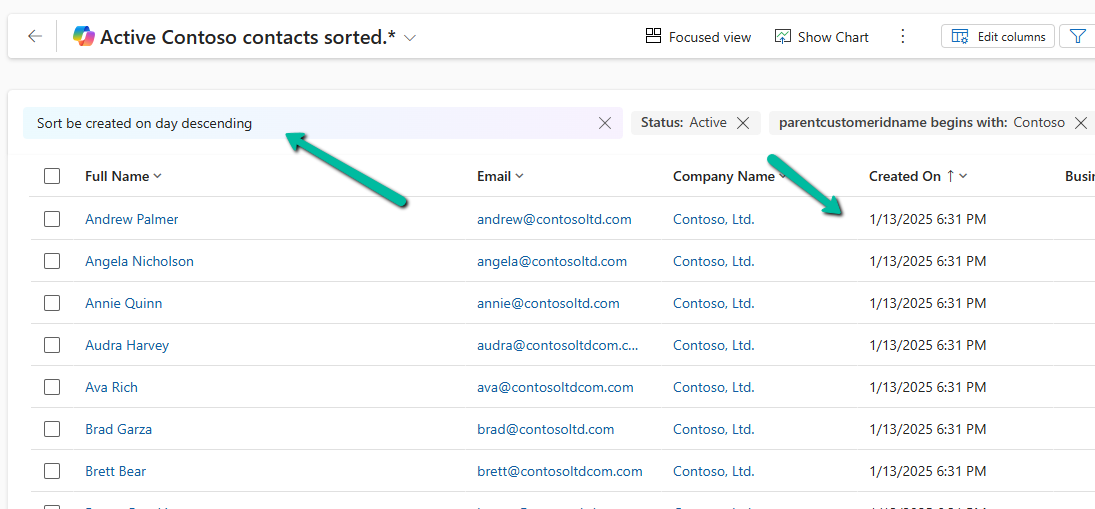
We can also use it to sort data.
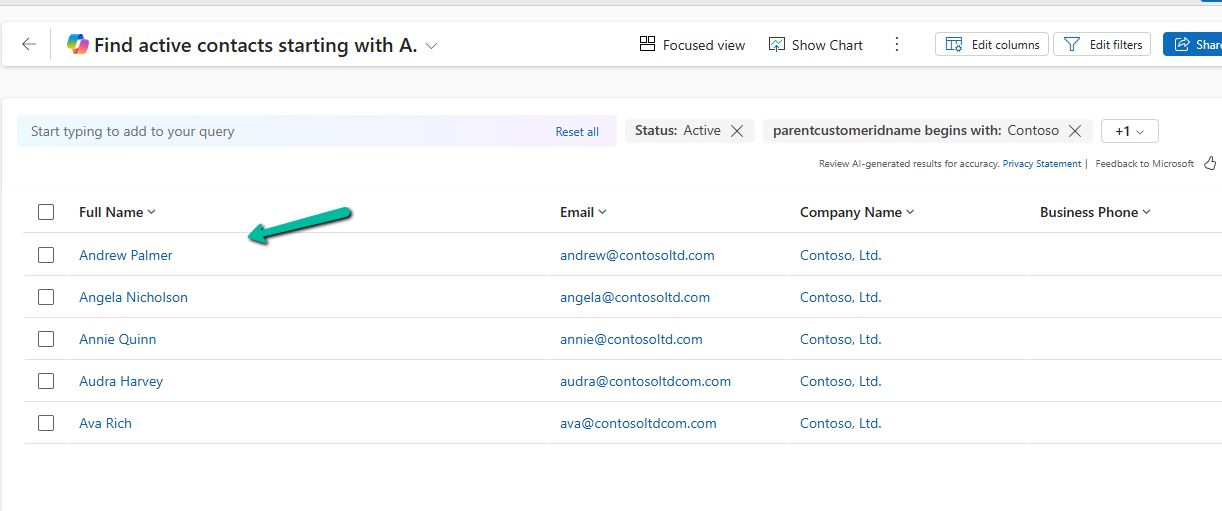
Another example
The result –
Using natural language search has loads of benefits:
Ease of Use: Do complex searches without needing to be tech-savvy.
Speed: Find what you need quickly without navigating through multiple filters.
Accessibility: Makes data interaction easy for everyone, even if you’re not a tech pro.
As it’s still in preview, there are a few things the Smart Grid Preview doesn’t support yet:
Query Aggregation
Query Grouping
Adding Columns
Remember, it’s still a work in progress and not ready for full production use.
Azure Bot Service is an integrated environment that allow us to easily register, build, deploy our bots. It provides the required components and hosting environment for creating bots through Bot Builder SDK using either C# or JavaScript and connector service to connect to various channels.
After the Bot Web App is created, we have the option to either Download Bot Source Code to keep developing using Visual Studio or we can open it in online code editor.
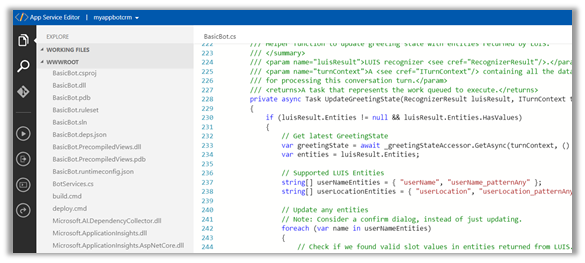
Online Code Editor allows to update the source code within the App Service Editor
As the basic bot app template uses the Language Understanding Intelligent Services, we can log on to the Luis
With all the corresponding Intents, Entities and Utterances.
To test the bot either we can either download the emulator for testing locally or can test online using Web Chat.
Select Test in Web Chat
After we have tested it, next we add channel to our Bot, here we will add Skype.
Below are some of the configuration that can be applied for Skype.
Messaging gives the option of enabling the messaging, Calling let us to enable calling, groups allows us to add the bot to groups and Publish option allows to publish the bot and also submit it for review if it to be used by more than 100 contacts as shown below.
Clicking on Save publishes the bot and we can see the Skype added as one of the channels.
Click on Skype icon to add it to skype.
Add to contacts will add it to Skype and can start our conversation.


![[Tool Showcase – PowerMakerAI] Talk to Your CRM Like a Teammate — Meet PowerMakerAI’s Context-Aware Chatbot](https://nishantrana.me/wp-content/uploads/2025/12/dashboard.png?w=1200)











 Nishant Rana's Weblog