
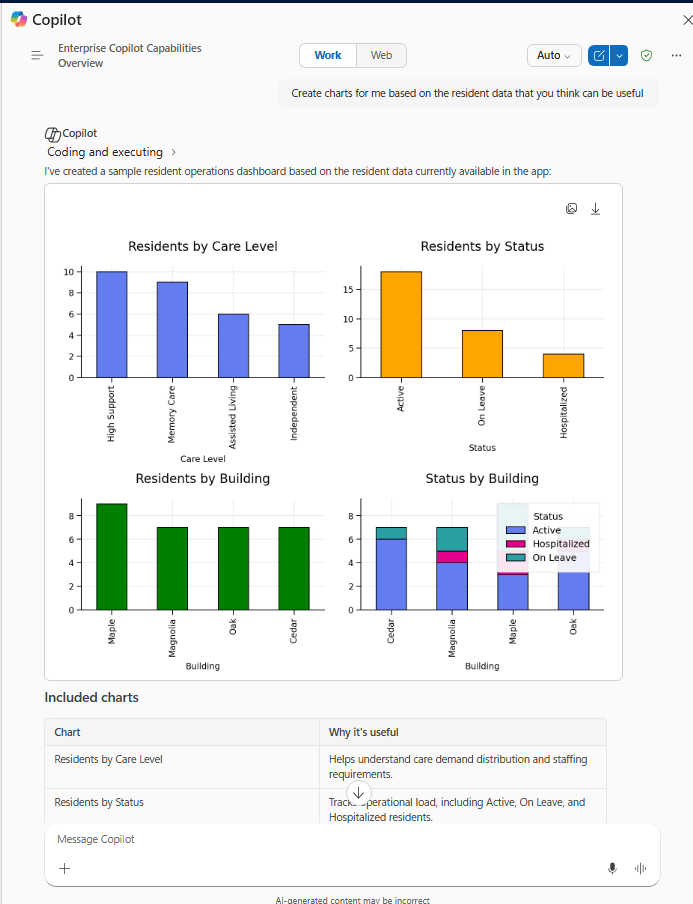
Microsoft 365 Copilot brings conversational AI directly into Model-Driven Apps, allowing users to ask natural language questions about Dataverse data, quickly locate records, and improve productivity without leaving the application.
In this post, we walk through the steps we follow to enable Microsoft 365 Copilot in a Model-Driven App, covering the tenant, environment, and application-level configuration required before the feature becomes available.
What We Need Before We Start
- Microsoft 365 Administrator permissions for tenant-level Copilot settings.
- Power Platform Administrator access to the target environment.
- Dataverse Search enabled for the environment (Default or On).
- Sufficient Dataverse database capacity — Microsoft 365 Copilot for Model-Driven Apps relies on Dataverse Search indexing, and turning it on can increase capacity consumption.
- Appropriate licensing (covered in Step 4 below).
Step 1: Enable Dataverse Data in Microsoft 365 Copilot (Tenant Level)
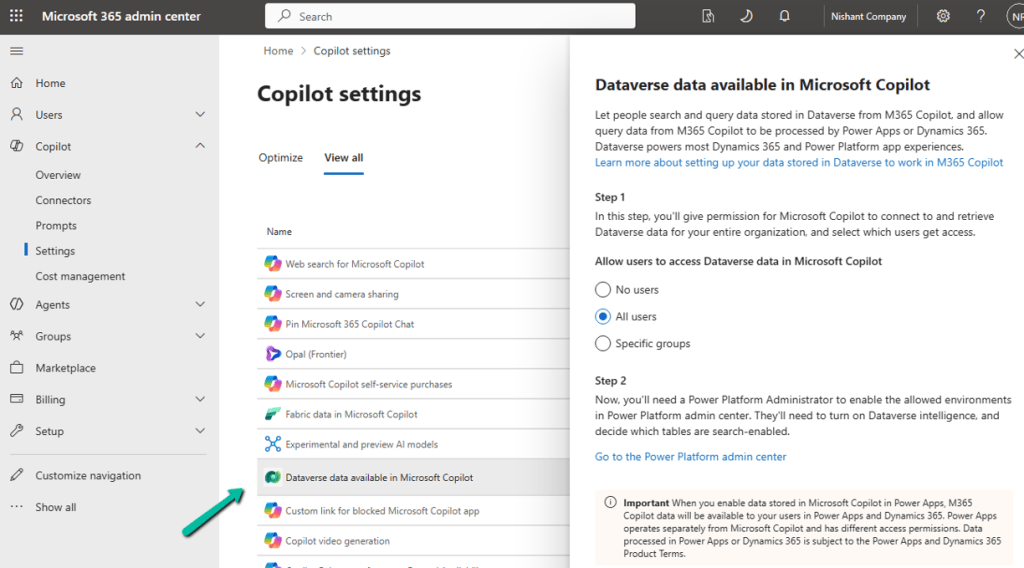
Sign in to the Microsoft 365 Admin Center → Copilot → Settings, and locate Dataverse data available in Microsoft 365 Copilot.
Turn it on and choose either All Users or Specific Groups, then Save.
This is a tenant-level setting; it must be enabled before users can access Dataverse data through Microsoft 365 Copilot.
Step 2: Enable Dataverse Search for the Environment
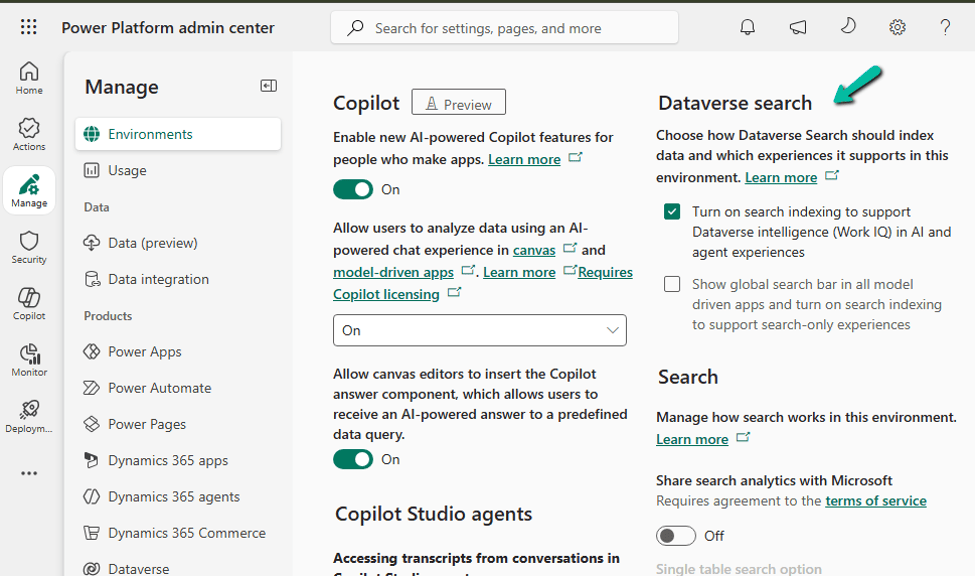
Go to Power Platform Admin Center → Environments → select the environment → Settings → Product → Features, and set Dataverse Search to On, then save.
Dataverse Search is what powers the indexing behind Copilot’s answers, so this has to be on before Copilot can ground its responses in your table data.
Step 3: Verify Dataverse Capacity
Since Microsoft 365 Copilot for Model-Driven Apps relies on Dataverse Search indexing, make sure the environment has enough Dataverse database capacity to support indexing, semantic search, and the Copilot queries themselves. Check this under Power Platform Admin Center → Licensing → Capacity add-on for the environment before rolling this out to a production environment with a large dataset.
Step 4: Verify Licensing
Licensing depends on where the app lives:
- Power Apps (Custom Model-Driven Apps) — users need a Power Apps Premium license together with a Microsoft 365 Copilot license.
- Dynamics 365 apps — users need a qualifying Dynamics 365 Enterprise or Premium license. A Microsoft 365 Copilot license is also required to unlock advanced Work IQ capabilities beyond standard Dataverse grounding.
Worth confirming this with your licensing/procurement team before you promise the feature to end users — a missing Microsoft 365 Copilot license is one of the most common reasons Copilot doesn’t show up for a user even after everything else is configured correctly.
Step 5: Enable Microsoft 365 Copilot for the Environment
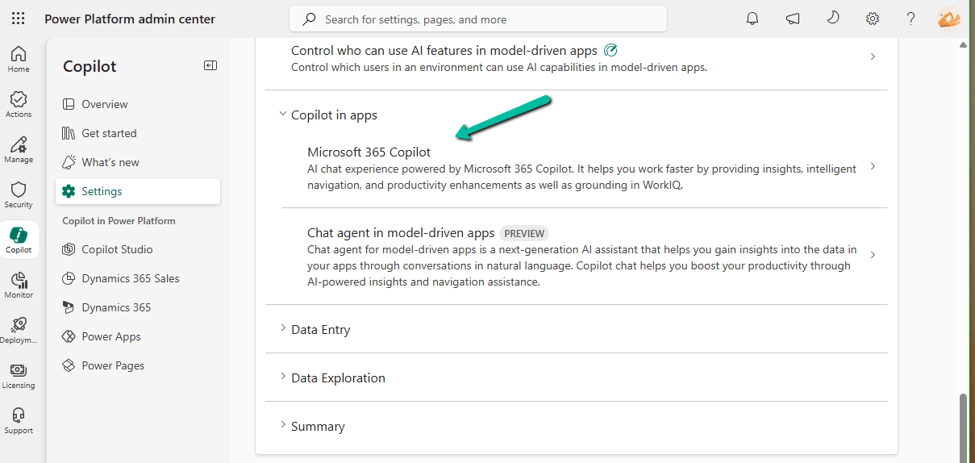
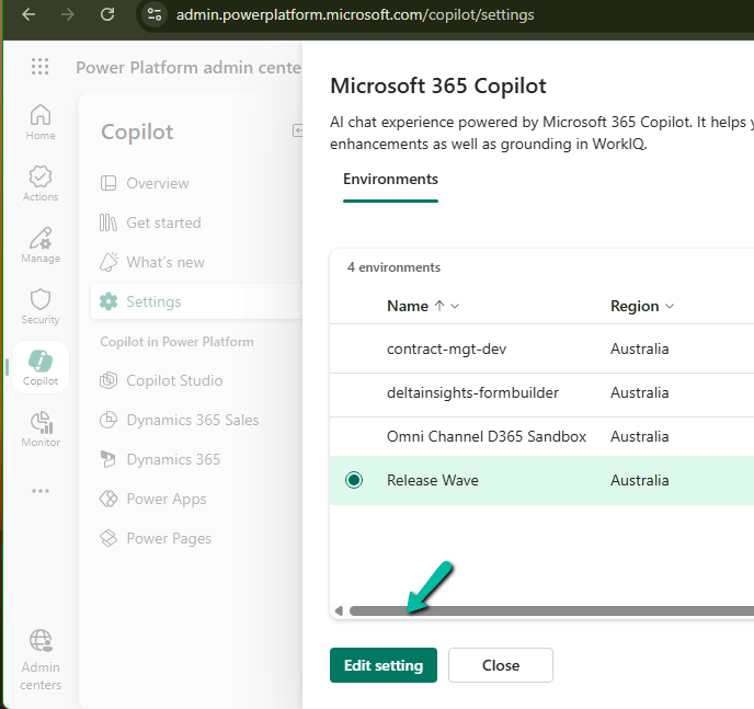
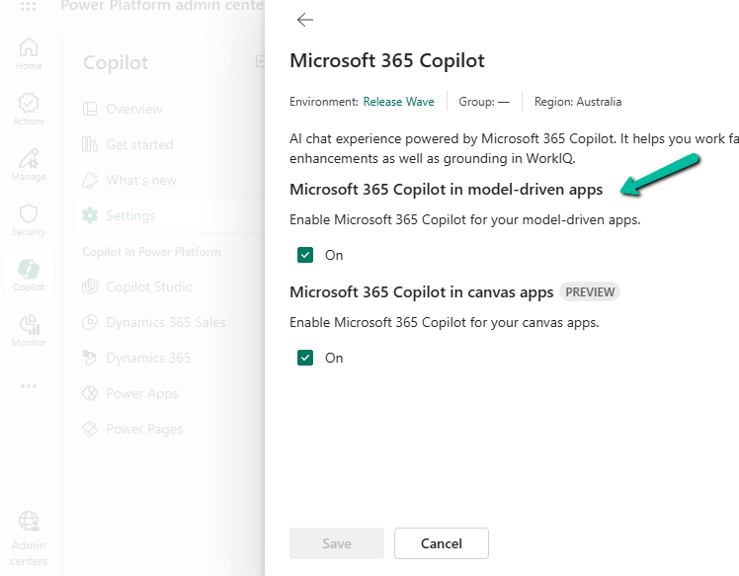
Go to Power Platform Admin Center → Copilot → Settings. Under Power Apps, expand Copilot in Apps, choose Microsoft 365 Copilot, select the environment (or environment group), select Edit Setting, turn it On, and Save.
Step 6: Enable It for the Model-Driven App
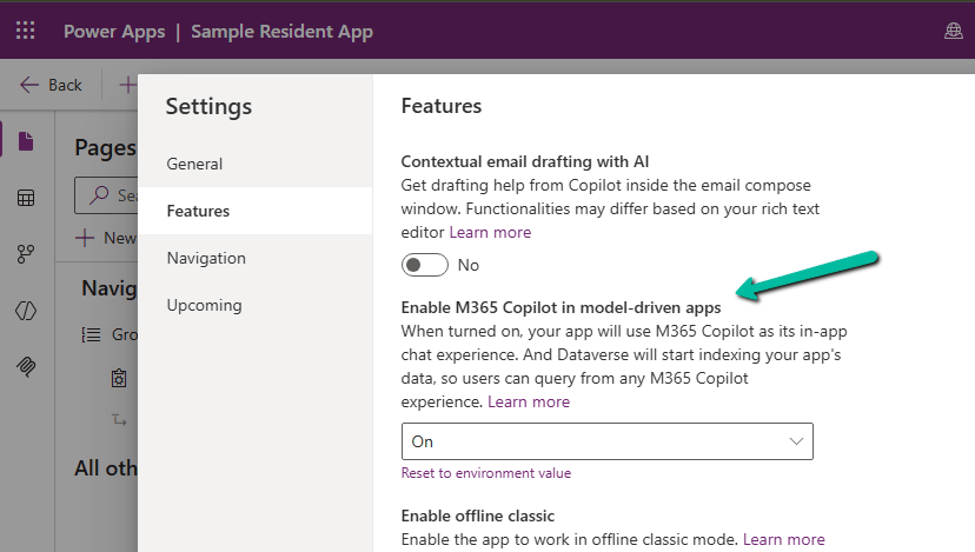
Open the app in the Power Apps Maker Portal → Settings → Features, set M365 Copilot in model-driven apps to On, then Save and Publish the app.
Enable It for All Model-Driven Apps in an Environment
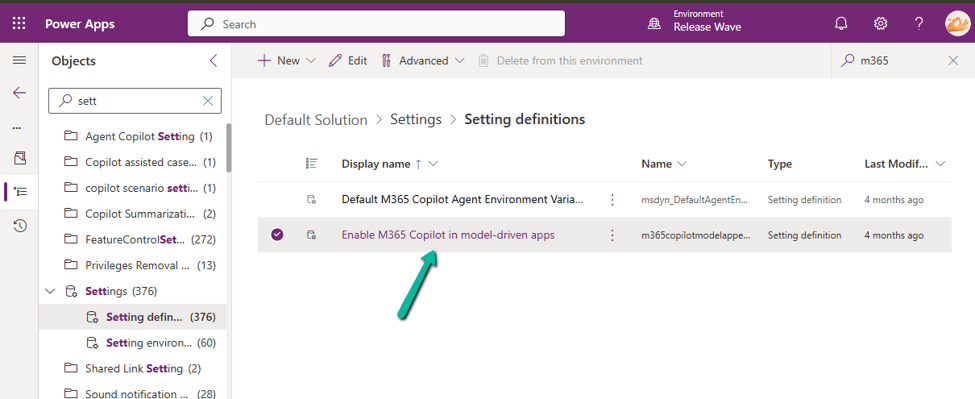
If you’d rather turn this on once instead of app by app, open the Default Solution → Objects → Settings, locate Enable M365 Copilot in model-driven apps, add the value if it doesn’t already exist, set it to 2, Save, and Publish the change.
What Users Will See
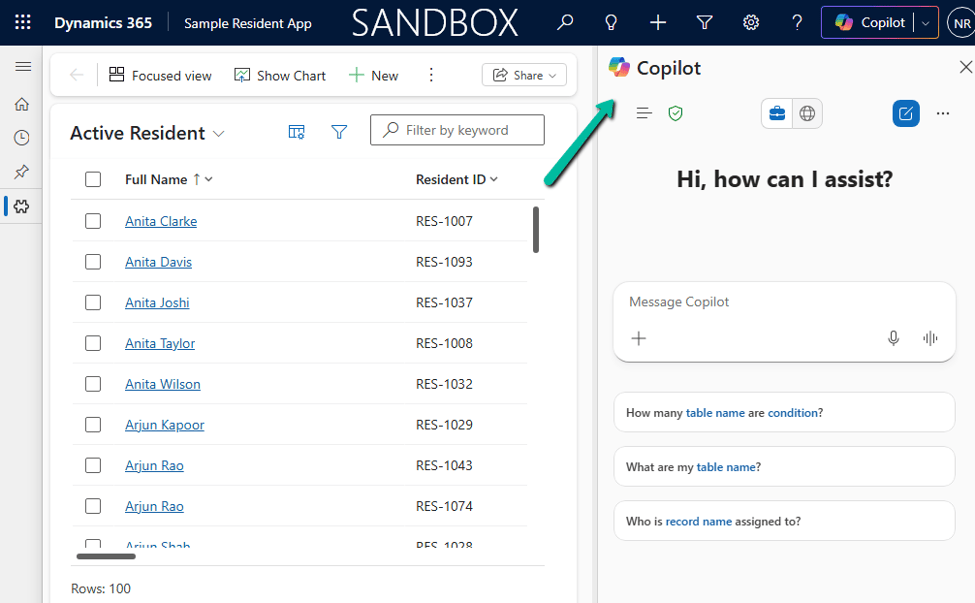
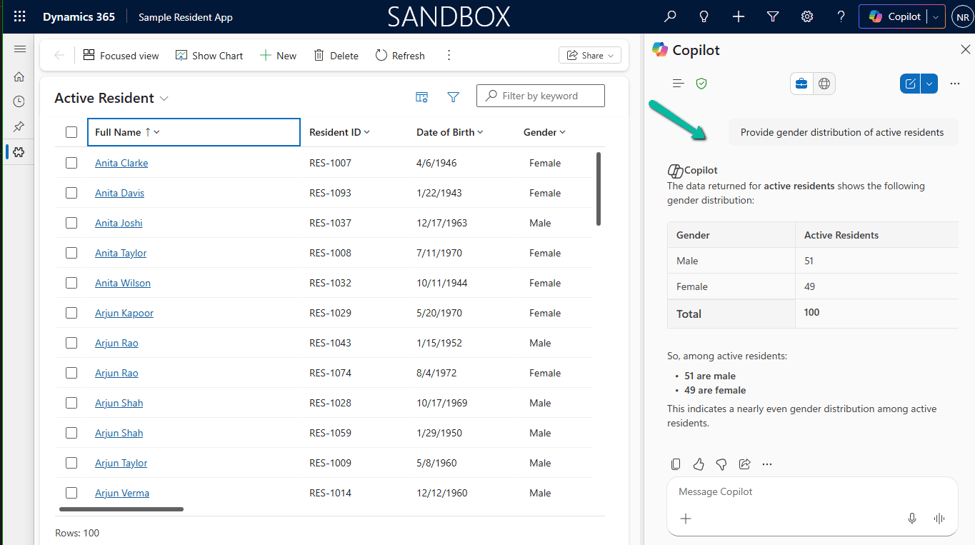
Once everything is configured, users can open Copilot → Chat from the top-right corner of the Model-Driven App and start asking natural language questions about Dataverse records.
The current experience is read-only by default: Copilot can find and summarize data, but it can’t make changes on the user’s behalf unless you’ve customized it with an agent. It’s also worth knowing that Microsoft 365 Copilot for Model-Driven Apps isn’t available in the Power Apps mobile app yet.
Microsoft 365 Copilot vs. Copilot Chat: What’s Changing?
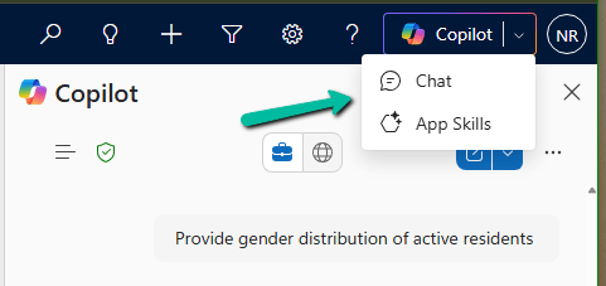
If you’ve previously enabled Copilot Chat in Model-Driven Apps, you’ll now see two options in the Copilot menu: Chat and App Skills. This is part of Microsoft’s transition to Microsoft 365 Copilot, which is becoming the standard AI experience across Power Apps and Dynamics 365.
| Area | Microsoft 365 Copilot (Chat) | Copilot Chat (App Skills) |
| Status | Recommended, actively evolving | Being deprecated |
| Availability | Power Apps and Dynamics 365 | Preview in Power Apps |
| Dataverse queries | Yes | Yes |
| Navigation | Yes | Yes |
| Future direction | Microsoft’s strategic platform | Transitioning out |
Deprecation Timeline
Microsoft has announced that Copilot Chat in Model-Driven Apps, for Power Apps environments not enabled for Dynamics 365 apps, began its deprecation starting in January 2026. During the transition period, organizations can enable either one or both experiences while users migrate.
What Users Will See During the Transition
- Chat opens Microsoft 365 Copilot.
- App Skills opens the legacy Copilot Chat experience.
- Both experiences can coexist during the transition.
Recommendation
For new implementations, enable Microsoft 365 Copilot rather than investing further in the legacy Copilot Chat experience. Since Microsoft is standardizing AI experiences across Power Apps and Dynamics 365 around Microsoft 365 Copilot, adopting it now saves you a migration later and gives users access to the latest Dataverse-grounded capabilities, including Work IQ where licensed.
Reference Links
- Add Microsoft 365 Copilot for app users in model-driven apps – Microsoft Learn
- Enable Microsoft 365 admin center Copilot Dataverse settings – Microsoft Learn
- Add Copilot chat for app users in model-driven apps (legacy) – Microsoft Learn
Hope it helps..


