Sub-Grid added to the new model-driven form designer (WYSISYG) in PowerApps


Hi,

Microsoft is steadily adding all the essential features to the new model-driven form designer (preview) making it more and more usable and intuitive.

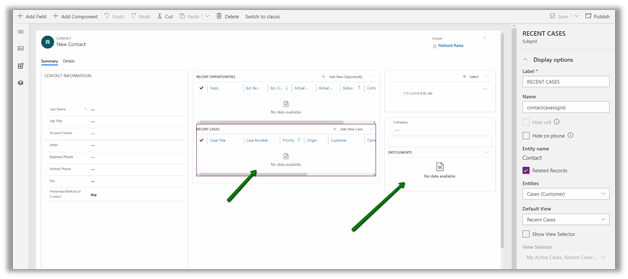
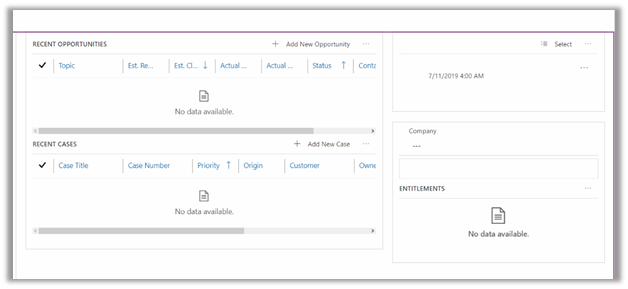
Latest addition is the support for sub-grid as shown below

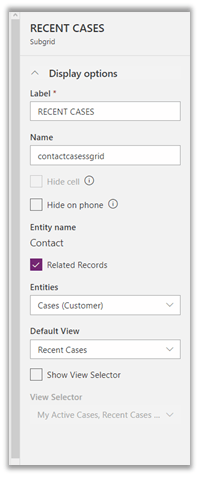
The properties window for the sub-grid

`

We can select the view from either the related entities or view from any of the un-related entity (uncheck Related Records check box).

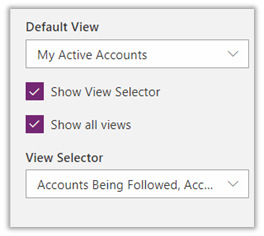
Similarly, we can enable view selectors and can show all the views or selected view as shown below.

We still can’t add new sub-grid to the form in the new form designer, for that we still need to go back to our classic form designer.

Check out below articles for more details –

https://docs.microsoft.com/en-us/powerapps/maker/model-driven-apps/form-designer-overview

The new model-driven form designer WYSISYG Editor

Few improvements in the new model-driven form designer.

Hope it helps..

Apply SLA choosing the SLA in the SLA lookup field for the SLA Enabled Entities in Dynamics 365 CE


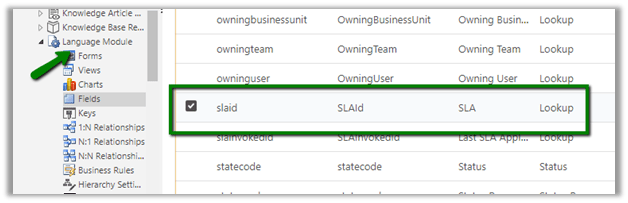
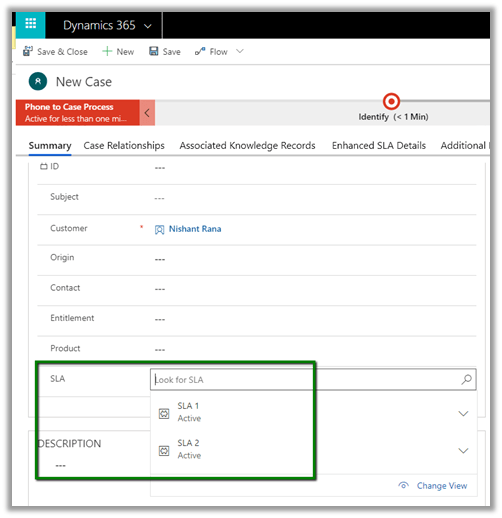
One of the enhancements that came in SLA (CRM 2016 Update 1), which I feel has got unnoticed by few, is choosing the SLA manually using the SLA lookup field.

As we all know SLA comes already enabled for Case Entity and can be enabled for the below entities

Account, Contact, Order, Invoice, Quote, Opportunity, Lead, Activity Entities.

Basically, the above entities have SLA lookup field already created for them.

We can also Enable SLA for custom entities and activities, which will create the SLA lookup field in it.

Add the field on the form and select the appropriate SLA, and that selected SLA will be applied to that record.

It saves us from defining multiple SLA Items for an SLA to be applied as DEFAULT or to use the entitlements to achieve the same.

Hope it helps..

Single Organization vs Multiple Organization (Single Instance vs Multiple Instance) key points to consider in Dynamics 365 CE (On-Premise)


The decision for going with single or multiple organisation should be made as early as possible because if the implementation grows, it will increase the complexity. For e.g., if we have Marketing already implemented for the marketing lob and now, we are planning to add Sales and Service, which would be difficult as it could require updating the existing implementation (plugins, workflows, BPF, Security Model, Business Unit structure, etc.) to cater for addition of new LOBs. If the implementation of the system is designed from the very beginning keeping different LOBs in mind, the complexities can be managed. Also, there is a possibility that a single instance which is serving different LOBs, needs to be separated to multiple instances later, this again will require additional efforts.

Below are some of the factors and pros and cons that we would need to consider before deciding on Single Organization vs Multiple Organization (Single Instance vs Multiple Instance).

Companies with Business units \ LOBs having a different set of customers and different
functional area with no need for

  • cross-business collaboration
  • sharing of data
  • unified or roll-up reporting
  • the same set of standardization

will benefit from Multiple Organization or Multiple Instance approaches.

The benefits of Multiple Organization or Multi-Instance are

Reduced complexity when it comes to the designing and implementation of the data model and security model.

Having less volume of data stored in the system could contribute to improved performance of the application.

Having a lesser number of customization (plugins/workflows/business rules etc.) without segregation logic for different LOBs could also contribute to improved performance.

Provides autonomy, so easy to implement new features/functionalities/3rd party applications without having to consider the impact of it for other business units.

Easy and efficient release management e.g. fast deployment, lesser downtime and do not have to be agreed upon for all the LOBs, less need of regression testing, etc. with fewer teams/functionality being impacted.

Fewer chances of exceeding organization limits for e.g. we have following limits in Dynamics 365 CE /CRM – 100 rollup attributes and each entity having 10 rollup attributes, 10 activated business process flow per entity, maximum number of entities that can have active SLAs is 7, maximum number of SLA KPIs allowed per entity is 5 etc.

System-level settings through Administration à System Settings could be easily governed, managed and defined for the single organization without affecting other LOBs for e.g. some of the settings like – Decimal Precision Point, Relevance Search or Categorized Search, Using legacy form rendering, Session Timeout, Audit settings, etc.

For Customer – flexibility to have different implementation team (partners/vendors) working on separate organizations (administration, implementation, support, etc.)

Also, if there are any regulatory or compliance that has to be in place for one LOB it would adversely affect other LOBs in case of the single instance as essentially, they’d be sharing the same resources.

On the other hand, companies having Business Units with the need for coordination and sharing information/data having process standards, rollup reporting needs will benefit from a single organization or single instance approach.

Rollup and Unified reporting and cross-business unit collaboration can be achieved easily in case of a single organization as all their information would be residing in the same instance’s database without any need of User Interface Integration/ SQL Server Replication / Web Service Integration / Publish/subscribe pattern by plugin-ns.

Check out the whitepaper here

https://www.microsoft.com/en-us/download/confirmation.aspx?id=36056

Most of the 3rd party applications in App Source like ClickDimensions supports only single instance, so different LOBs part of that same instance can share it, which will not be the case of multi-instance, as it would require separate licenses to be procured.

Required common functionalities would still need to build/deployed into multiple organization i.e. less reuse of configuration and code, which can be easily shared and standardized in case of singe organization.

No need for data replication or information (customer, contact, etc.) to be duplicated in all the instances in case of multi-instance.

For multi-instances in case of Online, there would be an additional cost associated with adding instance (sandbox and production).

Also, additional cost in case of multi-instance, for procuring any 3rd party application for each of the instance that needs it, increased integration/ replication cost.

For multi-organization in case of CRM On-Premise, there could be added infrastructure cost to support that many organizations.

Multi instance/organization can also plan to use the Hub and Spoke strategy. This would be recommended approach in case of independent but similar LOBs (e.g. located at different region/geography) i.e. replication.

https://blog.westmonroepartners.com/implementing-dynamics-crm-on-an-enterprise-wide-scale-using-a-hub-and-spoke-strategy/

Few important factors to be considered are as below

Ownership Cost – Who within the organization/enterprise is paying and owning the CRM System.

Does the organization have a Global Center of Excellence (CoE)?

There is no denying that having a single instance service multiple LOB(s) will have added complexity which will only grow with time as the implementation progresses (enhancements/ phases), does the organization has the plan or a roadmap clearly defined to handle it with all the stakeholders involved aligned with Enterprise strategy and architecture.

Please feel free to add your thoughts, suggestions and insights in comments.

Hope it helps ..

Advertisements

What is the maximum file size limit for Attachments in Dynamics 365 \ On Premise V9?


Recently was trying to figure out the maximum file size limit for the attachments.

It is 131072 (in kilobytes)

Can be defined at Settings – Administration – Email Tab.

Scroll down to Set file size limit for attachments section

MaxSize

Hope it helps..

Advertisements

How to – Use SARIF Viewer to read the static analysis results generated by Microsoft.PowerApps.Checker.PowerShell module


In the last post, we saw how we can use the Microsoft.PowerApps.Checker.PowerShell module to analyze the Solution (Unmanaged and Managed – Online or On-Premise) outside the PowerApps Maker Portal.

https://nishantrana.me/2019/07/12/using-the-powerapps-checker-powershell-module-to-validate-the-solution/

The reports generated by the tool are in SARIF format i.e. Static Analysis Results Interchange Format (JSON based) standard for the output format of the static analysis tool. This format originated at Microsoft.

To view the result, we can use the below tools

For Visual Studio :

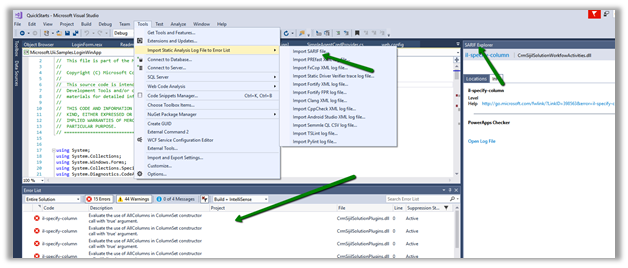
After installing the extension, navigate to Tools à Import Static Analysis Log files for Error List à Import SARIF file and select the result file generated.

It will list down the details in the Error List Window as shown below.

For Visual Studio Code :

For Visual Studio Code, after installing the SARIF Viewer, simply open the file

Below is how the result is displayed in the UI inside Visual studio code.

Hope it helps..

Advertisements

Using the PowerApps checker PowerShell Module to validate the solution


Using PowerApps Checker PowerShell Module we can perform the solution check functionality from outside the PowerApps Maker Portal. This can be useful for automated build and release pipelines. Apart from that some of the notable capabilities of the module include

  • Support for both managed and unmanaged solution.
  • Support for On-Premise.
  • Support for more than one solution at a time.

To get started à

Open the PowerShell (as administrator) and install the module

  • install-module Microsoft.PowerApps.Checker.Powershell

Next, we need to register an Azure Active Directory application in a tenant with PowerApps or Dynamics 365 licensing, even if it is on-premise environment (solution) against which we want to run it.

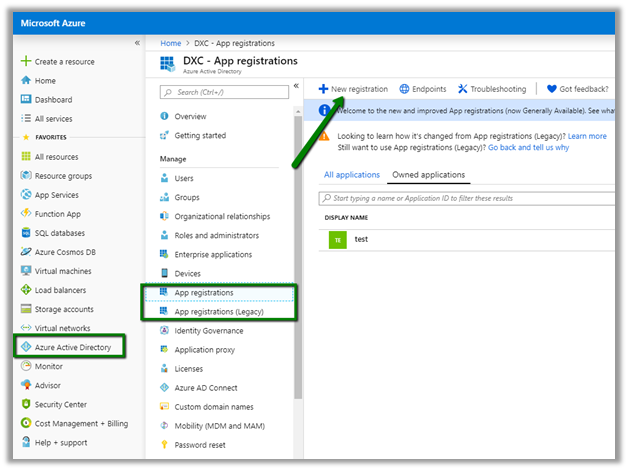
  • Login to Azure Portal

https://portal.azure.com

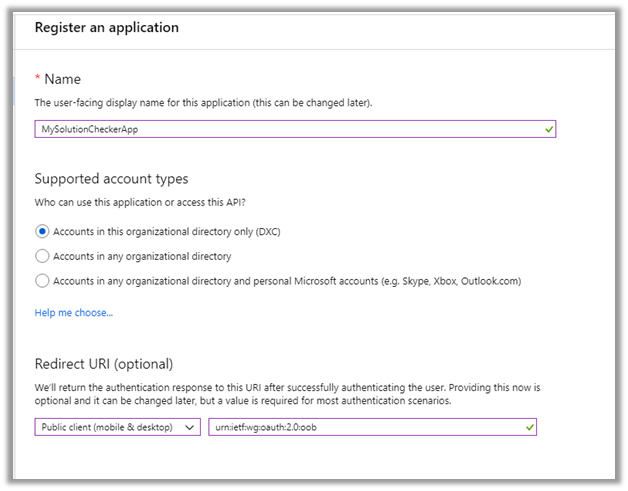
  • Click on New registration to register a new application

  • Provide the below details

Redirect URI

  • Type: Public client (mobile & desktop)
  • Redirect URI: urn:ietf:wg:oauth:2.0:oob

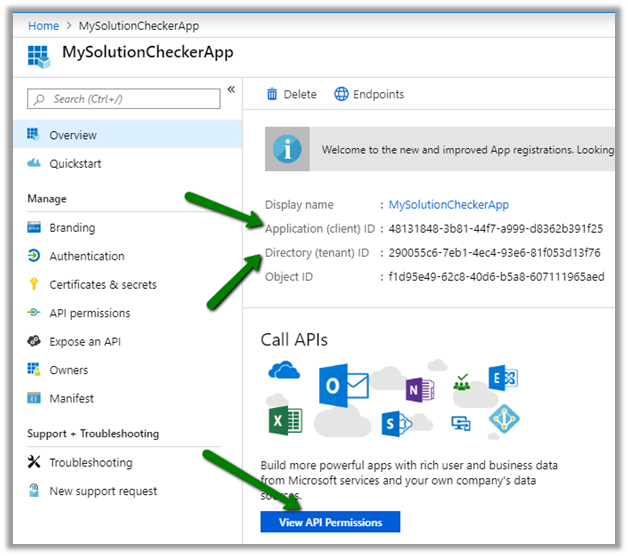
Copy the values of Application id and Directory (tenant) Id which we will use later and click on View API Permission to give the required permission to the app.

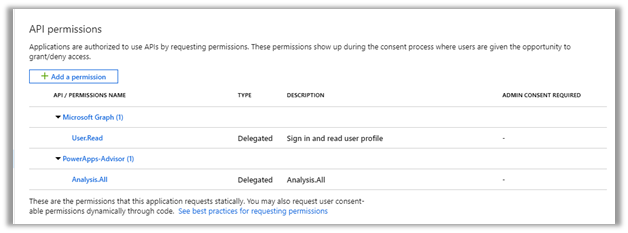
Click on Add a permission (we’d see Sign and read user profile added by default)

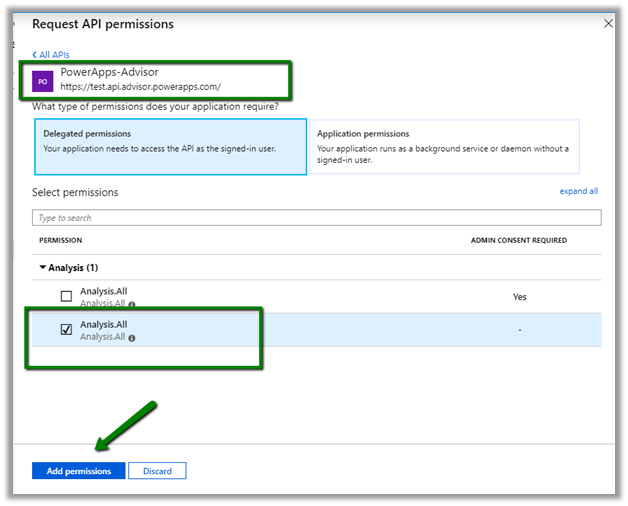
API level permissions to the PowerApps-Advisor first party Microsoft AAD application

  • Application permissions to Analysis.All

Permissions à

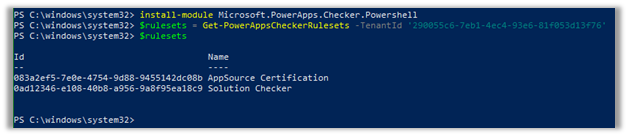
PowerApps solution checker uses Solution checker rule set. Here we are getting all the rulesets available passing our tenant’s id.

  • $rulesets = Get-PowerAppsCheckerRulesets -TenantId ‘290055c6-7eb1-4ec4-93e6-81f053d13f76’

We wil be using Solution Checker rule set here.

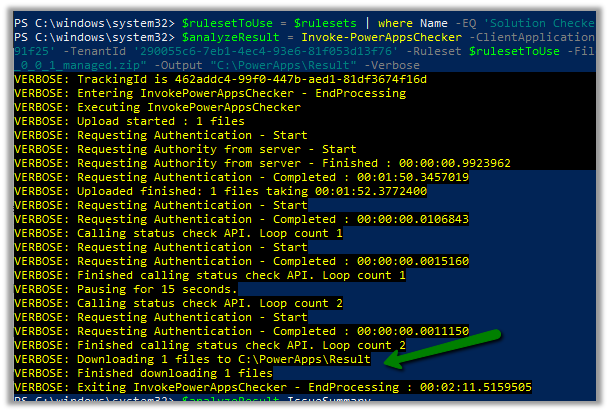
  • $rulesetToUse = $rulesets | where Name -EQ ‘Solution Checker’

Now let us run it against the Solution Zip file as shown below

  • $analyzeResult = Invoke-PowerAppsChecker –ClientApplicationId ‘48131848-3b81-44f7-a999-d8362b391f25’ –TenantId ‘290055c6-7eb1-4ec4-93e6-81f053d13f76’ –Ruleset $rulesetToUse –FileUnderAnalysis “C:\PowerApps\Test_1_0_0_1_managed.zip” –Output “C:\PowerApps\Result” -Verbose

Give the required consent

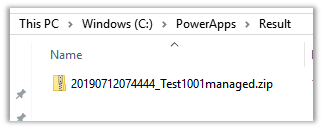
We can see the results download at the path specified

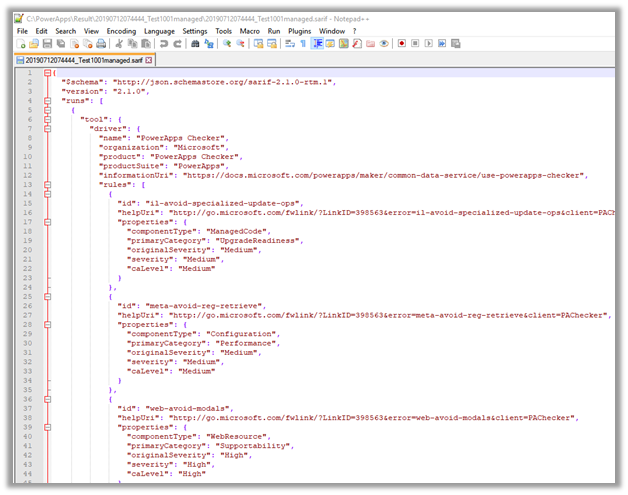
Result is in JSON format

IssueSummary to get the quick overview

Get all the details here

https://docs.microsoft.com/en-in/powershell/powerapps/overview?view=pa-ps-latest

Hope it helps..