How to – Configure Note for Entity Form in Portal in Dynamics 365


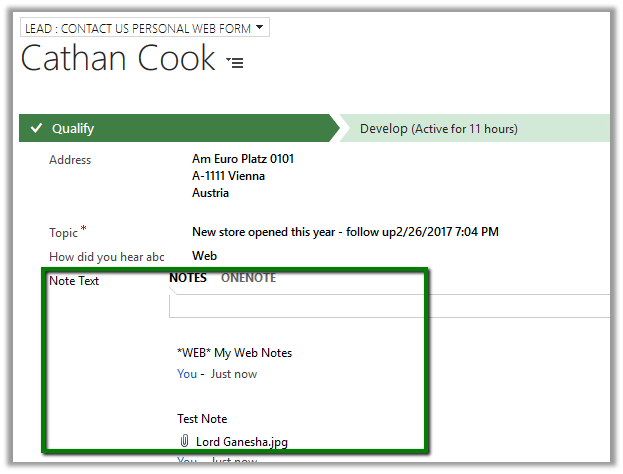
Suppose we have below form for Contact to be displayed as Entity Form in Portal having notes control in it.

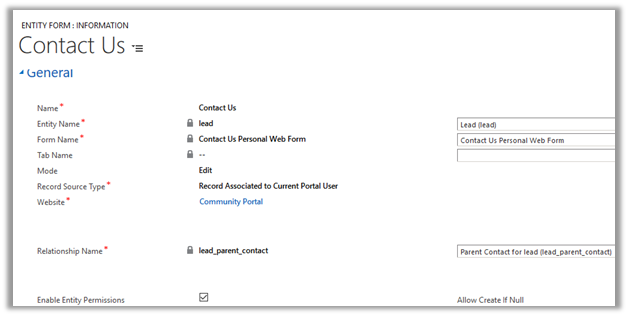
The Entity Form configured for the above form à

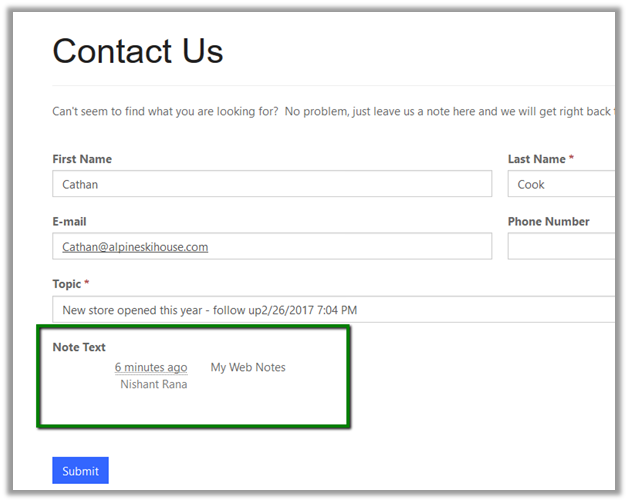
The portal page that displays the Entity Form à

Few points we need to remember here is that

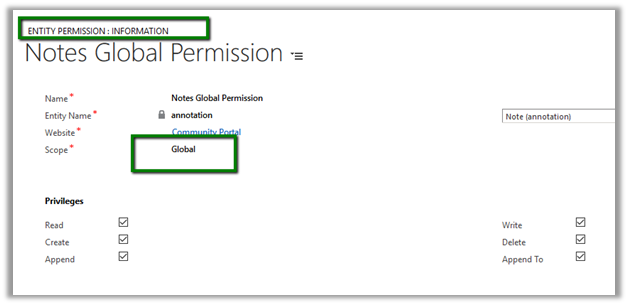
  • The Portal User (contact record) needs to have Entity Permission assigned on Notes (Annotation) through one of the web roles assigned. For simplicity I have given the Global scope permission.

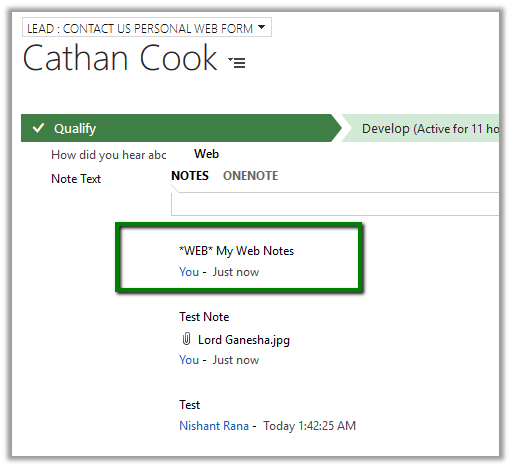
  • The Notes body should start with *WEB* prefix for Notes to be published on the Portal. For e.g. we have 3 notes attached for the contact record but only one shows up in the Portal.

Only 1 note being displayed in the portal.

The Portal displays the Notes as read only OOB.

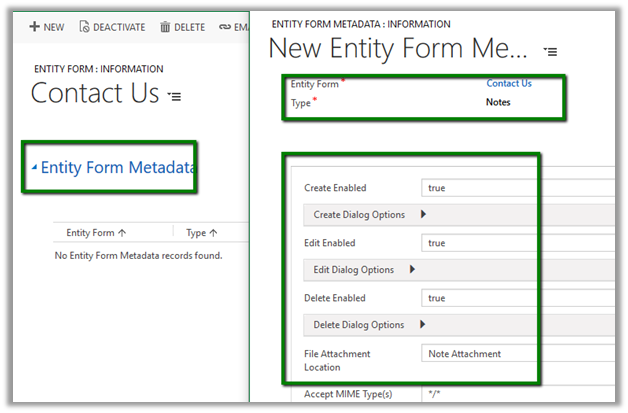
We can use Entity Form Metadata of type Notes associated to Entity Form to further customize it.

Below are the different options that we have.

Refreshing the Portal page adds the

Add Note button

Edit and Delete Option

https://community.adxstudio.com/products/adxstudio-portals/documentation/configuration-guide/customization-tools/managed-forms/notes-for-managed-forms/

Hope it helps..

Advertisements

Using Entity Form Metadata for Sub Grid configuration in Entity Form in Portal in Dynamics 365


Suppose we have following Entity Form configured for Lead Entity in Edit Mode which is having Contact Sub Grid in it.

Contact Us Lead Form with Contact Sub Grid:

Entity Form Configuration:

The Sub Grid renders as read only

We can further customize Sub Grid creating related Entity Form Metadata of type Sub Grid.

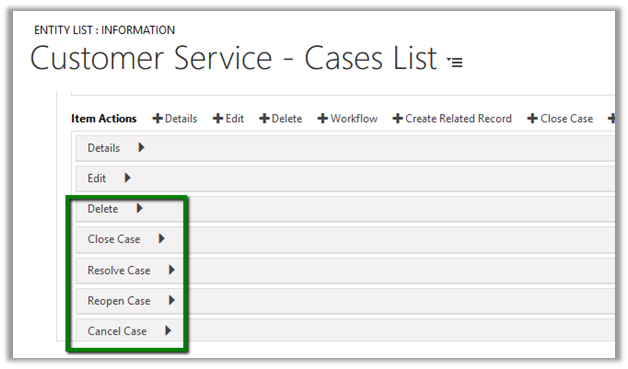
Suppose we have added all the below View and Item Actions to our Sub Grid type metadata.

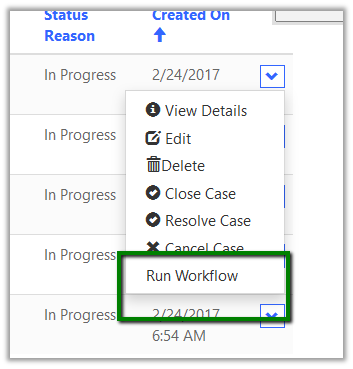
On refreshing the page, we can see all the actions available as buttons in the page.

For Create to work we need to define the Insert Entity Form for Lead.

Download lets the records to be downloaded in Excel

Associate lets the current lead record to be associated to the contact record selected.

Similarly

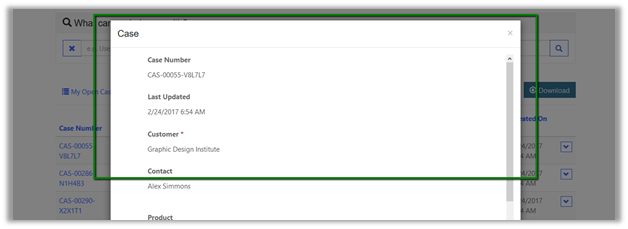
View Details opens up the Entity Form defined in the Read Only mode. Edit opens the Entity Form to edit the record. The Entity Form must be configured and defined in the Item Actions for it to work.

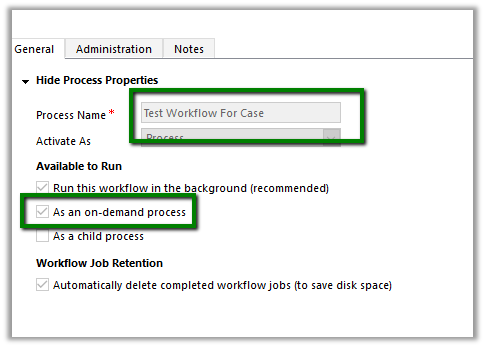
Run workflow can be used to run On Demand Workflow(s) configured.

Delete, Disassociate and Deactivate does what it means and doesn’t need any specific configuration.

Hope it helps..
Adding Actions (Qualify, Workflow, Delete etc.) for Entity Form in Portal in Dynamics 365


Hi,

Apart from the Submit button we can additional Actions to the Entity Form like Delete, Workflow, Qualify (in case of lead) etc.

To understand this, we will use the Contact Us Entity Form that comes with Community Portal.

Let us add Delete, Workflow and Qualify action to it. However before doing that we first need to check Enable Entity Permissions on the Entity Form for actions to work.

And as we have enabled the Entity Permission we need to make sure that the portal user has the appropriate permissions through the web role assigned to him.

Below we have created a global entity permission for Lead record and added it to the Web Role which is assigned to the portal user.

Else we would get the below error

One more thing we need to do here is to change the Mode of the Entity Form to Edit as the delete and workflow action will only work for an existing record.

So here basically we are showing the lead record to which current Portal User (i.e. contact) is associated as Parent Contact.

For the workflow, we need to remember that only On Demand Workflow(s) would be available for the actions inside the Entity Form, which does make sense, as it would be something which the user is triggering instead of conditions on which it is running automatically.

Now open the Entity Form, go to Additional Settings tab and add the actions to it.

Below we have added Delete, Workflow and Qualify action. The Qualify action is specific to Lead only.

Refresh the web page in the portal, we will see the buttons added for the Actions.

For Qualify button to appear, we need to make sure the portal user has appropriate rights on Account, Opportunity and Contact entity along with Lead. For simplicity, we have added Global Entity Permission for those entities to the web role assigned to the portal user.

Entity Permission Associated View for the Web Role record: –

On refreshing the page again, we can see the Qualify Button.

On clicking Qualify button à

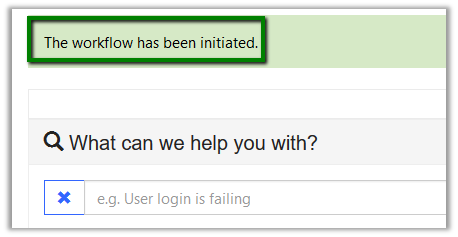
The confirmation message à

Hope it helps..

Configuring OData feed for Entity List in Portal in Dynamics 365


Suppose we have Entity List configured for a custom entity name Locations.

To configure OData feed go to OData feed tab and check the Enabled checkbox.

Specify the Entity Type Name and Set Name, if none is specified the entity’s schema name is used.

Select the View to be exposed for feed.

URL for the feed

<a href="http://<>/_odata”>http://<<domain>>/_odata

Get the data for the LocationSet à

Filter option à

OrderBy option à

Supported options: –

Hope it helps..

Advertisements

Using Details View to update the Entity List records in Portal in Dynamics 365


Suppose we have configured the Entity List view for showing Contact records

https://nishantrana.me/2017/02/02/using-entity-list-to-show-crm-data-in-portal-in-dynamics-365/

Next we want to update the record in the list, for this  we need to configure Web Page for Details View field of the Entity List record.

Here we have specified Contact Details Page web page, this web page has Update Entity Form for Contact in it.

This adds the link for opening the edit page.

Edit Page: –

On Submitting the update, the record gets updated.

Similarly, we can associate a create page having Insert Entity Form in it.

Hope it helps..

Add Attach File additional settings in Entity Form in Portal in Dynamics 365


For attaching files along with an entity form through the portal, we can make use of the Add Attach File section in the Additional Settings tab of Entity Form.

For e.g. in the below Contact Us form, we have checked Attach File check box which basically add the File Control to the web page in the portal.

Allow Multiple Files lets the user attach multiple files. Label would be the label for the control.

Attach File Required option makes attaching a file mandatory and the Required Error message shows the associated error message.

Attach File Save Option– Notes i.e. files are stored as attachment to notes.

Let us see how the settings effects the display and functionality in the Portal.

Attach File label with required symbol à

Clicking on Submit without attaching a file à

Attaching multiple filesà

Clicking on Submit after entering all the required fields à

Opening the lead record inside CRM shows the attachments added to the notes à

Hope it helps..