How to – Use Lookup Transformation and Cache Transformation in SSIS for Dynamics 365 (using Kingswaysoft)


Recently while working in data migration project, we had a requirement to insert a record in CRM from SQL Database and assign it to the team insert.

For e.g.

We had a Transaction Record that had a Brand lookup in it i.e. n – 1 relationship.

And the Brand record had a lookup of Team in it again n – 1. So basically, while inserting the transaction record we wanted to assign the record to the team of the corresponding brand in it.

So, for this, we had to set the owner id and owner id type field while inserting the record.

And for owner id i.e. team GUID we had to do a lookup on the Brand entity.

To achieve so, we did the following step

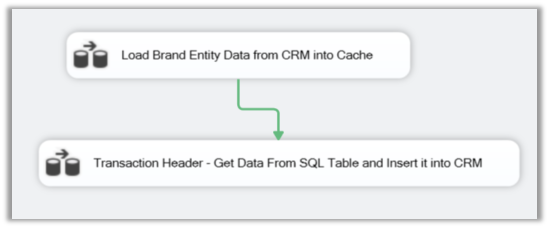
Added 2 Data flow task in the Control Flow, one for Caching the Brand entity’s detail and other for using the fetching data from SQL DB, Lookup Transformation task and inserting the data into CRM.
For the first data flow task,

We added the Dynamics CRM Source and fetched the Brand Name and Team Lookup’ GUID field.
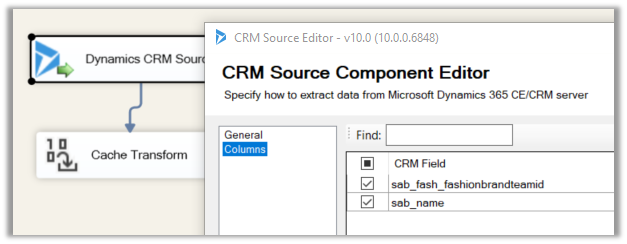
name field which will be used for mapping and teamid field whose value we need from it.

Then we added a Cache Transform task with following details,
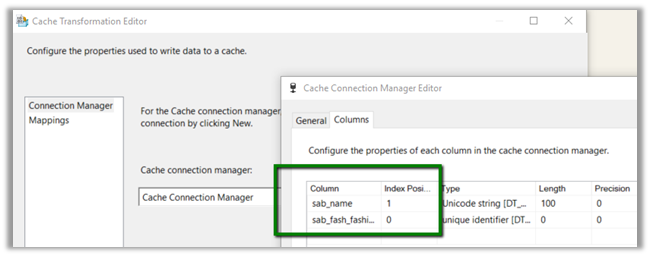
Now for our second data task flow,
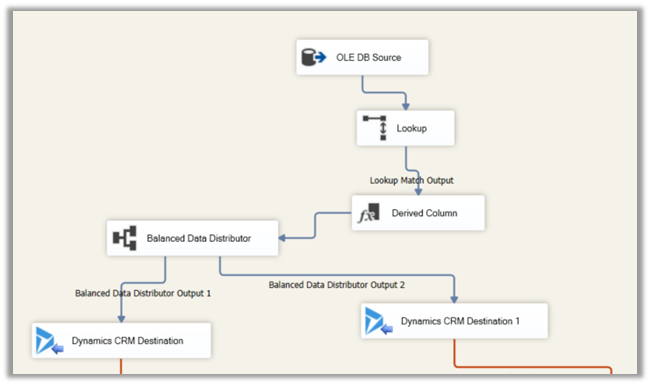
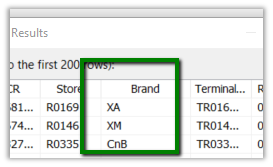
First, we added the OLE DB Source to fetch data from the source SQL View, having Brand (string) column in it.
Then we added the Lookup Transformation task with following properties,
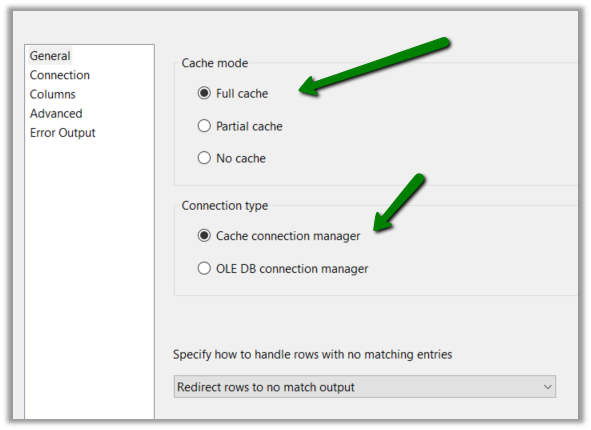
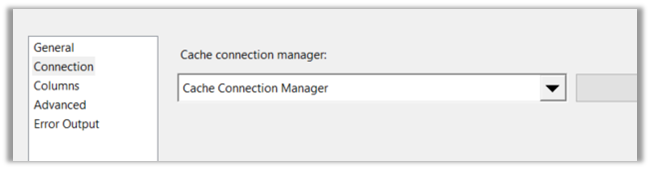
Setting Connection to Cache Connection Manager defined earlier.
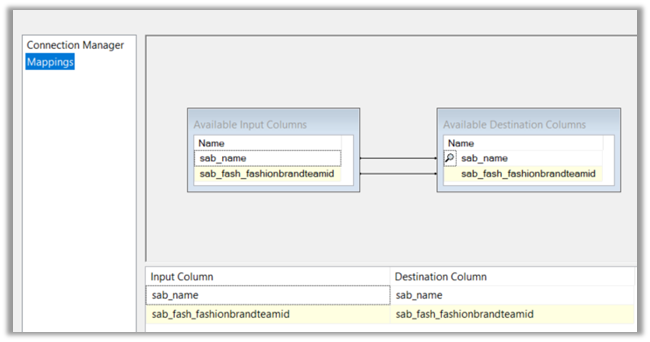
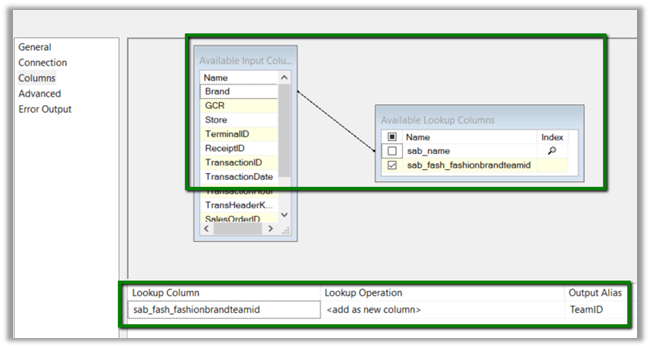
Now the most important part, the columns properties. Here we defined the mapping between the Brand field of the SQL View and name field of the Brand Entity of CRM and selected the teamid field as the lookup column whose value we would like to fetch as shown below.
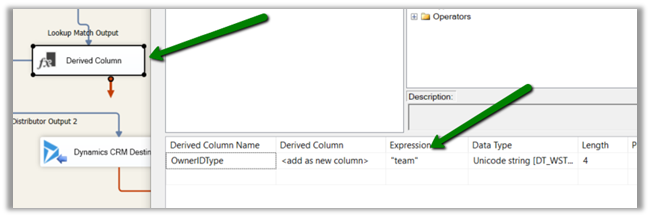
Then we added Derived Column task to add one more column for specifying ownerid type field to be used in CRM Destination Component while mapping. We defined the field type as string and hardcoded the value as “team”.
And as the final step mapped the above fields to the corresponding ownerid and owneridtype field in CRM Destination Component for Create operation.
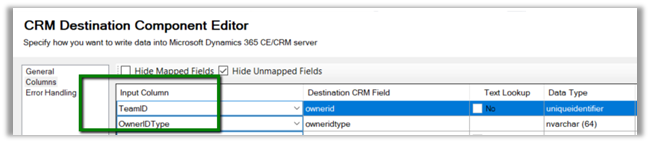
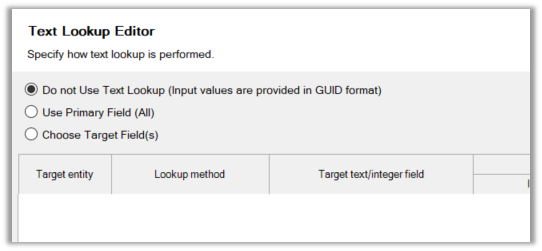
For ownerid, we selected the below option as we were setting the GUID of the team.
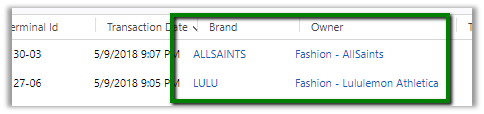
On running the package, we can see the transaction records getting created and properly assigned to the corresponding team of the brand.

The transaction record with Team set as Owner.
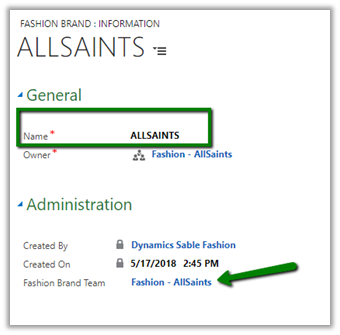
Brand record with Team lookup in it.
Hope it helps..

Advertisements

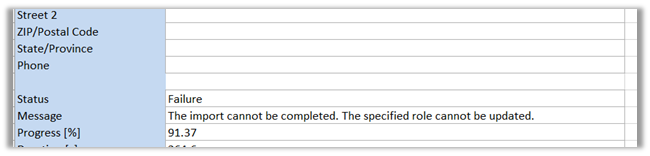
The import of the solution failed – The specified role cannot be updated error in Dynamics 365


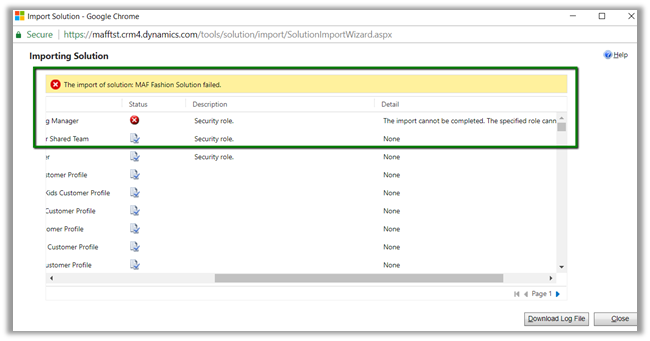
We got this error while trying to import managed solution to our TEST environment.

The detail of the error message clearly tells the reason for the error.

The error was because that we had a similar a role with same name in our TEST environment, and in DEV we had renamed that existing role and had created a new role with similar name.

So, while trying to import the solution, CRM was getting confused as it was able to find the role with same name but different id.

To fix this either rename the Role in DEV and export and import it back or rename the role in TEST to and them import the same solution.

Hope it helps..
Using Alternate Key to Upsert\Update using Dynamics 365 for Sales Connector of Infomatica Cloud


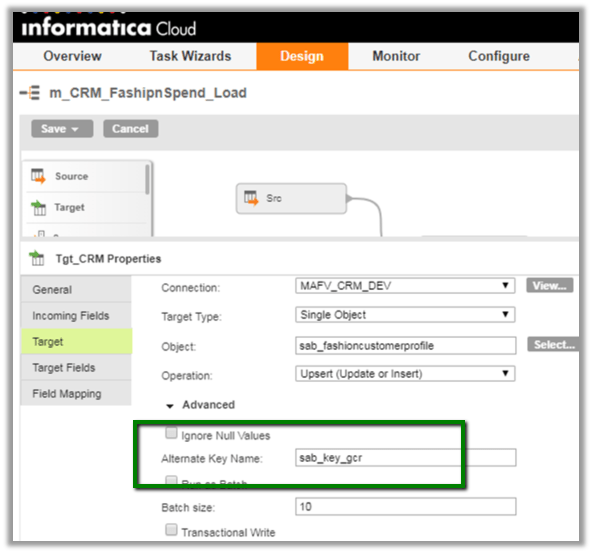
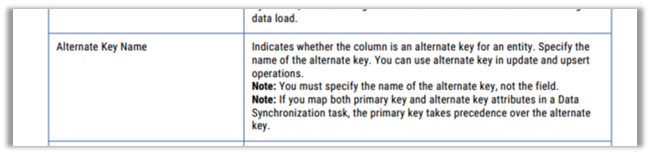
To update or upsert a record inside CRM using Alternate Key in Dynamics 365 for Sales Connector we need to define Alternate Key Property of Microsoft Dynamics CRM advanced target properties.

Suppose we have the following alternate key defined in CRM

Here we need to use the Name attribute of the key as shown below

Hope it helps..

Limitations of Multi Select Option Sets in Dynamics 365 CE


[Edit – (3 May 2018) – Multi Select Option Sets cannot be used inside Portal]

Few months back I wrote the following post about Multi Select Option Sets.

https://nishantrana.me/2017/10/15/multiselect-option-set-in-dynamics-365/

Here, let us look at the limitations associated with them,

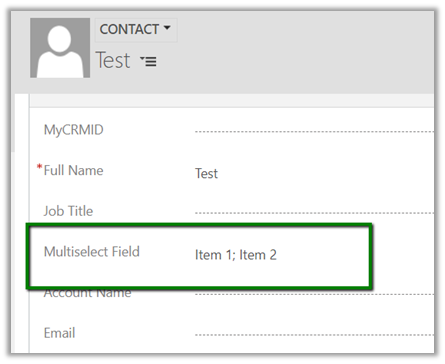
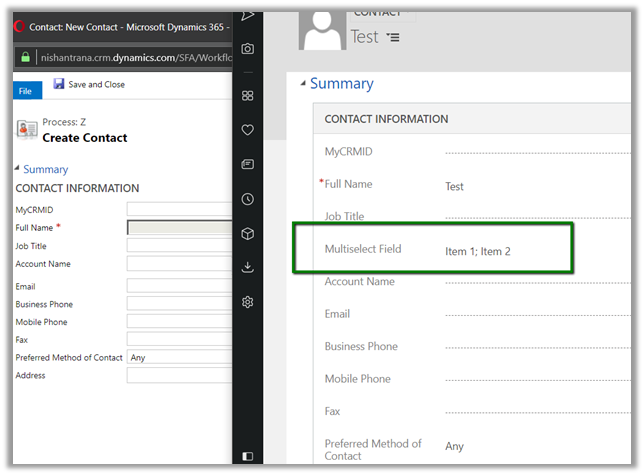
Suppose I have the following multi select option set field created for contact entity.

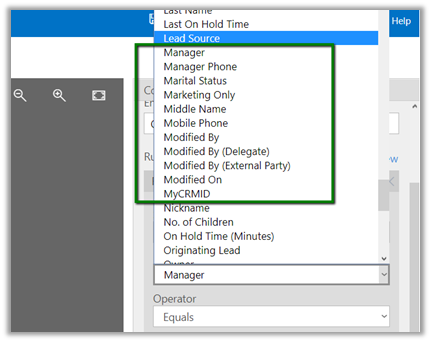
  • The field is not available for Business Rule.

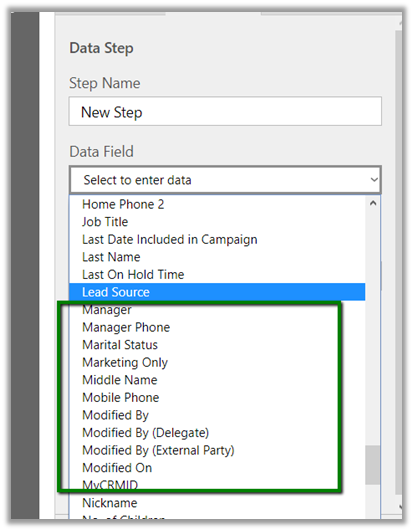
  • The field is not available inside BPF

  • The field is not available inside in Workflow – e.g. check condition and create step as shown below.

  • The field is not available as filtering attribute in Plugin (however the values are available as OptionSetValueCollection)

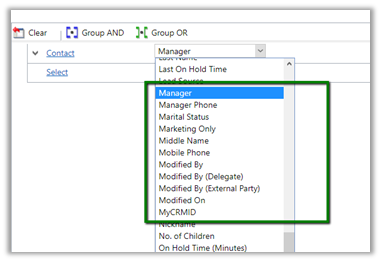
  • Inside Report Wizard it can be used as filter condition

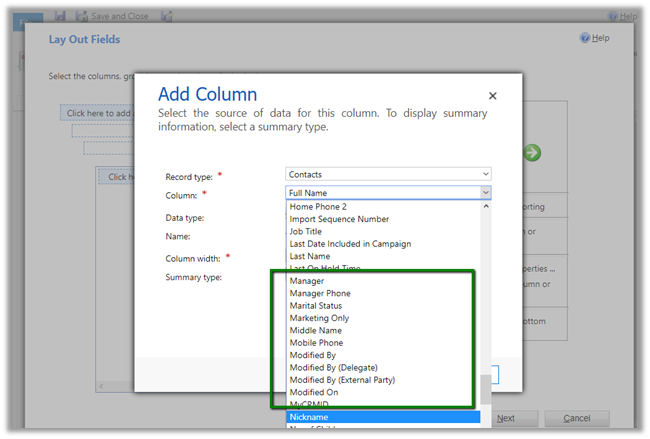
But cannot be used as View Column

So basically, we need to be cautious before we make use of the multi select option sets in our solution.

Hope it helps..

Advertisements

Fixed – Unable to Login to Dynamics CRMOrganizationServiceProxy is null error while using CrmServiceClient


While connecting to Dynamics 365 – Version 9.0.0.0 online through a console application using Visual Studio 2015

we were getting the below error

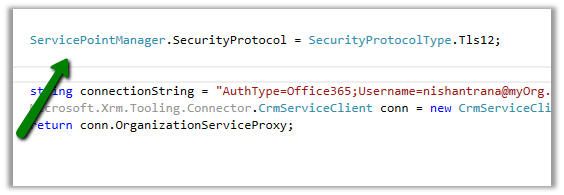
The fix was to specify the security protocol to be Tls12 for the connection for VS 2015 and for VS 2017 make sure the framework version is 4.6 or above.

More Details – https://support.microsoft.com/en-nz/help/4051700

Hope it helps..

Advertisements

Insufficient Permissions error while updating records using Excel Online in Dynamics 365


Recently one of our users reported the below while trying to bulk update the records using Excel Online feature.

The user had the Update rights for those records.

Basically, the Excel Online update features creates a data import job in the background.

https://debajmecrm.com/2015/11/14/dynamics-crm-excel-online-field-changes-save/

So the user had to be given the import data rights.

We resolved the issue by giving the following rights to the user at organization level.

  • Data Import
  • Data Map
  • Import Source File
  • Web Wizard
  • Web Wizard Access Privilege
  • Wizard Page

https://community.dynamics.com/crm/b/crmpowerobjects/archive/2015/08/18/data-import-privileges

Hope it helps..