How to – Use Azure AD Conditional Access to block user access by device platform (Dynamics 365)


Recently we were exploring Azure AD Conditional Access, through which we can define and enforce the organization’s policies regarding access to its resources.

Get more details here

https://docs.microsoft.com/en-gb/azure/active-directory/conditional-access/overview

Here we will define a simple conditional access policy through which we are restricting a user’s access to Common Data Service through Android OS, but allowing the same through the other device platforms.

Login to Azure Admin Portal

https://portal.azure.com/

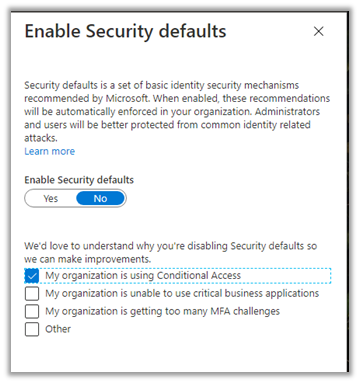
Before we can specify a new policy, we need to disable the Enable Security defaults.

Navigate to Azure Active Directory – Properties and click on Manage Security defaults link

Set “Enable Security defaults” to No
Next, Navigate to Security – Conditional Access

Activate the Azure AD Premium trial required to configure conditional access.

Create a new policy.

  • For Users and Groups, we have specified the user “testuser1“. The other options available are guest, external users, directory roles and groups.

  • For Cloud apps or actions, we have selected Common Data Service

  • For Conditions, we have selected only Android as the Device Platform to which the policy should apply.

For Access Controls – Grant we have selected Block Access.
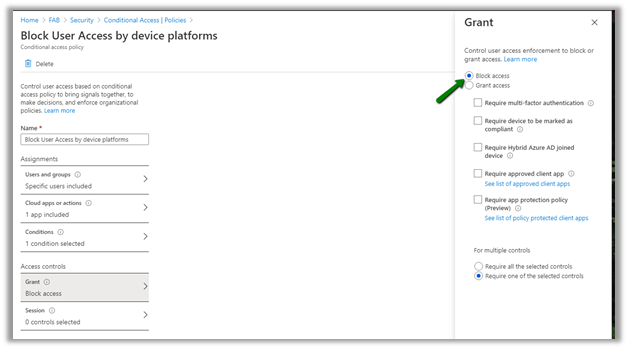
Enable the policy and save.

Let us login through the browser with the testuser1 in windows

Now let us try the same from the Dynamics 365 mobile app from Android.

And the same experience from browser within the Android.

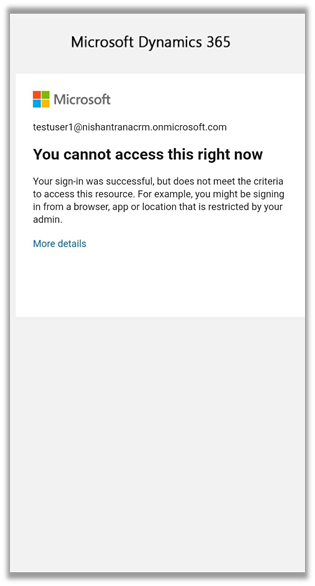
As expected the users is not able to access Dynamics 365 from Android device, and the same user can access from the browser and Dynamics 365 Tablet app from Windows as shown below.
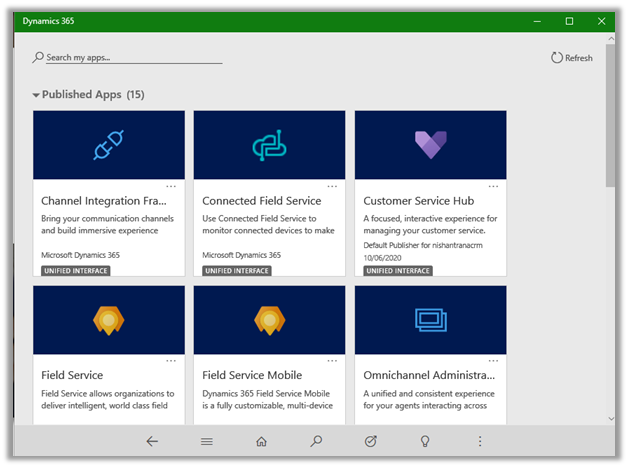
  • What if we update the device platform and select Windows as well?

As expected, the user is not able to access both the browser as well as the app from the windows.
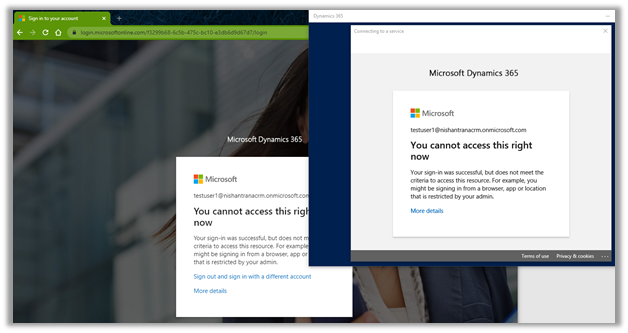
  • What if we want the user to access it from the browser and only restrict it from a mobile app and desktop client?

Update the policy and specify the below Client Apps condition for that

“Modern authentication clients”
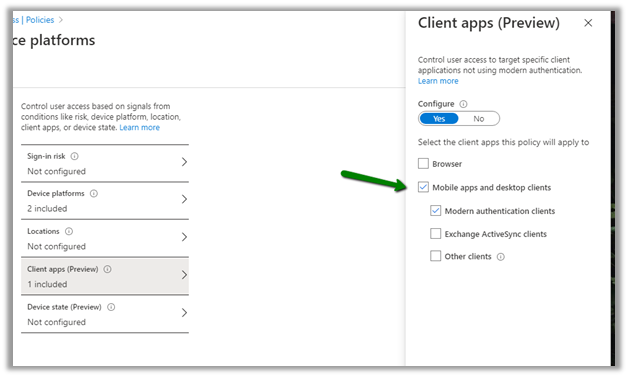
As expected, the user can access through the browser but not the app.

The same experience from within the Android phone.

From browser –

From the Dynamics 365 Mobile App –
Thus we saw how easy it is to get the policy defined and enforced using Azure AD Conditional Access.

Understand the best practices with regards to Conditional Access in Azure Active Directory

https://docs.microsoft.com/en-gb/azure/active-directory/conditional-access/best-practices

Hope it helps..

Advertisements

How to – Setup Entity records routing – Omnichannel for Customer Service


In the previous posts, we learn about provisioning, setting up a live chat, and WhatsApp channel.

Posts on Omnichannel for Customer Service (Dynamics 365)

In this post, we’d see how to set up an Entity records channel.

Through the Entity records channel, we can route cases as well as other entities to the omnichannel agents.


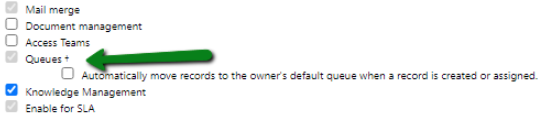
To enable an entity for Routing, enable Queues for that entity. 

Q

Leave the “Automatically move records to the owner’s default queue …” checkbox unchecked for automatic distribution of records to work.

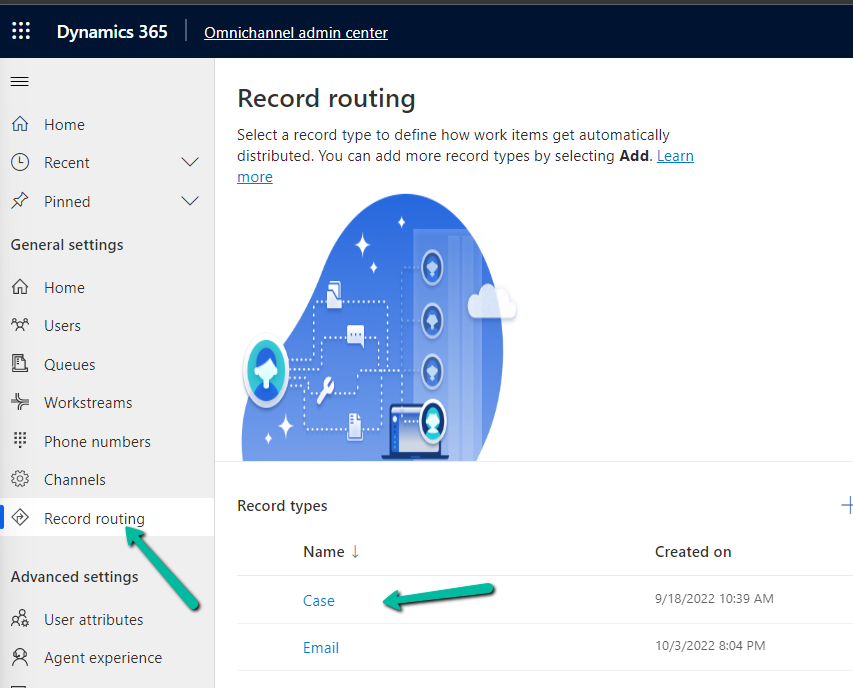
We need to make sure Unified Routing is switched on and the record type or entity is enabled for record routing.

RR

Inside the Omnichannel Administration app, navigate to Channels à Entity Records to create a new entity record channel.

A default workstream will be created automatically, we can also select an existing workstream.

Click on the Routing Rules tab to define the routing rule.

Add a new rule item i.e. for case type as a problem, route the record to Complaints Queue.

Activate the routing rule created.

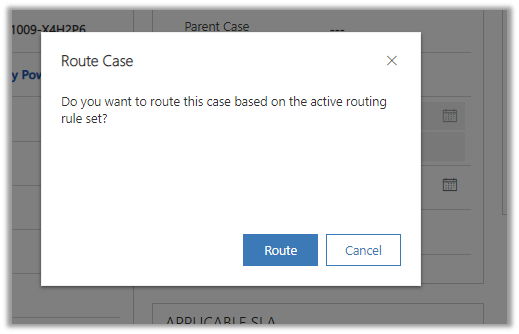
Let us create a new case of type problem and apply routing to it.

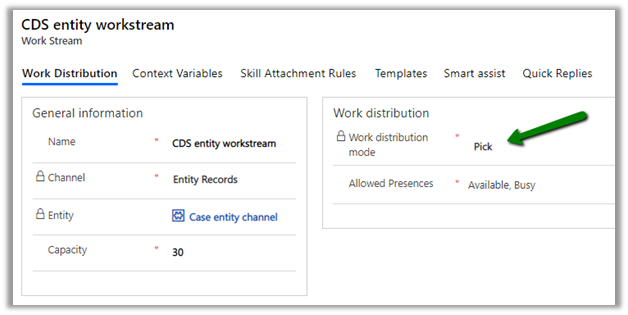
We can see the records added to open work items for agents to pick as defined in the CDS entity workstream.

We can also set the Work distribution mode to Push that would send the notifications to the agent

To automatically route the record we can use Power Automate to define a flow that calls the Apply Routing Rule action.

Refer below blogs to learn in-depth about the Omnichannel

https://neilparkhurst.com/2020/05/29/omnichannel-for-customer-service-collection/

https://thecrm.ninja/omnichannel-for-dynamics-365/

along with Microsoft Docs

https://docs.microsoft.com/en-us/dynamics365/omnichannel/omnichannel-customer-service-guide

Hope it helps..

Advertisements

How to – Setup WhatsApp Channel (Preview) in Omnichannel for Customer Service


In the previous post, we provisioned the Omnichannel for Customer Service and had configured the Chat channel.

Posts on Omnichannel for Customer Service (Dynamics 365)

In this post, we’d see how to set up the WhatsApp channel (preview)

Within the Omnichannel Administration app, navigate to Channels à WhatsApp and create a new WhatsApp account record.

Provide the required consent

As a first step, let us set up the Twilio sandbox account to be used for WhatsApp channel configuration.

Create Twilio WhatsApp account

https://www.twilio.com/whatsapp

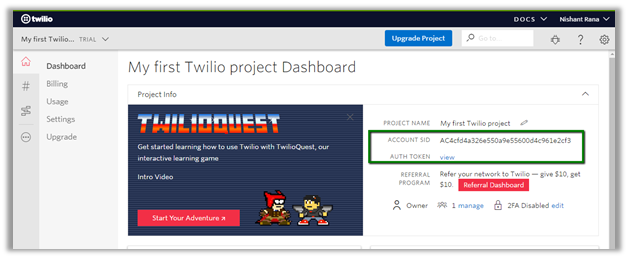
Navigate to console and copy the value of Account SID and AUTH TOKEN

https://www.twilio.com/console

Specify Account SID and Auth token of the Twilio account created in the new WhatsApp channel record.

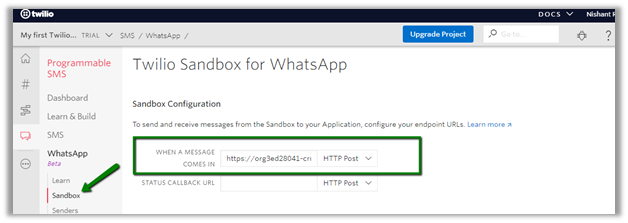
Saving the record will generate the Twilio inbound URL, copy that URL.

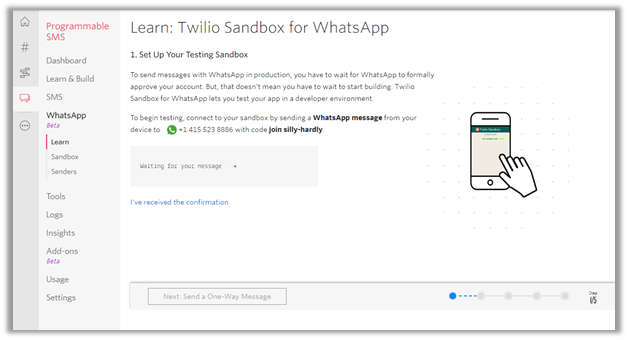
Navigate to Twilio Console à Programmable SMS à WhatsApp and activate the sandbox.

Follow the instructions to configure the sandbox.

On successful confirmation, select Sandbox in the navigation menu and paste the Twilio Inbound URL generated eariler in the “When a message comes in” text box

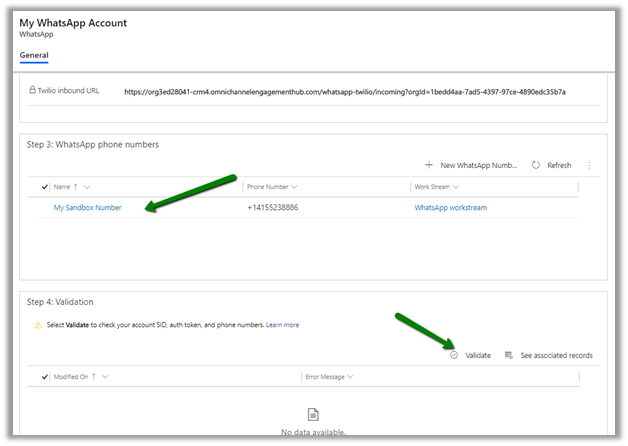
Back in our WhatsApp channel record, add the sandbox WhatsApp number configured

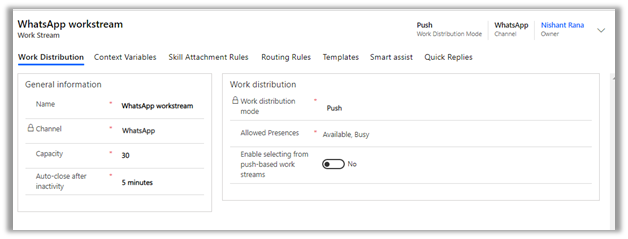
Specify the Twilio Sandbox WhatsApp number and select the out of the box WhatsApp workstream.

The default WhatsApp workstream

Next click on Validate to check the configuration

With validation successful now we are good to test it.

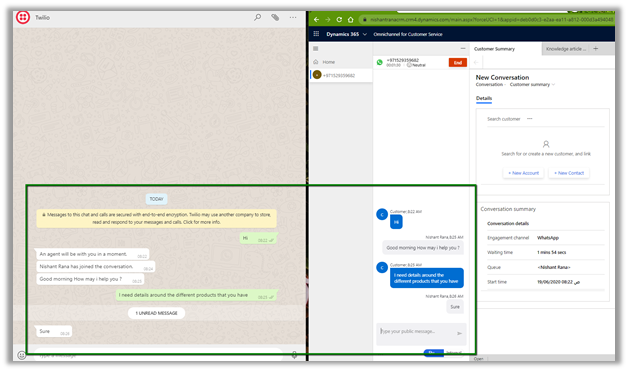
Send the message to the Twilio sandbox number

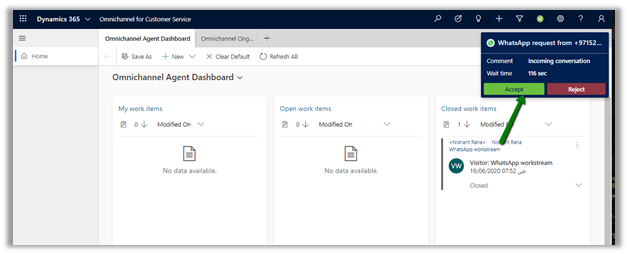
The agent will receive the notification from the WhatsApp channel configured.

On accepting the notification, Agent can now communicate with the visitor.

Thus, we saw how seamless it is to configure and get started with WhatsApp channel in Omnichannel for Customer Service.

Refer below blogs to learn in-depth about the Omnichannel

https://neilparkhurst.com/2020/05/29/omnichannel-for-customer-service-collection/

https://thecrm.ninja/omnichannel-for-dynamics-365/

along with Microsoft Docs

https://docs.microsoft.com/en-us/dynamics365/omnichannel/omnichannel-customer-service-guide

Hope it helps..

Advertisements

Setup Chat channel– Omnichannel for Customer Service


In the previous post we saw how to provision the Omnichannel for Customer Service, below are some of the basic steps we will follow to set up Chat channel

Posts on Omnichannel for Customer Service (Dynamics 365)

  1. Assign Omnichannel security roles to users.
  2. Create Queue(s) and add the users to the queue.
  3. Create a Work Stream of type Live Chat.
  4. Create a new Chat Widget using the Live Chat Work Stream.
  5. Specify pre-chat survey in Chat Widget which will be used for routing rules.
  6. Specify Routing Rules in Live Chat Workstream.
  7. Embed the Chat Widget snippet code in the portal.
  • Assign Omnichannel security roles to users

There are 3 security roles specific to Omnichannel.

  • Omnichannel administrator
  • Omnichannel agent
  • Omnichannel supervisor

Here we have assigned the Omnichannel agent role to the users.

  • Create Queue(s) and add the users to the queue

Within the Omnichannel Administration portal, navigate to Queue.

We have created a complaints queue and added “test user 2” to it.

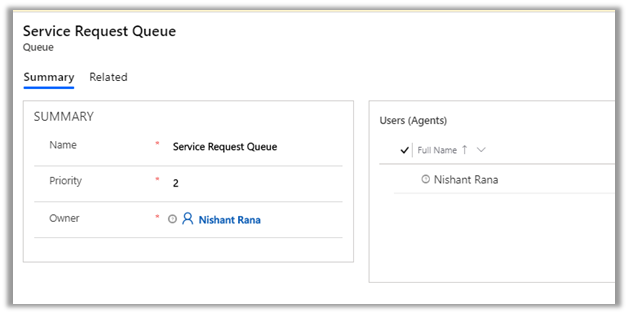
Similarly, we have created another queue for inquiries i.e. Service Request queue with priority 2 and added user “nishant rana” to it.

  • Create a Work Stream of type Live Chat

We have created a workstream of channel type Live Chat with default values for other options.

  • Create a new Chat Widget using the Live Chat Work Stream

Navigate to Channels à Chat and create a new chat.

Here we have created a new chat widget specifying the work stream we had created earlier. Note the code snippet section which will be used to embed the widget in the portal.

  • Specify Pre-chat survey in Chat Widget which will be used for routing rules in the workstream

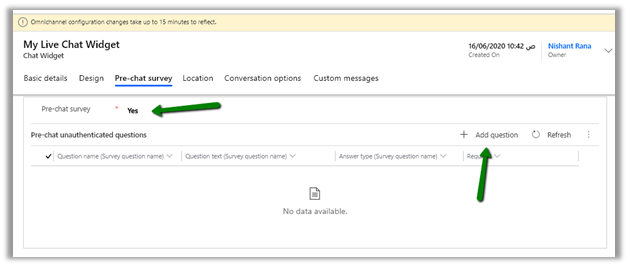
Navigate to Pre-chat survey tab in the widget and set Pre-chat survey as Yes.

Click on Add question to capture user’s response to be used within routing rules.

Below in the question we are asking user’s choice for either Enquiry or Complaints.

  • Specify Routing Rules in Live Chat Workstream.

Open the My Live Chat WS work stream created earlier, select the Routing Rules tab.

Click on Add to add the routing rule.

For Request Type equals to “Enquiry” route it to “Service Request Queue”

Similarly create a new routing rule item record, for Request Type equals to “Complaints” route it to “Service Request Queue”

We now have 2 routing rules defined for our 2 queues in the workstream.

  • Embed the Chat Widget snippet code in the portal

Navigate to the widget created earlier and copy the code snippet.

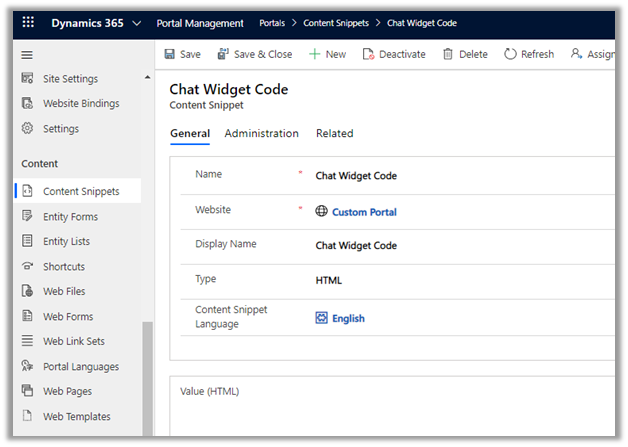
Here we are embedding it in the Chat Widget Code – Content Snippets in Portal.

Clear the cache in the portals if needed.

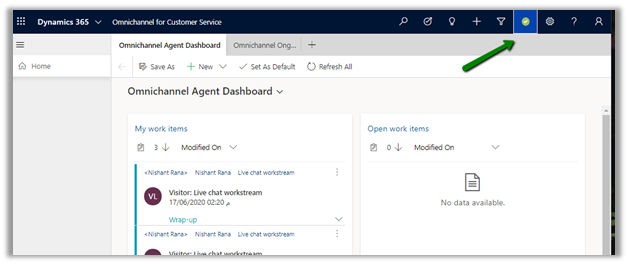
Login to the Omnichannel for Customer Service app with the agent’s login.

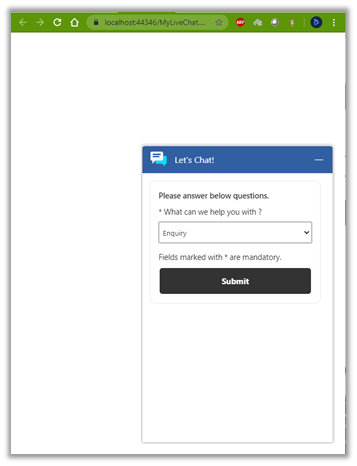
In the portal, customer has selected Enquiry and clicked on Submit to start the chat.

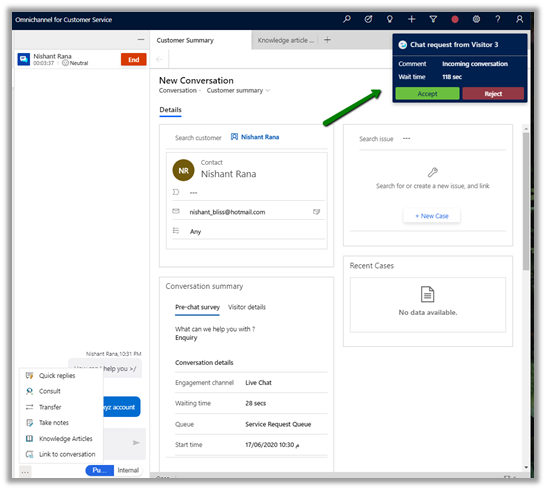
The agent receives the notification.

Accepting the notification opens the conversation window for the agent.

Agent can start communicating with the customer.

Different options that are available for the agents.

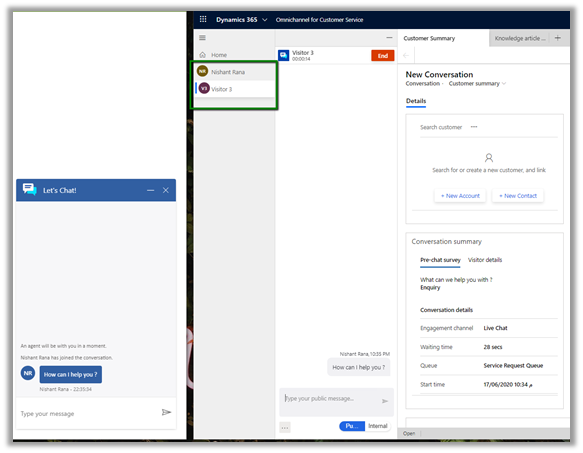
Below we have embedded the chat widget code in an HTML page and have started the conversation by selecting Enquiry as the option.

The agent will receive the notification, while he is still having a conversation with the other customer. This is governed by routing rules and capacity defined for the agent and the work stream.

Below we can see the agent in conversation with both the customers.

Thus, we saw how easy it is to set up the chat channel in Omnichannel for Customer Service.

Refer below blogs to learn in-depth about the Omnichannel

https://neilparkhurst.com/2020/05/29/omnichannel-for-customer-service-collection/

https://thecrm.ninja/omnichannel-for-dynamics-365/

along with Microsoft Docs

https://docs.microsoft.com/en-us/dynamics365/omnichannel/omnichannel-customer-service-guide

Hope it helps..
Advertisements

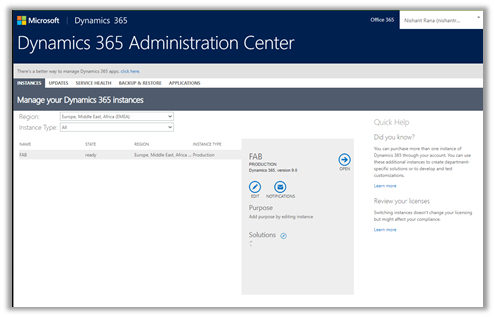
Admin Center URL(s) in Microsoft Dynamics 365 ( Power Platform)


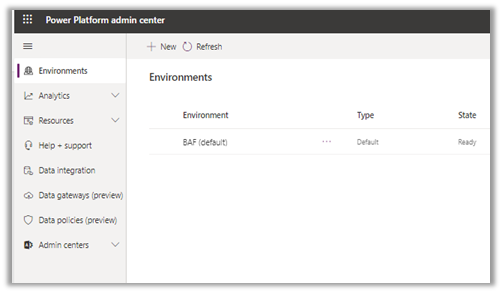
Listing down Administration Center URL(s) for quick reference à

https://admin.microsoft.com/Adminportal/Home?source=applauncher#/alladmincenters

Admin Center URL
Microsoft 365 Admin Center
https://admin.microsoft.com/


Power Platform Admin Center

https://admin.powerplatform.microsoft.com/

PowerApps Admin Center https://admin.powerapps.com/


Dynamics 365 Admin Center
<a href=”https://port..dynamics.com/G/instances/instancePicker.aspx”>https://port.<region&gt;.dynamics.com/G/instances/instancePicker.aspx


for e.g.

EMEA
https://port.crm4.dynamics.com/G/instances/instancePicker.aspx

UAE
https://port.crm15.dynamics.com/G/instances/instancePicker.aspx

North America
https://port.crm.dynamics.com/G/instances/instancePicker.aspx

India
https://port.crm8.dynamics.com/G/instances/instancePicker.aspx

Replace <region> with

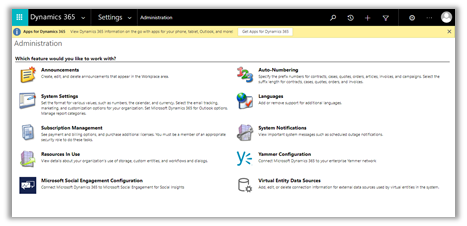
Dynamics 365 Advanced Settings https://[orgname].[region].dynamics.com/main.aspx?settingsonly=true


Dynamics 365 Home
https://home.dynamics.com/


Power Apps Maker Portal
https://make.powerapps.com


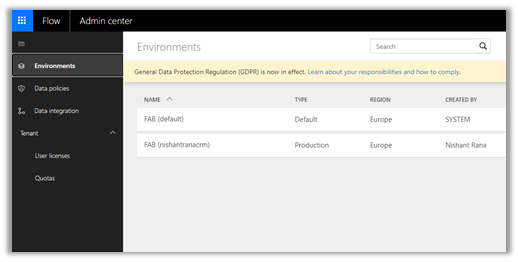
Power Automate Admin Center
https://admin.flow.microsoft.com/


Power BI Admin Portal
https://app.powerbi.com/admin-portal


Azure Active Directory https://aad.portal.azure.com/


Hope it helps..
Advertisements

Overcoming unprecedented business challenges with Microsoft Dynamics 365


In such unpredictable and challenging times, organizations must make sure they’re getting maximum value and efficiency from their Microsoft Dynamics 365 investment.
Through this blog and social media, I’m passionate about sharing my knowledge and helping other Dynamics users get the most out of the platform. That’s why I was excited to contribute to Nigel Frank International’s new white paper Overcoming your business challenges with Microsoft Dynamics.

To help Dynamics customers navigate these unprecedented waters, 16 Microsoft Dynamics 365 professionals and experts shared their thoughts on topics such as cutting costs, ensuring business continuity, data security in Dynamics, growing at scale, and how to make the most of remote working.

The result is over 65 pages of practical advice and actionable tips to help users of all Dynamics apps are fully utilizing their CRM or ERP and taking advantage of its functionality, scalability, and flexible nature to ensure the continued success of their operations.

With more people than ever working from home or on personal devices, I believe the advice on data security is particularly relevant today. In this section of the white paper, Dynamics 365 experts address the new and increased security risks that can arise as growing numbers of Dynamics users access the platform remotely. You’ll find many tips and tricks on how to safeguard your Dynamics data, tools to use to step up your security levels, and how to equip users to work safely in the face of this new normal. 


You can download the white paper here—I really hope you find it useful!