How to – Add hyperlink (and button) in Form Notification in Dynamics 365 (CRM 2016 and earlier)


Recently we were working on a requirement wherein we wanted to add a hyperlink to the Notification that we were showing on the form.

For this we can use the following Jscript library

https://notifyjs.codeplex.com/

The JScript code:

Output:

Clicking on Details opens the page specified in the callback function.

The other option is to show hyperlink within a web resource and putting it inside the form.

https://nishantrana.me/2012/02/09/showing-related-entity-information-in-header-as-hyperlink-crm-2011/

Hope it helps..

Advertisements

Inviting existing Contacts to Portal in Dynamics 365


For inviting existing contact records as user of the portal we can follow the below steps.

Open an existing contact record and click on Create Invitation button

This creates the invitation record along with the invitation code.

Select and run the Send Invitation workflow.

The steps for the workflow are as below.

The contact\user receives the link for the confirmation

Clicking on the link opens the portal wherein user\contact can redeem the Invitation Code and Register.

User can set up username and password during registration.

Once registered user can access the portal and update the profile further and can also change the password, email etc.

The Contact record in CRM gets updated accordingly.

Hope it helps..
Setting up Portal Trial in Dynamics 365


Create your dynamics 365 trial as a first step (if not already created)

https://signup.microsoft.com/Signup?OfferId=bd569279-37f5-4f5c-99d0-425873bb9a4b&dl=DYN365_ENTERPRISE_PLAN1&Culture=en-us&Country=us&ali=1

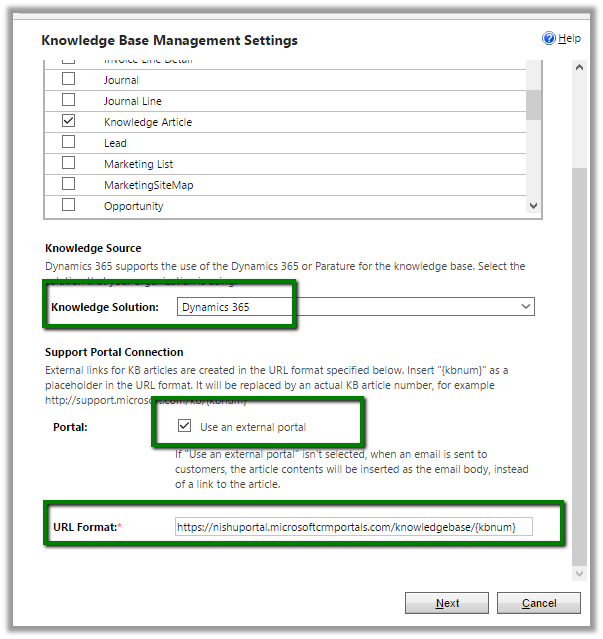
Once trial is set up successfully, open the admin center for Dynamics 365 and select Applications and click on Manage to configure the portal.

Provide details for the portal

Click on Accept

Grant Permission to the Portal

We’d get the below message

After some time

Clicking on here takes us to the manage your solutions page

Once configured we’d see the following area\groups\sub groups added to site map specific to portals

Portal : 

myportal


Hope it helps..

“getRequiredLevel is not a function” error while creating a new contact record in Dynamics 365.


We were getting the strange getRequiredLevel is not a function error while creating a new record (in New Form Rendering)

After debugging, we figured out that it was failing for the following field “mapcontrollink”.

We commented out the entire section and imported it back (unsupported). This fixed the issue.

Strangely enough we couldn’t find that field in the Vanilla version, in our case it is the upgraded environment so that could be reason of having that extra field.

Hope it helps..
Simple Bing Map HTML Web Resource to show Country location in Dynamics 365


Just sharing a HTML Web resource code to show Country location inside the map using name of the country.

Source Code: –


<!DOCTYPE HTML PUBLIC "-//W3C//DTD XHTML 1.0 Transitional//EN" "http://www.w3.org/TR/xhtml1/DTD/xhtml1-transitional.dtd">
<html>
<head>
<title>My Bing Map</title>
<script charset="UTF-8" type="text/javascript" src="https://ecn.dev.virtualearth.net/mapcontrol/mapcontrol.ashx?v=7.0&s=1"></script>
<script type="text/javascript">
var map = null;

// get the bing map key https://msdn.microsoft.com/en-us/library/ff428642.aspx
var credentials = "AvYH87t36Tv3ybyYagU9HUZKjsrWO2Hcup3nu1fmNhpenHKO_xxxxx";

function GetMap() {

// countryName - name of the country from the CRM's form
var countryName = parent.Xrm.Page.getAttribute("new_name").getValue();

// calling virtual earth api
var geocodeRequest = "https://dev.virtualearth.net/REST/v1/Locations?countryRegion=" + countryName + "&key=" + credentials + "&jsonp=GeocodeCallback";

CallRestService(geocodeRequest);
}

function GeocodeCallback(result) {

if (result && result.resourceSets && result.resourceSets.length > 0 && result.resourceSets[0].resources && result.resourceSets[0].resources.length > 0) {

var coordinates = result.resourceSets[0].resources[0].point.coordinates;
var centerPoint = new Microsoft.Maps.Location(coordinates[0], coordinates[1]);

map = new Microsoft.Maps.Map(document.getElementById("mapDiv"),
{
credentials: credentials,
center: centerPoint,
mapTypeId: Microsoft.Maps.MapTypeId.road,
zoom: 5
});

var pushpin = new Microsoft.Maps.Pushpin(map.getCenter());
map.entities.push(pushpin);
}
}

function CallRestService(request) {
var script = document.createElement("script");
script.setAttribute("type", "text/javascript");
script.setAttribute("src", request);
document.body.appendChild(script);
}
</script>
</head>
<body onload="GetMap();">
<div id='mapDiv' style="position: relative; width: 600px; height: 300px;"></div>
</body>
</html>

Check this helpful post as well

https://blogs.bing.com/maps/2015/03/05/accessing-the-bing-maps-rest-services-from-various-javascript-frameworks/

Hope it helps..

Deployment Manager – To create a new organization, the wizard must remove the current organization in Dynamics 365 message.


While creating a new organization using Deployment Manager we got the below message

It was because we had entered the Workgroup Product key which restricts it to only organization.

https://technet.microsoft.com/en-us/library/hh699677.aspx

Changing the product key to the server one, allowed creating the new organizations.

Hope it helps..