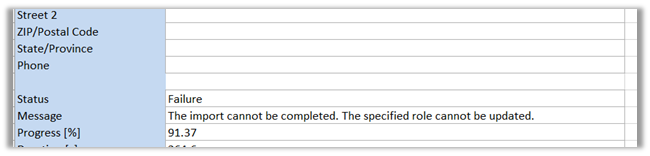
The import of the solution failed – The specified role cannot be updated error in Dynamics 365


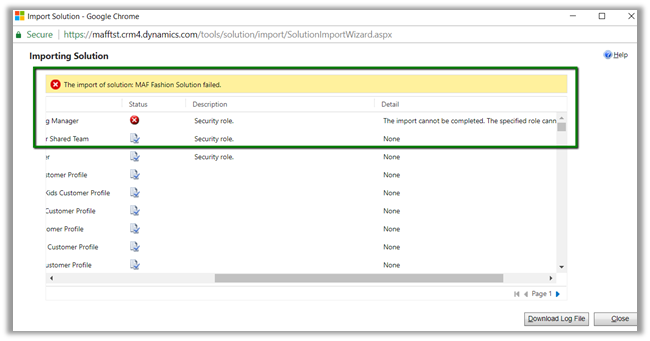
We got this error while trying to import managed solution to our TEST environment.

The detail of the error message clearly tells the reason for the error.

The error was because that we had a similar a role with same name in our TEST environment, and in DEV we had renamed that existing role and had created a new role with similar name.

So, while trying to import the solution, CRM was getting confused as it was able to find the role with same name but different id.

To fix this either rename the Role in DEV and export and import it back or rename the role in TEST to and them import the same solution.

Hope it helps..

The solution installation or removal failed due to the installation or removal of another solution at the same time error in Dynamics 365


While trying to install a managed solution we were getting the below error

As the error message suggests, at the same time we had the solution upgrade (Apply Solution Upgrade) going on in the same environment.

Installing the solution worked after the solution upgrade successfully completed.

At times we might face SQL Timeout issue while trying to upgrade solution if it contains large number of components in it.

https://nishantrana.me/2016/12/06/sql-timeout-issue-while-trying-to-apply-solution-upgrade-in-dynamics-365/

Hope it helps..

Using Alternate Key to Upsert\Update using Dynamics 365 for Sales Connector of Infomatica Cloud


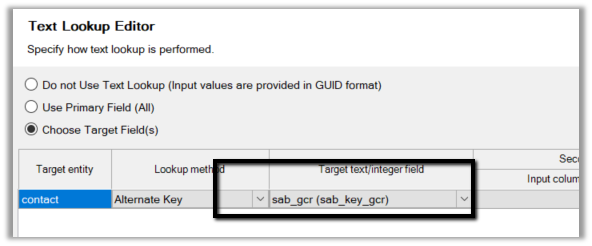
To update or upsert a record inside CRM using Alternate Key in Dynamics 365 for Sales Connector we need to define Alternate Key Property of Microsoft Dynamics CRM advanced target properties.

Suppose we have the following alternate key defined in CRM

Here we need to use the Name attribute of the key as shown below

Hope it helps..

How to – Delete solution components from Managed Solution without “Clone Solution” in Dynamics 365


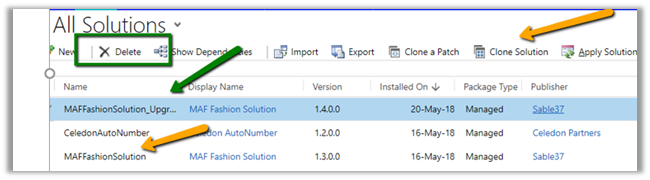
Recently while moving a managed solution from Development to Test, UAT and Production Environment, we realized the if we increase the version number of the solution manually during export and try importing it, we get the option of Stage for UpgradeApplying Solution Upgrade.

This is basically the same option we get when we clone the solution and use it for deleting the component or working with patch solution.

https://nishantrana.me/2016/10/16/how-to-delete-components-from-managed-solution-in-dynamics-crm-2016-without-using-holding-solution/

https://nishantrana.me/2016/09/22/creating-patches-solution-management-in-crm-2016/

So basically wanted to check if we can remove components from solution by simply increasing the version number, instead of cloning the solution.

Created a solution in Dev, added a custom entity with a field named test field.

Exported it as managed and imported in the Test (version 1.0.0.0).


Then removed the field from dev.


And increased the version number to 1.1.0.0 before exporting it as managed.


While importing selected Stage for Upgrade and Overwrite Customizations. Maintain customizations should also work.


After successful import, selected Apply Solution Upgrade.


The solution upgrade was successful.


And it removed the field.


So basically, we do not need to clone a solution explicitly in our Dev, we can increase the version number while exporting and select Stage for Upgrade + Apply Solution Upgrade to remove\delete the components.

Hope it helps..

Advertisements

SecLib::AccessCheckEx failed ObjectTypeCode: 2500 AccessRights: WriteAccess error on User Entity UI Settings in Dynamics 365


Recently one of users started getting the below error when he tried to open a record from grid.

Details: –

We checked, and the user was having the Write Access to User Entity UI Settings entity (2500) through the Team’s security role that he was member of but wasn’t having the rights through the security role assigned to him.

The first arrow shows the missing Write access through a security role assigned to the user and remaining are Write access through the Teams he is part of.

To fix the issue we had to give Write access to the user on the security role directly assigned to him. Basically, user needs to have this right explicitly in his role, as it is User specific entity.

The helpful posts

http://mscrmshop.blogspot.ae/2012/12/strange-behaviour-when-using-security.html

http://piers7.blogspot.ae/2011/05/permissions-issues-in-dynamics-crm-2011.html

Hope it helps..

Fixed – The CREATE UNIQUE INDEX statement terminated because a duplicate key was found for the object while creating Alternate Key in Dynamics 365


We might get error while creating Alternate Key as shown below.

The CREATE UNIQUE INDEX statement terminated because a duplicate key was found for the object name ‘dbo.sab_fash_transactionheaderBase’ and the index name ‘ndx_for_entitykey_sab_fash_headername’. The duplicate key value is (0000001414).

The reason was because there was already records created for that entity and had the field (alternate key one) having duplicate values. Deleting the duplicate record allowed us to create the alternate key on that field.

Hope it helps..

Advertisements