The following managed solution cannot be imported. The publisher name cannot be changed in Dynamics 365 CE


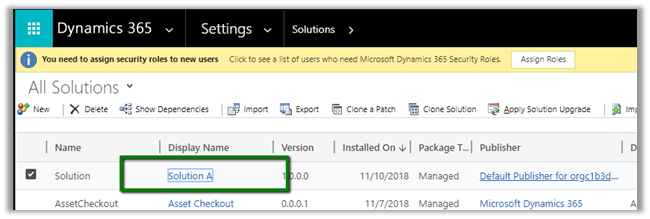
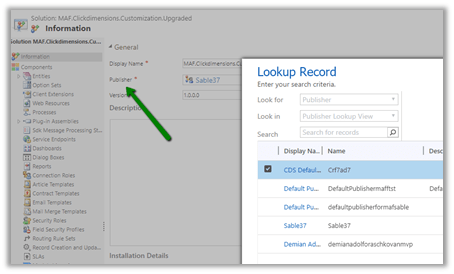
We can change publisher of a solution using Publisher lookup field of the solution in the Information section.

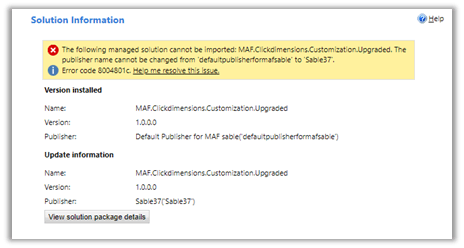
However, if the solution has already been imported in target environment, changing the publisher and trying to import the solution will result in the below error.

Here we try renaming the publisher from “default..” to “sable37”

https://support.microsoft.com/en-ae/help/4463386/the-publisher-name-cannot-be-changed-from-publisher-name-to-other-publ

One way of doing it is to delete the already installed managed solution (if it is feasible) in the target environment and doing the import again.

SiteMapName in the AppModuleSiteMap is null or empty error while importing V9 Solution in Dynamics 365 Customer Engagement


We recently upgraded our Dev and Test environment to V 9.0.

Dev

Test

While importing a solution from Dev to Test which had SiteMap we got the below issue.

“The SiteMapName in the AppModuleSiteMap is null or empty”

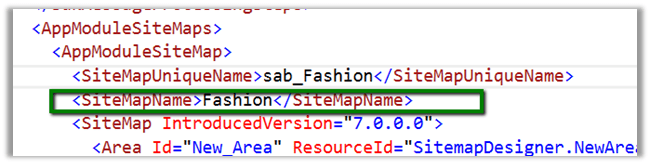
It turns out that the following tags were required and were missing in the Customization.xml

We added that tag and were able to import the solution successfully.

Interestingly if we export the same solution from Test and search for this tag, it is again missing, however, we can see the following XML section added there

This section was not there in dev’s sitemap.

Hope it helps..

Different Updating Instance status during Dynamics 365 Upgrade


The day has come when we had scheduled the upgrade of our Dynamics 365 instance Test Instance(from 8.2 to 9.0).

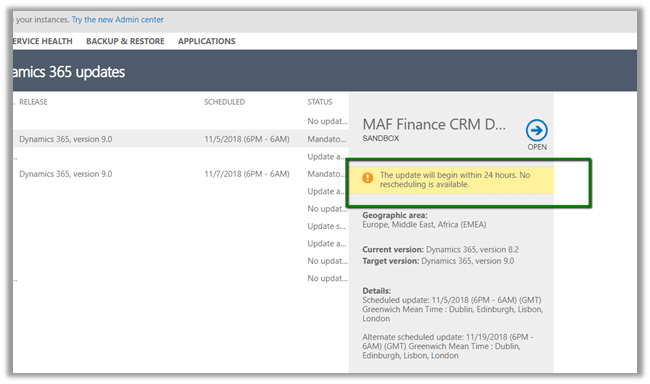
We can see the below message during the scheduled time à “The update will being within 24 hours. No rescheduling is available”.

The following Reschedule Update option will go missing during the scheduled time.

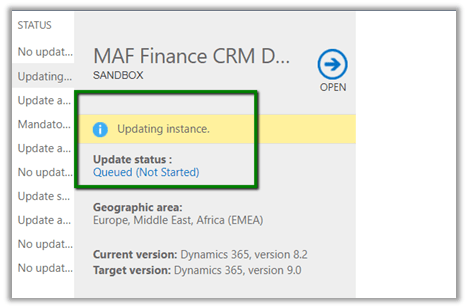
After waiting for few minutes, we see the Update Status as Queue (Not Started)

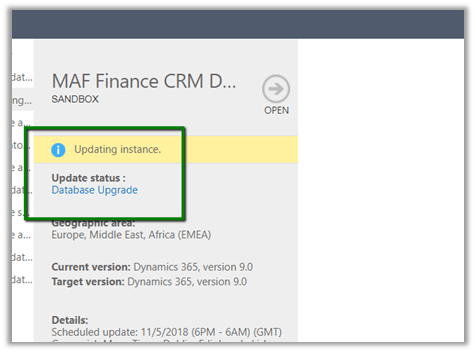
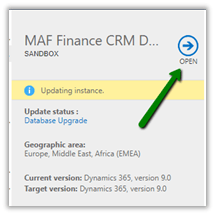
Followed by the status as “Database Upgrade”

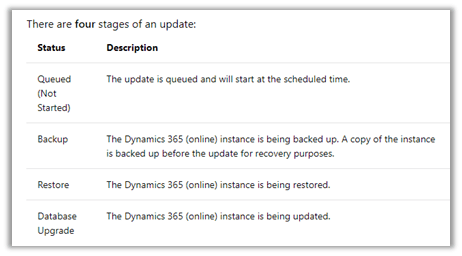
In between the Status message will be Backup and Restore.

https://docs.microsoft.com/en-in/dynamics365/customer-engagement/admin/manage-updates#update-status

Then it kept interchanging the status from Updating Instance (with no status) to Updating Instance – Database Upgrade for close to 2.5 hours.

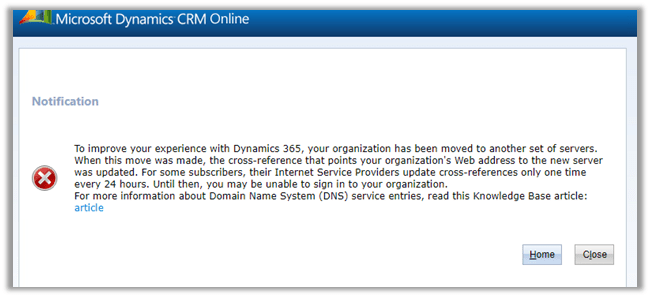
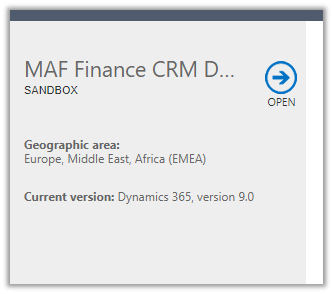
Then although the status was Updating Instance the Open link got enabled after 2.5 hours.

Which opened the following notification

And finally, after 10 minutes or so à

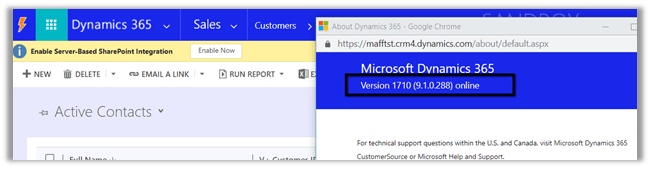
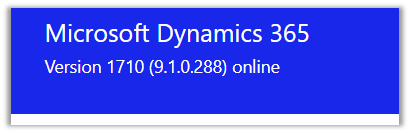
We were all set with version 9.1

In total it took around 3 hours approximately.

Time to enjoy the successful upgrade and explore the new features ..


How to – Use RetrieveRecordChangeHistoryRequest to get Audit Detail in Dynamics 365 CE


Just sharing a sample code to retrieve the Audit Detail using RetrieveRecordChangeHistoryRequest.

RetrieveRecordChangeHistoryRequest changeRequest = new RetrieveRecordChangeHistoryRequest();
changeRequest.Target = new EntityReference("entitySchemaName", "entityId"));
RetrieveRecordChangeHistoryResponse changeResponse =
(RetrieveRecordChangeHistoryResponse)_service.Execute(changeRequest);

AuditDetailCollection auditDetailCollection = changeResponse.AuditDetailCollection;

foreach (AttributeAuditDetail attrAuditDetail in auditDetailCollection.AuditDetails)
{
var auditRecord = attrAuditDetail.AuditRecord;

Console.WriteLine("Entity: " + ((EntityReference)auditRecord.Attributes["objectid"]).LogicalName);
Console.WriteLine("Operation: " + auditRecord.FormattedValues["operation"]);
Console.WriteLine("Action: " + auditRecord.FormattedValues["action"]);

var newValueEntity = attrAuditDetail.NewValue;

foreach(var attrNewValue in newValueEntity.Attributes)
{
Console.WriteLine("New Key: " + attrNewValue.Key + "New Value: " + attrNewValue.Value);
}

var oldValueEntity = attrAuditDetail.OldValue;

foreach (var attrOldValue in oldValueEntity.Attributes)
{
Console.WriteLine("Old Key: " + attrOldValue.Key + "Old Value: " + attrOldValue.Value);
}
}


The record whose Audit History we are retrieving :

Output :

AuditDetail.AuditRecord :

AuditDetail.OldValue n NewValue:

Hope it helps..
Advertisements

Using the Content Access Level for KB Articles in Customer Self-Service Portal


Suppose we have already configured Portal, created contacts and associated KB article to the Portal.

Now the scenario we want to implement is we want a particular user to have access to all the KB article and another user to only specific KB Articles.

For this, we will make use of Content Access Level concept of the portals.

Content access level can be assigned to KB Article and can also be assigned to the Contact Users.

There are 3 content access levels OOB, we can also create our own content access levels.

We have 2 users in our portal, one user we have assigned Default content access level and to another user, we have assigned Premium Users content access level.

Now let us associate content access level to the KB Article.

If we try to edit the KB Article in the Web, we will be presented with the following information

Let us open the Customer Service Hub

The other challenge we will face here is the default and the only form being displayed inside the Customer Service Hub for the KB Article doesn’t include the section or sub-grid for Content Access Level.

To add the Portal Interactive Experience Form, open the Customer Service Hub app in app designer (Settings à My Apps) and add the form, followed by Publish.

Now let us update our KB Article and associate content access levels.

Now the most important step, enabling the Content Access Levels for the website.

Navigate to Portals à Site Settings and set Value field as True.

With all the required configuration done, let us search for the keyword booking in the portal for both the users.

  • User 1 (on the left)à Default Users CAL and User 2 à Premium Users CAL
  • Booking Travel KB Article à Premium Users CAL.

The article is accessible only to User 2.

Now search for Instruction Manuals and Drivers KB Article which has both Default and Premium Users CAL.

As expected the article is accessible to both the users

More articles on Portals

https://nishantrana.me/2017/03/07/portal-blog-post-list/

Hope it helps..
How to – Use Recurrence trigger in Microsoft Flow


Schedule – Recurrence trigger inside Microsoft Flow makes it extremely easy and effective to write a recurring job specially in the context of Dynamics 365, wherein it isn’t straight forward. We can use Workflows with wait and timeout conditions but that isn’t the easiest and efficient way. Each approach has its own pros and cons though.

The scenario we are going to implement is getting basic details of all the leads record created every hour inside Dynamics 365 CE and create a Task in todoist to call that lead.

Login to Microsoft Flow

Navigate to My flows and select Create from blank

Search for recurrence trigger and select it.

Specify interval as 1 and frequency as hour and click on New step and select “Add an action

To get the records from Dynamics 365 CE, we need to use “Dynamics 365 – List records” action. Search for the same and add it.

For List records action, select the organization in the Organization Name, Leads for the Entity Name and for filter query specify “createdon ge addHours(utcNow(), -1)“: i.e. lead records created in last one hour as shown below

Add a new step “Add an apply to each”

Select value (list of items) for “Select an output from previous steps” field of Apply to each and click on Add an action.

Search for todoist and select Create a task action. Login or create a new account in Todoist.

Specify Inbox as the Project Id and for the title use the dynamic value of lead i.e. Last Name, First Name and Mobile Phone.

Save the Flow and click on Test to see it in action.

The run activity will show the status of test run along with any error during the flow execution. In our case it has ran successfully.

Inside Todoist we can see the task created.

Hope it helps..

Advertisements