How duplicate phone numbers for customers (contact/account) are handled in Voice Channel (Dynamics 365 Omnichannel for Customer Service)


Before we delve into different scenarios, few key points, we need to be aware of about Phone Numbers in Voice Channels.

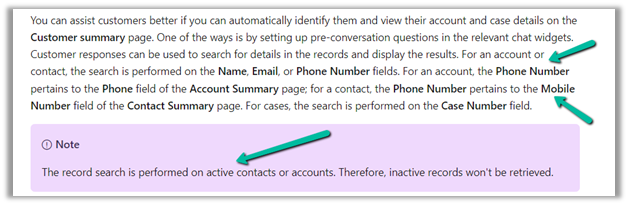
  • Voice Channel considers Contact’s Mobile Phone (mobilephone) and Account’s Phone (telephone1) fields.

https://learn.microsoft.com/en-us/dynamics365/customer-service/record-identification-rule
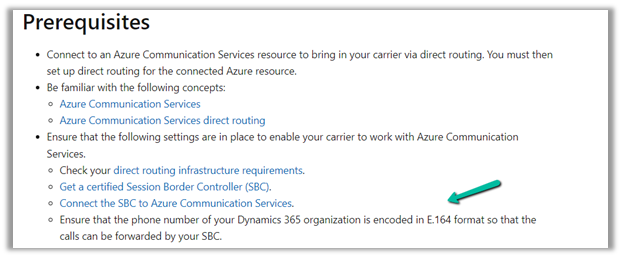
  • The phone number should be in E.164 format inside Dynamics 365.

https://learn.microsoft.com/en-us/dynamics365/customer-service/voice-channel-bring-your-own-number?tabs=customerserviceadmincenter#prerequisites
https://developers.omnisend.com/guides/e164-phone-number-formatting

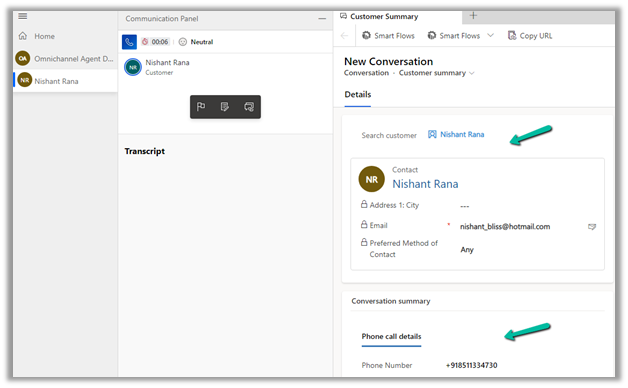
  • If no matching customer (contact or account) is found, the conversation record will not have any customer prepopulated.

  • If 2 contacts are having the same Phone Number (E.164) format, i.e. multiple matches found

In that case, also, no customer is tagged in the conversation record, the agent would have to search for the customer.

  • If 2 contacts and 1 account have the same Phone Number

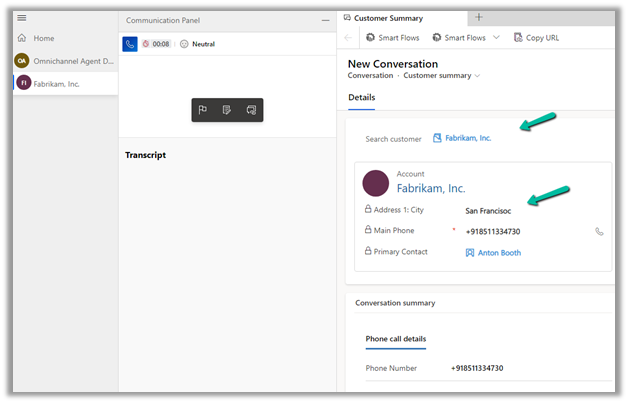
The Conversation records get associated with the Account record.

  • If 1 contact and 1 account have the same Phone Number

The conversation record gets tagged against the Contact
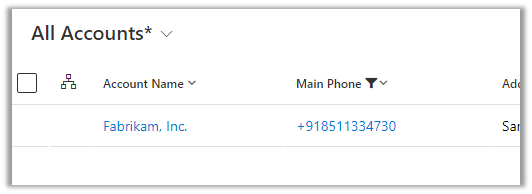
  • If there is only 1 account record with that phone number and no contact records
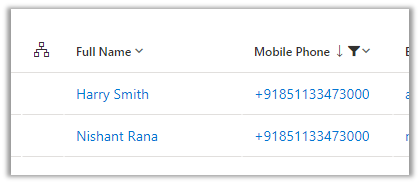
The conversation record has an Account tagged to it.

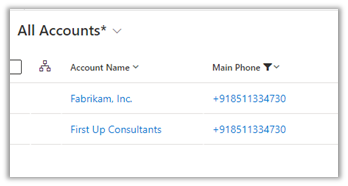
  • In case multiple accounts are found with the same phone number and no matching contact
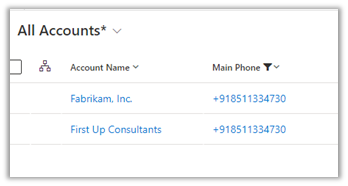
No customer is tagged in the conversation record
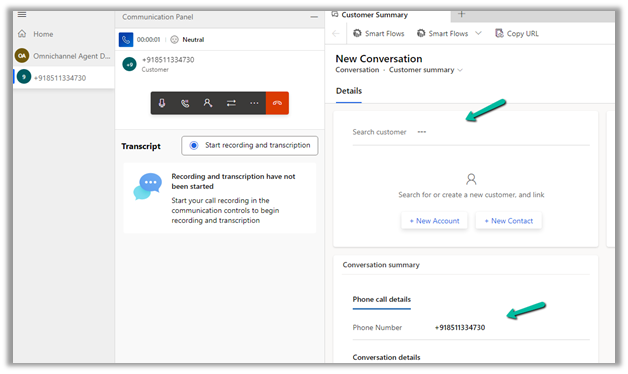
  • If there are multiple contacts and multiple accounts with the same phone number
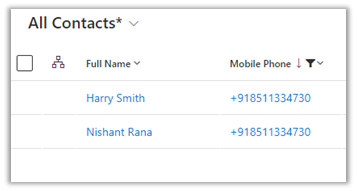
No customer is tagged in the conversation record.

In short –

Matching Contact

Matching Account

Result

0

0

NA

1

0

Contact

1

1

Contact

2

0

NA

0

1

Account

0

2

NA

2

2

1

2

Account

NA

Hope it helps..


Advertisements

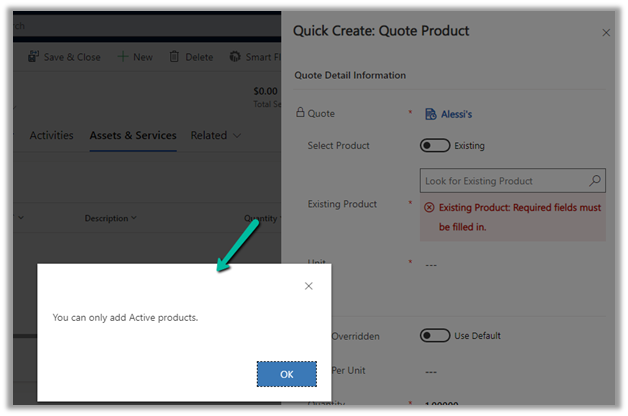
Fixed – The product cannot be added because it is not active while creating Quote Product – Dynamics 365 / Dataverse


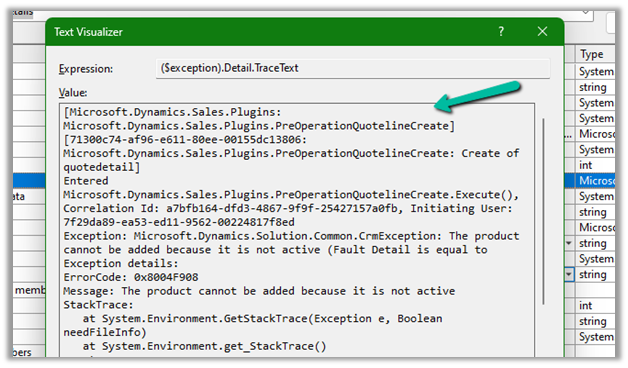
We got the below error while trying to create a quote product programmatically.

As the error message specifies, this is because we are trying to add/associate a DRAFT product to the Quote Product.

We will get a similar error from the application as well if we try adding a draft product as an existing product to either a quote product or an opportunity product.

Below is the product in the Draft status.

Publish the product to make it Active.

Hope it helps..
 

Advertisements

How to – Filter data source to get the active records Dataverse / PowerApps


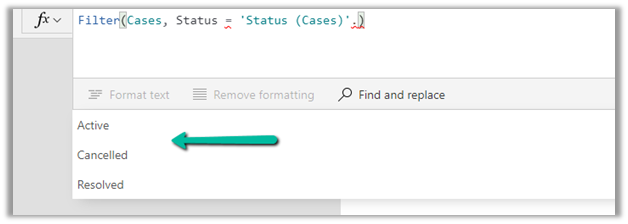
Just sharing the syntax, that we can use to filter the data source based on the status field.

Below is our gallery bound to Cases (Data Source) and showing only the Active cases.

Items

Filter(Cases, Status = ‘Status (Cases)’.Active) 

Filter(Datasource, Status = ‘Status (Datasource)’.[value])

Hope it helps..


Advertisements

Sample Code – Capture / Record lead qualification date – Dynamics 365 / Dataverse


Recently we had a requirement to capture the date when a lead is qualified. Here we can create a new date time attribute to capture the lead qualification date and update this field either through workflow, flow, or plugin on lead qualification.

Status Code = 3 (Qualified)

We implemented a plugin on PreOperationUpdate of lead, with filtering attributes as the state code.

Below is the sample code for the plugin  –

 public void Execute(IServiceProvider serviceProvider)
        {
            ITracingService tracingService = (ITracingService)serviceProvider.GetService(typeof(ITracingService));
            IPluginExecutionContext context = (IPluginExecutionContext)serviceProvider.GetService(typeof(IPluginExecutionContext));
         
            try
            {
                tracingService.Trace("start plugin execution: {0}", this.GetType().FullName);
                // plugin is in pre update stage of lead
                if (context.InputParameters.Contains("Target") && context.InputParameters["Target"] is Entity &&
                    context.MessageName.Equals("update", StringComparison.OrdinalIgnoreCase) &&
                   context.Stage == 20)   
                {
                    var leadEntity = (Entity)context.InputParameters["Target"];
                    if(leadEntity.LogicalName == "lead")
                    {
                        if(leadEntity.Attributes.Contains("statuscode") && 
                            ((OptionSetValue)leadEntity.Attributes["statuscode"]).Value == 3
                            )
                        {
                            tracingService.Trace("Lead with Id {0} is getting qualified at {1}", 
                                leadEntity.Id.ToString(), DateTime.UtcNow);
								
							// the custom date time field to capture the qualification date 
                            leadEntity["custom_qualificationdate"] = DateTime.UtcNow;                         
                        }
                    }                 

                }

                tracingService.Trace("end plugin execution: {0}", this.GetType().FullName);
            }
            catch (System.ServiceModel.FaultException<OrganizationServiceFault> ex)
            {
                tracingService.Trace(ex.Detail.Message);
                throw;
            }
            catch (Exception ex)
            {
                tracingService.Trace(ex.ToString());
                throw;
            }
        }

Hope it helps..

Advertisements

How to – Filter Collection / Items in Gallery based on the related (Lookup) record’s value – Power Apps / Canvas Apps (Dataverse/Dynamics 365)


Suppose we have 3 tables, Table A, Table B, and Table C related to each other as

Table A (n-1) Table B (n-1) Table C i.e.

Table A has a lookup of Table B and Table B has a lookup of Table C.

Below is our sample canvas app that has a gallery and a combo box.

What we would want is based on the Table C record’s name selected in the combo box, we want to filter the collection to only show those records that are related to it.

One of the ways we could implement this is by using the AddColumns to add Table C data to Table A and apply the Filter to it.

Below is the formula to achieve the same.

In Table A, add a column name “TableCName”.

To get the Table C name, perform a Lookup on Table B, where Table B GUID is equal to Table A’s Table B lookup field, and then fetch the Table C Lookup’s name from Table B.

And lastly, perform a Filter on this new column TableCName, based on the selected value in the combo box.

See it working –

https://www.screencast.com/t/XZNDEsykAw

On selecting Table C1 in the combo box –

Similarly on selecting Table C2 in the combo box

Thanks to Debajit for guiding – https://debajmecrm.com/how-to-use-addcolumns-with-lookup-fields-of-sharepoint-in-power-apps/

To read more on AddColumns, Filter, and Lookup.

Hope it helps..

Advertisements

Product Table has Village Lookup in it and Village table has Region lookup in this sample screenshot

InvalidPluginExecutionException error dialog not showing up – Dynamis 365 / Dataverse


One of the reasons why throwing the InvalidPluginExecutionException doesn’t show up error dialog could be that you would have Profiled that step with profile storage as Persist to Entity.


Stop Profiling and it should work as expected.

error

Check for more details on InvalidPluginExecutionException

https://learn.microsoft.com/en-us/power-apps/developer/data-platform/handle-exceptions#cancelling-the-current-operation

https://learn.microsoft.com/en-us/power-apps/developer/data-platform/best-practices/business-logic/use-invalidpluginexecutionexception-plugin-workflow-activities

Hope it helps..

Advertisements