List Rows, Select Columns, and Lookup field – Power Automate / Dataverse


Suppose we want to retrieve the value of the source campaign lookup of the lead records.

The schema name of Source Campaign is – campaignid

To get its GUID in the Select columns of list rows we can specify it as

_campaignid_value i.e. _lookupschemaname_value

The other option is if we specify the schema name in select columns then we need to use the expand property to get the GUID as well if we want any other attribute values e.g. text/label of the lookup field.


Hope it helps..

Advertisements

Agents not receiving calls in Omnichannel Voice – Dynamics 365 Customer Service


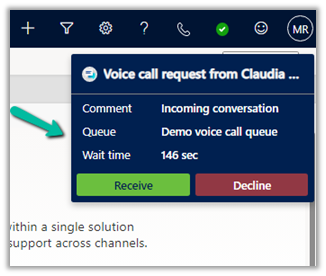
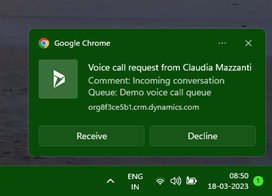
Recently we saw a few of our agents were not receiving the calls/notification for incoming conversations.

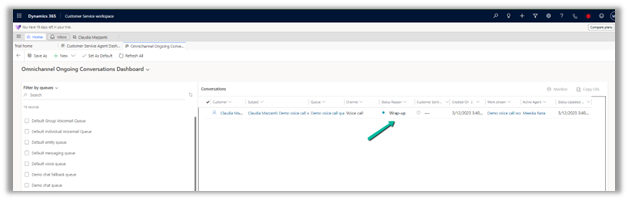
Apart from checking the Routing Diagnostics, we can refer to the Omnichannel Ongoing Conversation Dashboard (available for the Omnichannel Supervisor role)

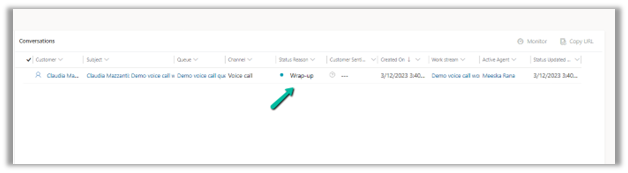
In our case, we realized that the ongoing conversation was in Wrap-up status for the agent.

And also as we had a work item limit of 1 along with assignment blocking defined through the capacity profile for that agent, the agent wasn’t receiving the incoming notifications.

So here we can ask the agent to close the session correctly.

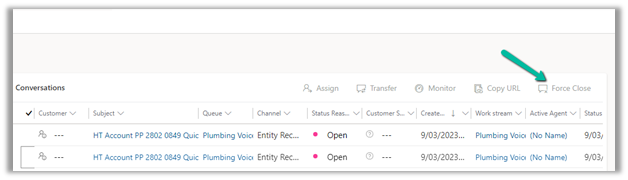
Or as a supervisor, we can force close the conversation from the Omnichannel Ongoing Conversation Dashboard.

Force Close-

Hope it helps..

Advertisements

How to – Configure Voicemail Workstream and Queue – Dynamics 365 Customer Service


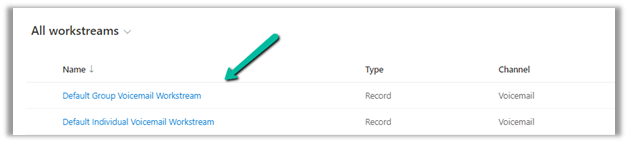
When we configure the Voice demo, we can see 2 workstreams and queues created for Voicemail one for individuals other for voicemail of type group.

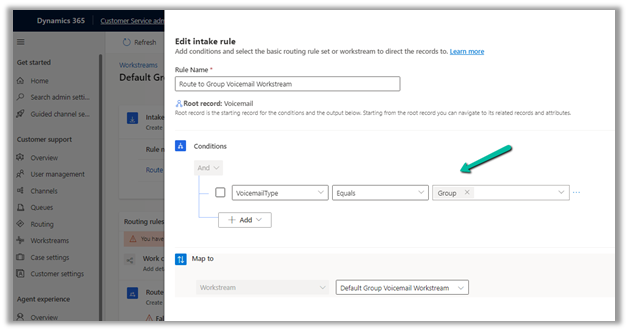
The Default Group Voicemail Workstream has the following intake rule defined.

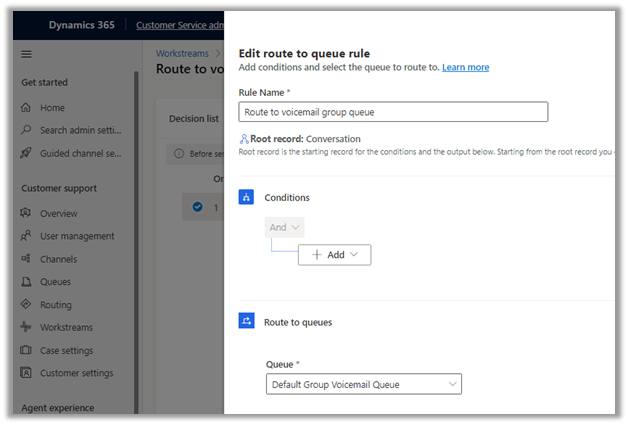
And following Route to Queue Rule

Configuring Voicemail – https://nishantrana.me/2023/02/23/how-to-configure-voicemail-in-omnichannel-voice-channel-dynamics-365-customer-service/

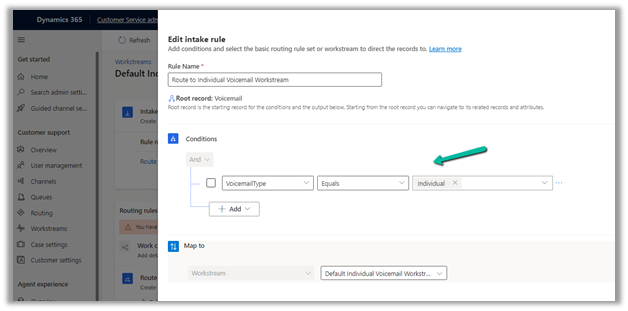
Similarly, Default Individual Voicemail Workstream has the following intake rule

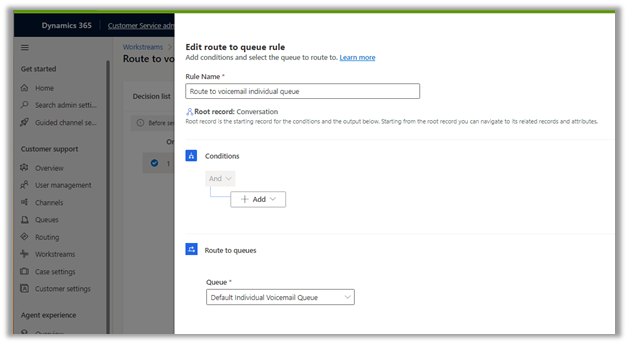
And Route to Queue rule

Now say we want the voicemail of an advanced queue (type – voice) to be routed to its corresponding advanced queue (type – record) instead of the Default Group Voicemail Queue.

Say we have the below Advanced Queue of type Voice used in the Voice Workstream– 


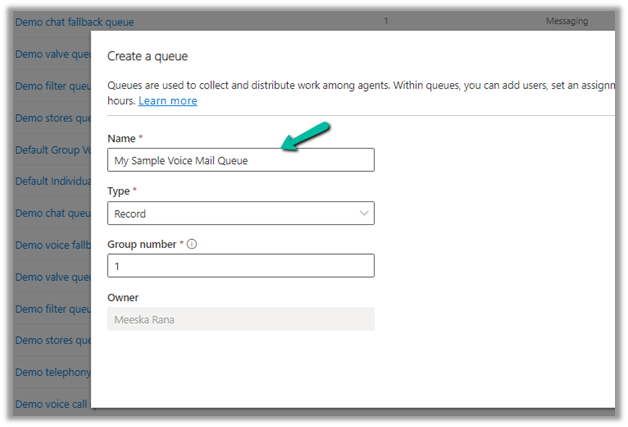
And the below Advanced Queue – My Sample Voice Mail Queue

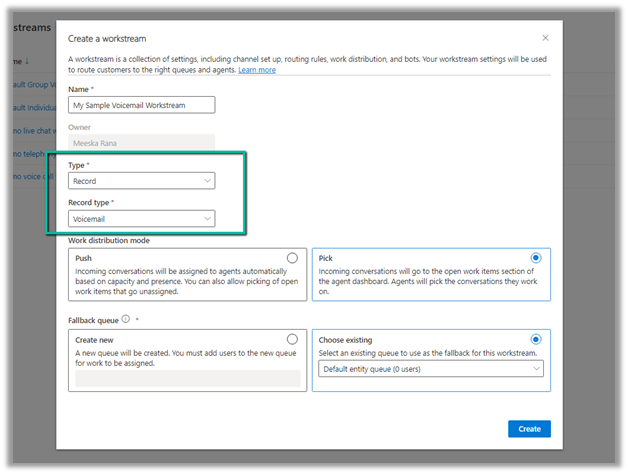
Now let us define the Workstream that will route the voicemail to that queue.

Select Type as Record and Record Type as Voicemail.

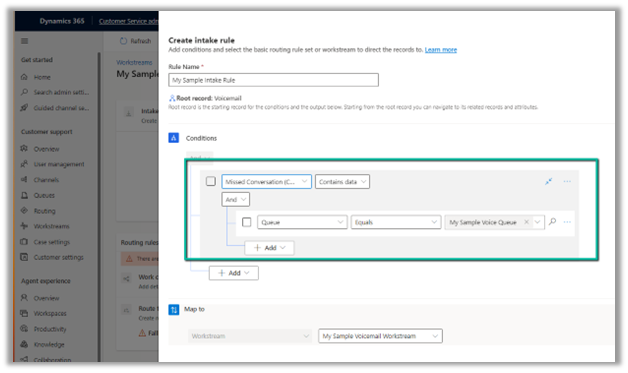
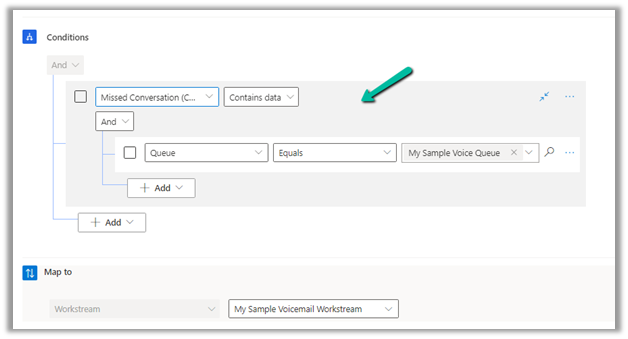
The intake rule checks for the Queue record in the related entity of voice mail – Missed Conversation (Conversation)

So basically any conversation or voicemail generated because of a call to My Sample Voice Queue / Workstream will be routed to its corresponding Voice Mail Queue.

Overflow handlinghttps://nishantrana.me/2023/03/07/understanding-overflow-handling-work-item-limit-exceeds-in-voice-channel-omnichannel-dynamics-365-customer-service/

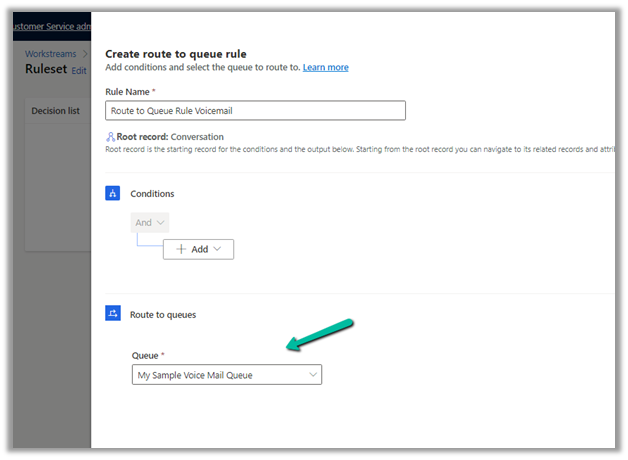
And the intake rule of that workstream to route to the Voicemail Queue created earlier.

Hope it helps..

Advertisements

Enable Sound Notifications in Omnichannel (Voice and other channels) – Dynamics 365 for Customer Service


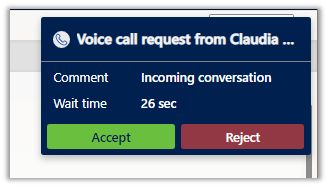
By default, this is how the notification appears for the agent when he is logged in to the app and is available.

There is no sound notification.

However, we enable sound notification here. This can be helpful in case the app is in the background and/or the agents are working on something else.

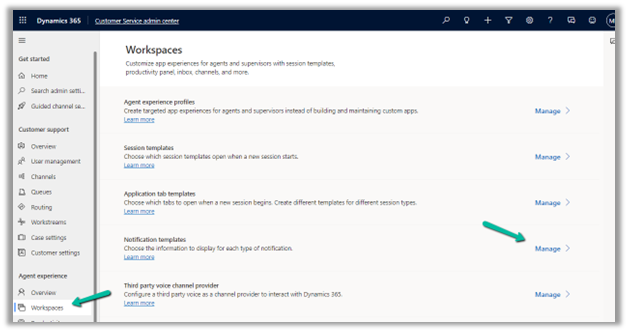
Navigate to Agent Experience >> Workspaces >> Notification Templates (Manage) in Customer Service Admin Center.
Let us enable sound notifications.

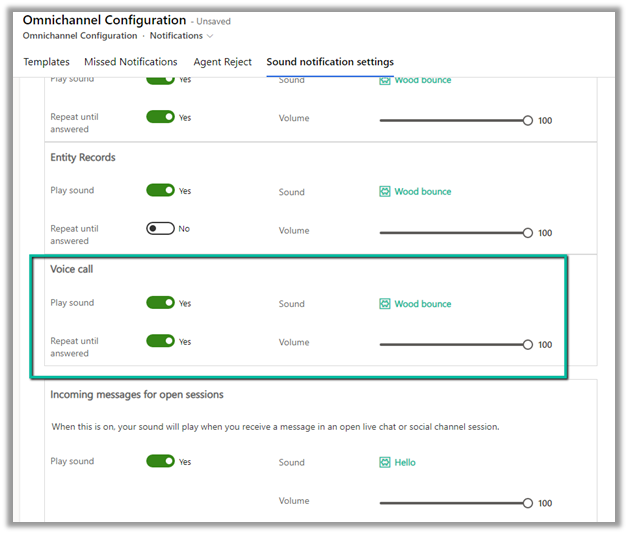
We can specify the following – Play sound, Sound to be played, whether the notification should keep on playing till the agent responds and the volume of the notification as shown below.

Here we also need to enable the Sound settings in the browser.

For the app, select Site Settings

Specify Allow for Notifications and Sound


Let us now call again, this time the agent hears the sound notifications, until he Accepts the call and that works even if the app/ the browser is minimized.

Hope it helps..
Advertisements

Understanding Overflow handling – Work item limit exceeds in Voice Channel – Omnichannel (Dynamics 365 Customer Service)


Say for one the Advanced Queue of type Voice we have the following Overflow handling defined (the queue has only 1 user assigned to it).

i.e.

Condition = Work item limit exceeds 1

Action = Voicemail

And it also has an Out of operation hours condition defined.

Now, if the customer calls during working hours and if the user’s presence is Available, the agent will receive the notification and the first conversation will have the Status as Active. If we make a second call its status will be open and it won’t go to Voicemail. Now if we make a 3rd call to that number it will go to Voicemail.

This is because we have set the Work item limit exceeds as 1, so it will keep one conversation in the open status, and any subsequent calls after that will go to the Voicemail.


Now here if the user is either in DND, Away, Offline, or not logged into CRM during work hours (if a customer calls outside work hours it will directly go to the Voicemail as we have the Out of operation hours condition defined), the first conversation will have the status as open and then any subsequent calls will go to the Voicemail.

In short,

More detail – Queue Overflow

Hope it helps..
Advertisements

Unable to install the Profiler. Unhandled Exception: System.InvalidCastException: Unable to cast object of type ‘Microsoft.Xrm.Sdk.Entity’ to type ‘CrmSdk.PluginType’ in Dynamics 365 / Dataverse


We might get the below error while trying to install the profiler in the Plugin Registration Tool.

“Unable to Install the profiler”

“Unhandled Exception: System.InvalidCastException: Unable to cast object of type ‘Microsoft.Xrm.Sdk.Entity’ to type ‘CrmSdk.PluginType’. at Microsoft.Crm.Tools.Libraries.OrganizationHelper.InstallProfiler(CrmOrganization org, String prtPath) at Microsoft.Crm.Tools.PluginRegistration.OrganizationControlViewModel.<>c__DisplayClass302_0.<InstallProfiler_Clicked>b__2(Object o, DoWorkEventArgs e)”

On closing the window we will get the below message “Profiler install failed”

Well we can ignore this error, just click on Refresh

After the refresh is completed,

we can see that the profiler has got installed successfully, even though we got the error.

Hope it helps..
 

Advertisements