Date Window Start and Date Window End fields missing on the Work Order form – Dynamics 365 Field Service


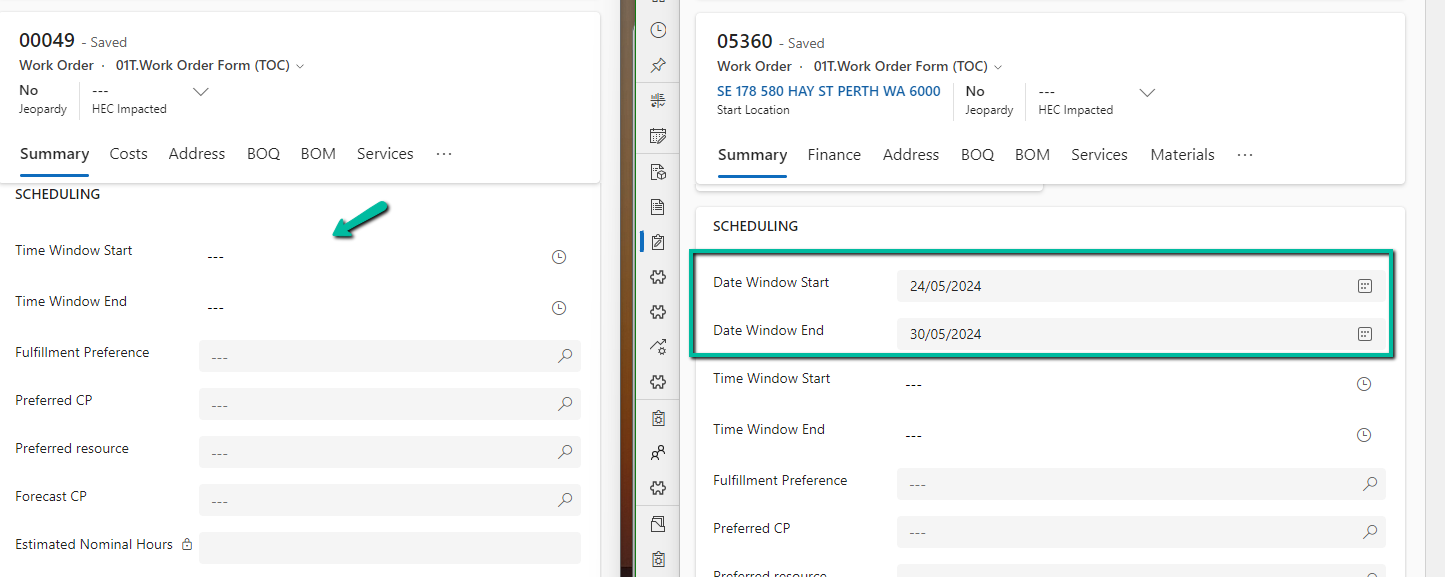
Recently we found that in one of the environments, the Date Window Start / End Dates was not showing up on the Work Order Forms, unlike the other environments.

Check the forms below
Well, the show and hide of the Date Window Start / End Date is controlled from Field Service Settings >> Fields Service >> Agreement
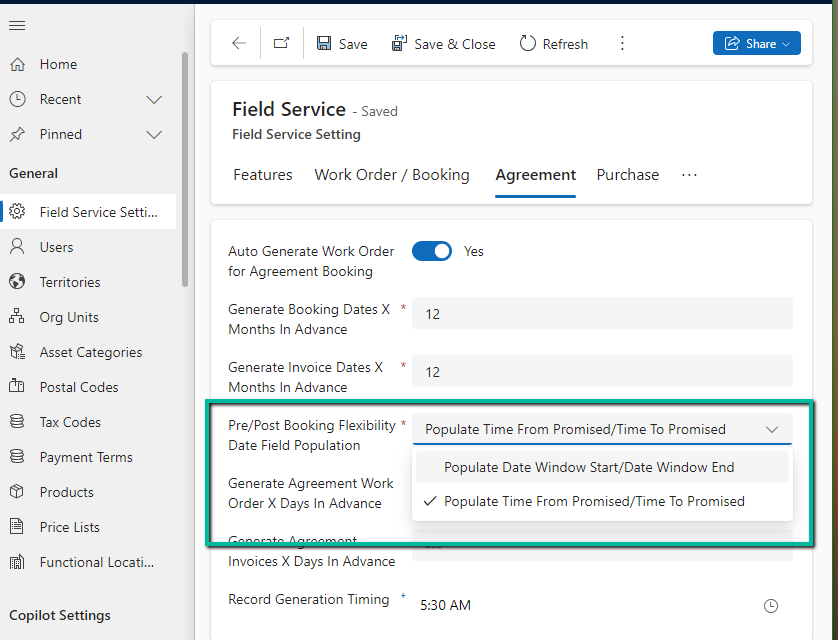
Setting Pre/Post Booking Flexibility Date Field Population to Populate Date Window Start / Date Window End will unhide the fields on the form.

Below is the corresponding out-of-the-box script that shows/hides the fields.
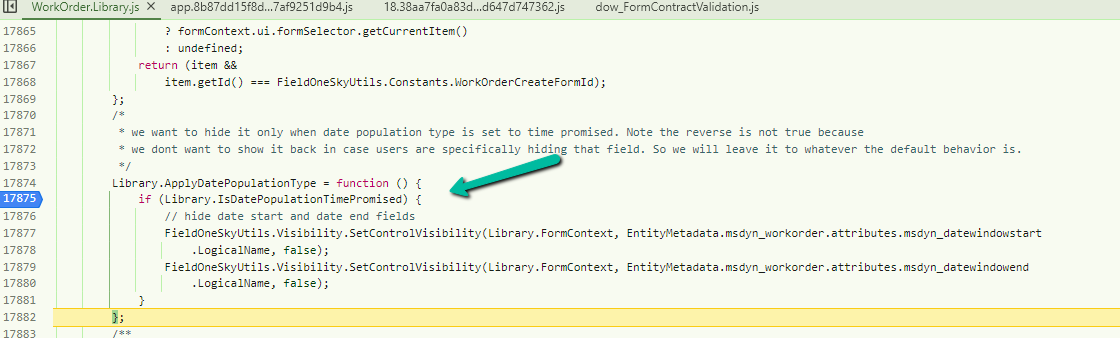
A screenshot of a computer

Description automatically generated

Also worth noting is that these fields are deprecated, as Microsoft recommends using Time From Promised and Time To Promised fields instead to define the date window in which a job is performed.

When setting up an agreement, you can control how work order scheduling works with pre-booking and post-booking flexibility. These fields define a window of time for scheduling each work order.

There are two options for how this window is used:

  • Date Window Start/End: The agreement populates these fields with the scheduling window. This makes the “Date Window Start/End” section visible on the work order itself.
  • Time From/To Promised: The agreement doesn’t directly affect these fields, but the scheduling window is considered during the scheduling process. “Date Window Start/End” will be hidden in this case.

This setting essentially determines where the scheduling window information is stored and displayed for work orders generated from this agreement.

Get the details

Hope it helps..

Advertisements

Fixed – The latitude or longitude for the User record associated with this resource is invalid – Dynamics 365 Field Service /Dataverse


While trying to set the Start Location / End location to the Resource Address for Bookable Resource, we might get the below error

Exception Message: The latitude or longitude for the User record associated with this resource is invalid. Please provide a valid latitude and longitude and then set the start and end location for this resource again.

Here as the error message specifies we need to specify the latitude and longitude value for the corresponding resource type record associated with the Bookable Resource.

In the case of Contact, we can use the Geo Code option, and specify the address to populate the Latitude and Longitude details.

A screenshot of a computer screen

Description automatically generated

In the case of a User record we do not see the Geo Code option so there we can manually specify the values for it.

Now we will be able to update the Start / End Location as Resource Address in our Bookable Resource record, without getting any error.

A screenshot of a computer

Description automatically generated

Get more details on Geocoding

Hope it helps..

Advertisements

Use Geolocation Settings for Location Tracking and Auditing – Dynamics 365 Field Service


We can track the different locations Field Service technicians have traveled or where they are at a given time inside Dynamics 365 Field Service. Field Service Technicians can enable location sharing from the app, and based on the Geolocation Settings configured, we can see the technician’s location in the schedule board and also list location history through the Geolocation Tracking record.

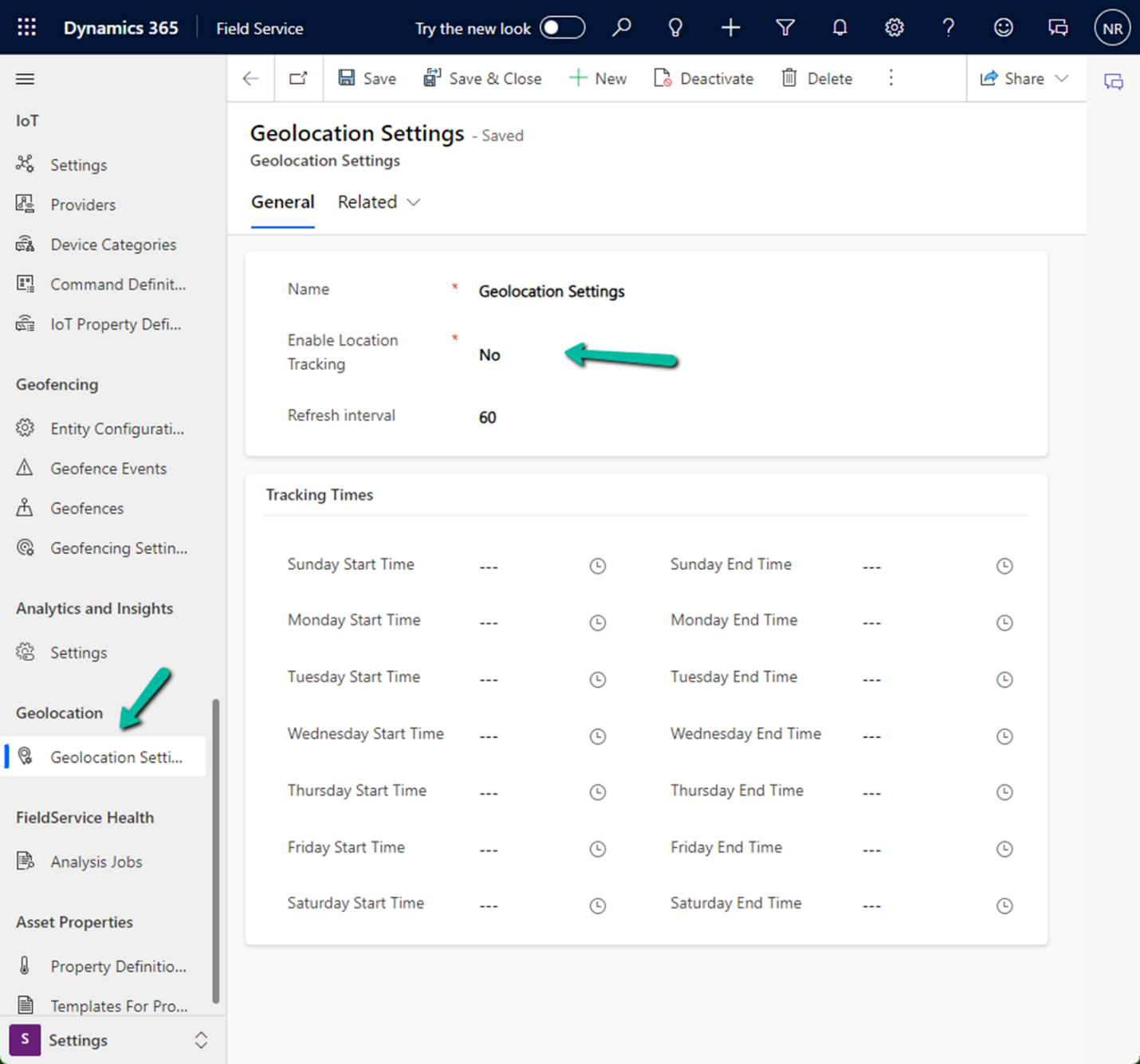
Navigate to Settings >> Geolocation >> Geolocation Settings.

By default, the Geolocation Settings will have Enable Location Tracking as No and Refresh Interval as 60 seconds.

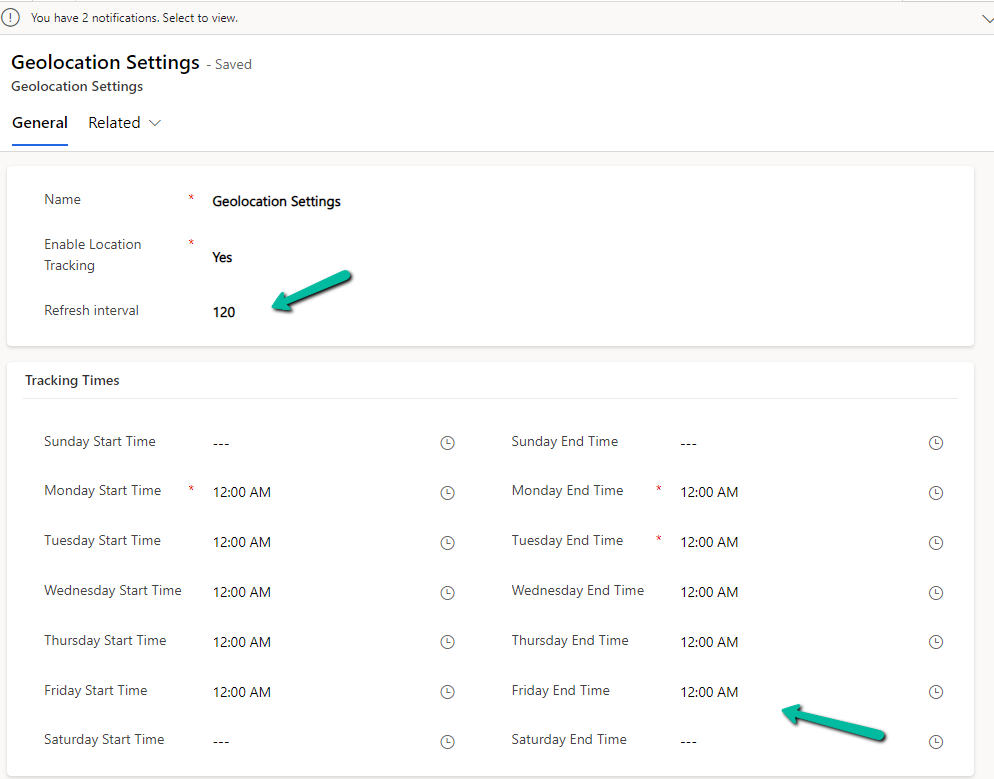
Below we have updated the Geolocation Settings, updated the Refresh Interval to 120, and specified Tracking times for Monday to Friday, 24 hours. 

Refresh Interval specifies how frequently the system will check the user’s location, not the frequency for the creation of “Geolocation Tracking” records.

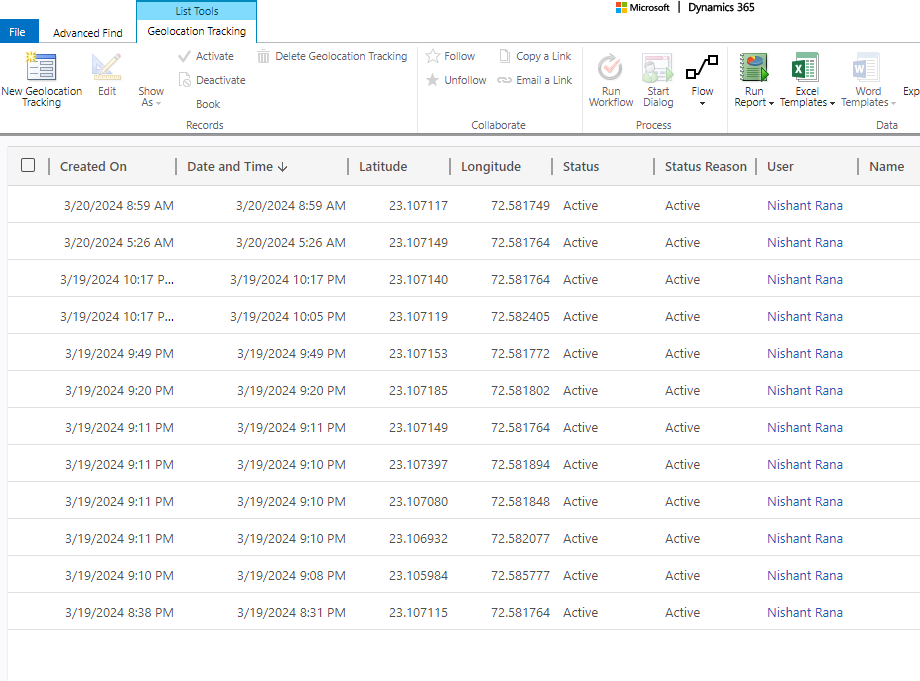
Geolocation Tracking records are created on Sign In, when a user moves more than 200 meters, and when the user comes to a still position after moving.

A screenshot of a computer

Description automatically generated

In the Field Service App, the technician has the location enabled in the settings.

A screenshot of a phone

Description automatically generated

Back in the Schedule Board, we can see the current location of the Field Service technician. (If we are specifying the Start / End location as the Resource Address for the Bookable resource, we will have to specify the latitude and longitude for the associated resource record)

Below we can see the corresponding Geolocation Tracking records created.

Get more details on Location Auditing.

Hope it helps..

Advertisements

Geofencing unit ‘Mile’ with id: ” cannot be removed – Dynamics 365 Field Service


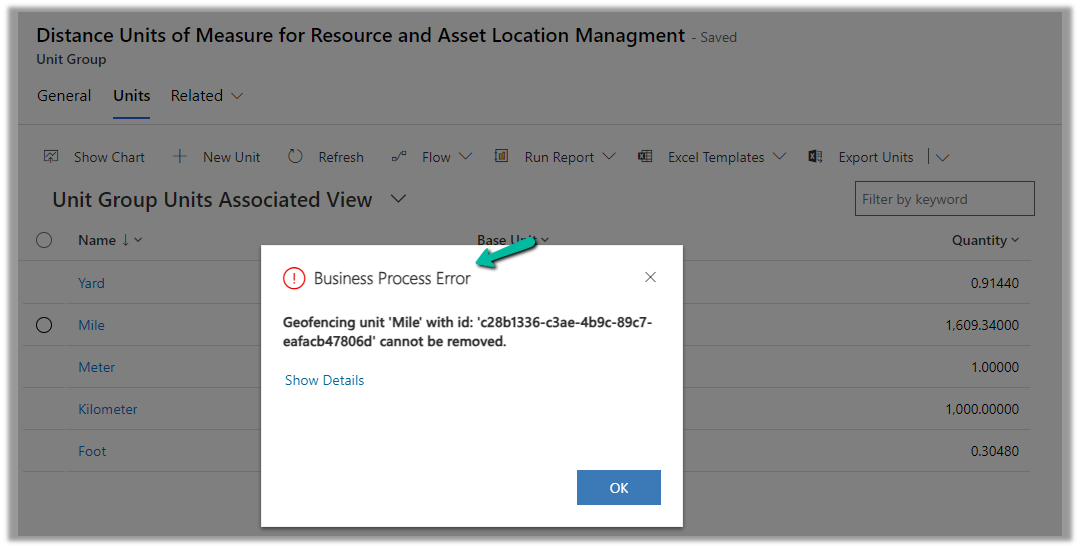
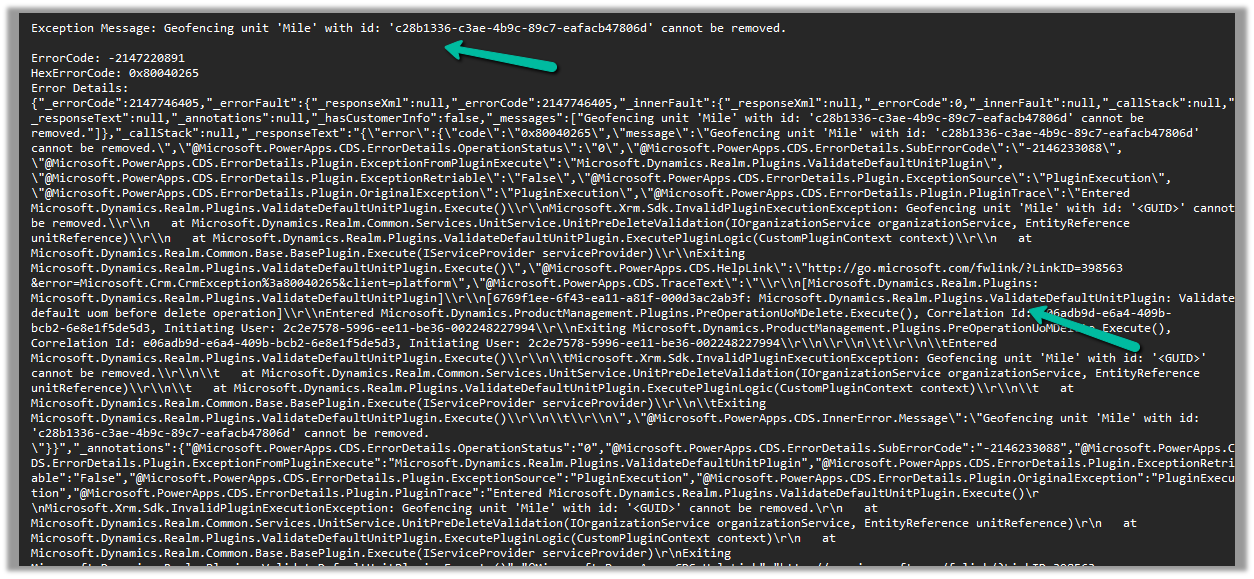
While trying to delete the Unit records related to the “Distance Units of Measure for Resource and Asset Location Management” unit group, we will get the below error

Geofencing unit ‘Mile’ with id: ‘<GUID>’ cannot be removed

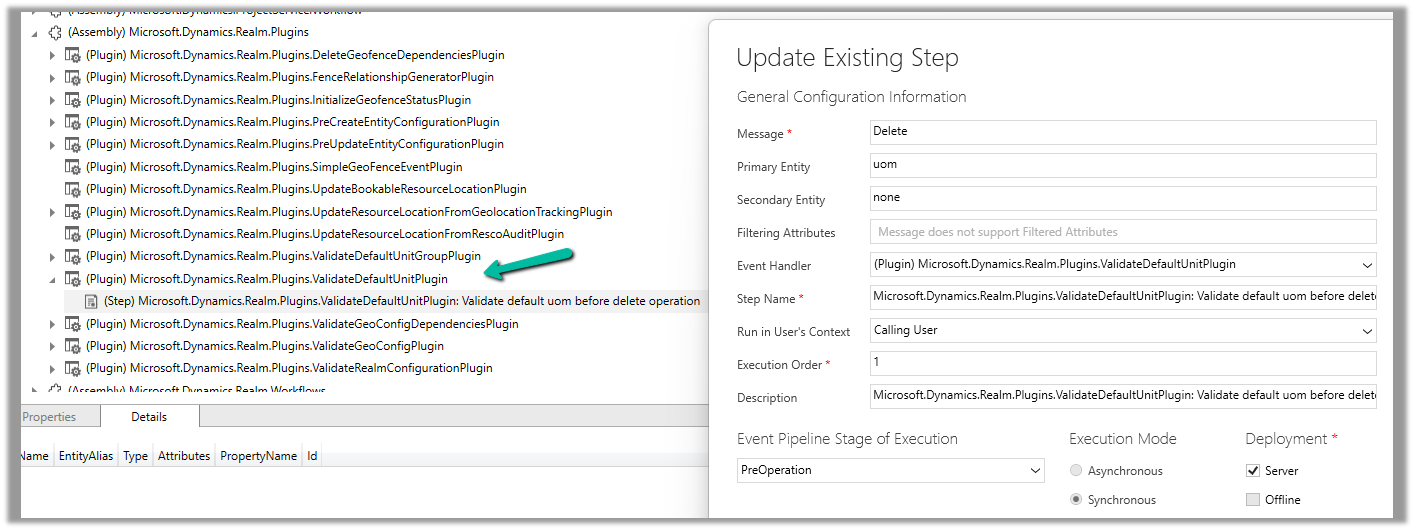
Below is the out of the box plugin that restricts the deletion of the unit

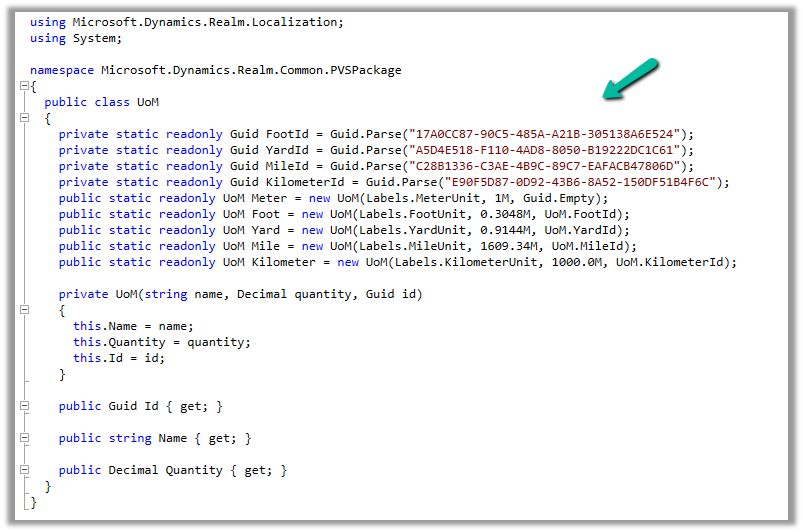
The code for the plugin –

UOM GUIDs –

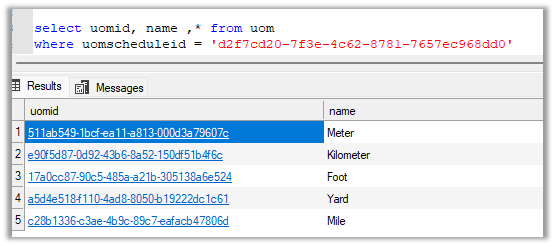
And the GUIDs within the environment –

To know more about Geofencing.

Hope it helps..

Advertisements

Fixed – Web resource method does not exist: OnLoad error in Work Order, Work Order Service task, and other forms in Dynamics 365 Field Service


Recently we started getting the below error on the form load of the Work Order Service Task record, that also only in specific environments, and there was no changes made there.

Error Details: Event Name: onload Function Name: OnLoad Web Resource Name: msdyn_/WorkOrderServiceTask/WorkOrderServiceTask.js Solution Name: msdyn_FieldService_patch_update Publisher Name: microsoftdynamics

A screenshot of a computer error

Description automatically generated

From the error message also it was clear it was the error in the out-of-the-box javascript.

On raising the Microsoft Support Ticket, we were immediately informed that it was because of a change in the function definitions in the .js files along with its associated handlers which was done to prevent object definition collisions in the web resources.

This applied to forms of the below tables

  • Work Order (msdyn_workorder)
  • Work Order Service Task (msdyn_workorderservicetask)
  • Work Order Product (msdyn_workorderproduct)
  • Work Order Service (msdyn_workorderservice)
  • Knowledge Article (knowledgearticle)

And below are the changes required to be done.

  • Work Order (msdyn_workorder)
    • Library value: msdyn_/WorkOrder/WorkOrderExperience.Library.js
      EITHER:
      • Incorrect function: onLoadLightForm
      • Correct function: WorkOrderExperience.Library.onLoadLightForm
        OR
      • Incorrect function: onLoad
      • Correct function: WorkOrderExperience.Library.onLoad


  • Work Order Service Task (msdyn_workorderservicetask)
    • Incorrect
      • Library value: msdyn_/WorkOrderServiceTask/WorkOrderServiceTask.js
      • Function value: OnLoad
    • Correct
      • Library value: msdyn_/WorkOrderServiceTask/WorkOrderServiceTaskGrid.js
      • Function value: WorkOrderServiceTaskGrid.OnLoad

  Work Order Product (msdyn_workorderproduct)

  • Library: msdyn_/WorkOrderProduct/WorkOrderProductGrid.js
    • Incorrect function: OnLoad
    • Correct function: WorkOrderProductGrid.OnLoad

  Work Order Service (msdyn_workorderservice)

  • Library: msdyn_/WorkOrderService/WorkOrderServiceGrid.js
    • Incorrect function: OnLoad
    • Correct function: WorkOrderServiceGrid.OnLoad 
  • Library: msdyn_/KnowledgeArticle/KnowledgeArticleWorkOrderRelationship.js
    • Incorrect function: OnSave
    • Correct function: KnowledgeArticleWorkOrderRelationship.OnSave

 We applied the change to the other forms also, which fixed the error for us.

Hope it helps..

Advertisements

How to – use booking rules for validation checks in Dynamics 365 Field Service


Through booking rules, we can specify custom JavaScript methods, that can be used to run validation checks, before creation or update of a bookable resource booking record. Based on the result of the validation checks we can either warn the user or cancel the booking create or update event.

Booking rules are triggered when a resource is booked or a bookable resource booking record is either created or updated using the schedule board, schedule assistant, or booking form.

The booking rules are not triggered if the booking form has business process flow enabled. We can also disable the booking rule to be triggered on the save of the booking form by enabling the setting – msdyn_DisableProcessBookingRulesOnSaveBookingForm

Let us see it in action.

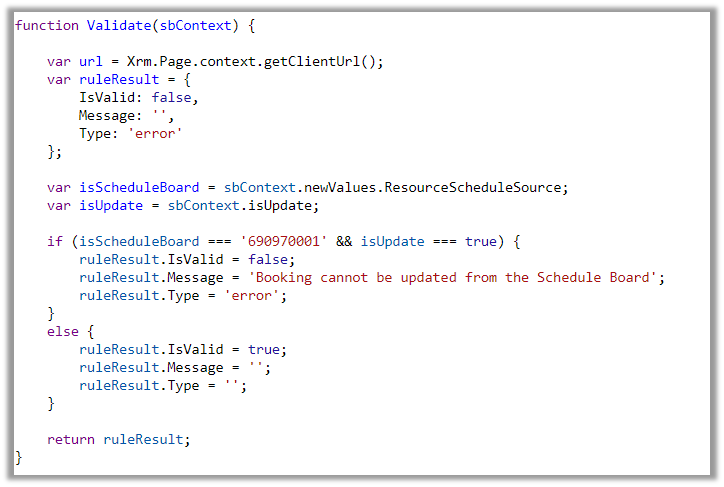
Below is our JavaScript method to be used as a Booking Rule.

function Validate(sbContext) {
  
    var url = Xrm.Page.context.getClientUrl();
    var ruleResult = {
        IsValid: false,
        Message: '',
        Type: 'error'
    };
  
    var isScheduleBoard = sbContext.newValues.ResourceScheduleSource;
    var isUpdate = sbContext.isUpdate;

    if (isScheduleBoard === '690970001' && isUpdate === true) {
        ruleResult.IsValid = false;
        ruleResult.Message = 'Booking cannot be updated from the Schedule Board';
        ruleResult.Type = 'error';
    }
    else {
        ruleResult.IsValid = true;
        ruleResult.Message = '';
        ruleResult.Type = '';
    }     

    return ruleResult;
}

To create a Booking Rule, navigate to Resources >> Booking Settings >> Booking Rules inside the Dynamics 365 Field Service app and create a new booking rule, specifying the web resource and the method inside it.

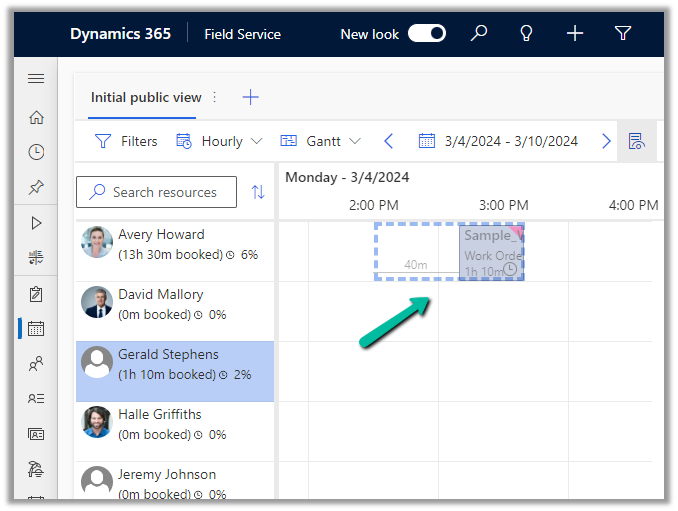
Let us try to update a booking from the schedule board.

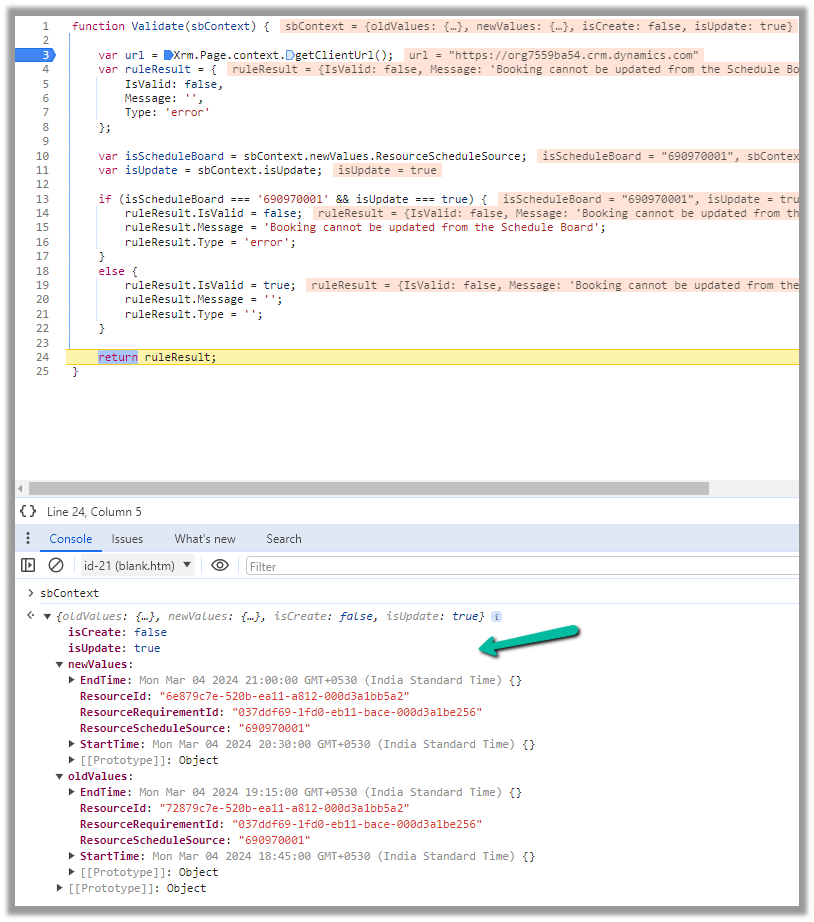
This will trigger our booking rule and will pass the context object, which contains details like whether it is a create or update event, and details around old values and new values for start time, end time, resource details, etc. for that booking.

We can use these values passed in the context, fetch more details about the corresponding resource or work order, have our validation logic defined there, and finally pass the ruleResult object.

If we want to cancel the event, we can set IsValid as false, specify the error message, and set Type as an error in the ruleResult object. Similarly, if it passes the validation, we can set IsValid as true.

This is how the error message shows up, and the event is canceled inside the schedule board.

Below we can see the same booking rule being triggered from the Booking Resource Booking form.

We can deactivate the booking rule record created if we do not want it to trigger.

Get all the details here – Booking Rule

Hope it helps..
Advertisements