With this new feature (preview) now we can specify the columns to be downloaded on mobile devices for offline use.
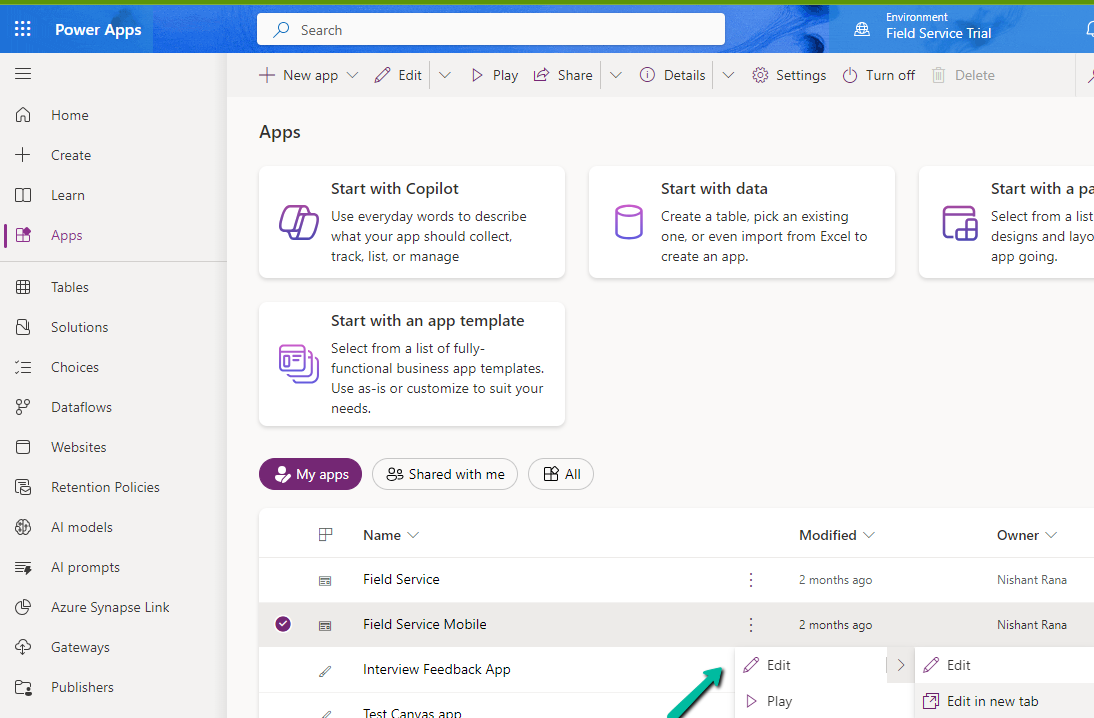
Select edit for the Model-driven app.
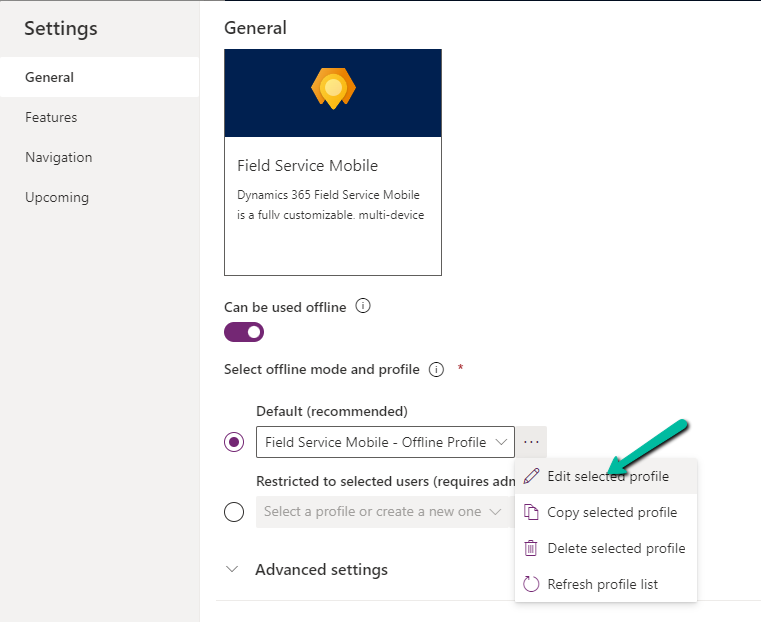
Select Settings and select an existing offline profile or create a new profile.
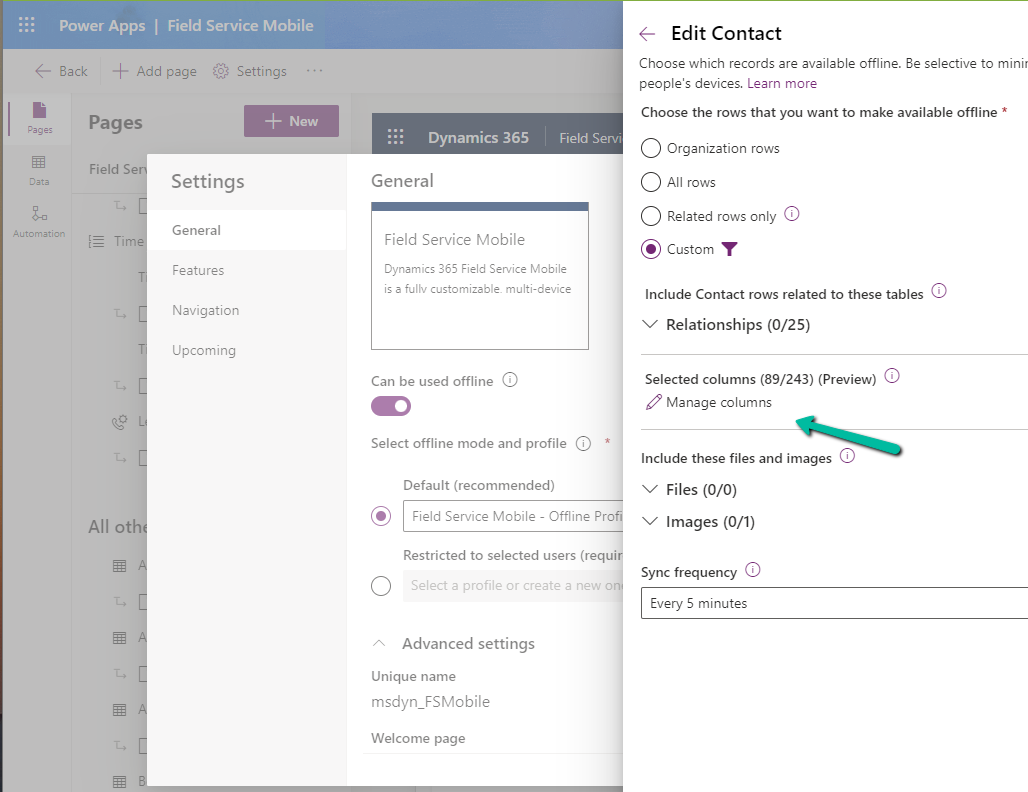
Select a new table or an existing table for the profile, we can see the Manage Columns option for it.
We can see key columns already selected as part of Required Columns.
We can select columns from the other columns section for our offline profile. The fewer the columns the faster the app will download the data for offline usage.
One point to note is that we get this option only from the Maker Portal not from the Power Platform Admin Center.
Let us first use the data spawner component to generate sample data for a custom table for which we just have 2 new custom first name and last name fields created as well as mapped with 100 K records.
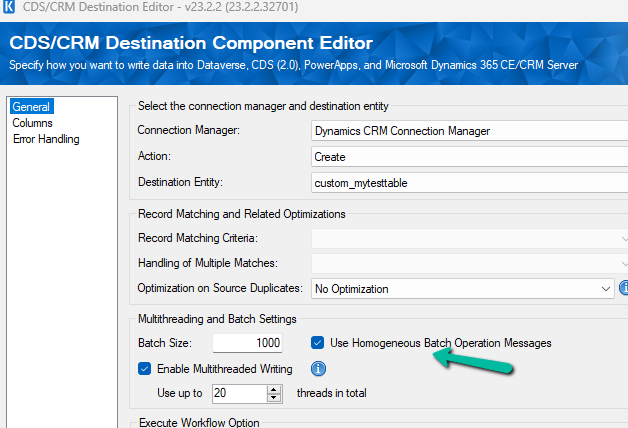
Let us first run the Package with batch size = 1000, threads as 20, multiplexing user = 5, and homogeneous batch operation disabled.
Below is the User Multiplexing option in the Connection Manger.
Here we have defined 5 different application users.
Now let us run the same with the Homogenous Batch Operation option checked.
Below are the findings with different variations of Batch Size, Threads, Multiplexing Users, Homogenous Batch Operation for the – 100K records – Custom table
Batch Size
Threads
Multiplexing Users
Homogenous Batch Operation
Duration (minutes)
1000
20
5
N
5:48
1000
20
5
Y
1:54
500
20
5
N
4:16
500
20
5
Y
1:29
250
20
5
N
3:58
250
20
5
Y
1:38
100
20
5
N
4:47
100
20
5
Y
1:58
500
50
5
N
4:00
500
50
5
Y
1:24
We can see huge performance improvements while using Bulk Operations (Homogenous batch option) for our custom table, with threads around 20 and multiplexing users as 5. Increasing the number of multiplexing users will provide further performance improvement here.
Now let us run it against the Contact table and this time we take 10K as a sample instead of 100K as a sample.
10K records Contact table
Batch Size
Threads
Multiplexing Users
Homogenous Batch Operation
Duration (minutes)
500
1
1
N
25:26
500
1
1
Y
42:14
100
1
1
N
24:34
100
1
1
Y
36:06
100
5
1
N
21:56
100
5
1
Y
16:45
100
10
1
N
6:59
100
10
1
Y
12:54
100
10
2
N
6:14
100
10
2
Y
11:28
100
10
5
N
3:26
100
10
5
Y
9:36
100
15
5
N
2:56
100
15
5
Y
9:57
100
20
5
N
2:34
100
20
5
Y
10:17(Ran into a server-side throttling error.)
1000
20
5
N
5:30 (Ran into a server-side throttling error.)
1000
20
5
Y
5:02 (Ran into a server-side throttling error.)
500
20
5
N
4:20(Ran into a server-side throttling error.)
500
20
5
Y
2:36 (Ran into a server-side throttling error.)
100
20
1
N
18:00
(Ran into a server-side throttling error.)
100
20
1
Y
11:20
(Ran into a server-side throttling error.)
With the higher Batch size along Threads + Multiplexing users + Homogenous Batch Operation message option, we could get a good performance improvement, however, we can see that we ran into server-side throttling errors on increasing the batch size. So with tables having a higher number of fields/relationships, we need to be more careful than a custom/table with fewer relationships and fields
[CDS Destination] Warning: An exception has occurred while processing the service request, the same request will be attempted again immediately. KingswaySoft.IntegrationToolkit.DynamicsCrm.WebAPI.WebApiServiceException: The underlying connection was closed: A connection that was expected to be kept alive was closed by the server. (Error Type / Reason: KeepAliveFailure, Detailed Message: The underlying connection was closed: A connection that was expected to be kept alive was closed by the server.)
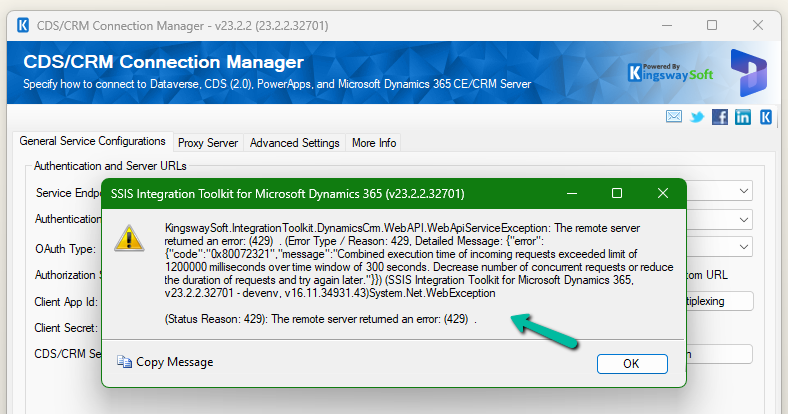
[CDS Destination] Warning: A server side throttling is encountered, the same request will be retried after 5 minutes (as instructed by the returned throttling error message from the server). KingswaySoft.IntegrationToolkit.DynamicsCrm.WebAPI.WebApiServiceException: The remote server returned an error: (429) . (Error Type / Reason: 429, Detailed Message: {“error”:{“code”:”0x80072321″,”message”:”Combined execution time of incoming requests exceeded limit of 1200000 milliseconds over time window of 300 seconds. Decrease number of concurrent requests or reduce the duration of requests and try again later.”}})
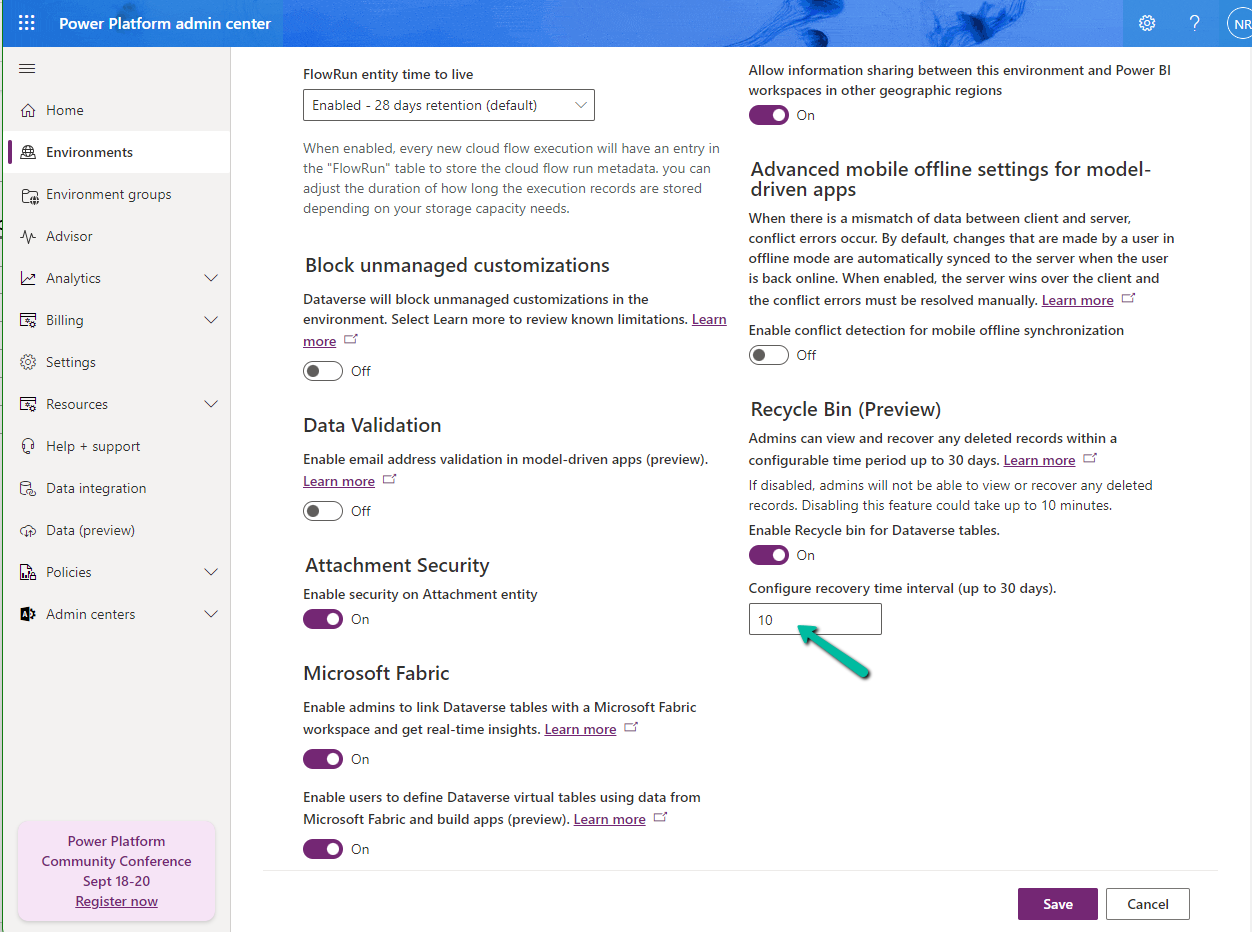
We can specify 30 days as the maximum recovery time.
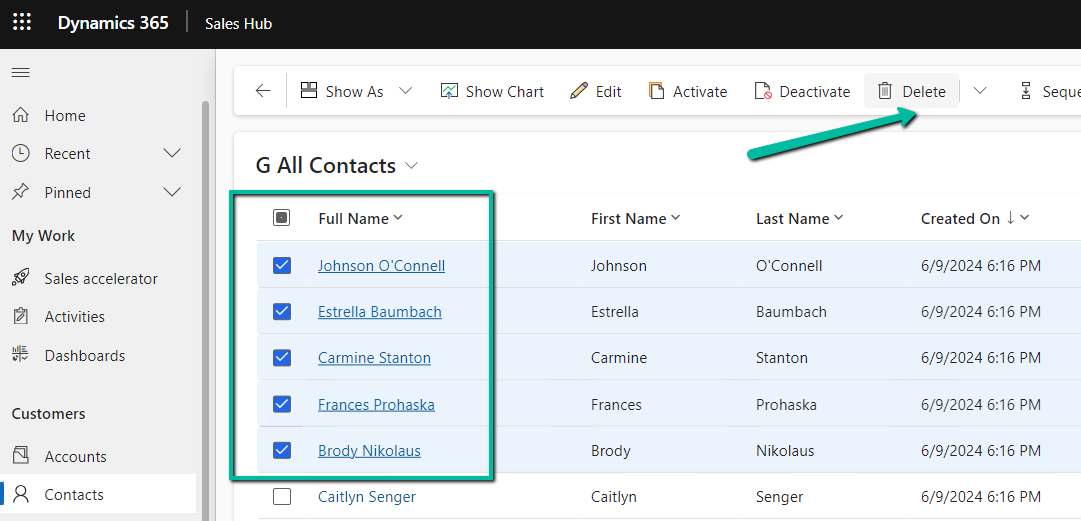
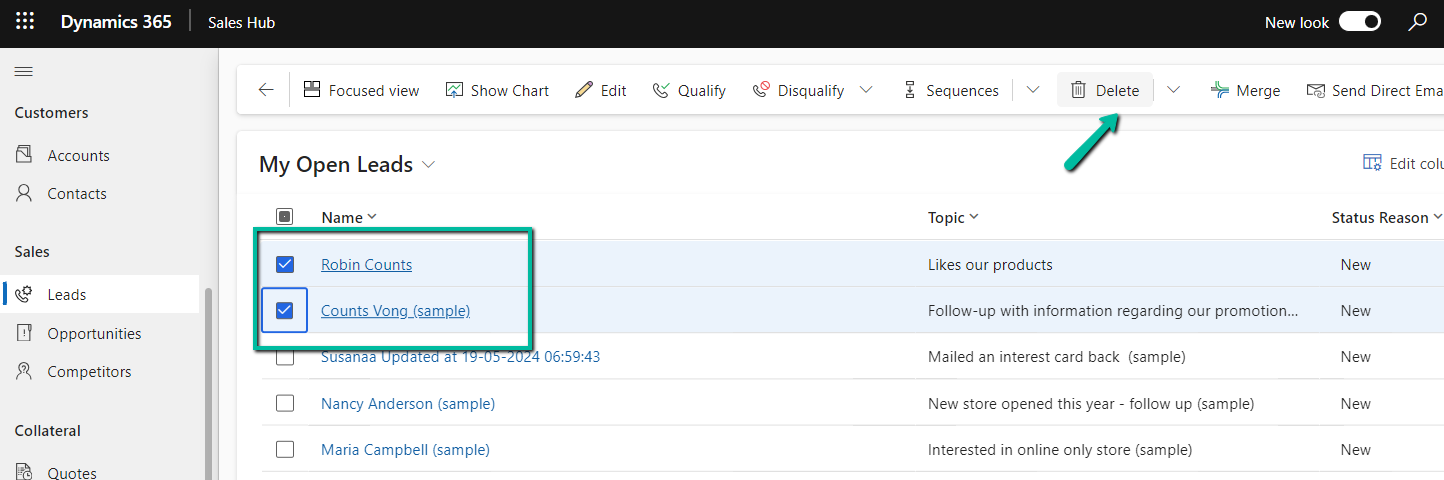
Let us delete some of the contact and lead records.
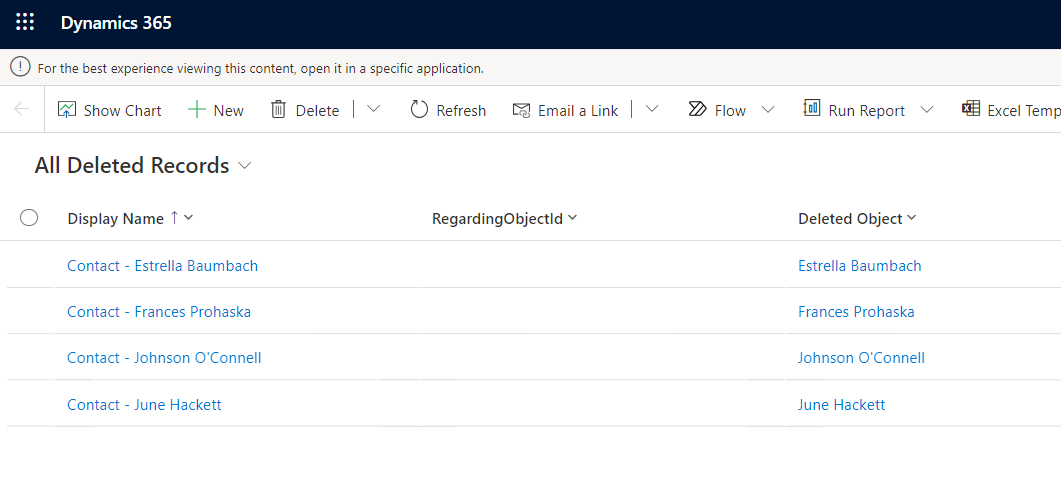
Navigate to Environment >> Settings >> Data Management >> View Deleted Records to view the deleted records.
We can select the records and click on Restore to get the deleted records back
We can see the records removed from the Deleted Records view.
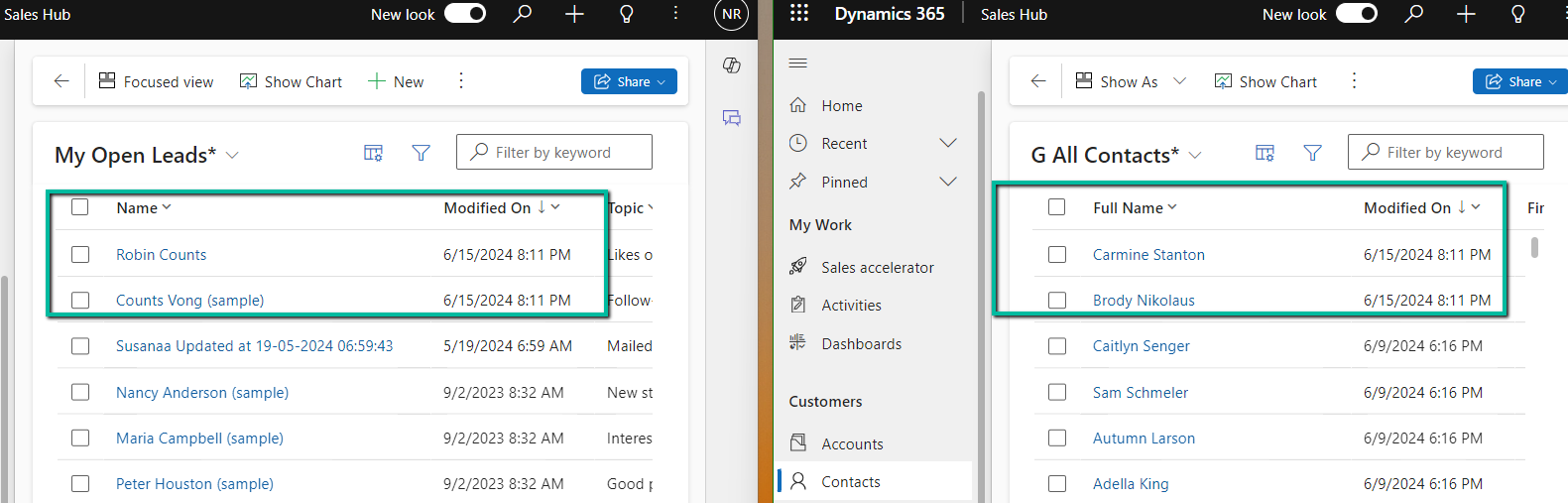
Below we can see the restored records – we can also see the Modified On updated.
The feature applies at the environment level, we cannot specify it for individual tables currently. Only the main deleted record and related records deleted via the cascaded relationship behavior will be restored. If a related record is deleted as part of custom business logic, it will not be restored.
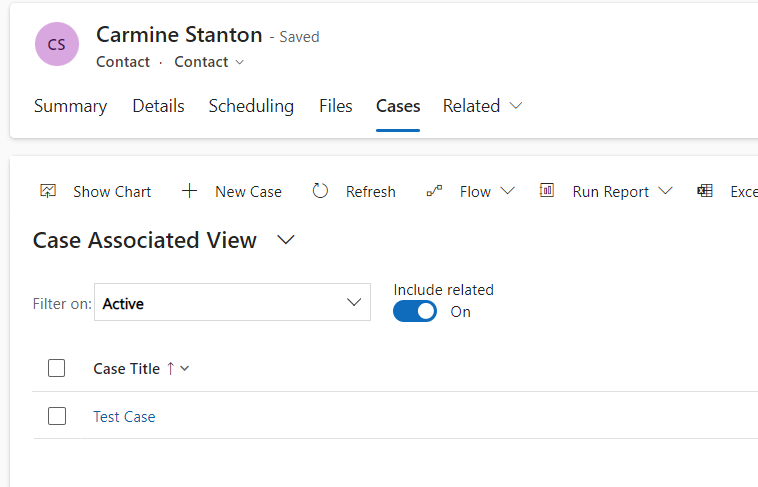
Below let us delete the Contact record which has a case and an opportunity record associated.
On deleting the Case the child case and lead records also get deleted.
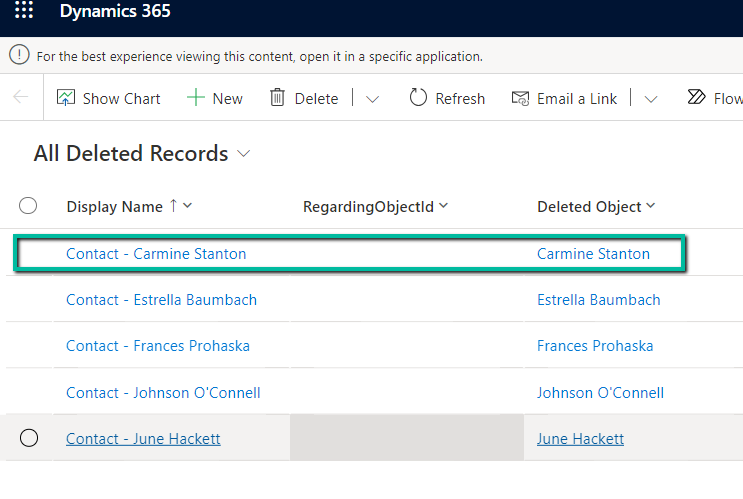
However, we do not see those records in the Deleted records list only the main (parent) Contact record.
On restoring the deleted contact restores the child case and opportunity record also.
“@Microsoft.PowerApps.CDS.ErrorDetails.SqlExceptionMessage”: “Violation of PRIMARY KEY constraint ‘PK_childBase’. Cannot insert duplicate key in object ‘dbo.bew_logBase’. The duplicate key value is .”,
Basically on Create or Update of the Parent Record it was creating a corresponding child log record, recording changes in the status field of the parent record.
The issue was in the Create Child Log record step, here it was setting the Primary Key Field / GUID field of the Child Log record being created with the GUID of the Parent record.
This worked for the 1st record, but when trying to create any new record with the same parent’s GUID, it was throwing the duplicate exception as it would be the same parent GUID getting specified.
On clearing that field, and letting the system generate the GUID, the flow ran successfully.
Recently in one of our test environments, the out the box flow – “Deserialization of Inspection Definition” wasn’t getting triggered even when it was in the On state.
This was because the “CallbackRegistrationExpanderFilter” operation was failing with the below error.
Unexpected failure during ValidateUserAccessCached. Ex: System.ServiceModel.FaultException`1[Microsoft.Xrm.Sdk.OrganizationServiceFault]: The specified user(Id) is disabled. Consider enabling this user. Additional Details: User IsDisabled=True, IsLicensed=True. ImpersonatingSystemUserId. (Fault Detail is equal to Exception details:
ErrorCode: 0x80040225
Message: The specified user(Id = xxxx-xxxx-xxxx-xxx-xxxxxx) is disabled. Consider enabling this user. Additional Details: User IsDisabled=True, IsLicensed=True. ImpersonatingSystemUserId=xxxx-xxxx-xxxx-xxx-xxxxxx)
This was because the flow’s corresponding Callback Registration record’s Owner was a user whose account was now disabled in CRM.
So the option to fix was to Turn off and Turn On the flow, which will delete the old callback registration record and will create a new one with the user who is turning off / on the flow. Updating the owner of the flow will not work here, as it won’t update the existing callback registration record.
Also we had another observation, if a callback registration is owned by a user who is a proper / enabled user in CRM, simply turning off and on the flow using a different user account will not delete the existing callback registration record and create a new one with that particular user as the owner. In this case we will have to explicitly delete the existing callback registration record.