How to – Use RetrieveEntityChangeRequest to track changes in CRM 2015 / 2016.


As a first step,

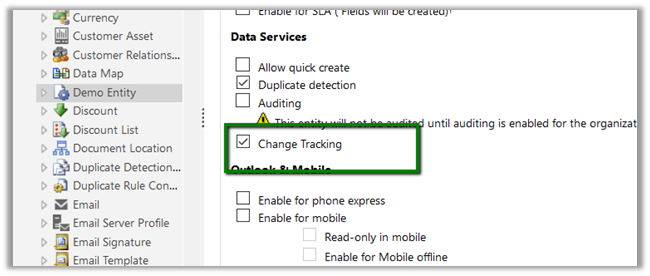
Enable Change Tracking for the entity, custom Demo Entity in our case here.
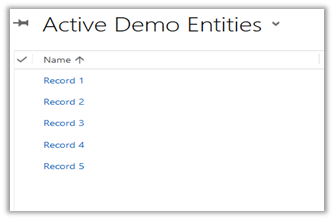
Suppose we have 5 records created for Demo Entity.
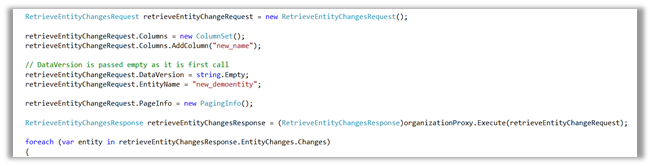
As we are calling it for the first time DataVersion is set as empty.
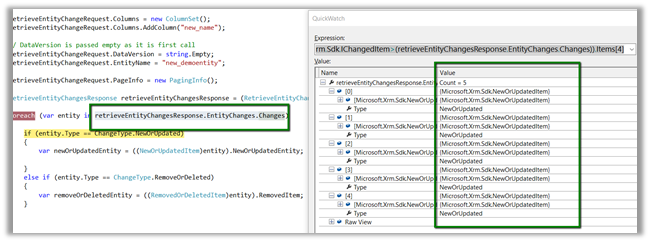
We got all the 5 records as new or updated item.
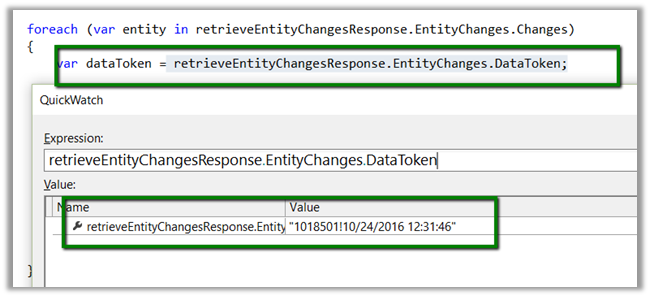
Save the DataToken to be used while determining the changes and to be passed next time.
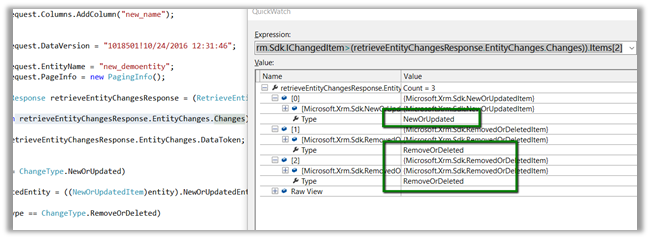
Now let us delete Record 1 and Record 2 and update Record 5 and run the code again this time passing the DataToken saved
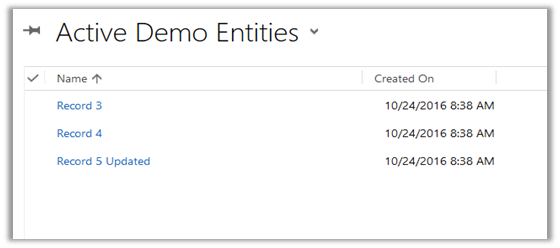
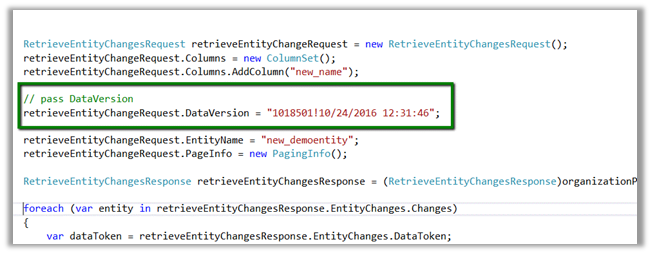
As expected we get 3 changes.
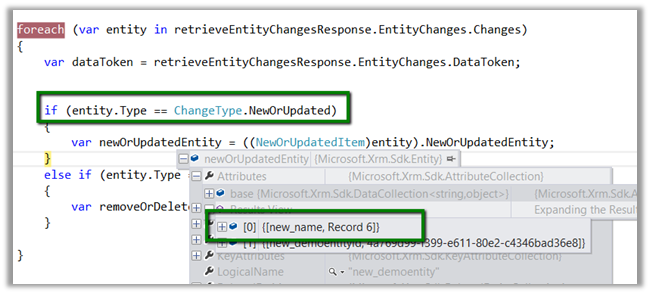
Now suppose we create a new record name Record 6 and still use the old Data Token

As expected we got 4 changes here, which includes the new record 6 as new or update.
Point to remember here is if no version is passed the system will return all the records as new, and system will consider records that are within 90 days, if it is older than 90 days all the records will be returned.

If we have a new record created and deleted before we retrieved for the changes and the record didn’t exist at the time of retrieval, we will still get the record as deleted.

Sample Code

</p>
<p>EntityCollection newOrUpdatedEntityCollection = new EntityCollection();<br />
EntityReferenceCollection removeOrDeletedEntityRefCollection = new EntityReferenceCollection();</p>
<p>RetrieveEntityChangesRequest retrieveEntityChangeRequest = new RetrieveEntityChangesRequest();<br />
retrieveEntityChangeRequest.Columns = new ColumnSet();<br />
retrieveEntityChangeRequest.Columns.AddColumn("new_name");</p>
<p>// pass DataVersion<br />
retrieveEntityChangeRequest.DataVersion = "1018501!10/24/2016 12:31:46";</p>
<p>retrieveEntityChangeRequest.EntityName = "new_demoentity";<br />
retrieveEntityChangeRequest.PageInfo = new PagingInfo();</p>
<p>RetrieveEntityChangesResponse retrieveEntityChangesResponse = (RetrieveEntityChangesResponse)organizationProxy.Execute(retrieveEntityChangeRequest);</p>
<p>foreach (var entity in retrieveEntityChangesResponse.EntityChanges.Changes)<br />
{<br />
var dataToken = retrieveEntityChangesResponse.EntityChanges.DataToken;</p>
<p>if (entity.Type == ChangeType.NewOrUpdated)<br />
{<br />
newOrUpdatedEntityCollection.Entities.Add(((NewOrUpdatedItem)entity).NewOrUpdatedEntity);<br />
}<br />
else if (entity.Type == ChangeType.RemoveOrDeleted)<br />
{<br />
removeOrDeletedEntityRefCollection.Add(((RemovedOrDeletedItem)entity).RemovedItem);<br />
}<br />
}</p>
<p>

Hope it helps ..

Advertisements

CRM Manipulation Library – Custom Workflow Activities for CRM 2016


Hi,

Recently we used the CRM Manipulation Library for some Days related calculation.

https://manipulationlibrary.codeplex.com/

To use it in CRM 2016, we updated the references to use latest SDK assemblies. You could download it form here.

https://www.codeplex.com/Download?ProjectName=manipulationlibrary&DownloadId=1614740

While working with it we found a strange issue,

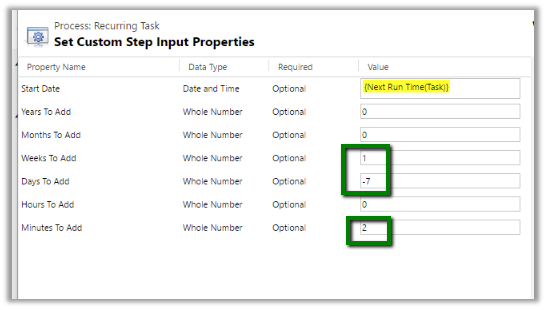
If we are using Add Days and we do not specify any value to Days to Add it will not perform any calculation. The workaround suggested was to add 1 Week and remove 7 days, something of that sort. Basically, we wanted to add 2 minutes here.

Thanks to this post for that

http://practical-crm.blogspot.in/2013/12/crm-manipulation-library-date.html

Hope it helps..

How to – Delete Components from Managed Solution in Dynamics CRM 2016 without using Holding Solution.


Before the updates that we have received for solution in CRM 2016 the only way to delete components from managed solution was to use Holding Solution.

The following post nicely explains this.

https://blogs.msdn.microsoft.com/devkeydet/2012/05/29/deleting-things-from-a-deployed-crm-2011-managed-solution-package/

Now let us see how we can do this in CRM 2016 without using Holding Solution.

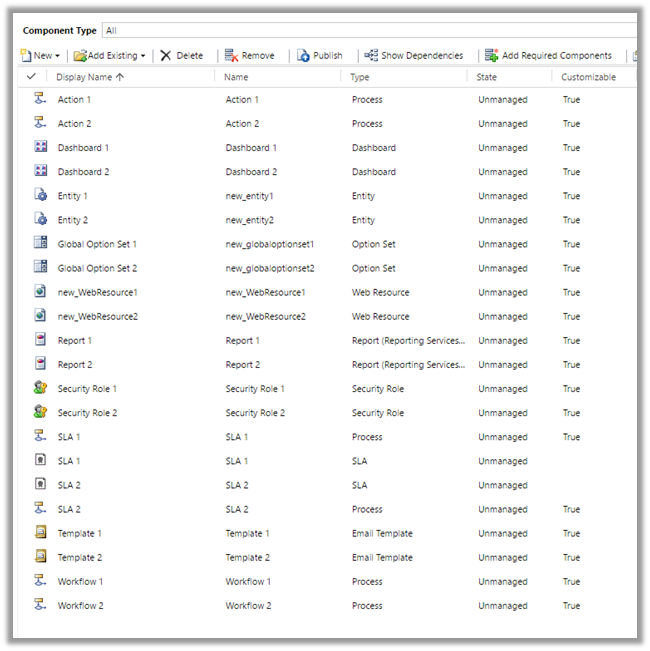
Suppose below is our managed solution that includes 2 Action, 2 Entity, 2 SLA, 2 Workflow.

Entity 2 with two forms.

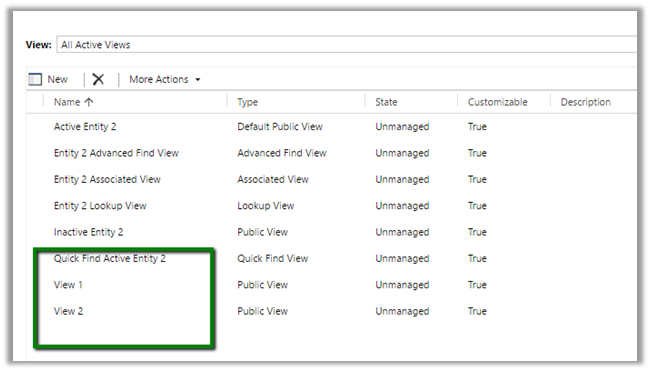
Entity 2 with 2 Views.

Entity 2 with two Fields.

Now import this solution as managed in destination org.

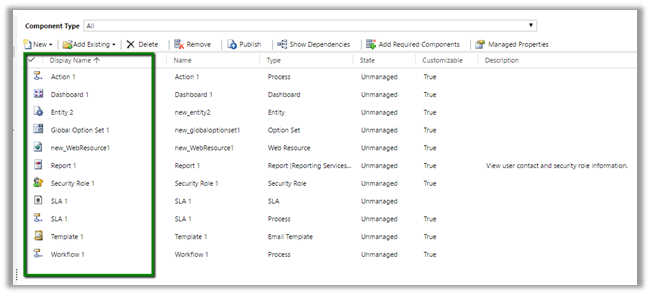
Now suppose we do not want following components in our Destination org – action 2, dashboard 2, Report 2, Security Role 2, Workflow 2 etc. along with View 2, Field 2 and Form 2 for Entity 2.

We remove some of the components and delete (field, form etc.) from our unmanaged solution (named Core Solution) which we had imported as Managed in our Destination Org.

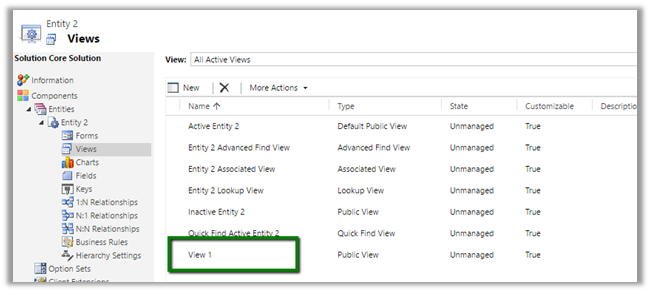
Deleted View 2

Deleted Field 2

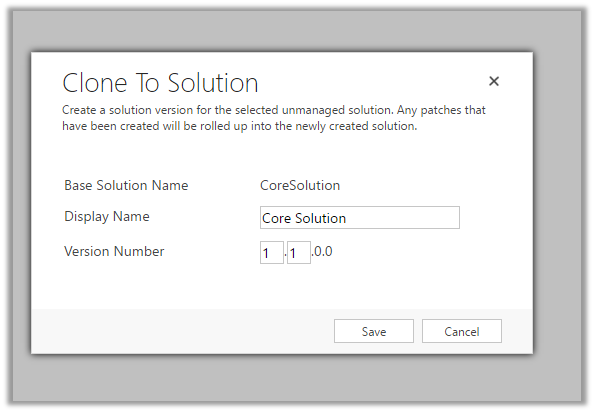
Now click on “Clone to Solution“. (This will increment the version number.)

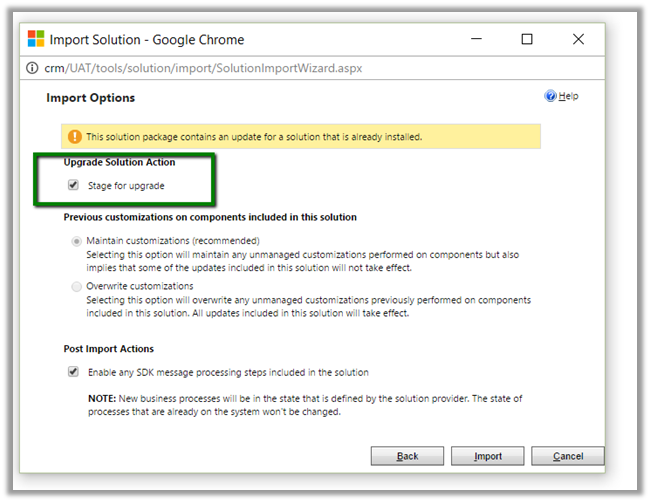
Now import this updated solution to our destination organization, and select “Stage for Upgrade

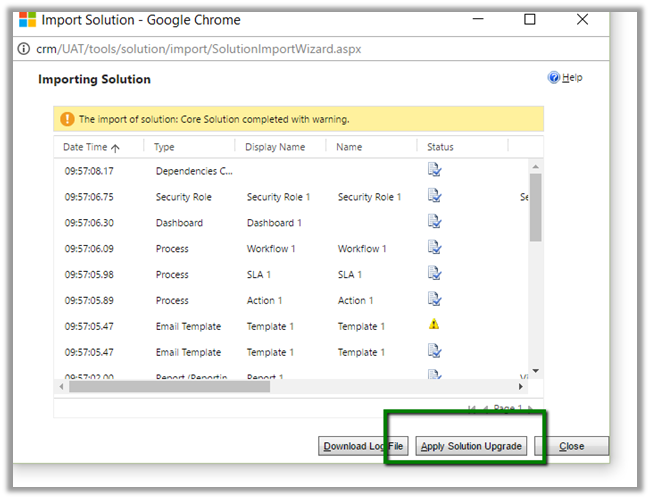
Click on “Apply Solution Upgrade

This will remove the components from our destination org.

The helpful post

http://www.inogic.com/blog/2016/08/how-to-delete-component-from-managed-solution-in-dynamics-crm-2016/

Hope it helps..

Nice Videos on understanding “Package Deployer Tool” and “Configuration Migration Tool” in CRM.


While going through various videos on Microsoft Dynamics CRM, found these 2 nice videos on Package Deployer Tool and Configuration Tool.

Do check it out

Hope it helps..

An error has occurred. {1} {0} while Importing Solutoin in CRM 2016 Online.


Hi,

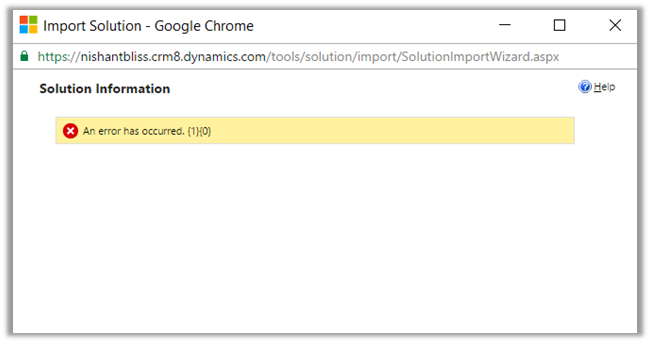
I was getting below error while importing solutoin in my trial CRM 2016 Online Org. I tried with other browser and it was the same case. Infact I created a new trial and tried there but no success.

Without losing hope, tried the same in one of my VM (Windows Server 2012 Standard). It got successfully imported.

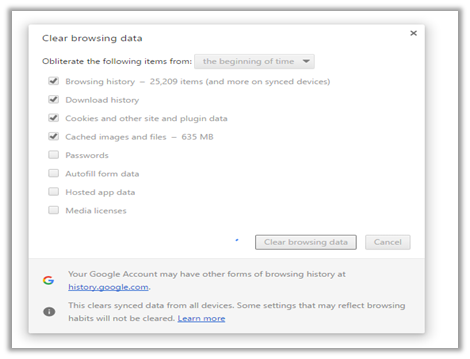
So went back to my workstation and cleared browser cache there.

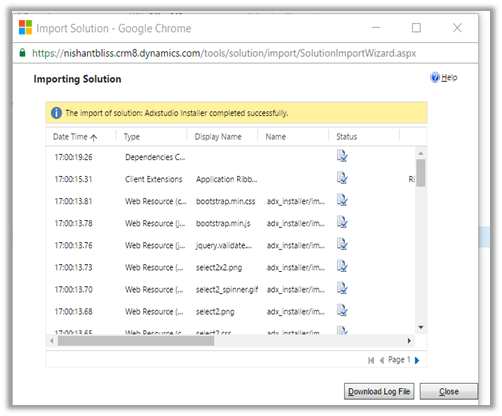
And the Import was Successful.

Hope it helps..

Map for Microsoft’s Global Data Centers


Hi,

Check this site that lists different Microsoft Global Data Center worldwide.

http://o365datacentermap.azurewebsites.net/

For India :

For EMEA :

Hope it helps.