Recently we were bulk updating our records, which would trigger an asynchronous plugin registered on its update. We were using the wonderful Bulk Data Updater (XrmToolBox) plugin for it. We realized if we are updating too many records at once say e.g. 100 Batch Size (total 5K records to be processed), we are getting below exception.
The plug-in execution failed because no Sandbox Hosts are currently available. Please check that you have a Sandbox server configured and that it is running.System.ServiceModel.FaultException`1[Microsoft.Xrm.Sdk.OrganizationServiceFault]: The plug-in execution failed because no Sandbox Hosts are currently available. Please check that you have a Sandbox server configured and that it is running. Microsoft.Xrm.RemotePlugin.Grpc.ExceptionHandlers.SandboxFabricHostCommunicationException: Error communicating with Sandbox Host
We than updated the Execution settings to process with a Batch Size of 5 with an interval of 60 seconds. This fixed the issue for us.
Recently for some of our Dataverse environments, we found duplicate records getting created (same GUID) for Notes and Work Order Incident tables in the corresponding CSV files.
This was causing the Power BI reports built on top of it to fail.
On raising the ticket, the Microsoft Support team mentioned that this is a known bug for certain regions, and they immediately ran the de-duplication scripts in the background which quickly fixed the issue for us. Also, they specified they will be deploying the fix for the issue in the coming days.
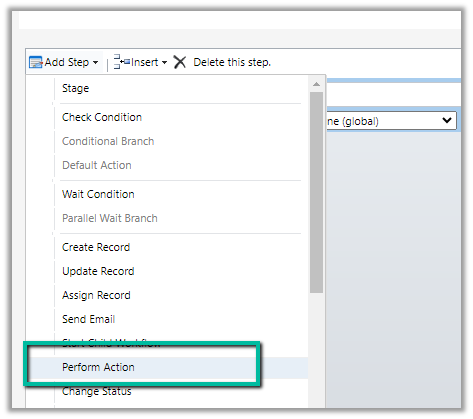
We might see some of the custom actions not appearing in the Actions list inside the Perform Action step of the workflow.
This is because the Custom Action would be using one of the following parameter types, which is not supported for Perform Action like
Picklist (Optionset)
Entity
Entity Collection
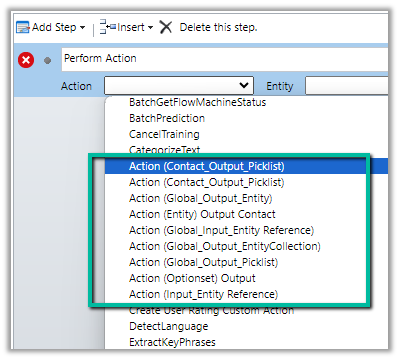
E.g. we have the following actions defined few are bound to the Contact table, some are Global, and have different types specified as either Input or output parameter.
Out of the above actions defined, we can see only the following actions listed inside the perform actions step of the workflow.
The action which has input as Entity Reference are the ones listed, as it is one of the supported types. For the unsupported types, if used as an output parameter, the actions are listed.
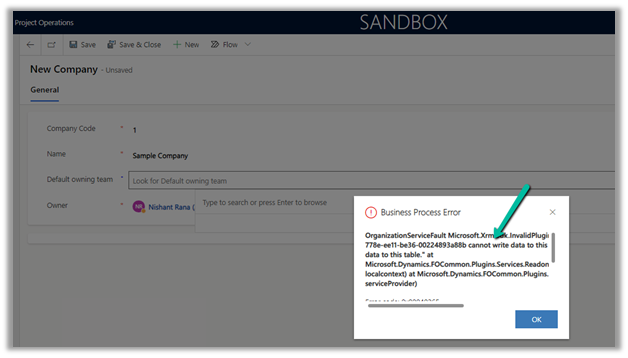
We configured the Project Operations app in one of our Dataverse Environments, and while creating a Company record we got the below error.
Exception Message: OrganizationServiceFault Microsoft.Xrm.Sdk.InvalidPluginExecutionException: “The user be60d0fd-778e-ee11-be36-00224893a88b cannot write data to this table, only the integration users may write data to this table.” At Mcrosoft.Dynamics.FOCommon.Plugins.Services.ReadonlyEntityService.PreModify(LocalPluginContext localcontext) at Microsoft.Dynamics.FOCommon.Plugins.PluginBase.Execute(IServiceProvider serviceProvider)
The error is because the system doesn’t allow creating a Company in the Dataverse / Dynamics 365 Project Operations App. Ideally, it has to be created at the F&O end and integrated with the Dataverse Environment.
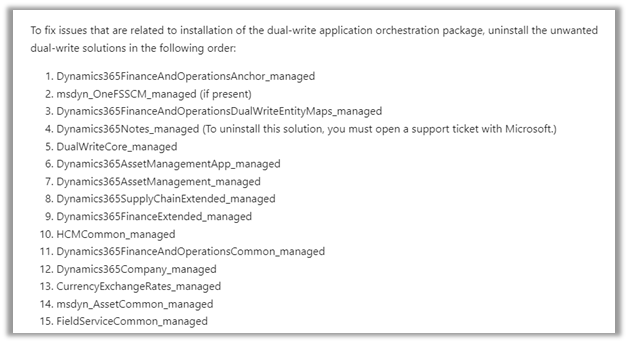
This was because we had unintentionally installed the dual-write application orchestration package that installs multiple solutions in their Microsoft Dataverse environment, which added the company table.
As mentioned, for Dynamics 365 Notes we got the below error, for which we need to raise a Support Ticket.
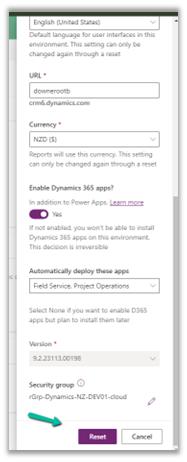
Luckily in our case, we had just created the environment a few days back, so had the option to Reset it. So we eventually took the path of resetting the environment with the Project Operations app selected.
Copilot (preview) for Dynamics 365 Customer Service provides the following features –
Case Summary
Conversation Summary
Ask a question
Write an email
Draft a chat response.
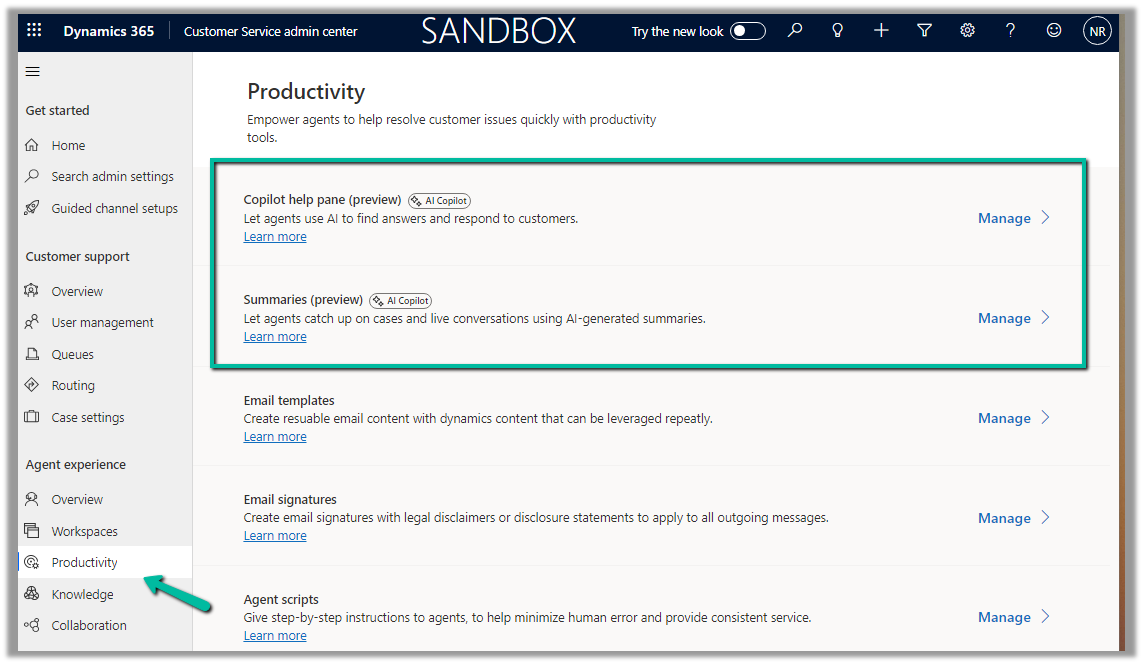
To enable it, navgiate to Customer Service Admin Center >> Agent Experience >> Productivity >> Manage (Copilot help pane and Summaries)
Check the required Copilot help pane settings and save.
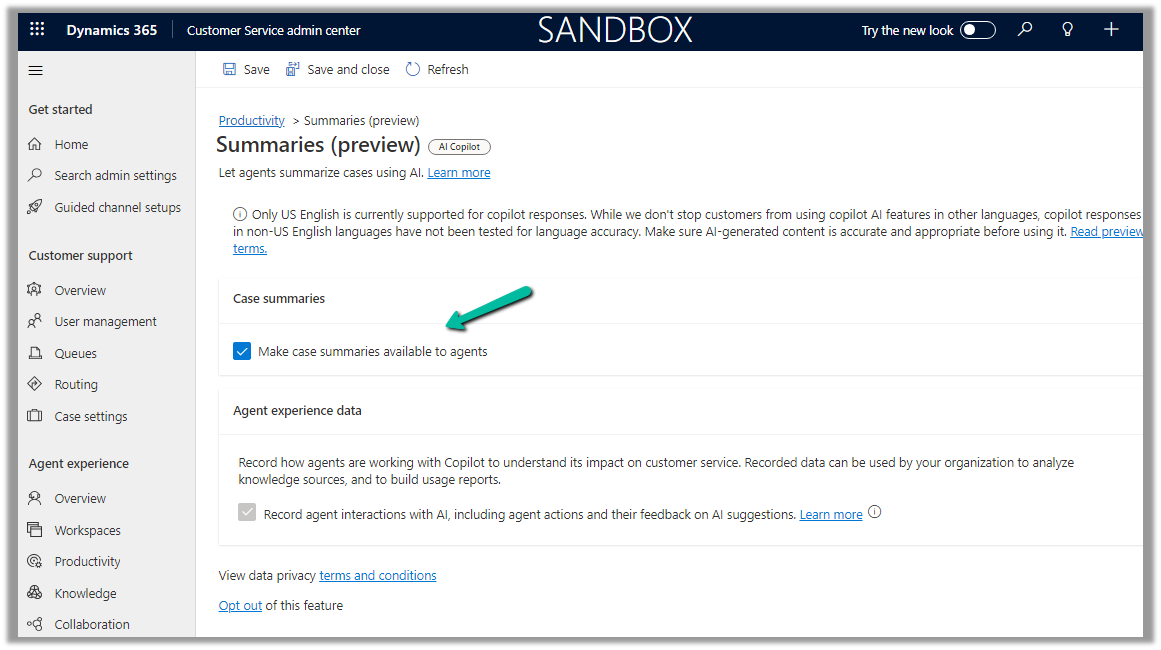
Similarly for Summaries
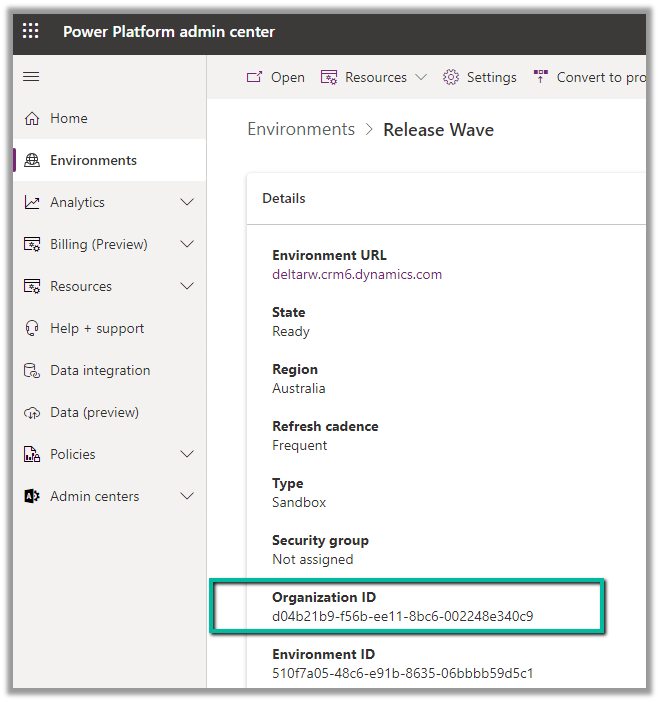
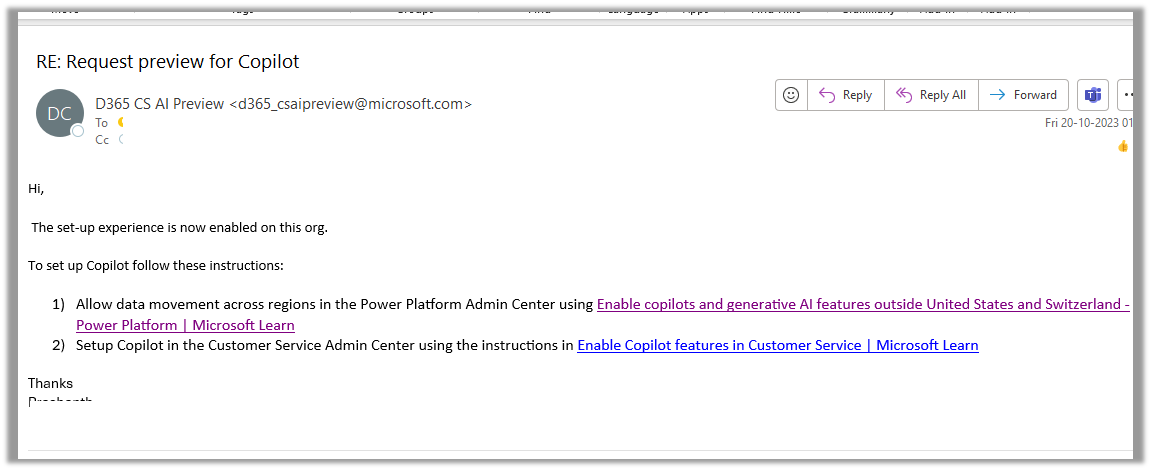
For geographies outside the United States, to enable the Copilot features for Customer Service, we need to send an email to d365_csaipreview@microsoft.com with the Organization ID to enable the preview.
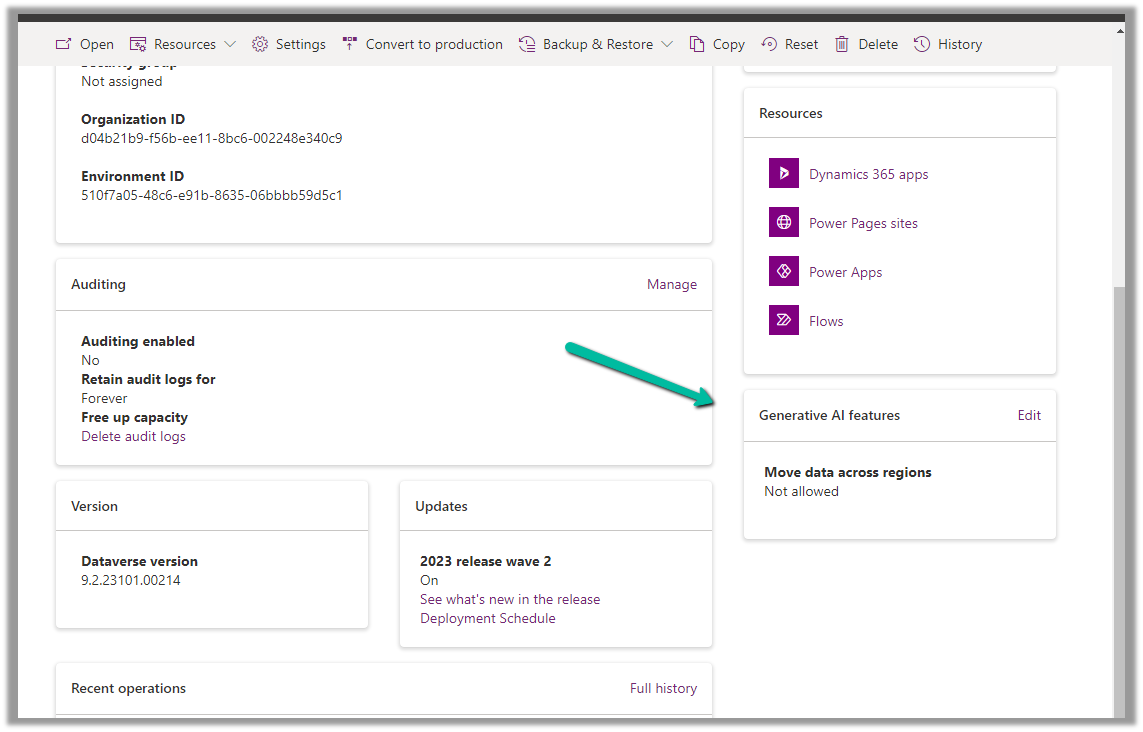
We can get the Organization ID from the Power Platform admin center for the environment.
As our environment was in the Australia region, we followed the same and within the next day, we got a response from Microsoft that it had been enabled in our Environment.
As per the email, the next step is to Enable copilots and generative AI features outside the US and Switzerland, for this again open the environment in the Power Platform admin center, and select Edit for Generative AI Features.
Check the Move data across regions option and enable it. (We need Global Admin or Power Platform admin role to enable it)
Once we have followed the above steps it adds the Copilot help pane in the Customer Service Hub app.
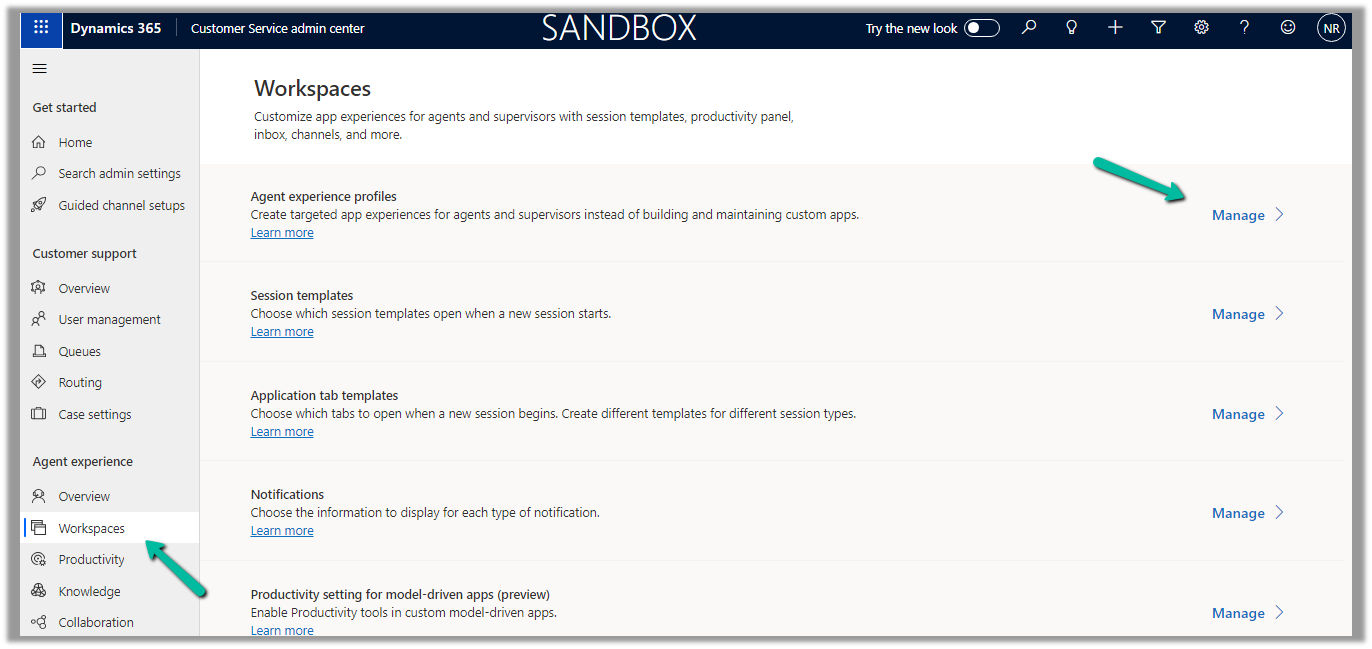
Similarly, for the Customer Service Workspace app, we can manage it in the corresponding Agent Experience profile.
Navigate to the Agent Experience >> Workspaces >> Manage (Agent Experience profiles)
We can see the Copilot AI features section (below is the out-the-box Customer Service workspace – default profile), we can accordingly update the corresponding agent experience profile(s) records configured/used for the agents.
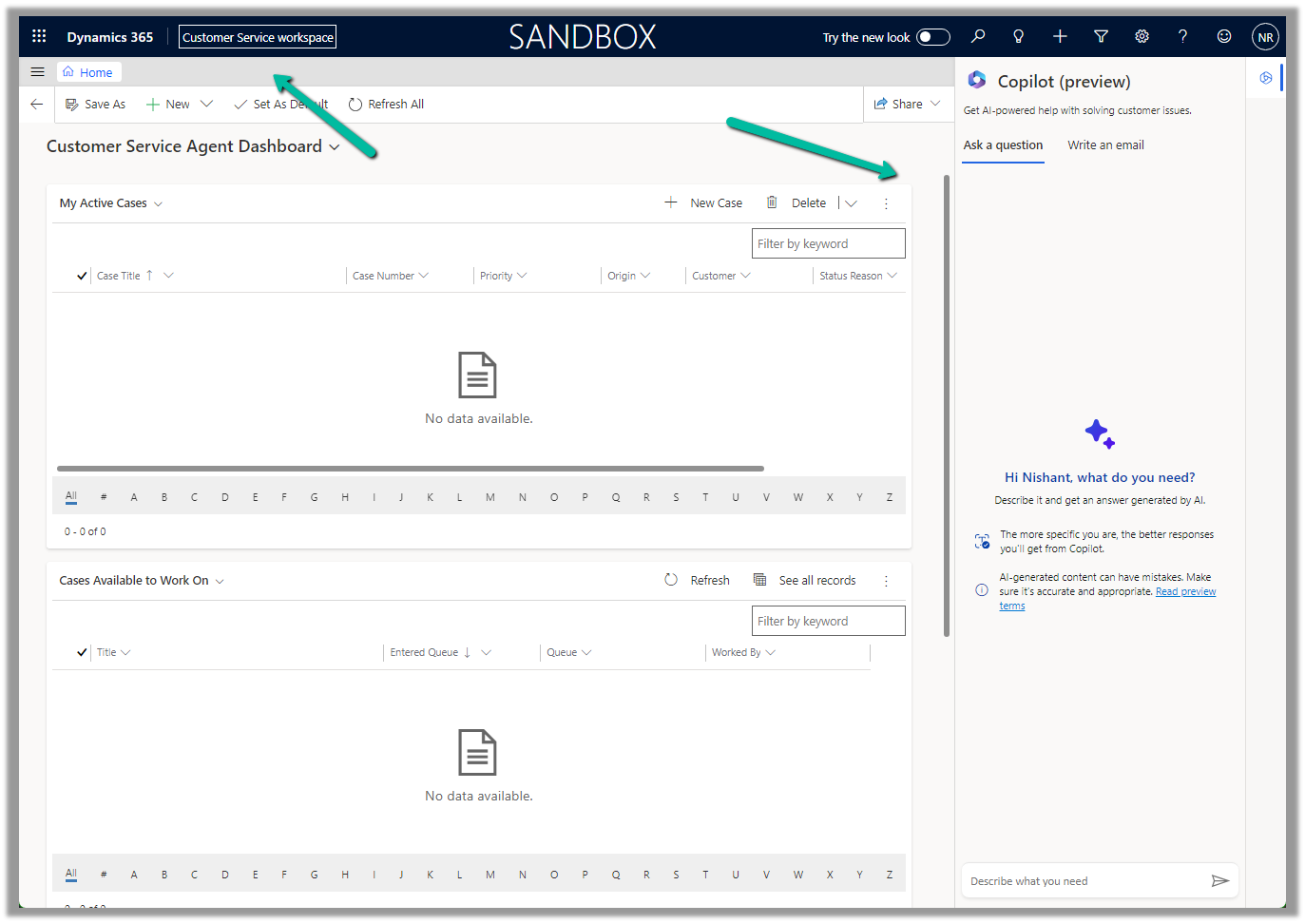
Below we can see the Copilot help pane in the Customer Service workspace app.



















 Nishant Rana's Weblog