Recently we were working on Facebook Leads integration with Dynamics 365. Webhook for Leads can be configured to send real-time notifications of the Leads ads changes.
The first step of setting up Webhook requires creating an HTTPS endpoint that can process 2 types of HTTP Requests – Verification and Event notifications.
Here we will see how to configure the Power Automate flow for verification.
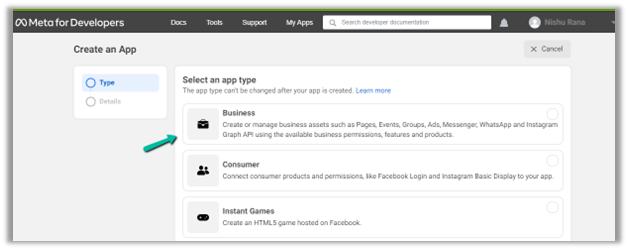
Login to Meta for Developers – Facebook and create an app.
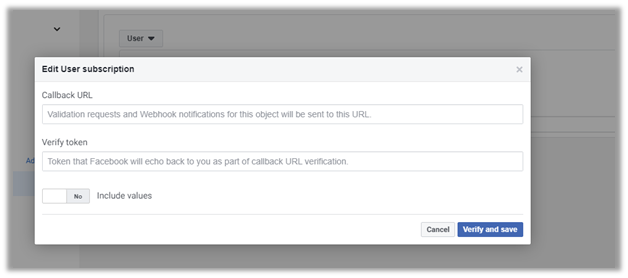
It asks us to specify the Callback URL and Verify token.
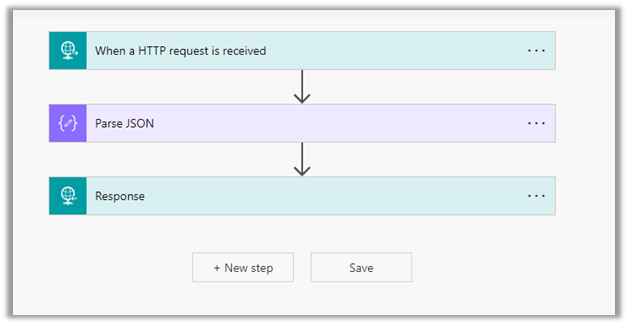
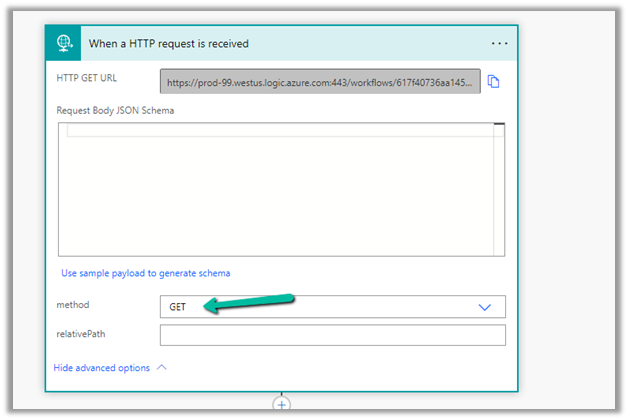
Back in Power Automate create a Flow with Request type Trigger, followed by Parse JSON and Response actions.
For HTTP Request, select GET as the method, as FB will send a GET request to the endpoint URL, with the verification requests included in the endpoint of the URL.
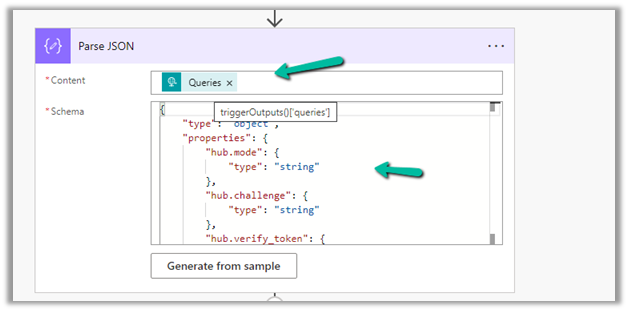
Next, Parse the JSON and specify the Content and Schema
Content –
triggerOutputs()['queries']
Schema –
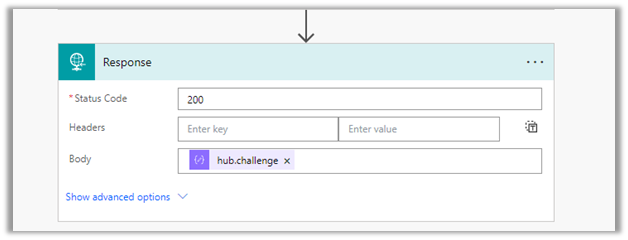
Lastly in Response, set Status Code as 200 and Body as hub.challenge.
Here FB expects the Endpoint to verify the hub.verify_token (which we haven’t set up yet) and respond with hub.challenge value after verification.
Save the Flow, and copy the URL generated for the HTTP Request trigger.
Back in Meta for Developers, in edit user subscription paste the Callback URL and for now in place of token specify any value and click on Verify and Save.
We should now have a Webhook endpoint (Flow) successfully configured
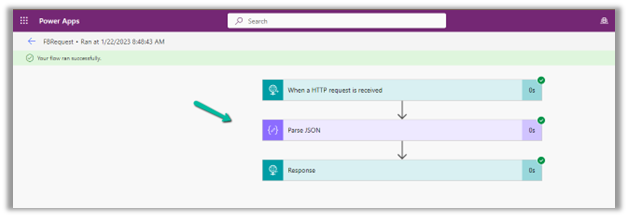
We can also see our Flow ran successfully.
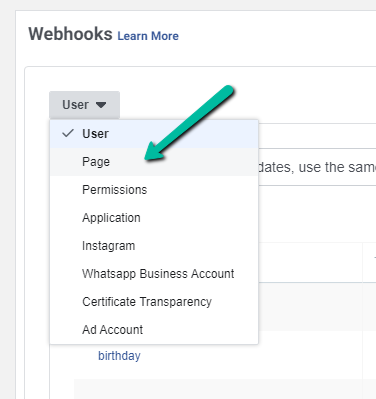
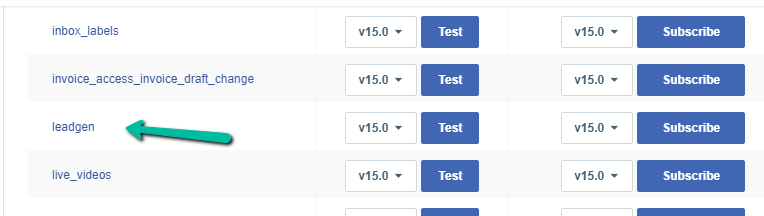
Here in the example we configured the webhook validation for User events, for Facebook Lead we need to configure it for Page, the other options available are Permissions, Application, Instagram etc.
Recently we were getting the below error on the Omnichannel Ongoing Conversations Dashboard.
As the user was having an Omnichannel Administrator role, we expected it to work for the user. We raised a support ticket for the same and got to know that we need to assign the Omnichannel supervisor role for it to work for the user.
After assigning the Omnichannel supervisor role, the report started working for the user. Try it in incognito mode or clear the cache after assigning the role.
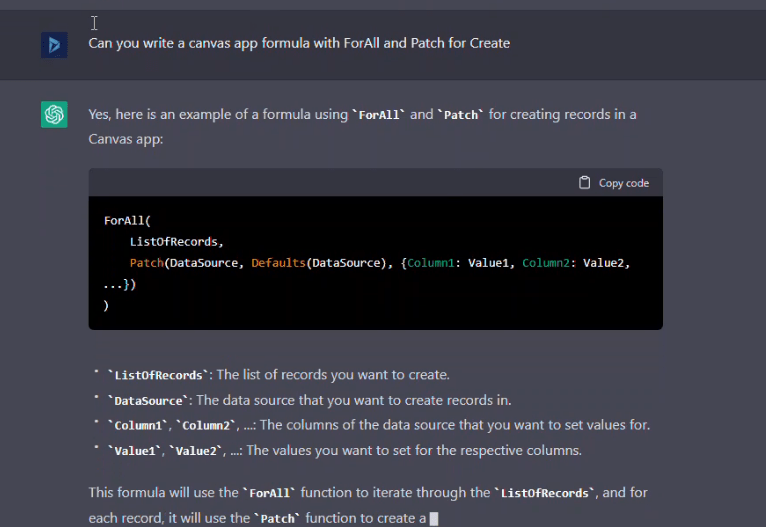
By now I am sure most of you have heard about ChatGPT. The AI product is pouring out surprisingly intelligent responses to all sorts of questions that people all around the world have given it lately.
There have been examples of the tool writing papers for school, creating blog posts for people, and helping formulate fairly complex text for webpages and marketers. One thing that someone tipped me off about was the ability to write code, and I was a bit curious as to what that would mean.
So one of the many gaps in my knowledge is specifically regarding Plugins. A plugin is a piece of backend code that runs in real time when triggers occur in Dataverse. I tried doing a little plugin with some help a few years ago and wrote about it on the Company Blog – Plugin in 1 hour.
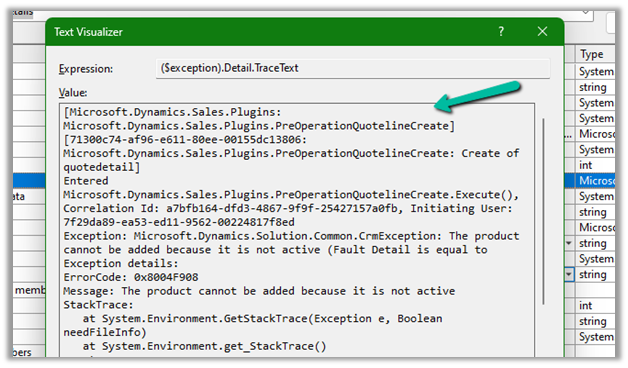
We got the below error while trying to create a quote product programmatically.
As the error message specifies, this is because we are trying to add/associate a DRAFT product to the Quote Product.
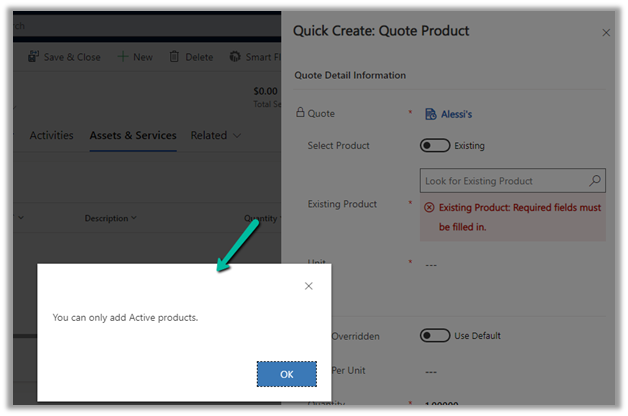
We will get a similar error from the application as well if we try adding a draft product as an existing product to either a quote product or an opportunity product.























 We should now have a Webhook endpoint (Flow) successfully configured










 Nishant Rana's Weblog