Using Sort, Distinct, Filter together for combo box Items– Canvas Apps (Dataverse)


Just sharing a simple example of applying a formula to the Combo box Items property, which includes Sort, Distinct, and Filter (If).

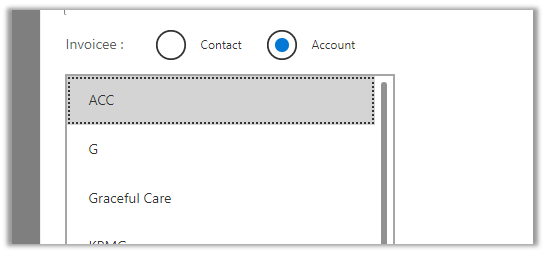
Below is our Combo Box bound to a lookup field of type Customer. If Contact is the option selected in the radio control, we want to show Contact’s Full Name sorted else Account’s Account Name field.

If( radioBtnCustomer.Selected.Value = "Contact",
    Sort(Distinct(Filter(Contacts,Status = 'Status (Contacts)'.Active),'Full Name'),
        Value,
        SortOrder.Ascending
    ),
    Sort(Distinct(Filter(Accounts,Status = 'Status (Accounts)'.Active),'Account Name'),
        Value,
        SortOrder.Ascending
    )
)

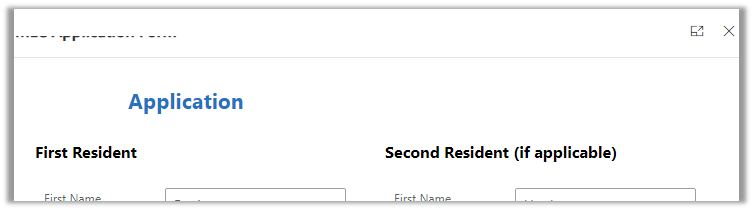
The result –

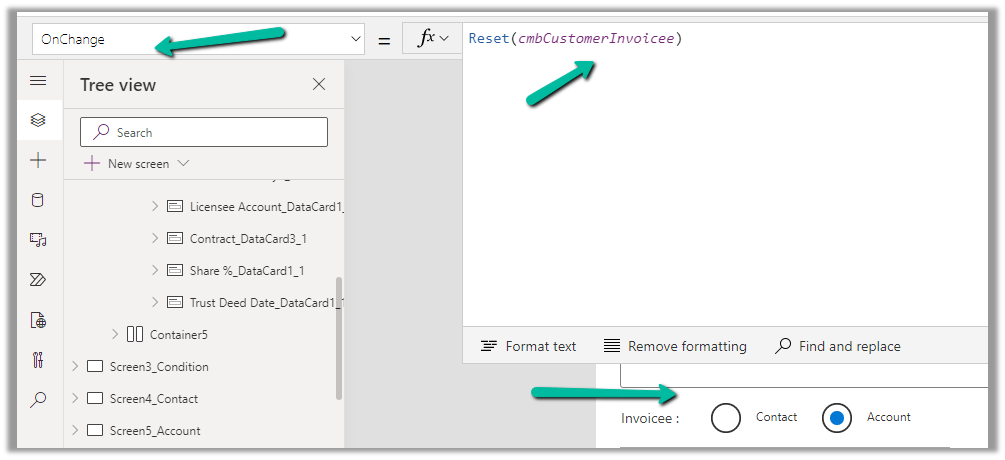
Also to clear the selection in the combo box when the user changes the option from contact to account and vice versa we can use the Reset function.

Check the below links to learn more about working with Customer lookup –

https://learn.microsoft.com/en-us/power-apps/maker/canvas-apps/working-with-references#show-the-columns-of-a-customer

Hope it helps..

Advertisements

How to – switch between Enhanced and Legacy (Default) multisession workspace in Customer Service Workspace


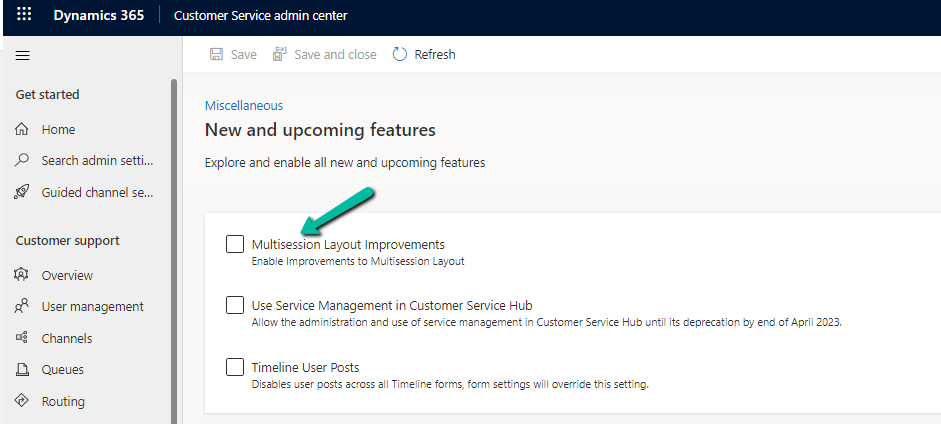
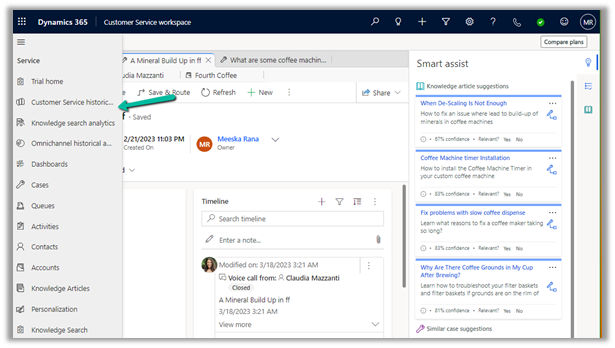
Update – We can use the below option – Customer Service Admin Center >> Operations >> Miscellaneous >> New and upcoming features – Multisession Layout ImprovementsEnhanced

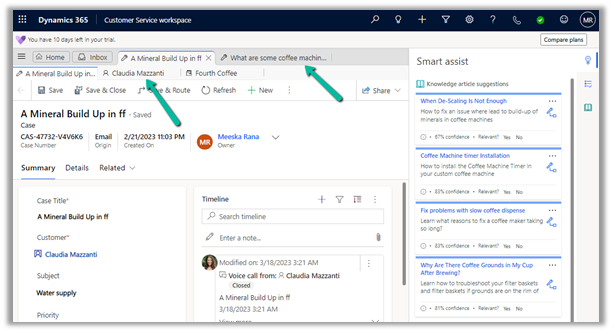
With the Enhanced multisession layout in Customer Service Workspace, we have different sessions open in different tabs at the top and different tabs inside each session, along with the Navigation on the left.

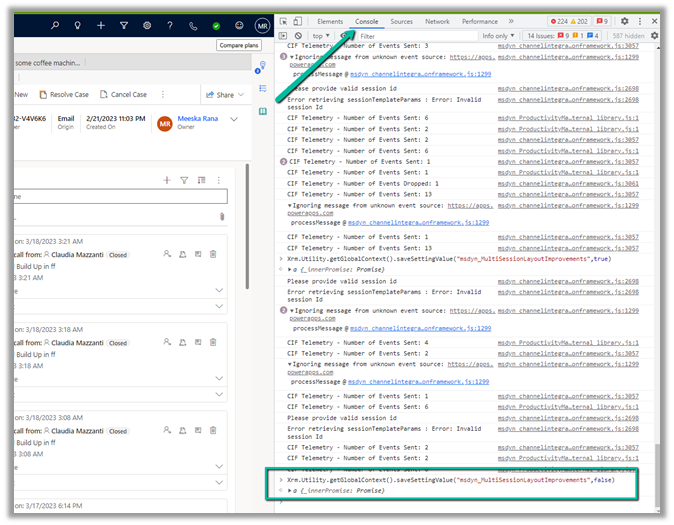
To revert to the old default workspace or legacy navigation (deprecated), open the developer tools in the browser.

And paste the following command in the Console tab.

Xrm.Utility.getGlobalContext().saveSettingValue(“msdyn_MultiSessionLayoutImprovements”,false)

Or

Xrm.Utility.getGlobalContext().saveSettingValue(“msdyn_MultisessionNavigationImprovements”,false)


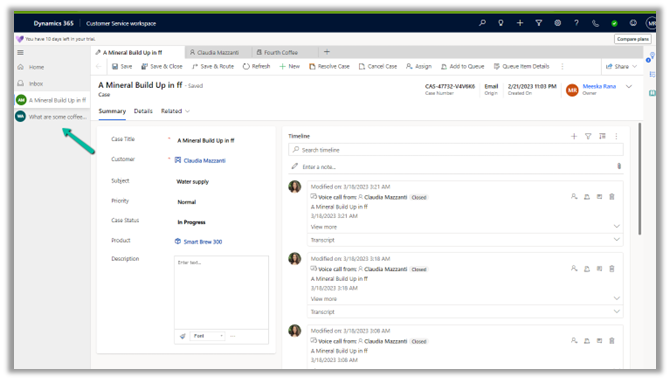
We can see the layout changed to the legacy one–

To enable the new enhanced layout (recommended) back, in the console window of developers tools paste the below command.

Xrm.Utility.getGlobalContext().saveSettingValue(“msdyn_MultiSessionLayoutImprovements”,true)

Hope it helps..

Advertisements

Combo box showing blank values in case of multiple conditions – Canvas App (Dataverse)


Recently while trying to filter combo box Items we were getting the values but it was coming as blank instead of showing the name field.

Below is a sample Form – connected to Leads and Source Campaign is the combo box field (lookup to Campaign)

As we can see without applying the filter we can see the name (Display fields) populated.

Now let us try to filter it based on the Campaign Type field.

Here we have applied a single filter condition.

We can see the combo box getting filtered correctly.

Now we are introducing a variable just to filter it based on condition.

Till now filtering works as expected.

Now let us introduce else condition here.

We can see the combo box getting filtered but not showing the name field of the Campaign set as a display field. Through developer tools also, we don’t see the name returned in this case. The same is the case if we use multiple If or Switch in the formula.

The solution is to filter on Campaigns data source directly, instead of the corresponding Choice field in the Lead.

The result –

Hope it helps..

Advertisements

How to – Create Marketing form submission record through Flow (Power Automate) – Dynamics 365 Marketing


Recently we were exploring the possibility of creating a marketing form submission record through flow/custom code. Here simply creating the marketing form submission record is not enough, for it to be processed by the platform, we need to call the bound action – msdyncrm_UpdateMarketingFormSubmission with Step = Retry. (And it’s all not an officially supported scenario, so be careful)

Below is how the flow looks like

First, we create a form submission record –

After creating the form submission record, we are creating and associating the marketing field submission records with the values that we want to pass for the form – email, first name, and last name in this case.

And then eventually calling the action –msdyncrm_UpdateMarketingFormSubmission to trigger the submission (resubmit) of the form submission record.

On running the flow, we can see the record created with the status as pending.

Within a few seconds, if the input is correct, we can see the status updated as success

and the corresponding contact/lead created or updated.

Hope it helps..

Advertisements

Dataverse | ‘App Opener’ security role


Rajeev Pentyala's avatarRajeev Pentyala – Technical Blog on Power Platform, Azure and AI

App Opener is a new OOB security role comes with the minimum privileges for common tasks available on all the Dataverse Environments.

Its recommended to use the App Opener role for copy and creating new roles.

App Opener is protected and cannot be updated.

The min prv apps use role, available in the Microsoft Download Center to downland will soon be retired and you must use this new predefined security role App Opener.

🙂

View original post

Fixed – Global variables are not allowed in StartScreen (PowerApps / Custom Page)


Recently while working on a custom page we had a requirement to show different screens on the app start based on a choice field in the record. (The custom page was being opened from a button/command on the form)

For the custom page’s App OnStart we were first removing the curly brackets from the recordID parameter passed to set the ContractId variable followed by setting ContractRecord variable using that GUID in the LookUp function.

Below is the JavaScript used to pass the parameters to the custom page (from the command/ribbon button)

Now based on Contract Type optionset field in the Contract record we wanted to show a different screen as the start screen. However, trying to use the Global Variable in the StartScreen function gave us the error – “Global Variables are not allowed in StartScreen”

The solution here was to use the Param recordId to get the record and set the start screen accordingly in the StartScreen instead of ContractRecord global variable.

Also check  – https://debajmecrm.com/how-to-dynamically-show-the-start-screen-of-an-app-in-power-apps-canvas-apps/

Hope it helps..


Advertisements

Nishant Rana's Weblog

Everything related to Microsoft .NET Technology

Skip to content ↓