Let us implement a simple scenario where we create a lead record in CRM which then talks with Flow (and Power App).
The Flow calls an Azure Function (Custom API) that sends mail to the lead’s email address using SendGrid
1) Let us create an Azure Function that uses SendGrid to send email to the lead’s email address.
Login to Azure Portal and create a new Function App.
https://portal.azure.com
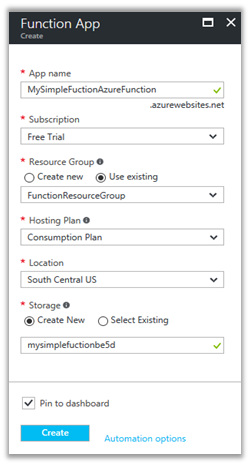
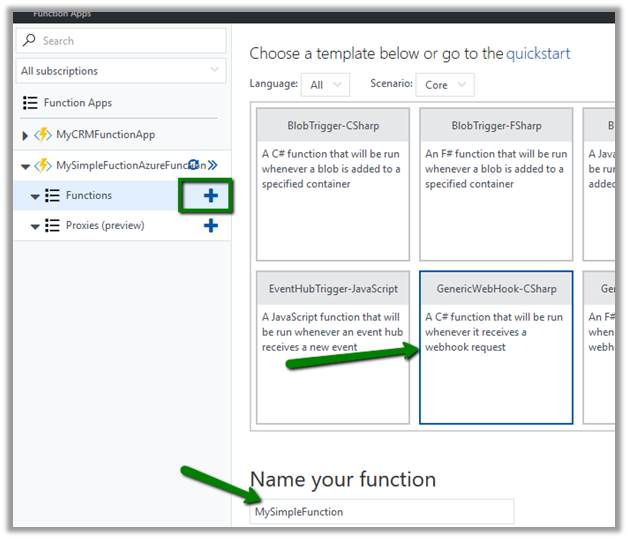
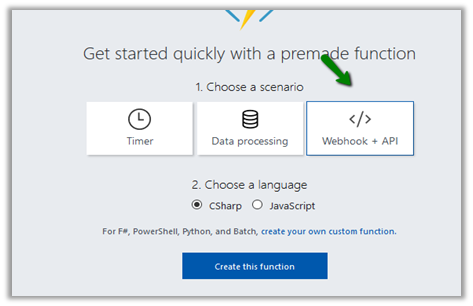
Let us create a Function using Generic Web Hook CSharp template
To keep it simple let us only enable GET method. Go to Integrate tab and in Allowed HTTP Methods Select Selected Methods and check GET.
Also set mode as Standard and Authorization Level as anonymous, which means we do not need a API Key to be passed as query parameter to talk with the function.

Now let us add a new Output

Select SendGrid as the template

Click on Save.

Here we would need to define SendGridApiKey.
Go to SendGrid portal and create a free account over there
https://sendgrid.com
Create and API Key and copy it’s value.

Now go to Application Settings of the Function App and set this key value with SendGridApiKey as the key name.
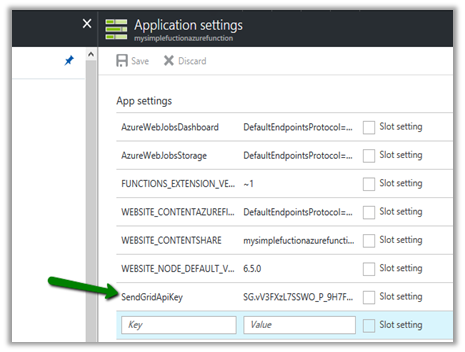
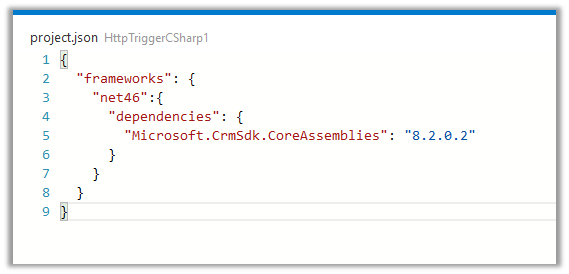
Now let us go back to our code and update it to work with lead object and Mail class which would be used for sending email using SendGrid API.
Here first we are referring the SendGrid assembly, then getting fullname and email from query string and then creating Mail object.
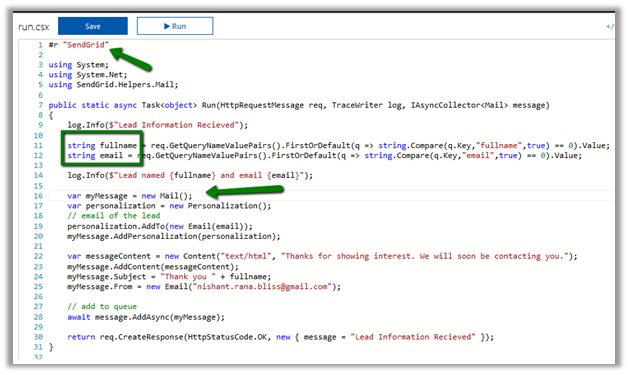
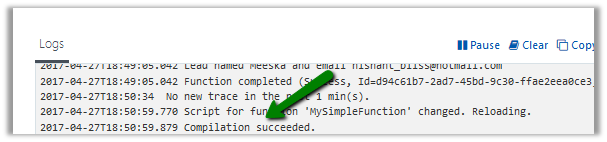
Save and check the log if the compilation succeeded or not.
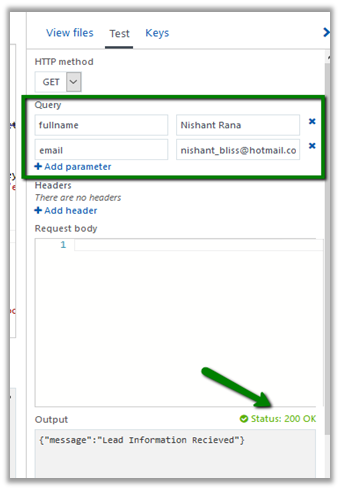
Testing our Function.
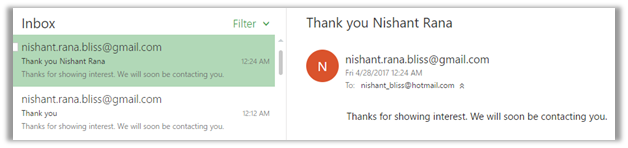
We can see the mail in the mail box.
This completes our first part.
2) Now let us create the Swagger definition for it which we will use in Power Apps and Microsoft Flows for using this Azure Function as Custom API.
Select our function and click on API definition.

Click on Function.

Update the generated API Definition Template with query parameter details and also test it.

As it is running successfully, click on Export to Power Apps + Flow
This opens up the new section that details the steps we need to follow for using our Azure Function with Power Apps and Microsoft Flow.
There click on Download button.

Click on Go to PowerApps
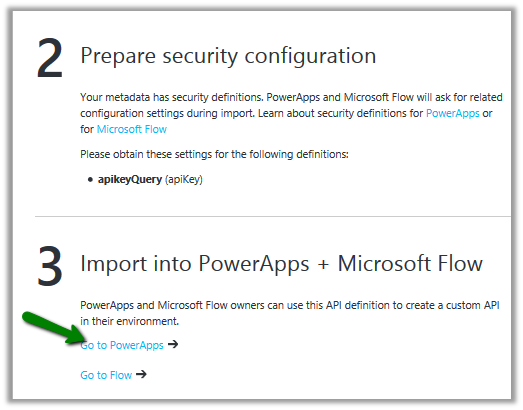
It opens up the PowerApps portal (asks for log in) and opens the New Connection page.
https://web.powerapps.com
Upload the JSON Definition file for our Azure Function, provide name and description and click on Next.
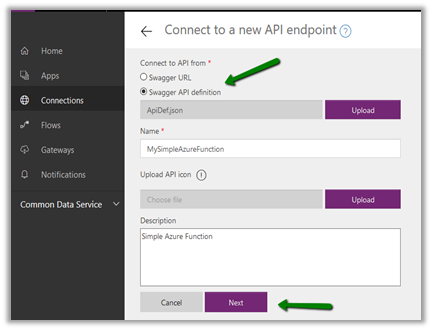
Click on Create.

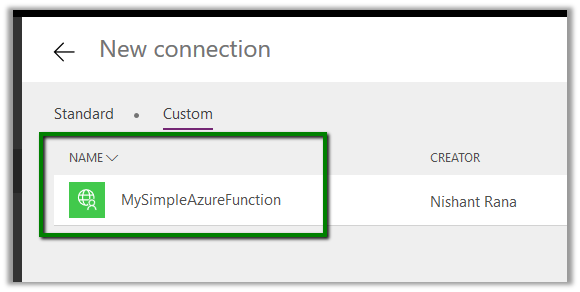
Let us quickly test our new connection.
Click on New App in our PowerApps web portal.
Select PowerApps Studio for Web. Let us create a Blank App Phone.

Add a new Data Source and select our Azure Function there.

To get the API Key go to our function and expand API Definition Key.

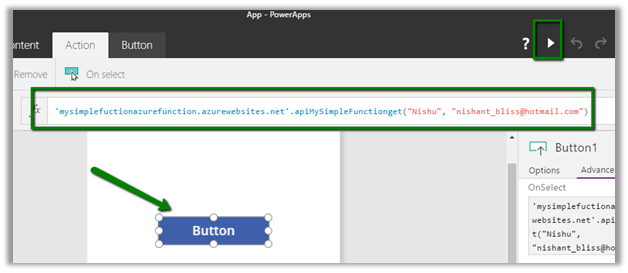
It works properly.
3) Now let us move to our last step, wherein we use it inside Microsoft Flow and integrate it with Dynamics CRM.
The good thing is to configure the same for Microsoft Flow, we do not have to do any extra step as both Microsoft Flow and PowerApps share the same connection infra.
Go to Microsoft Flow portal
https://flow.microsoft.com/
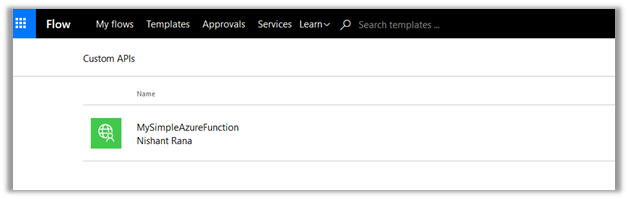
We can find our Custom API already added there.
Let us create a new flow. Start with Dynamics 365.
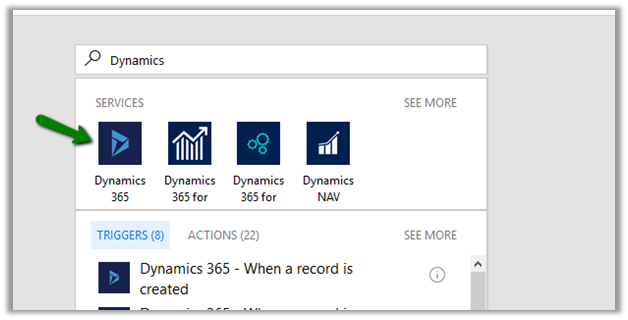

When a record is created. Select Organization Name and Leads as the entity and click on Add an Action.

Search for our Custom API.

Select LastName and Email as Dynamic Content from the lead record created.

Click on Create Flow to create the flow.
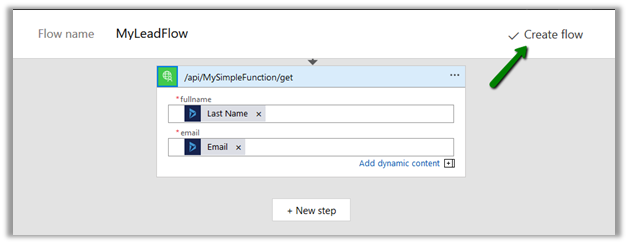
Unfortunately, we get the below error

Let us go back to our Swagger Definition and update it.
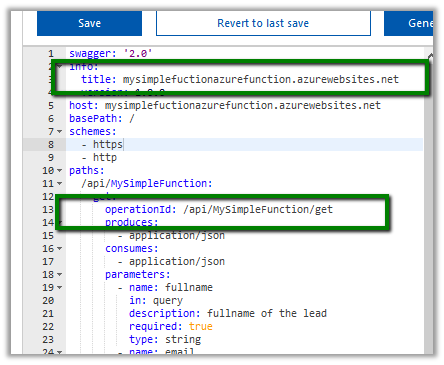
We have updated it as following

Let us quickly test it, import it in Power Apps as new connection and come back to our Flow.
Edit the connection there and specify the API Key as we had done earlier inside Power Apps and update it.

Open Flow and quickly add the required steps and click on Create Flow.

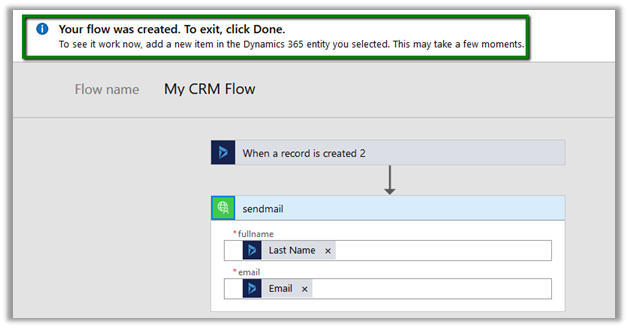
We have successfully created our flow. Now let us test it.
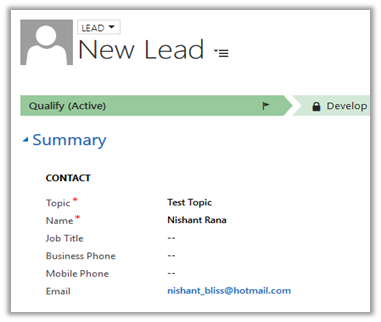
Let us create a new lead record
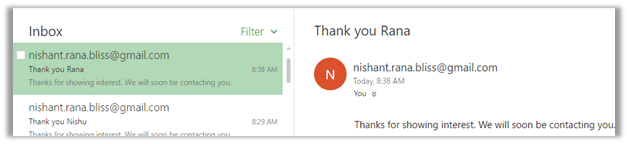
Our flow runs and sends the mail

That’s it we are done with our simple implementation. The main purpose of this post was to show the integration possibilities which could help us design and implement real world complex scenarios.
Hope it helps..














 ‘
‘





 Nishant Rana's Weblog