No Action header was found with namespace ‘http://www.w3.org/2005/08/addressing’ for the given message – error while calling a WCF Service through C/AL (Client/server Application Language)


While trying to call a WCF service from within the C/Al in Microsoft Dynamics NAV, we were getting the below error

“No Action header was found with namespace ‘http://www.w3.org/2005/08/addressing‘ for the given message.”

Strangely enough that request was working properly from within the SOAP UI.

Eventually the following thread came to the rescue

https://stackoverflow.com/questions/16445945/no-action-header-was-found-error-message-while-using-soap-webservice

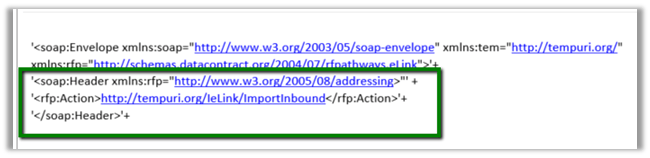
The service was expecting a Soap Header xml containing the Action along with SOAPAction header as shown below within the Soap Envelope.

Hope it helps..

Fixed – You are not authorized or do not have any subscriptions associated error while trying to access Kudo Sites in Azure


Today for one of our Azure WebJobs when we tried checking its log, we got the below error à

Seemed strange as being the Contributer of that Resource Group, I had access to all other functionality within that resource group.

After much struggle, in one of threads there was a suggestion to try in a different browser or in private browsing mode. And luckily that worked.

Out of all responses, this one makes the most sense for this issue

https://github.com/Azure/azure-functions-ux/issues/2244

Hope it helps..

Advertisements

Fixed – The process cannot access the file .ispac because it is being used by another process error in Visual Studio (SSIS).


Recently while developing SSIS packages, the Visual Studio (SSDT) got crashed.

After restarting the Visual Studio and trying to execute the package we got the below error.

System.IO.IOException: The process cannot access the file ‘c:\folder\ssisproject.ispac’ because it is being used by another process.

at System.IO.__Error.WinIOError(Int32 errorCode, String maybeFullPath)

at System.IO.File.Delete(String path)

at Microsoft.DataTransformationServices.Project.DataTransformationsProjectBuilder. IncrementalBuildThroughObj(IOutputWindow outputWindow)

at Microsoft.DataTransformationServices.Project.DataTransformationsProjectBuilder.

BuildIncremental(IOutputWindow outputWindow)

ISPAC file is the integration services project deployment file containing the packages and the parameters.

The fix is to open task manager and end the DtsDebugHost.exe task.

DtsDebugHost

DtsDebugHost.exe is the SSIS Debug runtime process that executes the package.

Hope it helps..

Advertisements

PowerApps – Secure your Azure Function and Custom Connector with Azure AD


Very informative article.

Sachin Bansal's avatarBansal Blogs - Dynamics 365, PowerApps, Microsoft Flows, Power BI

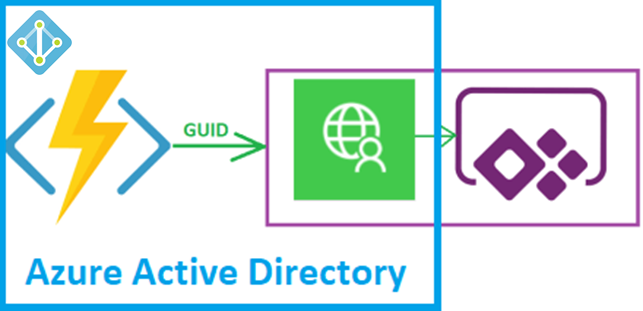
In my previous blog, I explained how to create an Azure Function and consume it in PowerApps using custom connector but it was not secured (anonymous) and anyone can access this API using function URL. In this blog we will see how to secure Azure Function API and register PowerApps custom connector in Azure Active Directory.

AP1

Below steps will be covered as part of this blog:

  • Secure Azure Function with Azure AD
  • App Registration for Custom Connector
  • Change Authentication Key parameters in Custom Connector

Step 1 – Secure Azure Function with Azure AD:

By default, when you create Function API, anonymous authentication is selected which means anyone can access your API. For most of business or enterprise application you want to secure your API with Azure Active Directory so that only users inside your organization can access this API. Let’s see how to achieve this.

  • Select your Function App…

View original post 635 more words

Power BI with Dynamics 365 CE – Dynamics 365 Content Pack


In previous posts we covered

Creating a Power BI Report using Dynamics 365 Online Service.

Publishing it and Showing it inside Dynamics 365 and scheduling its Refresh.

Apart from creating our own Power BI Report another way of quickly be up and running is to use the Content Packs provided by Third Party Service, for e.g. here we will be using Sales Analytics for Dynamics 365 content pack provided by Microsoft.

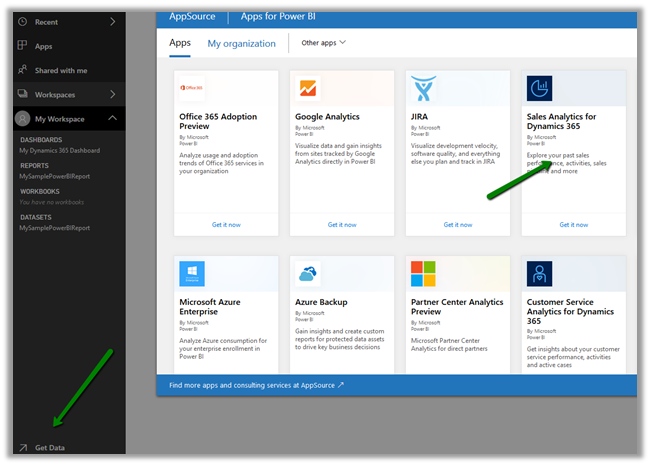
Login to the Power BI service, click on Get Data, select Services.

Select Apps and choose the Sales Analytics for Dynamics 365 from the AppSource.
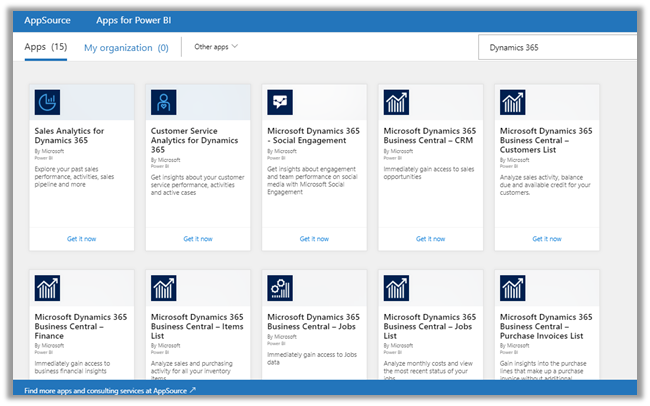
If we search for Dynamics 365, we can see around 15 Apps provided by Microsoft.
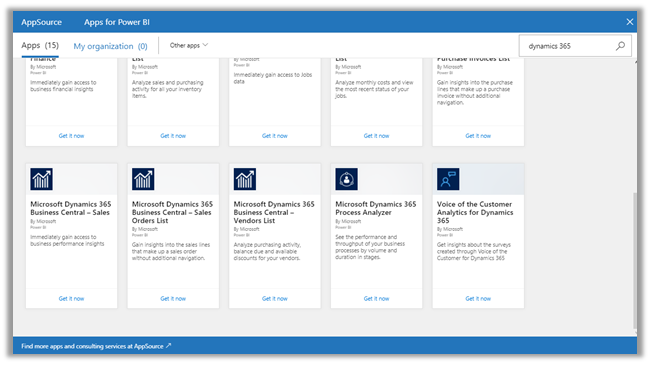
Back into our Sales Analytics for Dynamics 365 App, when we click on Get in now we are presented with the option where we need to Specify the URL of our Dynamics CRM Online Service and Fiscal Year End Month Number for that organization.

In the next screen, we need to select OAuth2 as the authentication method and followed by signing in.
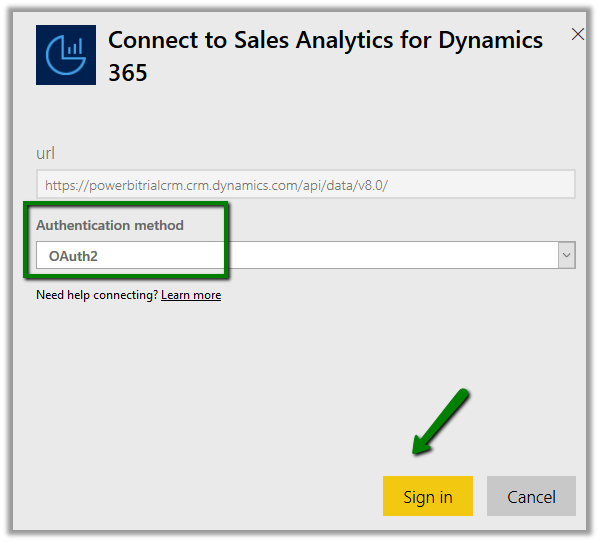
This installs the app which would be available in the Apps section.

Clicking on the installed Sales Analytics App opens the Dashboard

Clicking on Ask a question about your data inside Dashboard allows us to analyze the data by allowing us to choose the criteria
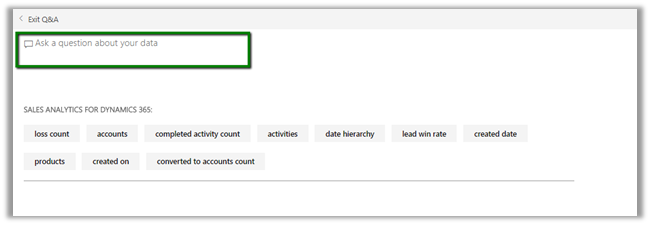
Here we have filtered the accounts by created on by month along with the owner
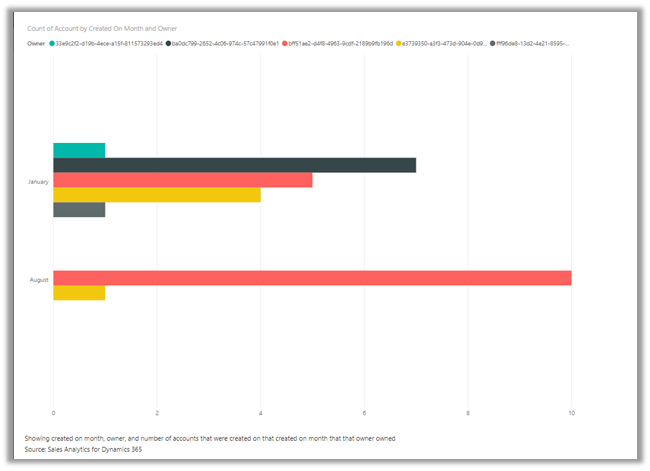
Also, we can see around 10 different reports created inside that app.
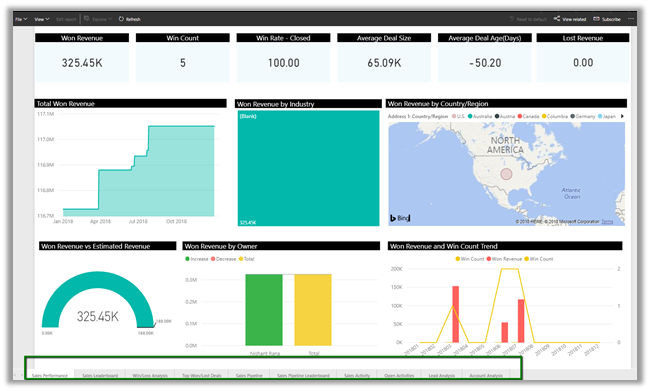
  • Sales Performance
  • Sales Leaderboard
  • Win/Loss Analysis
  • Top Won/Lost Details
  • Sales Pipeline
  • Sales Pipeline Dashboard
  • Sales Activity
  • Open Activities
  • Lead Analysis
  • Account Analysis

Similarly, we can create our own Content Packs to be shared with either specific group or with the entire organization.

Click on settings gear inside Power BI Service and select Create Content Pack

Here we are creating a content pack choosing the Dashboard, Reports and the Dataset that we created earlier in the previous posts.

Once published, the user 2 can click on Get Data and search for and can see the content pack.

Clicking on Connect adds the Dashboard, Report, and the corresponding Dataset to the My Workspace of the user. Only the user who had created the content pack can edit the artifacts that are part of Content Pack, however, the other user of the organization can save a copy of it and can work on it.

More on it

https://docs.microsoft.com/en-us/power-bi/service-organizational-content-pack-manage-update-delete

Hope it helps..

Power BI with Dynamics 365 CE – Refreshing the Dataset


In the previous post, we used Dynamics 365 Dashboard and Power BI Tile to show Power BI Dashboard and report inside Dynamics 365.

https://nishantrana.me/2018/08/20/power-bi-with-dynamics-365-ce-showing-power-bi-dashboard-tile-inside-dynamics-365-ce/

Now as a next step, we want to make sure that the users are looking at the latest data possible inside the Dashboard\Reports.

In case of Online Services like Dynamics 365 (Online), we have the option to manually Refresh the data.

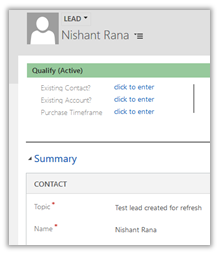
To see it in action, let us create a lead record in Dynamics 365.

This is how our Dashboard looks like for now à

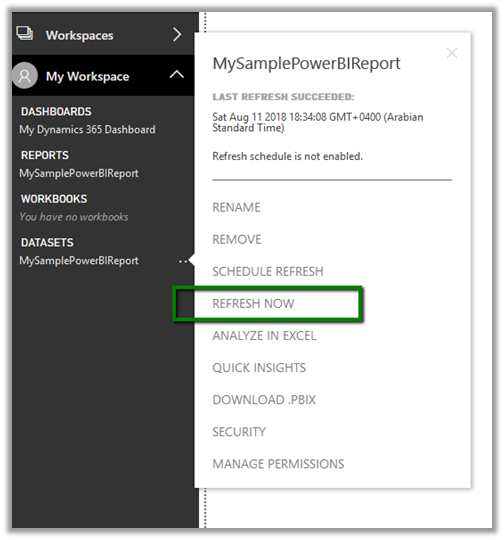
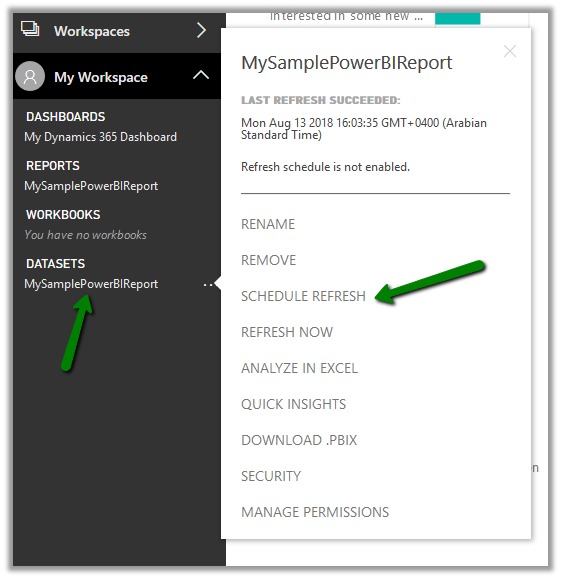
Now back in Power BI Service right, click on ellipsis for the Dataset and select Refresh Now.

We can see the newly created lead in our Power BI Report inside Power BI Service and Dynamics 365 CE.

The other option we have is to Schedule the refresh.

Navigate to the Dataset and select Schedule Refresh

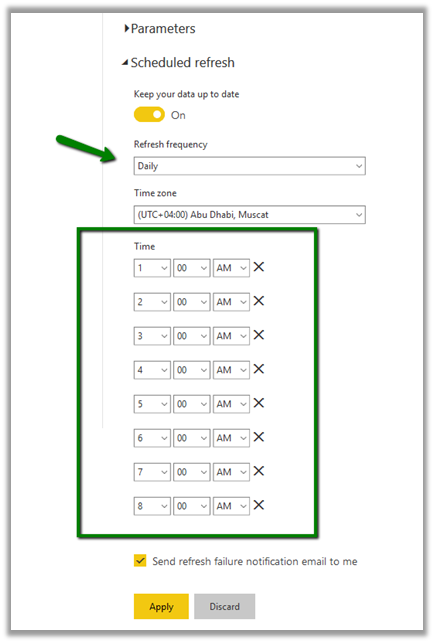
We can select the Refresh Frequency as Daily or Weekly.

And we can set it to refresh up to 8 times per day as shown below.

With Power BI Pro License, we can complete the scheduled refresh 8 times a day whereas the Power BI Premium allows the refresh up to 48 times per day.

https://powerbi.microsoft.com/en-us/power-bi-premium/

Some helpful links

https://docs.microsoft.com/en-us/power-bi/refresh-scheduled-refresh

https://www.powerobjects.com/2018/01/11/power-bi-data-refresh-performance/

https://crmtipoftheday.com/category/power-bi/

Hope it helps..

Nishant Rana's Weblog

Everything related to Microsoft .NET Technology

Skip to content ↓