Opportunity Products enhancement in Dynamics 365 for Sales – 2020 Release wave 1


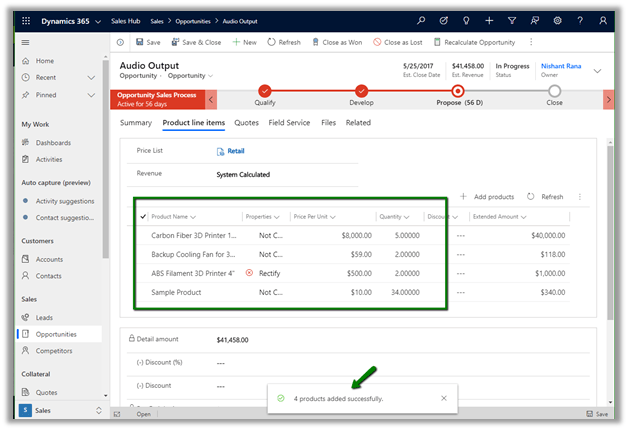
With 2020 Release wave 1 we have new features added to the experience of adding opportunity product (product line items) to an opportunity, which makes it easy to search, explore and add multiple products at once.

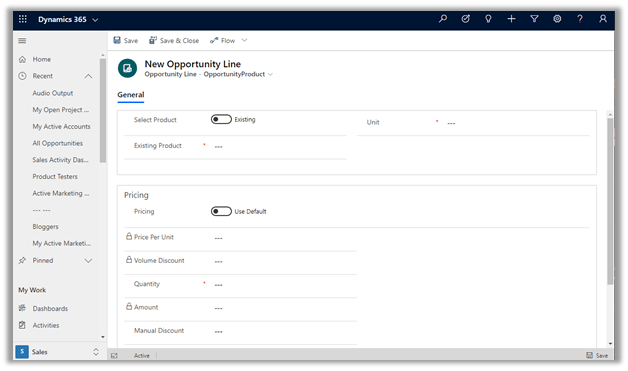
In 2019 Release Wave 2 à

Clicking on Add Product button
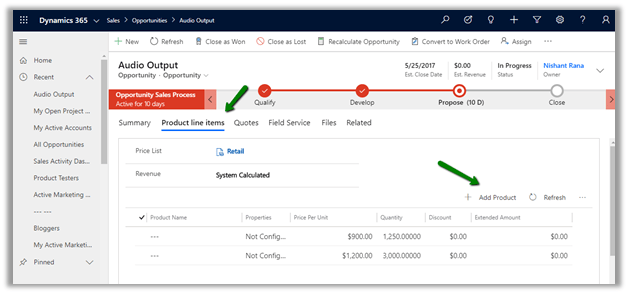
Opens the new opportunity line form
With 2020 Release wave 1 à

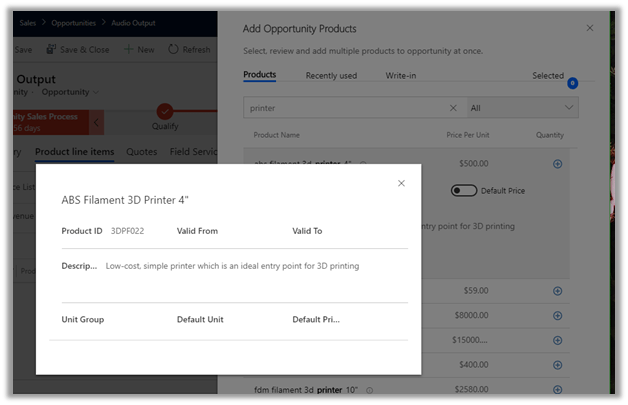
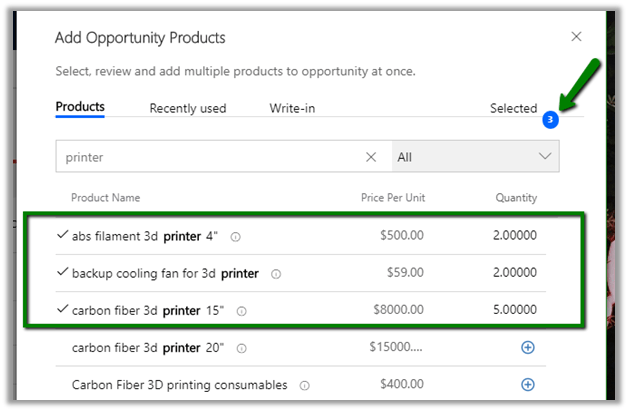
On click on Add Product button, we get the Add Opportunity Products dialog box.
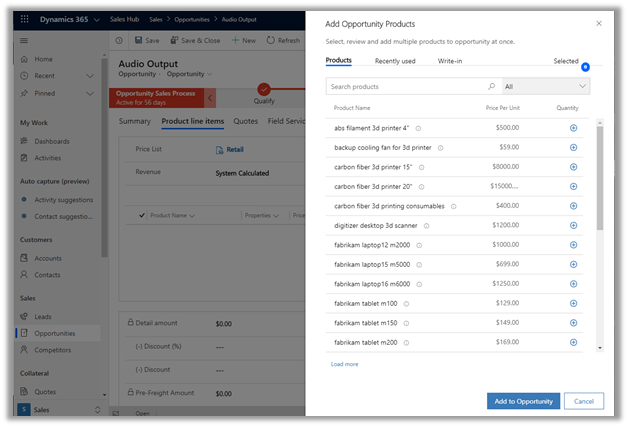
Which lets us

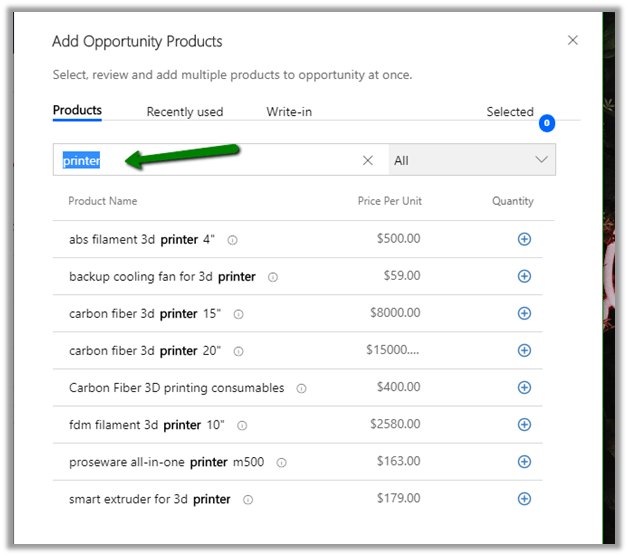
Search à
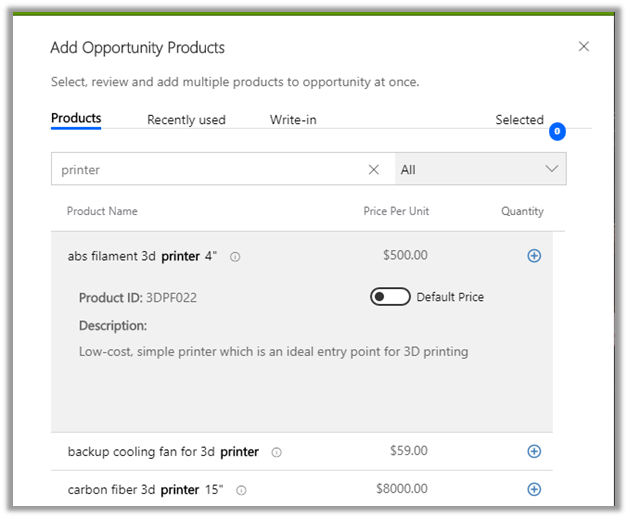
See more details of the product à
Select multiple products à
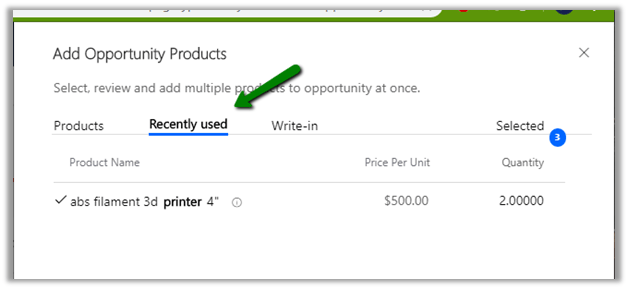
See the recently used products for quick accessà
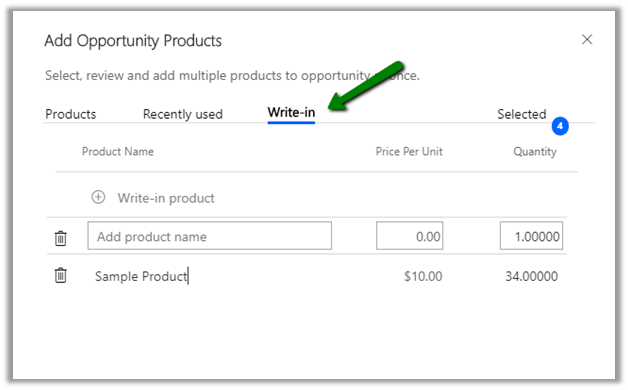
Add write-in products à
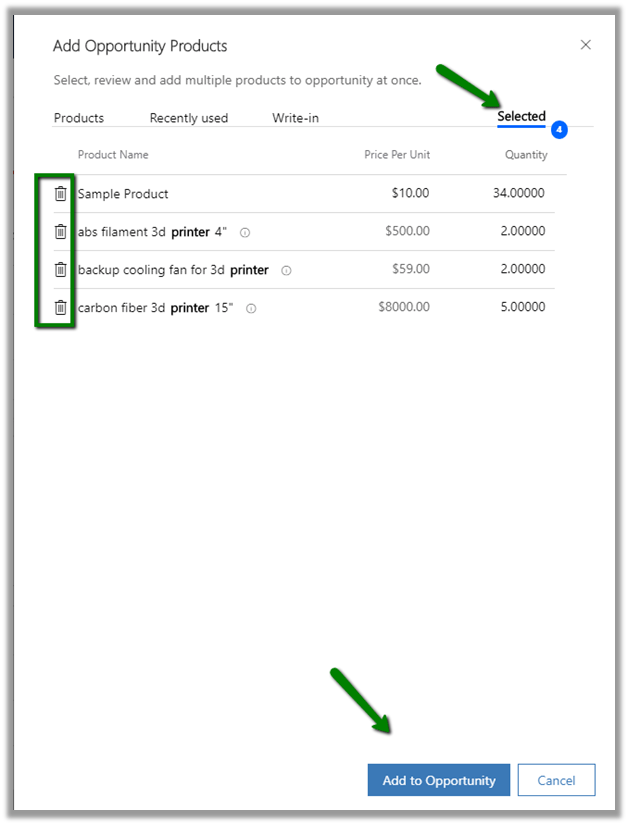
View all the selected products and remove them if required using the delete icon and to add multiple products through the Add to Opportunity button.
The above features are only for Opportunity Products, for Orders, Invoices and Quote it will still open the corresponding create form for creating/adding the record.

Also, check out the enhancements added to Products in the previous version

https://nishantrana.me/2019/12/28/opportunity-quote-order-invoice-product-related-enhancements-in-dynamics-365-for-sales/

And

Email Template enhancements in 2020 Release wave 1

https://nishantrana.me/2020/02/11/email-template-enhancements-in-dynamics-365-for-sales-2020-release-wave-1/

Hope it helps..

Fixed – Microsoft.Crm.CrmException: Property ‘x’ isn’t declared on the control manifest in Microsoft Dynamics 365


We got this error while trying to save the form which uses the PCF Control.

This was because the name of the property was changed

And the updated solution was imported, while the control on the form was still referring to the old property name.

Fix is straightforward, remove the field using that control with old property name from the form and save the change.

Hope it helps..

Advertisements

PCF Control to show Twitter Likes Timeline


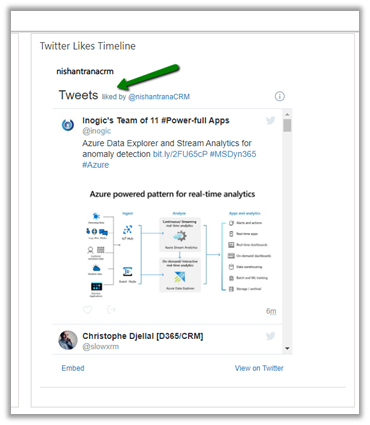
In the same line as Profile Timeline PCF Control, we can use the same concept to create a control that shows likes timeline that displays the recently like tweets of a specific public Twitter Account.

More on this

https://developer.twitter.com/en/docs/twitter-for-websites/timelines/guides/likes-timeline

Here we have specified the public twitter account nishantranacrm in this case, it will show all the tweets that are liked by that profile.

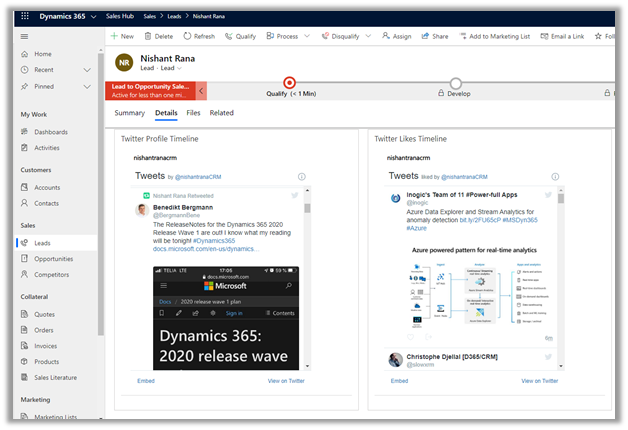
We can have both the Profile Timelines and Like Timelines control for the profile that we are interested in for a lead, contact or account record.

Get it here

https://github.com/nishantranacrm/PCFTwitterLikesControl

Hope it helps..

PCF Control to show the Twitter profile timelines


Created a simple PCF Control to show the twitter timelines for the profile. It basically uses embedded tweets.

Get the control here

https://github.com/nishantranacrm/TwitterPCFControl

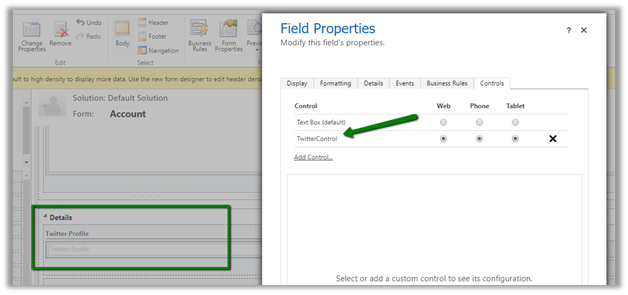
Simply enter the twitter profile in the text field and it will render the latest tweets of that profile.

Inside an account form à

For the contact record à

Embedded timelines make it extremely easy to embed the Tweets on a web page.

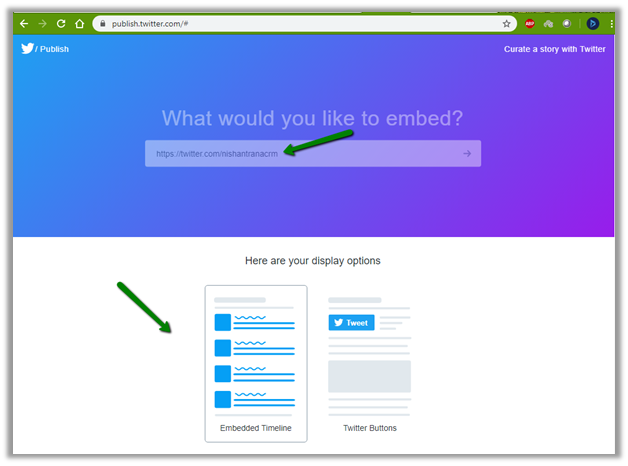
We can navigate to publish.twitter.com to generate the code.

Here I have searched from my profile, which then next gives us the display options to select.

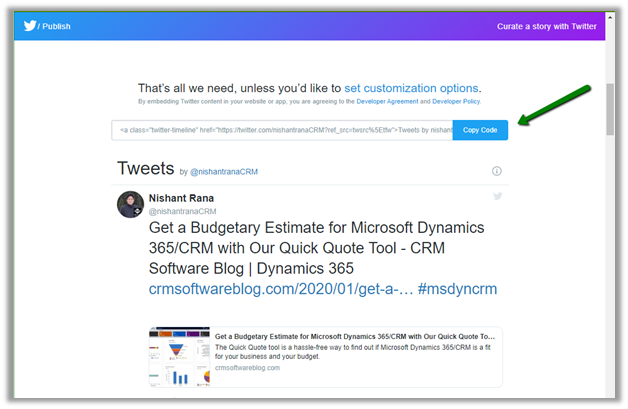
Here we selected the Embedded Timeline display option, which generated the code for us.

The code that we are using inside our PCF Control.

Read more about it here

https://developer.twitter.com/en/docs/twitter-for-websites/timelines/overview

Hope it helps..

Best resources to start with Power Apps Code Component (PCF)


There are so many outstanding blogs, videos out there for learning PCF, below my favourite resources for someone who is just starting with development of Power Apps custom code components

https://debajmecrm.com/2019/04/26/in-depth-end-end-walkthrough-develop-your-custom-controls-using-power-apps-component-framework-and-use-it-on-your-crm-interface/

https://powermaverick.dev/2019/05/18/create-custom-controls-using-powerapp-component-framework/

https://www.xrmvirtual.com/meeting-details/?id=766fc80b-70cf-e911-a860-000d3a537884

PCF Academy 

Thanks Debajit, Danish , Andrew Butenko and Roohi

https://docs.microsoft.com/en-us/powerapps/developer/component-framework/community-resources

and after you have developed an awesome component submit it here

https://pcf.gallery/

Thanks to Guido for managing it.

Very simple PCF Control to show Gravatar


The Gravatar or globally recognised avatar is basically an image associated to our email id, which appears besides our comments, blogs posts, sites etc.

https://en.gravatar.com/site/implement/

To request an image of Gravatar, we need to first calculate hash of the email id and pass it to the URL

The format à

https://www.gravatar.com/avatar/{HASH}

e.g.

https://www.gravatar.com/avatar/205e460b479e2e5b48aec07710c08d50

https://en.gravatar.com/site/implement/images/

Using this information, just created a PCF control for single line of text – email type that will show the Gravatar associated to it. It was more from learning perspective than trying to implement a business case or requirement.

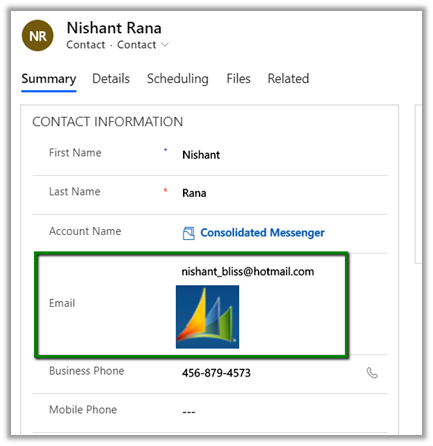
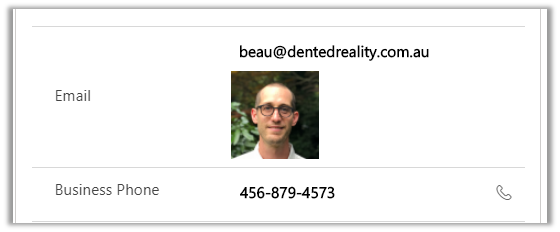
This is how the control looks like within the form.

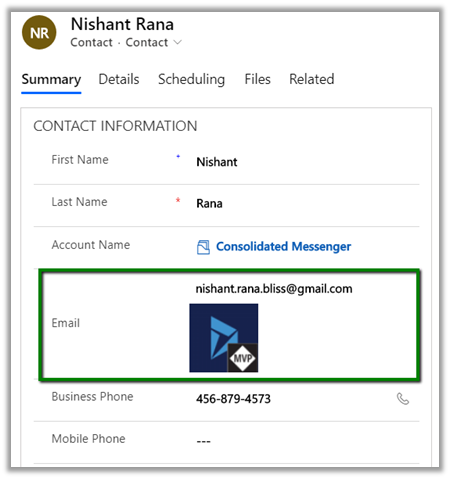
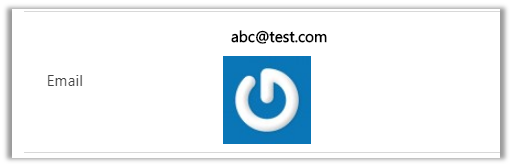
For another email id, it shows the corresponding avatar image.

For cases where there are no gravatar associated it shows the default image

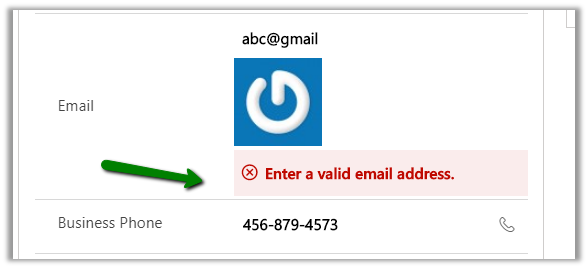
And as we are using it for the email type of text field, the usual validation provided by the platform works seamlessly.

Get the tool here

https://github.com/nishantranacrm/GravatarPCFControl

Hope it helps..

Nishant Rana's Weblog

Everything related to Microsoft .NET Technology

Skip to content ↓