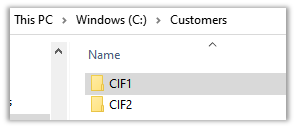
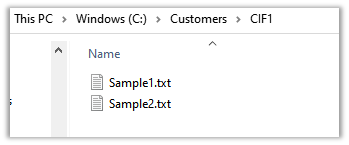
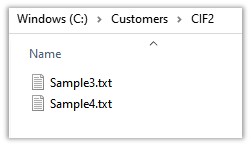
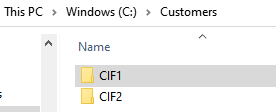
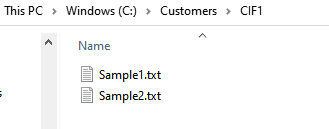
Here we will pick the folder Customers and its subfolders along with the files inside it and will transfer it’s content to the Azure Blob Container.
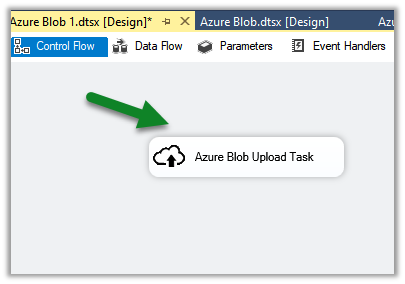
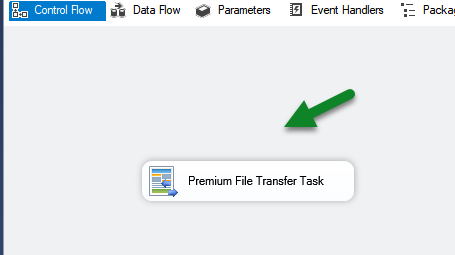
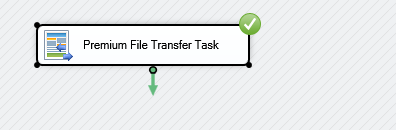
Create a new SSIS Package and drag the Premium File Transfer Task to the control flow designer.
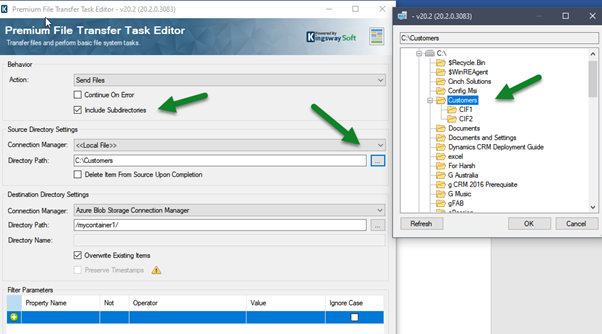
Double click the task and specify the following Source Properties
Action – Send Files – the other options are – Delete files, Create Directory, Remove Directory.
Check the option – Include Subdirectories
Connection Manager – Local File
Directory Path – specify the folder
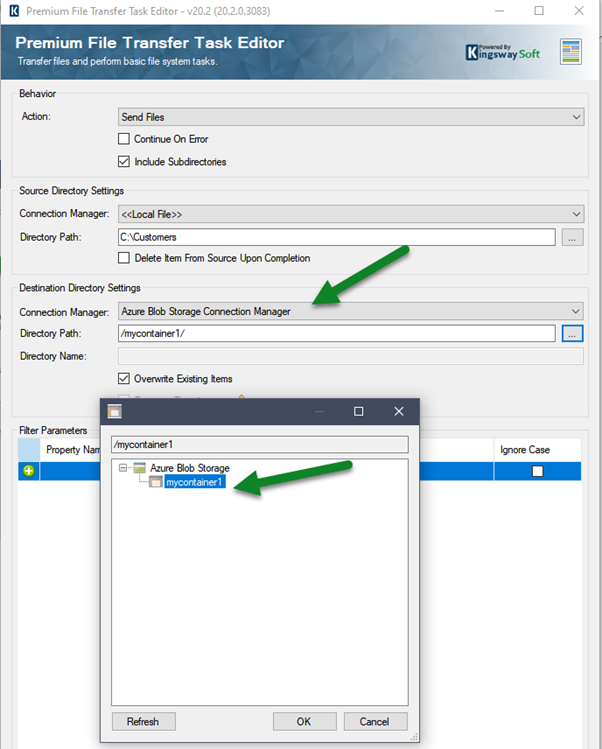
Similarly, for Destination, we can specify the Azure Blog Storage Connection Manager and the directory path as shown below
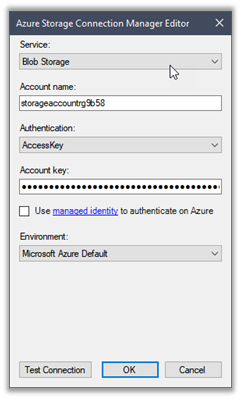
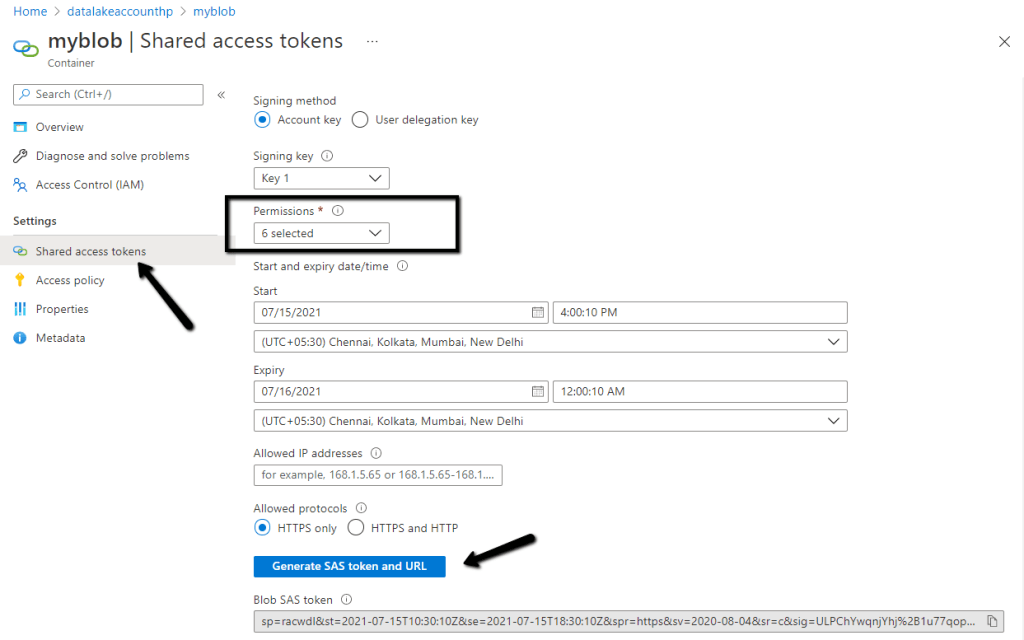
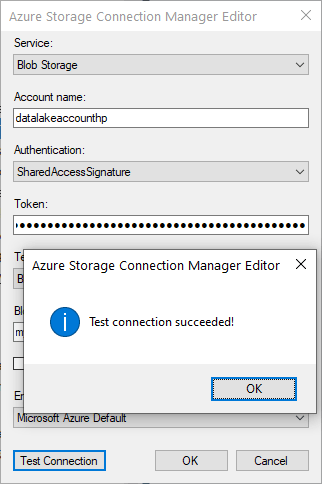
Note – Make sure we have already added the connection for it to be available inside the connection manager option of Premium File Transfer Task. The other connection types supported are FTPS, SFT, Amazon S3, Azure Data Lake Storage, Box, Dropbox, Hadoop, OneDrive, SharePoint.
Let us run the package.
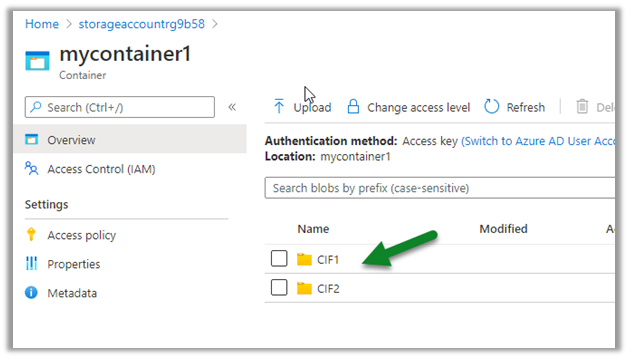
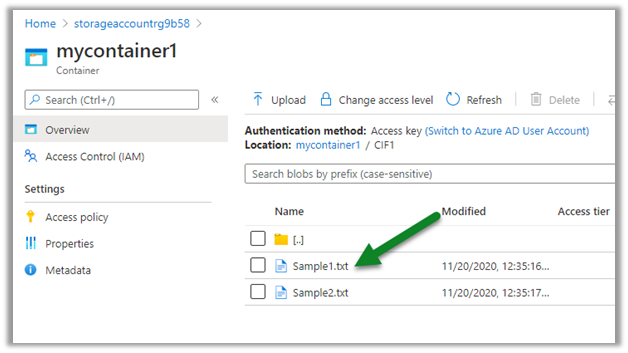
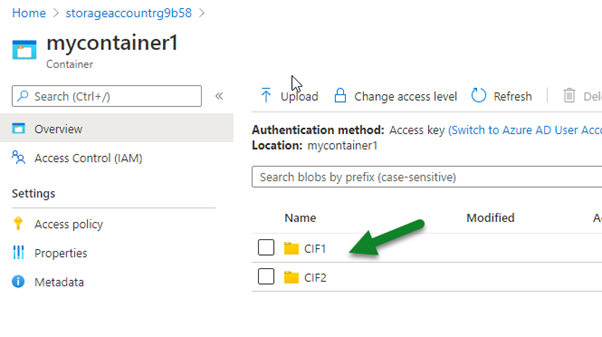
We can see the content transferred successfully to Azure Blog storage
Also, check out –
Using Azure Blob Storage component with Dynamics 365
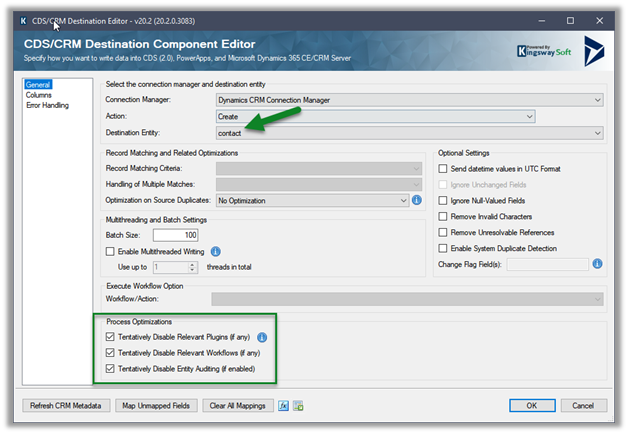
Process Optimizations is a new feature added in the CDS / CRM Destination Component of KingswaySoft’s SSIS Integration Toolkit as part of November 2020 Release.
These options if enabled, will turn off or disable plugin, workflow, entity auditing during pre-execution temporarily, during the writing process, and will revert the changes to the original state after successful execution.
Tentatively Disable Relevant Plugins (if any)
Tentatively Disable Relevant Workflows (if any)
Tentatively Disable Relevant Auditing (if any)
Let us take a simple example to see it in action.
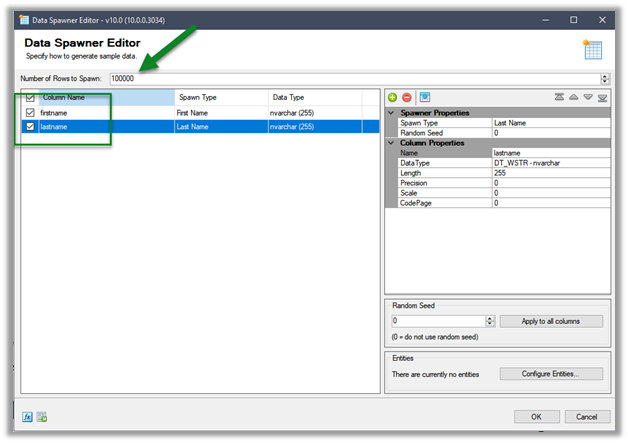
Here we have a simple data flow that creates contact records inside CDS using Data Spawner.
Let us run the package and see the status of the plugin, workflow, and audit with regards to the contact entity.
As expected, we do not see any Audit records created for contact records creation.
We see an event where Audit is disabled and then enabled later for the contact entity, during the duration of package running and after its successful completion.
We can also see our workflow in status – Draft
In the case of Plugin, we didn’t see the step being disabled and it was still being triggered
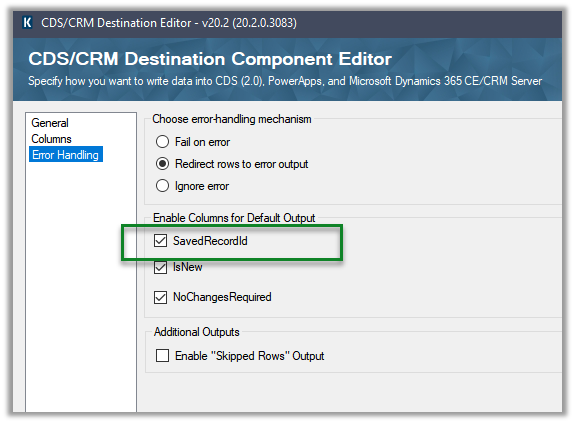
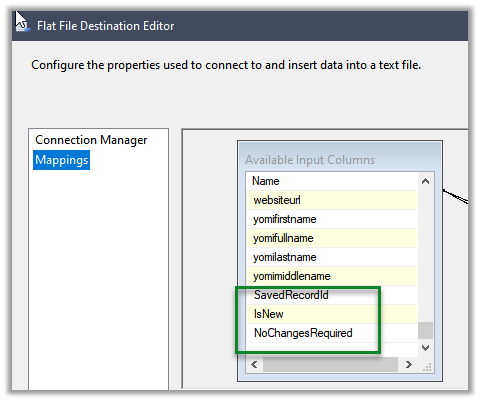
With version 20.2 November 2020 release, there have few updates added to the KingwaySoft’s CDS/CRM Destination Component, few are changes in the label and others are metadata changes, that one should be aware of before updating.
Thus, any package saved with the new version will not work with the older version, and it is recommended to take full back up of the package before updating to the new version.
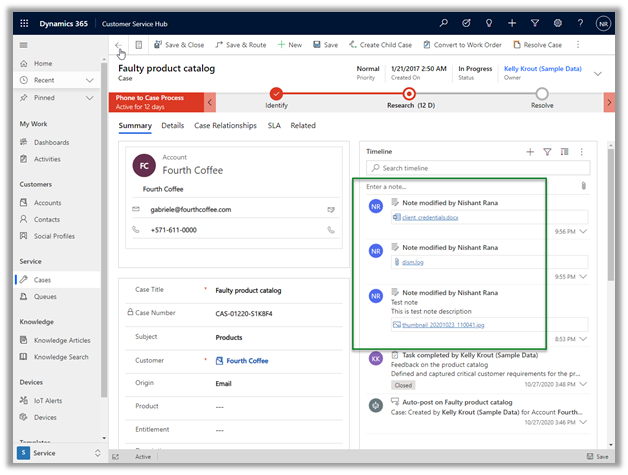
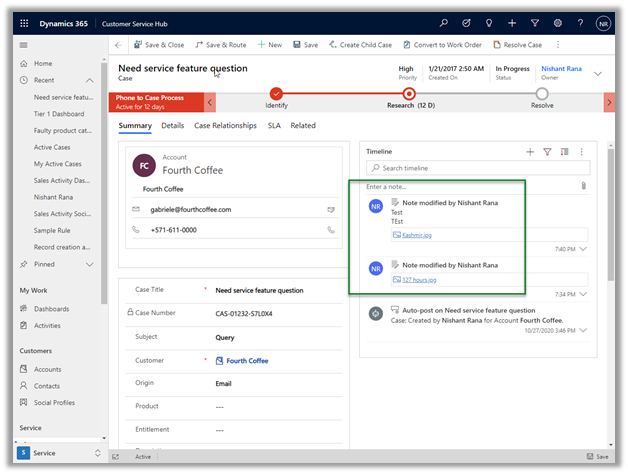
Recently we were exploring ways of extracting attachment from notes to a local drive for our case entity. We also wanted to organize it based on Case Number.
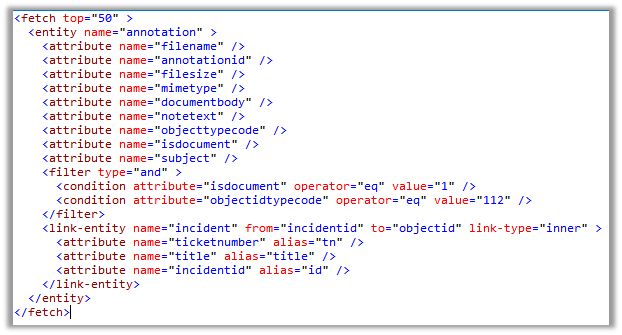
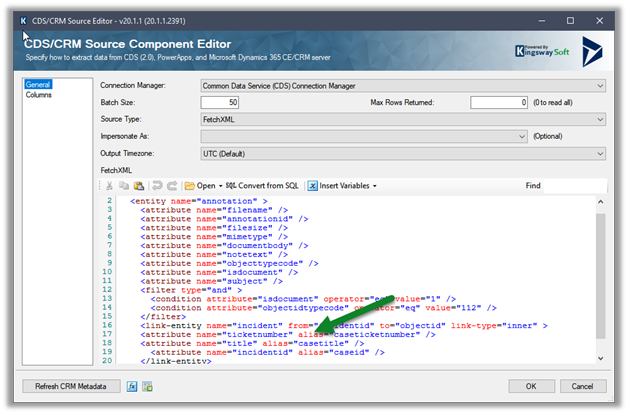
And the below Fetch XML to fetch notes details where objecttypecode is incident and isdocument property are true (i.e. has an attachment) and case as the linked entity to get the case ticket number.
Result View –
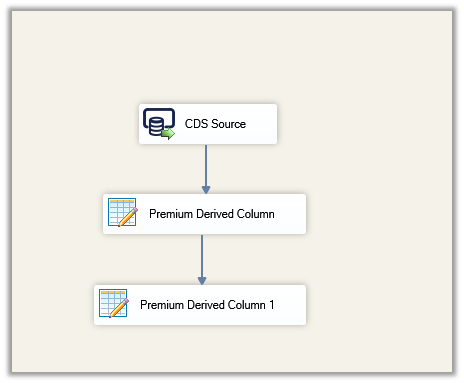
CDS / CRM Source Component –
Make sure to use the alias for the attributes of the linked entity.
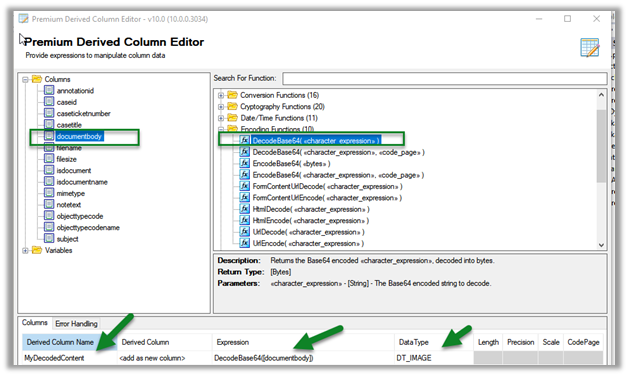
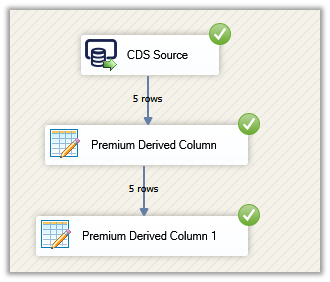
Next drag the Premium Derived Column, here we will use the DecodeBase64 encoding function to decode the file content stored in the documentbody field using as base-64 encoded string.
DT_Image output column will have the binary content of the attachment
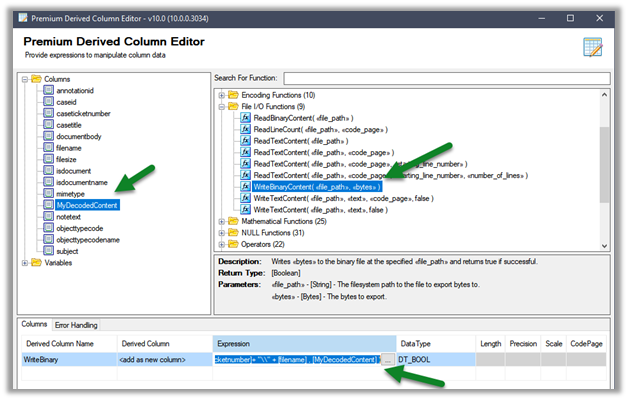
Next, we have added another Premium Derived Column, this time to write the binary content to the local drive, using the WriteBinaryContent function.
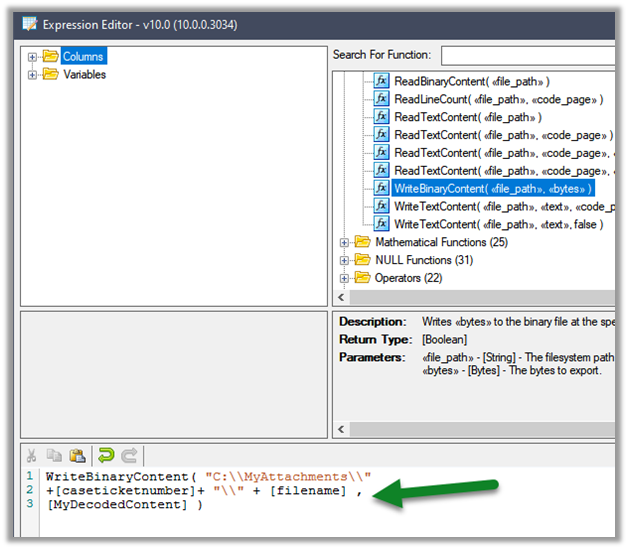
Click on the ellipsis to specify the expression.
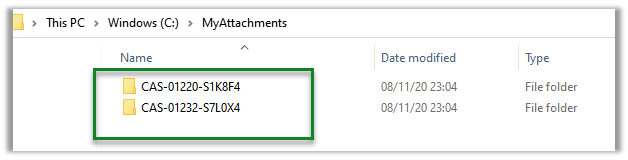
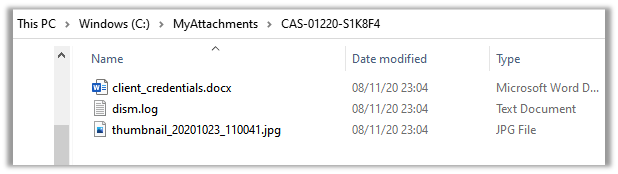
Here we are creating a folder based on the case ticket number and storing the corresponding attachments inside it.
Let us run the package
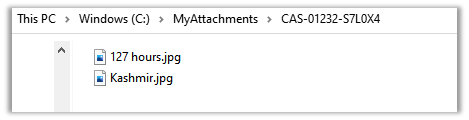
On successful execution, we can see the folders created with case ticket number and attachments added to it.

















 Nishant Rana's Weblog