Knowledge Search Control improvements in Dynamics 365 Customer Service Hub – 2021 Release Wave 1


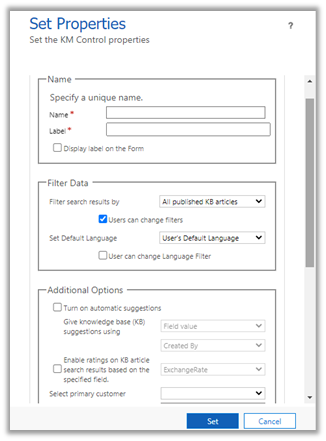
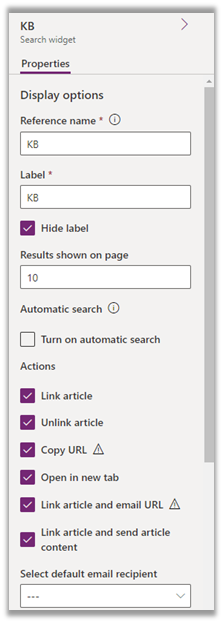
Knowledge Search control can be configured now in the new form designer, thus eliminating the need to switch to the legacy form designer.

Here we have added the Knowledge search control in one of the custom entities.

To enable Knowledge search control for an entity, either check the option Knowledge Management at the time of creating the Entity

Or for the existing entities enable it from Settings > Service Management > Embedded Knowledge Search

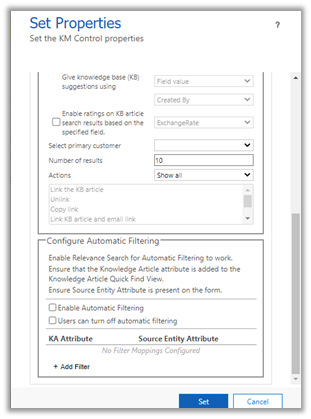
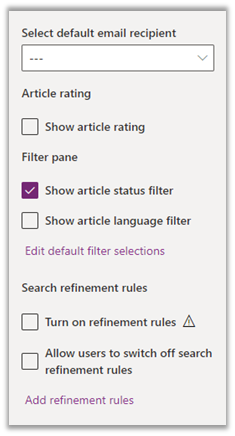
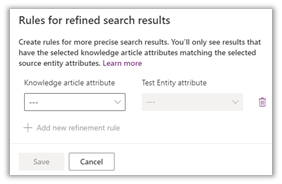
Below is the Knowledge Base Search configuration dialog box for the legacy web client against the new form designer


Edit default filter selectionsà

Add refinement rules à

Configure Automatic Filtering or Search refinement rules allows us to define rules to further refine the search results.

To apply refinement rules, we need to first enable the Relevance Search.

https://nishantrana.me/2021/01/12/improved-search-experience-in-dynamics-365-powerapps/

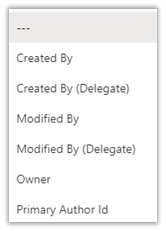
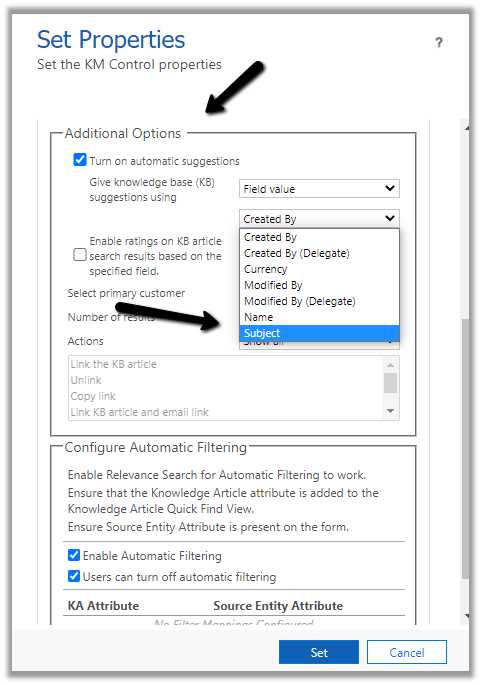
Out of the box, we can see the below fields that can be used to define the rules
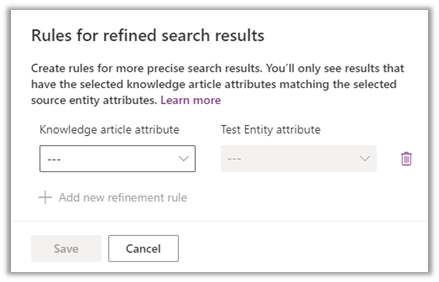
This can be extended to include any lookup field that exists on both the entity where we are adding the control and the Knowledge Article entity.

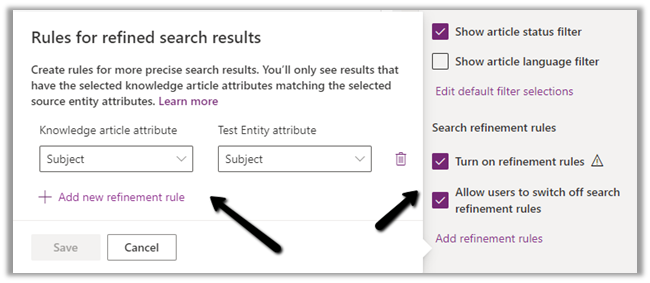
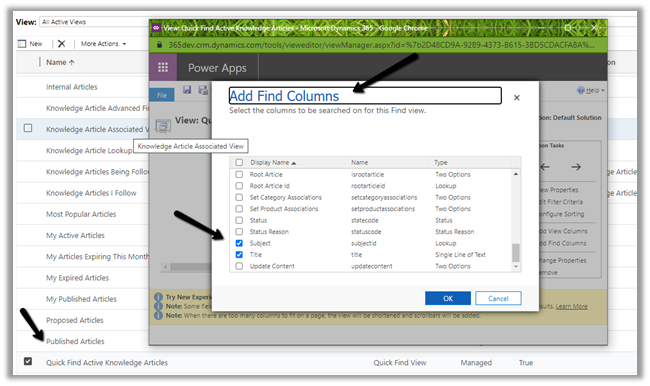
E.g. we want to define a filter rule on the subject field, for this to work we first need to add the field to Knowledge Article Quick Find View. And also we need to add the field on the form for users to specify a value for it.
On publishing the changes we can see the Subject lookup field appearing for defining the rule as shown below –

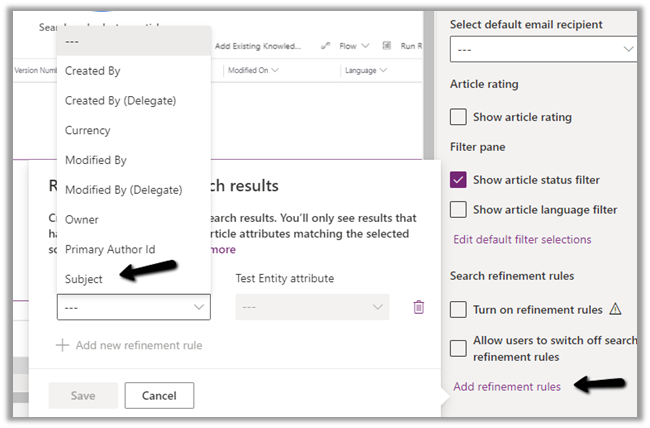
The above rule will further filter the result by matching the subject field defined in the record against the KB articles.

This can be turned off by the user – Auto Filter Results (if specified during configuration)

https://docs.microsoft.com/en-us/dynamics365/customer-service/search-knowledge-articles-csh#view-auto-filtered-results

Also, the lookup field configured will be available for the Turn on automatic suggestions field.
Get all the details here

Blog posts on 2021 Release Wave 1 – Dynamics 365

Hope it helps..

Advertisements

Azure AD Conditional Access and Application Users / Service Principal in Dynamics 365


Through Azure AD Conditional Access, we can define and enforce policies regarding access to its cloud resources.

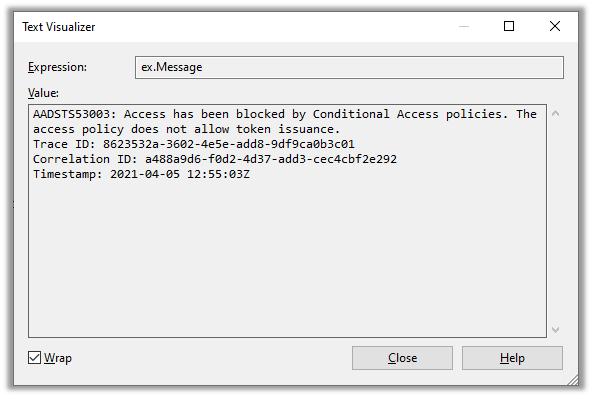
Users who do not comply or are blocked with the conditional access policies defined will get the below error message after login.

The Conditional Access works seamlessly for user accounts.

However, Conditional Access doesn’t apply for the Application users (Azure AD Apps / Service Principals in Azure AD) accessing Dynamics 365 / Dataverse Web API.

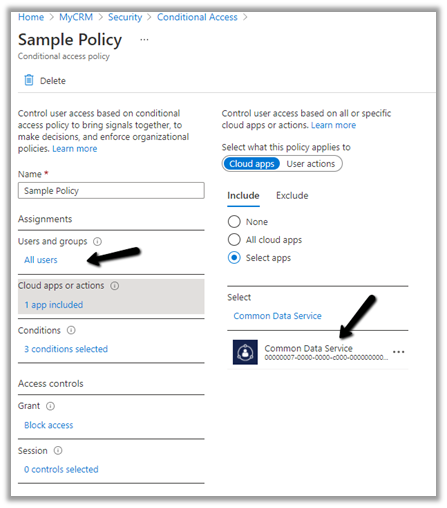
Say e.g. we have the following policy defined, which applies to all users on the Common Data Service app.

Blocking access from any location or device platform.

Now if a user tries to access Dynamics 365 App, after login he gets the below message.

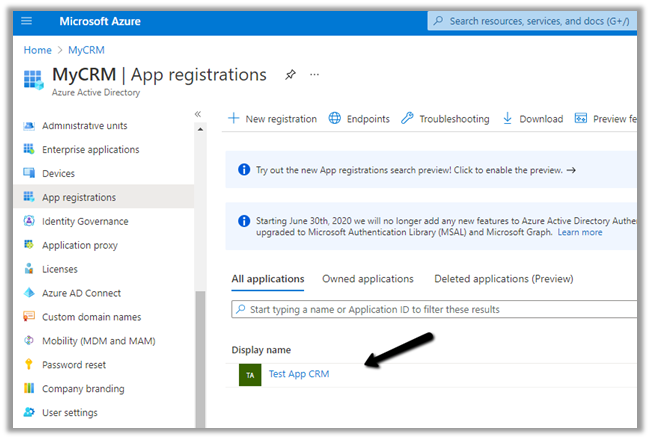
Now we have the following application user registered which has appropriate security roles assigned.

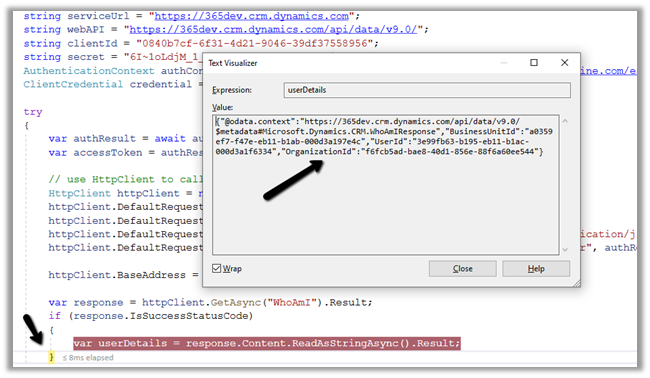
Now if we try to consume CRM / DataVerse Web API through the application user – client credentials, we can see it working without any exception

If we check the Microsoft Docs, it mentions all user accounts but not service principals.

https://docs.microsoft.com/en-us/azure/active-directory/conditional-access/faqs#does-a-conditional-access-policy-apply-to-service-accounts

Check the below link as well

https://stackoverflow.com/questions/51344114/is-azure-ad-conditional-access-supported-for-dynamics-365-web-services

https://docs.microsoft.com/en-us/answers/questions/119765/app-registrations-and-conditional-access.html

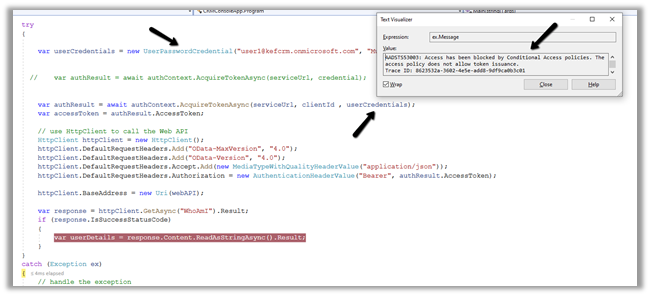
In case if we are using the ROPC (Resource Owner Password Credential) grant type, we will get the below exception there as we are using an user account (UserPasswordCredential)

More on consuming Dataverse / Dynamics 365 Web API

https://nishantrana.me/2021/01/06/sample-code-dynamics-365-web-api-organization-service/

Hope it helps..

Advertisements

Fixed – Failed to process metadata description. We ran into a problem publishing the form. Please try again while publishing the form in Dynamics 365


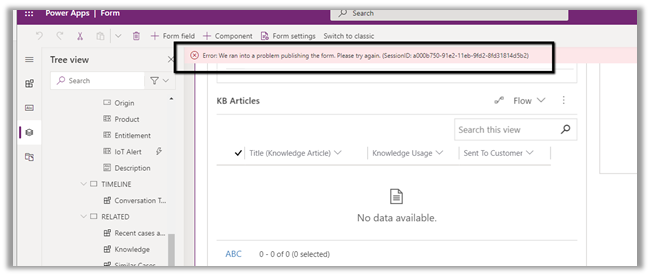
While trying to publish the case form we got the below error –

Error: We ran into a problem publishing the form. Please try again. (SessionID: a000b750-91e2-11eb-9fd2-8fd31814d5b2)

Adding/removing components, refreshing the form multiple times, etc. didn’t help, and we kept getting the error.

Eventually, we switched to classic to make the required changes. There also we got the same error.

However here we got the option to download the log file.

The exception message was –

Failed to process metadata description – Name : Entity Key

An item with the same key has already been added.

As we got the error while trying to add the subgrid, we renamed the subgrid which we were trying to add

Saving the change i.e. new Name and publishing the form this worked successfully.

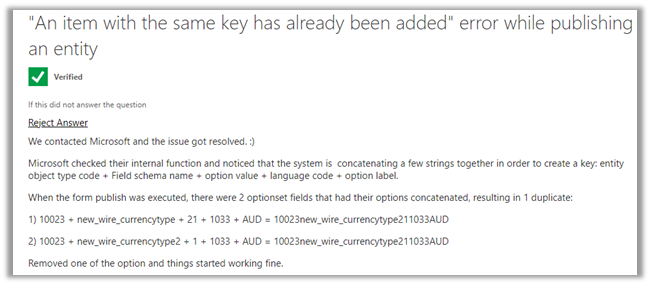
Similar issue – https://community.dynamics.com/crm/f/microsoft-dynamics-crm-forum/301844/an-item-with-the-same-key-has-already-been-added-error-while-publishing-an-entity/871480

Hope it helps..

Advertisements

New experience – Power Apps Mobile App- Preview


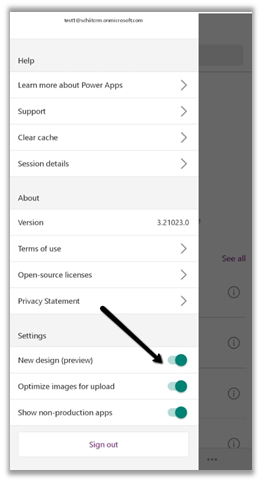
To enable the new experience for the app, navigate to the side menu and toggle on the New design (preview) option.

Old Experience New Experience
Home
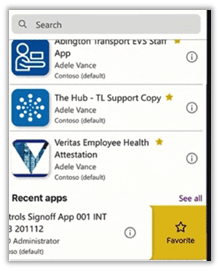
The home page now shows Favorites and Recent Apps along with a Navigation bar to easily access apps.
Sorting / Search
Apps can be sorted based on Name and Modified date along with improved search experience.
Pin, Details, etc.

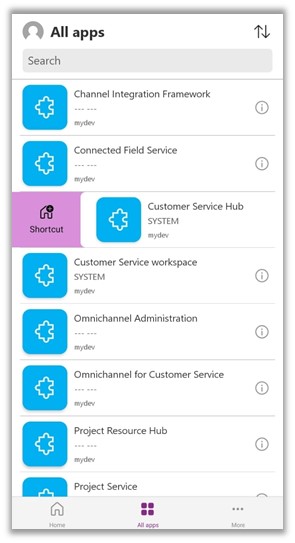
Swipe gestures are now supported, which allows quickly add a shortcut to the app and mark an app as a favorite.
Get from Play Storehttps://play.google.com/store/apps/details?id=com.microsoft.msapps
Get from App Storehttps://apps.apple.com/us/app/power-apps/id1047318566

Get all the details here –

Power Apps Mobile App

Check other posts on Power Apps Mobile App

Push Notification – https://nishantrana.me/2021/02/17/in-app-or-push-notification-model-driven-app-2021-release-wave-1-power-apps-dynamics-365/

Sub-grid and Form tabs improvements – https://nishantrana.me/2020/09/28/sub-grid-and-form-tabs-improvements-in-power-apps-mobile-app/

Hope it helps..

Advertisements

Macros in Omnichannel and Customer Service Workspace – Dynamics 365


Macros enables users to perform the set of sequential actions – repetitive and monotonous –  in a more process compliant manner, which can be reused across different sessions, making it faster, more efficient and less error prone.

To define a Macro, navigate to Omnichannel Administration app > Agent Experience > Macros

Posts on Omnichannel for Customer Service (Dynamics 365)

The interface is similar to Power Automate with some predefined automation actions.

Session Connector has the following actions >

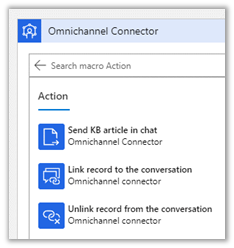
Omnichannel Connector has the following actions >

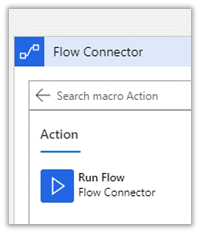
Flow Connector has the following actions >

Productivity Automation has the following actions >

Get all the details here –https://docs.microsoft.com/en-us/dynamics365/app-profile-manager/macros

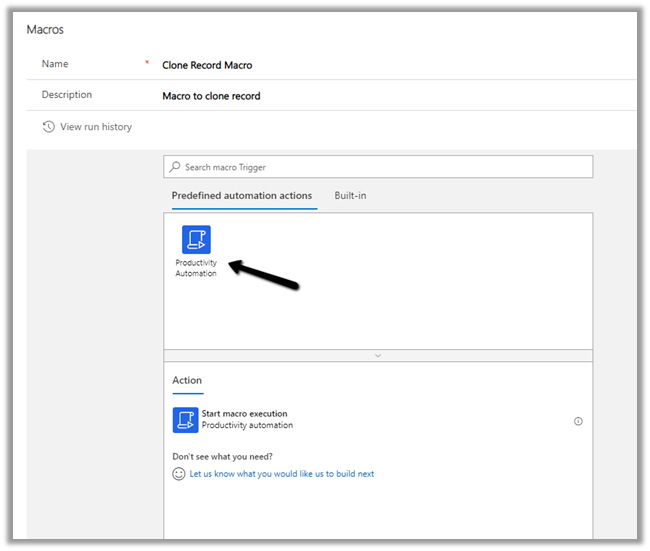
Now back to our Macro, select Productivity Automation trigger.

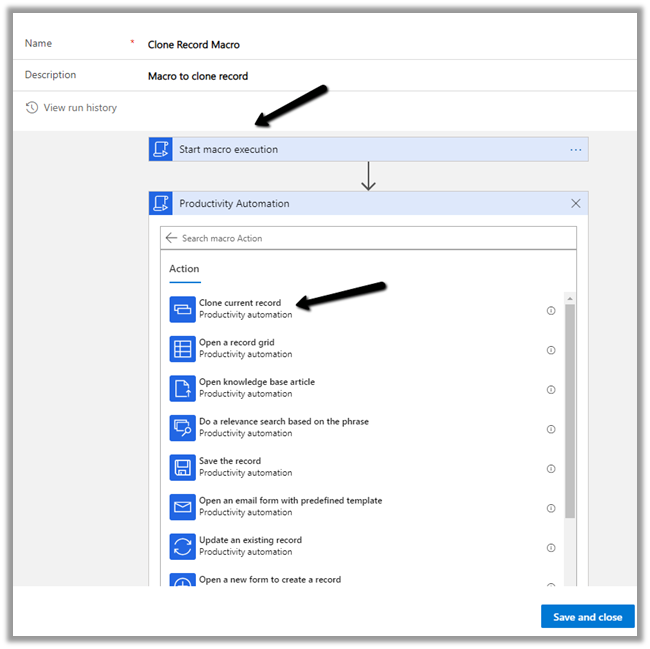
Select the action Start macro execution.

Select Clone current record.

Specify the title of the cloned record.

Let us create a new Agent Script with Agent Script step having Action Type as Macro.

Agent Script – https://nishantrana.me/2021/03/02/agent-scripts-in-omnichannel-and-customer-service-workspace-dynamics-365/

Navigate to Omnichannel Administration > Agent Experience > Agent Script and create a new Agent Script.

Follow it by adding a new Agent script step.

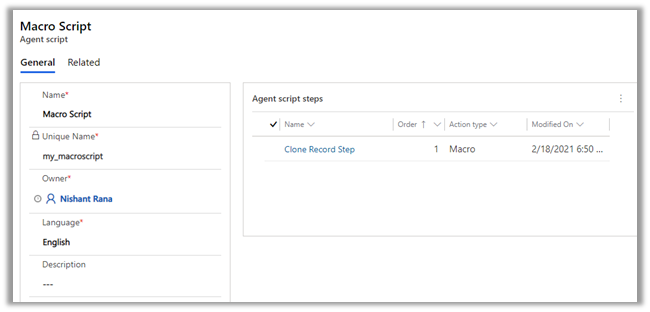
Below is our Agent script step record

which is associated with the Agent Script record

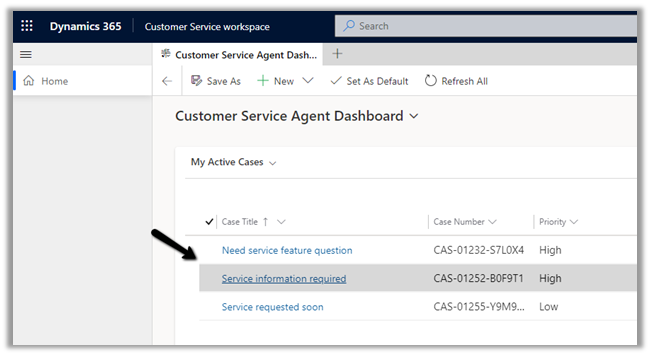
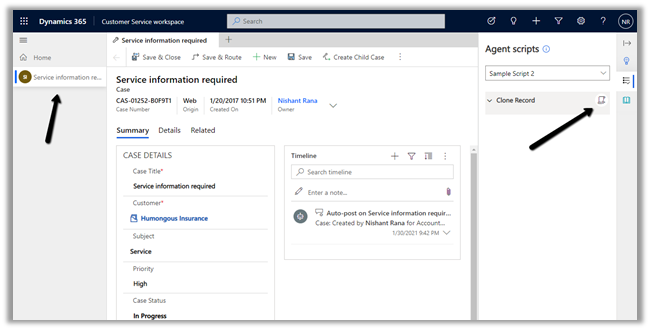
Now to test it let us open an existing record within a new session (Shift + record click) within Customer Service Workspace.

More on Customer Service Workspace –https://nishantrana.me/2020/08/13/new-customer-service-workspace-app-preview-in-dynamics-365-2020-release-wave-2/

Select Clone Record for the record to be opened in the new session.

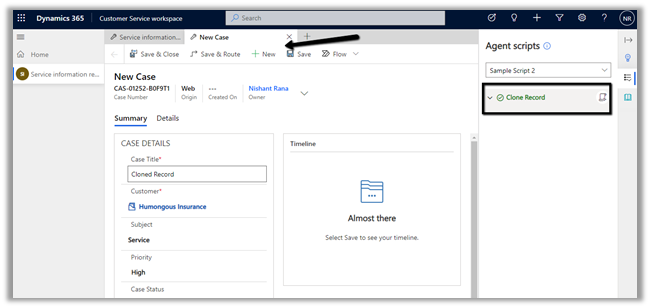
As expected selecting on Clone Record – opens the clone of the record in a new Tab as shown below

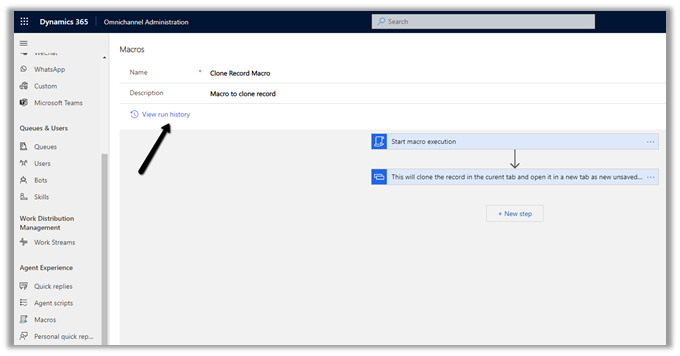
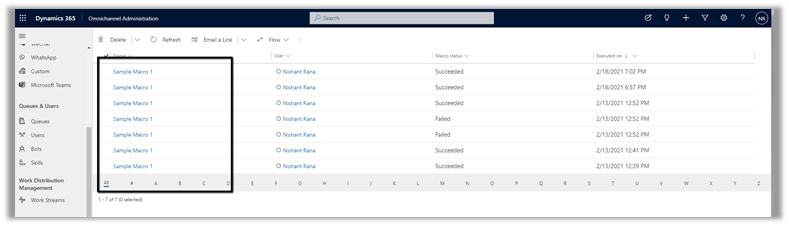
We can also check the run history of the Macro using View run history option

That was a very basic example we saw, now with the option of running flow i.e. Run Flow as Macro using the Flow Connector, the possibility is limitless.

Hope it helps..
Advertisements

Fixed – Error – “Microsoft SQL: A network-related or instance-specific error occurred while establishing a connection to SQL Server” – while trying to use Dataverse connector in Power BI


While trying to use Dataverse connector inside Power BI Desktop

we got the below error

Details: “Microsoft SQL: A network-related or instance-specific error occurred while establishing a connection to SQL Server. The server was not found or was not accessible. Verify that the instance name is correct and that SQL Server is configured to allow remote connections. (provider: Named Pipes Provider, error: 40 – Could not open a connection to SQL Server)”

Later we realized we were not entering the environment details in the correct format as expected

i.e.

[orgname].[crm].dynamics.com

We were entering it incorrectly  below with the https

Entering URL in correct format fixed the issue for us.

In case if TDS endpoint it not enabled –

we will get the below error

i.e. Microsoft SQL: TDS Protocol endpoint is disabled for this organization.

Check more posts on Power BI

https://nishantrana.me/category/power-bi/

Hope it helps..
Advertisements