1000 posts on my blog


Hope they have been helpful 🙂

1000

Understanding Parental Scope in Entity Permission in Portal (Dynamics 365)


Let us create 2 entities Parent Entity and Child
Entity having 1 – n relationship.

Here we will be creating Entity List for Child Entity that displays all the child entity records associated to Parent Entity to which user has access to.

This we can achieve using Child Entity Permission record for the Child Entity.

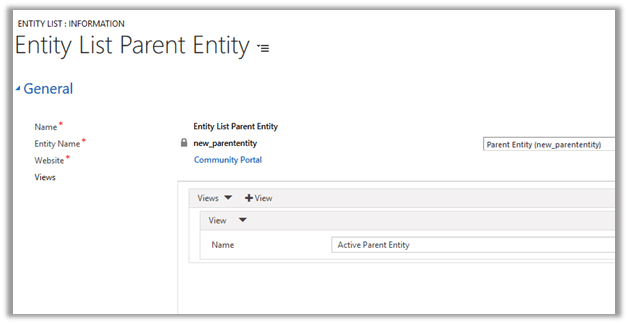
First let us define an Entity List for Parent Entity to which we will enable Entity Permission with Global Scope.

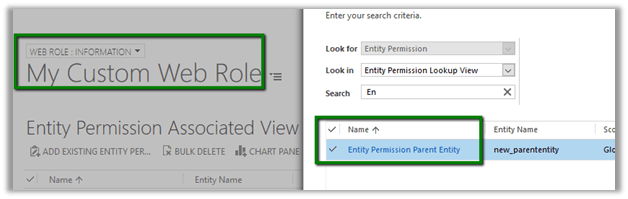
Next let us create Entity Permission for Parent Entity and assign it to one of the web role associated to the current Portal Contact user.

For simplicity, we are keeping the Scope as Global. We can also use Contact and Account scope here for filtering the access to the records if that Entity is associated with the Contact Entity. Based on which the Child entity records will further get filtered.

https://nishantrana.me/2017/02/28/understanding-scope-global-contact-and-account-in-entity-permission-in-portal-dynamics-365/

The above Entity Permission gives access to all the records (Global – Read) of Parent Entity to the portal user.

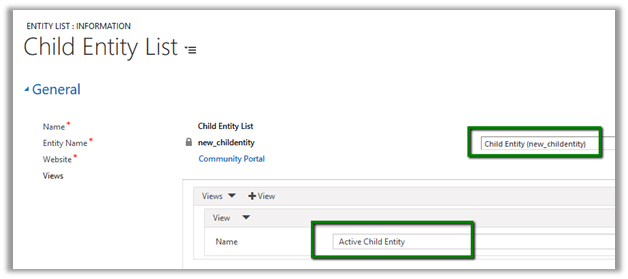
Now let us create an Entity List for Child Entity and enable Entity Permissions.

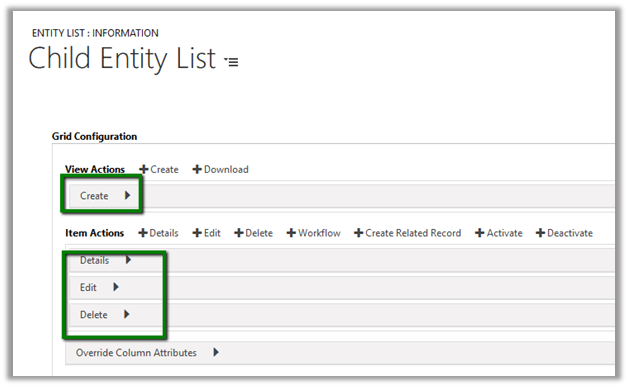
Configure the below Actions Create, Details, Edit and Delete.

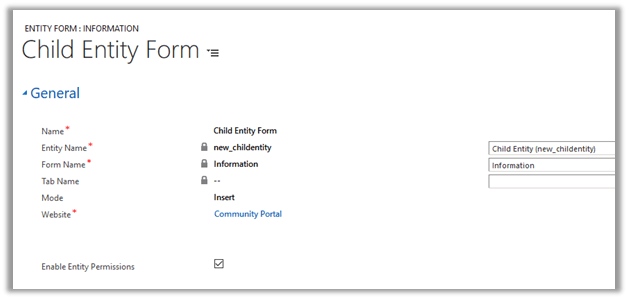
To configure the above Actions we would need an Entity Form, so before we do that we need to create an Entity Form for Child Entity.

Next configure a web page to display the Child Entity Entity List.

Now comes the important part i.e. creating child entity permission for Child Entity.

Create an Entity Permission Record with the below details :

Scope – Parent

Parent Entity Permission – Entity Permission created for Parent Entity i.e. Entity Permission Parent Entity.

Parent Relationship – the 1 – n relationship we created between Parent Entity and Child Entity.

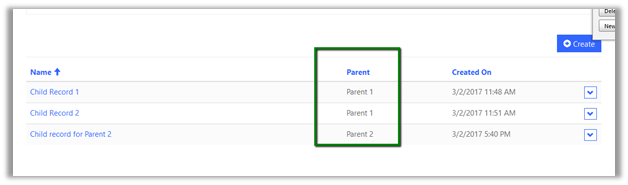
Now opening the page which has the Entity List defined for Child Entity, we can see the below 3 records associated to the parent records to which user has the Read access.

We do not see the all the records as not all the child entity records are associated to the parent entity’s record.

Hope it helps..

Understanding Scope (Global, Contact and Account) in Entity Permission in Portal (Dynamics 365)


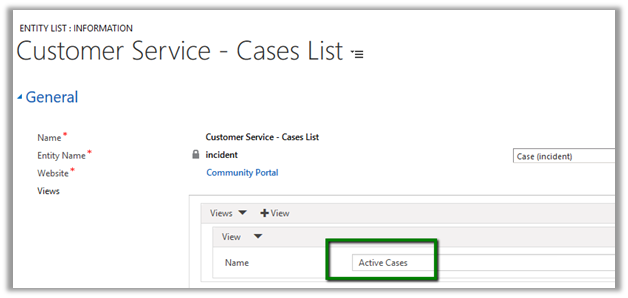
Let us take an example of the below Entity List configured for Case entity configured for Active Cases view.

For Entity Permission to work we need to check Enable Entity Permissions.

Let us first create an Entity Permission record with Global Scope and Read Privileges and assign it to a custom web role to which in turn is assigned to the Portal User.

Below we have Case Entity Permission record associated to our My Custom Web Role.

My Custom Web Role is then associated with the portal contact record.

Scope – Global with Read Privelges à

This shows all the Active Case records in the portal.

Now let us change the Scope to Contact, and specify Conact_As_Primary_Contact as the relationship to be considered i.e. Contact Lookup in Case entity form.

Scope – Contact

This shows all the case records that has current portal user as Contact as well as those records which has Customer specified as the account which is the Parent Account of the current contact portal user.

i.e.

The portal view is filtered based on the Contact Scope Entity Permission.

Now let us change the Scope to Account, and specify Incident_customer_accounts as the relationship to be considered i.e. Customer Lookup in Case form.

Scope – Account

This shows only those case records that has Customer specified as the Parent Customer of the current logged in Portal Contact User.

Hope it helps..

Advertisements

Configuring View and Item Actions for Entity List in Portal in Dynamics 365


Similar to configuring Actions for Entity Form we can specify Actions for Entity List.

https://nishantrana.me/2017/02/27/adding-actions-qualify-workflow-delete-etc-for-entity-form-in-portal-in-dynamics-365/

Let us take example of Case List that comes configured with Community Portal for incident\cases entity.
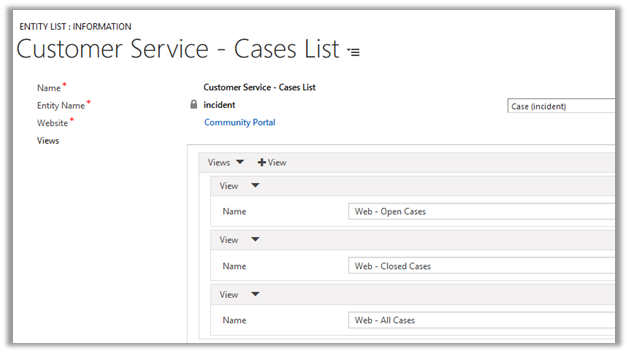
Inside portal this is how the list shows up as grid à

To define Actions we need to go to Options tab à
Grid Configuration

View Actions lets us define actions for the View which are Create and Download.

For Create we need to define an entity form, web page or an URL configured for Insert for incident record.
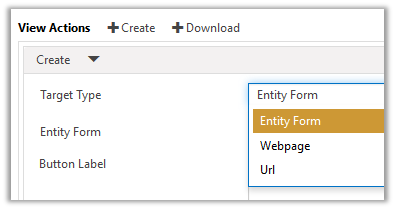
Below we have selected Target Type as Entity Form and Create Case as the Entity Form.

This adds the Create button in the portal

Clicking on Create opens the Entity Form for Insert.

Download Action lets user to export the records to Excel

This adds the Download button in the page.

Clicking on Download opens the save as dialog

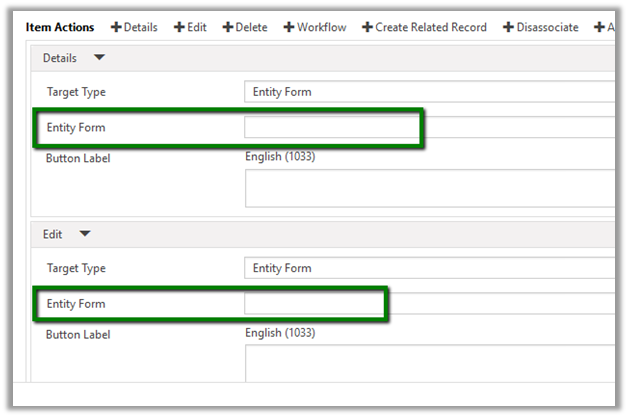
For Details and Edit Item Actions we need to specify either Web Page, Entity Form or URL to a page having Entity Form defined for Incident\Case entity.

Below we have specified the Edit Case Entity Form.

Inside Portal

Clicking on them opens the Entity Form
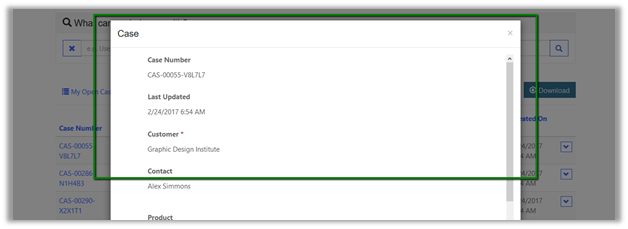
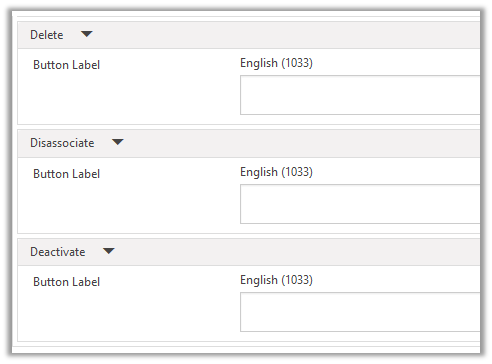
Similarly, we can add rest of the Item Actions like Delete, Close, Resolve, Cancel etc.
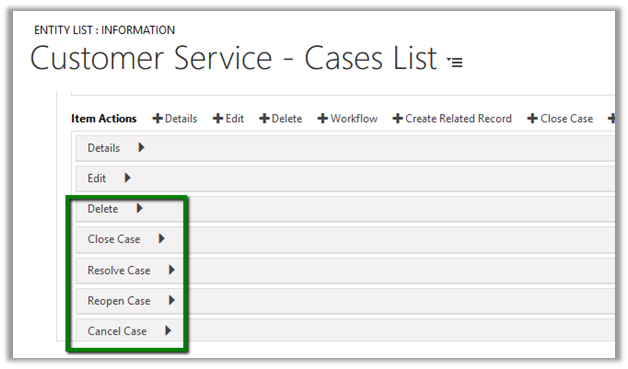
This add the corresponding options to the grid in the portal.

As we are showing all the Active Records it automatically hides the Reopen Case button.

Here clicking on Cancel Case, cancels the Case record in CRM and shows the below message in the portal.

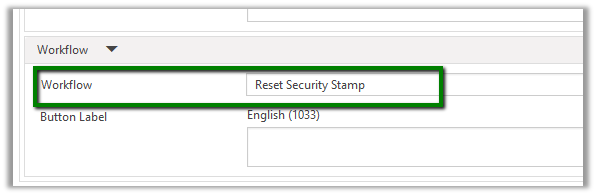
For Workflow Action, we can define an On Demand Workflow created for the Case Entity.

Suppose we have following workflow defined for Case.
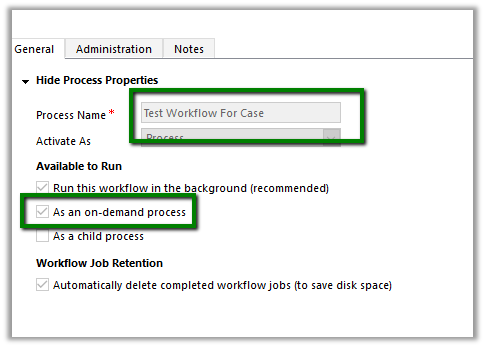
Configuring the same inside Entity List

In the portal we get the option to Run Workflow
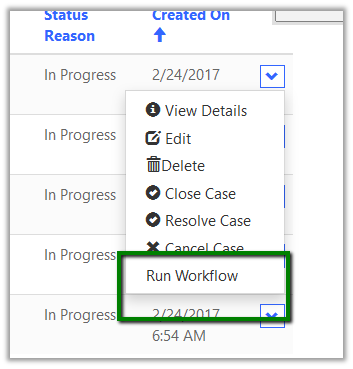
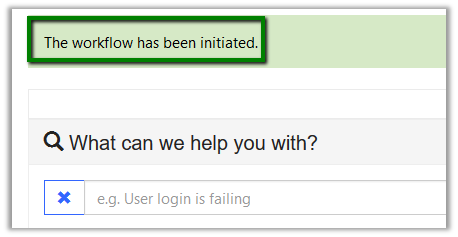
Clicking on it gives the below message
Hope it helps..

How to – Configure Note for Entity Form in Portal in Dynamics 365


Suppose we have below form for Contact to be displayed as Entity Form in Portal having notes control in it.

The Entity Form configured for the above form à

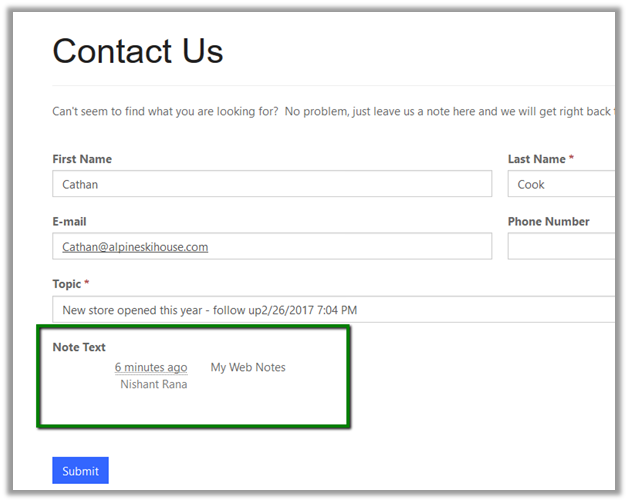
The portal page that displays the Entity Form à

Few points we need to remember here is that

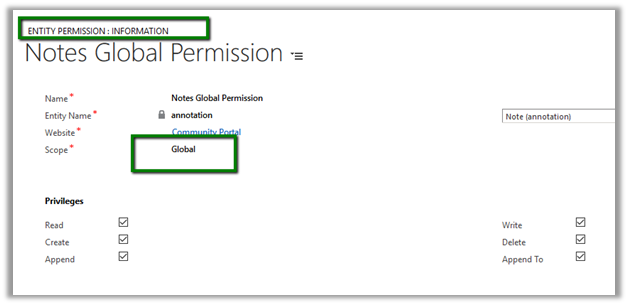
  • The Portal User (contact record) needs to have Entity Permission assigned on Notes (Annotation) through one of the web roles assigned. For simplicity I have given the Global scope permission.

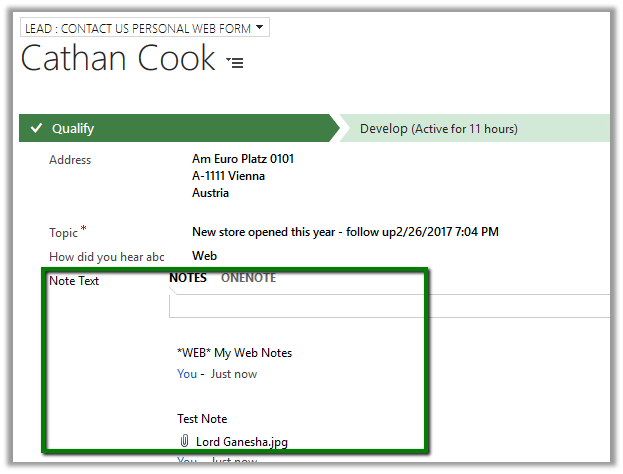
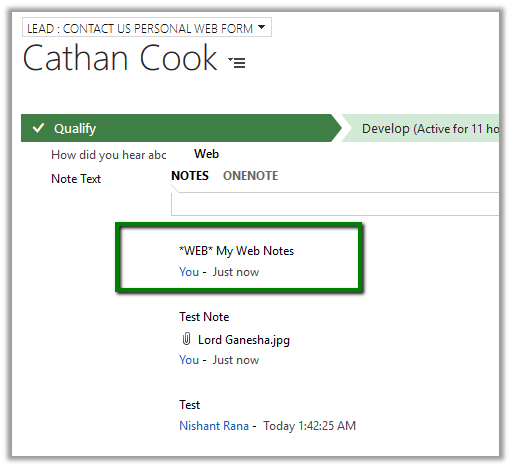
  • The Notes body should start with *WEB* prefix for Notes to be published on the Portal. For e.g. we have 3 notes attached for the contact record but only one shows up in the Portal.

Only 1 note being displayed in the portal.

The Portal displays the Notes as read only OOB.

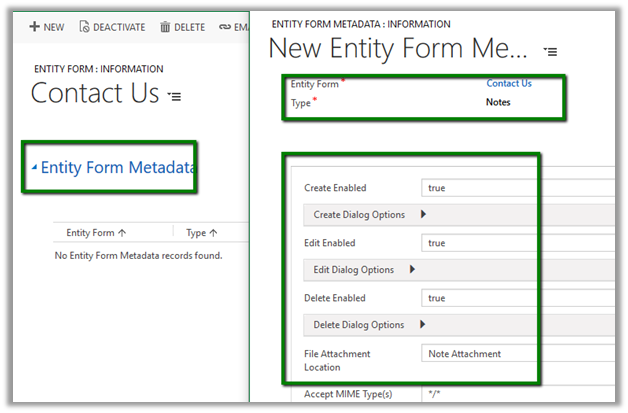
We can use Entity Form Metadata of type Notes associated to Entity Form to further customize it.

Below are the different options that we have.

Refreshing the Portal page adds the

Add Note button

Edit and Delete Option

https://community.adxstudio.com/products/adxstudio-portals/documentation/configuration-guide/customization-tools/managed-forms/notes-for-managed-forms/

Hope it helps..

Advertisements

Using Entity Form Metadata for Sub Grid configuration in Entity Form in Portal in Dynamics 365


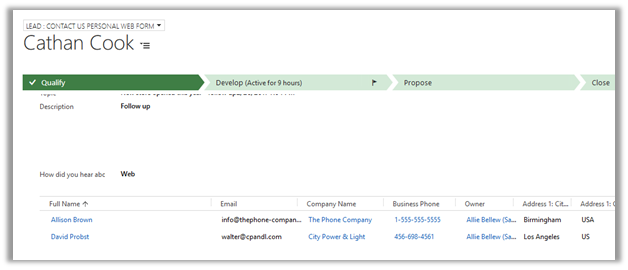
Suppose we have following Entity Form configured for Lead Entity in Edit Mode which is having Contact Sub Grid in it.

Contact Us Lead Form with Contact Sub Grid:

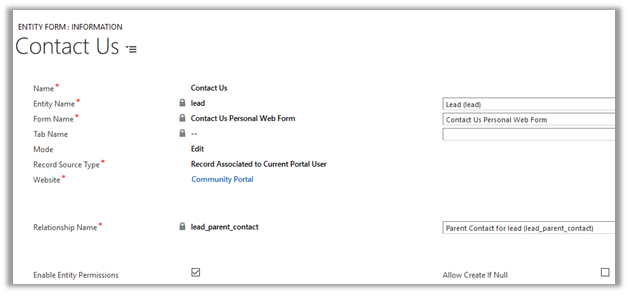
Entity Form Configuration:

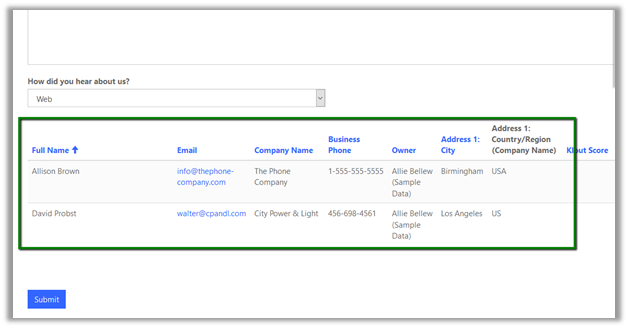
The Sub Grid renders as read only

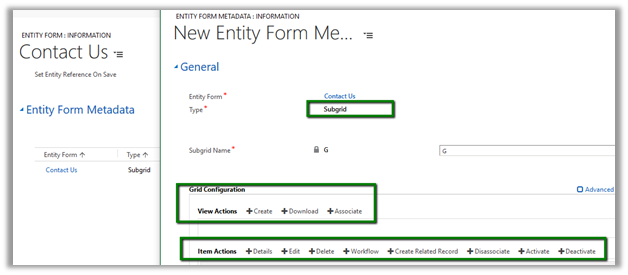
We can further customize Sub Grid creating related Entity Form Metadata of type Sub Grid.

Suppose we have added all the below View and Item Actions to our Sub Grid type metadata.

On refreshing the page, we can see all the actions available as buttons in the page.

For Create to work we need to define the Insert Entity Form for Lead.

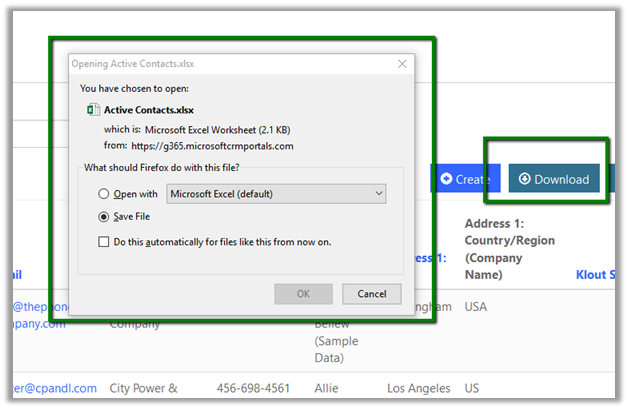
Download lets the records to be downloaded in Excel

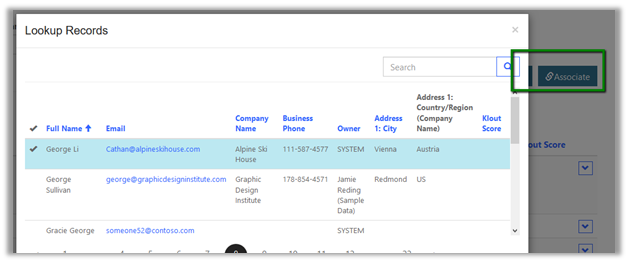
Associate lets the current lead record to be associated to the contact record selected.

Similarly

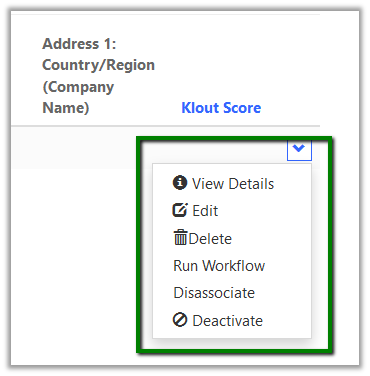
View Details opens up the Entity Form defined in the Read Only mode. Edit opens the Entity Form to edit the record. The Entity Form must be configured and defined in the Item Actions for it to work.

Run workflow can be used to run On Demand Workflow(s) configured.

Delete, Disassociate and Deactivate does what it means and doesn’t need any specific configuration.

Hope it helps..