Install Voice Channel in Omnichannel – Dynamics 365 Customer Service


Make sure all the prerequisites are in place –

https://learn.microsoft.com/en-us/dynamics365/customer-service/omnichannel-provision-license#prerequisites

Login to Power Platform Admin Center >> Environments

https://admin.powerplatform.microsoft.com/environments

Select Resources >> Dynamics 365 apps

Select Manage for Omnichannel for Customer Service – Telephony


It will open Dynamics 365 Administration Center | Omnichannel page

Click on Add environment

Select the required environment and click on Next.

If we do not have the required subscription for a particular channel we will get the below error

Next for Voice, select Add Voice along with Voice and Messaging preview terms.

Keep clicking on Next till confirmation (add other channels if required)

The confirmation page will show all the selections and details.

Clicking on Finish starts the installation process.

After around 1.5 -2 hours or so we could see the installation being successful.

If we want to add another channel e.g. SMS, select the SMS tab and save to start the process.

This starts the update

After an hour or so we see the status as installed for both Voice and SMS.

On opening the Customer Service Admin Center app, we can see the option of getting started with a voice demo.

Assign the account you are using the Omnichannel Agent and Omnichannel Admin role (even if you are a system administrator you need this role to start with the voice demo, admin to configure and agent to test)

It will create the workstreams, acquire a phone number, create a voice channel, power virtual agent, etc. for the demo

After around 2 minutes or so, we will have our voice demo setup done.

We can open the agent app which is either Omnichannel for Customer Service or Customer Service Workspace App and can call the phone number configured to test the application.

We can see the following workstreams created for Voice and Voicemail channels.

The demo telephony workstream 1 

The agent receiving the notification

*At times we have faced an issue when there is a bot configured, so in case you are facing any issues, try removing the bot from the workstream

Hope it helps..

Advertisements

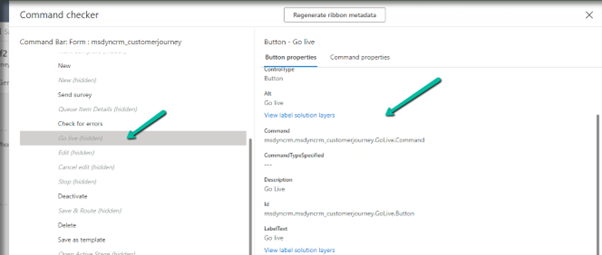
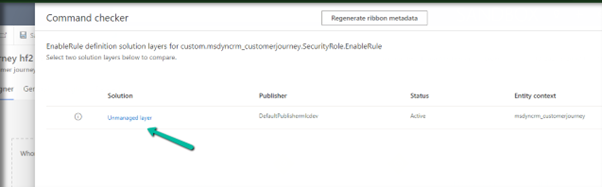
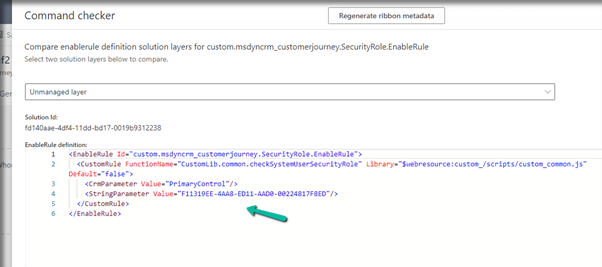
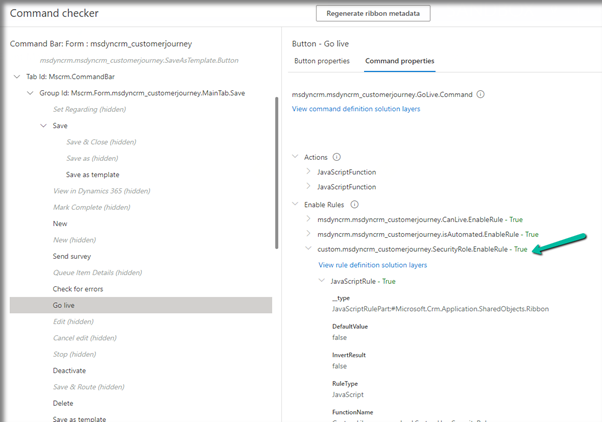
Show/Hide ribbon button based on Security Role without writing code in Dynamics 365 CE?


Goutam Das's avatargoutam dynamics

Recently I have seen in a community post, there was a requirement to show/hide opportunity “Close as won” and “Close as lost” button based on user security role without writing any code. Ideally in this scenario we basically retrieve the user role name using web API and then based on that we return true/false to show/hide the button using ribbon workbench enable rule. But now days as you may know that most of the browser deprecated Synchronous call and reason why we are following some alternate options like here Andrew Butenko’s mentioned his blog, Thanks to Andrew for his blog and its really useful when you need to do an API call.

I thought why not we do this without writing code? and can we avoid hard-coded roles name in the code to make it more configurable way? is this possible? yes, it is possible without writing code…

View original post 547 more words

Use the Marketing only field to identify automatically generated marketing contact records – Dynamics 365 Marketing


The form-matching strategy defines what field(s) will be used to find the matching record.

Can be found at – Dynamics 365 Marketing >> Settings >> Lead Management >> Form Matching (Outbound)

We then associate the form-matching record with a marketing form.

So if a contact with the same email address is found, the record will be updated, if not then a new contact record will be created, on form submission.

Now to identify these auto-created contact records, we can make use of the out-of-the-box Marketing Only Boolean field. The system populates this field for the contact records created as part of marketing form submission.

We can find the field in the Contact form – Details tab >> Marketing Section.

Read more on marketing only flag

Hope it helps..

Advertisements

Omnichannel Real-time analytics reports (Preview) – Dynamics 365 Customer Service


The Real-time dashboard consists Summary, Ongoing conversation, Agent, and Voice report.

To enable it – Login into Customer Service Admin Center >> Operations >> Insights >> Report Settings >> Real-time Analytics (preview)


Enable it –


After a couple of minutes, we can see the Dashboard added to the Customer Service Workspace app.

Within the Summary, we can get the details of any ongoing conversation, KPIs, etc.

The ongoing conversation report shows the details of all the ongoing conversations

The agent shows all the real-time details about the agents

We can select an agent from Agent List and click on Details to show additional details about the agent.

Finally, the Voice report shows details specific to Voice Channel / Queues.

Get all the details here – Real-time analytics dashboards (preview)

Hope it helps..

Advertisements

New look-and-feel model-driven apps: A comparison and my thoughts


Power⚡Thomas's avatarPower⚡Thomas

It was already announced in the Power Platform 2023 Release Wave 1 and since last Thursday, February 2, 2023, it has become available in preview. I am referring to the new look-and-feel for Model-driven Apps.

Last year, I already posted a LinkedIn post in which I discovered that there had been an improvement in the UI of Model-driven Apps. This turned out to be part of the 2022 Release Wave 2.
The design is based on Microsoft’s Fluent UI Framework, which is also used in office applications such as Outlook, Word, Excel, and PowerPoint. However, this improvement goes a step further than what was announced last year. This time, elements such as controls, command bar, header, navigation, and grid views have also been tackled. In this blog post, I will make a comparison for each element and share my thoughts on it.

  1. How to activate
  2. What stands…

View original post 1,045 more words

Contact’s Originating Lead – originatingleadid is not valid for update – Dynamics 365 / Dataverse


Recently we were writing a plugin that on the creation of a lead updates the originating lead of a contact record. The value was neither getting updated nor we were getting any errors.It was after we spent a good amount of time debugging, realized that this field cannot be updated.So basically, we can specify a value for it during create of contact but cannot update it.

Hope it helps..

Advertisements