Enable/Disable Rich Text Editor for Notes on Timeline


Gopinath's avatarDynamics 365 CE and Power Platform

Hi Everyone,

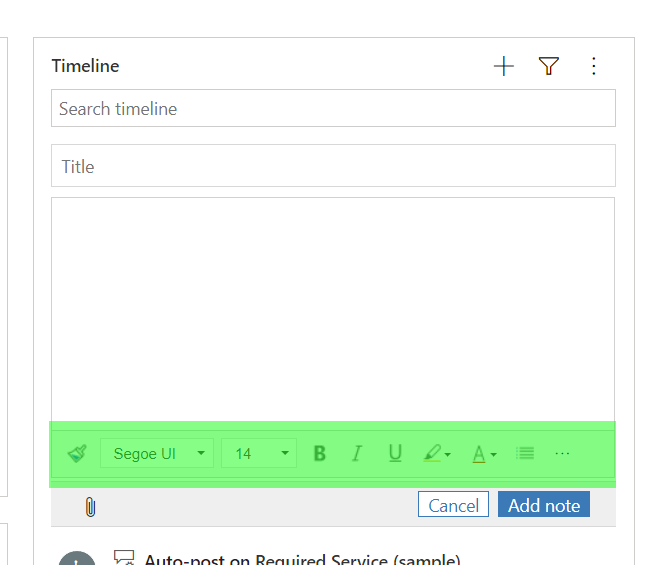
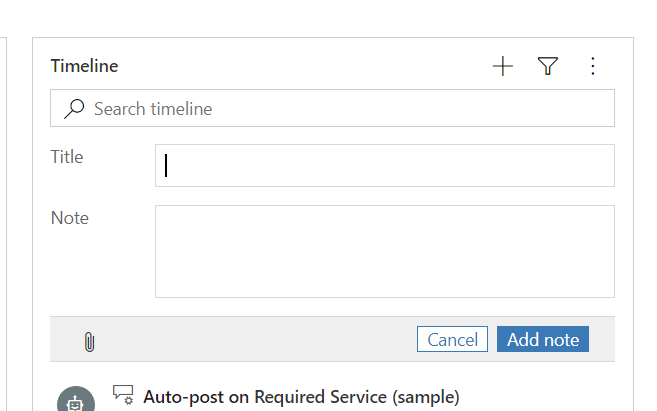
Today I was checking System Settings to configure something and I found a setting to enable or disable Rich Text Editor for Notes on Timeline. Somehow I feel we don’t need a setting for this, who wants disable this wonderful feature. However, if anyone is looking to disable to Rich Text Editor check this out.

Hope this helps.


Happy 365’ing
Gopinath

View original post

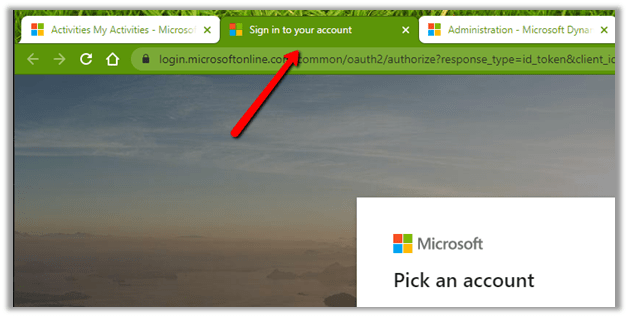
Dynamics 365 keeps opening the sign in page in the new tab


We all have faced this issue where Dynamics 365 keeps opening the login page in the new tab.


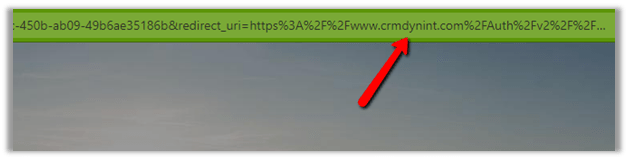
If we check the URL it is basically redirecting to

Below URL à

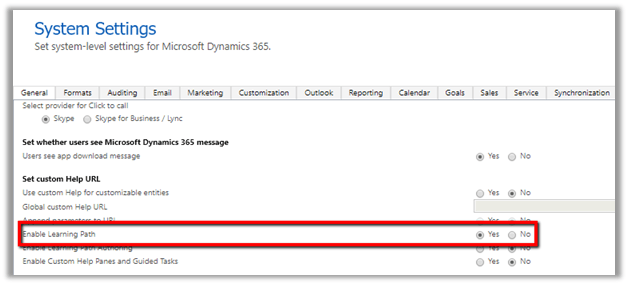
To disable this behaviour for all the users, disable the learning path.

Set Enable Learning Path as No.

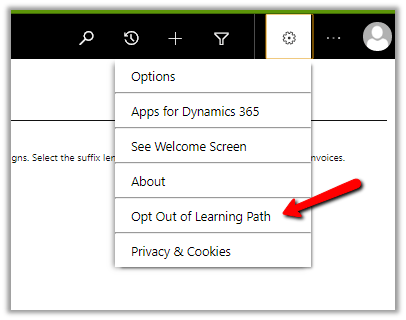
For individual user, select Opt Out of Learning Path from Personal Options.

https://docs.microsoft.com/en-us/previous-versions/dynamicscrm-2016/admins-customizers-dynamics-365/mt826648(v=crm.8)?redirectedfrom=MSDN

For Internet Explorer (without changing above settings)

http://ronaldlemmen.blogspot.com/2017/02/unlimited-redirects-or-popups-to.html

Hope it helps..

Solved – window onload undefined error in Dynamics 365


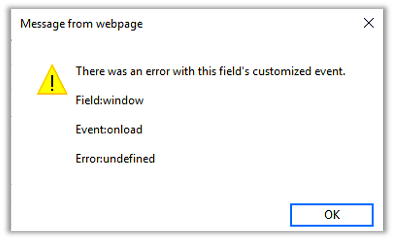
Recently we got the below issue raised by the user on form load of one of the entities.


Most of the times this issue will arise because of the control / attribute being referenced in the JavaScript, being not available on the form.

And same was the case here, one of the JavaScript’s associated with the ribbon button, was referring to business process field (header_process_xxxxx) which was not available on the form.

Hope it helps..

Notes on Dynamics 365 for Phones and Tablets app – Part 7 (Custom Controls)


Check the other articles of this series

Continuing the previous post on the Dynamics 365 mobile app, here we will cover the custom controls.

Custom controls were added to the product in version 9.0 and were part of the new Unified Interface, for us to use at that time. Now we all can create custom control using PowerApps Component Framework (earlier known as Custom Control Framework).

Check out the PCF Gallery for all the custom controls developed by the community.

https://pcf.gallery/

In this post let us look at out of the box custom controls available in the product and how it renders within the Dynamics 365 for Phone App.

Let us start with the custom control for the list.

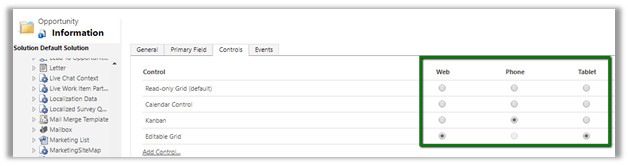
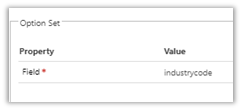
For the opportunity entity, we have defined below custom control. The Editable Grid option is disabled for Phone.

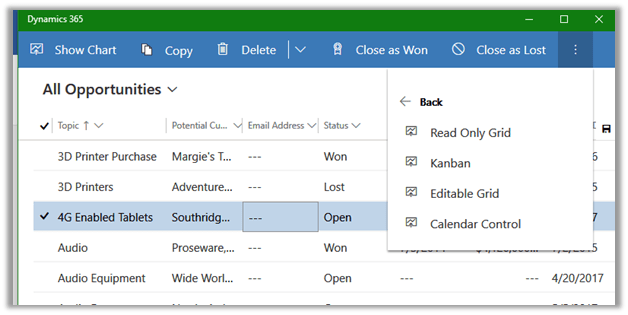
The tablet app shows the Editable grid as default with the option of switching the view.

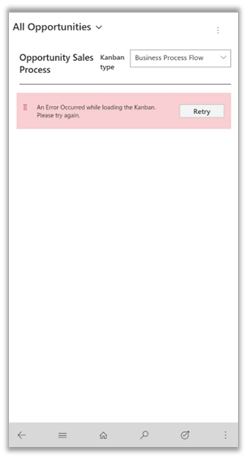
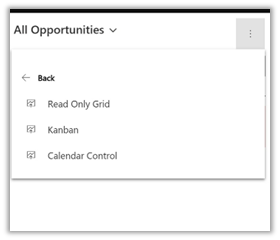
For the Phone App, it seems Kanban’s view has some issues. We can switch to all other views configured except the editable which is not available for the phone app.


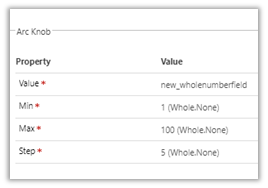
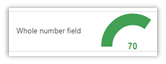
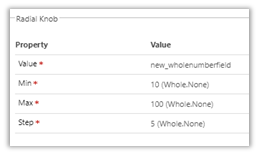
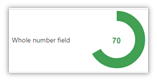
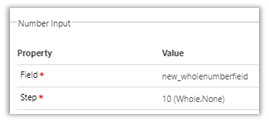
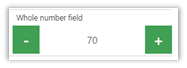
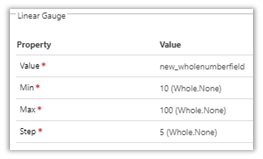
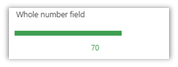
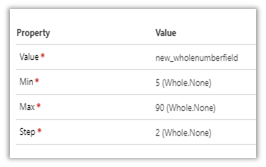
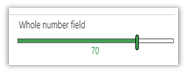
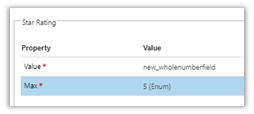
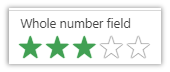
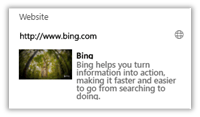
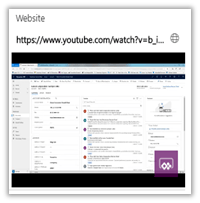
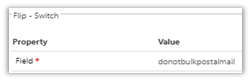
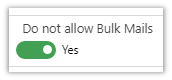
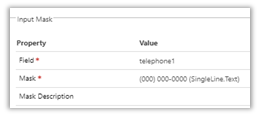
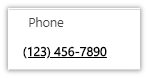
Below is the table that lists the out of the box custom control, along with its properties and how they are rendered in the phone app, for quick reference.

Field Type Control Property
Whole Number
&
Money
Arc Knob

Radial Knob
Number Input
Linear Gauge
Linear Slider
Whole Number Star Rating (max 5)
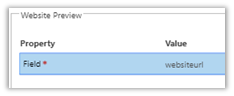
URL Website Preview
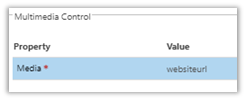
Multimedia
Boolean Flip Switch
Single line of text Input mask
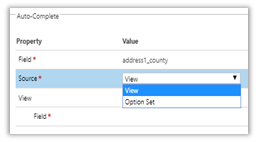
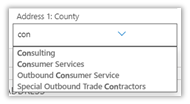
Auto complete
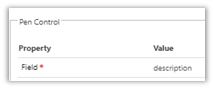
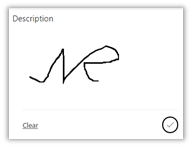
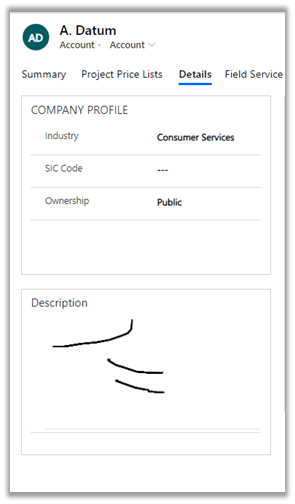
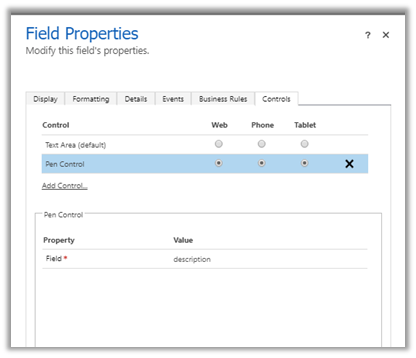
Multiline of text Pen
Option set Option set (max 3)

Hope it helps..

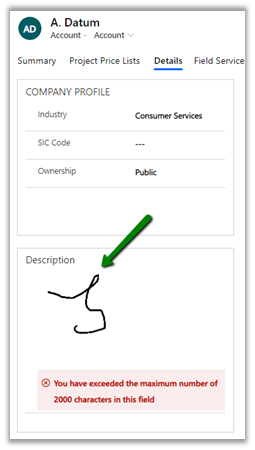
Error – You have exceeded the maximum number of 2000 characters in this field while using Pen Control in Dynamics 365


We might get the below error while using the pen control.


Just make sure that we have set the field to the minimum length recommended by Microsoft i.e. 15000.


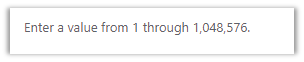
The maximum value that can be set for the text area (multiple line of text) field is 1048576.


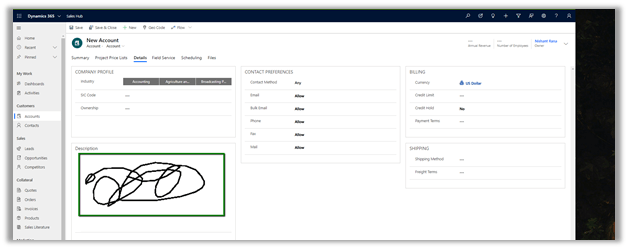
Earlier pen control was not available for the Web client.

https://community.dynamics.com/crm/f/microsoft-dynamics-crm-forum/284081/can-t-check-pen-control-for-web-on-dynamics-crm-365/1036343#1036343

But now they can be enabled for the web as well.


Hope it helps..


Dynamics 365 Application publishing on App Source


Great article !

Amna Khan's avataramnakhan06

App source is a platform where all the power platform apps and related cloud supported apps that are built on top of Microsoft can be publish. Mostly people use app source to show case their master piece of work in form of product.

To publish an app on app source there are few mandatory steps that should be complete.

Step#01: Managed Solution

Create a solution that includes all the components that needs to be pitch as part of your publish application. Export the solution with Managed properties.

image1Step#02: Create Package using Microsoft Dynamics Package Deployer.

Microsoft dynamics package deployer is part of Nuget package manager for VS 2015, 2012, 2013. In case you have any earlier version of VS then try to upgrade it as it supports .net framework 4.6.2.

Open visual studio as administrator and select new project as defined below;

File > New > Project

Templates > Visual…

View original post 672 more words