Use custom browser protocol to launch desktop applications from Dynamics 365


Recently we had a requirement to launch a .NET desktop application installed in the user’s machine from within Dynamics 365 and also pass parameters to it.

One of the ways of implementing is by using the Custom URL Protocol.

Modern browsers and operating systems allow us to implement a custom URL protocol and register an external application to handle it. So when a user clicks  on the link that uses that custom URL Protocol, the browser will open the application that is registered.

Check a few examples here

https://docs.microsoft.com/en-us/windows/uwp/launch-resume/launch-app-with-uri

So, let us start and register our Custom URL Protocol.

Below is the source code for creating a new key


var applicationPath = @"C:\MyParamApp\MyApp\bin\Debug\MyApp.exe";
var KeyTest = Registry.CurrentUser.OpenSubKey("Software", true).OpenSubKey("Classes", true);
RegistryKey key = KeyTest.CreateSubKey("OpenAppP");
key.SetValue("URL Protocol", "OpenAppP");
key.CreateSubKey(@"shell\open\command").SetValue("", "\"" + applicationPath + "\" \"%1\"");

Here OpenAppP is the protocol name and the application path that holds the path of application that we want to execute.

For key.CreateSubKey we have specified %1 for passing the parameter.

If we do not want to pass the parameter then we do not need to append it.

On running the above code, we can see the key added with the value specified

Below is the source code of our console application, basically it reads and writes the parameter in the output window.

Below is our Html page that we will call from within a button on a form from Dynamics 365 and which will open the MyApp.exe in turn.

Here we have published the page in Azure.

The html page on onload will retrieve the id query parameter and append it to the link for the custom protocol

OpenAppP:id

Back in CRM, we have a custom ribbon button named Open Console App added with the following definition.

Url Command Action and Crm Parameter in it to pass the id.

Clicking on the button

as expected, opens the alert along with opening the console app with the parameter passed to it.

Get more details

https://www.vdoo.com/blog/exploiting-custom-protocol-handlers-in-windows

Hope it helps..


Advertisements

Using SQL Server Management Studio to deploy and run SSIS package in Azure Data Factory


In our previous post, we created the SSIS Catalog (SSISDB) in Azure and deployed the SSIS package using SSDT.

Supported version for SSDT – SQL Server Data Tools to deploy SSIS package to Azure.

  • For Visual Studio 2017, version 15.3 or later.
  • For Visual Studio 2015, version 17.2 or later.

In this post, we’d use SSMS to deploy the packages in Azure.

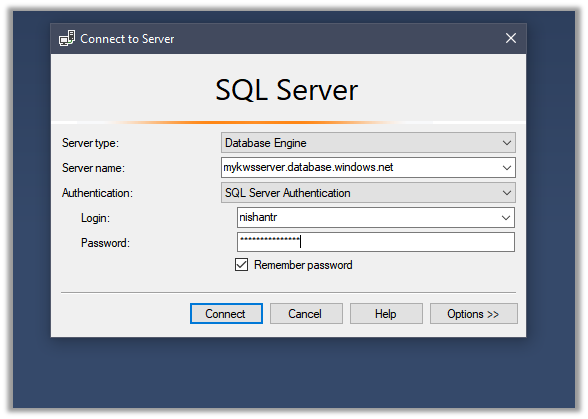
Connect to the Azure SQL Server

Expand the Integration Services Catalog, right-click the Projects folder, and select the Deploy Project option.

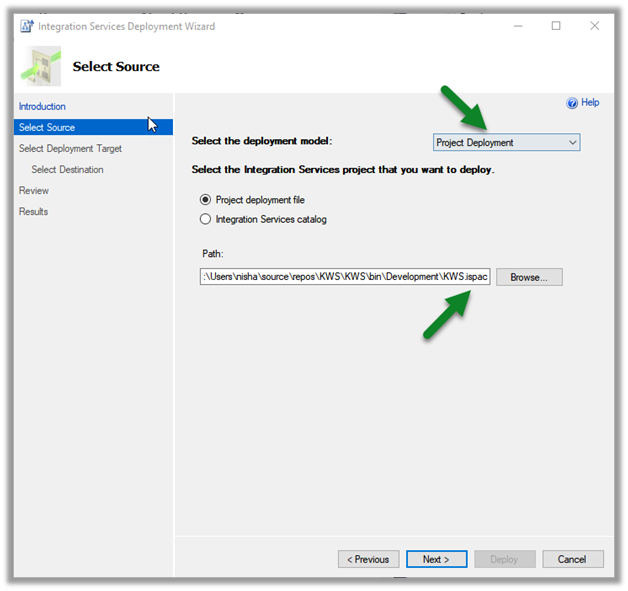
Enter the source details in the deployment wizard

Select the option SSIS in Azure Data Factory

Select the existing or create a new folder for the project

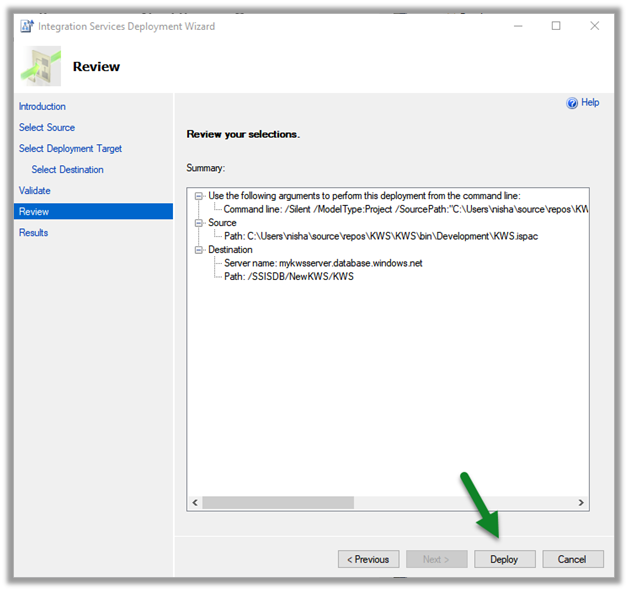
Click on Deploy after successful validation and review.

Here in our case, it failed with the below message

There is no available node. Please check node status on the monitoring page of the ADF portal and ensure that at least one node is in running 1 and try again. (Microsoft SQL Server, Error: 50000)

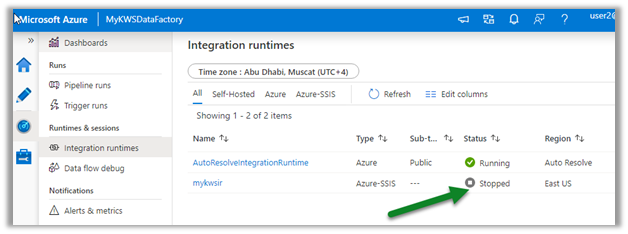
The error is because the Azure-SSIS Integration runtime is in the status Stopped.

navigate to your Azure Data Factory instance, and start the runtime.

After around 10 minutes or so the service would be up and running.

This time deployment is successful.

We can see the packages available within the pipeline.

Hope it helps..

How to – Use Azure Data Factory V2 to load data into Dynamics 365


Let us take a simple example where we will set up an Azure Data Factory instance and use Copy data activity to move data from the Azure SQL database to Dynamics 365.

Login to Azure Portal.

https://portal.azure.com

Search for Data factories

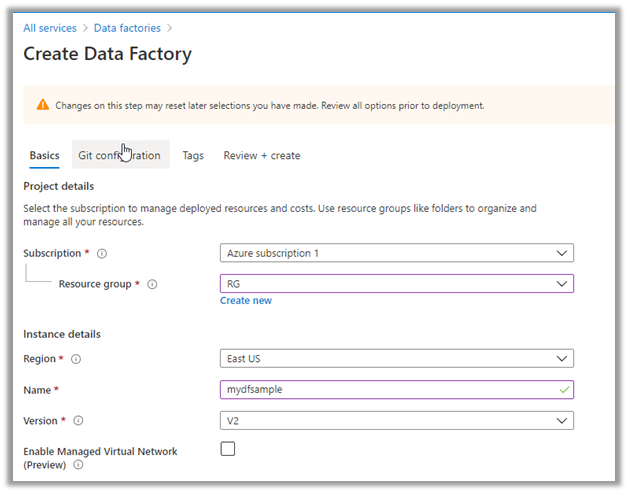
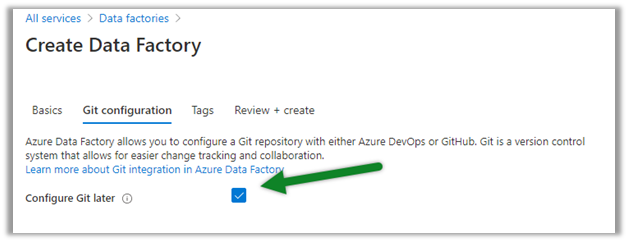
Create a new data factory instance

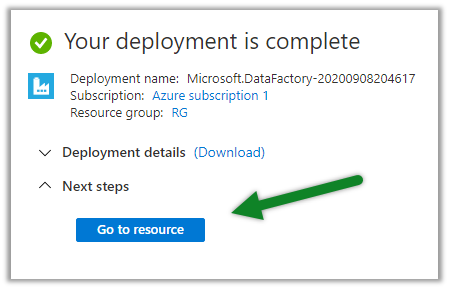
Once the deployment is successful, click on Go to resource

Inside the data factory click on Author & Monitor

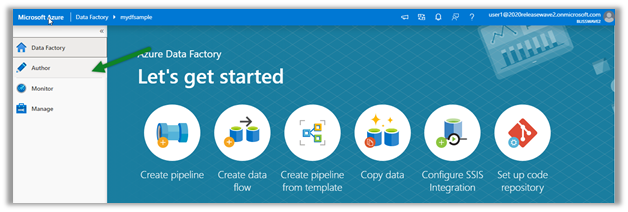
Click on Author in the left navigation

Create a new Pipeline

And drag the Copy data activity to it

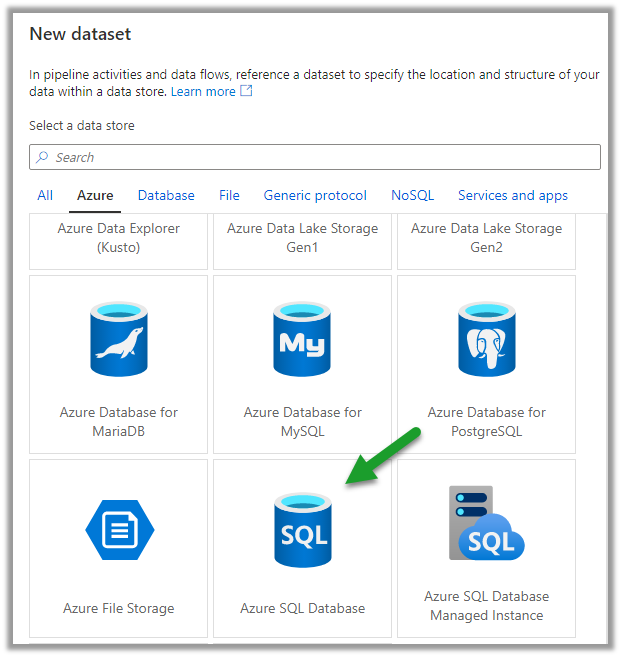
Go to the Source tab, and create a new dataset.

Below is our Azure SQL database with contacts table which will be our source here.


Select Azure SQL Database as the source dataset.


Create a new linked service to specify the connection properties.


Specify the details to connect to the Azure SQL Database.


We have selected the contacts table here.


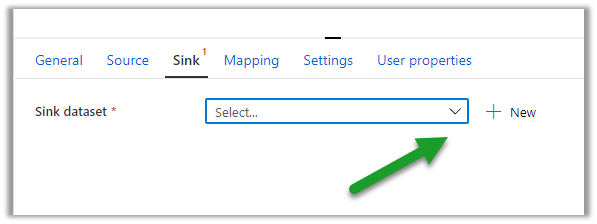
Similarly, let us define a new dataset for Sink which will connect to our Dynamics 365 Instance.


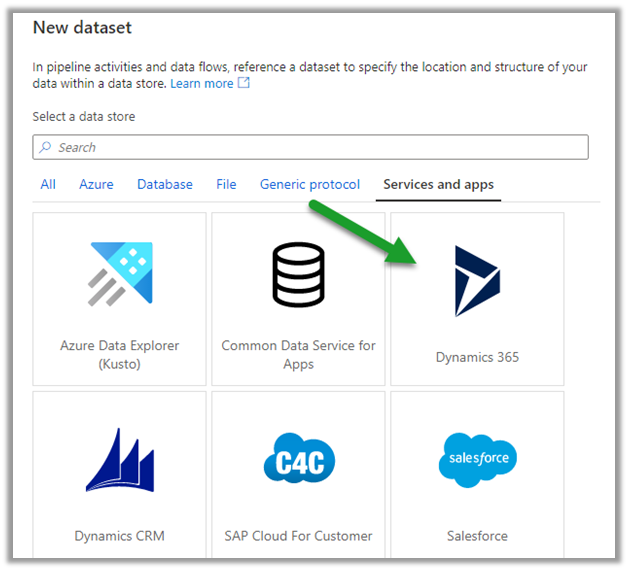
Select the Dynamics data set and specify the linked service.

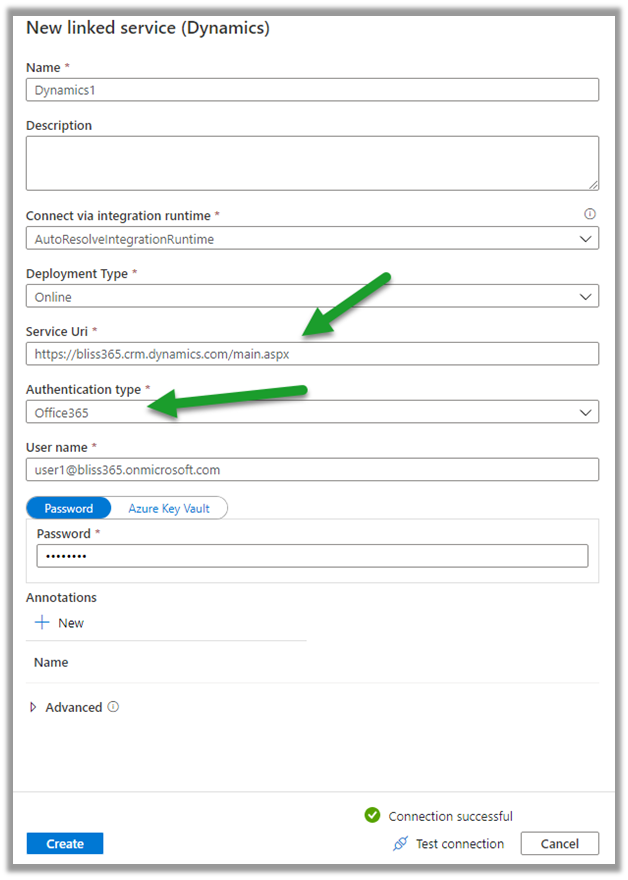
Specify the details of the Dynamics 365 instance to connect to.

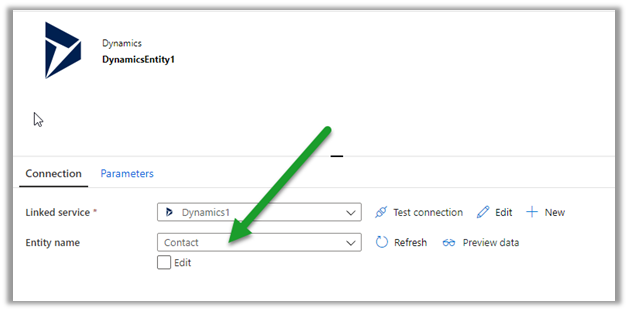
We have selected contact entity as the destination.

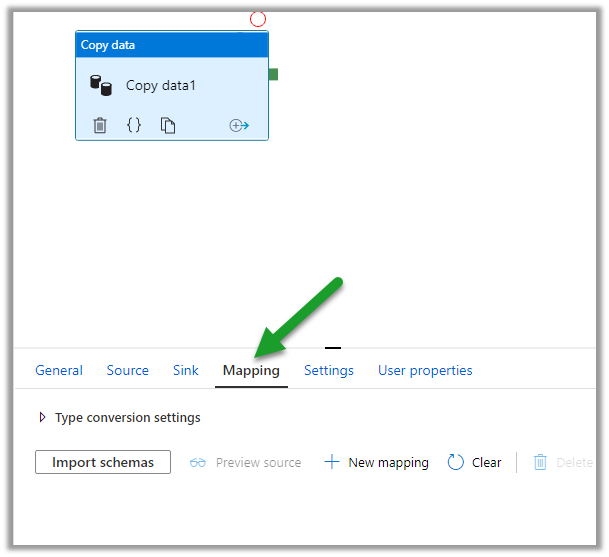
Within the Mapping tab, we can specify the fields to be mapped.

Below is how we have specified the mapping.

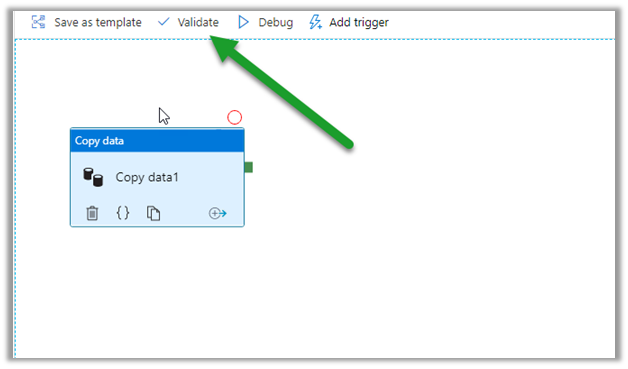
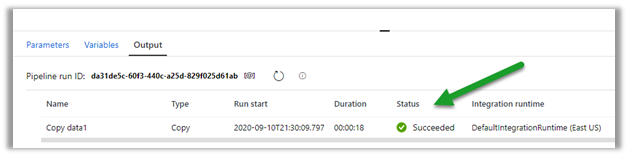
Click on Validate and after successful validation, click on Debug to run the pipeline.

Within the Output window, we can see the status.

After the successful run, we can see the contact records created inside Dynamics 365.

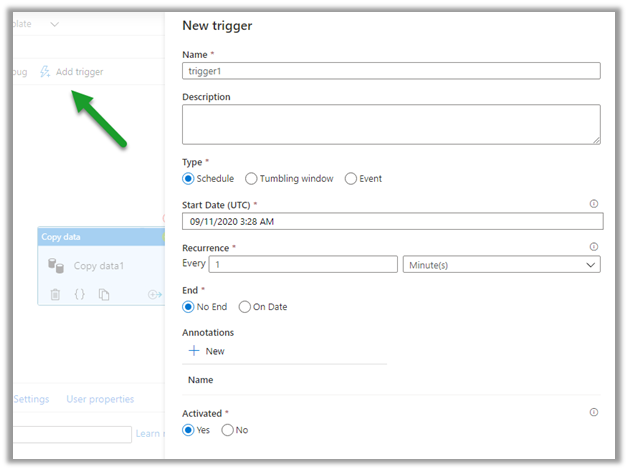
We can specify a trigger for the pipeline as shown below.

Publish All will publish the changes to the data factory.

Hope it helps..

Advertisements

Enhanced knowledge articles in Dynamics 365 – 2020 release wave 2


With 2020 release wave 1, we had new features added in Knowledge management for increased productivity

https://nishantrana.me/2020/02/19/enhancements-in-knowledge-capabilities-in-dynamics-365-customer-service-2020-release-wave-1/

Opt-in for release 2020 wave 2

https://nishantrana.me/2020/08/05/enable-early-access-2020-release-wave-2-dynamics-365/

Check other posts on Release 2020 Wave 2

Now with release 2020 wave 2, we have a few more changes added to editing and view experience related to Knowledge articles.

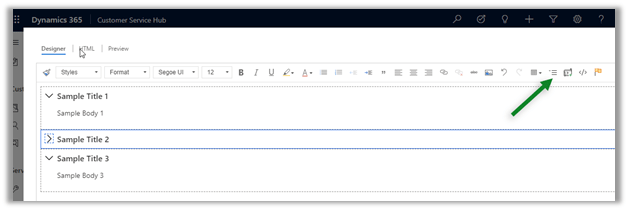
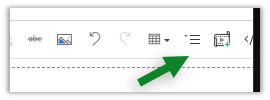
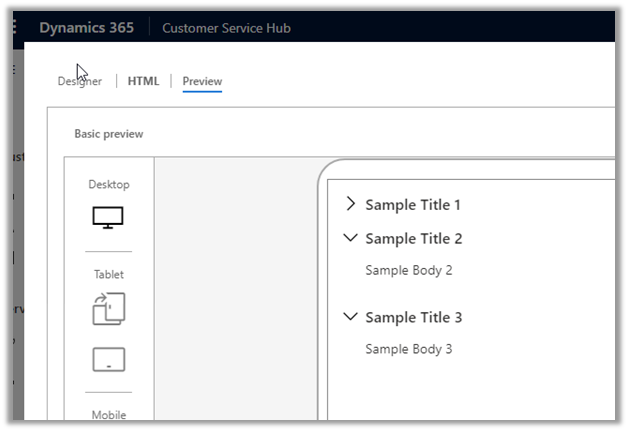
  • The authors can create a collapsible section

The same experience for the end-users within the case form à

  • The collapsible section option was not available in 2020 release wave 1

  • Warning message in the Preview tab, if an anchor is used, has been removed now.

With 2020 Release wave 1

  • Icons have been updated within the Knowledge search control.

In 2020 Release wave 1 ->

In 2020 Release wave 2 ->

Dynamics 365 2020 release wave 2 –https://docs.microsoft.com/en-us/dynamics365-release-plan/2020wave2/

Hope it helps..
Enhanced email for timeline in Dynamics 365 – 2020 release wave 2


With 2020 release wave 1, we had seen a couple of enhancements in Email experience

https://nishantrana.me/2020/02/24/enhanced-email-experience-for-agents-in-dynamics-365-customer-service-2020-release-wave-1/

now this has been extended to Email within the Timeline section

Enable early access to 2020 release wave 2

Check other posts on Release 2020 Wave 2

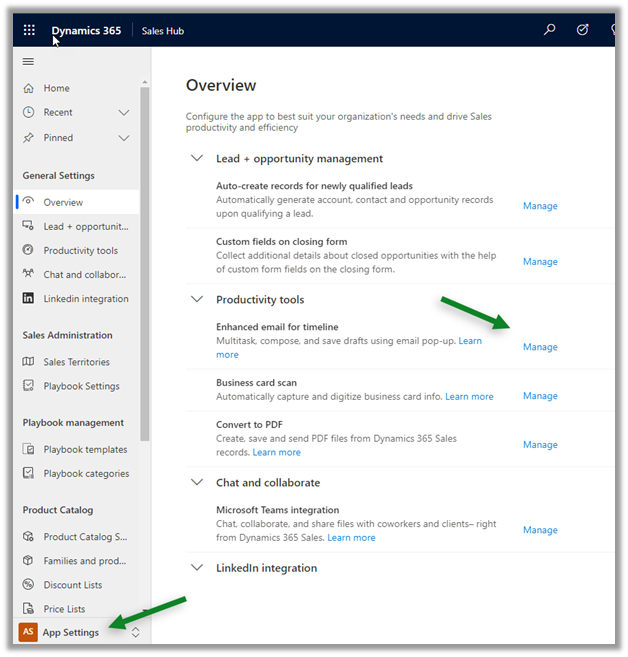
Navigate to App Settings in Sales Hub, and click Manage for Enhanced email for timeline

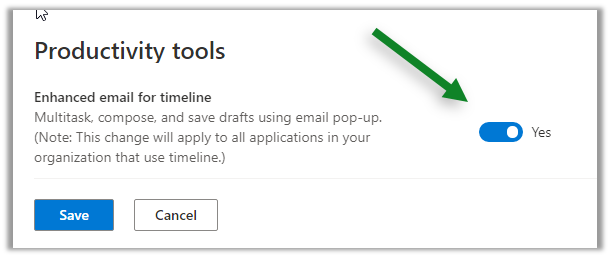
Enable it and save.

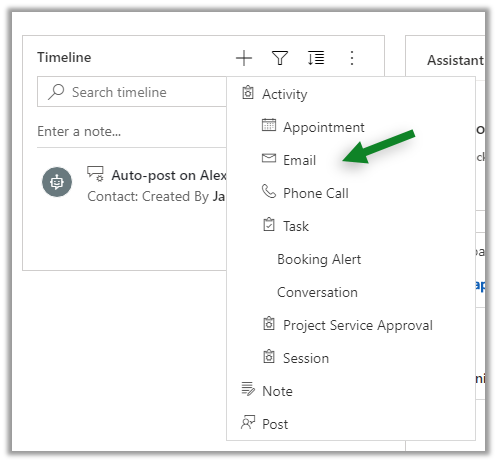
Let us now navigate to one of the contact records and try creating a new email from its Timeline control

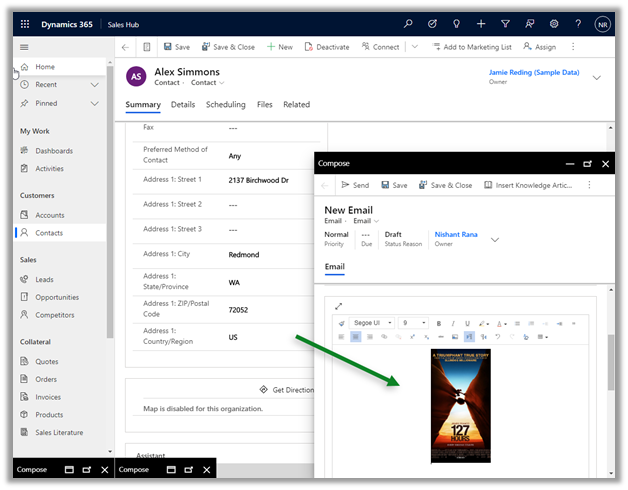
There we can now compose email in a pop-up and non-blocking window within the context of the record.

We can now work on a maximum of 3 active draft emails at a time.

The same rich edit experience which includes Drag and Drop / Copy and paste of the images is available.

In short, all the email enhancements that were added as part of Release 2020 Wave 1 is now available from within the Timeline control for email, making it a consistent experience for the users.

Hope it helps..

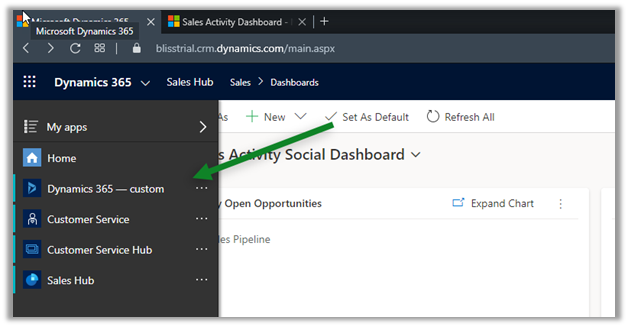
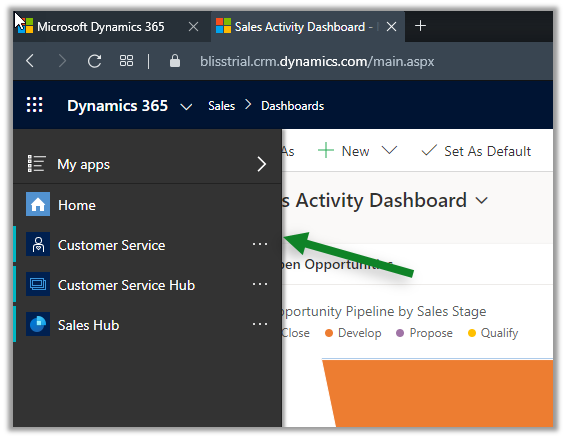
Show and hide the Dynamics 365 – custom app


To show and hide the Dynamics 365 – custom app from users other than having a system administrator role, we can use the below option

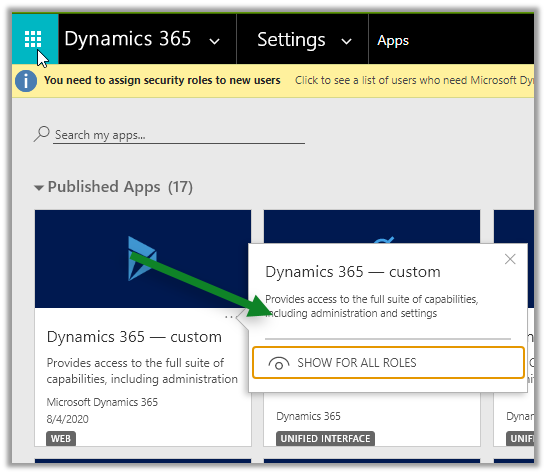
Navigate to Settings – Apps

and specify either Hide / Show for all roles.


For the end-users, it will hide the app

App not listed for the user.

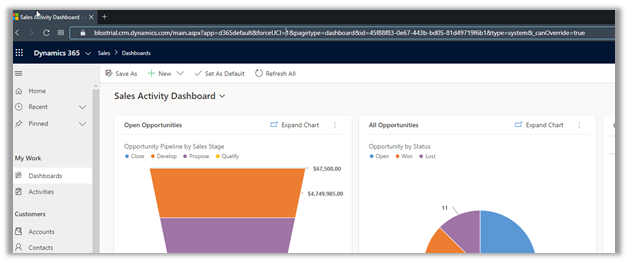
Users can still access the app through URL.

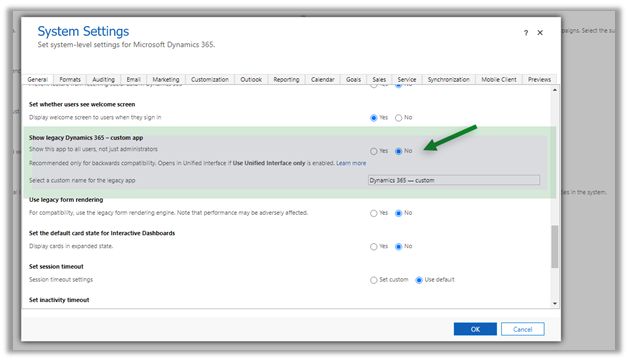
The same settings can be applied from the General tab of System Settings

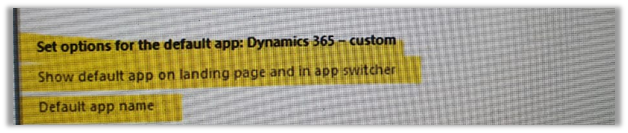
For Dynamics 365 On-Premise, we have a similar option in the General tab of System Settings

Hope it helps..