How to – Customize Quick Actions in Dynamics 365 CE / Model-driven Power Apps


As part of the enhanced Search Experience, contextual quick actions were introduced in the platform :- https://nishantrana.me/2021/02/09/improved-search-experience-now-adds-quick-actions-2021-release-wave-1-dynamics-365/

E.g. we have Assign, Share, Email quick actions available for Contact, Account, and other entities for the relevance search results.
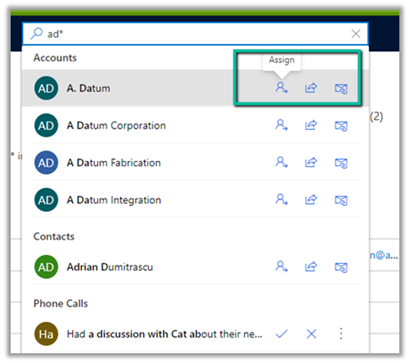
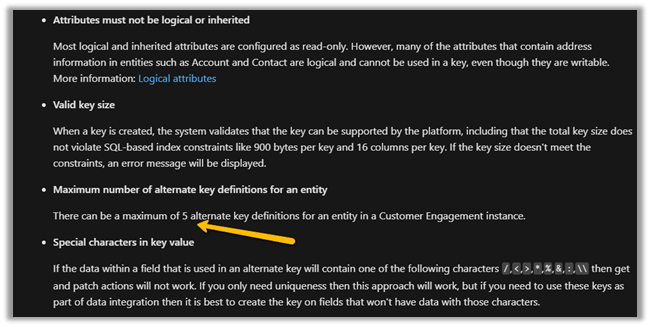
There can be a maximum of 5 quick actions per entity/table.

The quick actions are a subset of commands available for an entity/table at the Home grid level.

Below are the new rules (Enable Rule) introduced through which these contextual quick actions/commands can be shown or hidden.

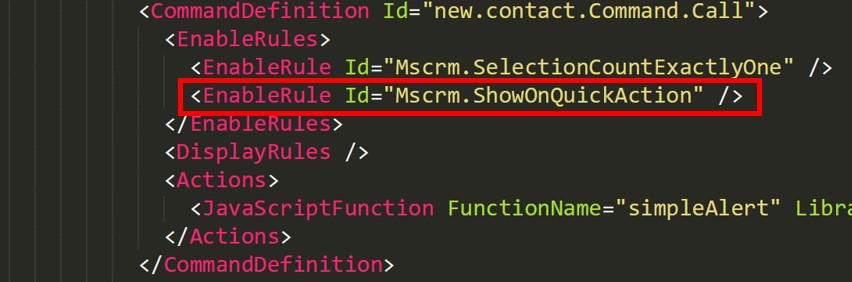
  • ShowOnQuickAction – Command will only appear as a Quick Action within Search and will be hidden from the home grid.
  • ShowOnGridAndQuickAction – Command will appear for both Grid and as a quick action.
  • ShowOnGrid – command will only appear for the grid.

To apply these rules, we can use our favorite Ribbon Workbench tool.

Select Customize Command option for the respective command/button within the Home.

Add a new Enable Rule for the command.

Select IsCore as true.

Apply the Enable Rule for the other commands as shown below.

Here we have used the Contact entity/table.

Assign

ShowOnQuickAction

Share

ShowOnGridAndQuickAction

Email a link

ShowOnGrid

Follow

ShowOnGridAndQuickAction

On successful publishing of the above rules, as expected we can see – Assign command hidden and Share, Email a Link and Follow available in the Home grid

And with the quick actions, we can see Assign, Share and Follow available and Email a link command hidden.

Get the details – https://powerapps.microsoft.com/en-us/blog/search-quick-actions-are-now-customizable-in-model-driven-power-apps/

Other posts on 2021 Release Wave 1

https://nishantrana.me/2021/04/21/blog-posts-on-2021-release-wave-1-dynamics-365/

Hope it helps..


Advertisements

Duplicate Detection limitations – Dynamics 365


Some time back, had reblogged about Duplicate detection limitations.

The original post – https://crmfunda.wordpress.com/2018/09/26/d365-limitations-of-duplicate-detection-rules/, talks about the below limitations

Let us check each one of them with the enhanced experience that we now have in the platform

  • Duplicate Detection works seamless for Dynamics 365 for Phone app also as shown in the screenshot below.

  • Duplicate detection check kicks in when we qualify the lead

Here, qualifying the lead, pops up Duplicate Detection dialog box listing both the matching Account and Contact record.

We can either choose ignore and save to create a new record or click on continue to merge the record with the selected record(s).

  • On activating a matching inactive contact record,

Duplicate Detection is not triggered.

Duplicate detection can be setup to run on the following events – 

dd

  • While trying to publish 6th Duplicate Detection rule for Account entity,

we get the below exception

System.Web.HttpUnhandledException: Exception of type ‘System.Web.HttpUnhandledException’ was thrown. —> Microsoft.Crm.CrmException: The selected record type already has the maximum number of published rules. Unpublish or delete existing rules for this record type, and then try again.

Thus maximum 5 duplicate detection rules can be published per entity.

More on Duplicate Detection

Hope it helps..
Advertisements

Set Custom Message and disable background processes inside the Administration mode for Sandbox and Production Environment – Power Platform


Recently while trying to enable Administration mode for one our environments, we realized 2 new options.

  • Background Operations – for disabling any background operations.
  • Custom Message – define the custom message for the users.

For CRM On-Premise, we used to place a custom HTML page + URL
Rewrite during the maintenance window.

Nicely document here – https://debajmecrm.com/dynamics-crm-maintenance-page/

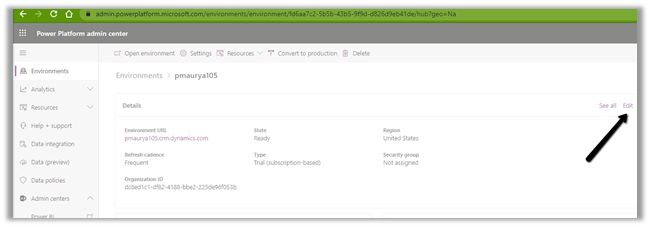
Login to https://admin.powerplatform.microsoft.com/ with System Administrator role, select the Environment, and click on Edit.

Enable the Administration mode, and set the custom message.

Click on Save to make the change, within a minute or so the process will complete.

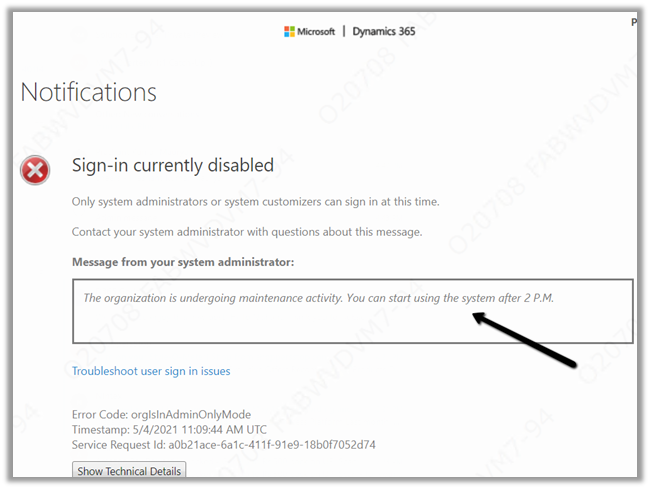
And the non-system administrator and customizer users will see the below page with our custom message as shown below.

Get more details –

https://docs.microsoft.com/en-us/power-platform/admin/admin-mode

Hope it helps..

Advertisements

How to – Find the Subscription ID of your Microsoft products (Dynamics 365 Customer Engagement Plan)


Recently we were asked to provide the Subscription Id of the Dynamics 365 Customer Engagement Plan our organization had purchased.

To find the same, follow the below steps

Login to Microsoft Office admin center with administrator account

https://admin.microsoft.com/

Quick reference – Admin Center URL(s) in Microsoft Dynamics 365 (Power Platform)

https://nishantrana.me/2020/06/15/admin-center-urls-in-microsoft-dynamics-365-power-platform/

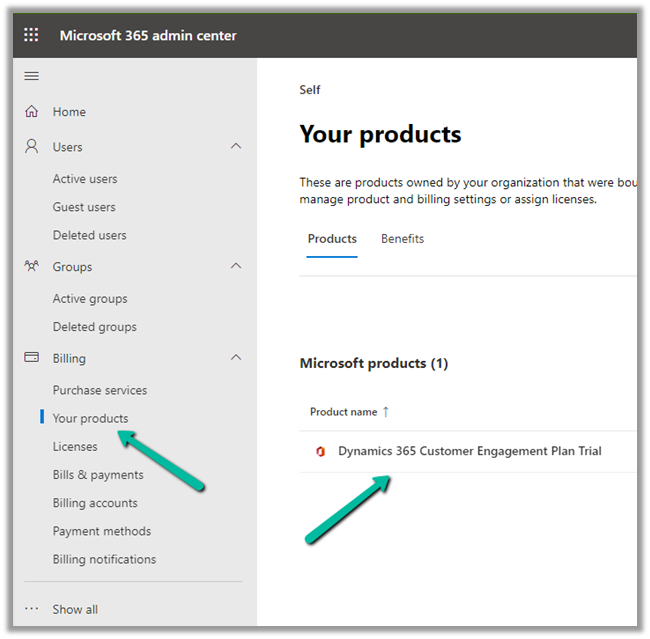
Navigate to Billing >> Your products and select / click on the product.

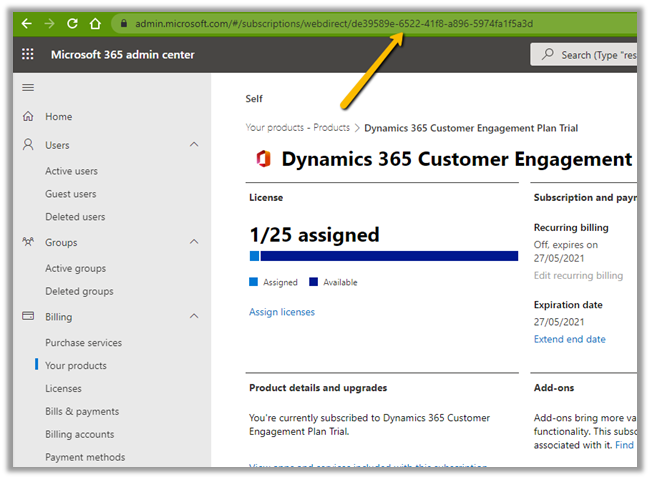
Copy the id from the URL, which will be the subscription id.

Hope it helps..

Advertisements

Status Reason filter (Timeline control), Multiline field (Quick View Form) and Improved accessibility for BPF on mobile app – 2021 Release Wave 1


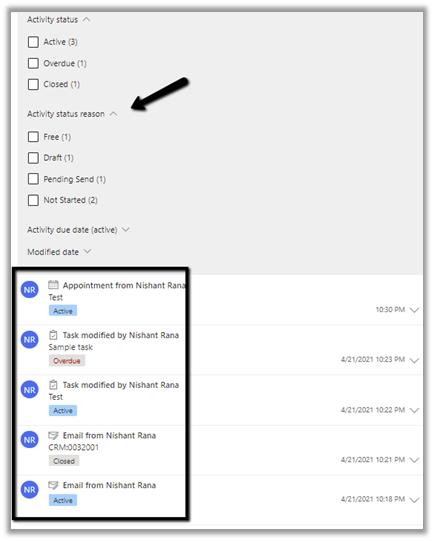
  • 2021 Release Wave 1 for Dynamics 365 adds a new Status Reason filter for the Timeline control.

Activity status reason filter will show the status reasons of all the activities in the timeline. For the total 5 activities in the timeline, the filter shows the corresponding status reasons of all the activities divided among Free, Draft, Pending Send, Not Started status.

  • Another enhancement is in the way the multi-line text field is rendered within the Quick View Form. Now users do not have to click and scroll on the field to see the full content.

Below is the Quick View Form of Contact within the Account entity.

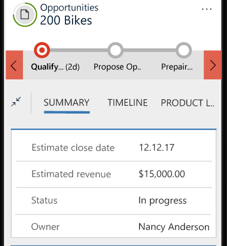
  • Business Process Flow experience has been updated for the mobile app, making it similar to the web application.

Earlier – 

bpf1

Now – It includes the name and duration for the Business Process Flow within the Mobile App as shown below.

bpf2

Check other blog posts on 2021 Release Wave 1 :

Blog posts on 2021 Release Wave 1 – Dynamics 365

Hope it helps..
Advertisements

DSF Error: CRM Organization cannot be found while configuring Azure Synapse Link / Export to Data Lake service in Power Platform


Recently while trying to configure the Export to Data Lake service from the Power Apps maker portal, we got the below error.

DSF Error: CRM Organization <Instance ID> cannot be found.

More on configuring Export to Data Lake service –

https://nishantrana.me/2020/12/10/posts-on-azure-data-lake/

The user through which we were configuring had all the appropriate rights.

https://docs.microsoft.com/en-us/powerapps/maker/data-platform/export-to-data-lake#prerequisites

  • The user had System Administrator Security Role in the CRM Organization/ Dataverse Environment.
  • The user also had the Owner Role on the Storage Account.

Eventually, we raised a Microsoft Support Ticket.

We had recently moved our sandbox CRM Environment from UAE Central to UAE North.

Migrate Dataverse environment to a different location within the same Datacentre region – Power Platform

However, as a part of the migration, few steps were still pointing to the old region, which was causing that error. The Microsoft Support / Operation Team quickly corrected it and we were able to configure the Export to Data Lake service without any further issues.

We didn’t face this issue in our Production environment, which was also moved to UAE North.

Posts on Azure Data Lake

Hope it helps..
Advertisements