Moving Marketing Email, Journey, Events, etc. between environments – Dynamics 365 Marketing


To move Marketing configurations/data from one environment to another we can make use of the Configuration Migration Tool.

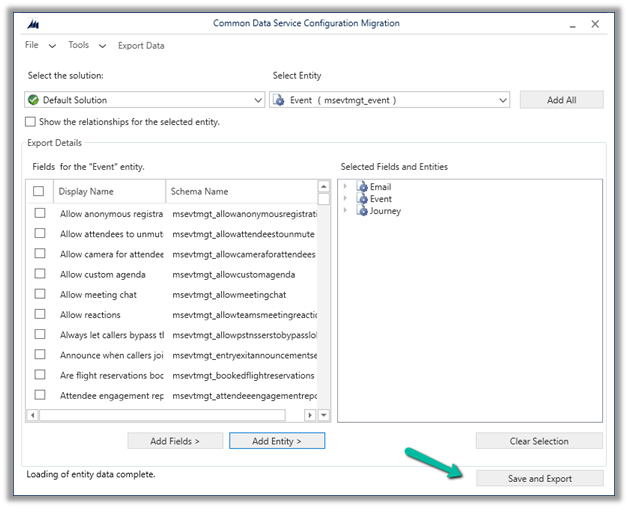
Open the tool, and create the schema file. Connect to the source environment.

Select and add the real-time marketing email table – msdynmkt_email Soure email.

Next, we are going to select the real-time marketing Journey table – msdynmkt_journey

Source Journey.

Lastly events – msevtmgt_event
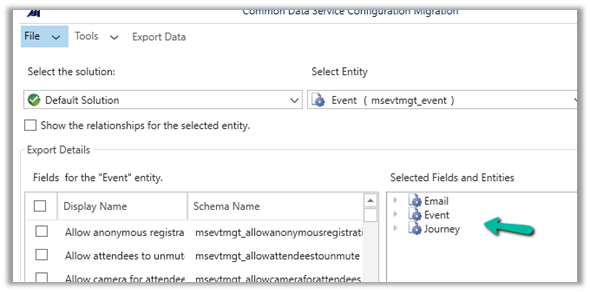
Source events.

Click on Save and Export

Save the schema file and click on yes.

Click on Export data to generate the data to be exported.
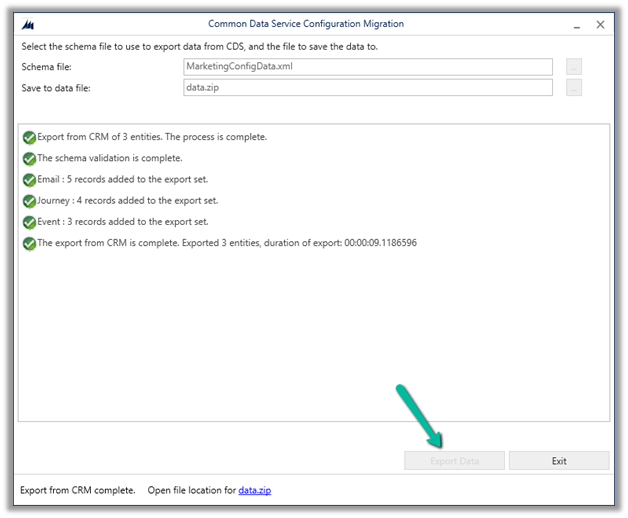
Next with the schema and data exported, select Import Data to start the import and select destination organization.

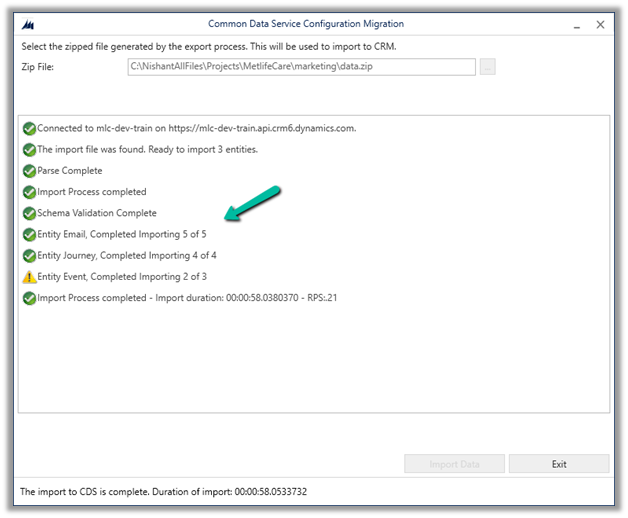
Select the data file exported earlier and start the import process.

The import process gets completed with a warning for the table Event for one of the records.
Let us now check the destination environment.

We can see 4 Email records created and 1 updated, all in Draft Status.

We can see all 4 journey records created.

And 2 event records were created.

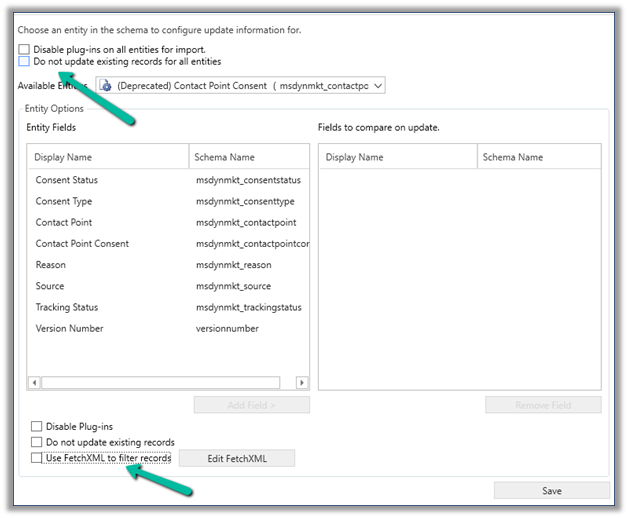
In case we want to filter the records or want to make sure records are not updated in the destination, we can select Tools >> Configure Import Settings

And use Do not update existing records for all entities and specify Fetch XML for it for filtering.
Also, checkPrerequisites for the export/import process

Hope it helps..

Advertisements

Marketing Form and required (mandatory) fields in Lead and Contact – Dynamics 365 Marketing


Let us take one of the out-of-the-box marketing forms available in Dynamics 365 Marketing.

It has only an Email field marked as required and creates / updates both contacts and leads.

If we click on Check for errors we will get the below notifications.

  • To create a Contact, the Last Name (lastname) field should be included in your form and marked as required.
  • To create a Lead, the Last Name (lastname) field should be included in your form and marked as required.

Now let us host this form and try submitting it.

Click on Go Live, and create a new related marketing form page for it. Make sure you have the domain already authenticated.

Authenticate Domainhttps://nishantrana.me/2022/11/09/how-to-authenticate-domain-in-dynamics-365-marketing/

Embed Marketing Form on the external pagehttps://nishantrana.me/2022/11/10/how-to-embed-marketing-form-on-an-external-page/

Open the Form page and copy the script to host the form.

On the host page, let us submit the details.

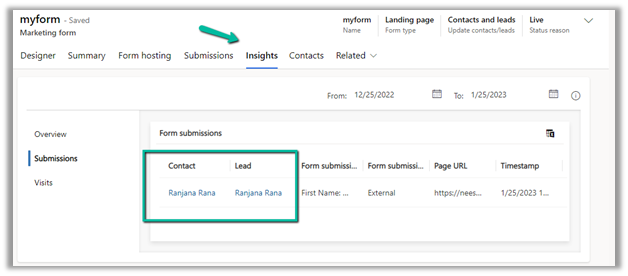
Back in our Marketing form, we can see the submission.

And also, both the lead and contact records created.

Now let us try one more submission without specifying a value for the lastname field (which it was showing in the notification, as a required field to be added on the form, for both the lead and contact table).

We can see the submissions in the Marketing Form.

And both the lead and contact records were created.

So although it shows the notification for all the mandatory fields which are not added in the form and marked as required, it still allows the record to be created.

Hope it helps..

Advertisements

Anonymous Visitor tracking behavior in Dynamics 365 Marketing


Suppose, we have the below page opened in the browser, which has an embedded marketing form in it.

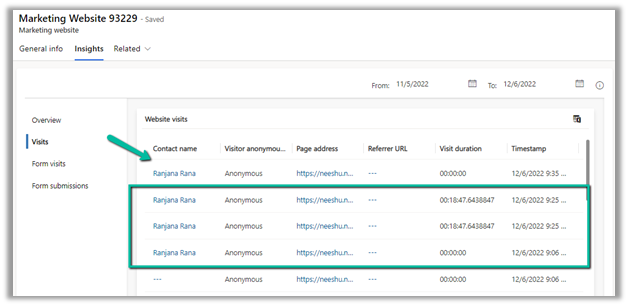
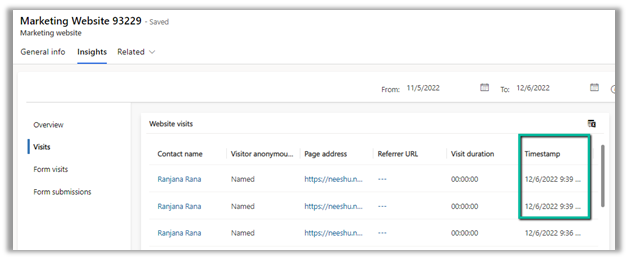
Opening the marketing website record associated with the marketing form, we can see the anonymous visit being tracked.

Here the user had opened the page a couple of times.

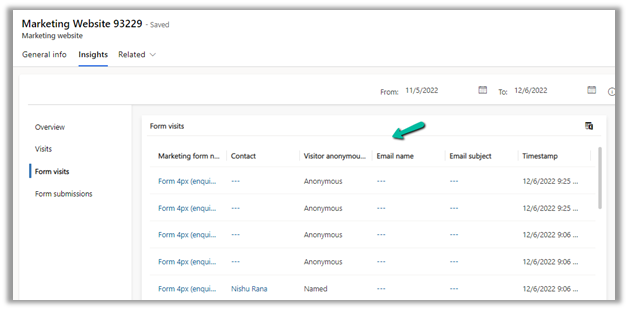
Form Visits also have the corresponding details.

Form submission – No records right now as the form hasn’t been submitted by the visitor on the page.

Now let us submit the form

After the successful submission of the form which created the contact record, we can now see a new record added on the website visitors

as well as all the previous anonymous records also updated with the same contact.

Same for Form Visits

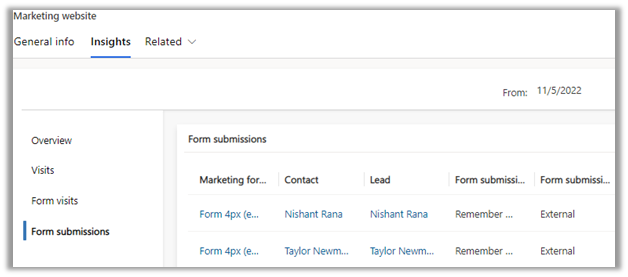
And as expected a new form submission record.

Now any future visit to the page gets tracked with the Contact created for that user.

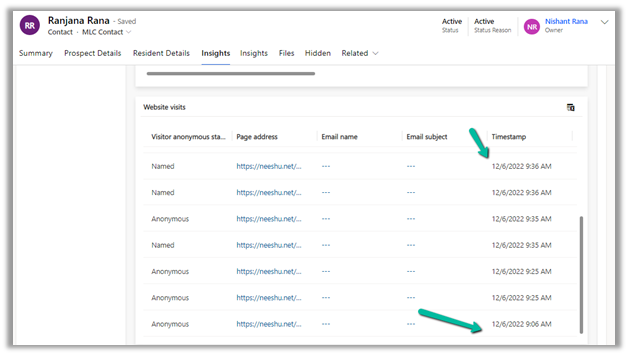
In the contact record, also all the website visits get associated.

To read more about it – https://learn.microsoft.com/en-us/dynamics365/marketing/known-issues#websites

To learn more about Dynamics 365 Marketing – https://meganvwalker.com/category/dynamics-marketing/

Hope it helps..

How to – Use Personalized page content in Dynamics 365 Marketing


Continuing our previous post – https://nishantrana.me/2022/11/17/how-to-use-page-personalization-in-dynamics-365-marketing-2/, in this post we’d see the personalized page content works across the pages in the site.

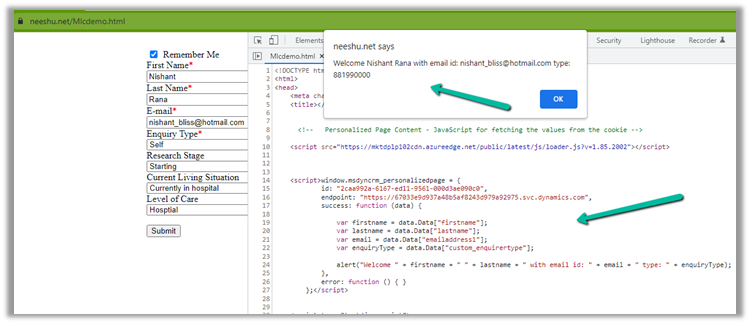
Suppose we have the following embedded marketing form, submitted by the user with Remember Me checked (required for Personalized Page as well as Prefill to work)

Next time when the user visits the page, using the Personalized Page’s Script, we can have this value fetched from the cookie as shown below.

Here we can use the same personalized page script on other pages in the same authenticated domain/website to retrieve the values from the cookie.

For that, we just need to have the website’s div tag to be placed on that page, as shown below. We can get from that from the website record created and it will track the visit as well.

divweb

Hope it helps..

Advertisements

How to – Hide, Submit and perform validation in Dynamics 365 Marketing Form


Continuing our previous post on setting hidden field’s value using JavaScript in Embedded Marketing Form,

https://nishantrana.me/2022/11/23/how-to-use-dynamics-365-marketing-javascript-api-to-set-hidden-fields-value/

below are a few more points that could help –

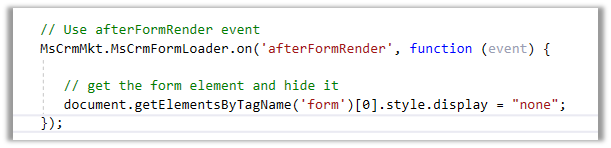
  • To hide the Marketing form on the host page – we can use afterFormRender
  • To submit the Marketing form on the host page –

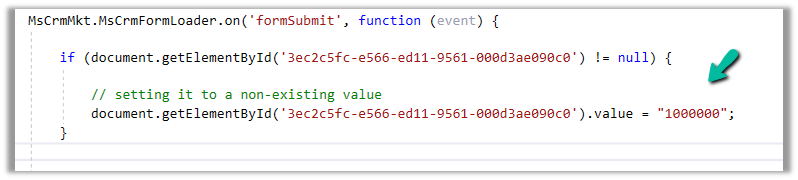
  • If we are setting a non-existing value for an option set field in the formSubmit event, it will be treated as blank before submission and the blank value will be passed. However if the field is Required then validation will kick in and the form will not get submitted.

Get more details – Extend marketing form using code

Also check – https://community.dynamics.com/365/marketing/f/dynamics-365-for-marketing-forum/384055/integrate-external-marketing-form


var xhttp = new XMLHttpRequest(); 

xhttp.open("POST", formUrl + "/formpage/” + formId + “/correlation/” + correlationId, true); 

xhttp.setRequestHeader("Content-Type", " application/x-www-form-urlencoded"); 

xhttp.send("7d58e055-d1c2-4bb3-a42f-faf6762e0acc=FirstName&3cdeebb-7c54-4cff-a1bc-772562d25c38=firstname.lastname%40sample.com&submit=");
Advertisements

Hope it helps..

How to – use Dynamics 365 Marketing JavaScript API to set hidden field’s value


Dynamics Marketing JavaScript API is only available for the marketing form hosted as Script. It is not available for forms hosted as Iframe.

More on embedding form on external page – https://nishantrana.me/2022/11/10/how-to-embed-marketing-form-on-an-external-page/

Add a reference to form-loader.js or load.js to access the API.

Below is our form with a hidden field in it.

Based on the current living situation (drop down), we want to set the value of the Financially Capable field (bool) – the hidden field’s value as either True or False.

For this, we have added the below script, in the formSubmit event.

formSubmit triggers on form submit before the form submission is sent to the server.

Check all the events here – https://learn.microsoft.com/en-us/dynamics365/marketing/developer/marketing-form-client-side-extensibility#form-events

The script – Get the id of the element through browser’s developer tools.

Hope it helps..
  // Extending Marketing form with code 
        // formSubmit - Triggers on form submit before the form submission is sent to the server.
        MsCrmMkt.MsCrmFormLoader.on('formSubmit', function (event) {
          
            // get the id of the elements through developer tools of the browser
            // based on selected current living situation (optionset)
            if (document.getElementById('deb110aa-e266-ed11-9561-000d3ae090c0') != null) {
                var selectedCurrentLivingValue = document.getElementById('deb110aa-e266-ed11-9561-000d3ae090c0').value;
                if (selectedCurrentLivingValue == 881990000) {
                    // set the value of Financially Capable field (boolean)- true / false
                    document.getElementById('dcc46e64-2867-ed11-9561-000d3ae090c0').value = "1";
                }
                else {
                    document.getElementById('dcc46e64-2867-ed11-9561-000d3ae090c0').value = "0";
                }
            }
        });
Advertisements