Use Content Ideas Copilot to generate email content ideas (Dynamics 365 Marketing)


Content Ideas Copilot can be used to quickly generate content ideas for emails based on topics (key points) and tone specified.

To enable it, navigate to Settings >> Feature Switches >> Email Editor (Copilot)

To see it in action, create or open an email record, and open the Copilot panel from the right panel or the email editor’s toolbox.

We can start with any of the suggested topics or select Custom to specify our key points.

Here we have selected the “Promotion” topic, and we can see the corresponding key points specific to it.

We can edit existing key points and add our key points.

We can also specify the Tone for the content.

Clicking on Get Ideas generates the content ideas.

We can review and add the most appropriate content to the email

We can also generate more ideas

Below we have added one of the ideas to our draft email.

Get all the details here

Hope it helps..

Advertisements

Use Query Assist Copilot to create Segments (Dynamics 365 Marketing)


Using Query Assist Copilot we can create segments easily through its Natural Language Processing (NLP) capability.

Create a new Segment from Real-Time Marketing >> Audience >> Segments

Specify the segment name and the target audience (either contact or lead)

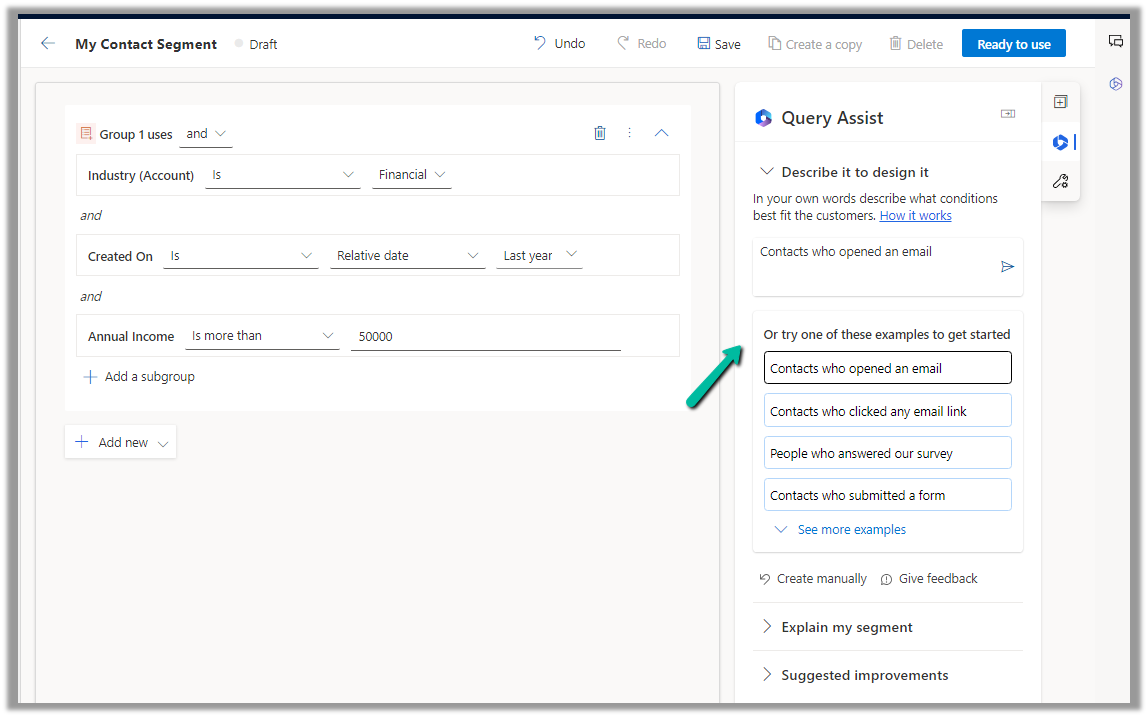
Now in Query Assist, we can specify the details of the segment

It also provides us the suggestions.

Let us select the “Contacts who were created last year and make more than $50K” option and append “who work in Financial Industry to it”.

Clicking on Create will open the segment designer page along with the Query Assist panel, which shows the result of the Query.

Click on Use to use that query result.

We can add further conditions to it.

Here we selected the example “Contact who opened an email

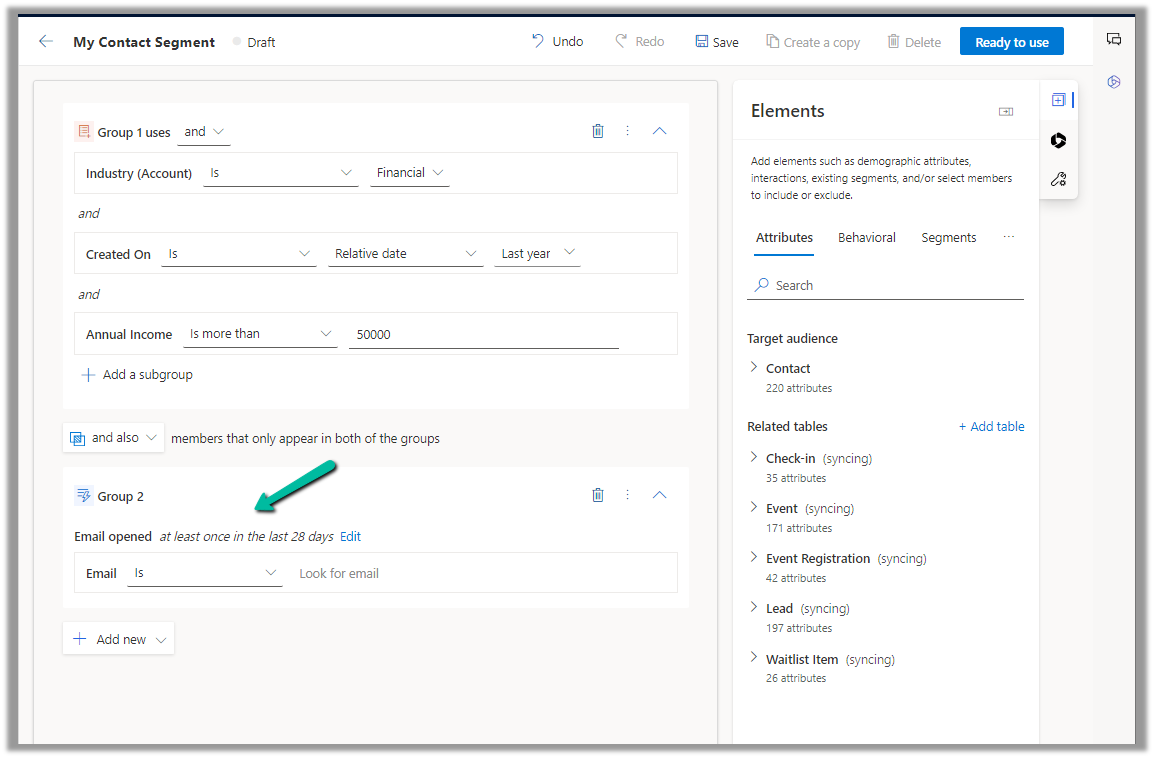
We can then add the result through the “Use” option

The query gets updated with the new condition

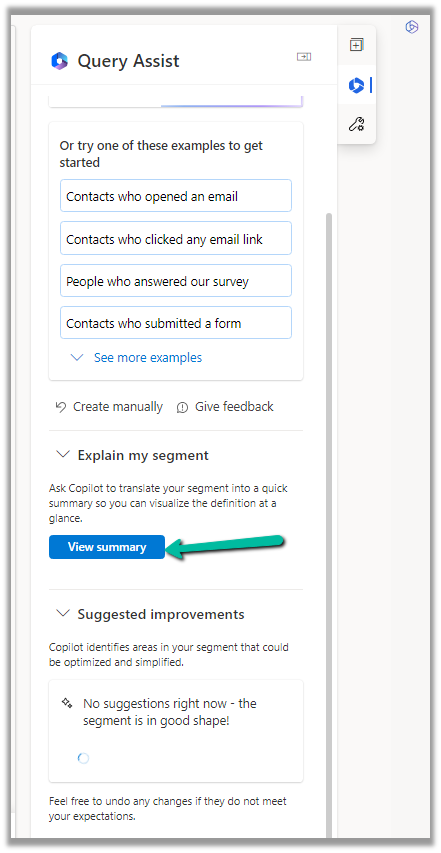
We also get the option to generate a summary for the segment or get suggestions for improving the segment.

Clicking on View Summary generates the summary.

Get all the details here

Hope it helps..

Advertisements

Fixed – This assets-oce.mkt.dynamics.com page can’t be found in Dynamics 365 Marketing


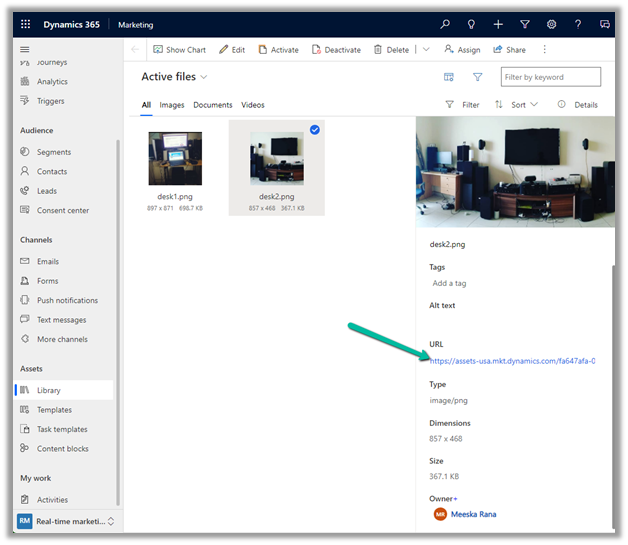
Recently we got the below error while trying to open the files in our Real-time marketing Assets Library.

We raised the Microsoft Support ticket for this and got the issue fixed.

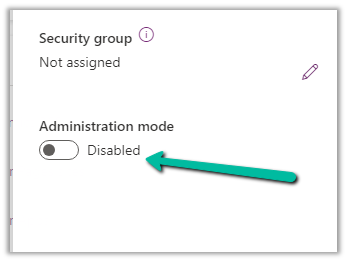
This was because our environment was in Admin mode. (as we were going live so had kept it in admin mode, till we verify it), and there are specific tasks related to processing marketing content, such as resizing image / optimizing image / etc. that requires some Async Service to run in the background which needs the environment to be in the non-admin mode.

Disabling the Admin mode for the environment fixed it.

Hope it helps..

Advertisements

Fixed – We can’t find the form page you’re trying to load – Dynamics 365 Marketing


Recently we saw the below error in one of our marketing forms hosted on the website –

We can’t find the form page you’re trying to load: <div data-editorblocktype=”FormBlock” data-form-block-id=”64d87bc7-279d-ed11-aad1-00224814fd52″></div>. Please check your page setup.


This occurs if the form is not Live.


Making the form “Go live” will fix the issue.


Hope it helps..

Advertisements

Fixed – The domain where this form is embedded might not be enlisted as a domain record for externally hosted forms in Dynamics 365 Marketing


Recently we were getting the below issue for our Marketing Forms hosted on an external website on a particular authenticated domain. The pages were working fine in other authenticated domains.

The domain where this form is embedded might not be enlisted as a domain record for externally hosted forms. Otherwise, a browser extension or plugin may be blocking this form from loading. Review and reload form to continue.”

This particular domain was also shown as authenticated in our Dynamics 365 marketing.

Our website was e.g. https://www.domain.kiwi/ so we had domain.kiwi authenticated in Dynamics 365 Marketing.

Eventually, we had to raise a Microsoft Support Ticket and were instructed to add/ authenticate www.domain.kiwi   (with www.) also, doing so resolved the issue for us.

Also, there seemed like a UI bug in the Marketing which will cut out “www.” automatically when trying to authenticate the domains.

Hope it helps..

Advertisements

Fix – Exception in creation of lead (Dynamics 365 Marketing)


We were getting this error in the submission of one of our outbound Marketing forms.

Activity id: e1ede147-efb6-457d-bc19-826c6176a2e4, Request id: jH7xRiEzGFTdZQTbE2fkh9_Z_WtjumCqJERuYZbGSL0_0, Exception: Entity ‘Contact’ With Id = 896b960d-c5d7-4c4d-95c7-a9e226afbf8e Does Not Exist

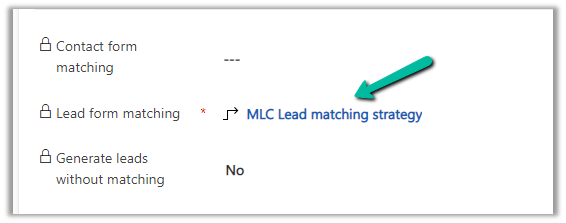
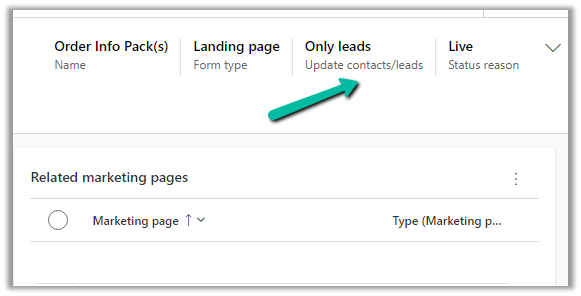
The form had only the Lead form matching defined and Only leads for Update contacts / leads.

So here because of some earlier multiple/different form submissions, a contact got created and stored in the browser’s cookie, which CRM was referring to, and trying to set a Parent Contact for the lead record even though we were having Only leads set for update contact/leads option.

This is the behavior of the product.

https://learn.microsoft.com/en-us/dynamics365/marketing/marketing-forms#createupdate-leads-only

The solution is to delete the cookie or try in incognito or in-private mode or a different browser, and it would work.

This would probably arise because while setting up marketing forms we would do multiple submissions with test data for testing.

Hope it helps..

Advertisements