Sample Code – Enable / Disable Plugin Step (sdkmessageprocessingstep) Dynamics 365 / Dataverse


Recently we had to disable plugin steps as part of data migration, below is the sample code we can use, either specify the name of the assembly, plugin, or plugin step as we are using the “begins with” condition or make changes as required.

 class Program
    {
        static void Main(string[] args)
        {

            const string ConnectionString = "AuthType = OAuth; " +
                                            "Username = Nishant.Rana@xyz.com; " +
                                            "Password = testxyz; " +
                                            "Url = https://orgname.crm6.dynamics.com;" +
                                            "AppId=51f81489-12ee-4a9e-aaae-a2591f45987d;" +
                                            "RedirectUri=app://58145B91-0C36-4500-8554-080854F2AC97;" +
                                            "LoginPrompt=Auto";


            CrmServiceClient svc = new CrmServiceClient(ConnectionString);

            if (svc.IsReady)
            {
                try
                {
                    // we can specify step / plugin / assembly name
                    var pluginStepAssemblyName = "MyD365.Plugins.Core.Plugin.AssignOwner";
                    // 0 for active and 1 for inactive
                    var pluginStateCode = 0;                   

                    var query = new QueryExpression("sdkmessageprocessingstep");
                    query.ColumnSet = new ColumnSet("name", "sdkmessageprocessingstepid");
                    query.Criteria.AddCondition(new ConditionExpression("name", ConditionOperator.BeginsWith, pluginStepAssemblyName));
                    var sdkMsgProcessStepCollection = svc.RetrieveMultiple(query);

                    foreach (var sdkMsgProcessStep in sdkMsgProcessStepCollection.Entities)
                    {
                        var setStateRequest = new SetStateRequest();
                        setStateRequest.EntityMoniker = new EntityReference("sdkmessageprocessingstep", sdkMsgProcessStep.Id);
                        setStateRequest.State = new OptionSetValue(pluginStateCode);
                        setStateRequest.Status = new OptionSetValue(-1);
                        svc.Execute(setStateRequest);
                    }
                }
                catch (Exception ex)
                {
                    Console.WriteLine("Exception Messainge : {0} ", ex.Message);
                }

            }
        }
    }

Hope it helps..

Advertisements

Fixed – 0x90000010 Can not retrieve view’s metadata (Dynamics 365)


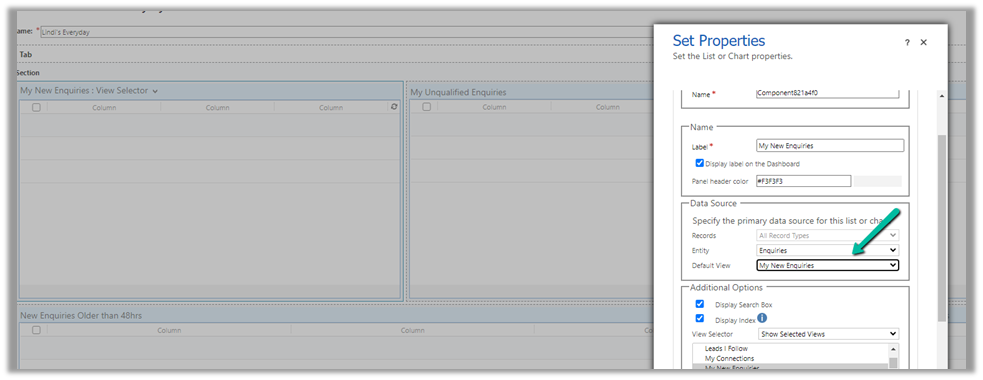
We were recently getting the below error in one of the views in the Dashboard.

0x90000010 Can not retrieve view’s metadata

The issue occurred because we had converted that Dashboard from a personal to System / Public Dashboard using the below wonderful XrmToolbox Plugin, https://www.xrmtoolbox.com/plugins/Carfup.XTBPlugins.PersonalViewsMigration/, which converted it to System Dashboard successfully, however, this was one of the personal views inside that dashboard.

So we converted that personal view to the system view (using the same tool) and then updated the Dashboard to refer to the converted system view, which fixed the issue.

Hope it helps..

Advertisements
Set DefaultSelectedItems of Combobox on App OnStart – Custom Page -Power Apps (Dataverse)


Recently in one of our custom pages, we had to set the default value (DefaultSelectedItems) of the combo box based on one of the lookup fields on the record. We were opening the custom page from the ribbon button on the form.

Below is our function to pass the record’s GUID to the custom page from the button.


    openSearchCustomPage: function (primaryControl, firstPrimaryItemId) {
        var pageInputCustom = {
            pageType: 'custom',
            name: 'custom_searchproduct_570ed',
            entityName: 'lead',
            recordId: firstPrimaryItemId
        };

        var navigationOptions = {
            target: 2,
            position: 1,
            width: 1350
        };

        Xrm.Navigation.navigateTo(pageInputCustom, navigationOptions).then(
            function success(result) {
                console.log(result);
            },
            function error(error) {
                console.log(error);
            }
        );
    }

Next in App’s OnStart, we are setting the GUID of the record to a variable first, and than setting another variable to store the GUID of the Region lookup field on that record.

// text variable passed by the form / webresource/ ribbon
Set(varEnquiryIdWithoutCurlyBraces,GUID(Substitute(Substitute(Param("recordId"),"{",""),"}","")));

// get the Region Of Interest from the Lead / Enquiry ID
// If value present use it for prefiltering the Gallery Items
Set(varRegionOfInterest,LookUp(Enquiries,Lead=varEnquiryIdWithoutCurlyBraces, 'Region of Interest'));

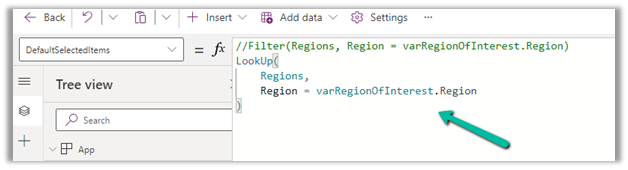
And lastly, for the combo box (Items = Region (custom table)), we are setting the DefaultSelectedItems as follows

LookUp(Regions,Region=varRegionOfInterest.Region)

We also tried using the Filter option, but it was giving incorrect values.

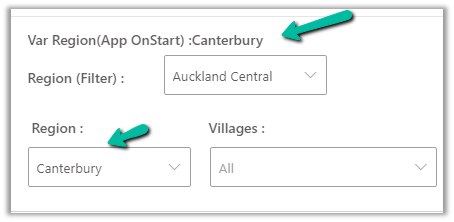
The value on the form –

The value in the Custom Page –

Correct value populated for combo box Region, and incorrect for the one using Filter formula

Hope it helps..

Advertisements

Fixed – Expected non-empty Guid while importing solution in Dynamics 365/ Dataverse


While trying to import the solution (patch), we were getting the below error.

“Expected non-empty Guid”

There was hardly any detail in the log file also

We tried removing the solution component one by one in our source environment and trying the import again in the target environment.

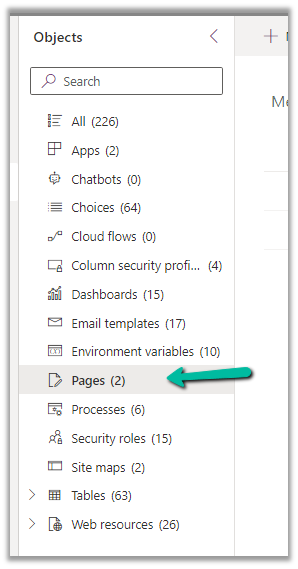
Eventually removing the Pages (custom page) allowed us to import the solution successfully into the target environment.

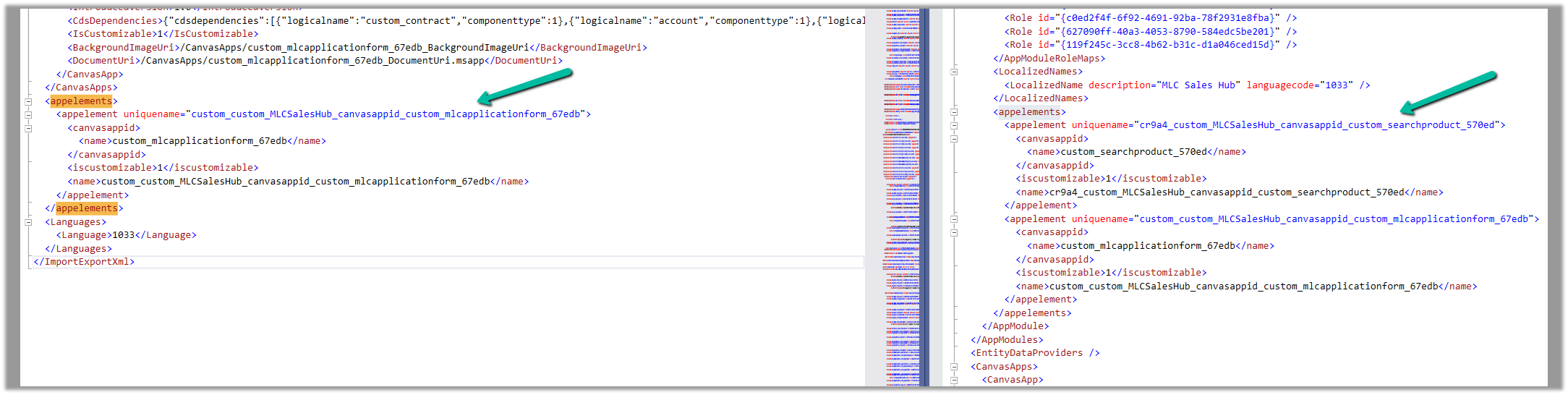
We then compared the customization.xml of the current solution with the backup solution of the Target and see the information missing in the current solution.

Left is – Current solution (giving error) and Right is the backup solution of the target.

Interestingly next time when we extracted the new patch after a couple of days, we could see the tag there and so no issues that time.

Hope it helps.

Advertisements

How to – set Calendar View to start the week from Monday – Dynamics 365


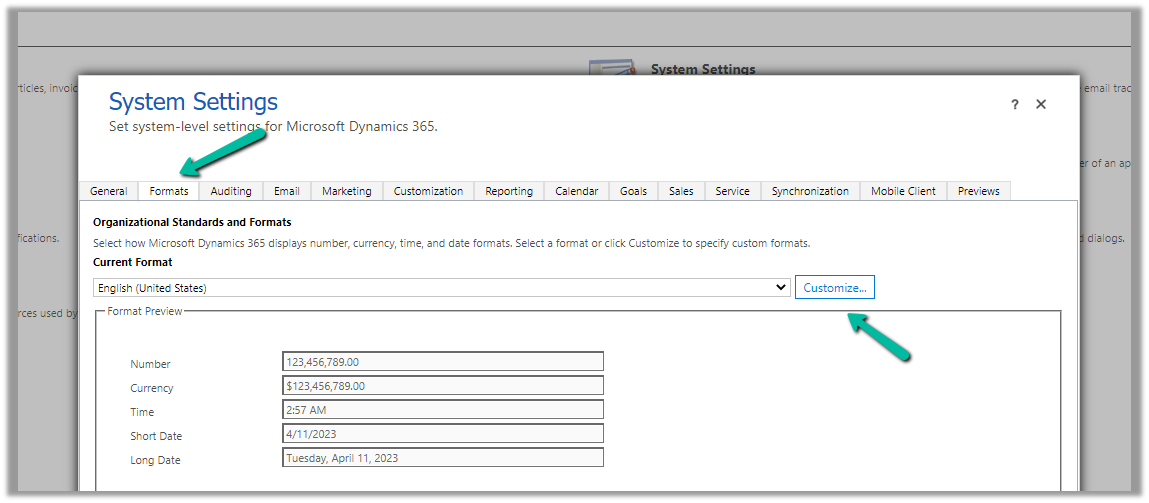
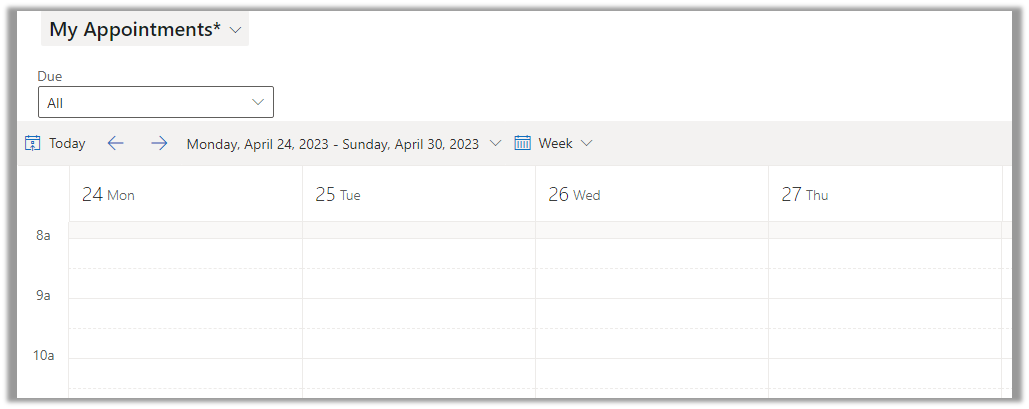
By default, if the calendar view is starting on Sunday for the week as shown below, we can update the system settings, to start it on Monday or any other day

From Administration >> System Settings > > Formats >> Customize (Current Format)

Specify the First Day of Week

On update, we can see the view updated to show the week starting from Monday.

Hope it helps..

Advertisements

Fix – Missing dependencies error while importing solution (Dynamics 365)


Recently while importing the solution in our UAT we got the below error –

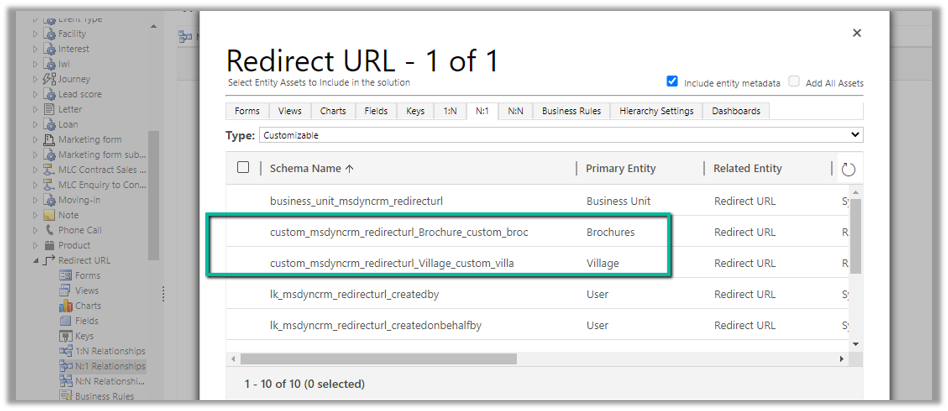
It was showing the above entity relationships missing in the solution. We could not find them inside the Power Apps Maker Portal, to add them in the source solution.

Interestingly enough we were able to find them from the classic solution explorer.

Adding them to the source solution and trying the import fixed the issue for us.

Hope it helps..

Advertisements