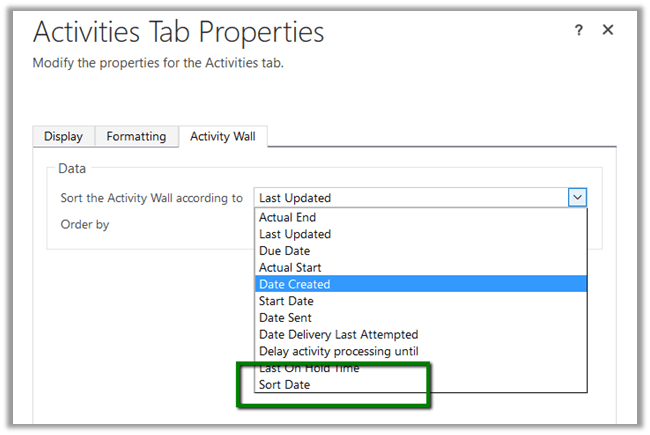
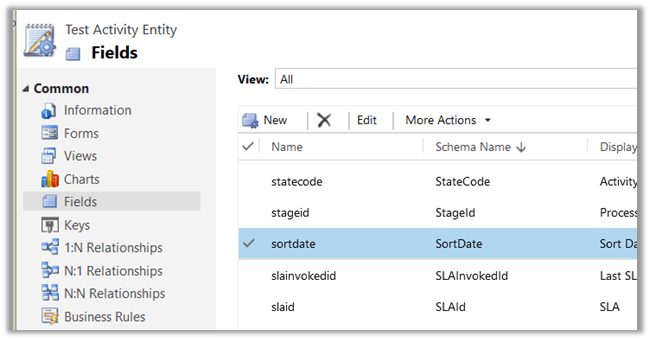
New Sort Date DateTime attribute added in Activity Entity in Dynamics 365.


A new SortDate attribute of type DateTime is added for Activity Entity (so basically to all child Task, Phone Call, Email activity etc.)

The value is null for it for the existing records and for the new record as well until we populate it through Business Rule, Plugin or any other method. The basic use could be to use it for sorting apart from OOB Modified on and Created on in View, Report, Chart as well as in Social Pane.

Check this awesome tip

http://crmtipoftheday.com/2016/11/15/change-the-default-order-of-activities-on-the-social-pane/

I remember while working in Oracle CRM On Demand project, where in we can add fields to the base Activity Entity and it would be available in all the child Activity entities. However, in Dynamics CRM the Activity Entity has always been locked i.e. we can’t add new fields in it.

Now what if we create a new custom activity entity?

Yes the field will be available in new custom activity entity as it would derive from the baes Activity Entity to which this new field has been added.

Hope it helps..

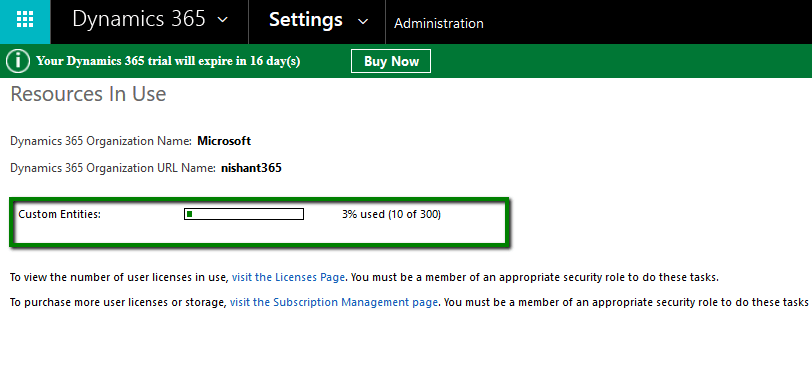
Resources in Use -300 Custom Entities Limit in Dynamics 365 (online)


Hi,

Till CRM 2015 update 1, we had upper limit of 200 Workflows, 300 Dialogues and 300 Custom Entities. From CRM 2015 Update 1 onwards, the limit of workfows, dialogues and custom entities have been removed.

In Dynamics 365 Online we can still see information related to custom entities which shows upper limit as 300. However this is more of indicative and there is no upper limit now. Please refer the below link for more details

https://technet.microsoft.com/en-us/library/88b18946-474c-4c94-8e4c-27532f930757?f=255&mspperror=-2147217396#Anchor_4

Go to Settings –> Administration –> Resources in Use

riu

Hope it helps..

Cleared MB2-712 Microsoft Dynamics CRM 2016 Customization and Configuration


Hi,

Today i cleared MB2-712 certification exam. It had 48 Questions in it with passing score 0f 700.

I referred to the following guide for my preparation by CRM MVP Neil Parkhurskt

https://neilparkhurst.com/2016/07/14/mb2-712-certification-microsoft-dynamics-crm-2016-customization-and-configuration-revision-guide/

Hope it helps..

Sample code to connect to Dynamics 365 Online through Console App (C#)


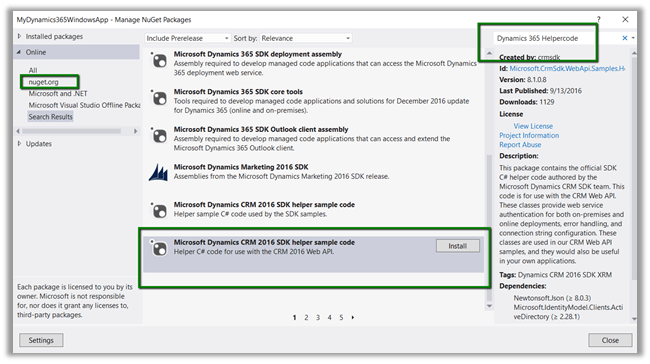
  • Create a console application add Newtonsoft and Active Directory Authentication Library. Or we can add the below Helper Sample Code package which will add the above libraries.
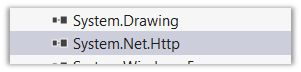
  • Add reference to System.Net.Http

  • Register the app

https://nishantrana.wordpress.com/2016/11/13/register-a-dynamics-365-app-with-azure-active-directory/

  • Sample Code

using System;
using System.Net.Http;
using System.Net.Http.Headers;
using System.Threading.Tasks;
using Microsoft.IdentityModel.Clients.ActiveDirectory;
using Newtonsoft.Json;
using Newtonsoft.Json.Linq;

namespace Dynamics365ConsoleApp
{
internal class Program
{
// username and password
private const string UserName = "sapnarana@nishant365.onmicrosoft.com";
private const string Password = "mypassword";
// Crm Url
private const string Resource = "https://nishant365.crm8.dynamics.com";
// Application's Client Id
private const string ClientId = "d08b641c-2dc8-4f33-8a57-b1573da88a22";
// Redirct Uri specified during registration of application
private const string RedirectUri = "http://localhost";
// Authroiztion Endpoint
private const string Authority = "https://login.windows.net/nishant365.onmicrosoft.com";

private static AuthenticationResult _authResult;

private static void Main(string[] args)
{
// without prompt
var authContext = new AuthenticationContext(Authority, false);
var credentials = new UserCredential(UserName, Password);
_authResult = authContext.AcquireToken(Resource, ClientId, credentials);

// with prompt
AuthenticationContext authContext = new AuthenticationContext(authority);
authResult = authContext.AcquireToken(resource, clientId, new Uri(redirectUri));

Task.WaitAll(Task.Run(async () => await GetFullNameSystemUsers()));
}

private static async Task GetFullNameSystemUsers()
{
var httpClient = new HttpClient
{
BaseAddress = new Uri(Resource),
Timeout = new TimeSpan(0, 2, 0)
};
httpClient.DefaultRequestHeaders.Add("OData-MaxVersion", "4.0");
httpClient.DefaultRequestHeaders.Add("OData-Version", "4.0");
httpClient.DefaultRequestHeaders.Accept.Add(new MediaTypeWithQualityHeaderValue("application/json"));
httpClient.DefaultRequestHeaders.Authorization = new AuthenticationHeaderValue("Bearer",
_authResult.AccessToken);

var retrieveResponse =
await httpClient.GetAsync("api/data/v8.1/systemusers?$select=fullname");
if (retrieveResponse.IsSuccessStatusCode)
{
var jRetrieveResponse =
JObject.Parse(retrieveResponse.Content.ReadAsStringAsync().Result);

dynamic systemUserObject = JsonConvert.DeserializeObject(jRetrieveResponse.ToString());

foreach (var data in systemUserObject.value)
Console.Write(data.fullname.Value);
}
}
}
}

For in depth understanding please refer the following post

https://debajmecrm.com/2016/02/23/understanding-in-depth-cross-origin-resource-sharing-cors-in-dynamics-crm-2016/

Hope it helps..

Register a Dynamics 365 app with Azure Active Directory


  • Sign in to Microsoft Azure Management Portal or Sign up for a free trial. The account should be in the same Office 365 tenant where we would like to register the app. (or link existing Azure Subscription not in same tenant as CRM)

https://manage.windowsazure.com/

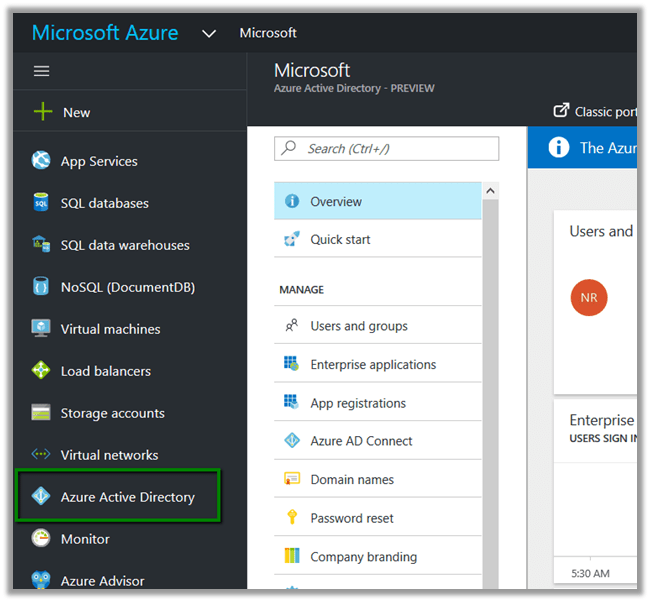
  • Inside Azure Management Portal select Azure Active Directory

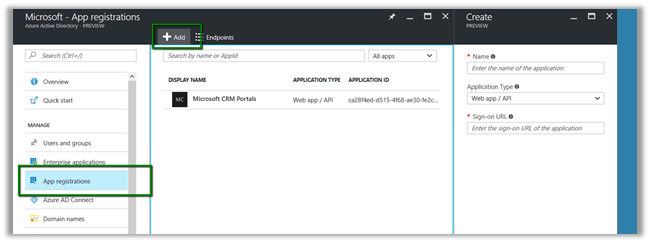
  • Select App registrations and click Add

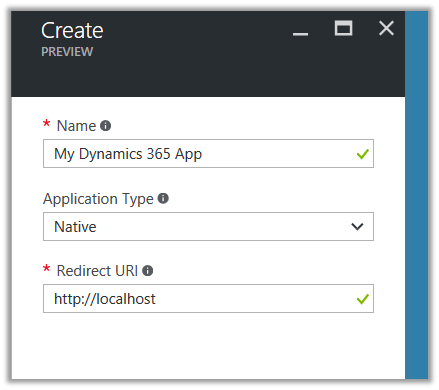
  • Provide required details for the App and click Create

  • Select the App created to get the required details

  • To give permission to App to access Dynamics CRM, click on Required Permissions in API Access section

  • Click on Add

  • Select Dynamics CRM Online

We’d get the notifications.

  • Along with Client id we would also need Authorization Endpoint, when we develop App.

Hope it helps..

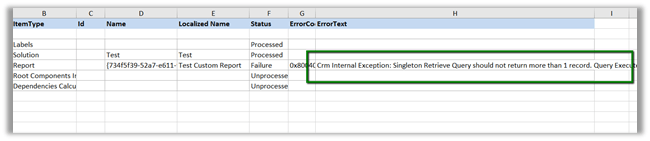
Crm Internal Exception: Singleton Retrieve Query should not return more than 1 record. Query: System.Data.SqlClient.SqlCommand while Importing Solution in Dynamics 365 \CRM 2016 or earlier.


Hi,

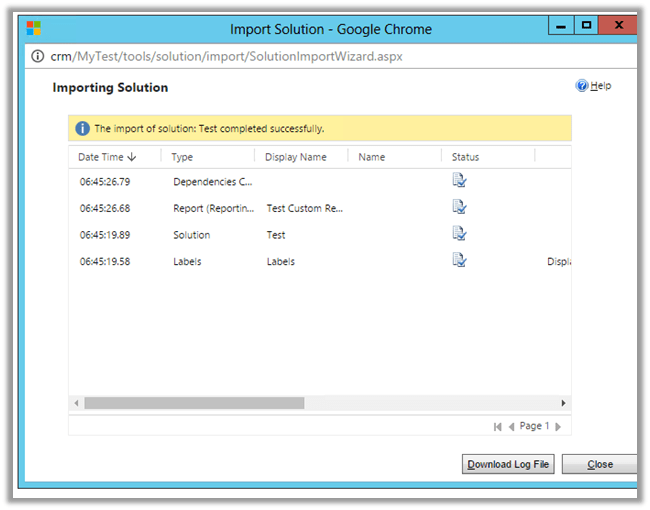
While using “Apply Solution Upgrade” or Import in our Test Instance having managed solution, we got the below error.

The Managed solution had the report set as Viewable By = Organization (we cannot have Individual report in Solution) when it was deployed first. And later the user had set the report to be as Individual manually.

Changing the report back to Organization in TEST and importing the solution again fixed the issue.

Hope it helps..