Customizing Business Process Flows: Stage Validation Using JavaScript (Dynamics 365 / Dataverse)


Business Process Flows (BPF) in Dynamics 365 offer a structured way to guide users through a defined process. However, there are scenarios where progression to the next stage must be validated against specific business rules. In this blog, we see how to implement custom validations on stage progression using JavaScript.

Let us take a simple scenario where a Lead can only progress to the next stage of a BPF if

Lead Quality = Hot and Lead Source = Web

If these conditions are not met, users will receive a notification, and the stage change will be prevented.

Below is the sample code


function OnLoad(executionContext)
{
 var formContext = executionContext.getFormContext();
 formContext.data.process.addOnPreStageChange(validateStageProgression);
}


function validateStageProgression(executionContext)
{
	    var bpfSampleStage = "6e2b5d9e-da30-4a47-8ca9-d75c24fd51f4";
        var formContext = executionContext.getFormContext();
		var rating = formContext.getControl('header_process_leadqualitycode').getAttribute().getValue();
		var leadSource = formContext.getControl('header_process_leadsourcecode').getAttribute().getValue();
		var stageObj = formContext.data.process.getActiveStage();
        var stageId = stageObj.getId();
		var requiredFieldErrorId = "contractValidationNotificationId";
        formContext.ui.clearFormNotification(requiredFieldErrorId);
		
		if(stageId)
		{
			 if (stageId.toLowerCase() === bpfSampleStage)
			 {
				  if (executionContext.getEventArgs().getDirection() === "Next") 				  
				{
                    executionContext.getEventArgs().preventDefault();
					if(rating == 1 && leadSource == 8) // rating = Hot and Source = Web
					{
						formContext.data.process.removeOnPreStageChange(validateStageProgression);
                        formContext.data.process.moveNext();
					}	
					else
					{
						notificationMessage = "Cannot move to the next stage until conditions are met !";
						formContext.ui.setFormNotification(notificationMessage, "ERROR", requiredFieldErrorId)
					}
				}
			 }
		}
}

The addOnPreStageChange method registers the validation function on the form’s load event to monitor stage changes.

The preventDefault() method stops the stage transition if the conditions are not met, ensuring data integrity.

If the validation fails, an error notification is displayed using the setFormNotification() method, guiding users to correct the data.

Upon satisfying the conditions, moveNext() is invoked programmatically to move the process to the next stage.

As shown below, clicking on Next as rating and lead source values do not satisfy the condition, we can see the notification on the form and the user is not able to move to the next stage.

Also check – https://nishantrana.me/2024/10/09/use-javascript-to-enable-a-field-only-if-the-stage-is-active-in-business-process-flow-dynamics-365-dataverse/

https://nishantrana.me/2024/10/10/use-javascript-to-add-onchange-event-to-a-field-in-the-business-process-flow/

https://nishantrana.me/2024/10/23/javascript-for-fields-in-business-process-flow-few-key-points-dataverse-dynamics-365/

Hope it helps..

Advertisements

JavaScript for fields in Business Process Flow (few key points)– Dataverse / Dynamics 365


Suppose we have the following fields in the form as well as in the business process flow stage for the lead.

  • Rating and Email in the form.
  • Rating 1, Rating 2, and Email in the BPF.
A screenshot of a computer

Description automatically generated

And let us apply the below JavaScript on the form load.

A screenshot of a computer code
Description automatically generated

On opening the lead form below is the result we get.

formContext. getControl(“leadqualitycode”).setVisible(true);

Sets the Rating field visible on the form.

formContext. getControl(“header_process_leadqualitycode”).setVisible(false);

Hides the Rating 1 field on the BPF.

formContext.getControl(“header_process_leadqualitycode_1”).setVisible(true);

Set the Rating 2 field visible on the BPF.

As the getControl method is used to show or hide the field it only applies to the field being referenced. That is why we only have the Rating 1 field on the BPF being hidden.

formContext. getAttribute(“leadqualitycode”).setRequiredLevel(“required”);

Set the Rating field on the form as mandatory.

formContext.getControl(“header_process_leadqualitycode_1”). getAttribute().setRequiredLevel(“none”);

Set the Rating 2 field in BPF as non-mandatory

We are setting the Rating field on the form as mandatory, in the next line we are setting the Rating 2 field on the BPF as non-mandatory, the final result is Rating field is non-mandatory on the form as well because here getAttribute method is used which applies to the attribute level so gets applied to all its corresponding controls.

formContext.getAttribute(“leadqualitycode”).setValue(3)

Set the Rating field on the form’s value to Cold

As getAttribute is being used the value set for the Rating field on the form applies to the field in the BPF also.

formContext. getControl(“header_process_leadqualitycode_1”).setDisabled(true);

Set the Rating 2 BPF field as disabled.

As getControl is used it only applies/disables the Rating 2 field on the BPF.

formContext.getControl(“header_process_emailaddress1”). getAttribute().setValue(“test@test.hotmail.com”);

Set the value of the Email address field on the form.

As getAttribute is being used the value set for the Email field on the BPF also applies to the field on the form.

formContext.getControl(“header_process_leadqualitycode_1”). getAttribute().addOnChange(function () { var lastNameValue = formContext.getAttribute(“lastname”).getValue(); if (lastNameValue) { alert(“Hello, ” + lastNameValue + “!”); } else { alert(“Hello World!”); } });

Adds the on-change event to the Rating 2 field on the BPF.

As getAttribute is being used the on-change event handler is applied to both the fields on the form as well as field.

Check other posts on BPF –

https://nishantrana.me/2024/10/09/use-javascript-to-enable-a-field-only-if-the-stage-is-active-in-business-process-flow-dynamics-365-dataverse/

https://nishantrana.me/2024/10/10/use-javascript-to-add-onchange-event-to-a-field-in-the-business-process-flow/

Hope it helps..

Advertisements

Use JavaScript to add onchange event to a field in the Business Process Flow


Let us continue our previous post, here we will update the script to add an onchange event to the Identify Sales Team field in the Business Process Flow. Based on the value selected we will make the Develop Proposal field mandatory.

A screenshot of a computer

Description automatically generated

Below is the code we need to add for it.

A screen shot of a computer program

Description automatically generated
function OnLoad(executionContext)
{
	 var formContext = executionContext.getFormContext();
	 formContext.data.process.addOnStageChange(CheckStageAndToggleFieldBPF);
	 CheckStageAndToggleFieldBPF(executionContext);
}

 function CheckStageAndToggleFieldBPF(executionContext) {

        var formContext = executionContext.getFormContext();     
        var activeStage = formContext.data.process.getActiveStage();
        var activeStageId = activeStage.getId();		
        var stagePropose = "3a275c22-fc45-4e89-97fc-41e5ec578743";
     
        if (activeStageId.toLowerCase() === stagePropose) {          
                formContext.getControl("header_process_identifypursuitteam").setDisabled(false);                 
        }
        else {
            formContext.getControl("header_process_identifypursuitteam").setDisabled(true);
        }    

		formContext.getControl("header_process_identifypursuitteam").getAttribute().addOnChange(function(executionContext) {

                if (formContext.getControl("header_process_identifypursuitteam").getAttribute().getValue()) 
				{
                    formContext.getControl("header_process_developproposal").getAttribute().setRequiredLevel("required");
                }
                else 
				{
                    formContext.getControl("header_process_developproposal").getAttribute().setRequiredLevel("none");
                }
            });
  }


We can add it to the field if it is in the form also, that will also work the same. However, if we do not have the field on the form we need to add it to the field on the BPF.

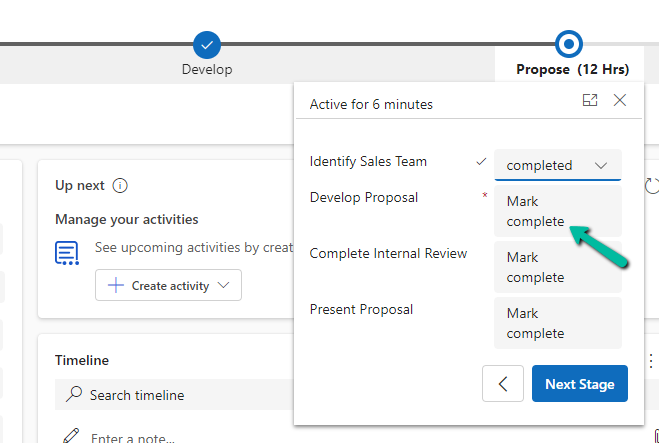
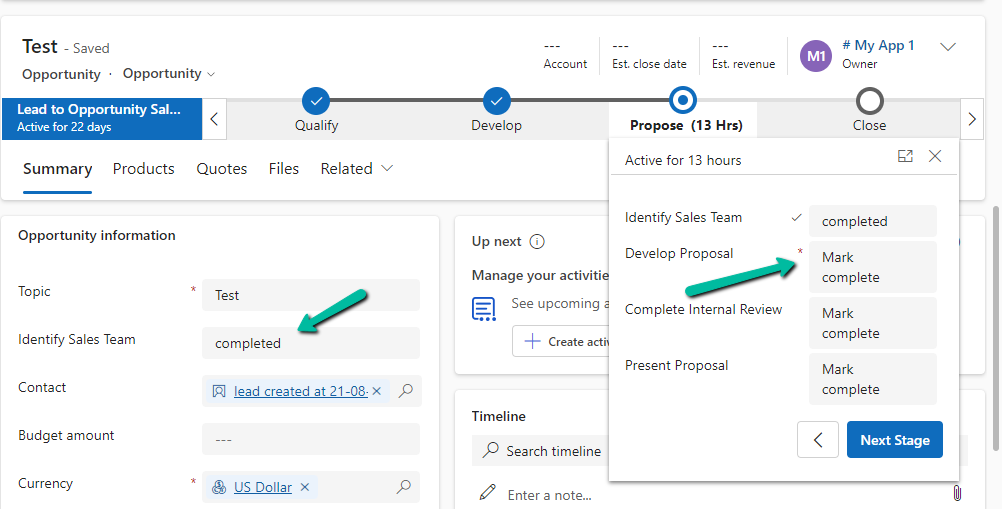
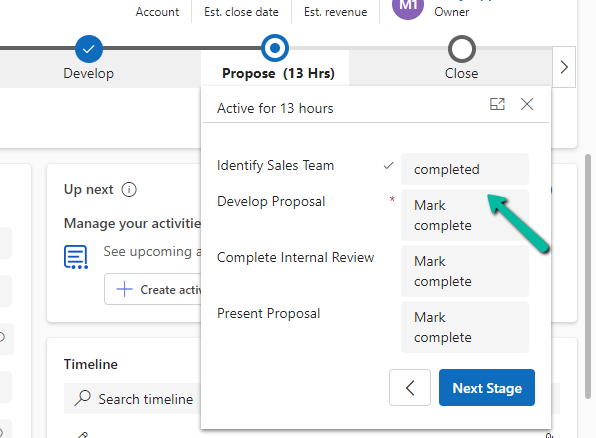
On selecting the value completed for Identify Sales Team, we can see the Develop Proposal field being set as mandatory.

A screenshot of a computer

Description automatically generated
A screenshot of a computer

Description automatically generated

Later if we add the same field on the form, or into another stage of the BPF, the onchange event will apply and work for them.

For the field on the form –

A screenshot of a computer

Description automatically generated

Same field in another stage –

A screenshot of a computer

Description automatically generated
A screenshot of a computer screen

Description automatically generated

Hope it helps..

Advertisements

Use JavaScript to enable / disable a field only if the Stage is Active in Business Process Flow – Dynamics 365 / Dataverse


Recently we had a requirement to set some of the fields in our business process flow to be enabled only if that stage is active.

E.g. We want to Identify Sales Team field to be Enabled only if the Propose stage is active, else we want to set it as read-only.

A screenshot of a computer

Description automatically generated

We can use the below JScript to achieve the same.

A screen shot of a computer program

Description automatically generated

Because the Propose stage is Inactive we have Identify Sales Team as read only.

A screenshot of a computer

Description automatically generated

On moving to the Propose stage, we can see the field being enabled back.

A screenshot of a computer

Description automatically generated

The key steps are –

In the onload of the form associate your function/logic to the OnStage change method of the Process object.

formContext.data.process.addOnStageChange(CheckStageAndToggleFieldBPF);

Next, check for the active stage ID.

Here to get the active stage ID, open the business process flow and get its Guid.

A computer screen with a green arrow pointing to a black box

Description automatically generated

Then using the awesome SQL4CDS XrmToolBox plugin get the Guid of the particular stage.

A screenshot of a computer

Description automatically generated
function OnLoad(executionContext)
{
	 var formContext = executionContext.getFormContext();
	 formContext.data.process.addOnStageChange(CheckStageAndToggleFieldBPF);
	 CheckStageAndToggleFieldBPF(executionContext);
}

 function CheckStageAndToggleFieldBPF(executionContext) {

        var formContext = executionContext.getFormContext();     
        var activeStage = formContext.data.process.getActiveStage();
        var activeStageId = activeStage.getId();		
        var stagePropose = "3a275c22-fc45-4e89-97fc-41e5ec578743";
     
        if (activeStageId.toLowerCase() === stagePropose) {          
                formContext.getControl("header_process_identifypursuitteam").setDisabled(false);                 
        }
        else {
            formContext.getControl("header_process_identifypursuitteam").setDisabled(true);
        }       
  }
select processidname,stagename, processstageid  from processstage 
where processid = '919E14D1-6489-4852-ABD0-A63A6ECAAC5D'

Also if we have the same fields used in multiple places / stages in the Business Process Flow, we will have the suffix added to the fields, so we need to refer the field appropriately in our script.

  • header_process_identifypursuitteam
  • header_process_identifypursuitteam_1
  • header_process_identifypursuitteam_2

Also check – https://www.c-sharpcorner.com/blogs/options-for-locking-field-on-business-process-flow

Hope it helps..

Advertisements

Business Process Flow UI Improvement in Dynamics 365 / CRM


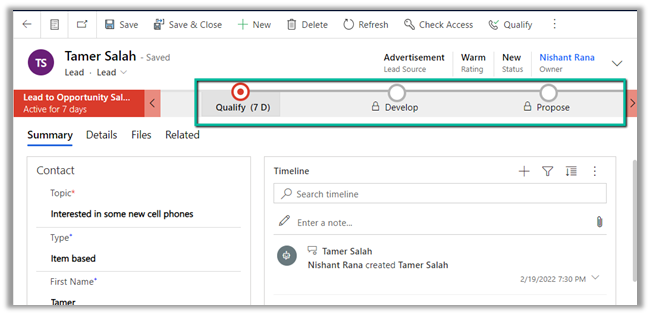
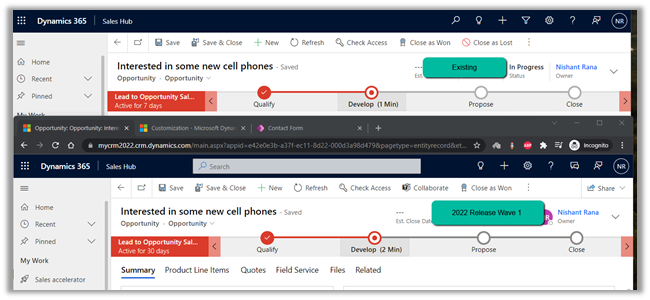
With 2022 Release Wave 1, we have a small enhancement in the user interface inside the BPF path line’s color contrast.

With 2022 Release Wave 1 turned off

With 2022 Release Wave 1 – the path that needs to be followed is shown now in a slightly darker shade,

making it easy for an agent to understand the stages to be followed in the business process flow.

Hope it helps..

Advertisements

New addOnStageSelected and addOnStageChange method for process in CRM 2015.


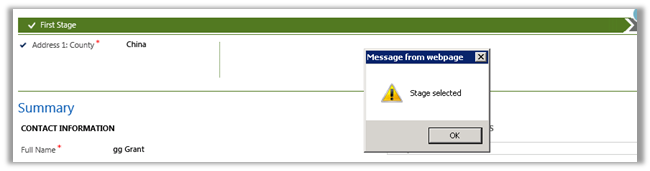
Using addOnStageSelected and addOnStageChange method of Xrm.Page.data.process we can add function to trigger when a Stage in selected in the form or when the stage changes.


Clicking on a different stage


Clicking on a Next Stage


We can also use movePrevious() and moveNext() to move within the Process.