Read blob file from Microsoft Azure Storage with .NET Core


briancaos's avatarBrian Pedersen's Sitecore and .NET Blog

UPDATE 2021-06-29: Microsoft have change the approach to storage accounts. Read the new way here: Read and Write blob file from Microsoft Azure Storage with .NET Core.

In order to read a blob file from a Microsoft Azure Blob Storage, you need to know the following:

  • The storage account connection string. This is the long string that looks like this:
    DefaultEndpointsProtocol=https;
    AccountName=someaccounfname;
    AccountKey=AVeryLongCrypticalStringThatContainsALotOfChars==
  • The blob storage container name. This is the name in the list of “Blobs”.
  • The blob file name. This is the name of the blob inside the container. A file name can be in form of a path, as blobs are structured as a file structure inside the container. For ecample: folder/folder/file.extension

You also need this NuGet package:

Windows.Azure.Storage

The code is pretty simple:

The usage is equally easy:

MORE TO READ:

View original post 7 more words

How to – Use Script Component to Upload files to File Column / Attribute in SSIS – KingswaySoft (Dynamics 365 / CRM)


A few weeks back had posted on how to upload files to the File Column type field using KingswaySoft’ s Integration Toolkit and Premium Flat File Source and Premium Derived column which are part of the SSIS Productivity Pack of KingswaySoft

https://nishantrana.me/2022/03/17/how-to-upload-files-from-file-column-attribute-using-ssis-kingswaysoft-dynamics-365-crm/

Here we will see an example of achieving the same without using the KingswaySoft Productivity Pack’s Premium Flat File Source and Derived column. (although would recommend using it as it includes over 300 premium components making it easier to rapidly build efficient solutions for different scenarios)

https://www.kingswaysoft.com/products/ssis-productivity-pack

Here we will be using Script Component to read the file from the path and convert it to DT_IMAGE.

Below is our source file

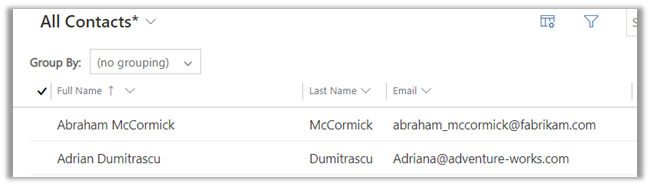
The contact records in CRM

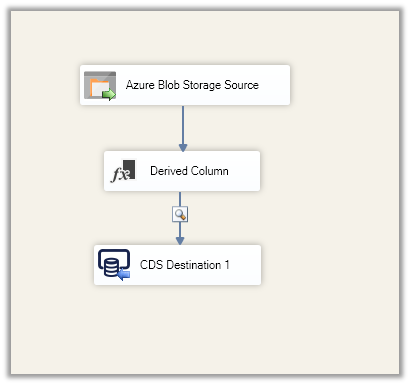
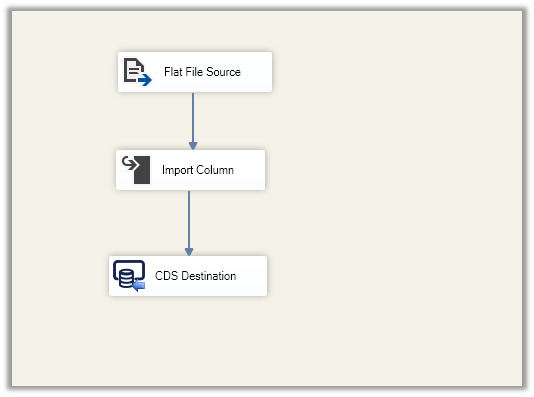
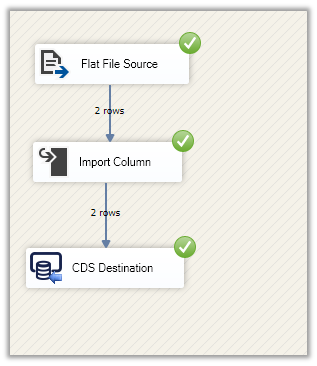
Below is how the package looks like

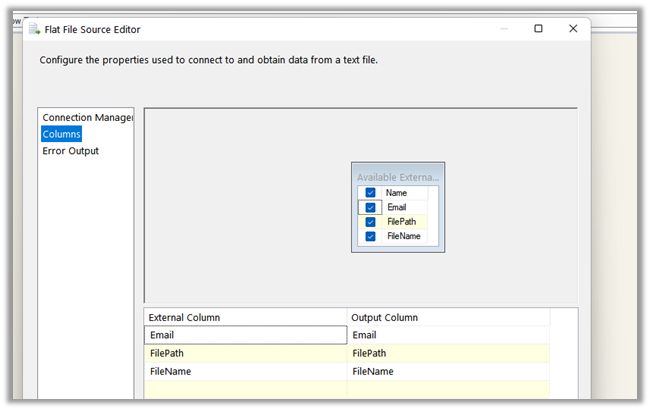
The Flat File Source points to the location where we have the source CSV file containing email, file path, and file name.

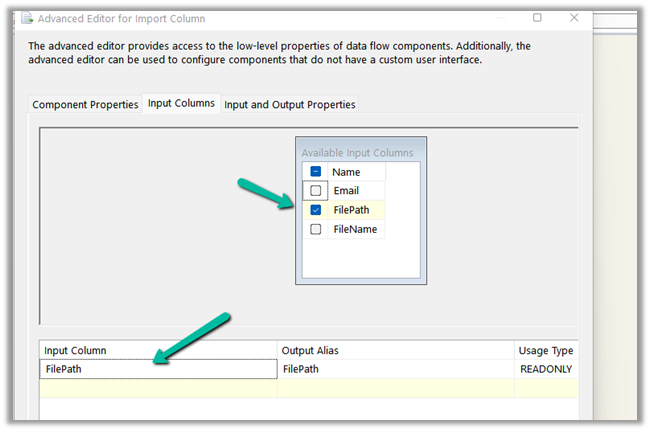
Script Component has File Path and File Name as the input.


Add a column using Add Column in the Output Columns, with Data Type as image [DT_IMAGE]


Click on Edit Script..

Add the below code to read the bytes from the file path and add it to the output column.

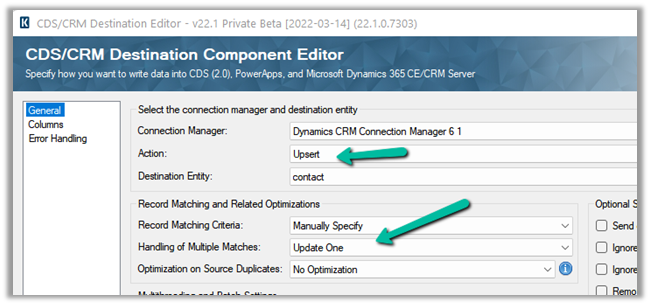
Finally, in the CDS / CRM Destination Component, we are performing an upsert using the Email id as a match.

Here we have mapped the output column of the Import Column i.e. DerviedFileContent to the binary content field of the file type attribute of the CRM.

Let us now run the package.

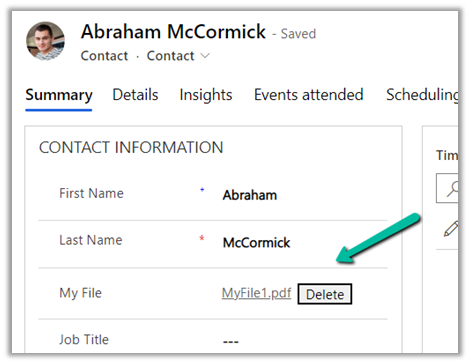
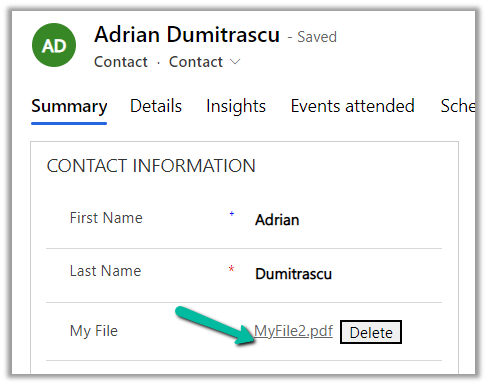
Let us now open the records and check.

As expected we can see the file uploaded.

Also, check out –

To extract attachments from notes-https://nishantrana.me/2021/02/10/extracting-attachments-from-notes-in-dynamics-365-dataverse/

To download files using Download Block Requesthttps://nishantrana.me/2022/03/14/how-to-download-file-from-file-column-using-initializefileblocksdownload-and-downloadblock-request-dynamics-365-crm-dataverse/

To upload files using Upload Block Requesthttps://nishantrana.me/2022/03/15/how-to-upload-file-to-file-column-using-initializefileblocksupload-and-uploadblock-request-dynamics-365-crm/

Understand File and Image Data Typehttps://nishantrana.me/2021/10/01/using-file-and-image-data-type-in-dataverse-dynamics-365/

Try out the wonderful, feature-rich, and powerful SSIS Integration Toolkit for Dynamics 365 by KingswaySofthttps://www.kingswaysoft.com/products/ssis-integration-toolkit-for-microsoft-dynamics-365/download

Check other articles on SSIS plus CRM – https://nishantrana.me/2018/11/26/ssis-and-microsoft-dynamics-365/

Hope it helps..

Advertisements

Dynamics CRM: To Set or Not To Set MaxConnectionTimeOut CrmServiceClient?


temmyraharjo's avatarTemmy Wahyu Raharjo

Do you ever wonder when usingCrmServiceClient, why there is a setting for extending theMaxConnectionTimeOut? In my current company, I have faced a timeout issue when CRM processExecuteMultipleRequestthat contains 1000 of data. One thing that I know based on the return error, by default, when we are usingCrmServiceClient, the default timeout is set for 2 minutes. And because of this, here is the result of my investigation.

For my investigation, I created a plugin with this below logic (to wait for 3 minutes to trigger Dynamics CRM Plugin timeout) and register it in theMessage: UpdateandStage: PreOperation:

using Microsoft.Xrm.Sdk;
using System;
using System.Threading;
namespace DemoPlugin
{
    public class Plugin1 : IPlugin
    {
        public void Execute(IServiceProvider serviceProvider)
        {
            Thread.Sleep(TimeSpan.FromMinutes(3));
        }
    }
}

Then I created a simple exe program that will update the same data for 5 times and using ExecuteMultipleRequest

View original post 855 more words

How to – use Associate Entities and Disassociate Entities Event in Audit to check Security Roles changes in Dynamics 365


Let us assign the System Customizer role to the user John Denver save it and then remove the same.

Let us check the Audit records generated for it.

We can see 2 records with event Associate Entities and Disassociate Entities with security role name – System Customizer created in the Audit Summary View as shown below.

Here the entity will be Security Role.

Let us assign 2 more roles to the user.

As expected we can see 2 records, with event Associate Entities.

Now let us see what happens when we update the Business Unit of the user. If you remember, assigning a new business unit removes all the existing security roles of the user.

Well this can be controlled now through DoNotRemoveRolesOnChangeBusinessUnit
setting – https://nishantrana.me/2022/01/05/how-to-change-users-business-unit-without-removing-the-security-roles-in-dynamics-365-powerapps-enableownershipacrossbusinessunits-setting/

Here we have changed the business unit of user 2, he had salesperson, system administrator, and system customizer roles assigned.

We can see the business unit change is recorded.

From Audit History of the user record – we can check all the Associate Entities and Disassociate Entities record that will give us the details of the previous Security Roles user was having before the Business Unit change.

sr


Other related Audit articles –

Hope it helps..

Advertisements

Identify entities with same names in Dataverse Power Automate connector | [Quick Tip]


priyeshwagh777's avatarD365 Demystified

Often times, while using Power Automate with Dataverse, you may have come across scenarios where it was difficult to identify the entities with same names.

Scenario

When trying to pick entities with same names, like Attachments, so we don’t need to guess when you can confirm.

Peek Code

So, you can use Peek Code to take a look at the entity name i.e. the backend name of the entity which you have picked –

  1. Click on the 3 dots on the action, and select Peek Code.
  2. And as you can see, you can identify which entity is selected with the same name. You’ll need to know the correct backend name which you intend to select.
    activitymimeattachments

    attachments

I also suggest this is useful when picking other options elsewhere. Do let me know in the comments below as to where all you applied this. 😊

Hope this…

View original post 175 more words

How to – Change the display name of user in Microsoft 365


Recently we had to update the display name of one of the users.

Below are the steps to achieve the same –

Login to Microsoft 365 admin center with System Administrator account.

Navigate to Active Users

Select the user, click on ellipsis () and select Manage Contact Information

Edit the details and click on Save changes.

After successful update.

We can see the display name changed for the user and the same reflected at other places immediately.

Hope it helps..

Advertisements